'%20d='M0%208a8%208%200%200%201%208-8h24a8%208%200%200%201%208%208v24a8%208%200%200%201-8%208H8a8%208%200%200%201-8-8V8Z'/%3e%3cpath%20fill='%23fff'%20d='M8.375%2013v14L20.5%2034l12.124-7v-7.737l-1.687-.975-2.806-1.62-1.082-.624v4.83l-.002%204.83H13.95V16.07l3.275-1.89%202.192-1.265%201.082-.625%203.275%201.877%202.192%201.256%201.083.62V9.782L20.5%206%208.376%2013Z'/%3e%3cdefs%3e%3clinearGradient%20id='reapit-pm__a'%20x1='20.702'%20x2='20.702'%20y1='.351'%20y2='31.228'%20gradientUnits='userSpaceOnUse'%3e%3cstop%20stop-color='%235573FD'/%3e%3cstop%20offset='.575'%20stop-color='%234E56EA'/%3e%3c/linearGradient%3e%3c/defs%3e%3c/svg%3e)
Inspection Fee
This article will guide you creating and managing inspection fees in Reapit PM. The processes in this article include: How to Set up an Inspection Fee How to Enable the Inspection Fee Charging the Inspection Fee
Overview
Inspection Fee
This article will guide you creating and managing inspection fees in Reapit PM.
Users have the ability to set up and charge an inspection fee. You can set up one or more fees for all inspection types, Entry, Routine and Exit.
All fees will be presented when you close the inspection to ensure you can charge the correct amount.
The processes in this article include:
- How to Set up an Inspection Fee
- How to Enable the Inspection Fee
- Charging the Inspection Fee
How to Set up an Inspection Fee
Before setting up a fee, you need to set up a dissection for that fee. To set up an Inspection Fee expense, please follow the dissection knowledge base article.
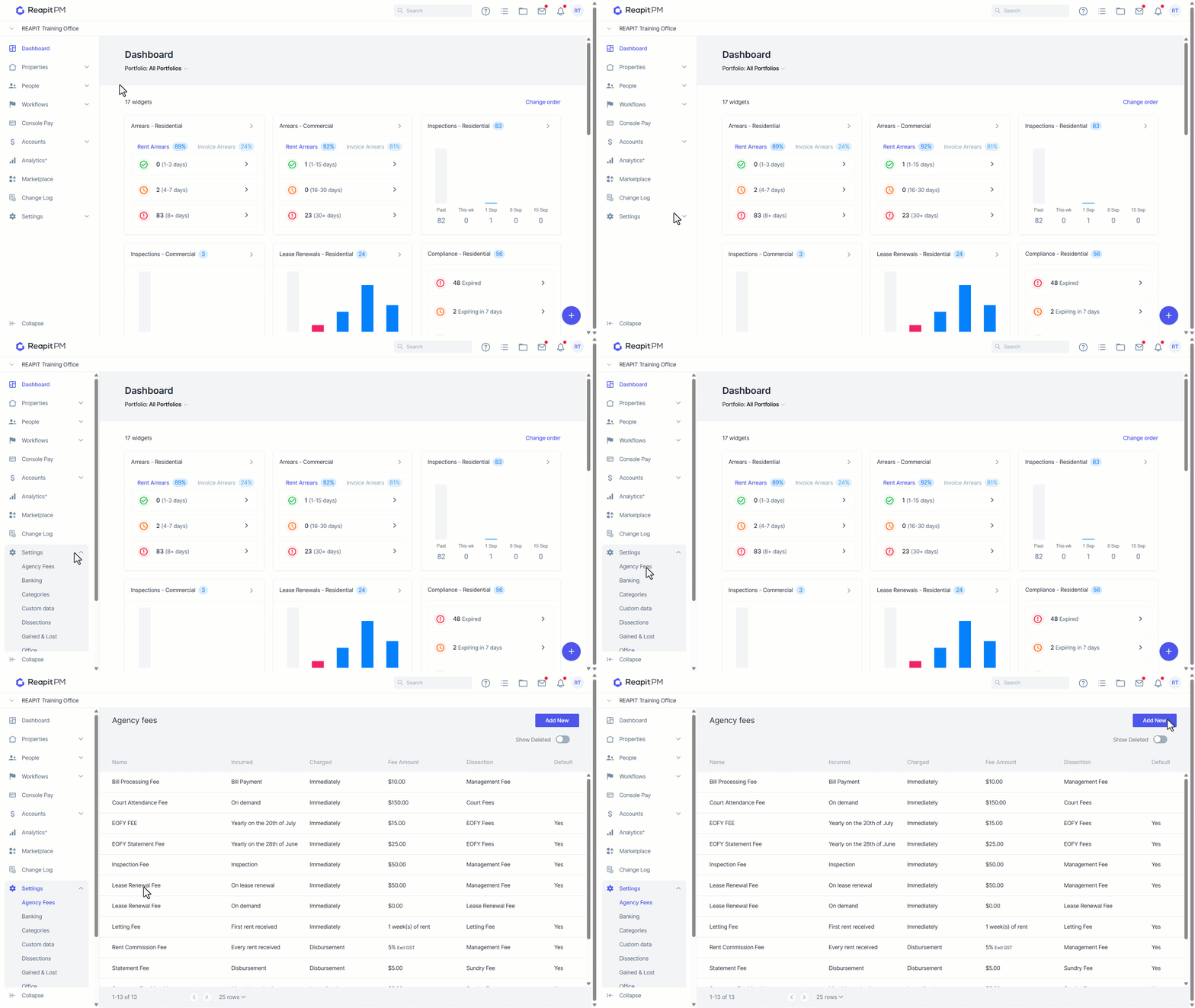
- Navigate to the drawer and select Settings > Agency Fees.
- Click Add New.
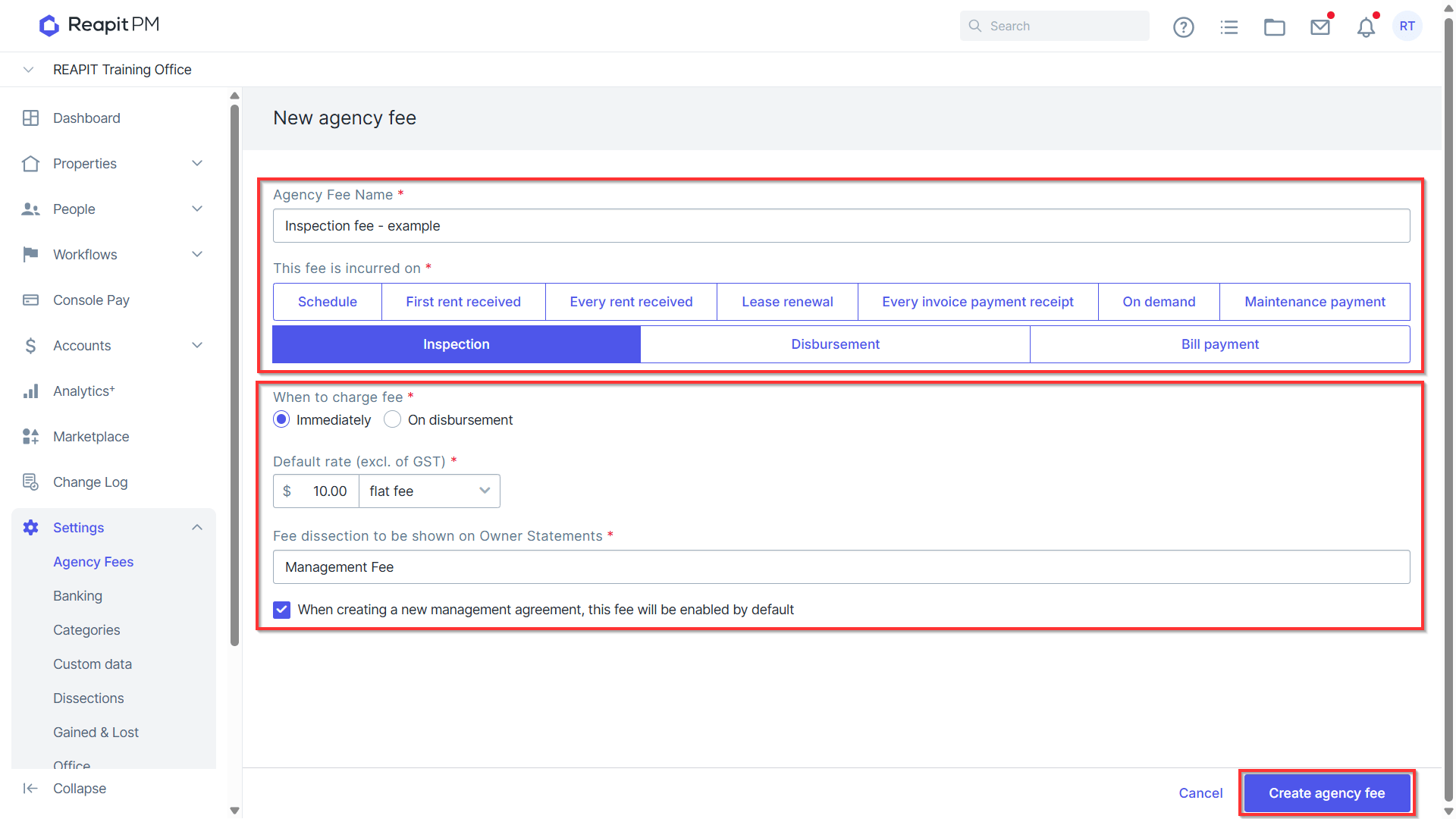
Enter the Fee name, incurred on, charge type, default rate and dissection. Select if you would like this fee enabled by default for all new management agreements. Note: For incurred on, select Inspection. The fee will then be charged when the inspection is closed .
Click Create Agency Fee.
How to Enable the Inspection Fee
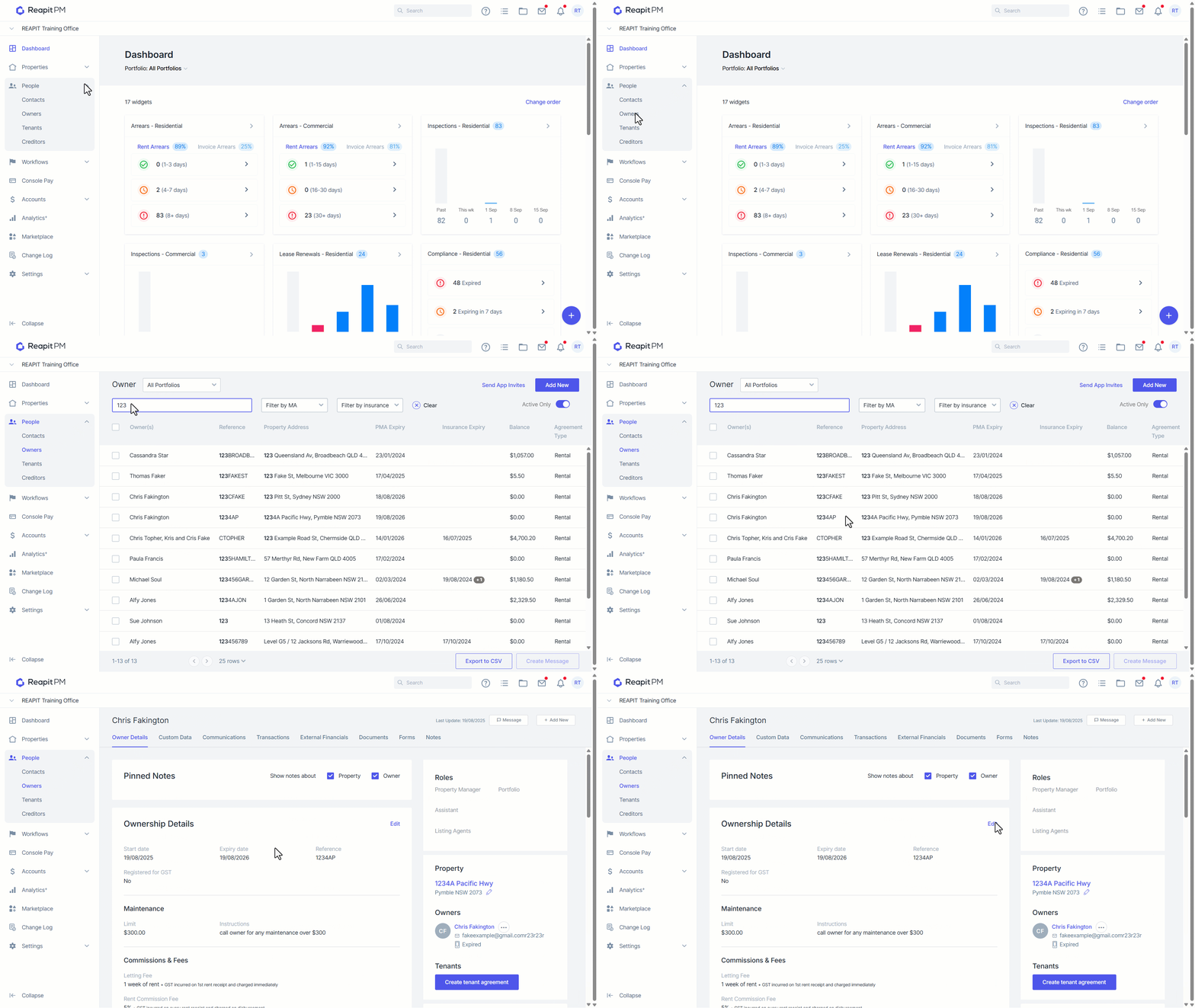
- Navigate to the drawer and select People > Owners. Choose your relevant owner.
- Click Edit in the top right.
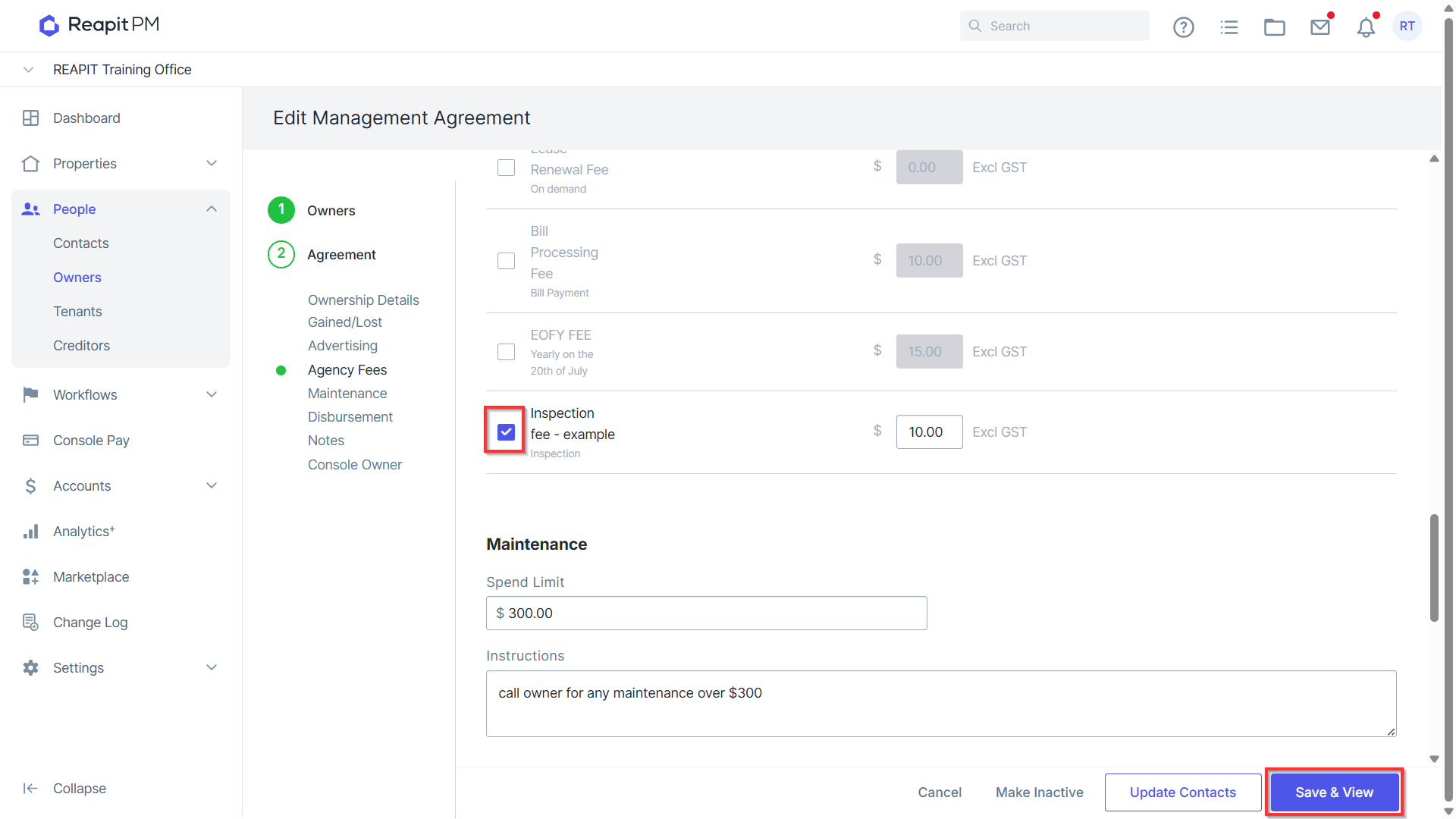
- Under agency fees, select Inspection Fee to enable the fee.
- Click Save & View. Your fee will be enabled for this management agreement
Charging the Inspection Fee
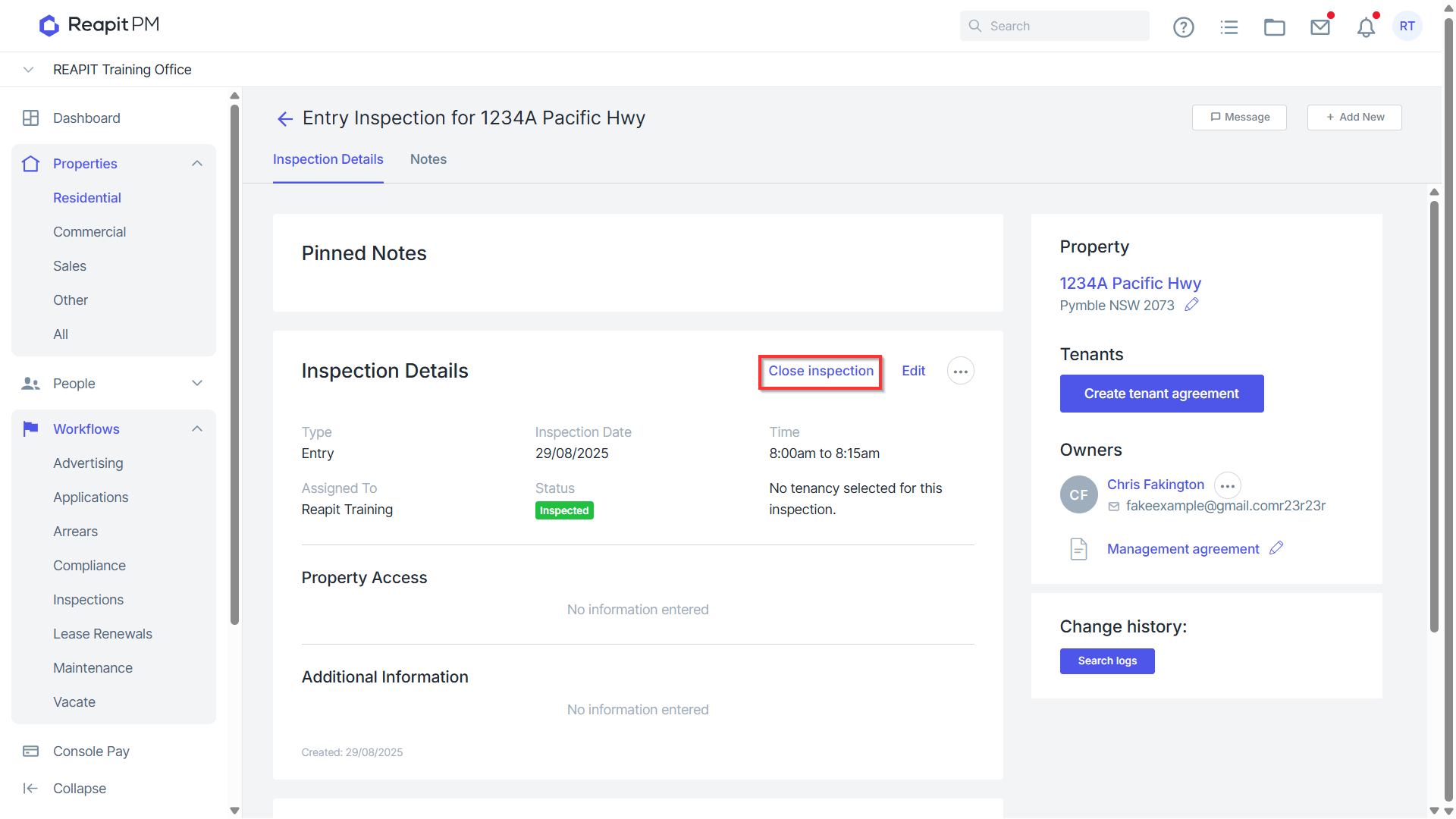
- Click Close Inspection next to Inspection Details.
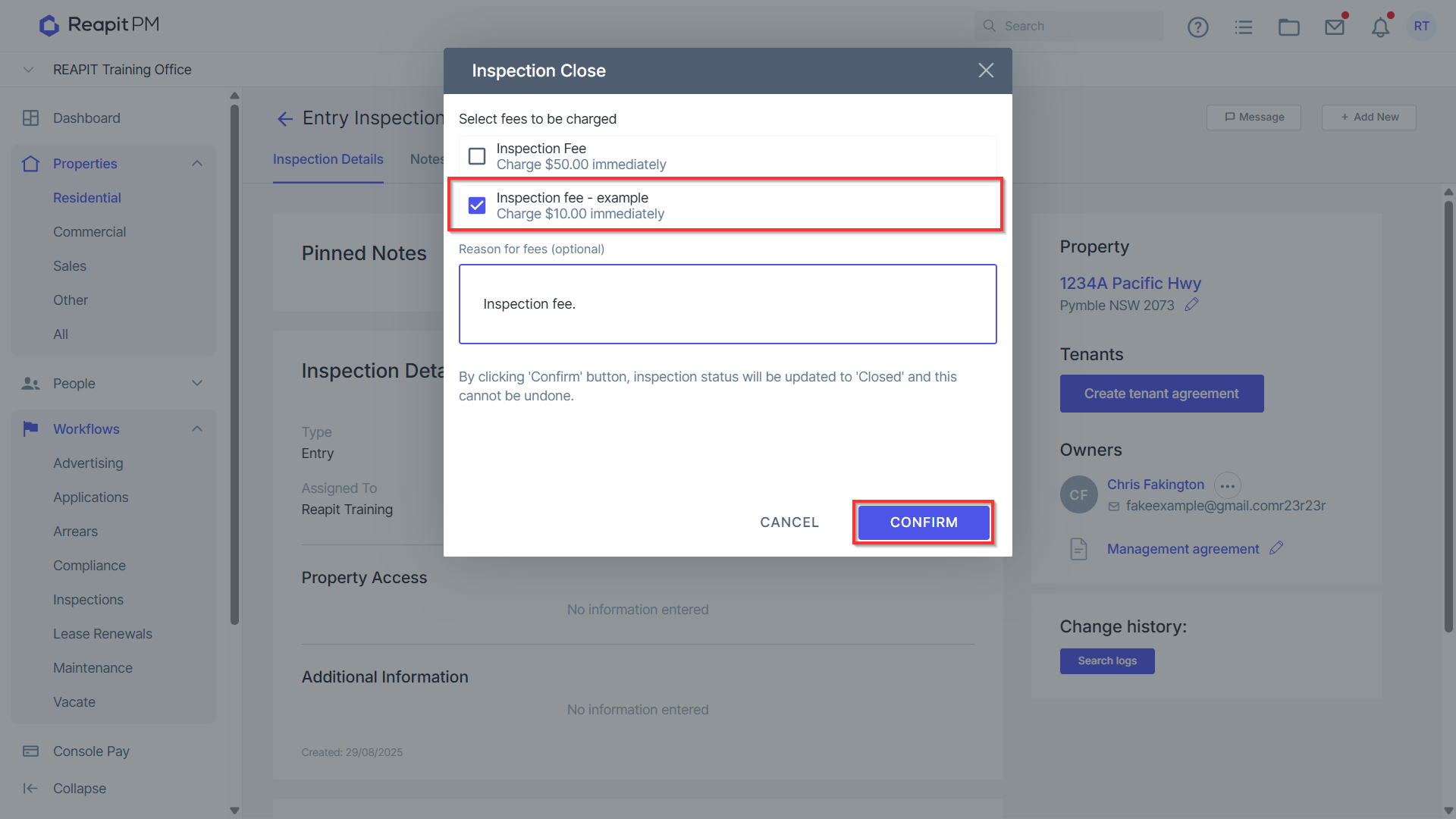
- Select the fees to be charged, enter in a reason (if applicable) and click Confirm.
- The inspection will now be closed.