'%20d='M0%208a8%208%200%200%201%208-8h24a8%208%200%200%201%208%208v24a8%208%200%200%201-8%208H8a8%208%200%200%201-8-8V8Z'/%3e%3cpath%20fill='%23fff'%20d='M8.375%2013v14L20.5%2034l12.124-7v-7.737l-1.687-.975-2.806-1.62-1.082-.624v4.83l-.002%204.83H13.95V16.07l3.275-1.89%202.192-1.265%201.082-.625%203.275%201.877%202.192%201.256%201.083.62V9.782L20.5%206%208.376%2013Z'/%3e%3cdefs%3e%3clinearGradient%20id='reapit-pm__a'%20x1='20.702'%20x2='20.702'%20y1='.351'%20y2='31.228'%20gradientUnits='userSpaceOnUse'%3e%3cstop%20stop-color='%235573FD'/%3e%3cstop%20offset='.575'%20stop-color='%234E56EA'/%3e%3c/linearGradient%3e%3c/defs%3e%3c/svg%3e)
Commercial Property List
This article is a guide to learn how to access and filter Commercial Property List in Reapit PM. The processes in this article include: Accessing the Commercial Property List Filtering the Commercial Property List Communicating or Exporting with Commercial Properties
Overview
Commercial Property List
This article is a guide to learn how to access and filter Commercial Property List in Reapit PM.
The processes in this article include:
- Accessing the Commercial Property List
- Filtering the Commercial Property List
- Communicating or Exporting with Commercial Properties
Accessing the Commercial Property List
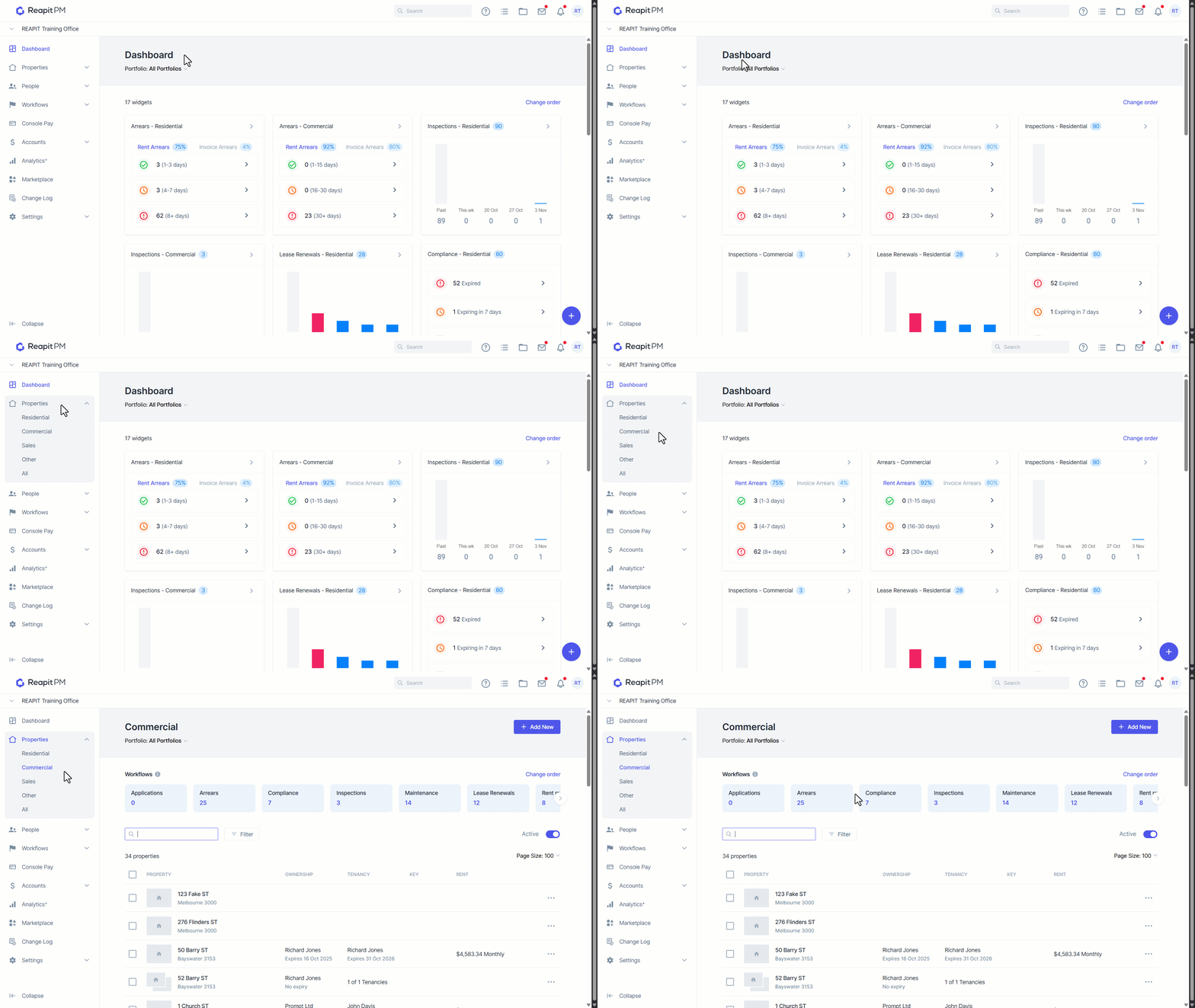
- Navigate to Properties
- Navigate to Commercial.
- You’ll see at the top of the screen all available workflows. By selecting one, you are then taken to the respective Workflow.
Note: The CPI feature available to premium customers has been moved. It is now accessible in the Rent Review workflow.
Workflows can be seen for the Premium tier. Customers on Accelerate will have a different set of workflows available.
Filtering the Commercial Property List
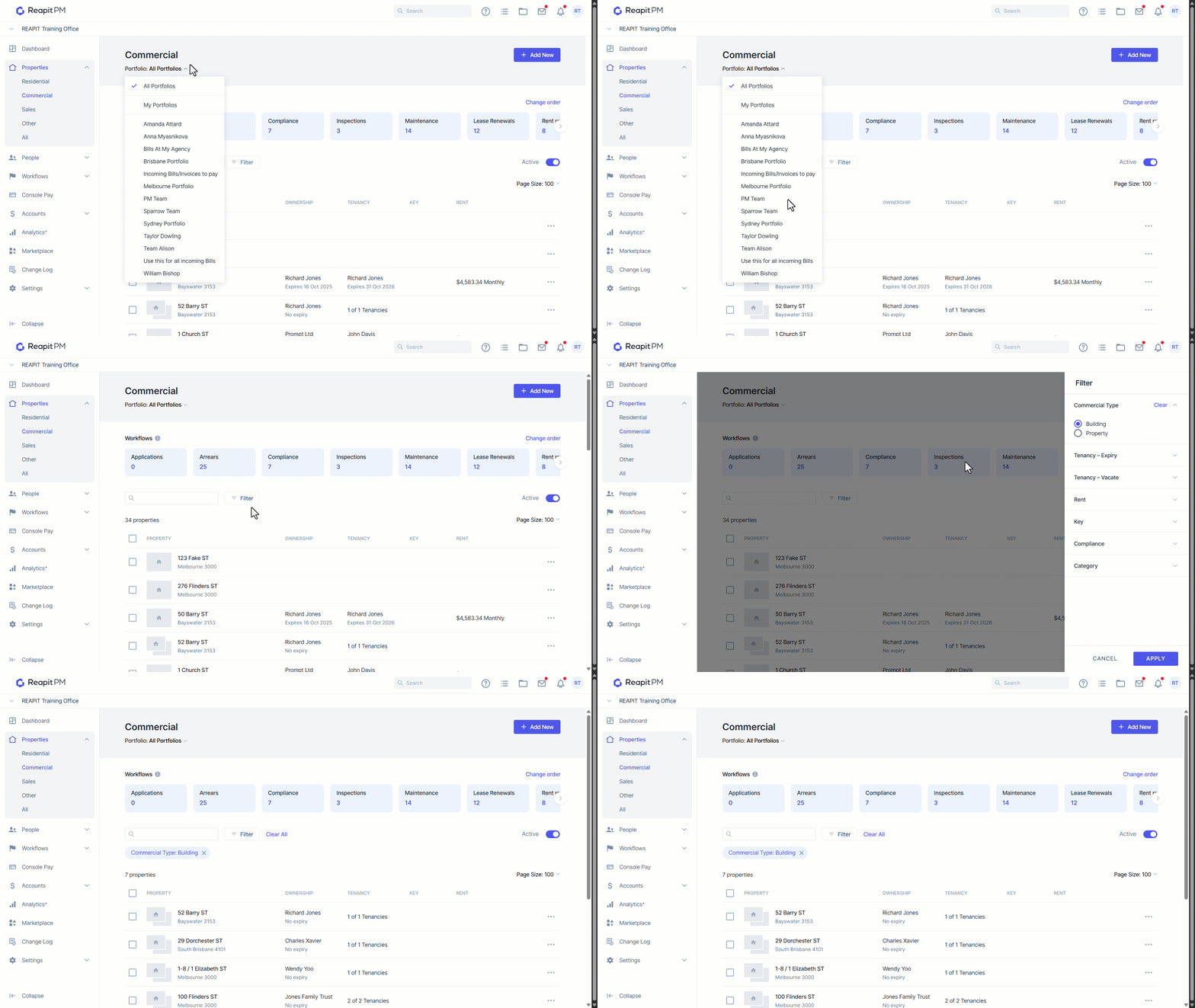
You can filter the Commercial Property List by Portfolio, Type, Tenancy, Rent, Key or Compliance. These filters will continue to grow, so you’ll have more options in what data you’d like to see.
- Click the Portfolio drop-down to filter between portfolios.
- Click on the Filter button to access and apply a list of available filters. This will then display the selected data in the properties list.
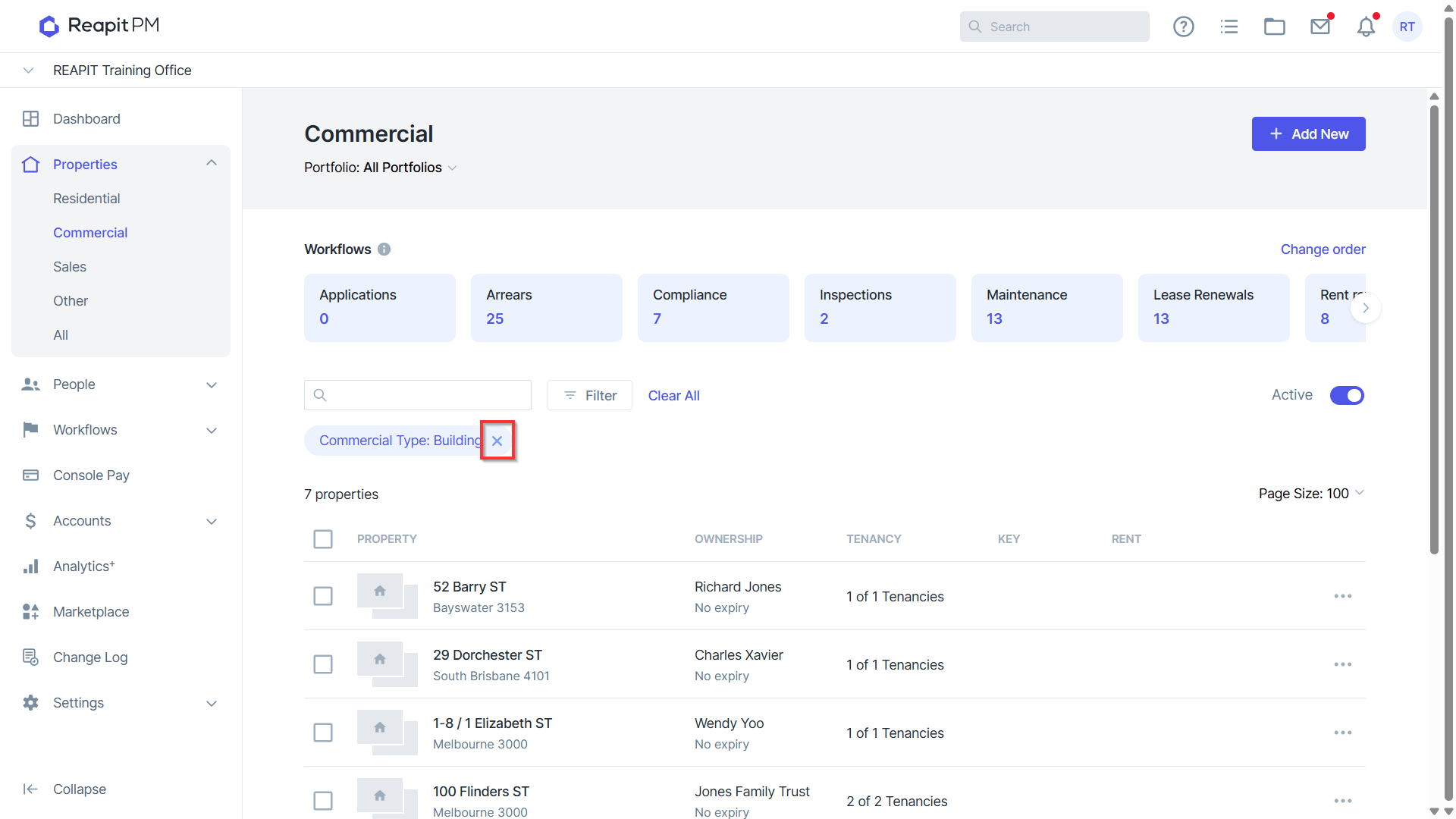
- After applying filters, you will see a number of tags displayed above the list showing which filters have been applied.
- Filters can be removed via the X icon on the relevant tag.
Communicating or Exporting with Commercial Properties
From within the Commercial Property List, you can add, access or export Commercial properties.
Add a Commercial property by selecting Add New and following the instructions available here: Creating Commercial Properties
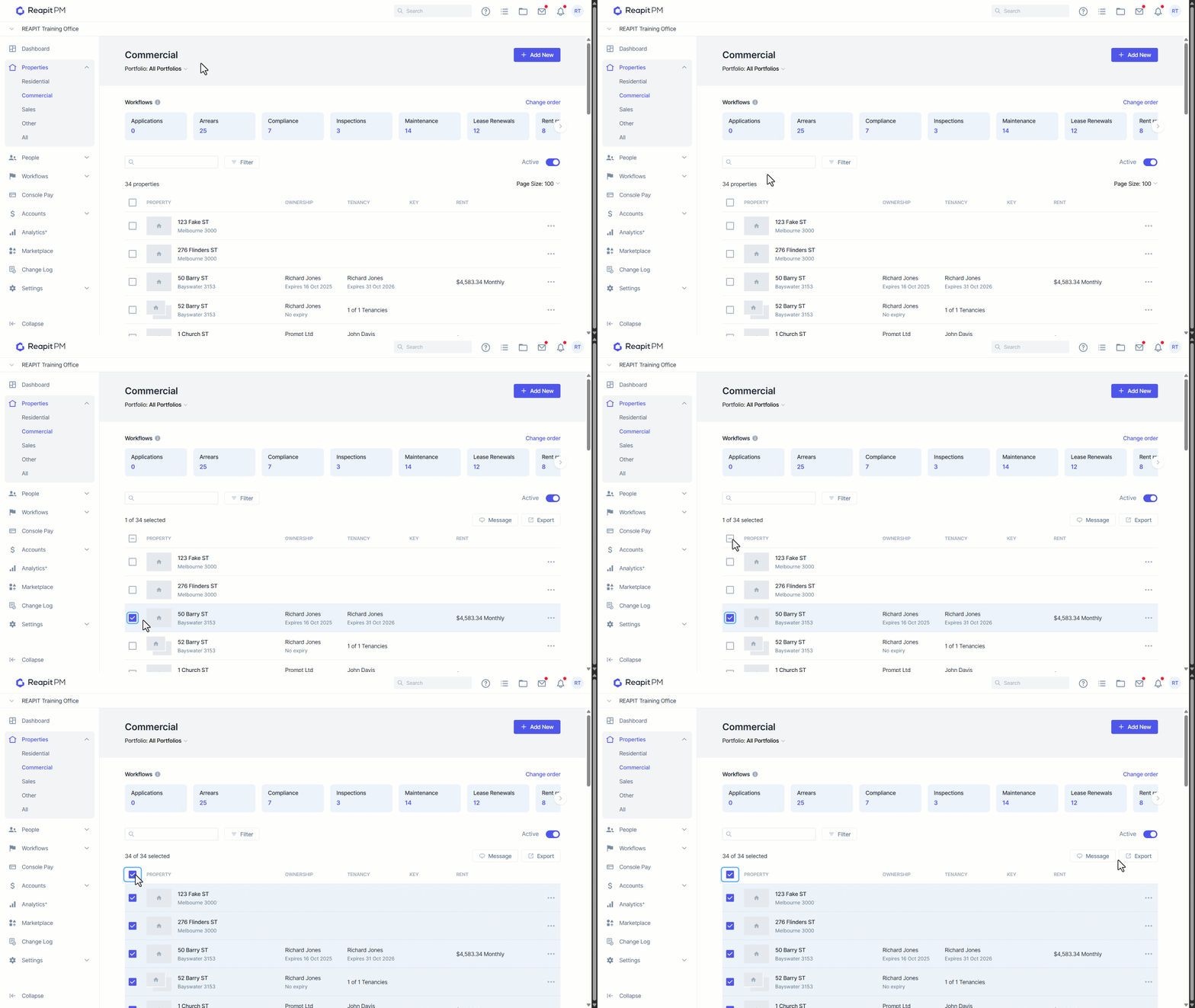
- Select one, multiple, or all properties using the checkbox in the header.
- You will now have the option to Message or Export to your selection.