'%20d='M0%208a8%208%200%200%201%208-8h24a8%208%200%200%201%208%208v24a8%208%200%200%201-8%208H8a8%208%200%200%201-8-8V8Z'/%3e%3cpath%20fill='%23fff'%20d='M8.375%2013v14L20.5%2034l12.124-7v-7.737l-1.687-.975-2.806-1.62-1.082-.624v4.83l-.002%204.83H13.95V16.07l3.275-1.89%202.192-1.265%201.082-.625%203.275%201.877%202.192%201.256%201.083.62V9.782L20.5%206%208.376%2013Z'/%3e%3cdefs%3e%3clinearGradient%20id='reapit-pm__a'%20x1='20.702'%20x2='20.702'%20y1='.351'%20y2='31.228'%20gradientUnits='userSpaceOnUse'%3e%3cstop%20stop-color='%235573FD'/%3e%3cstop%20offset='.575'%20stop-color='%234E56EA'/%3e%3c/linearGradient%3e%3c/defs%3e%3c/svg%3e)
Tenant Invoicing in Cloud
Tenancy invoices allow a user to create invoices for items that a tenant will pay to reimburse an owner or creditor in Reapit PM. This process is independent of on-charging a bill to a tenancy. For information about on-charging see our Bills articles. The process in this article include: Adding a Tenant Invoice Editing, Deleting and Writing off an Invoice
Overview
Tenant Invoicing
Tenancy invoices allow a user to create invoices for items that a tenant will pay to reimburse an owner or creditor in Reapit PM.
This process is independent of on-charging a bill to a tenancy. For information about on-charging see our Bills articles.
The process in this article include:
- Adding a Tenant Invoice
- Editing, Deleting and Writing off an Invoice
Note: There is a setting within Settings > Office, which allows a user to turn off the sending of recurring invoices to a tenant/s. Invoices will continue to get generated but will no longer get actually SENT upon invoice generation. This does not apply to the arrears workflow. Adding a Tenant Invoice
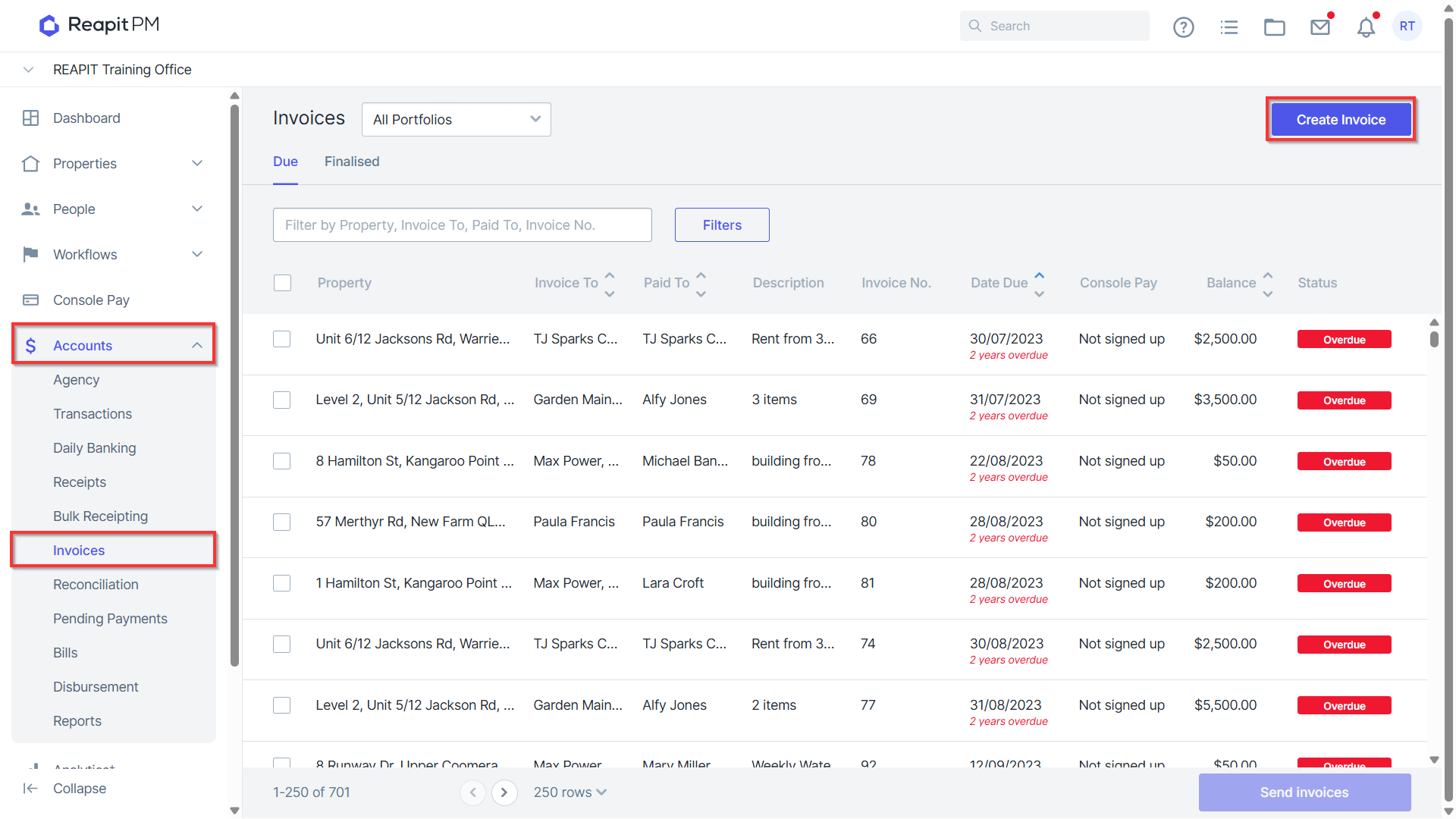
- Navigate to Accounts > Invoices and select Create Invoice.
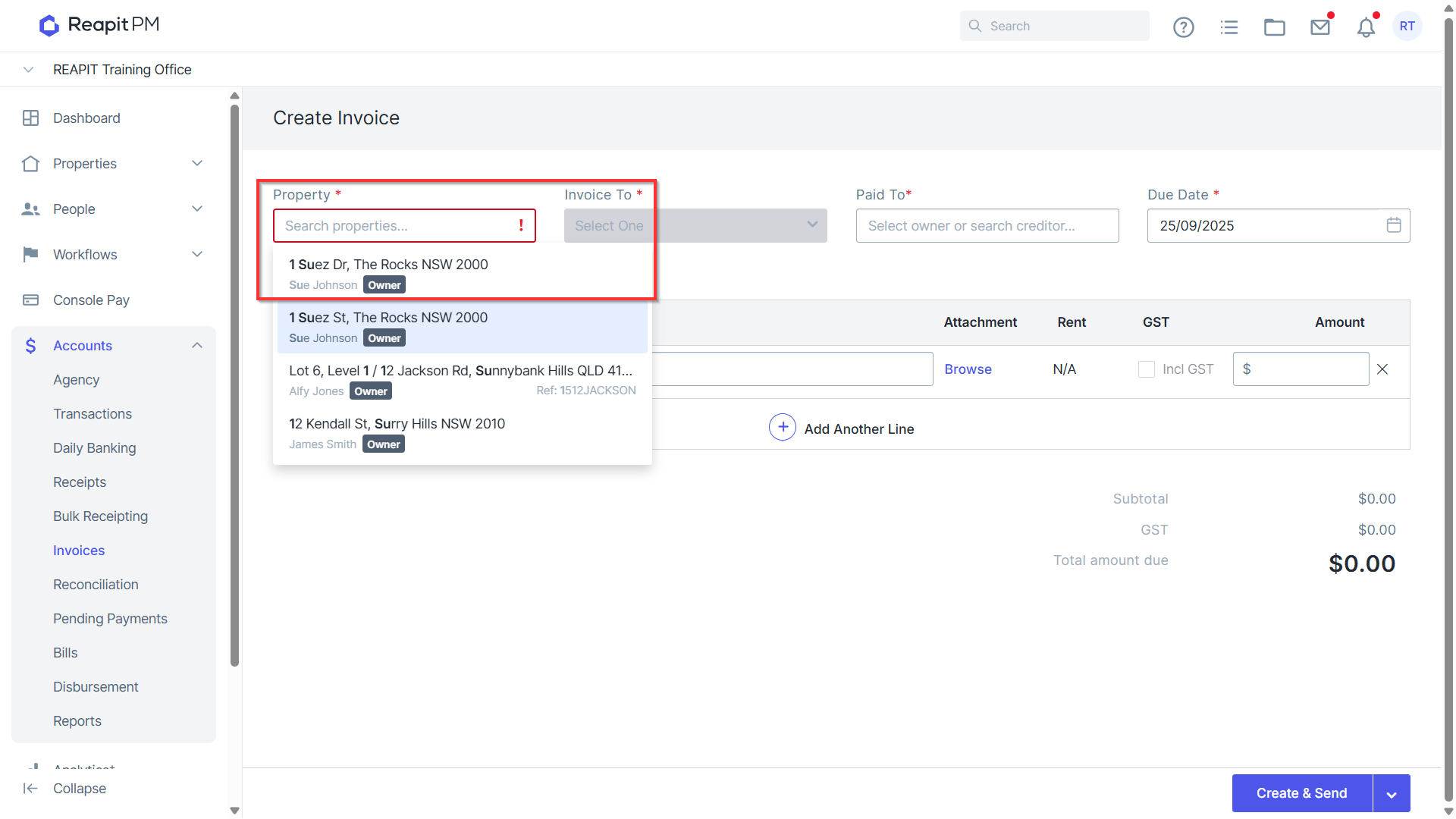
- Search and select the Property.
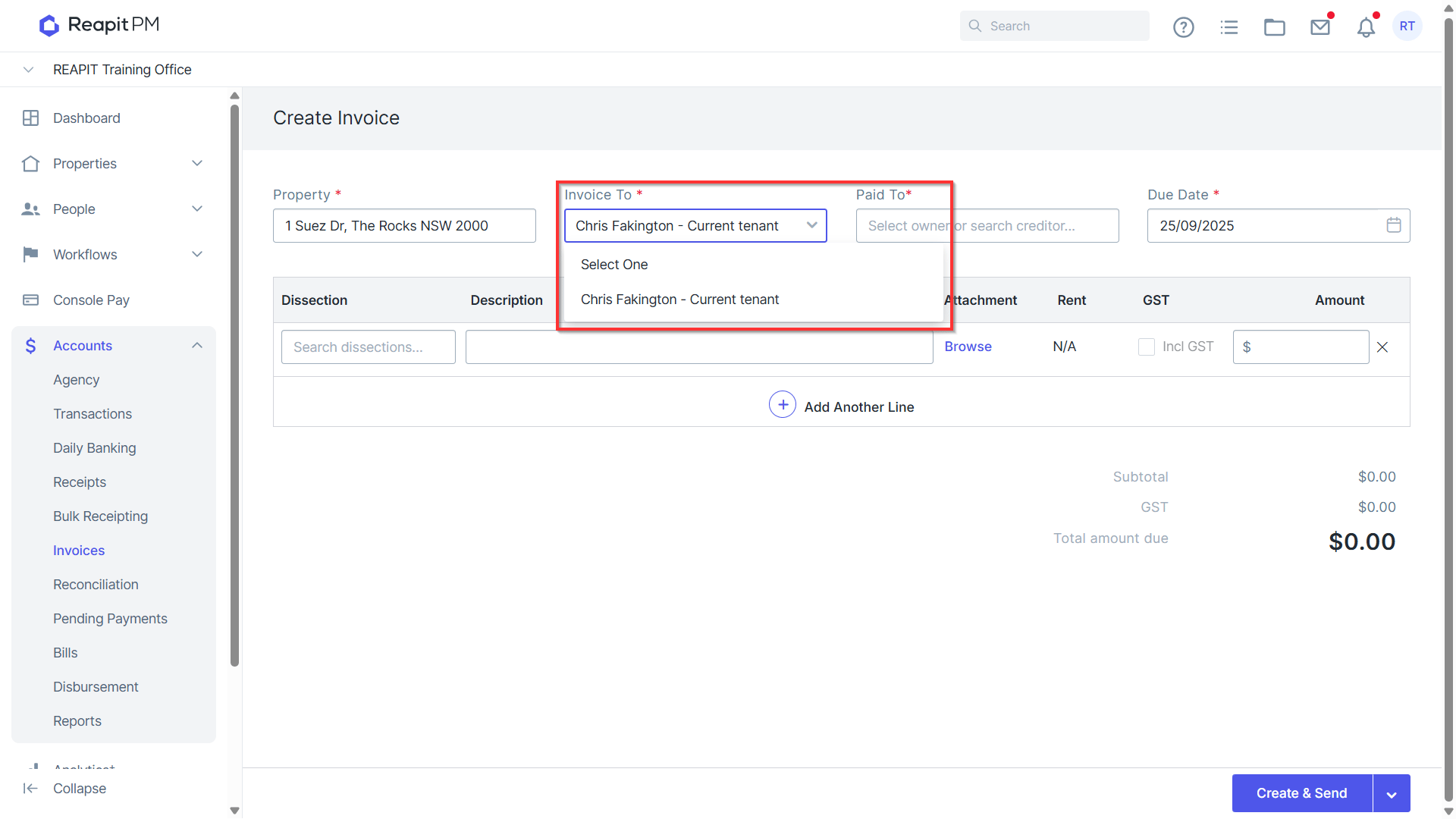
Select the Tenancy, you can select from the current tenancy or a previous tenant.
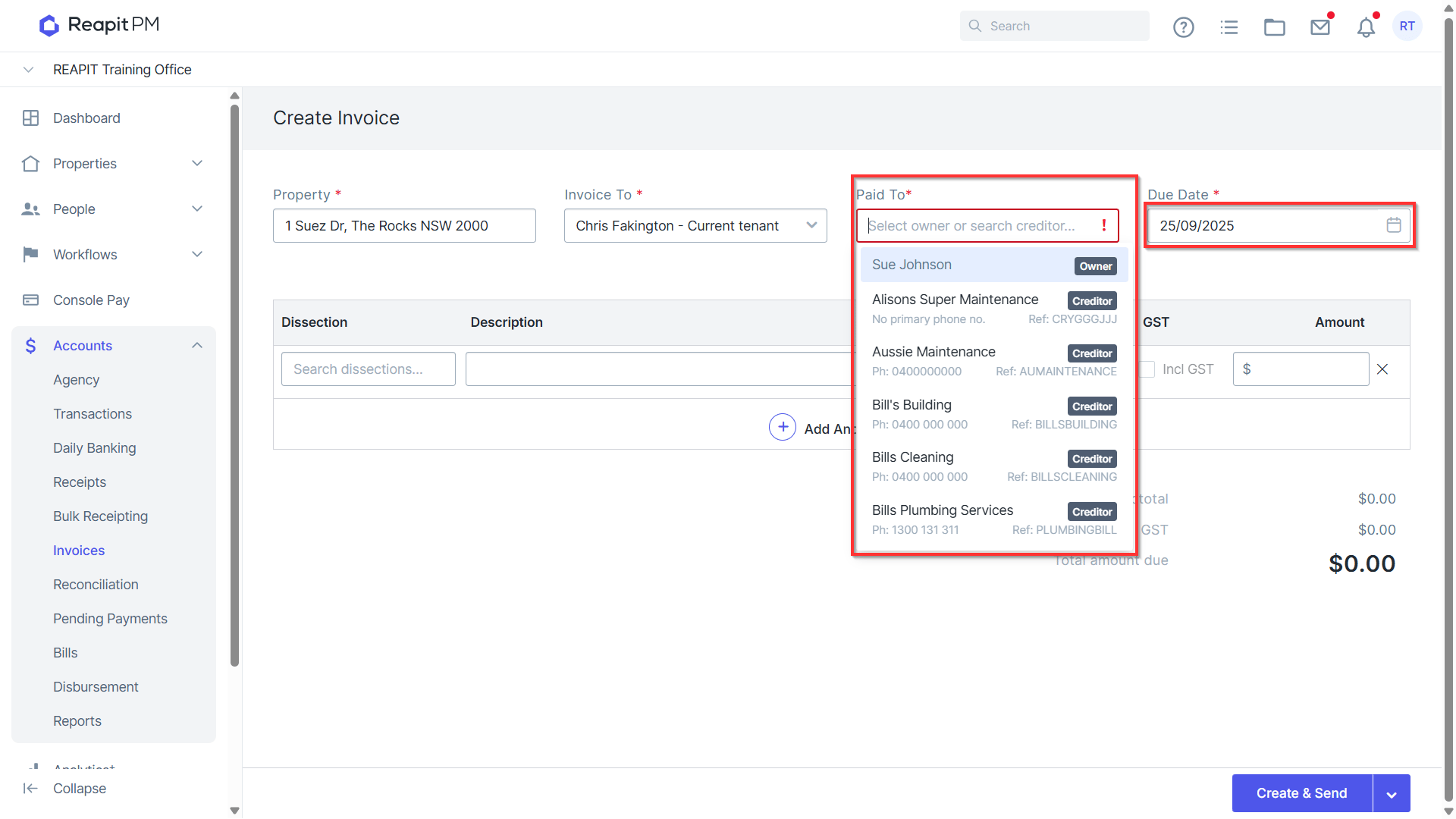
Select to pay to the owner or direct to creditor & amend the due date.
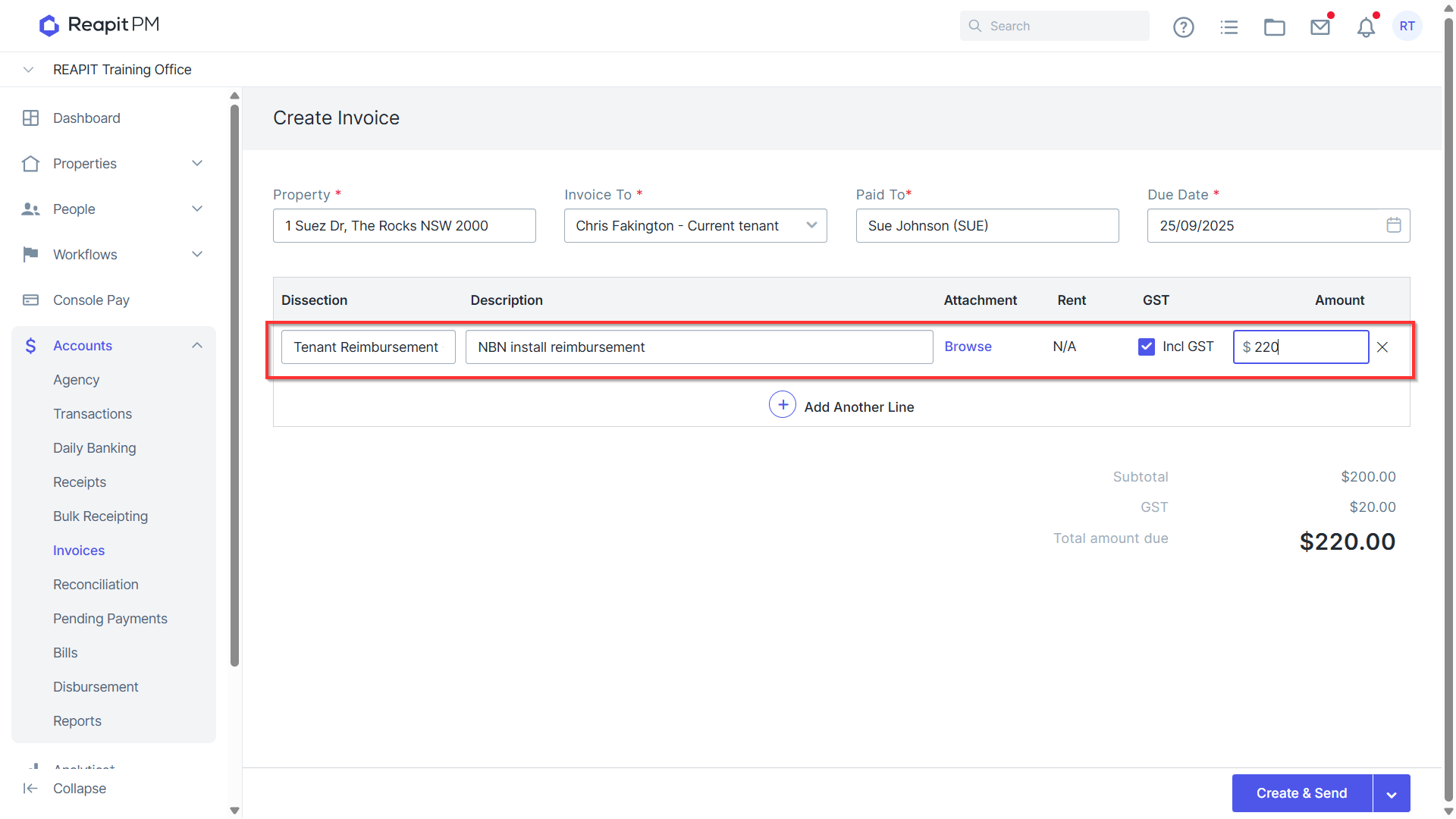
Enter the dissection, description, attach a document if applicable and add the amount.
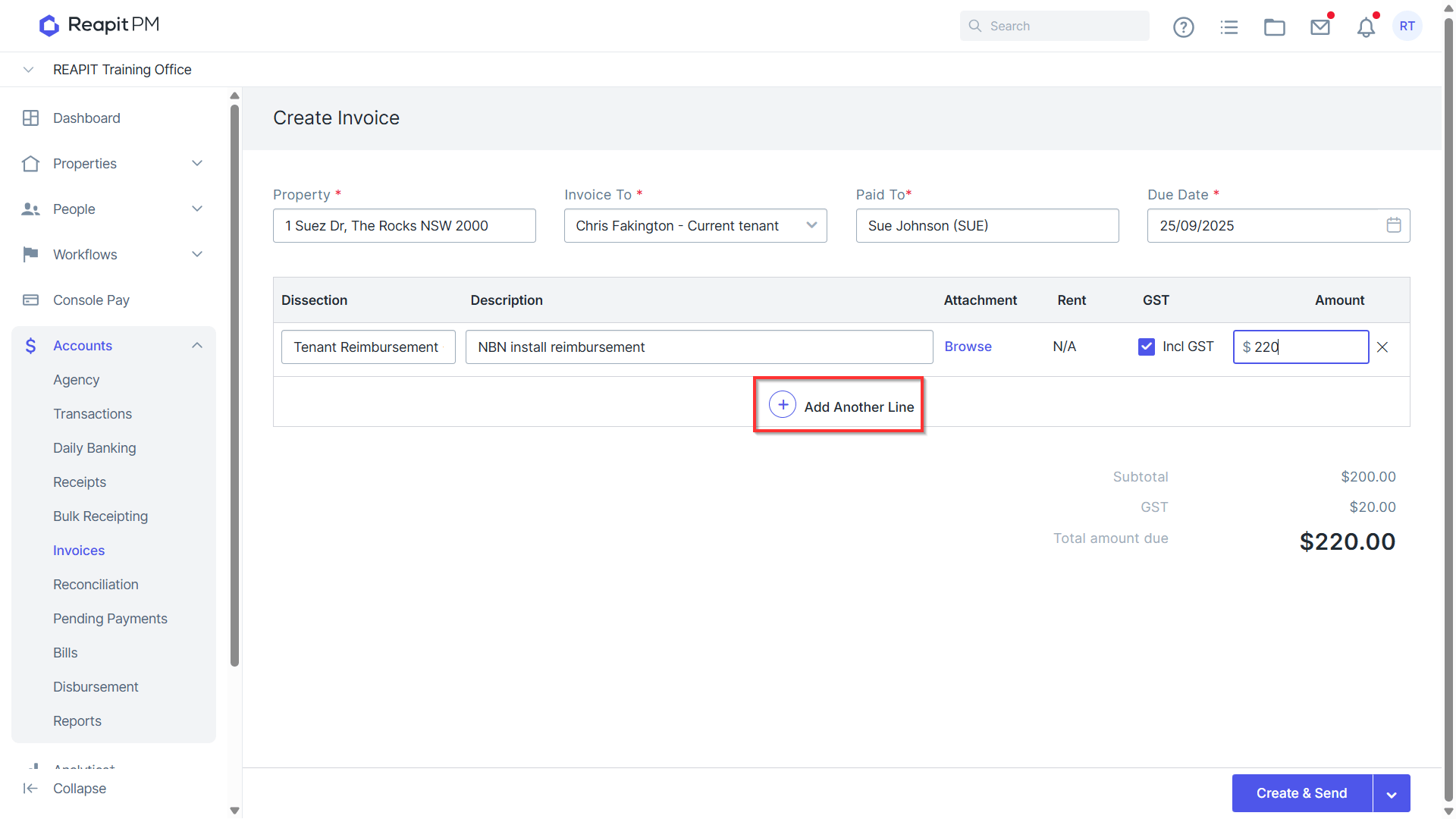
Multiple line items can be added or deleted.
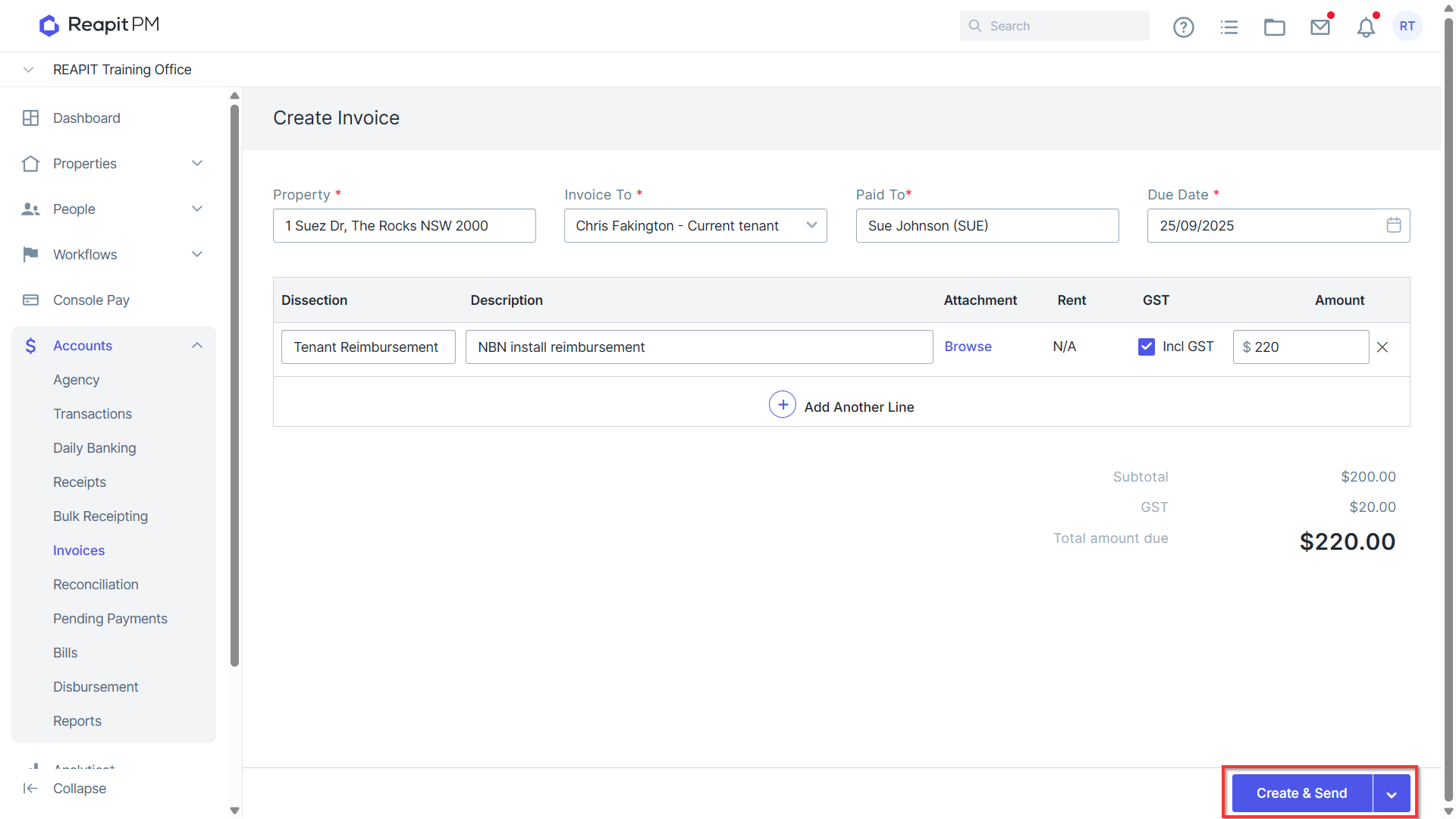
Click Create & Send. The invoice can be resent any time from the Invoices interface.
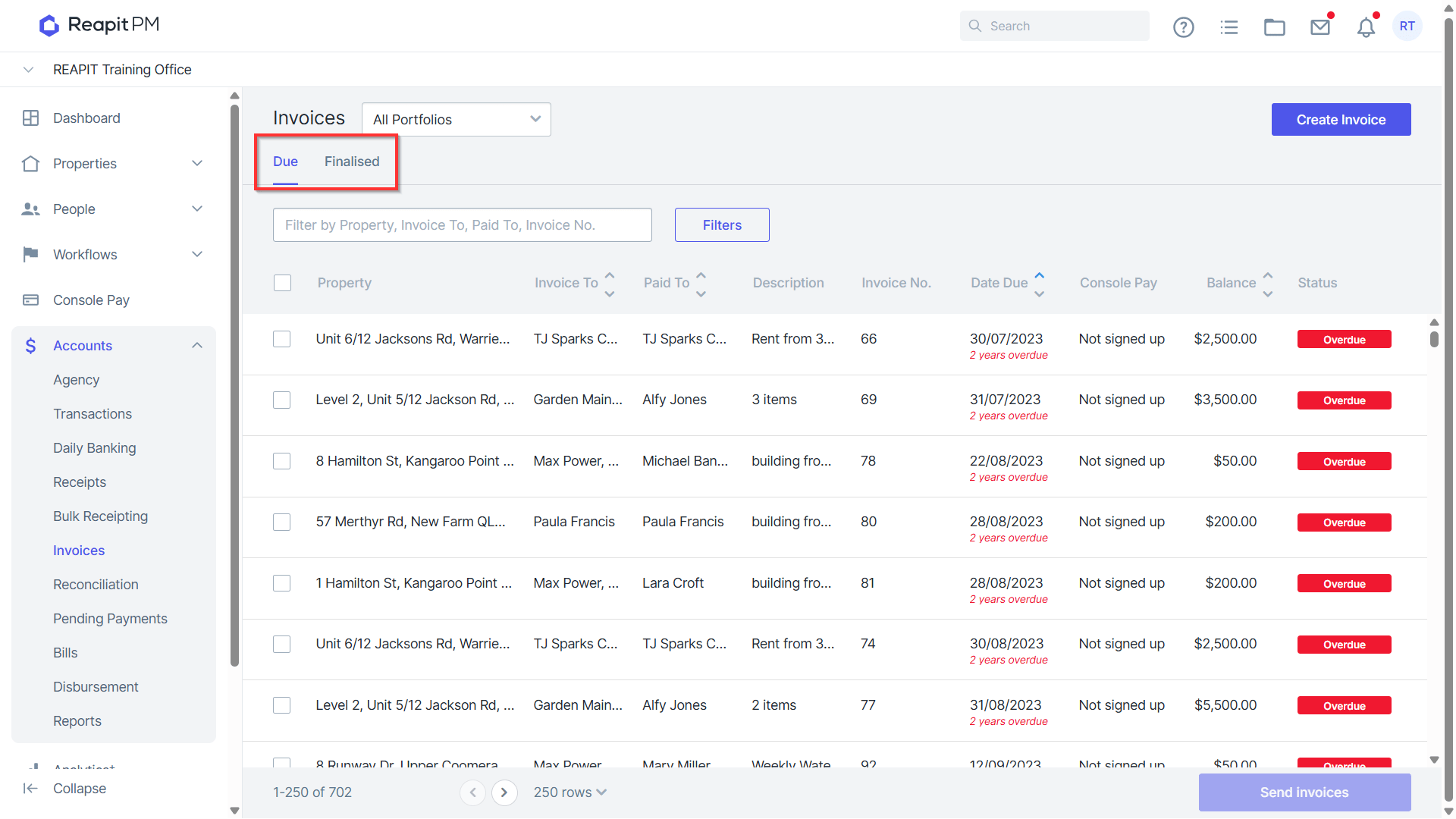
- The Invoice will appear in the Due list until payment is made, or the invoice is written off.
- Once payment is made, or the invoice is written off it will appear in the Finalised list.
Editing, Deleting and Writing off an Invoice
- Navigate to Accounts > Invoices and click into the desired invoice.
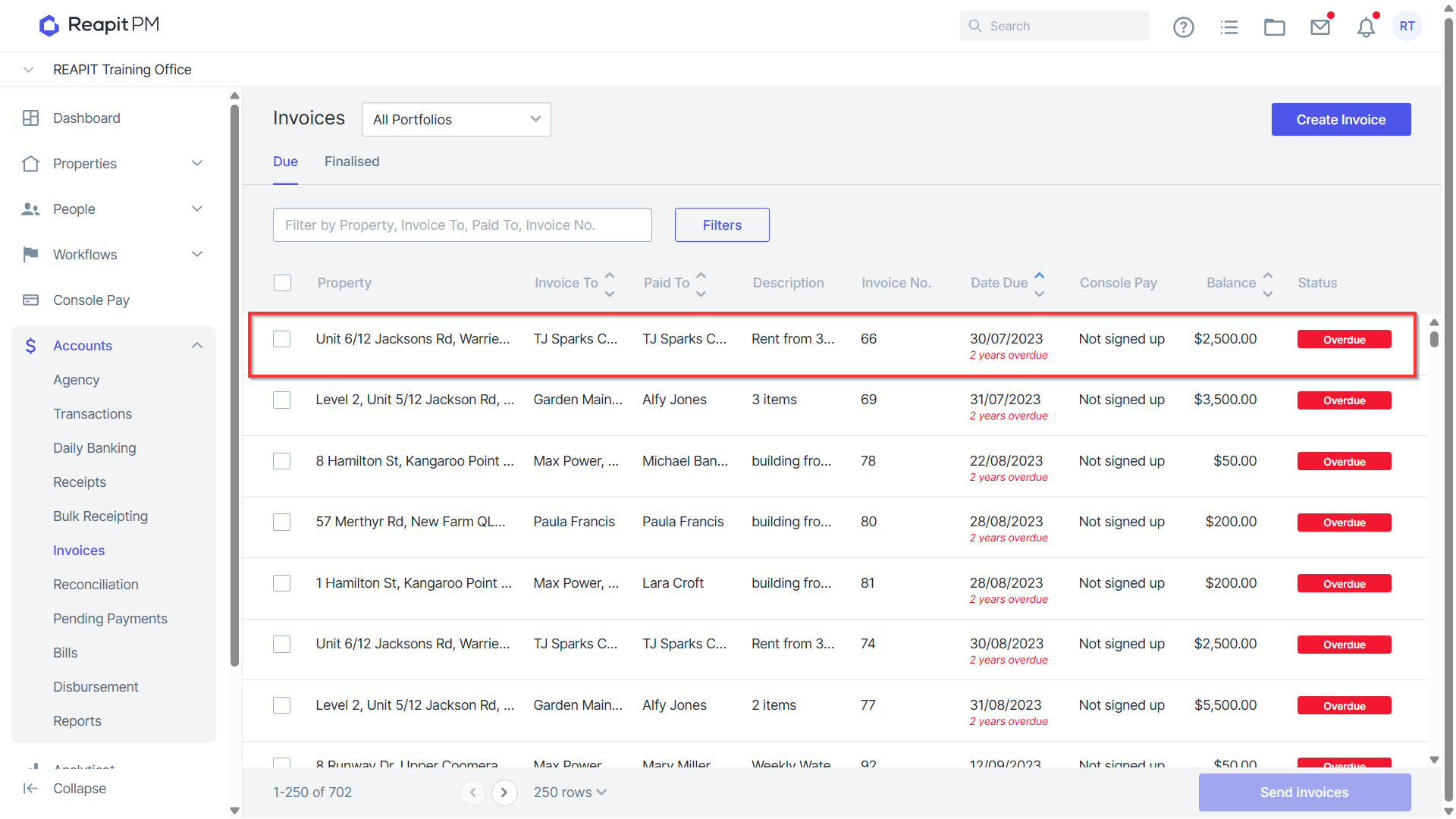
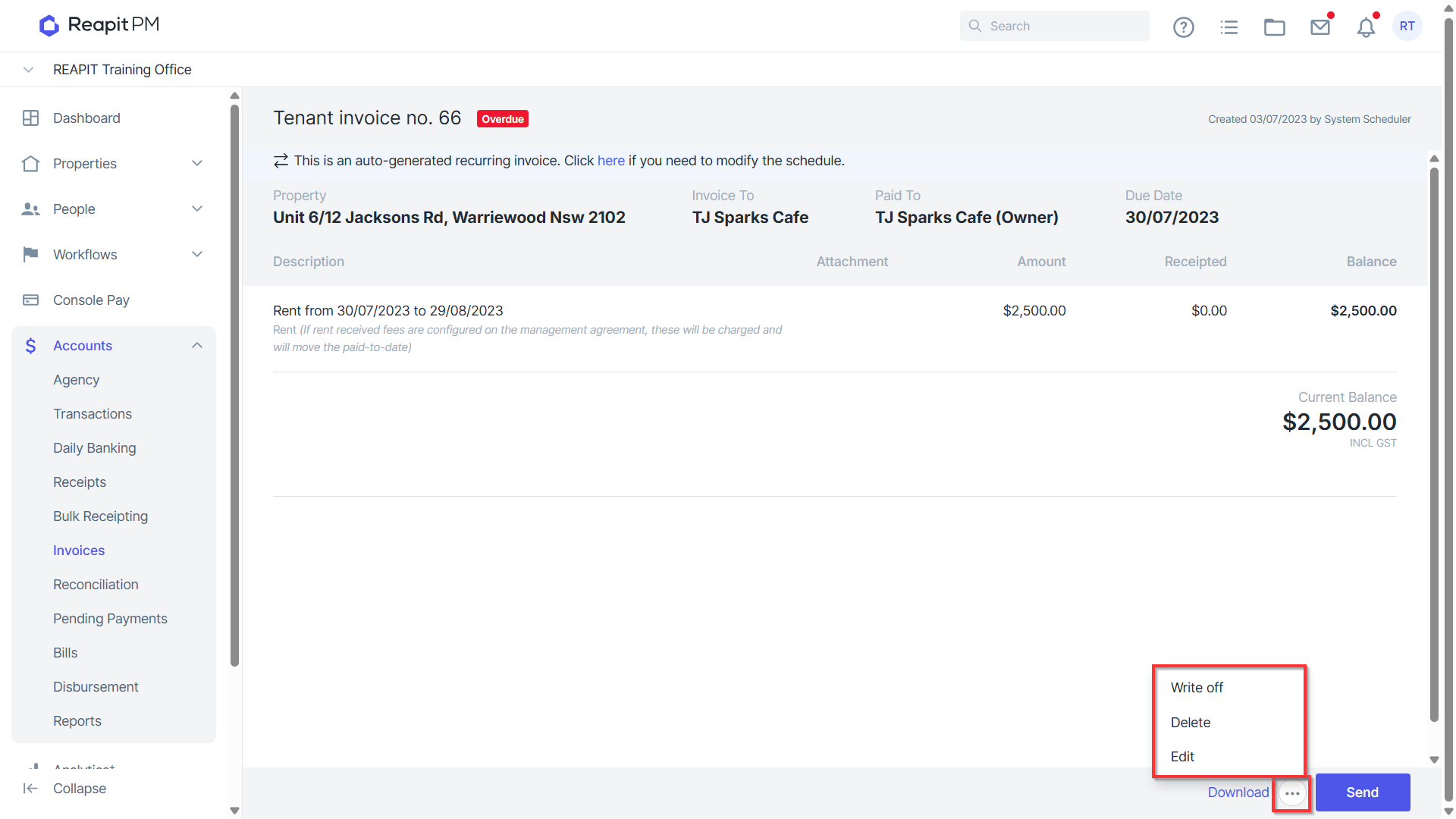
- From within the Invoice select the three dots and choose whether to Write off, Edit or Delete.
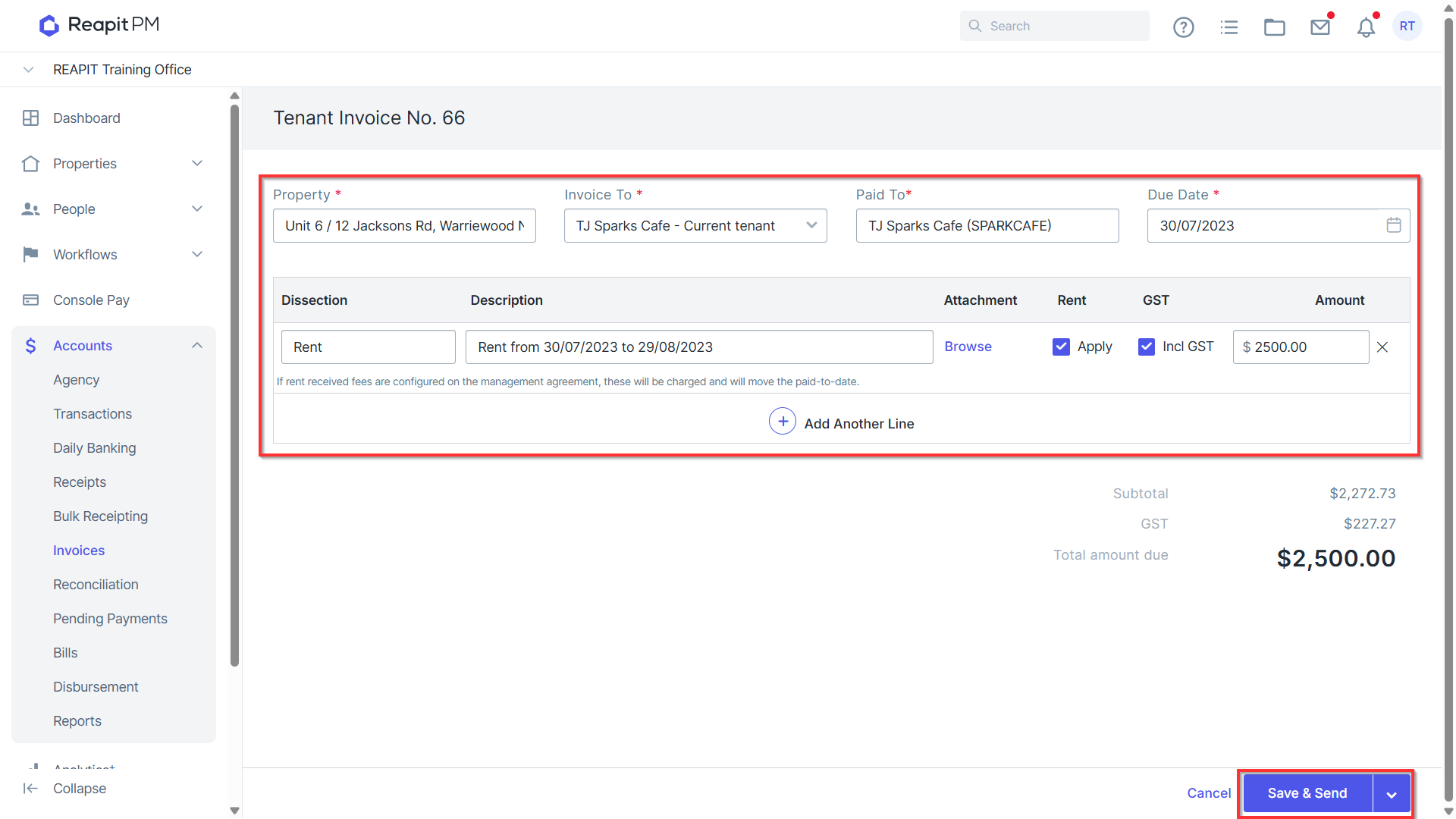
- Edit will allow you to update the invoice details and Save. Note: for recurring invoices it will not allow you to update property, tenant or dissection details.
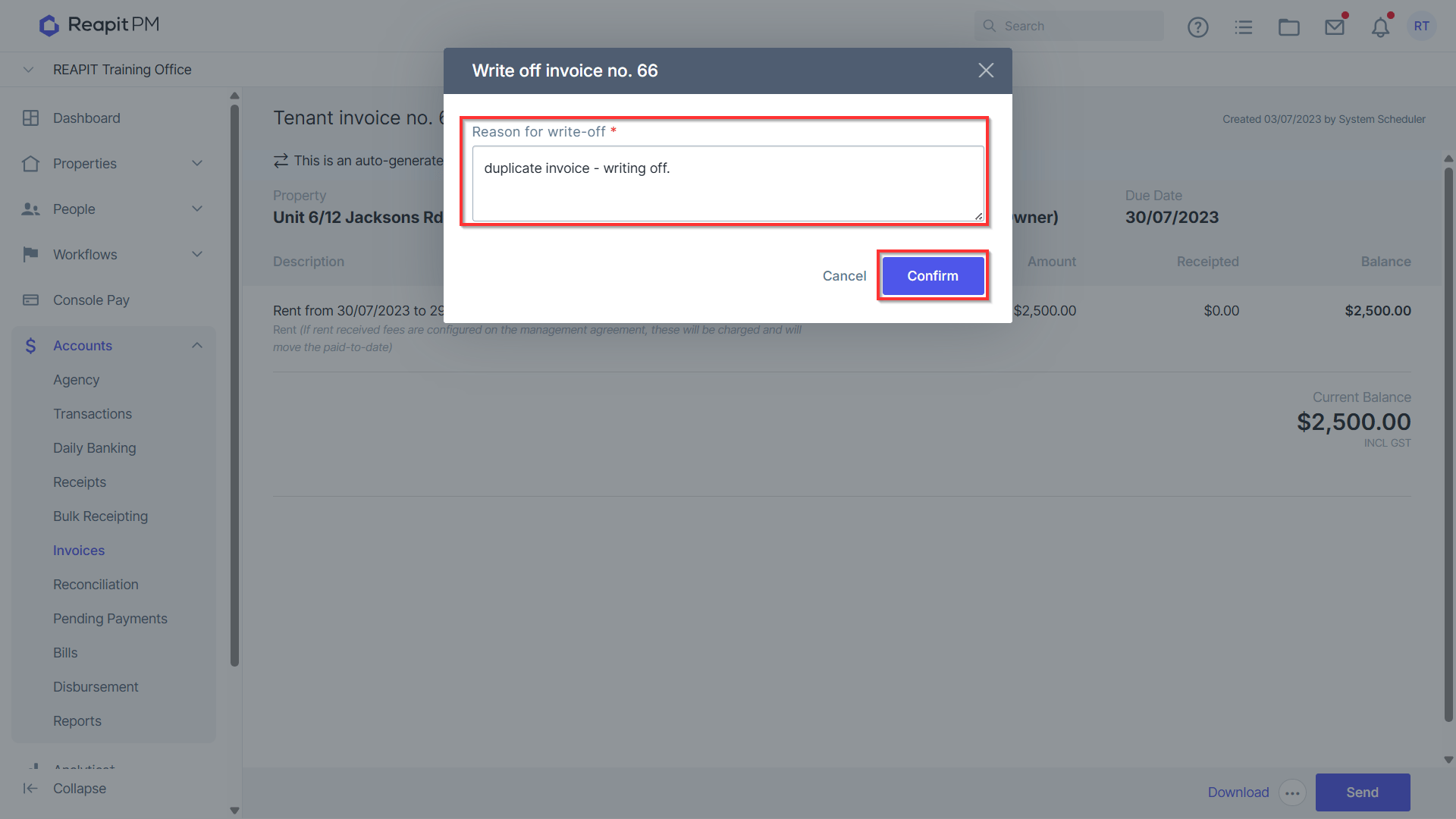
- Write off allows you to write off the balance of an invoice, a reason must be entered prior to clicking Confirm.
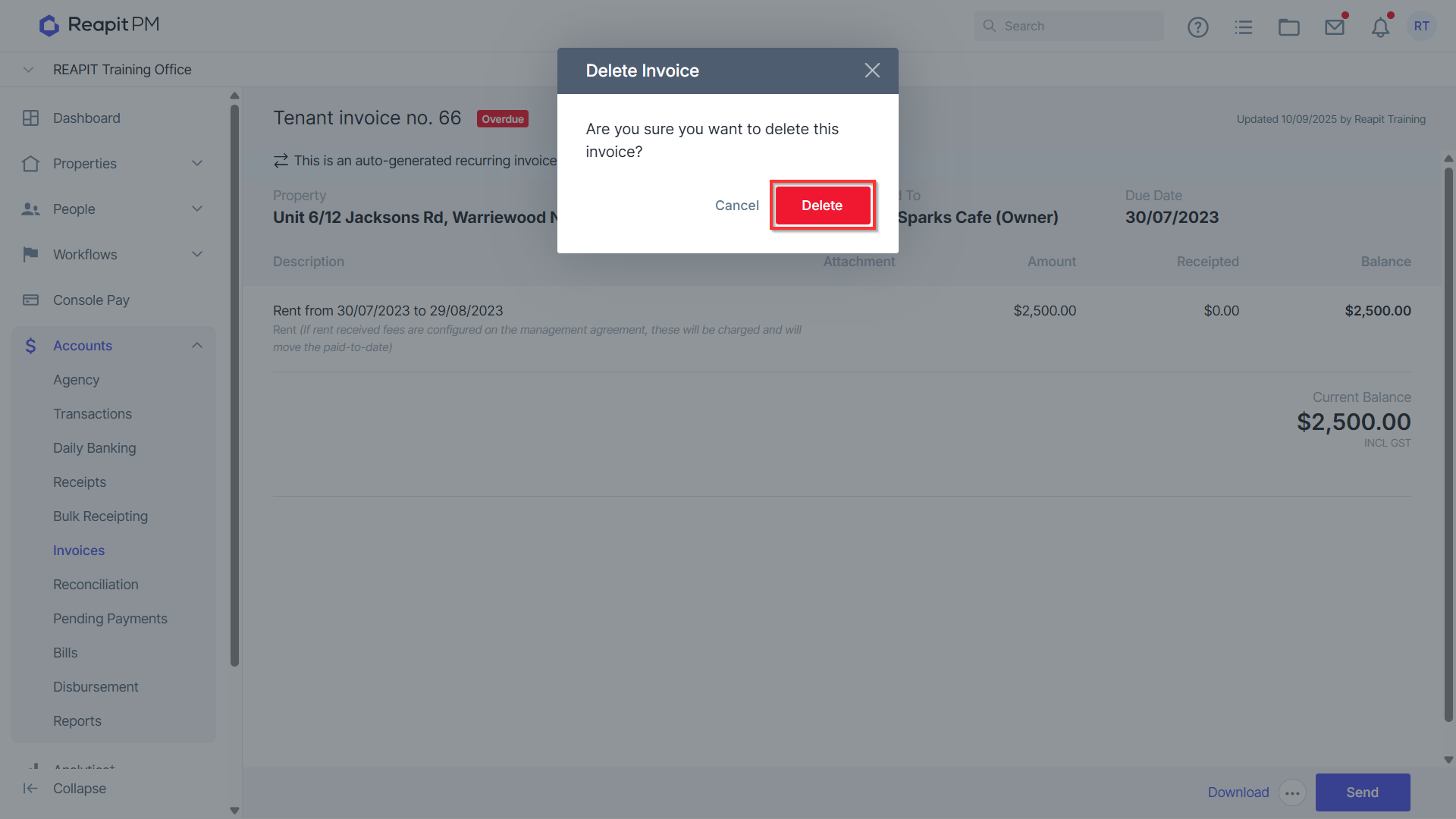
- Delete will permanently remove the invoice record from PM. Click Delete.