'%20d='M0%208a8%208%200%200%201%208-8h24a8%208%200%200%201%208%208v24a8%208%200%200%201-8%208H8a8%208%200%200%201-8-8V8Z'/%3e%3cpath%20fill='%23fff'%20d='M8.375%2013v14L20.5%2034l12.124-7v-7.737l-1.687-.975-2.806-1.62-1.082-.624v4.83l-.002%204.83H13.95V16.07l3.275-1.89%202.192-1.265%201.082-.625%203.275%201.877%202.192%201.256%201.083.62V9.782L20.5%206%208.376%2013Z'/%3e%3cdefs%3e%3clinearGradient%20id='reapit-pm__a'%20x1='20.702'%20x2='20.702'%20y1='.351'%20y2='31.228'%20gradientUnits='userSpaceOnUse'%3e%3cstop%20stop-color='%235573FD'/%3e%3cstop%20offset='.575'%20stop-color='%234E56EA'/%3e%3c/linearGradient%3e%3c/defs%3e%3c/svg%3e)
Key Management
Key Management in Reapit PM is designed to help you manage and track your keys for each of your properties. The process in this article include: Adding Keys to a Property Checking Keys Out or In from a Property Checking Keys In or Out from the Properties Draw
Overview
Key Management
Key Management in Reapit PM is designed to help you manage and track your keys for each of your properties.
By using Check Out and Check In from the About section of a property you will be able to record who has taken the keys, why they were taken, who provided/checked out the keys and when they were checked. The timeline will maintain a complete record of this for you.
The Access record of the property can be used to record the Key Number and Access Details for the property.
The process in this article include:
- Adding Keys to a Property
- Checking Keys Out or In from a Property
- Checking Keys In or Out from the Properties Draw
Adding Keys to a Property
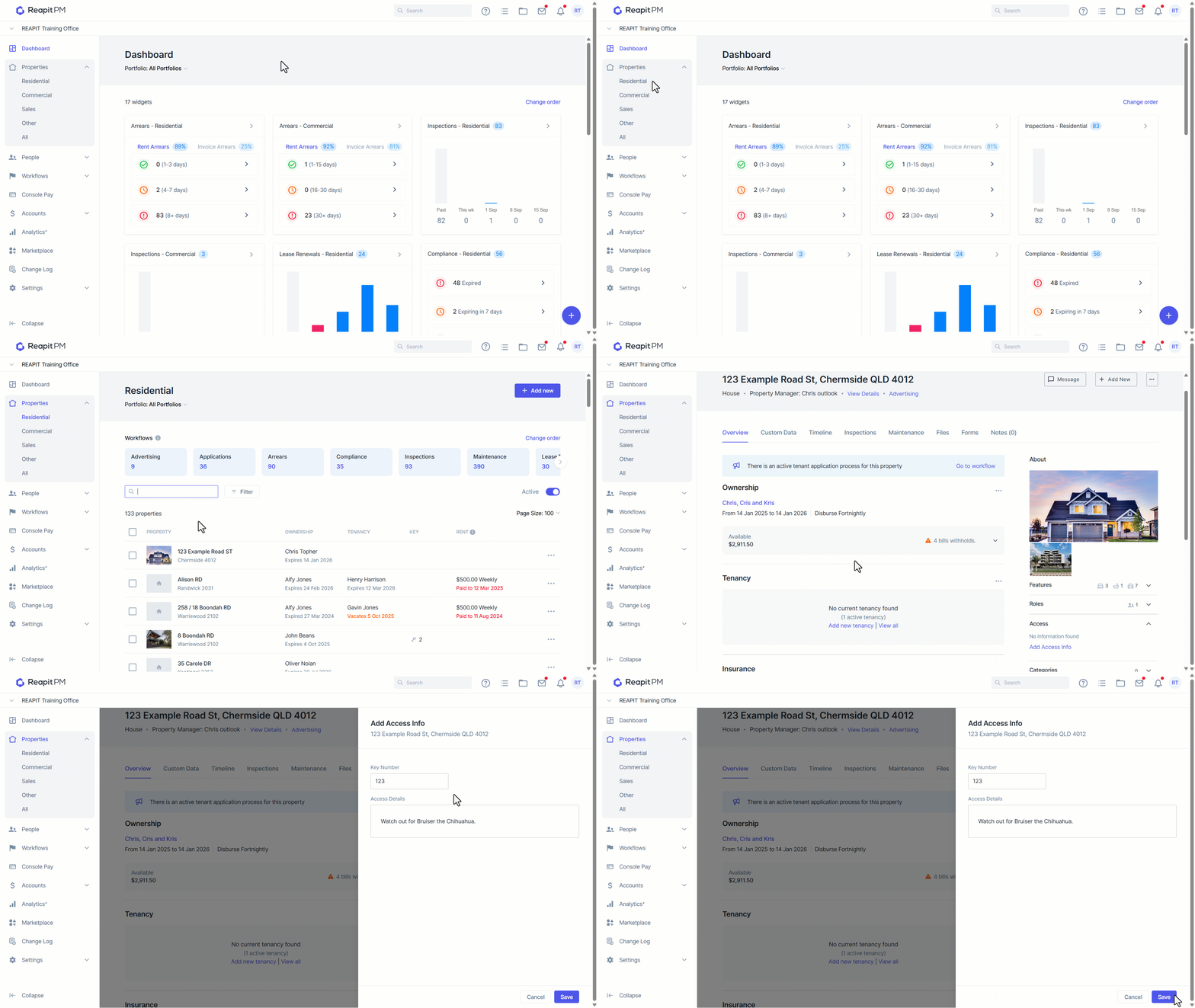
- From the side bar, click Properties, select a property type and then select a property.
- From the property’s About section, click Access to expand the dropdown and click Add Access Info.
- The Edit Access Info panel will open on the right side of the screen. Add your Key Number and Access Details and then click Save.
Checking Keys Out or In from a Property
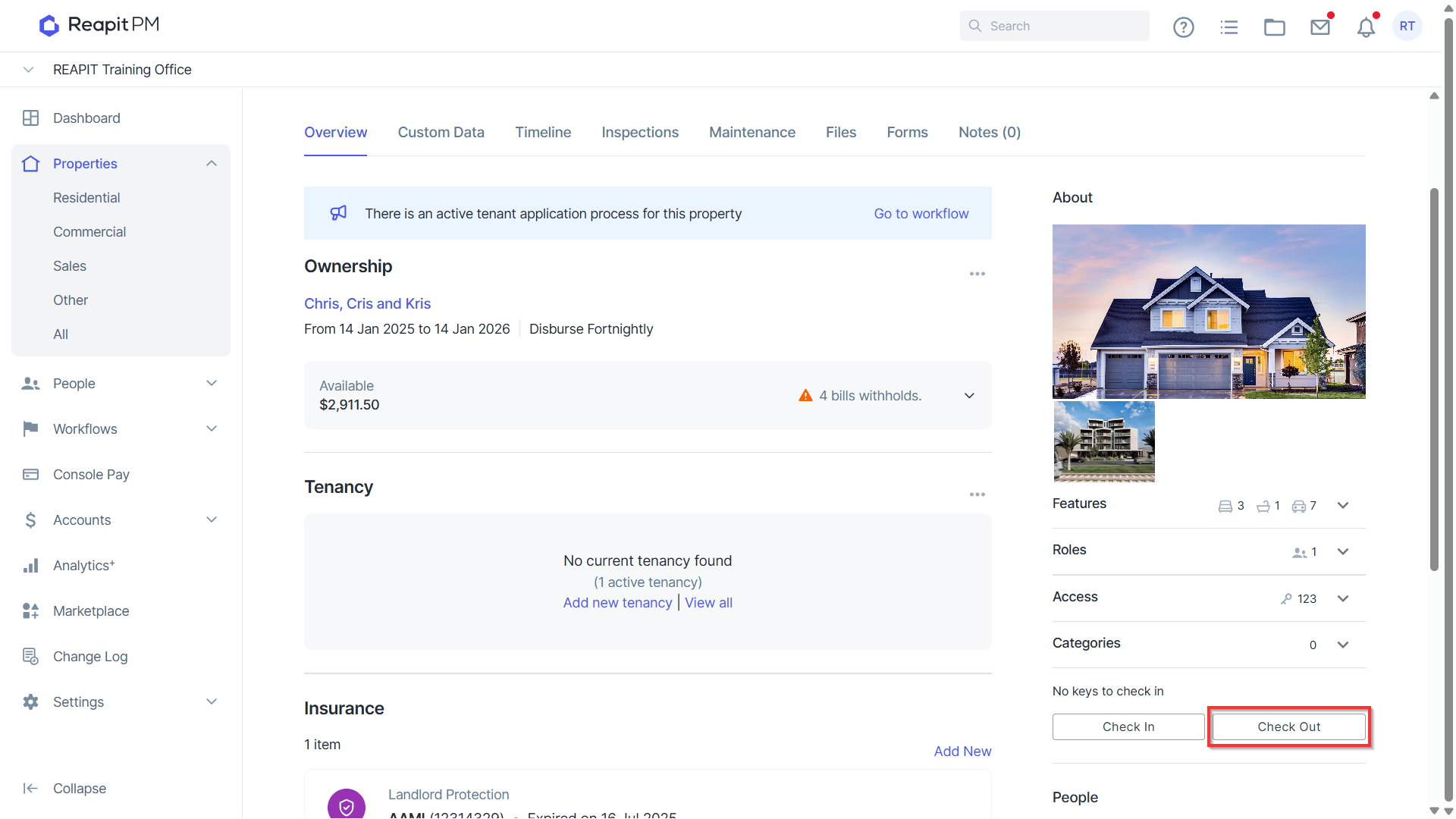
- From the properties About section, click Check Out to open the Check Out Keys panel on the right.
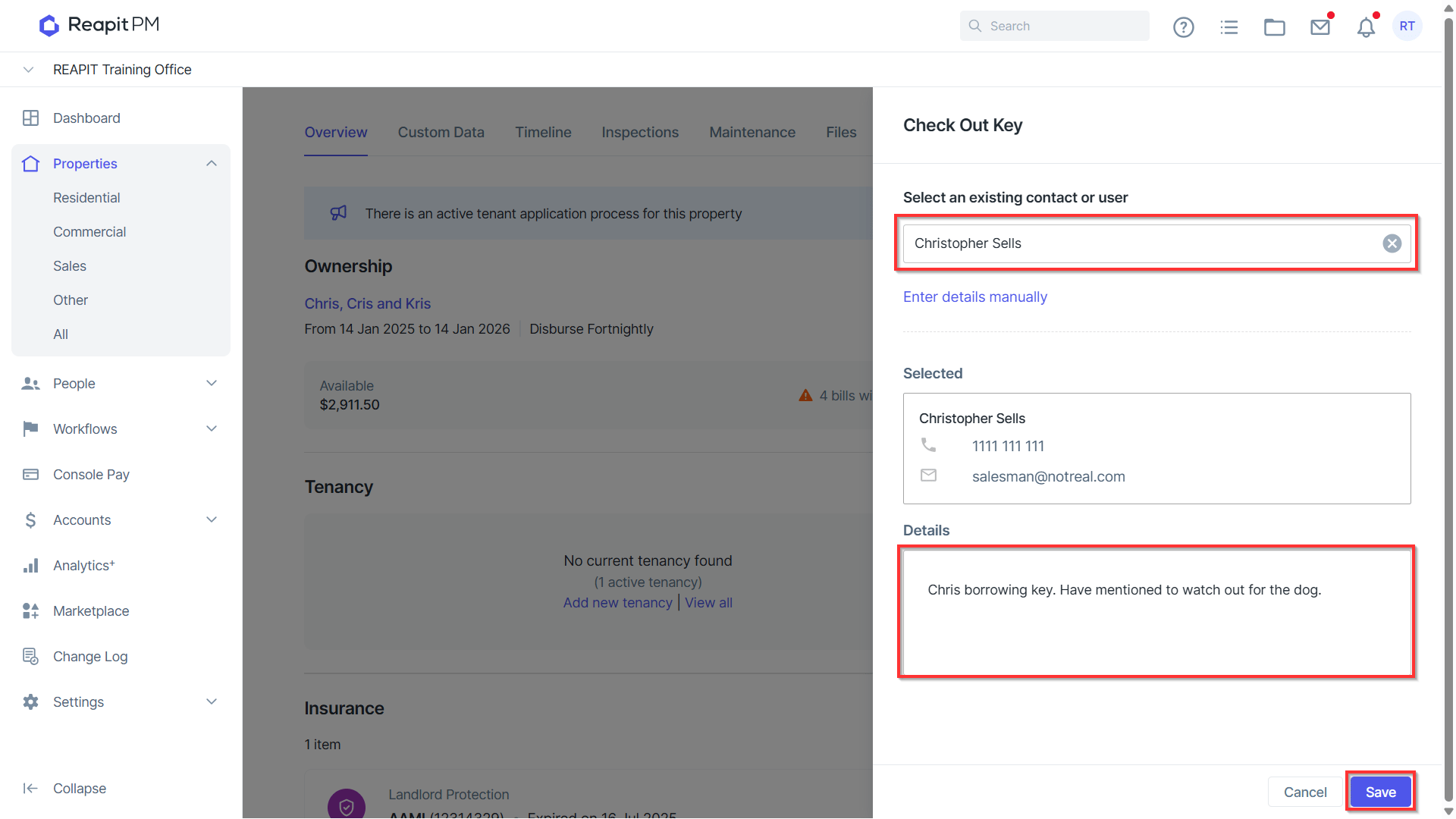
- You can either search for an existing contact or user, or select Enter new details manually.
- When searching for an existing contact type the name or mobile of the contact into the search bar to find the contact.
- Once the contact has been selected add additional comments or information in the Details box and click Save to Check Out the Keys.
- For contacts that are not in your database. From the Check Out Keys panel click Enter details manually.
- The new contact requires at least a First Name and a Last Name to Save.
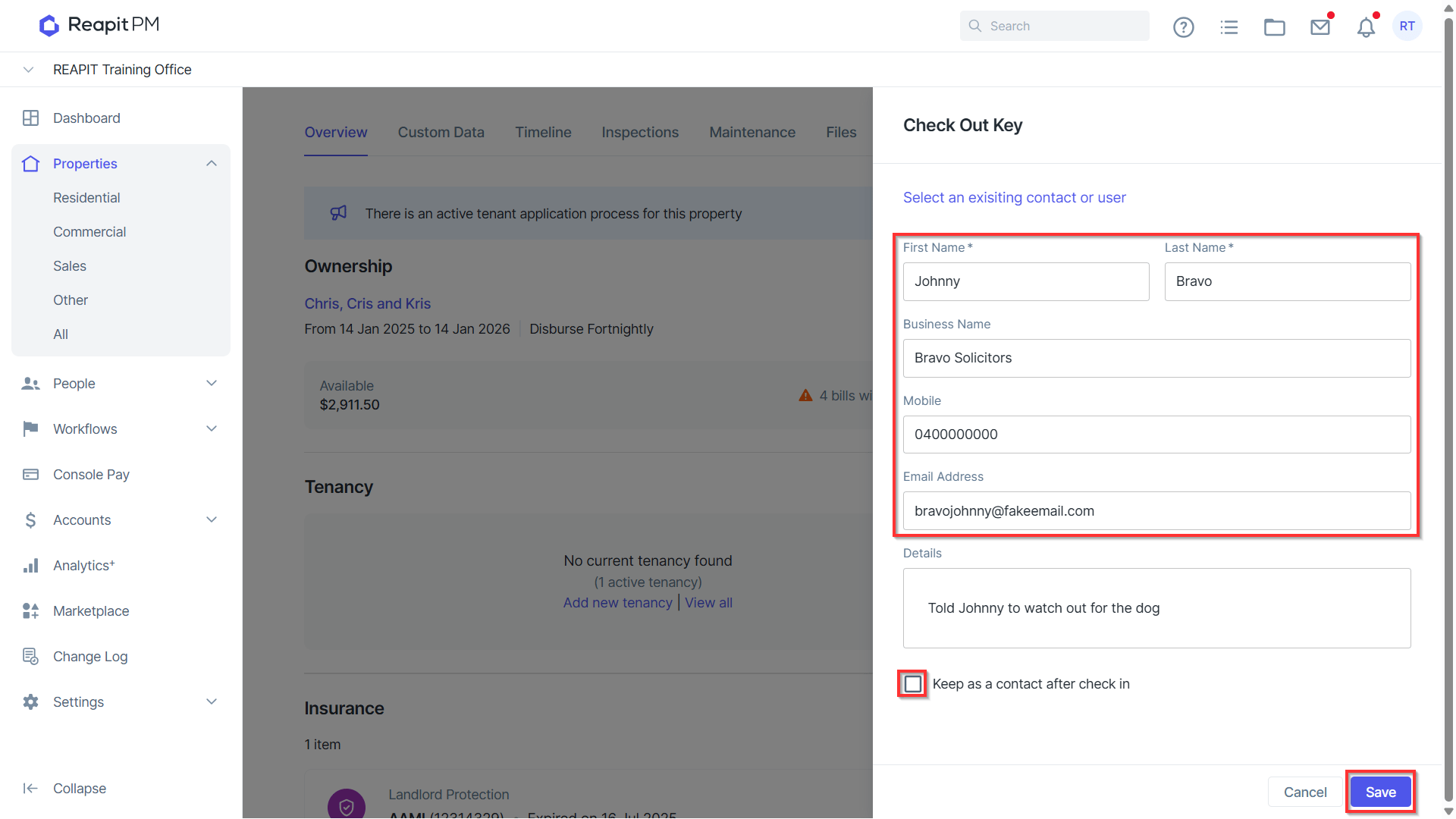
Note: You can permanently add this contact to your database by clicking - Keep as a contact after check in - if this is not ticked the contact information will be lost after the keys are checked back in.
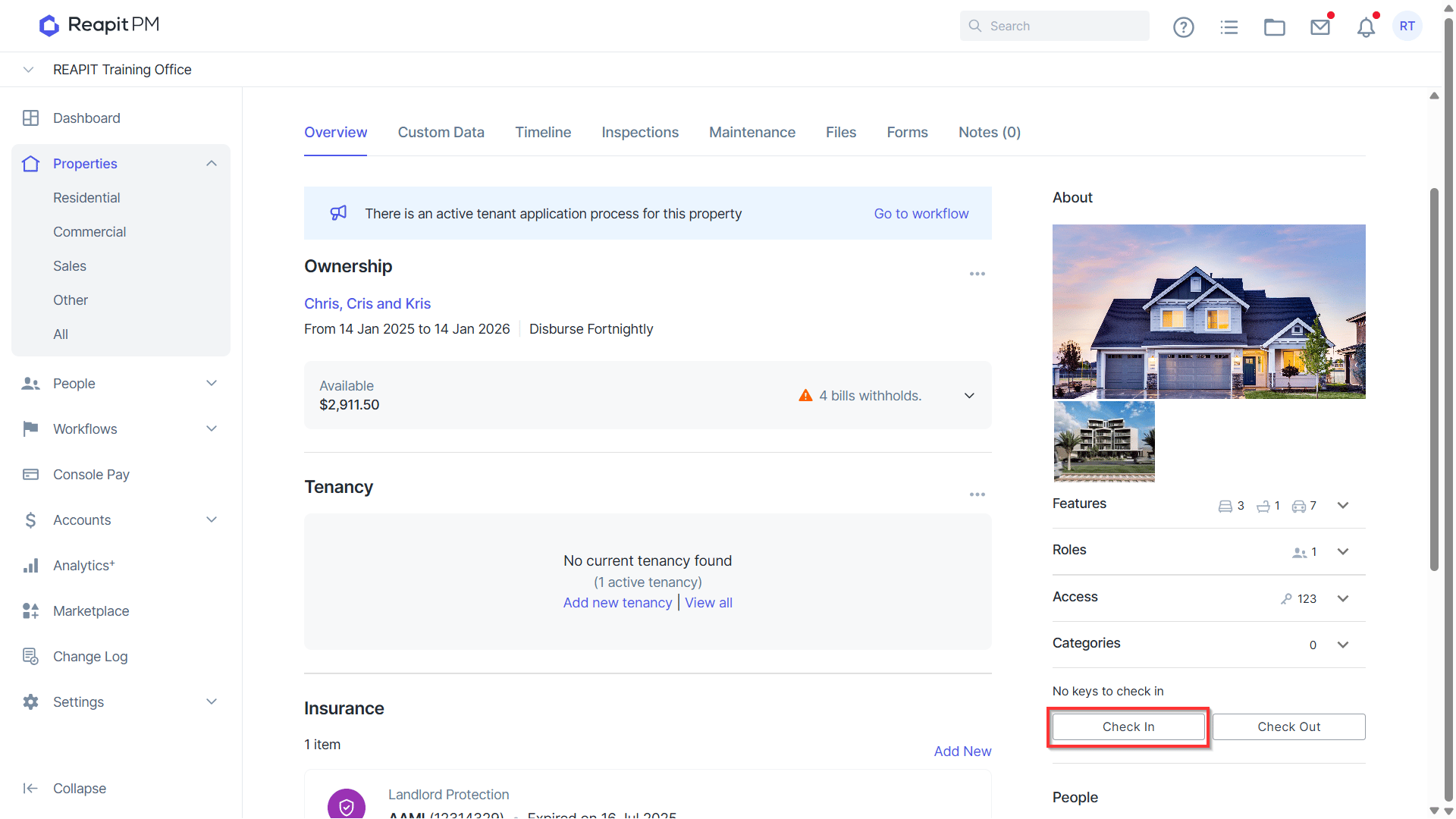
- To Check In a Key, from the properties About section, click Check In to open the Check Out Keys panel on the right.
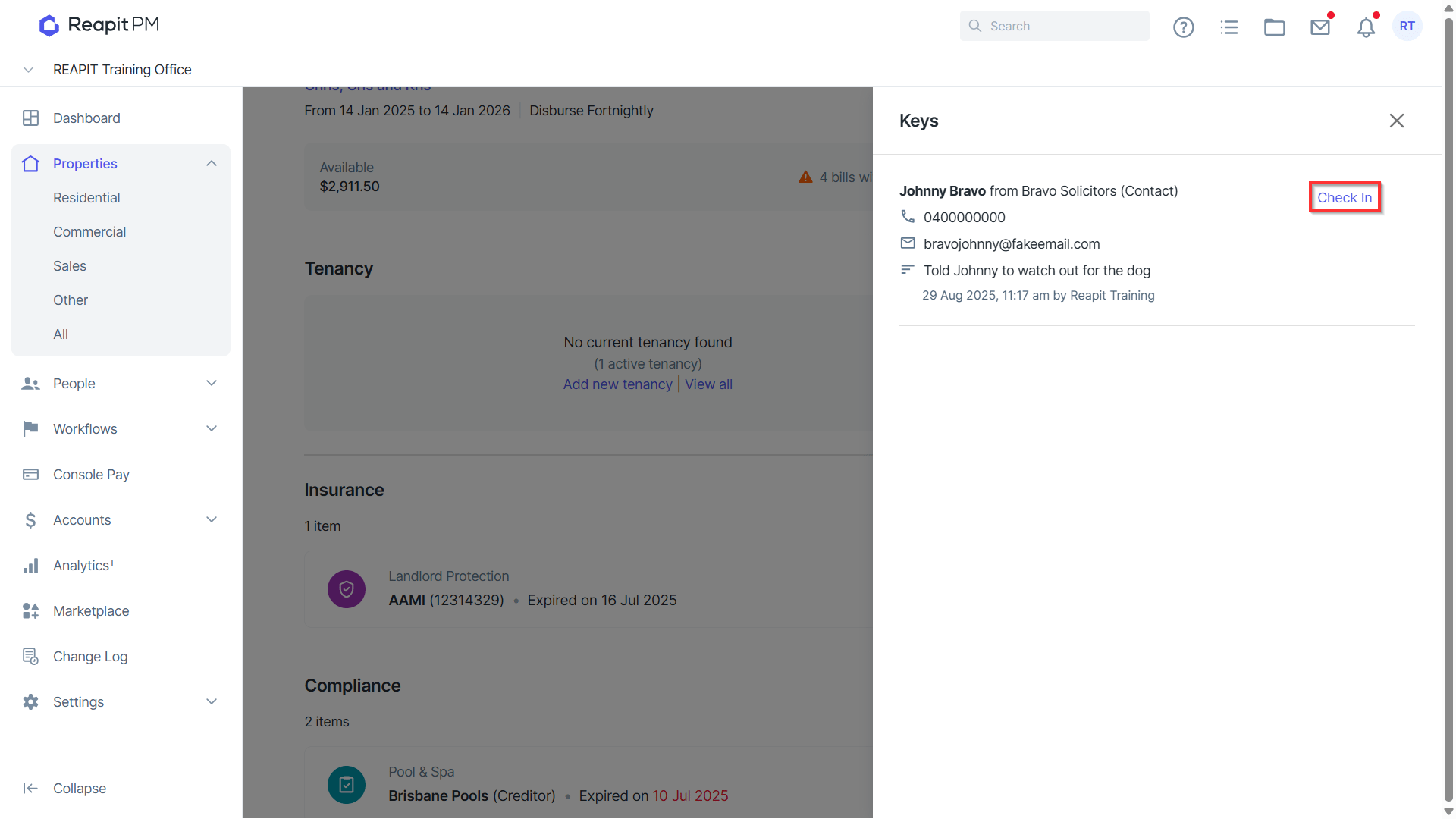
- Select Check In next to the Contact that is returning the keys.
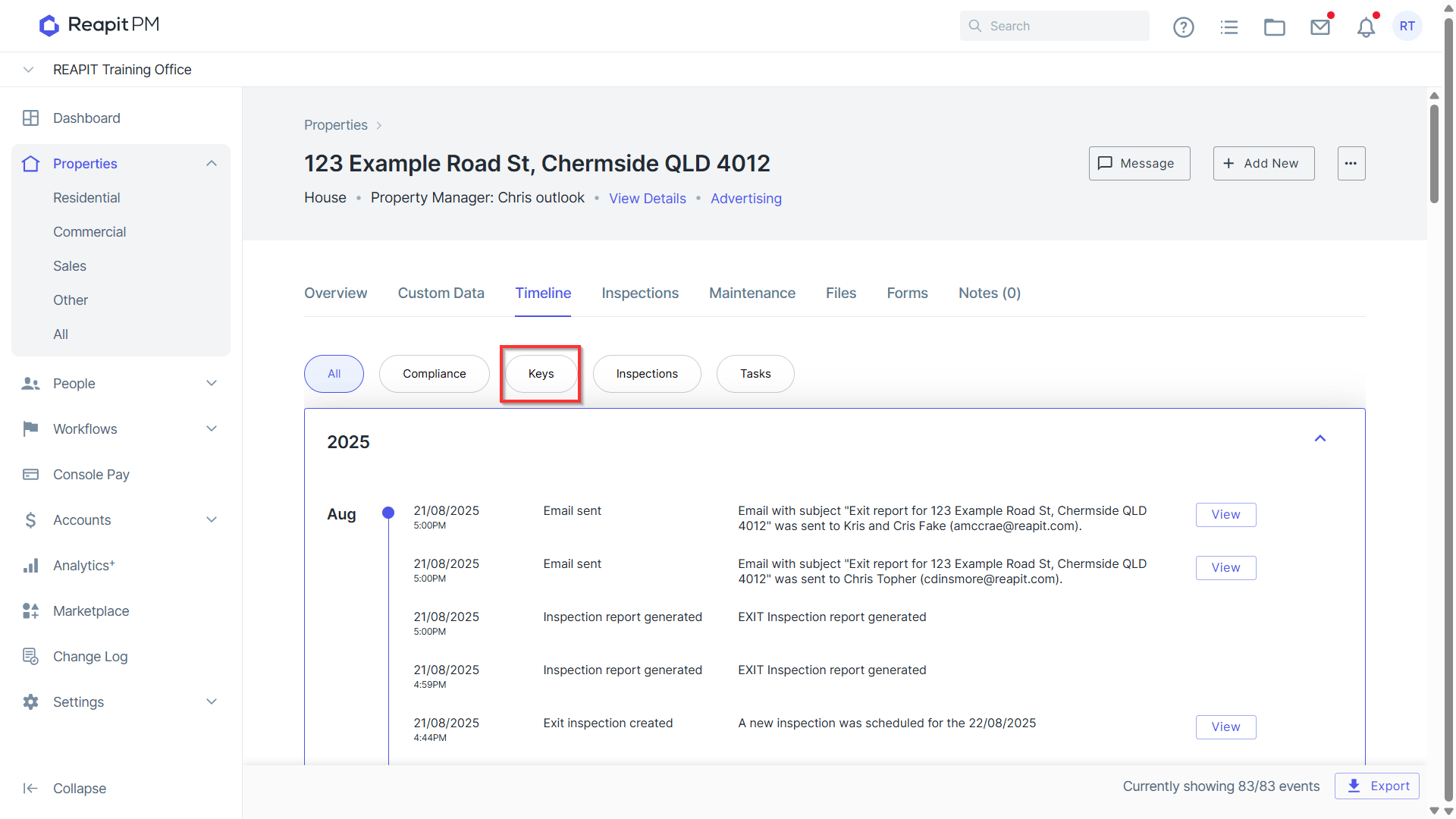
- To view a record of keys checked in and out for the Property select Timeline from the top tabs of the property.
- Clicking Keys will filter the timeline on to the keys.
Checking Keys In or Out from the Properties Draw
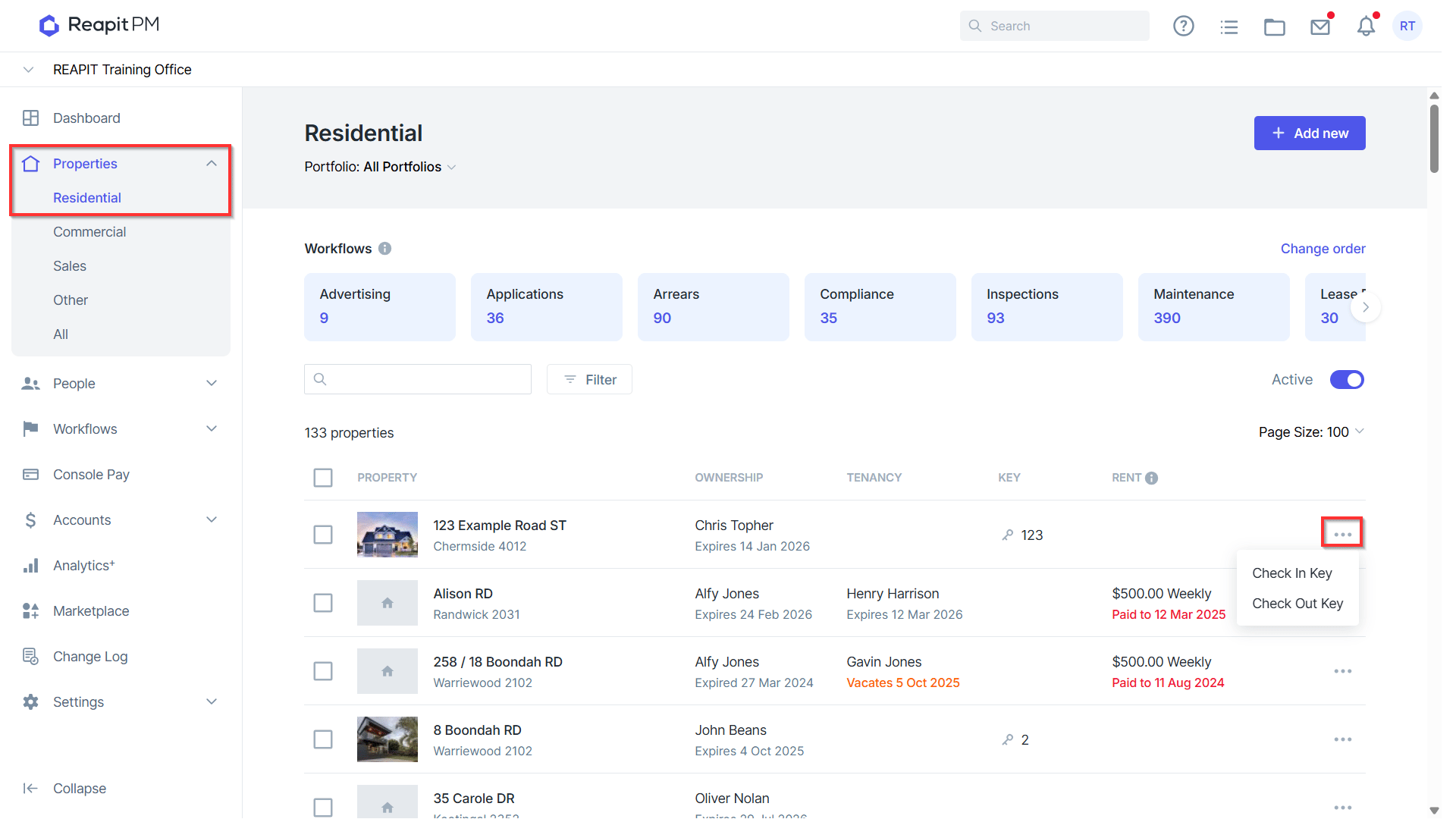
- From the Properties draw, click the three dots(ellipsis) for the property you would like to Check Out or Check In keys for.
- Select Check In Key or Check Out Key to open the right-side panel.