'%20d='M0%208a8%208%200%200%201%208-8h24a8%208%200%200%201%208%208v24a8%208%200%200%201-8%208H8a8%208%200%200%201-8-8V8Z'/%3e%3cpath%20fill='%23fff'%20d='M8.375%2013v14L20.5%2034l12.124-7v-7.737l-1.687-.975-2.806-1.62-1.082-.624v4.83l-.002%204.83H13.95V16.07l3.275-1.89%202.192-1.265%201.082-.625%203.275%201.877%202.192%201.256%201.083.62V9.782L20.5%206%208.376%2013Z'/%3e%3cdefs%3e%3clinearGradient%20id='reapit-pm__a'%20x1='20.702'%20x2='20.702'%20y1='.351'%20y2='31.228'%20gradientUnits='userSpaceOnUse'%3e%3cstop%20stop-color='%235573FD'/%3e%3cstop%20offset='.575'%20stop-color='%234E56EA'/%3e%3c/linearGradient%3e%3c/defs%3e%3c/svg%3e)
Managing Failed Payments with Console Pay
This article will take you through how to manage failed payments in Console Pay.
Overview
Managing Failed Payments with Console Pay
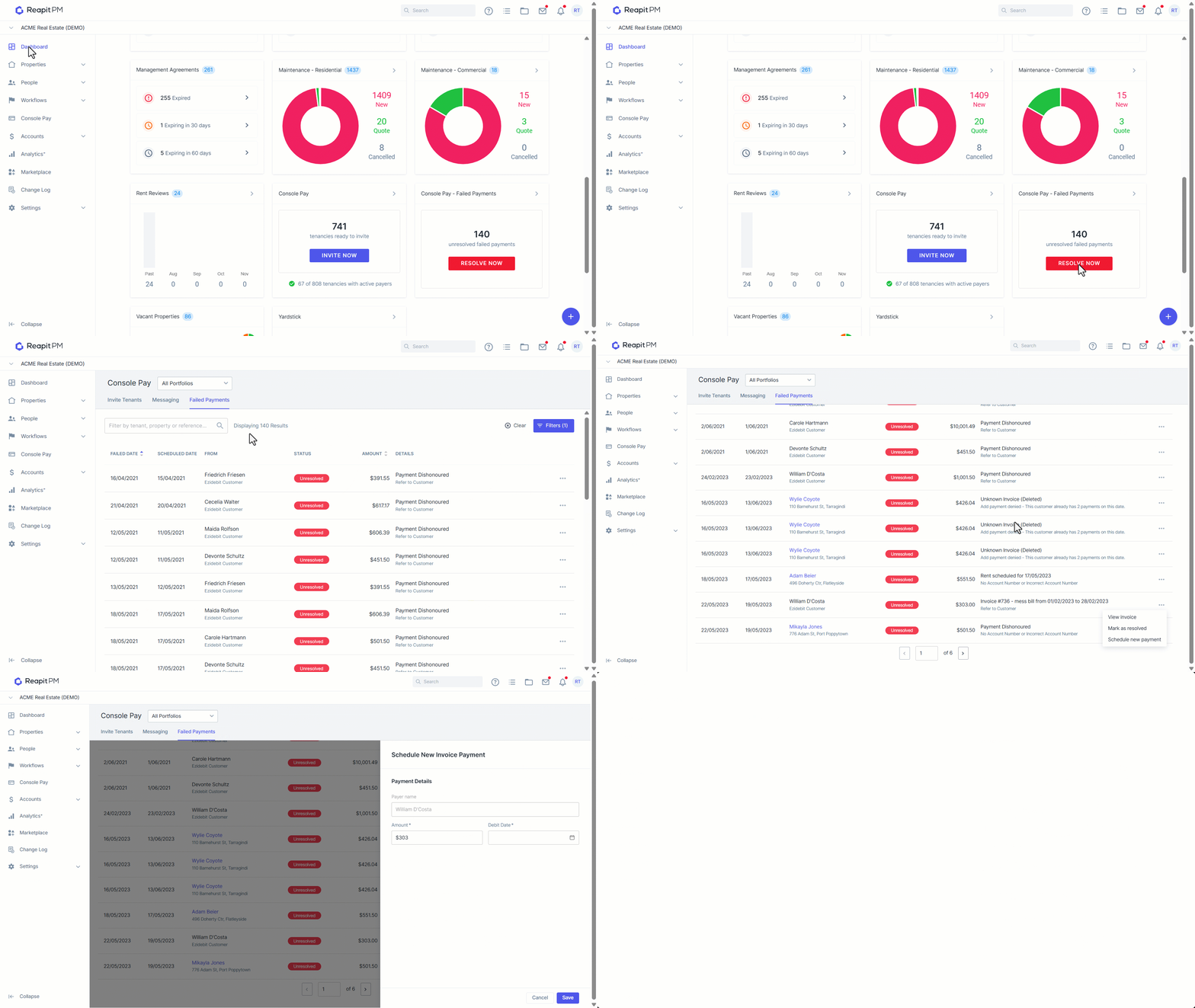
When a payment fails to be debited successfully for any reason you can view this in the individual tenants ‘Manage Console Pay’ section or see all failed payments for your office in the ‘Console Pay Failed Payments’ section.
The Console Pay failed payment section allows you to:
- See all failed payments on one page
- Reschedule failed payments with Console Pay
- Mark failed payments as resolved and track a reason against the failed payment.
The process in this article includes:
- How to Manage Failed Console Pay Payments
How to Manage Failed Console Pay Payments
- Navigate to the Failed Payment section from Dashboard > Console Pay and click Resolve Now.
- Or, Click on Console Pay, Click on Failed Payments.
- Search and apply any filters as applicable
- Against the unresolved failed payment review the details of the failed reason, then select the 3-Dots,
- Mark as appropriate:
- Resolved if payment has been received separate to Console Pay,
- View Invoice if it is an invoice dishonour,
- or Schedule new payment.
- If scheduling a new payment, confirm the amount, debit date and click Save.
- Once scheduled, add any notes as applicable and click Resolve.