'%20d='M0%208a8%208%200%200%201%208-8h24a8%208%200%200%201%208%208v24a8%208%200%200%201-8%208H8a8%208%200%200%201-8-8V8Z'/%3e%3cpath%20fill='%23fff'%20d='M8.375%2013v14L20.5%2034l12.124-7v-7.737l-1.687-.975-2.806-1.62-1.082-.624v4.83l-.002%204.83H13.95V16.07l3.275-1.89%202.192-1.265%201.082-.625%203.275%201.877%202.192%201.256%201.083.62V9.782L20.5%206%208.376%2013Z'/%3e%3cdefs%3e%3clinearGradient%20id='reapit-pm__a'%20x1='20.702'%20x2='20.702'%20y1='.351'%20y2='31.228'%20gradientUnits='userSpaceOnUse'%3e%3cstop%20stop-color='%235573FD'/%3e%3cstop%20offset='.575'%20stop-color='%234E56EA'/%3e%3c/linearGradient%3e%3c/defs%3e%3c/svg%3e)
Setting and Applying CPI Rent Reviews
This article is a guide to set up and apply CPI Rent Reviews. The process in this article include: Setting up and Applying
Overview
Setting and Apply CPI Rent Reviews
This article is a guide to set up and apply CPI Rent Reviews.
The process in this article include:
- Setting up and Applying
Setting up and Applying
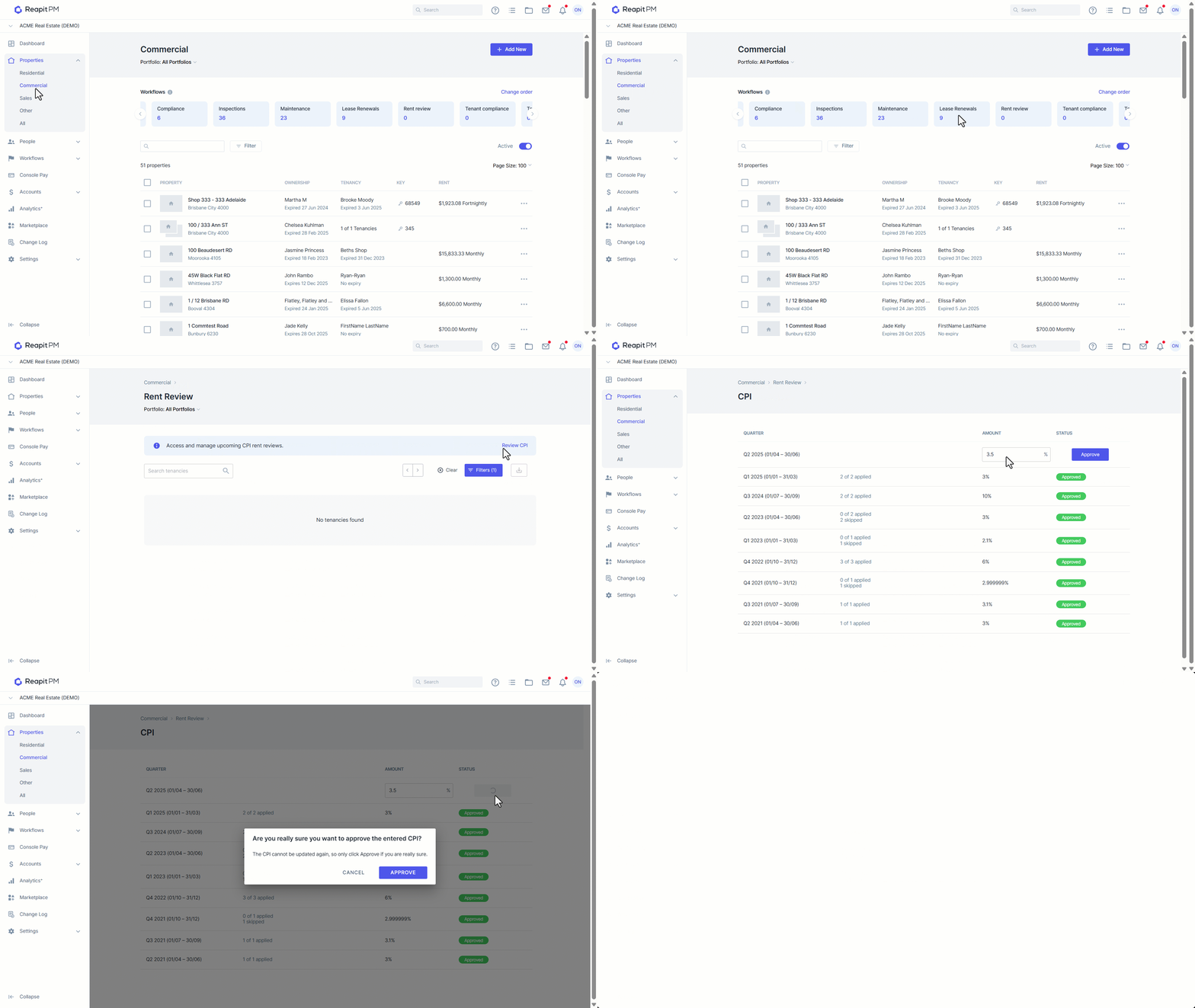
- Click on Properties
- Click on Commercia****l.
- Select the Rent Review workflow
- Click Review CPI. Within this view, you have the ability to enter and approve a CPI percentage for the quarter.
- Enter the percentage value within the percentage field. You have up to 9 decimal places for this value to ensure the most accurate value is available for your increase.
- Once you've entered your amount, select Approve. It's important to note that once you've selected approve, the CPI value cannot be entered again.
Note: An Approved status will then display and the CPI value will be globally applied to those tenancies with CPI selected as their rent review type, once you have selected them in the click-through screen.
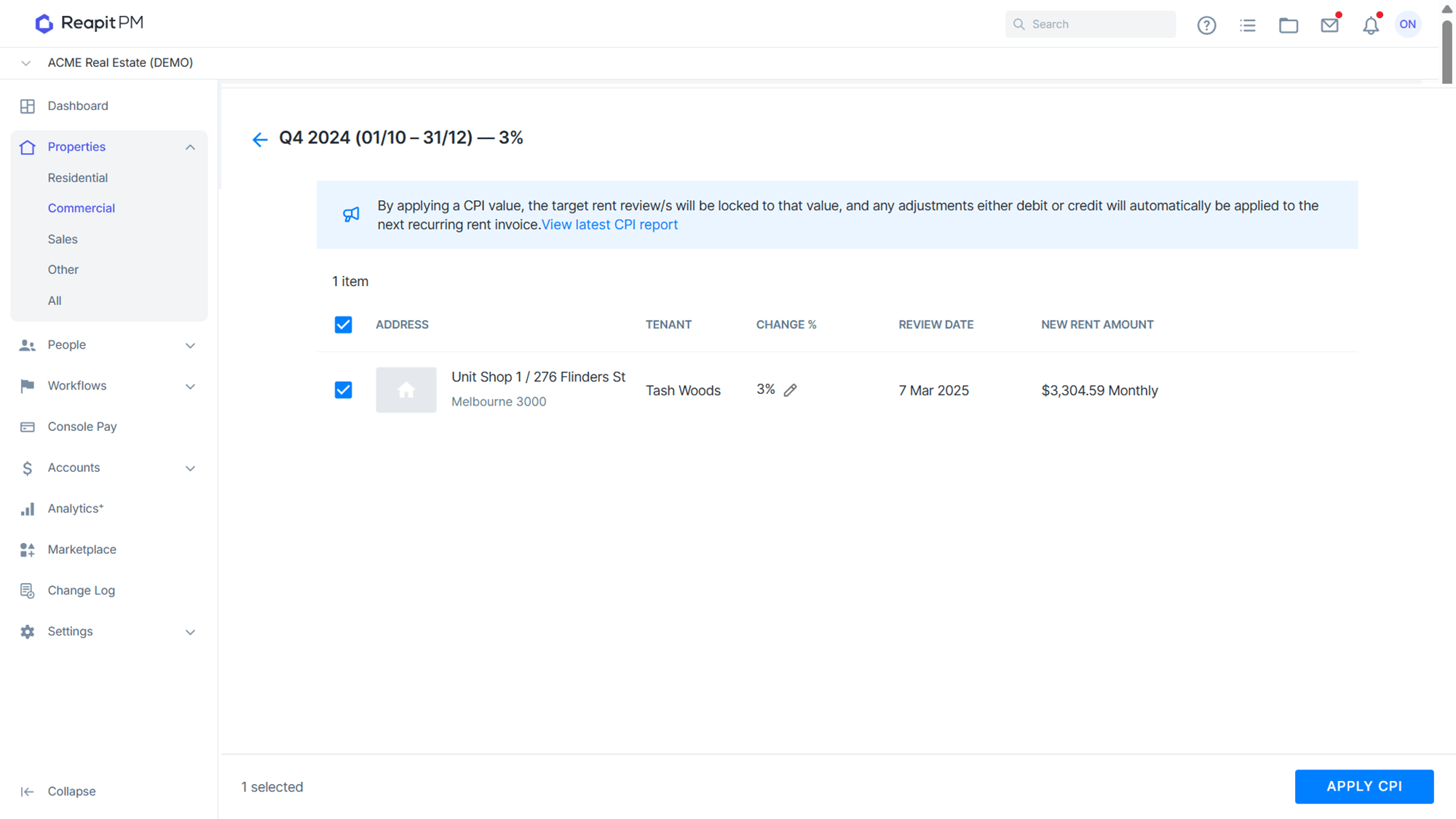
- Within the CPI quarter, you will see a list of tenancies with CPI listed as their rent review type.
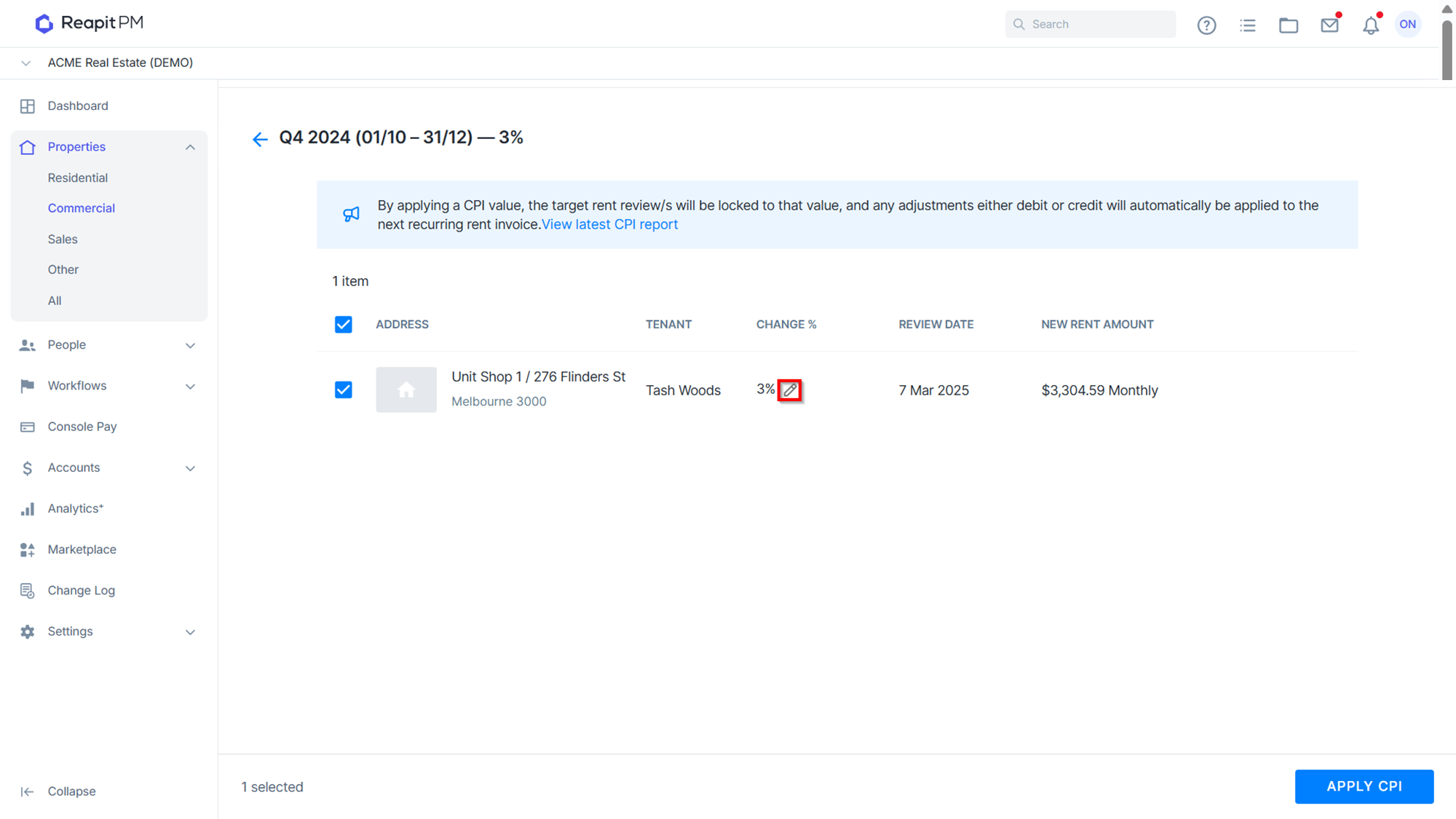
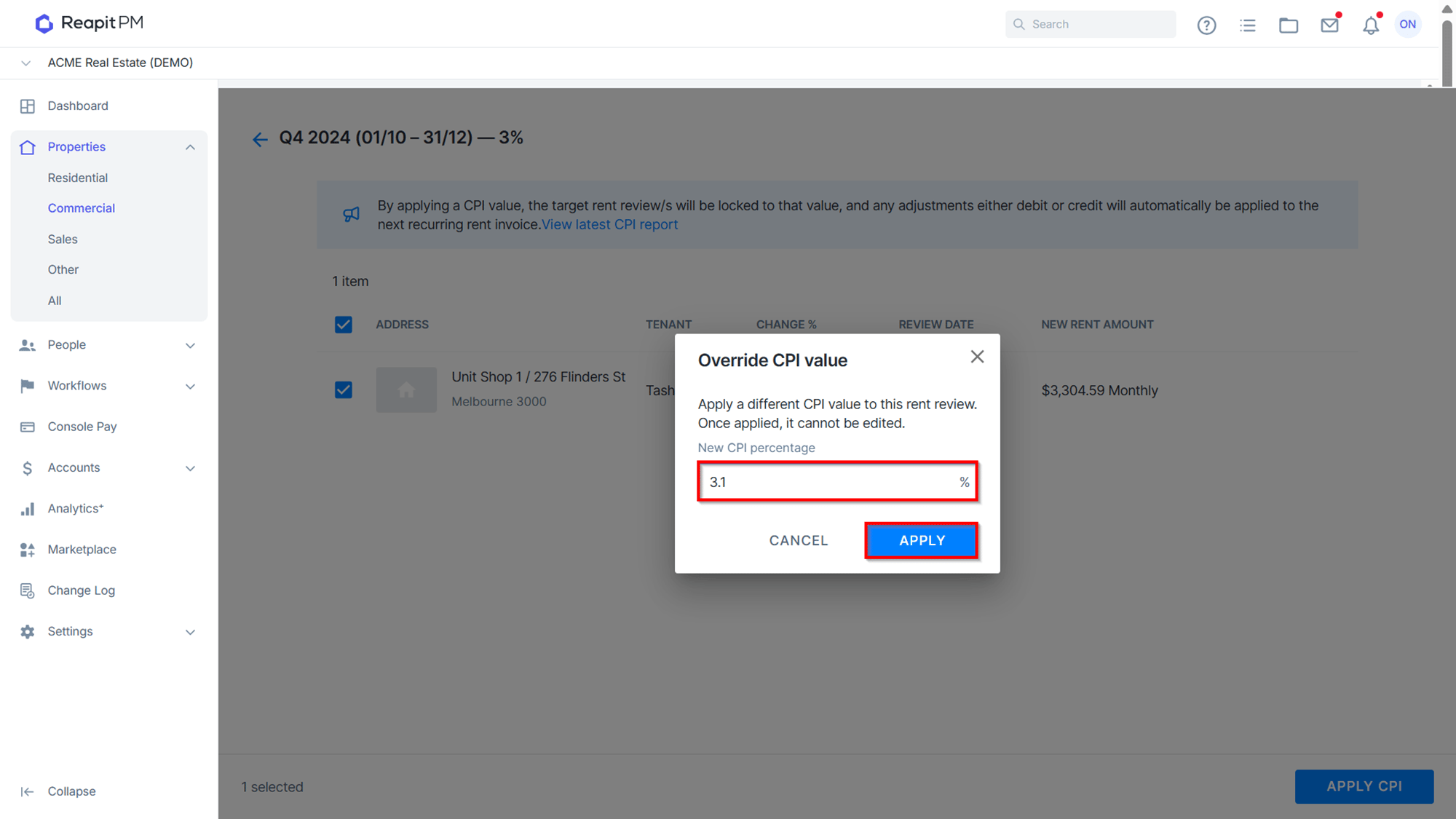
- You can then apply the different CPI value to the rent review to override the global percentage set, a message will appear advising that once it has been applied it cannot be changed.
- Confirmation of the change will then display in the view.
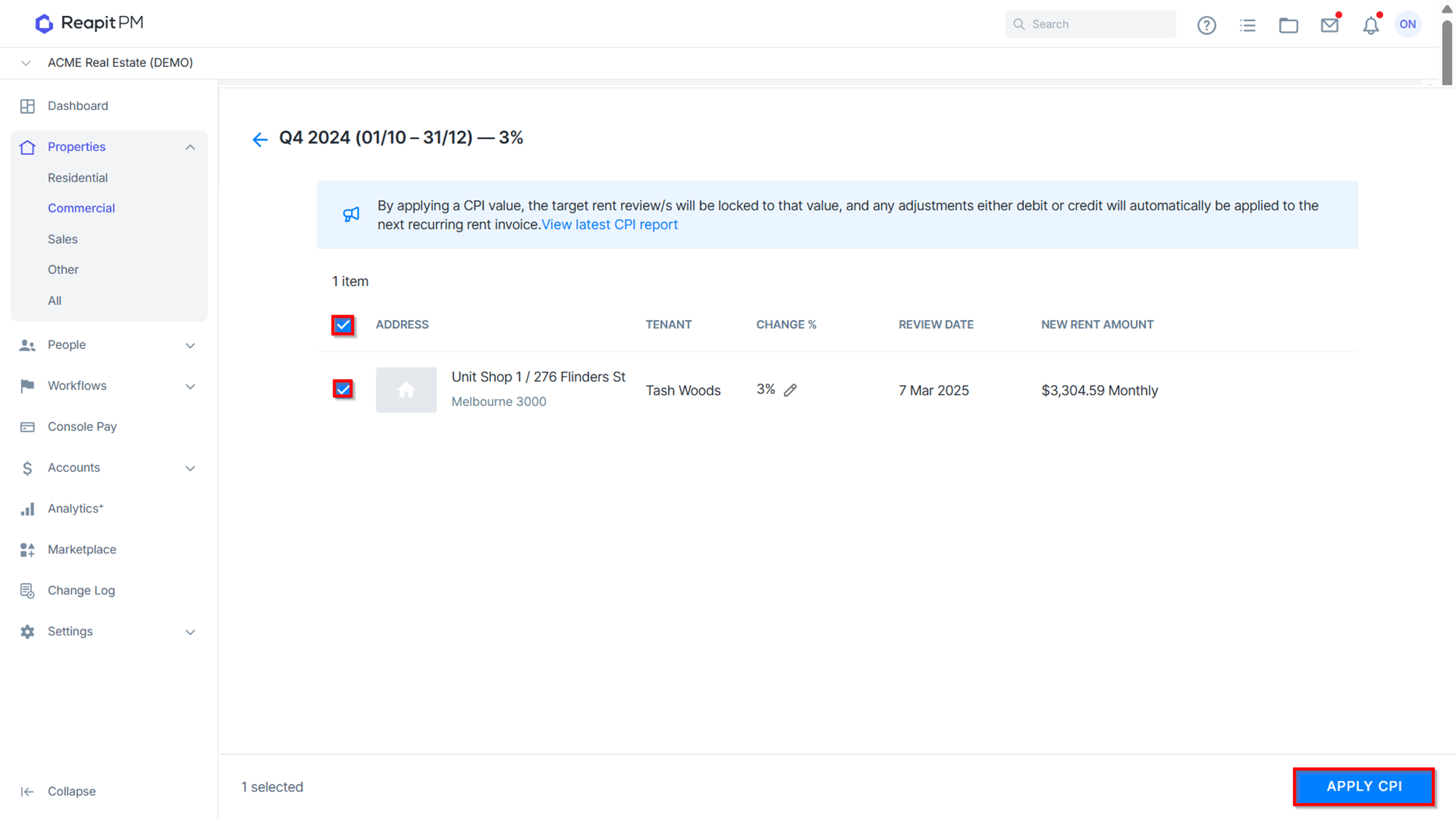
- Alternatively, you can apply the set CPI percentage as listed. Select the tenancies within the list that you'd like to apply to CPI to, then select Apply CPI.
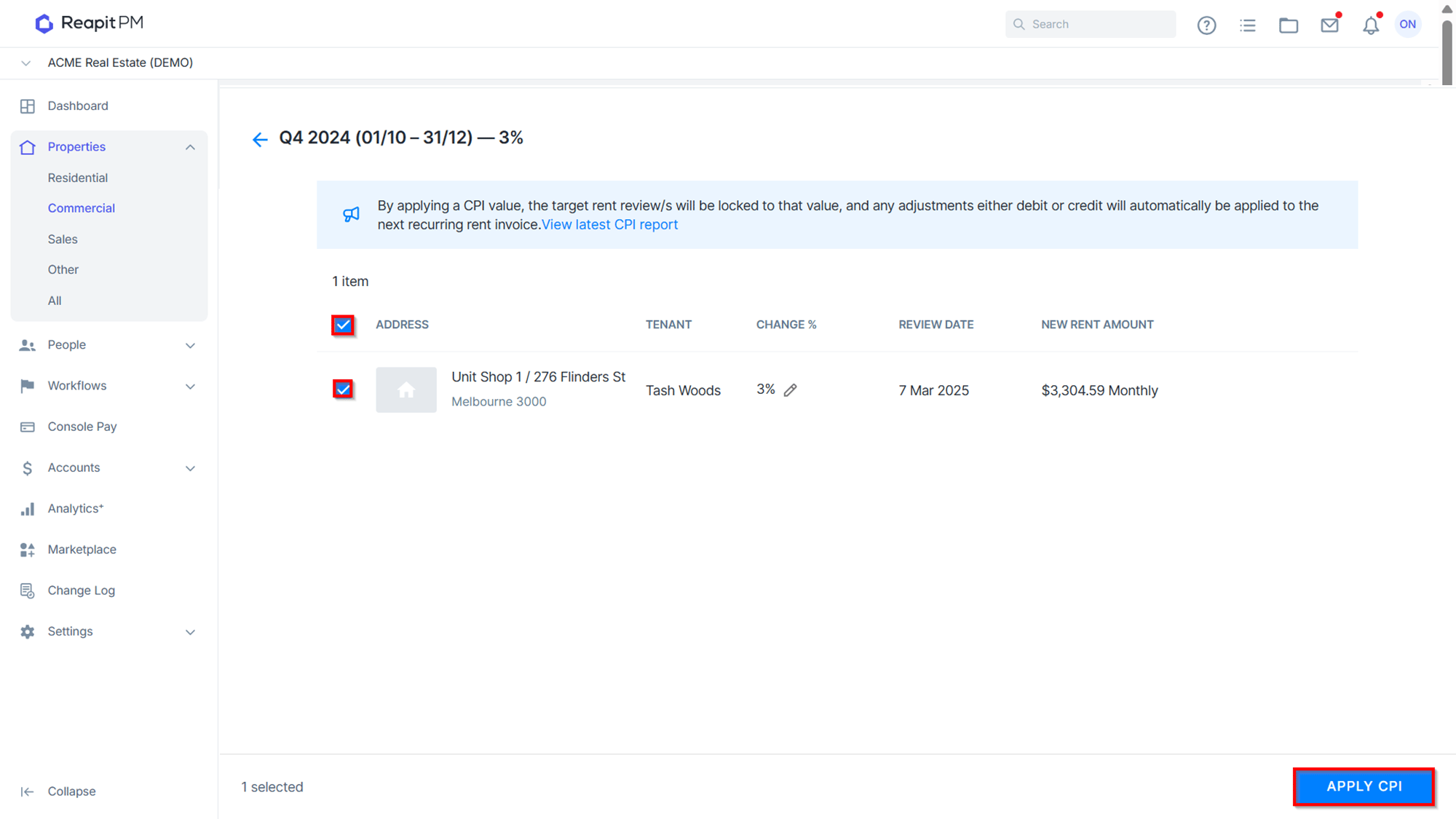
- Once applied, it will display under the status within the view.
Note: If there is a variance in dates for when you are setting your CPI percentages for the rent increase, upon the initial quarter you will need to raise a pro-rata invoice against the tenancy for the pay period difference where the CPI percentage had not been applied. Invoices can be raised under Accounts, then selecting Invoice.