'%20d='M0%208a8%208%200%200%201%208-8h24a8%208%200%200%201%208%208v24a8%208%200%200%201-8%208H8a8%208%200%200%201-8-8V8Z'/%3e%3cpath%20fill='%23fff'%20d='M8.375%2013v14L20.5%2034l12.124-7v-7.737l-1.687-.975-2.806-1.62-1.082-.624v4.83l-.002%204.83H13.95V16.07l3.275-1.89%202.192-1.265%201.082-.625%203.275%201.877%202.192%201.256%201.083.62V9.782L20.5%206%208.376%2013Z'/%3e%3cdefs%3e%3clinearGradient%20id='reapit-pm__a'%20x1='20.702'%20x2='20.702'%20y1='.351'%20y2='31.228'%20gradientUnits='userSpaceOnUse'%3e%3cstop%20stop-color='%235573FD'/%3e%3cstop%20offset='.575'%20stop-color='%234E56EA'/%3e%3c/linearGradient%3e%3c/defs%3e%3c/svg%3e)
Commercial Bonds
This Reapit PM article will cover holding commercial bonds in trust and creating a payment with the balance.
This Reapit PM article explains holding commercial bonds in trust and creating a payment with the balance.
The processes in this article include:
- Holding and Managing Commercial Bonds
- Paying from the Commercial Bond Balance
Holding and Managing Commercial Bonds
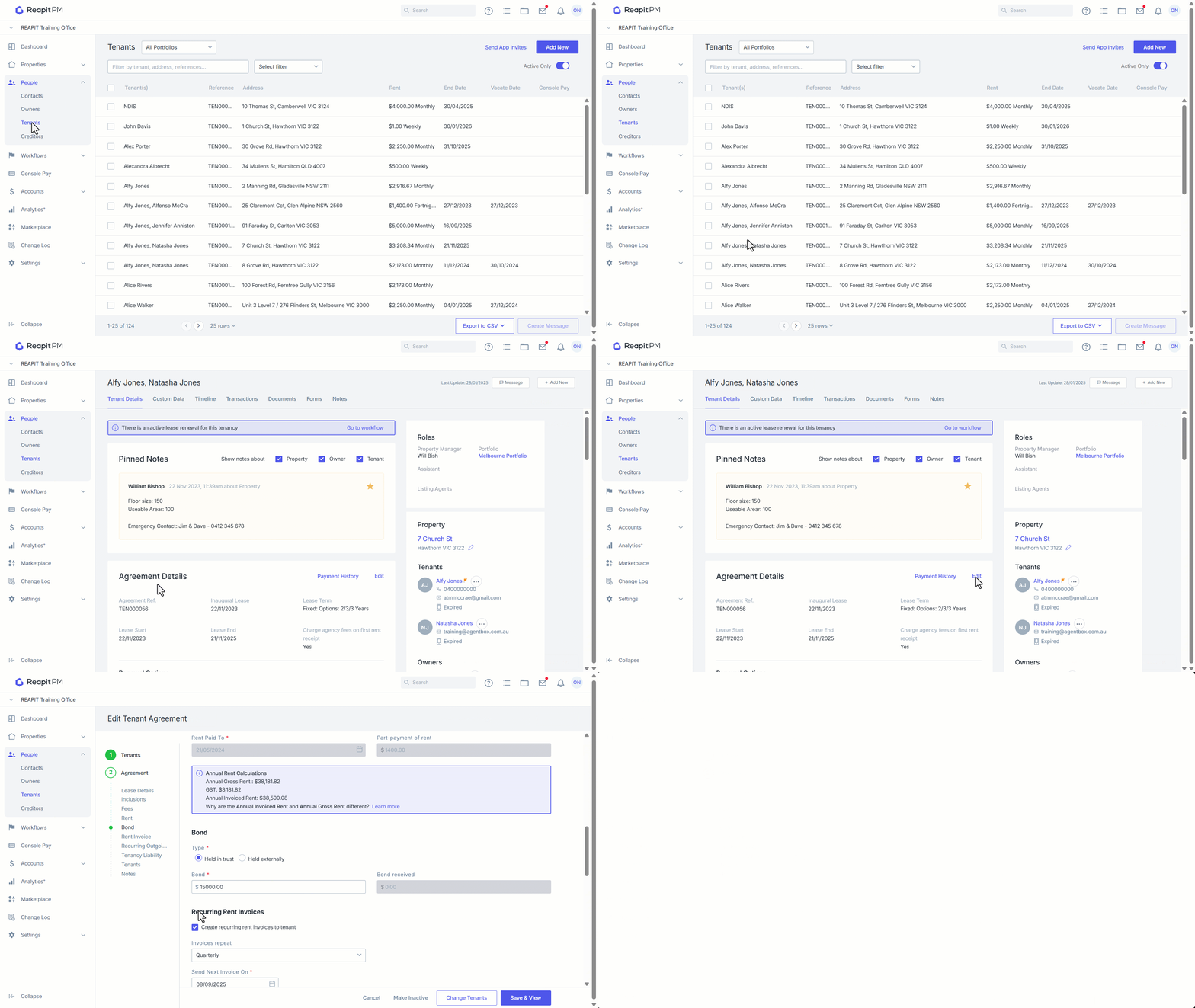
1. To hold a commercial bond in Trust, navigate to People > Tenants.
2. Locate the Tenant from the list of tenants, or use the search field to type in the tenant's name or property address.
3. Click Edit on the Agreement Details.
4. Select Bond Type style as Held in trust. Enter in the Bond amount, and click Save & View.
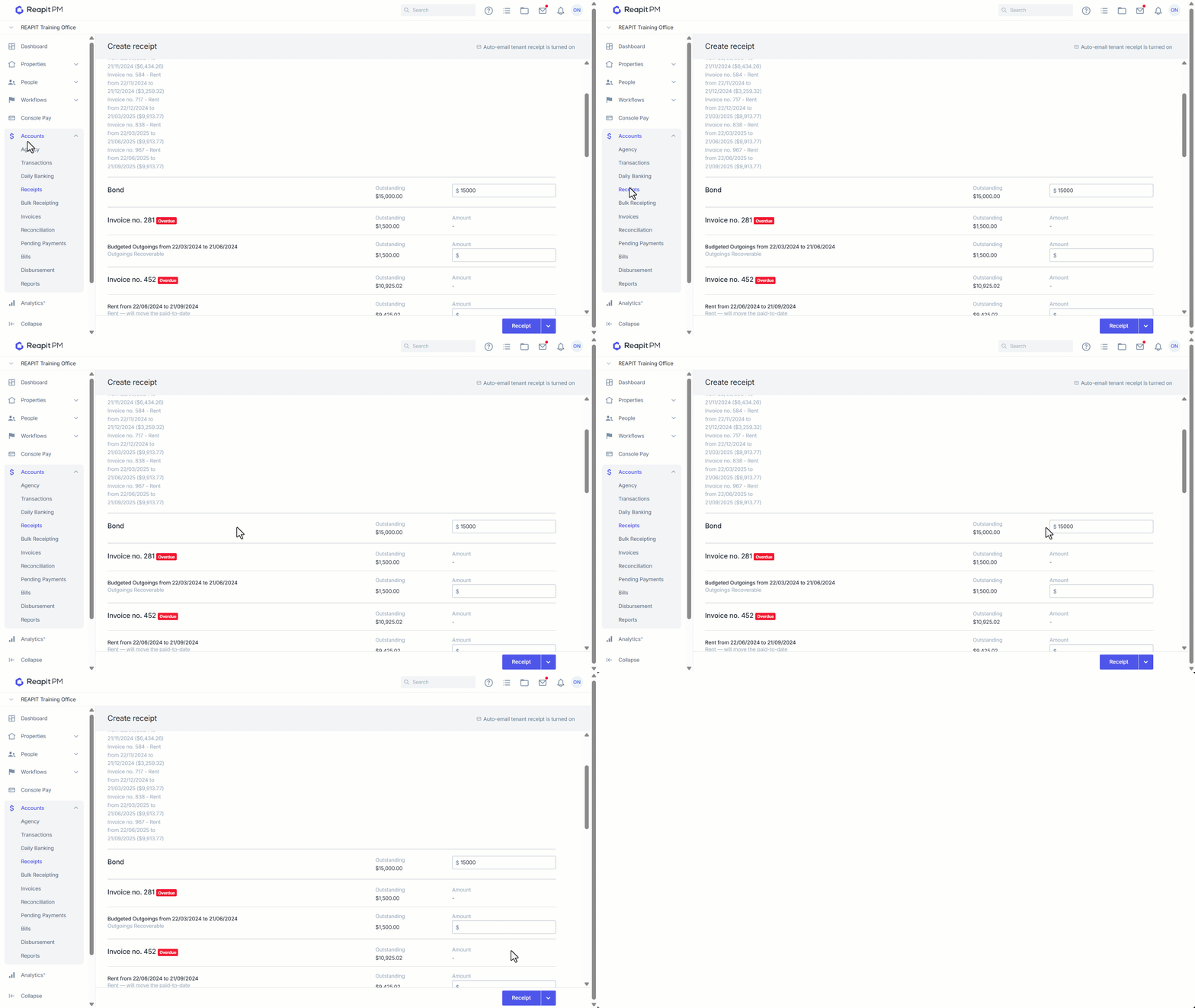
5. Navigate to Accounts > Receipts. Under the received from field, enter in the tenant name or property address. receipt in the total amount received for bond and select receipt to process.
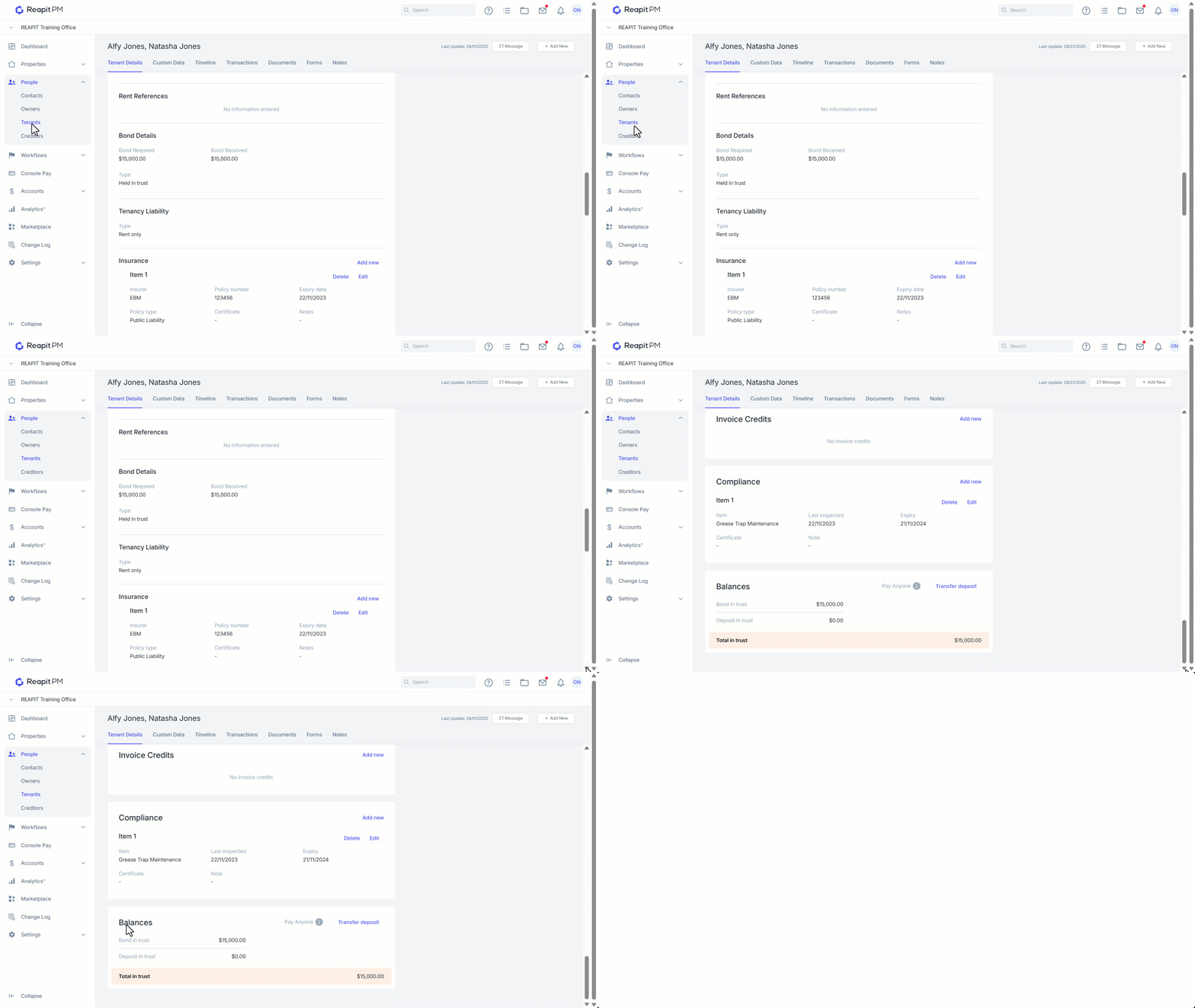
6. Returning to the Tenant file, under the Bond Details section, the received amount will display against the Tenant file with the type 'Held in trust'.
7. Further down the page under Balances, the amount received will appear under Bond in trust.
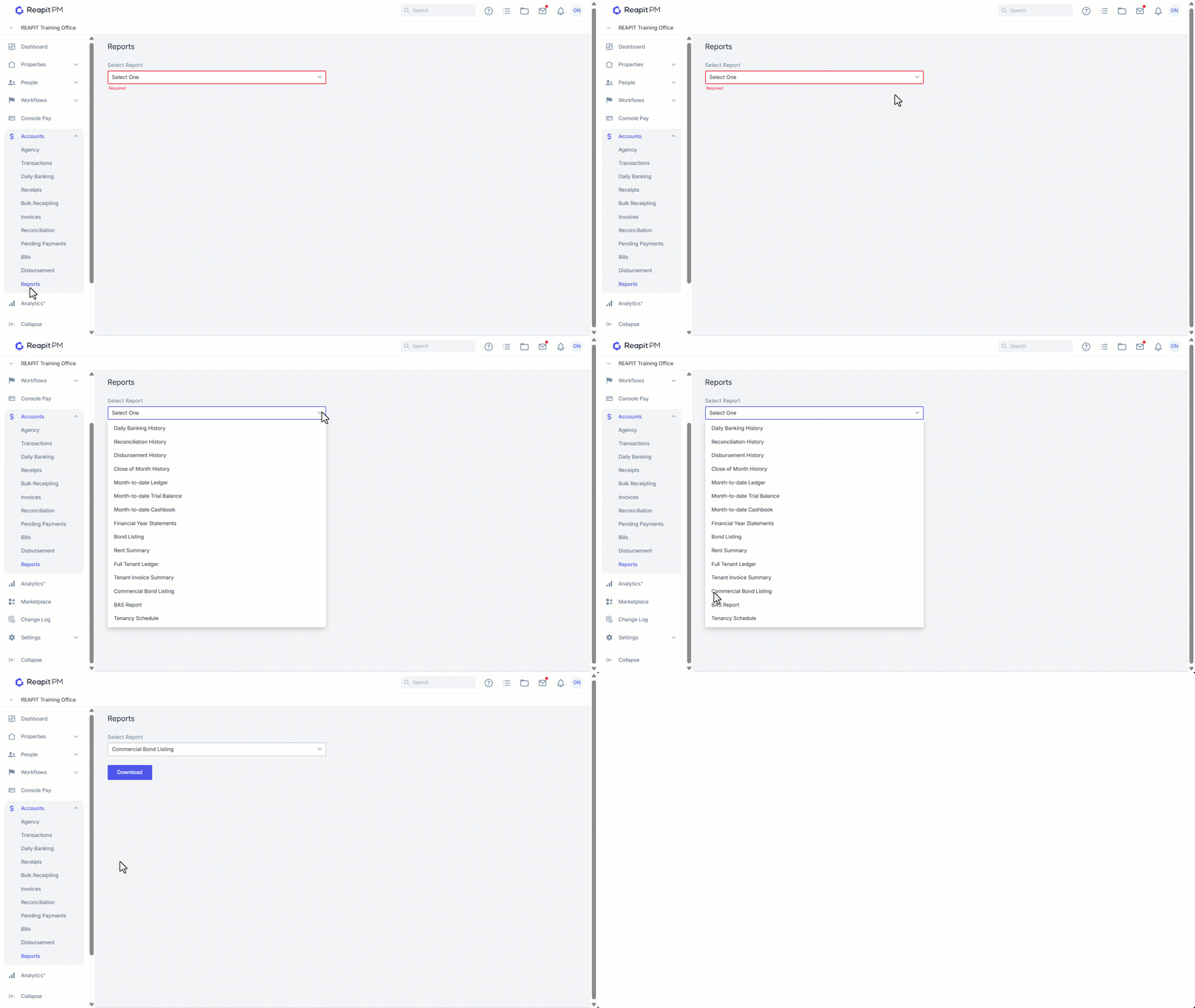
8. To view a complete list of bonds being held in trust and externally with the type of hold, proceed to Accounts > Reports and select the report type Commercial Bond Listing.
This will produce a zip file that will contain a .PDF and .CSV format of the data.
Paying from the Commercial Bond Balance
1. To pay or refund a balance out of commercial bond, open the property file, click the three dots to the right of the Tenancy, and select Pay Anyone.
2. Under the From drop-down menu, select Commercial Bond.
3. Enter the Pay To details, including:
- Payment Method.
- Account Name.
- BSB and Account Number (if using EFT).
- Payment Details
- Description
- Amount
Some fields are optional, but any field marked with * is required to process the payment. Click Pay to proceed.
4. Confirmation of the payment being successful will appear. If paying with EFT, you will be provided with a zip file containing the .ABA file and the EFT Summary.