'%20d='M0%208a8%208%200%200%201%208-8h24a8%208%200%200%201%208%208v24a8%208%200%200%201-8%208H8a8%208%200%200%201-8-8V8Z'/%3e%3cpath%20fill='%23fff'%20d='M8.375%2013v14L20.5%2034l12.124-7v-7.737l-1.687-.975-2.806-1.62-1.082-.624v4.83l-.002%204.83H13.95V16.07l3.275-1.89%202.192-1.265%201.082-.625%203.275%201.877%202.192%201.256%201.083.62V9.782L20.5%206%208.376%2013Z'/%3e%3cdefs%3e%3clinearGradient%20id='reapit-pm__a'%20x1='20.702'%20x2='20.702'%20y1='.351'%20y2='31.228'%20gradientUnits='userSpaceOnUse'%3e%3cstop%20stop-color='%235573FD'/%3e%3cstop%20offset='.575'%20stop-color='%234E56EA'/%3e%3c/linearGradient%3e%3c/defs%3e%3c/svg%3e)
Console Pay in Lease Renewals
This article will walk you through how to manage console pay schedules and rent changes during the lease renewal process
Overview
Managing Console Pay in the Lease Renewal Workflow
When conducting a Lease Renewal in PM, you are able to manage rental increase/decreases with Console Pay at the proposed lease details stage and while finalising the renewal.
Note: for rent split across multiple tenants it will need to be managed from within the tenancy profile to ensure the increase/decrease is accurate for both Tenant Contacts.
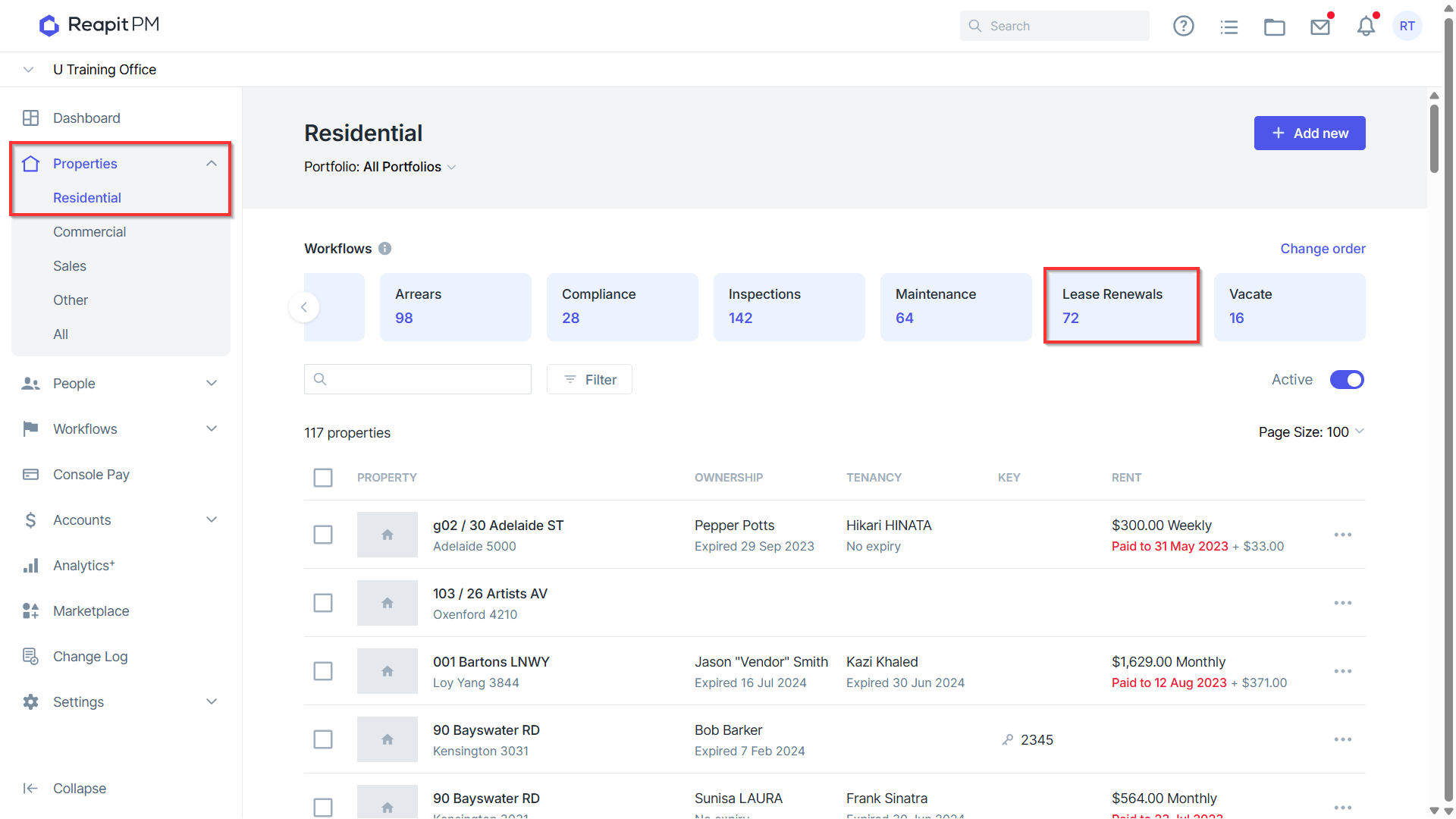
- Navigate to Properties > Residential > Lease Renewal.
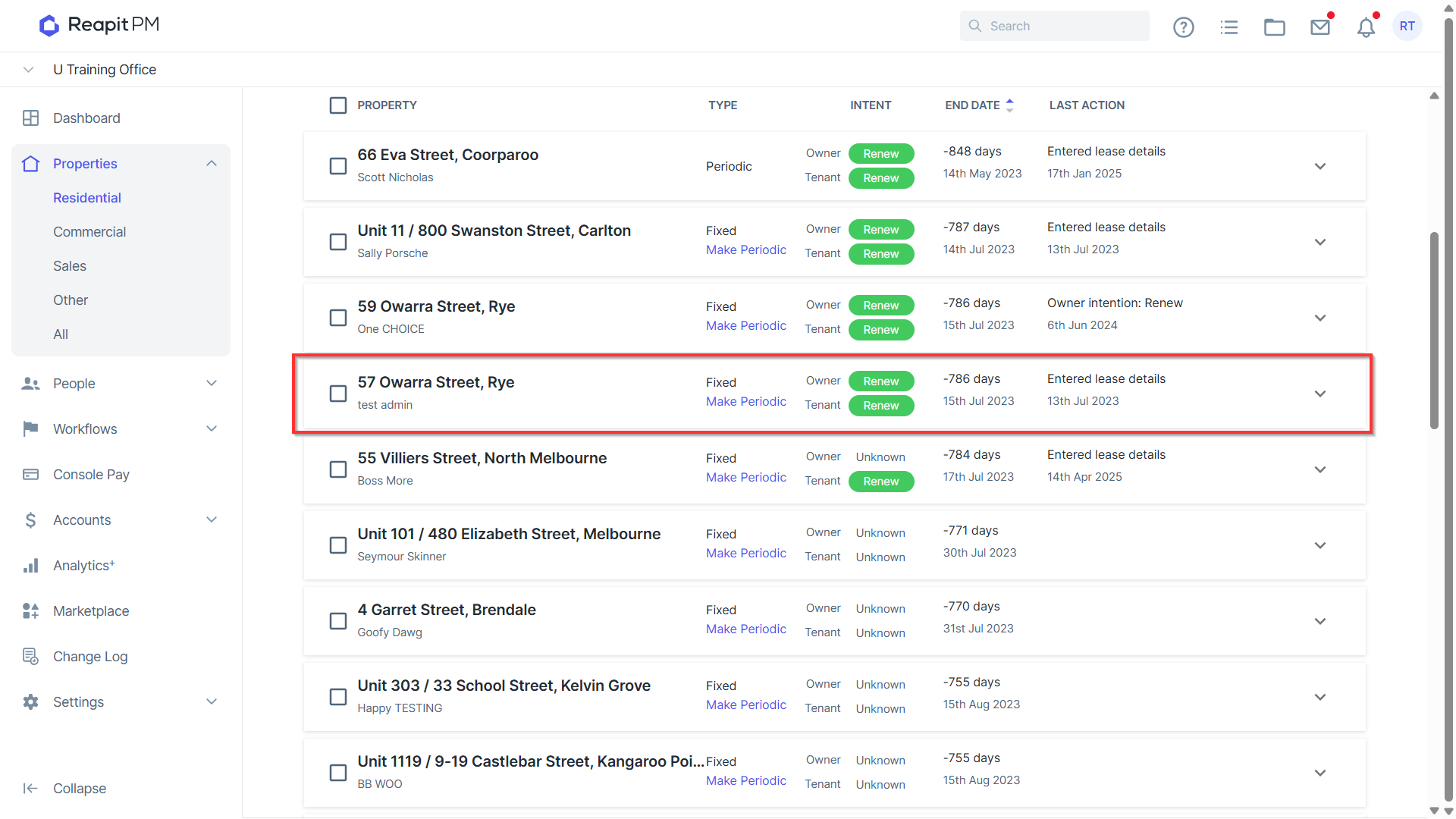
- Select the relevant Tenancy.
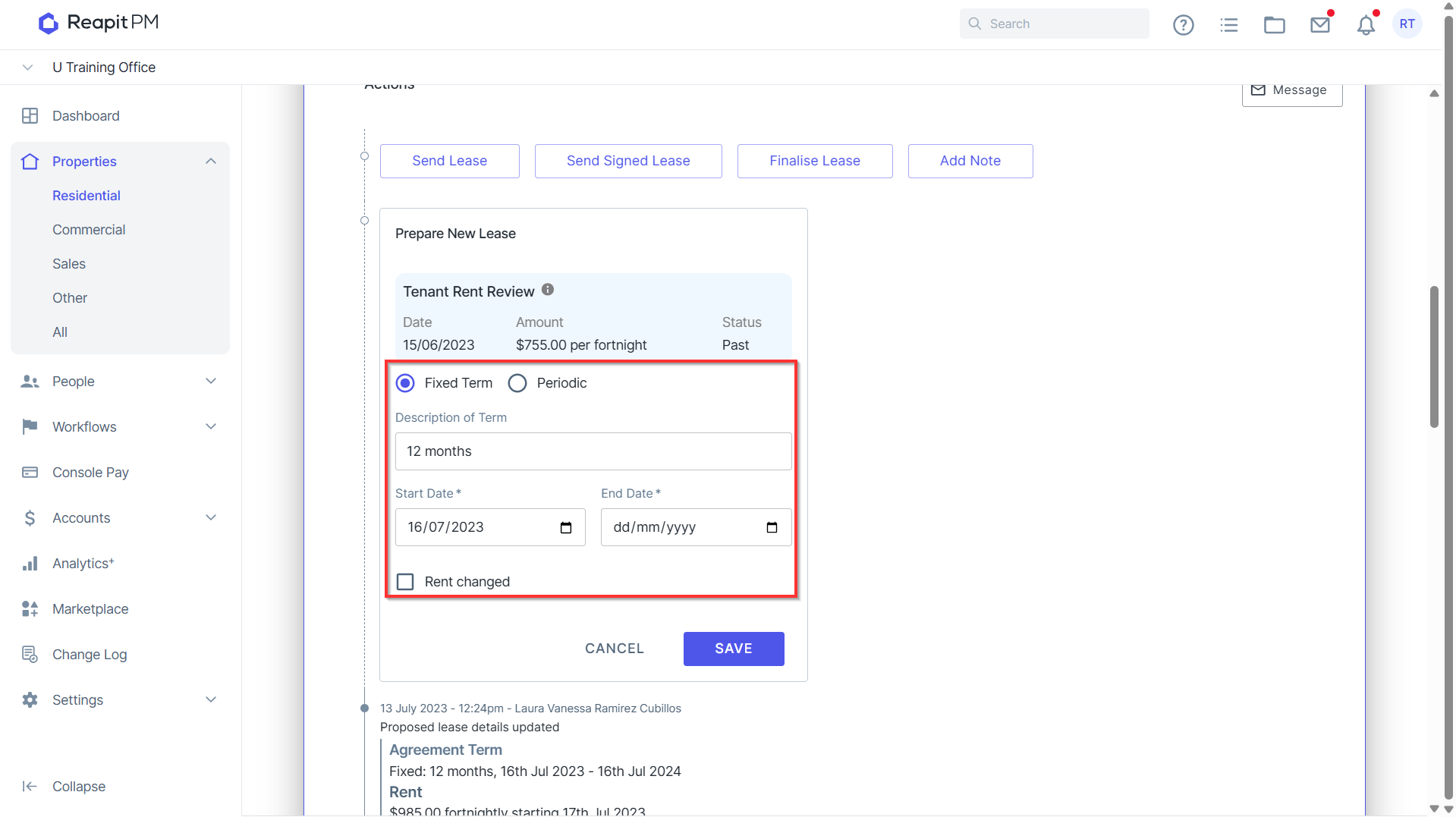
- Click Update Proposed Lease details, enter the Start and End Date for the new lease period. Click Rent changed.
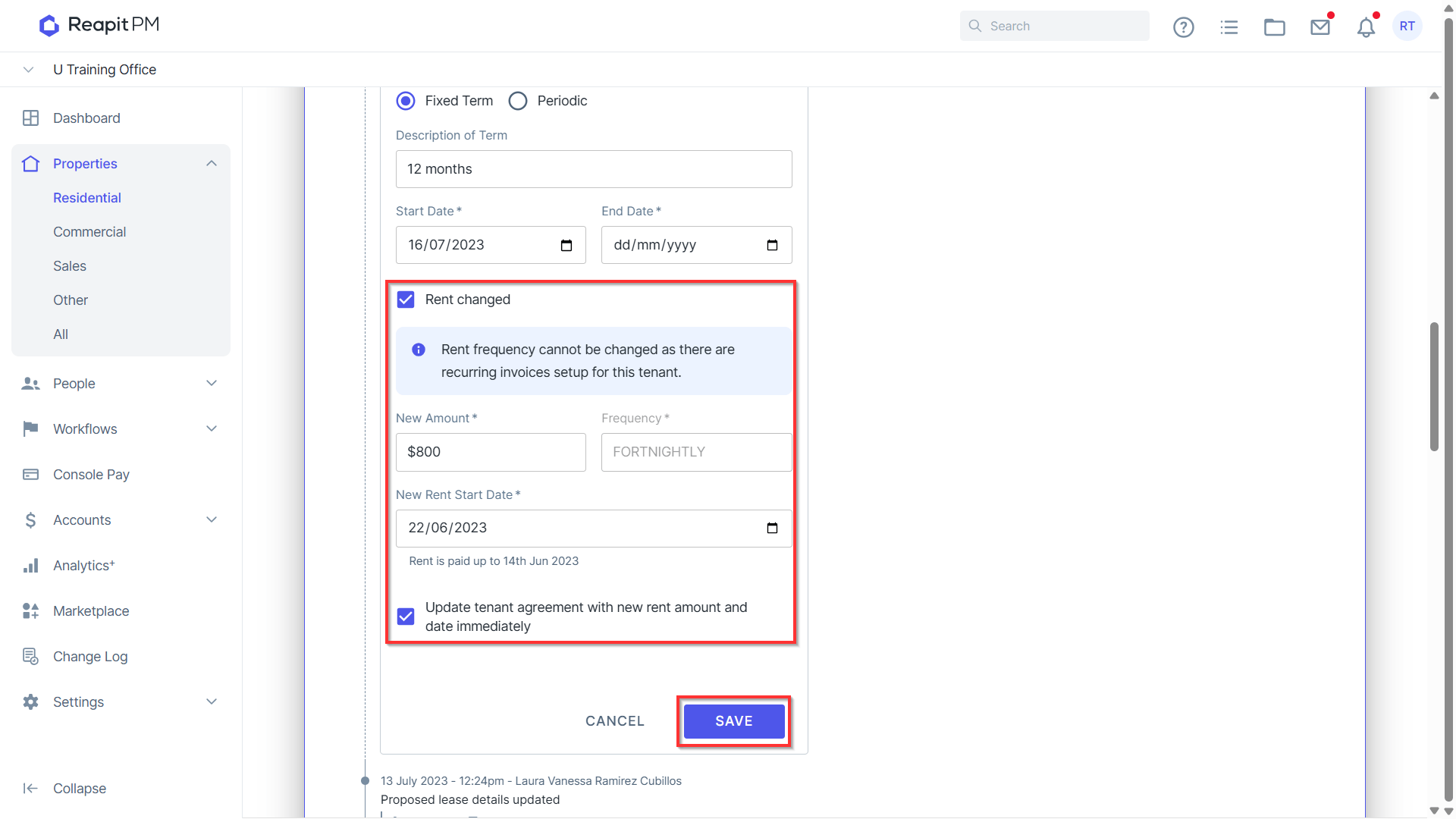
Enter the New Amount and the New Rent Start Date. Click Update tenant agreement with new rent amount and date immediately and Automatically adjust Console Pay Schedule. Click Save. Note: if you do not select this option you will need to manually update the payment schedule against the tenancy profile. If the rent increase falls in the middle of a tenant's payment period, then the client would need to edit the next rent debit amount in the tenant's payment schedule to the pro-rated amount (the system doesn't yet calculate that for you).*
Click Finalise Lease.
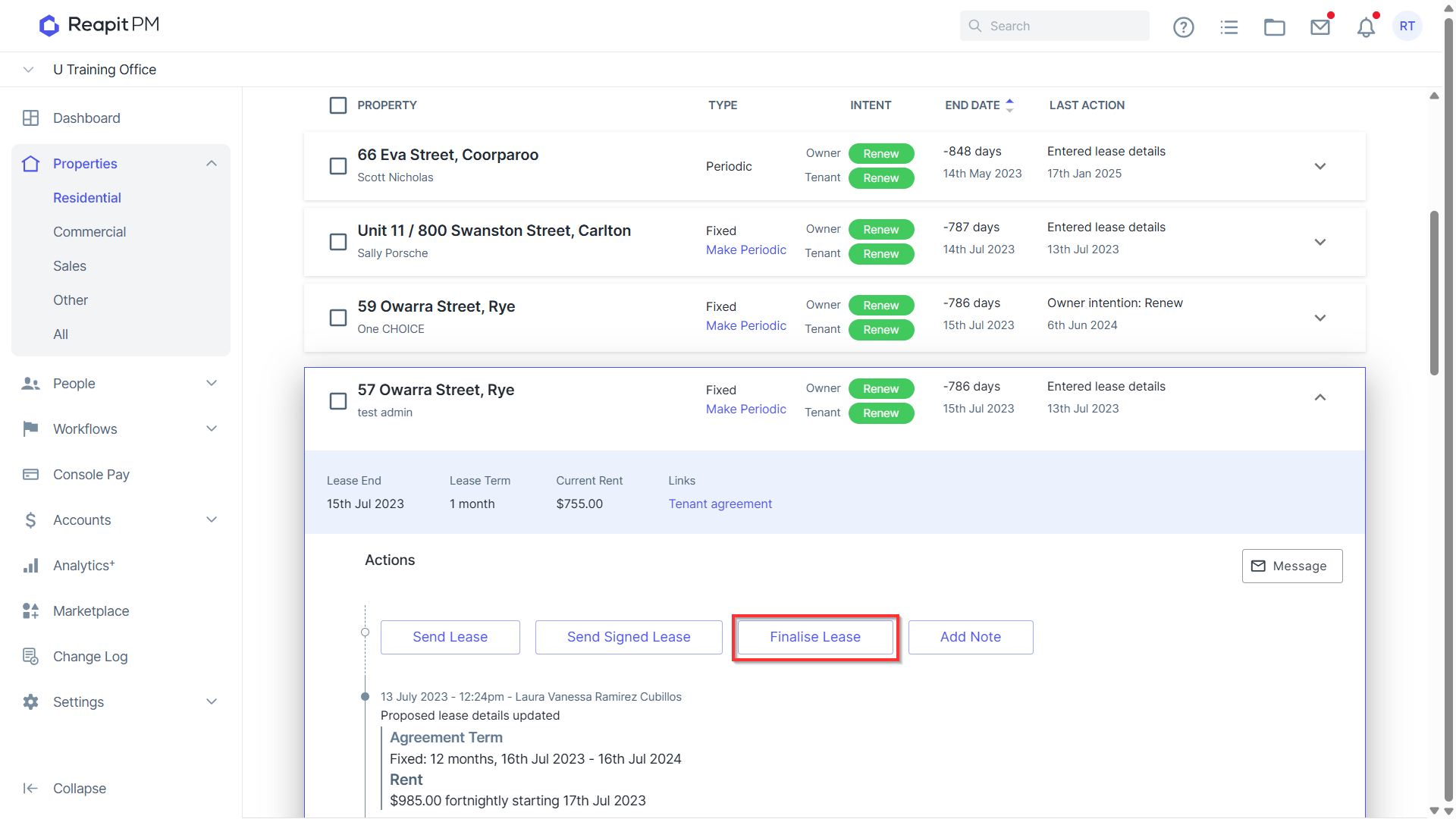
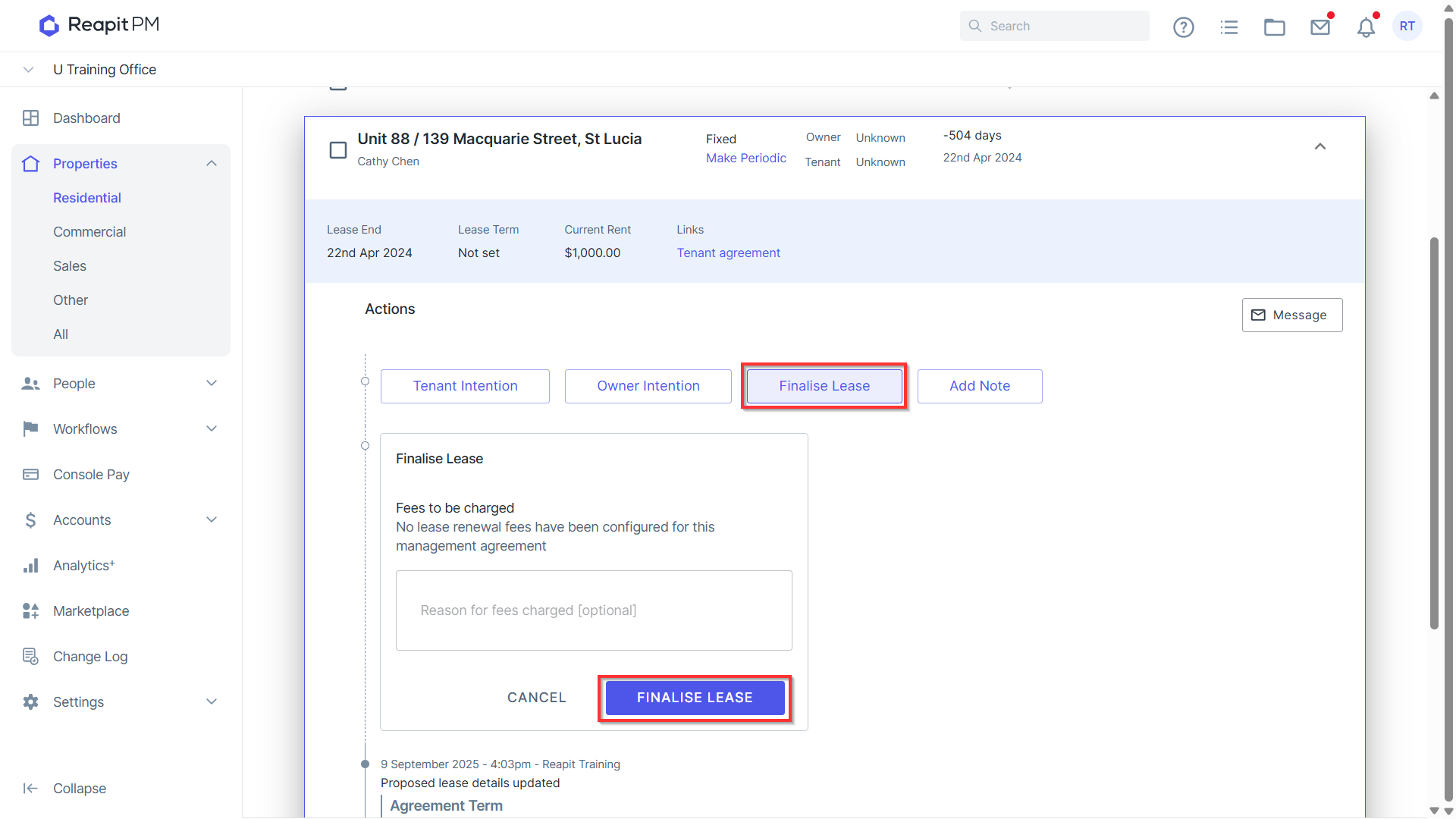
- If Automatically adjust Console Pay schedule was not selected while filling in the Proposed Lease Details you will have the option to select it once more when finalising the lease.
- Click Finalise Lease.
- A confirmation box will appear, click Renew Lease.
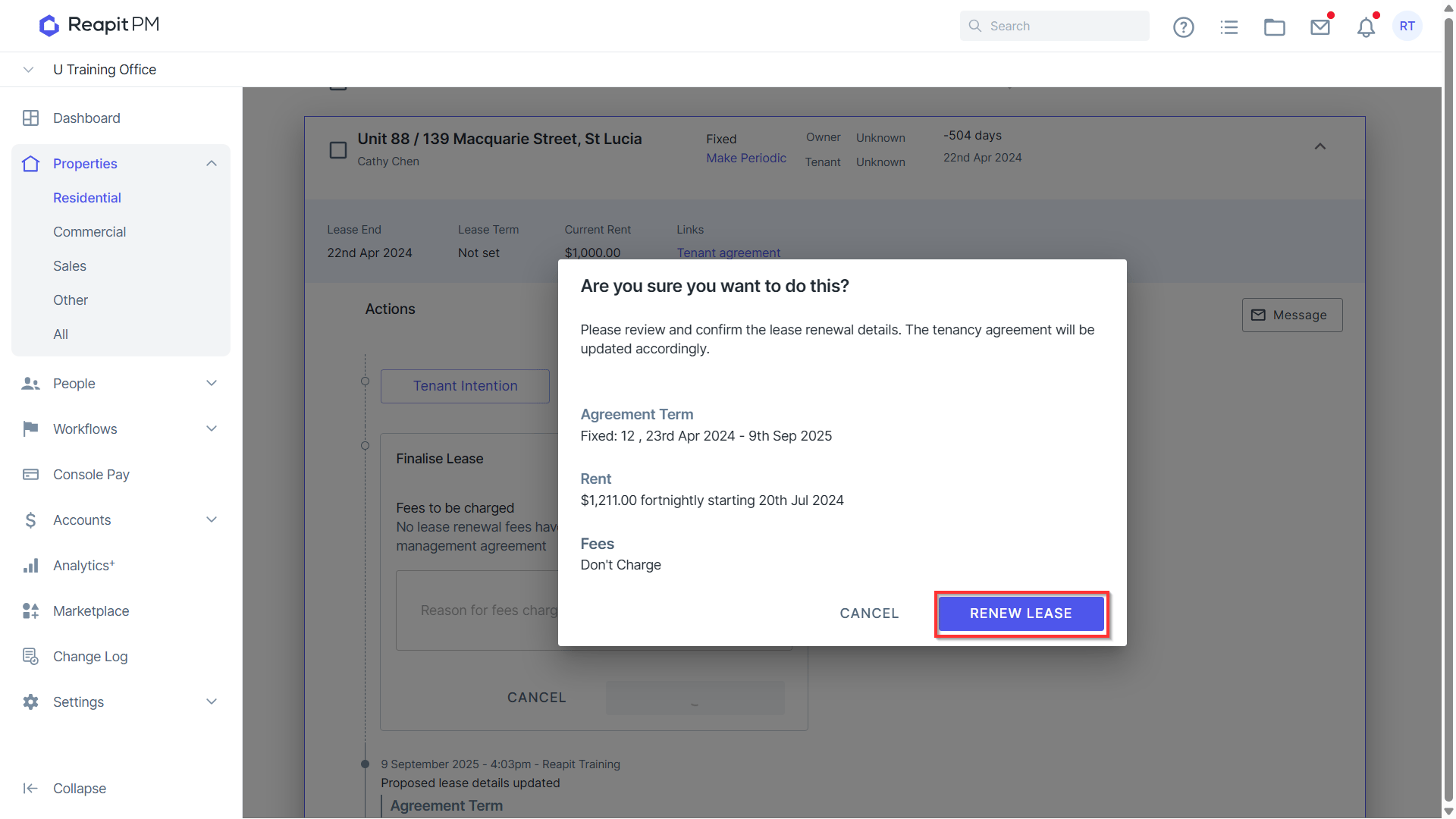
Changes will be reflected in the Tenancy Agreement.