'%20d='M0%208a8%208%200%200%201%208-8h24a8%208%200%200%201%208%208v24a8%208%200%200%201-8%208H8a8%208%200%200%201-8-8V8Z'/%3e%3cpath%20fill='%23fff'%20d='M8.375%2013v14L20.5%2034l12.124-7v-7.737l-1.687-.975-2.806-1.62-1.082-.624v4.83l-.002%204.83H13.95V16.07l3.275-1.89%202.192-1.265%201.082-.625%203.275%201.877%202.192%201.256%201.083.62V9.782L20.5%206%208.376%2013Z'/%3e%3cdefs%3e%3clinearGradient%20id='reapit-pm__a'%20x1='20.702'%20x2='20.702'%20y1='.351'%20y2='31.228'%20gradientUnits='userSpaceOnUse'%3e%3cstop%20stop-color='%235573FD'/%3e%3cstop%20offset='.575'%20stop-color='%234E56EA'/%3e%3c/linearGradient%3e%3c/defs%3e%3c/svg%3e)
Conversations - Shared Emails, Updating or Changing Email Participants
This article outlines how shared emails appear in Conversations and explains how to update or change email participants.
Conversations - Shared Emails, Updating or Changing Email Participants
This article outlines how shared emails appear in Conversations and explains how to update or change email participants.
The process in this article include:
- Shared Emails, Updating or Changing Email Participants
Shared email addresses can be linked and directed to specific users or portfolios. For example, emails sent to a shared address like "admin@myrealestate.com" or "general@myrealestate.com" can now be routed to a specific person or portfolio, reducing confusion and streamlining email handling.
- To reassign or Edit Participants in Conversations, navigate to Settings > Subscription > Manage Accounts for Conversations.
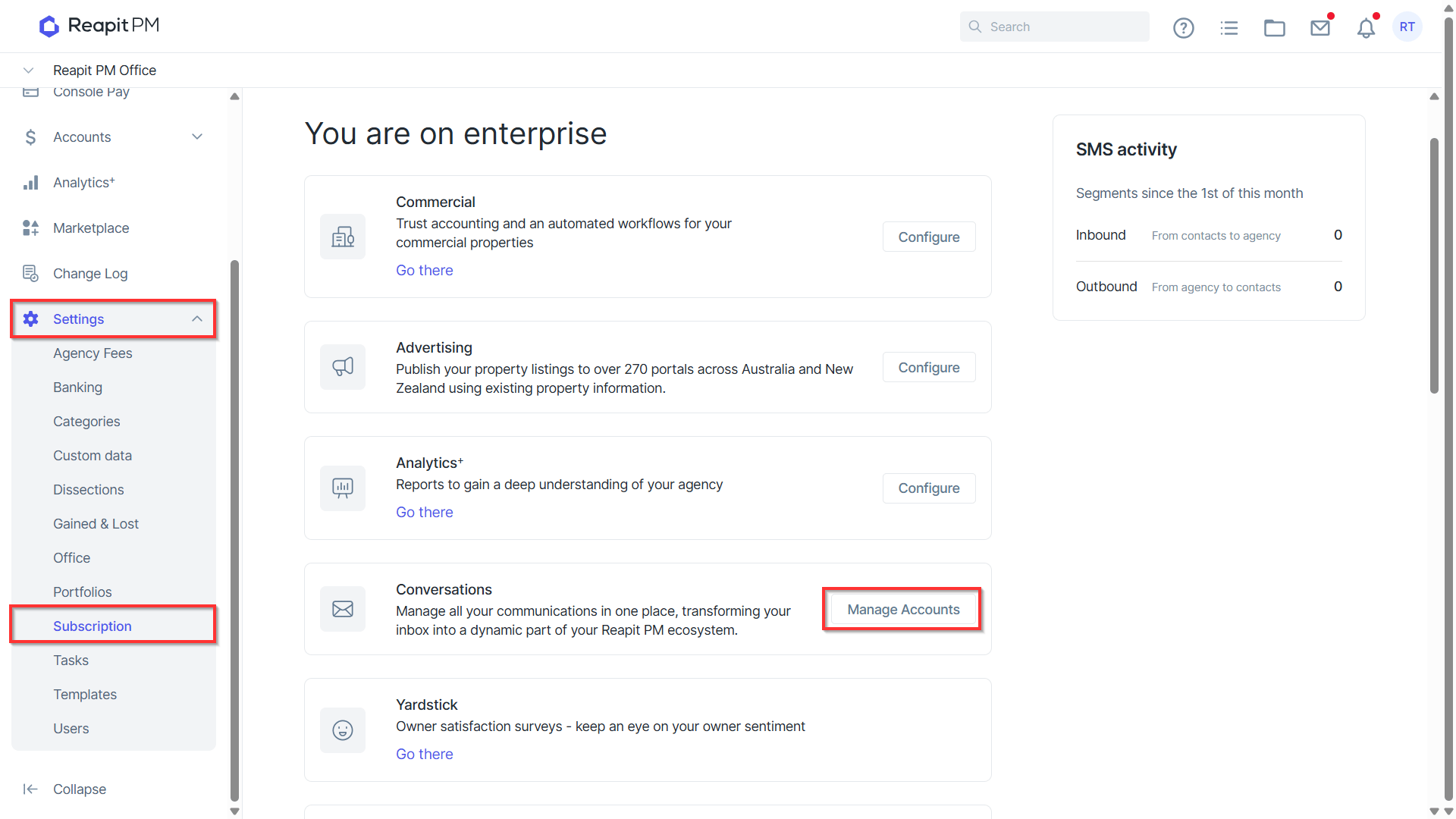
Note: You will need to have Office Administrator access to access the settings menu.
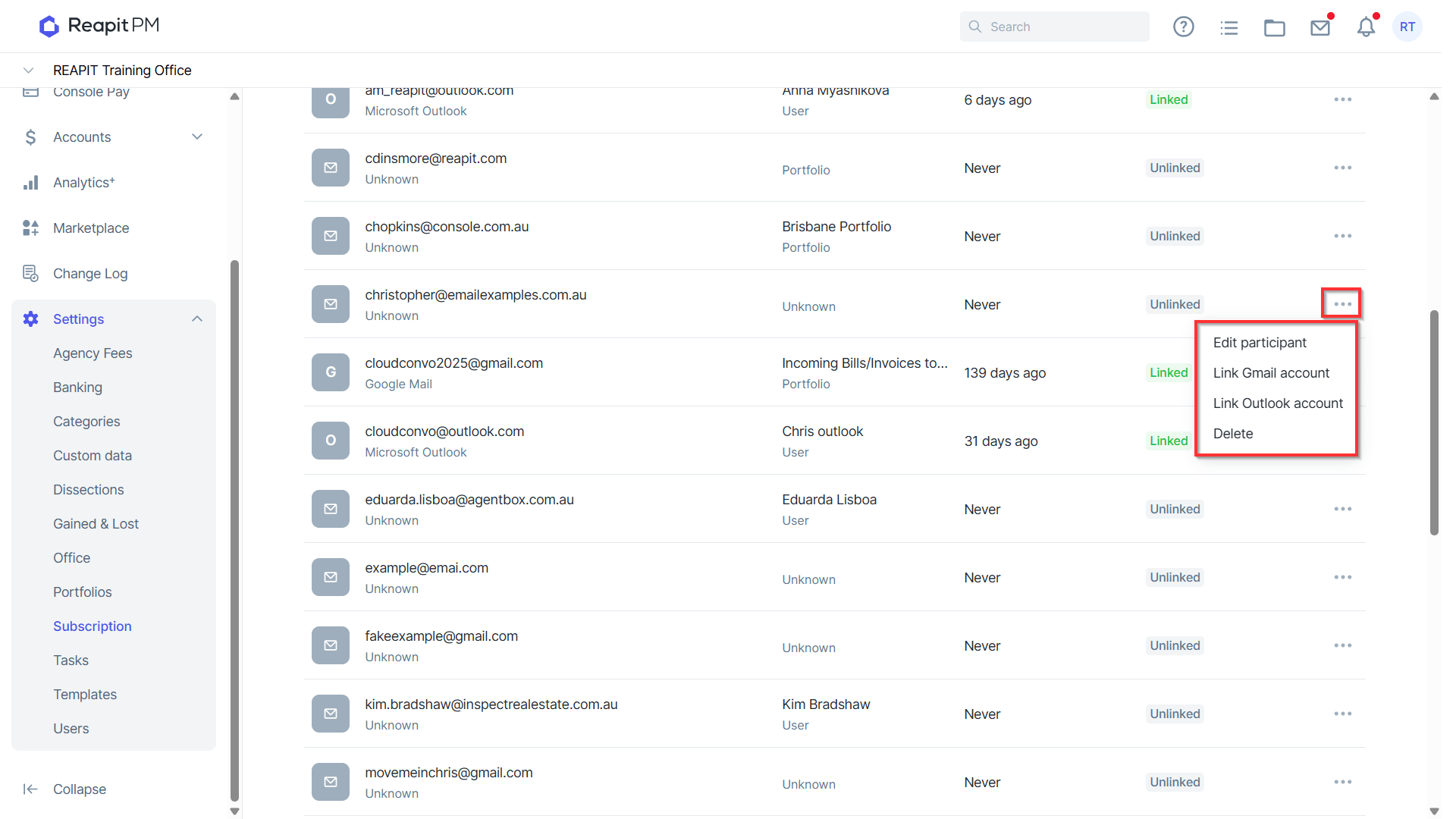
- The Linked Status will display anyone who has their Gmail or Outlook account synced with Reapit PM. By selecting the three dots to the right of a linked or unlinked email, you have the option to edit the participants for that email or portfolio.
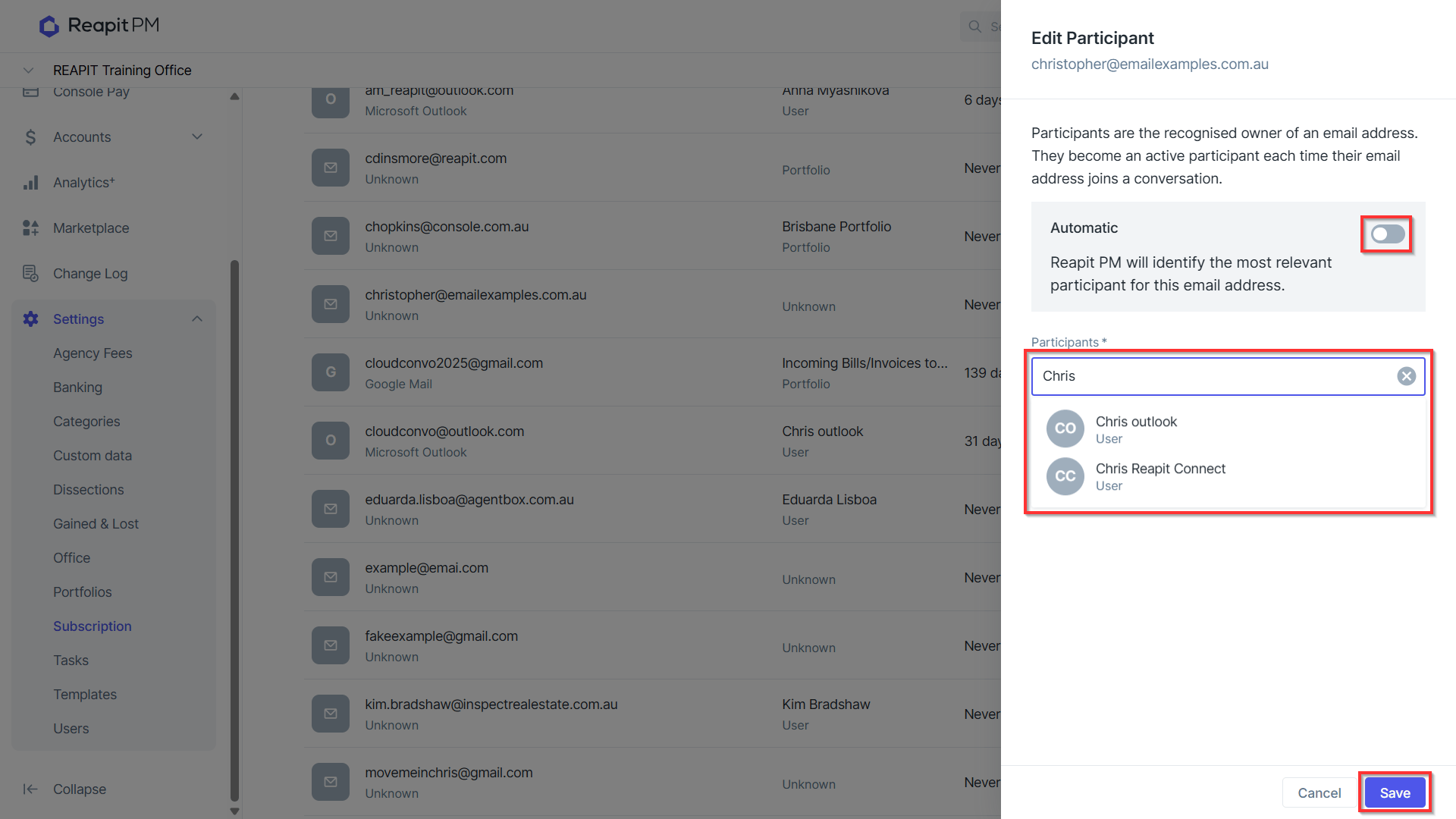
3 The Edit Participant menu allows you to update email participants by unticking the automation option. This is particularly useful when a user is on leave, as you can redirect emails to another user or portfolio to ensure they are monitored. Simply select the desired user or portfolio, then click Save to complete the update.
- A shared email address, used by agents for communication but not as a user's sign-in email address, can be modified to send emails through a specific user participant or portfolio by selecting the three action dots next to the email.