'%20d='M0%208a8%208%200%200%201%208-8h24a8%208%200%200%201%208%208v24a8%208%200%200%201-8%208H8a8%208%200%200%201-8-8V8Z'/%3e%3cpath%20fill='%23fff'%20d='M8.375%2013v14L20.5%2034l12.124-7v-7.737l-1.687-.975-2.806-1.62-1.082-.624v4.83l-.002%204.83H13.95V16.07l3.275-1.89%202.192-1.265%201.082-.625%203.275%201.877%202.192%201.256%201.083.62V9.782L20.5%206%208.376%2013Z'/%3e%3cdefs%3e%3clinearGradient%20id='reapit-pm__a'%20x1='20.702'%20x2='20.702'%20y1='.351'%20y2='31.228'%20gradientUnits='userSpaceOnUse'%3e%3cstop%20stop-color='%235573FD'/%3e%3cstop%20offset='.575'%20stop-color='%234E56EA'/%3e%3c/linearGradient%3e%3c/defs%3e%3c/svg%3e)
Conversations - What Emails are Stored in Reapit PM
This article explains which emails in your Gmail or Outlook inbox will appear in Reapit PM.
Conversations - What Emails are Stored in Reapit PM
This article explains which emails in your Gmail or Outlook inbox will appear in Reapit PM.
The process in this article include:
- What Emails are Stored in Reapit PM
- After integrating your Gmail or Outlook account with Reapit PM, any emails received from Contact, Owner, Tenant, or Creditor cards are automatically marked as relevant to your office. These emails will be displayed in the Conversations tab and within the respective timeline of the sender. In some cases, agencies or users may add unexpected contacts to the system, which can lead to unrelated emails being captured. If this happens, you can easily remove emails that are not relevant. To access Conversations, click on the Mail icon.
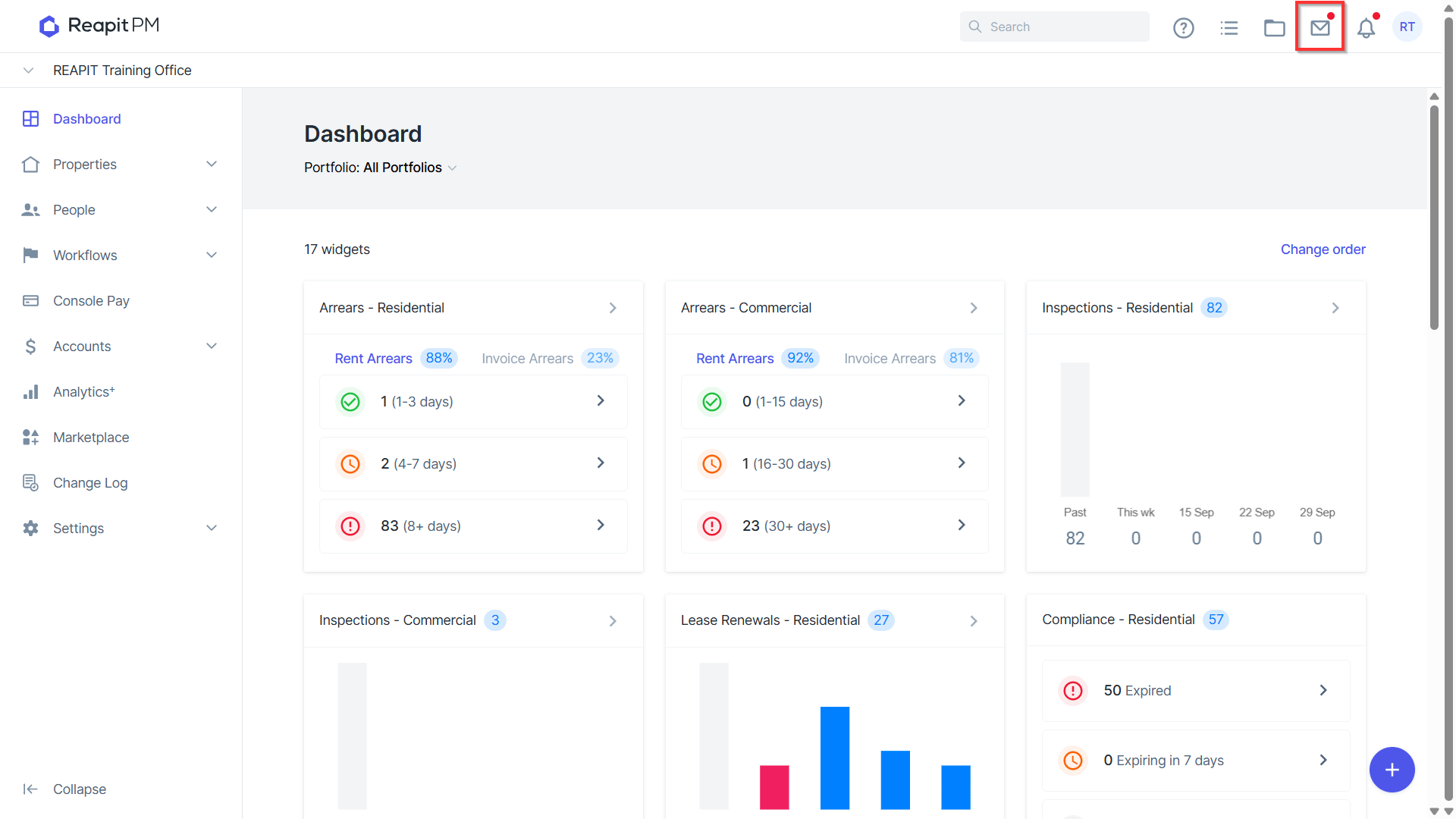
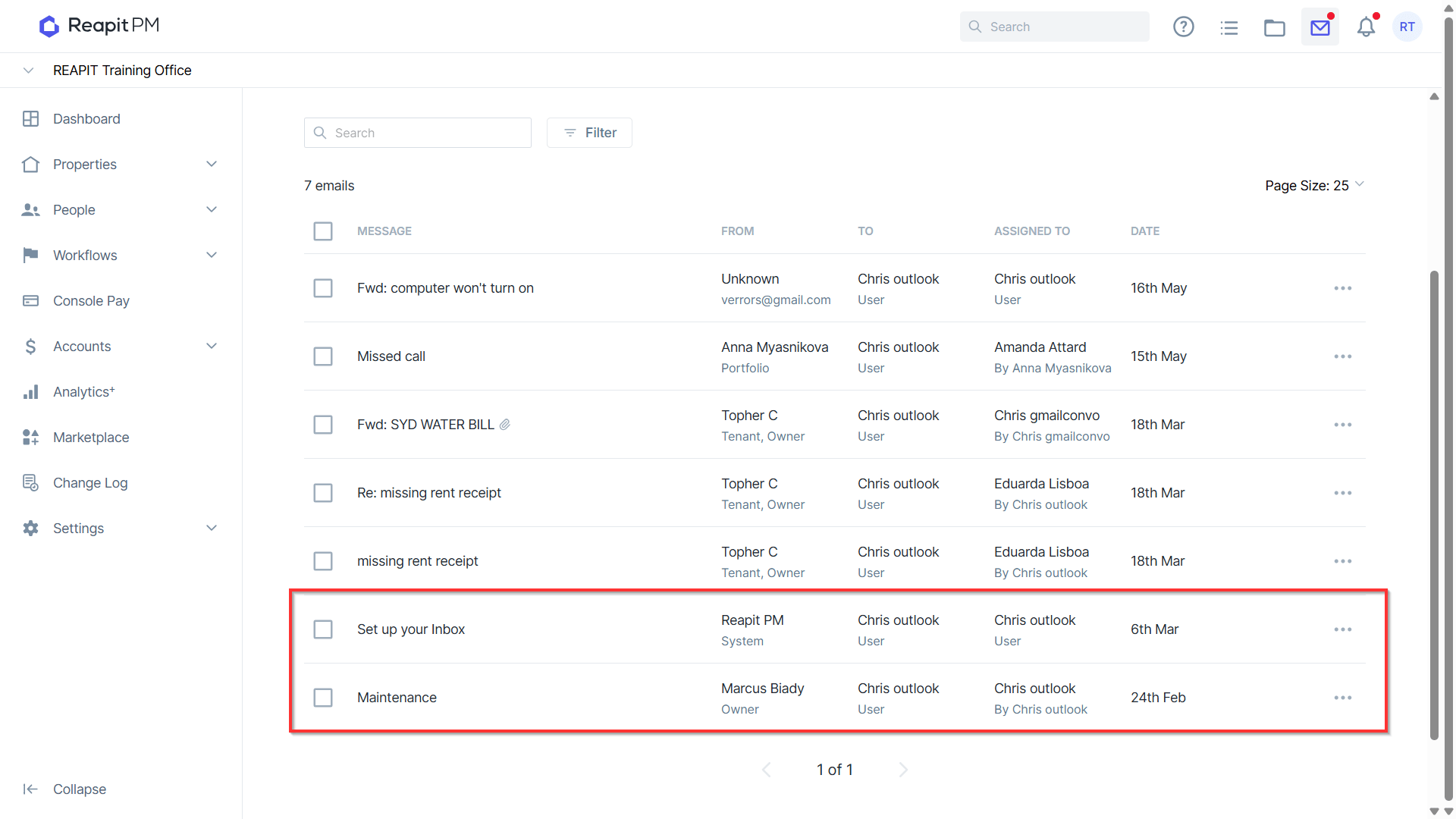
- Emails sent, received, and replied to will appear on this page. Clicking on an email will bring up an overview of the thread. Using the drop-down at the top of the page, you can view conversations for yourself or any other users you are assigned to or assist with communication. When an email has been received by one person but reassigned to another user, this email will appear in both users' inboxes and won't be removed from the original participant's inbox.
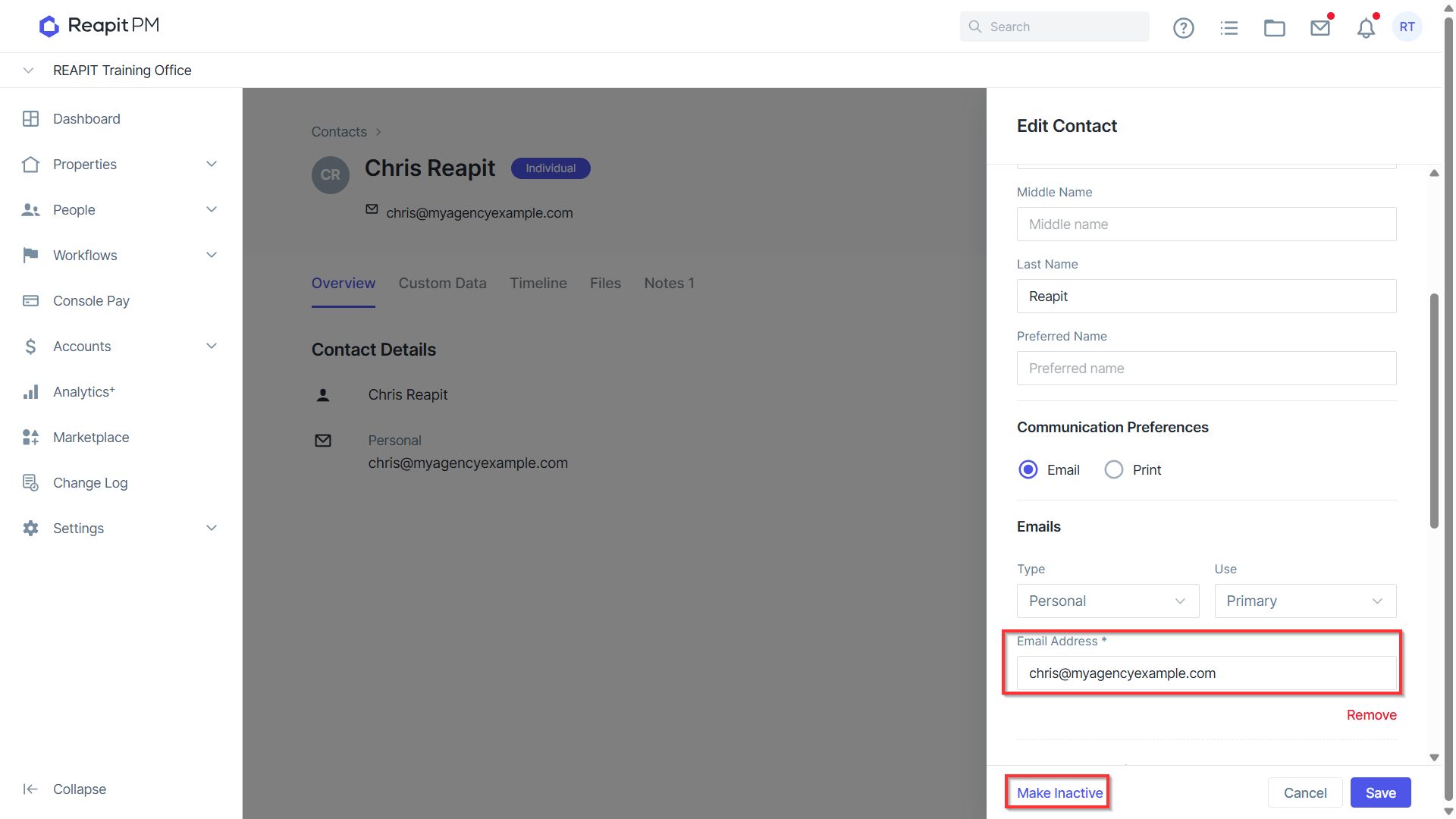
Take the time to clean up your contact data by identifying and removing generic agency email addresses. The recommendation would be to make the contacts inactive to ensure they are not present as contacts in your office.
For more contact management information, please see - https://help.console.com.au/s/article/Managing-Contacts
Note: Emails sent between users within the office will not appear in the Conversations tab, as they are assumed to be unrelated to properties or may contain highly sensitive information—provided that the users’ agency email addresses are not listed as Contacts.
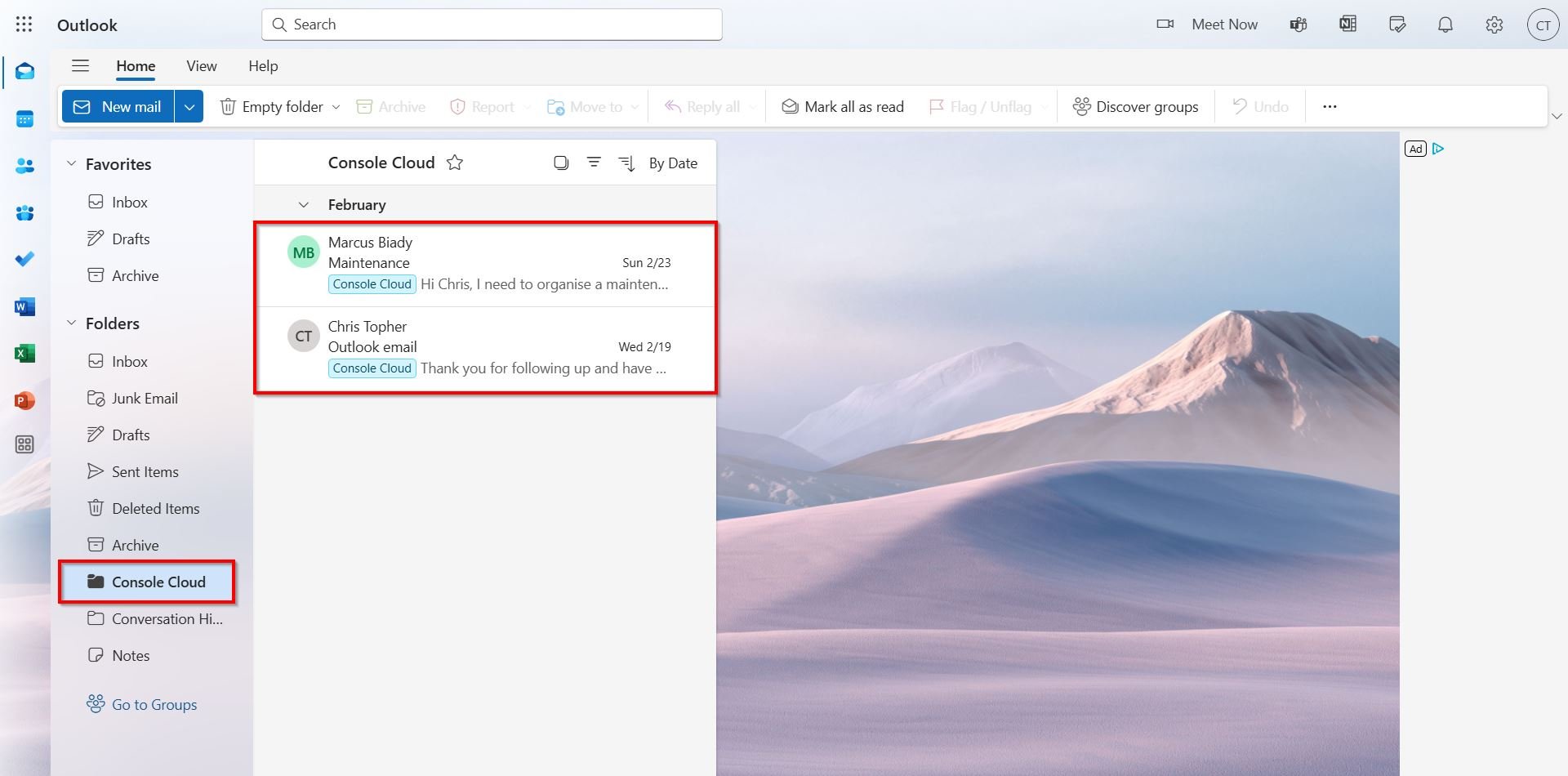
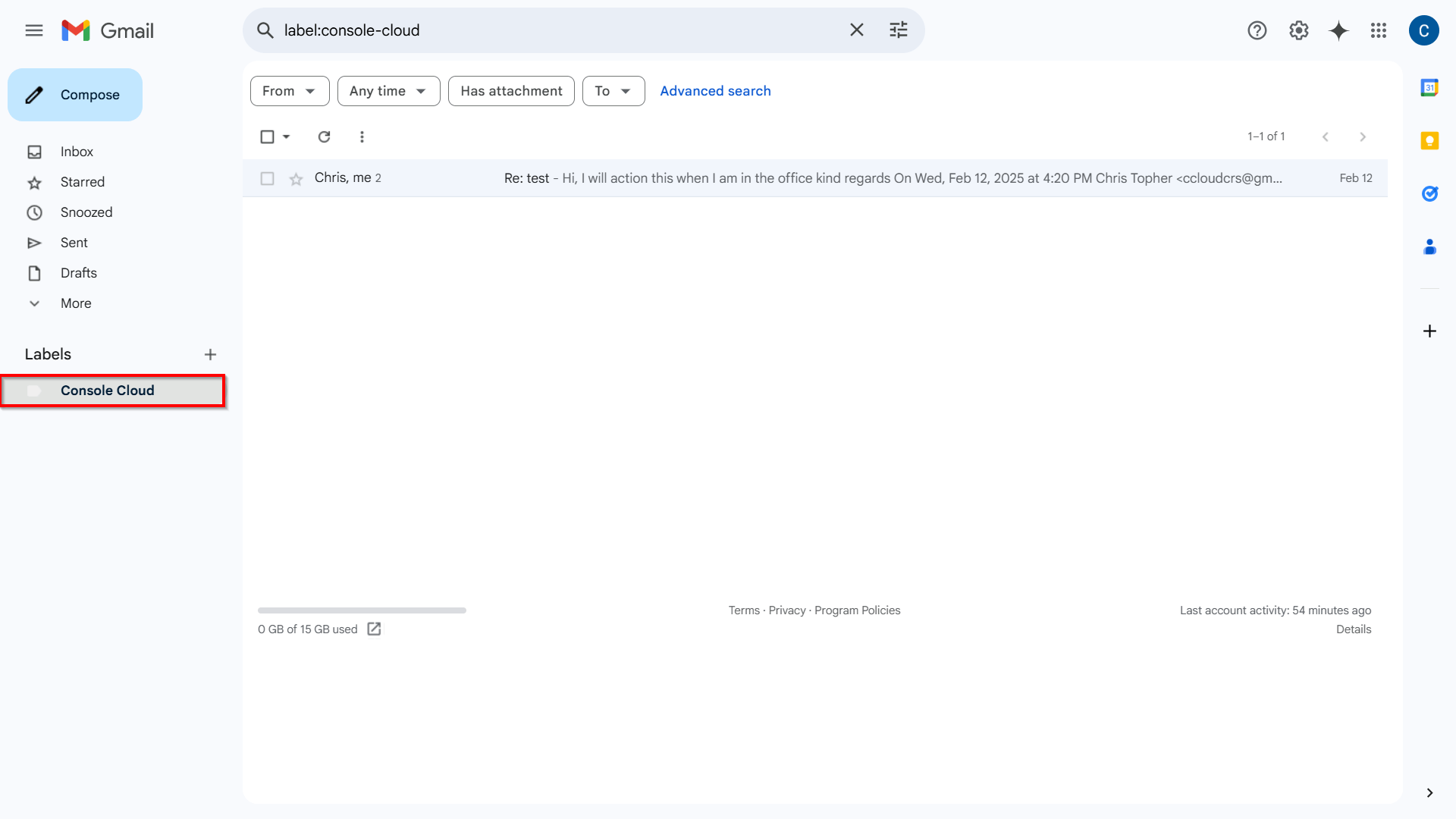
- Once your email is linked with Reapit PM, you will see a newly created folder in your Outlook or Gmail inbox. Any received emails from Contacts will be moved to this folder and tagged with the Reapit PM label. Below is an example of emails received through Outlook.
3a. Below is an example of emails received through Gmail.
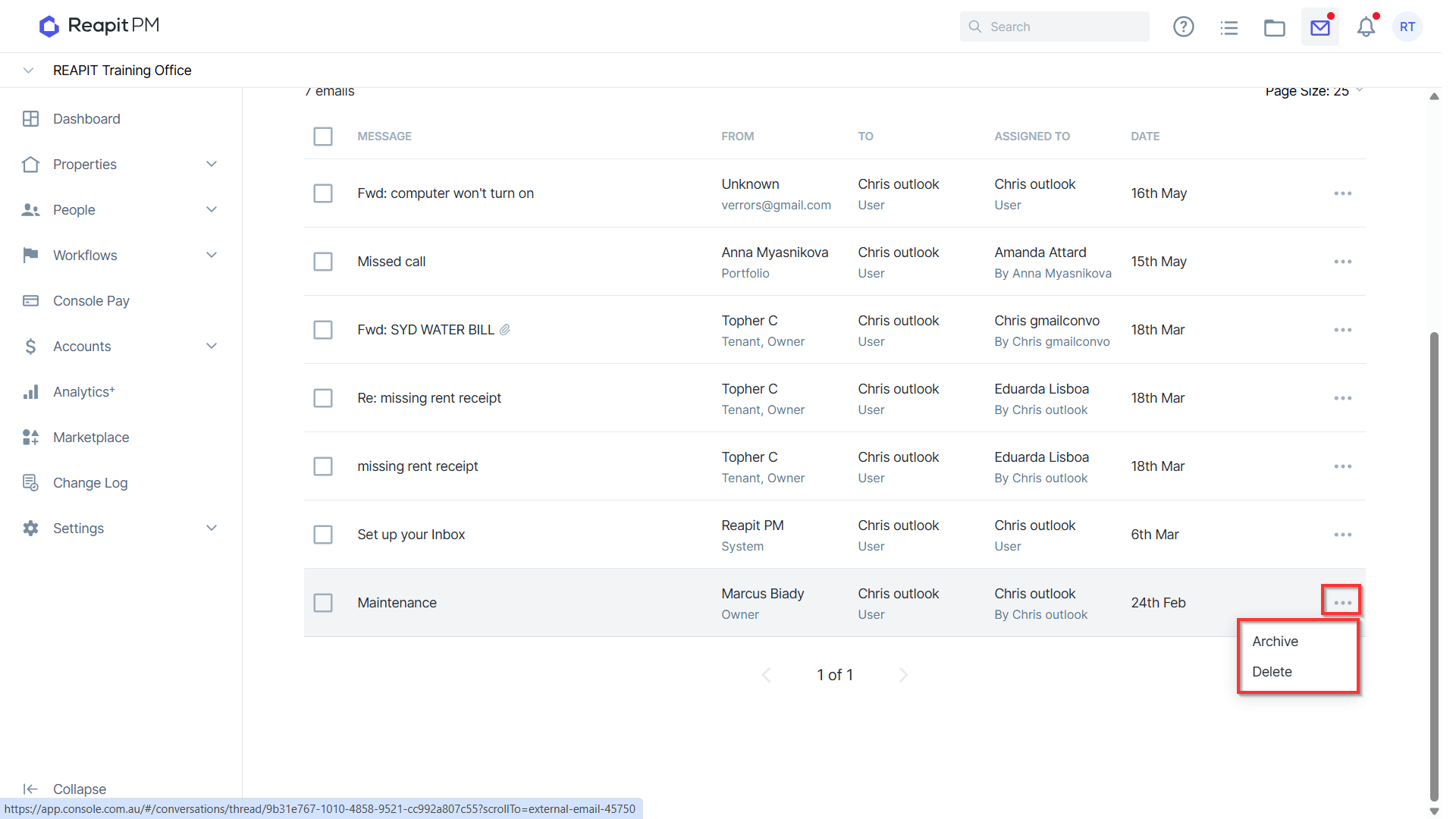
- From Conversations, clicking on the three action dots to the right of the email will provide you the option to archive or delete the email. Deleting the email will only remove it from Reapit PM and it will still exist in your Gmail or Outlook inbox.
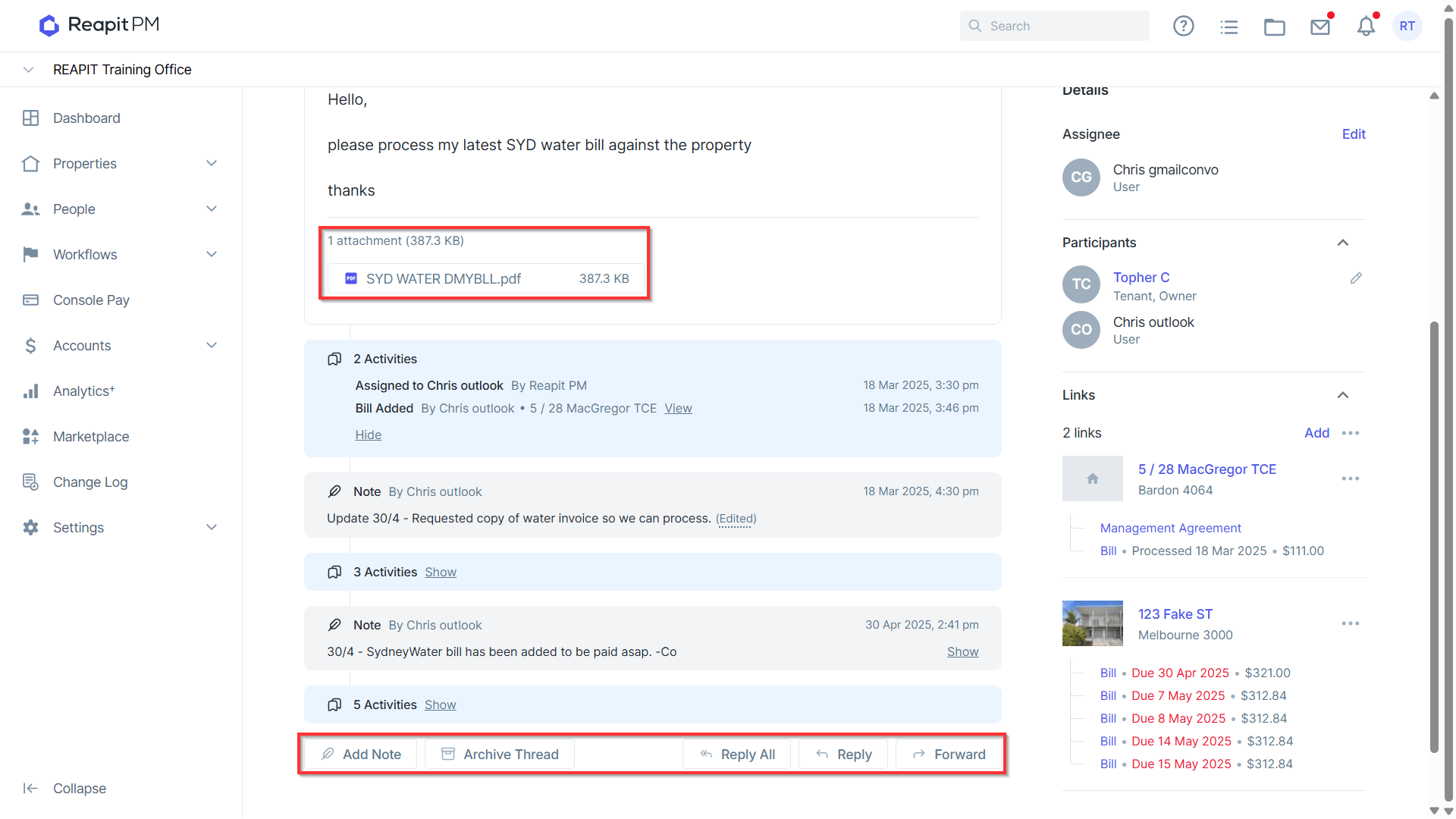
- While viewing the email you will have a few options:
- Viewing any attachments which might be included on any emails. E.g. Bills or Invoices.
- Archiving a thread if it's been actioned and no longer required.
- Adding an internal note to anyone who might view the conversation.
- Reply all, reply, or forward options.