'%20d='M0%208a8%208%200%200%201%208-8h24a8%208%200%200%201%208%208v24a8%208%200%200%201-8%208H8a8%208%200%200%201-8-8V8Z'/%3e%3cpath%20fill='%23fff'%20d='M8.375%2013v14L20.5%2034l12.124-7v-7.737l-1.687-.975-2.806-1.62-1.082-.624v4.83l-.002%204.83H13.95V16.07l3.275-1.89%202.192-1.265%201.082-.625%203.275%201.877%202.192%201.256%201.083.62V9.782L20.5%206%208.376%2013Z'/%3e%3cdefs%3e%3clinearGradient%20id='reapit-pm__a'%20x1='20.702'%20x2='20.702'%20y1='.351'%20y2='31.228'%20gradientUnits='userSpaceOnUse'%3e%3cstop%20stop-color='%235573FD'/%3e%3cstop%20offset='.575'%20stop-color='%234E56EA'/%3e%3c/linearGradient%3e%3c/defs%3e%3c/svg%3e)
Working with Inbound SMS
This article will walk you through how to view Inbound SMS messages and how to respond to Inbound SMS messages.
Overview
Working with Inbound SMS
This article will walk you through how to view and respond to Inbound SMS messages within the Conversations tool in Reapit PM.
The processes in this article include:
- Viewing new Inbound SMS Messages
- Sending SMS Messages
Viewing new Inbound SMS Messages
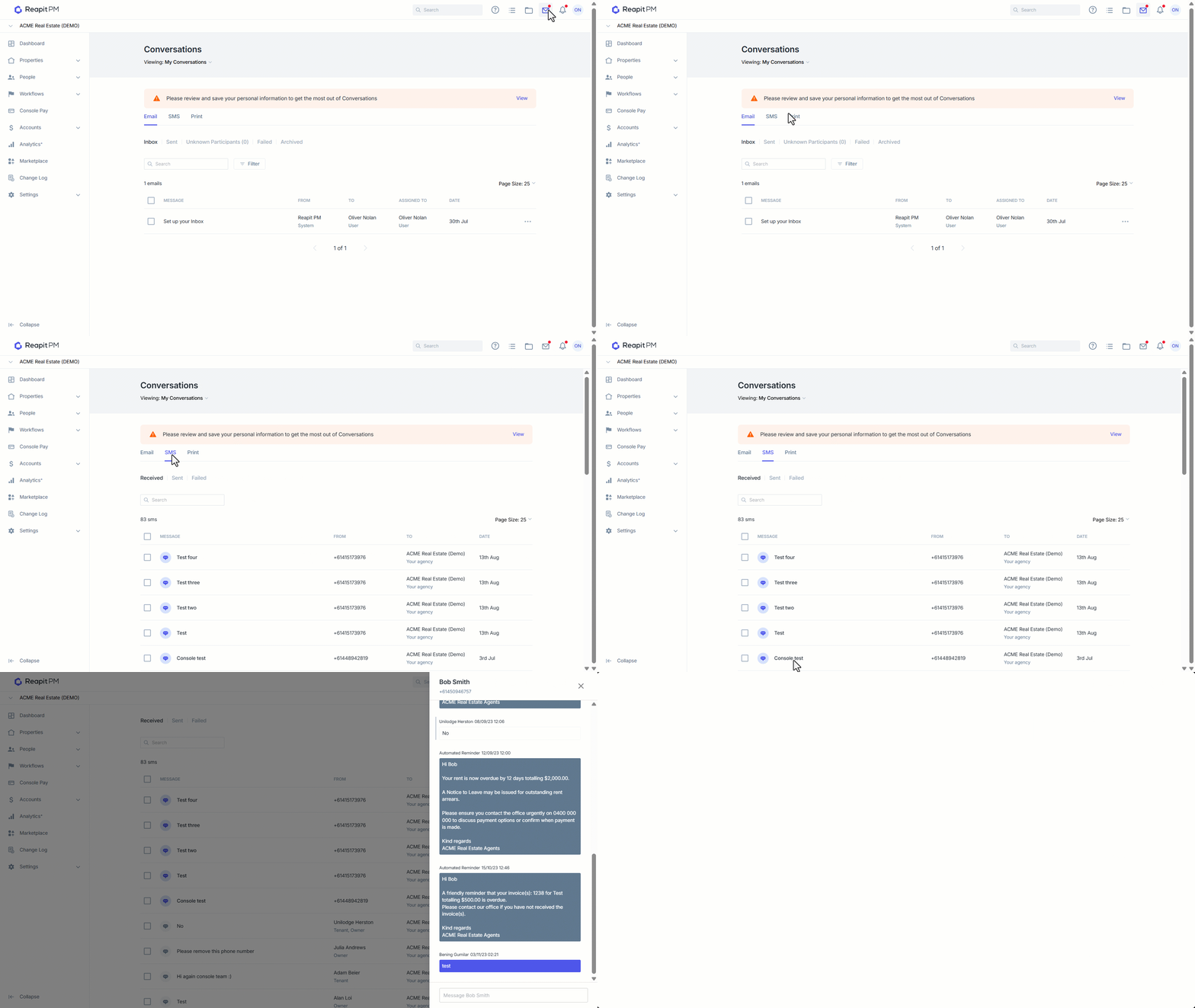
- Click on the Conversations icon in the top right corner of the screen., then click on SMS.
New inbound SMS messages will be highlighted in bold.
- Filter SMS by Received, Sent or Failed.
- The search field will allows the searching for an SMS by the Contact Name.
Click on Message to open the SMS drawer.
- From the message drawer you can view all SMS messages sent to and received from this number. Messages are Colour coded for easy identification.
- Messages with a White background are inbound messages from the person,
- Blue are the messages that have been sent to the person, and
- Grey backgrounds are automated messages.
To reply to the message from the drawer, use the text box at the bottom of the drawer and press Enter.
Sending SMS Messages
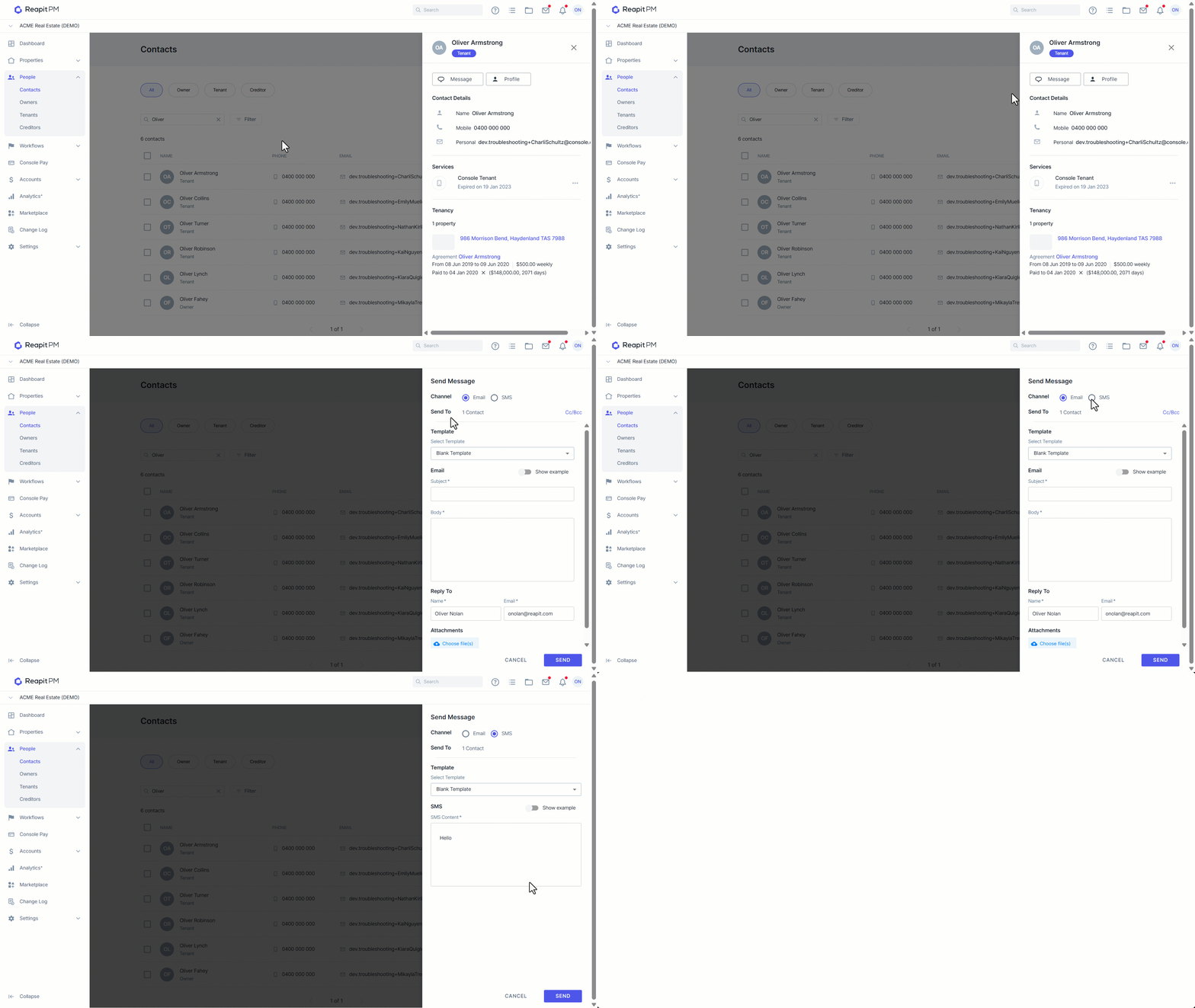
- SMS Messages can be sent from any property, contact or workflow page. In the below example, we have used a Contact. After searching for and selecting the Contact, Click Message from the Contacts drawer open the Send Message drawer.
- From the Send Message drawer select the SMS Channel. Enter your SMS Content or select a template and then click Send.