'%20d='M0%208a8%208%200%200%201%208-8h24a8%208%200%200%201%208%208v24a8%208%200%200%201-8%208H8a8%208%200%200%201-8-8V8Z'/%3e%3cpath%20fill='%23fff'%20d='M8.375%2013v14L20.5%2034l12.124-7v-7.737l-1.687-.975-2.806-1.62-1.082-.624v4.83l-.002%204.83H13.95V16.07l3.275-1.89%202.192-1.265%201.082-.625%203.275%201.877%202.192%201.256%201.083.62V9.782L20.5%206%208.376%2013Z'/%3e%3cdefs%3e%3clinearGradient%20id='reapit-pm__a'%20x1='20.702'%20x2='20.702'%20y1='.351'%20y2='31.228'%20gradientUnits='userSpaceOnUse'%3e%3cstop%20stop-color='%235573FD'/%3e%3cstop%20offset='.575'%20stop-color='%234E56EA'/%3e%3c/linearGradient%3e%3c/defs%3e%3c/svg%3e)
Yardstick Tool
This is a guide to use the Yardstick tool to measure your agency's Net Promoter Score or NPS
Overview
Yardstick Tool
This Reapit PM article explains how to use the Yardstick tool to measure your agency's Net Promoter Score or NPS .
Yardstick provides an opportunity to intervene early with those owners who are detractors and work with promoters to understand what it is they love and seek referrals and testimonials from.
The process in this article include:
- Creating a Yardstick Survey
- Viewing and Exporting Responses
Creating a Yardstick Survey
The Yardstick survey results will display in the Yardstick window and on the dashboard tile as participants complete the survey. Results update in real-time.
To create additional surveys, click “Create Survey” and follow the steps provided.
The dashboard tile will display aggregated results once at least 10 surveys are completed to ensure meaningful data representation.
Types of NPS Surveys:
- Transactional - usually at the end of a transaction or when you have fixed/ solved a problem.
- Relational - covers the whole operation and tends to get triggered quarterly.
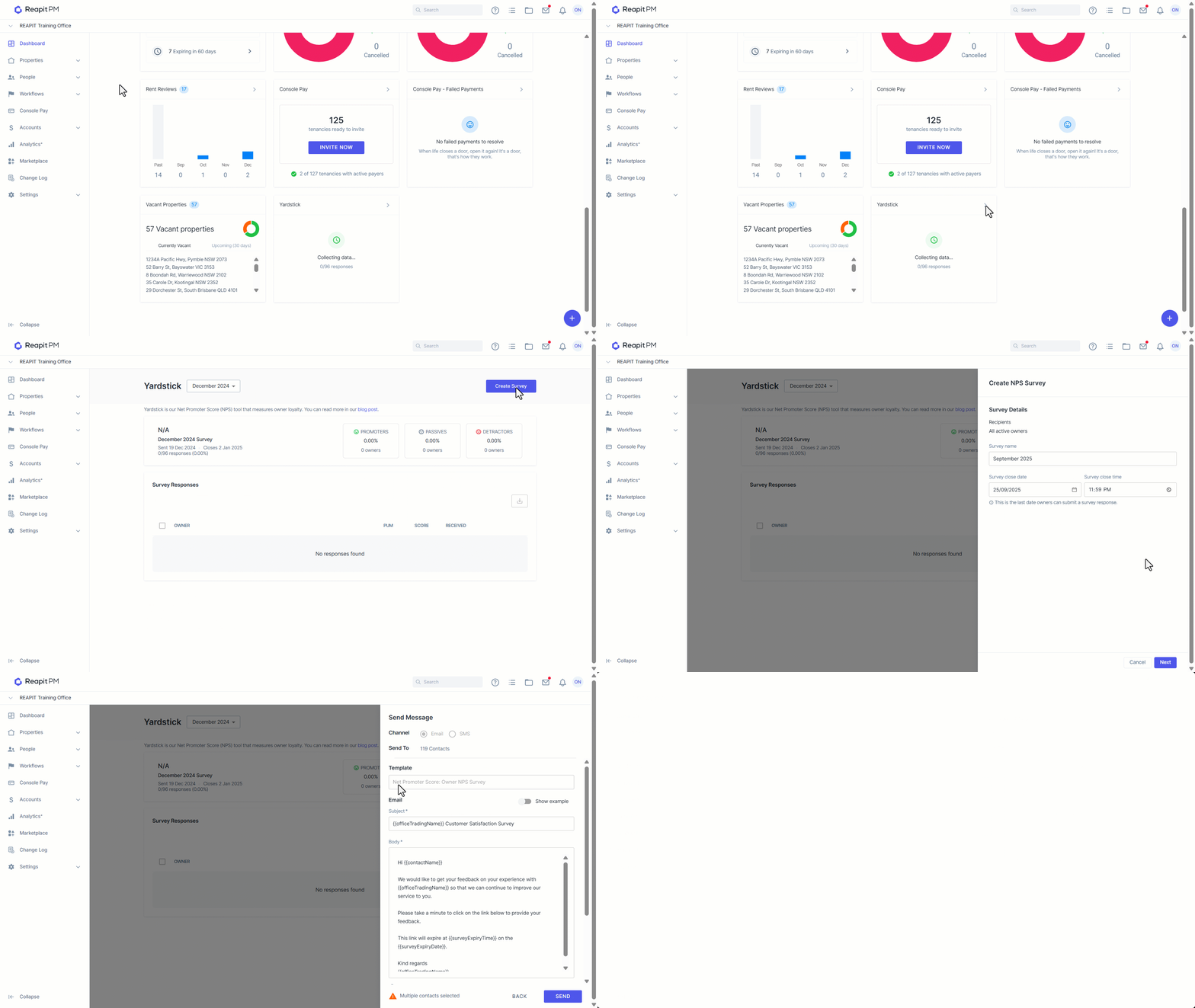
- From the Dashboard navigate to Yardstick.
- Click into the tile and select Create Survey.
- The Recipients field will display All active owners, this can not be changed at this stage. Enter the survey name, this will default to the current month and year if nothing is entered. Enter the survey close date and the survey close time. Click Next.
- The Template field has already selected the NPS Survey template.
- If you would like to preview the survey form, you can do this by clicking on preview form.
- Attach any files if required. Click Send.
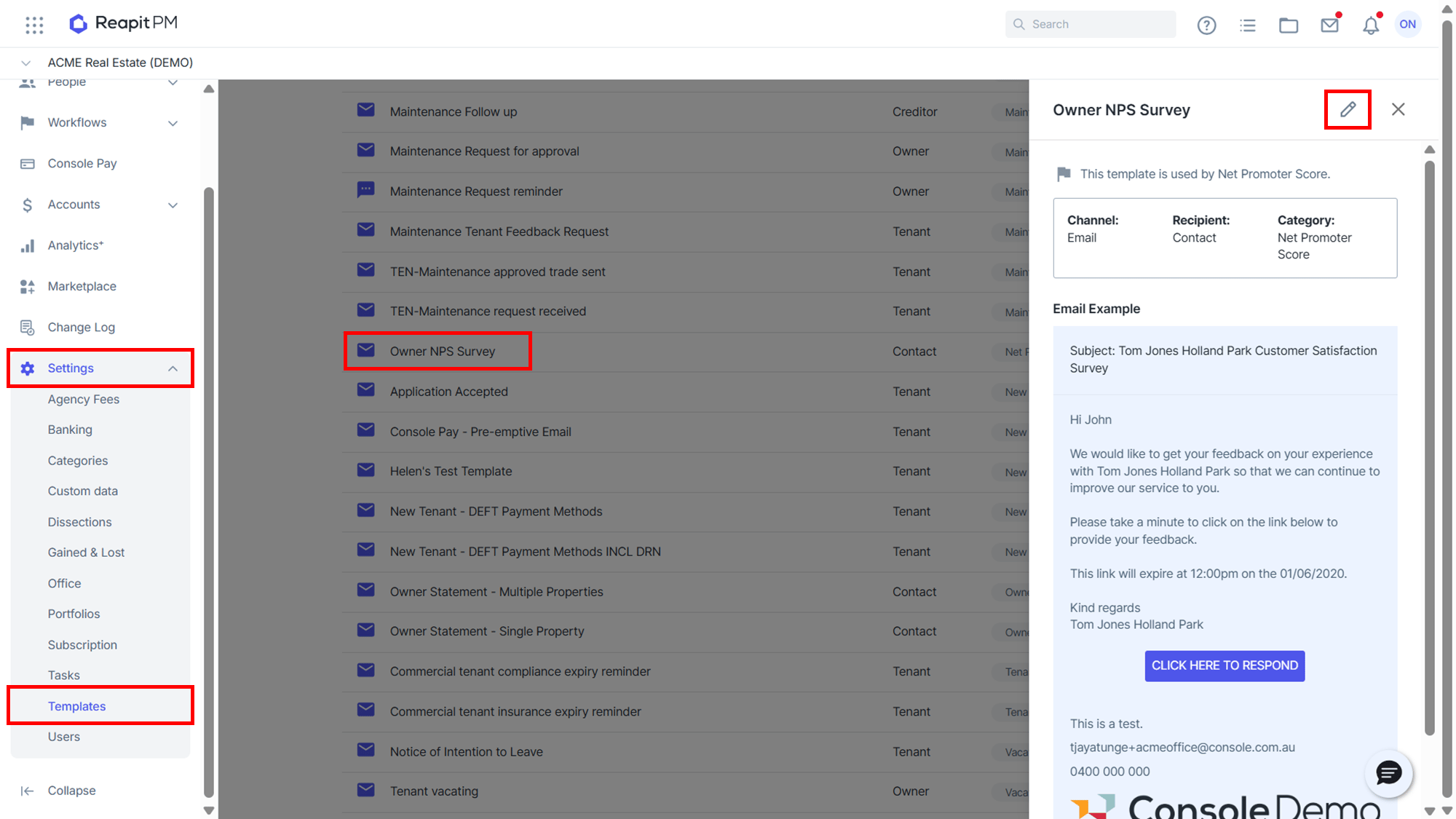
Note: that you can edit the NPS template by going to settings > templates and editing the template.
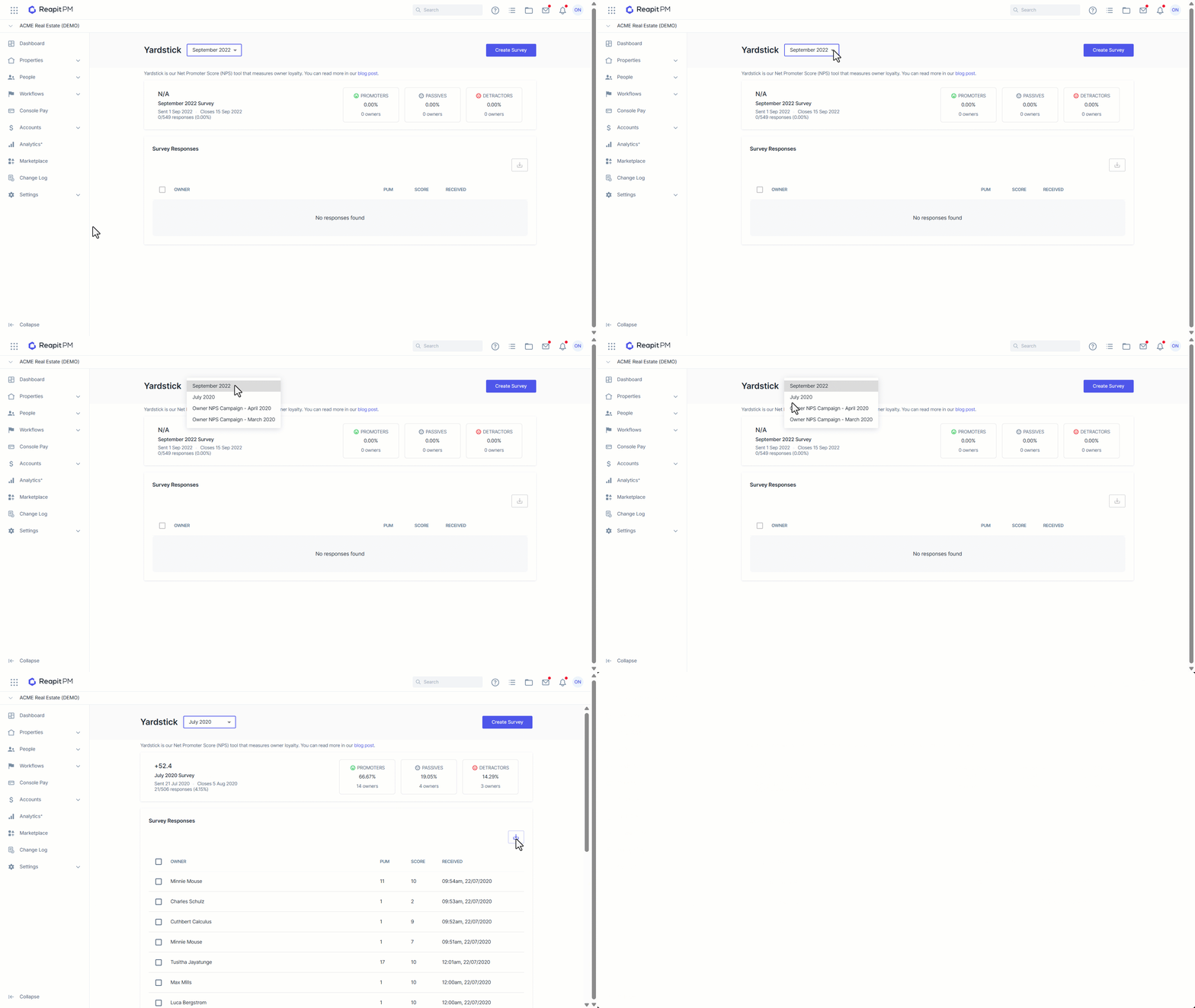
Viewing and Exporting Responses
- To view previous survey responses by month, click on dropdown next to the Yardstick heading and select the month.
- To export your responses to a CSV file, select the responses you would like to include or select the download icon on the left hand side of owner. Click the download or the export selected button.