'%20d='M0%208a8%208%200%200%201%208-8h24a8%208%200%200%201%208%208v24a8%208%200%200%201-8%208H8a8%208%200%200%201-8-8V8Z'/%3e%3cpath%20fill='%23fff'%20d='M8.375%2013v14L20.5%2034l12.124-7v-7.737l-1.687-.975-2.806-1.62-1.082-.624v4.83l-.002%204.83H13.95V16.07l3.275-1.89%202.192-1.265%201.082-.625%203.275%201.877%202.192%201.256%201.083.62V9.782L20.5%206%208.376%2013Z'/%3e%3cdefs%3e%3clinearGradient%20id='reapit-pm__a'%20x1='20.702'%20x2='20.702'%20y1='.351'%20y2='31.228'%20gradientUnits='userSpaceOnUse'%3e%3cstop%20stop-color='%235573FD'/%3e%3cstop%20offset='.575'%20stop-color='%234E56EA'/%3e%3c/linearGradient%3e%3c/defs%3e%3c/svg%3e)
Arrears Auto Reminders
This article will take you through how to set up arrears auto reminders in Reapit PM.
Overview
Arrears Auto Reminders
Arrears Automation allows you to set up the system to automatically SMS and/or email tenants who are in arrears. This article will cover enabling and setting up auto reminders in Reapit PM.
Please note: Rent and Invoice reminders are sent individually. For example, if a tenancy has both rent and invoice arrears and is due to get a reminder, they will get an email/SMS for rent and a second email for all invoices outstanding.
The processes in this article include:
- How to Setup Arrears Auto Reminders
- How to Setup Daily SMS Reminders
- How to Setup Days in Arrears (SMS/Email)
- How to Turn Off Auto Reminders
- Hot to Turn Off Individual Automated Reminders
How to Setup Arrears Auto Reminders
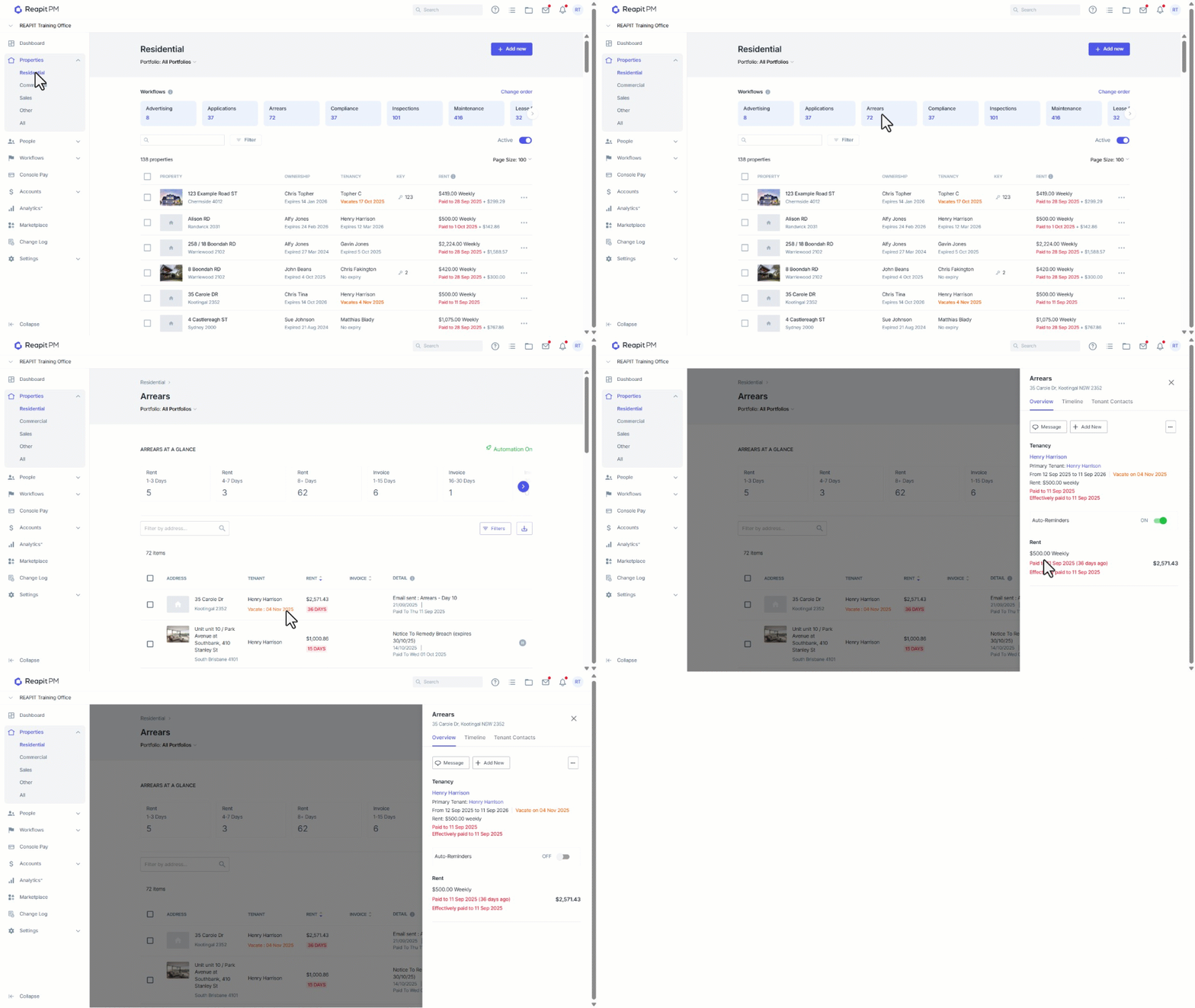
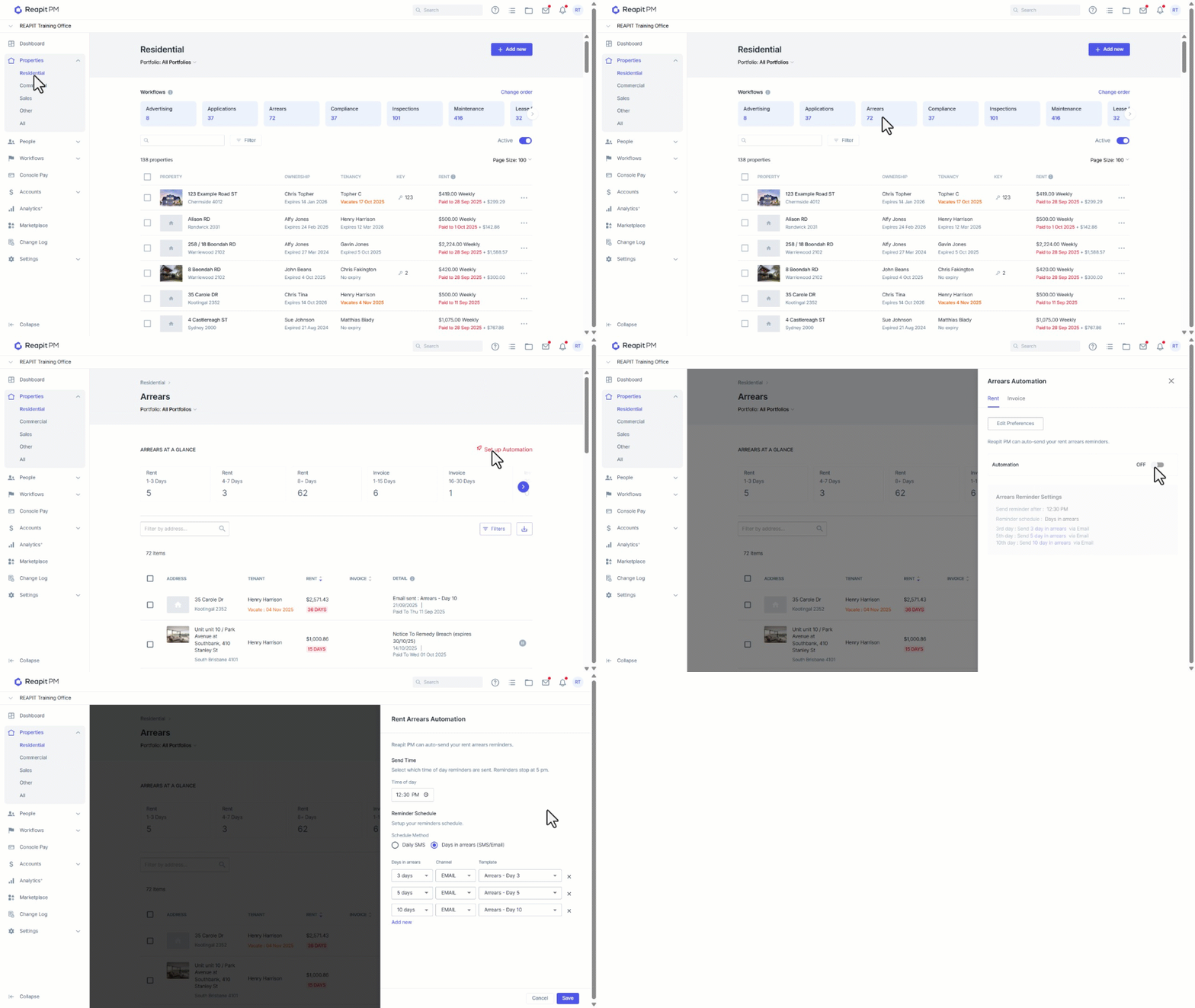
- Click on Properties.
- Click on Residential.
- Navigate to and select the Arrears workflow.
- Click on Set up Automation.
- Select Rent or Invoice automation and Click Edit Preference.
- Choose either Daily SMS or Days in Arrears (Both are separately sectioned below) Daily SMS - Sends a basic reminder once a day at a set time, for chosen days in arrears & on the days selected. Days in arrears (SMS/Email) - a more customised arrears reminder set up which allows you to select the specific days that you would like to send SMS and/or Emails.
How to Setup Daily SMS Reminders
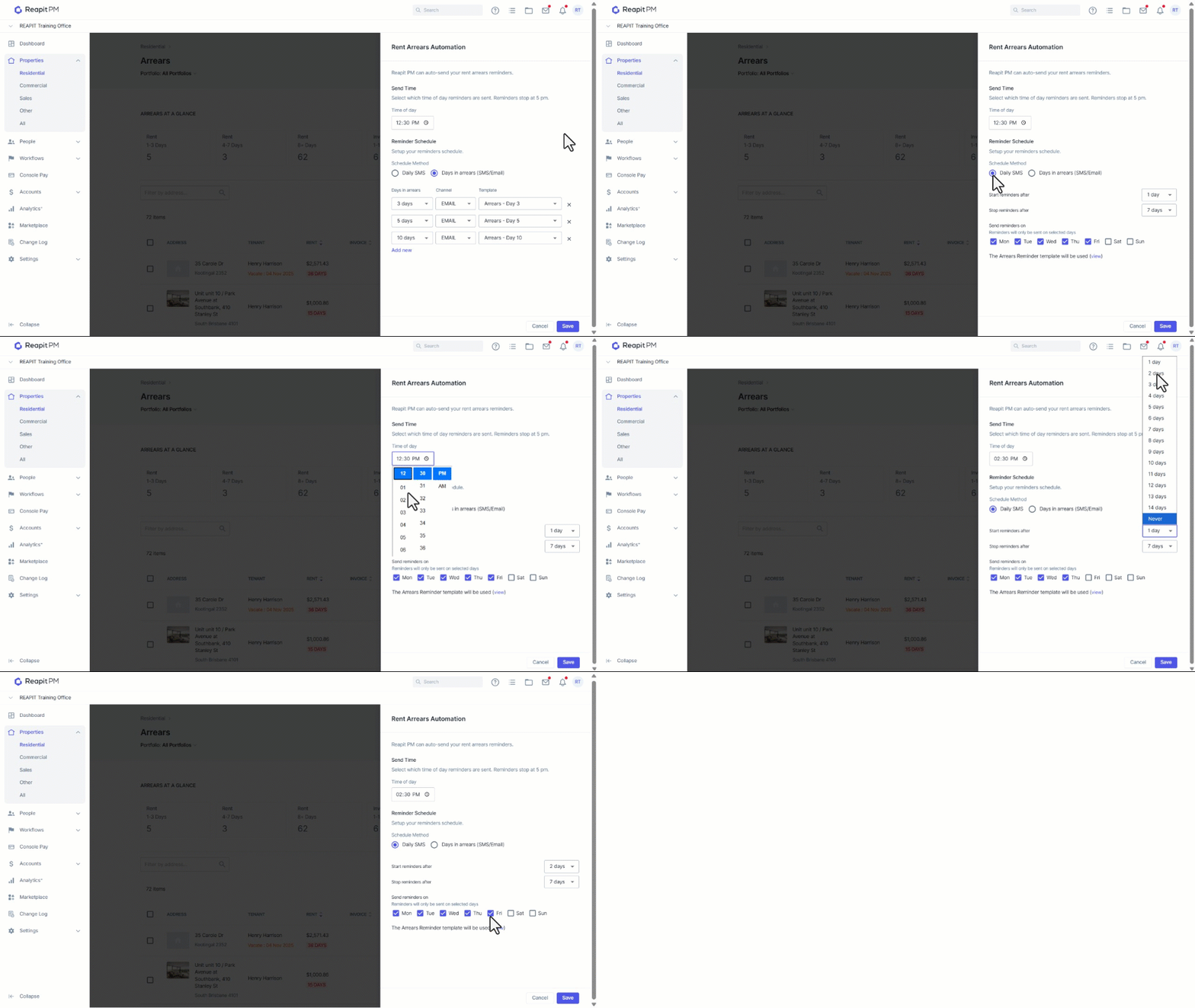
- Select the time of day that you would like the SMS sent. Note: The Time of day will be set for after you have completed your receipting for the day.
- Set when you would like to Start & Stop your reminders. Note: Reminders can be customised to suit your agency.
- Set which Days of the week you would like your reminders sent.
- To be able to view the Template that is being sent click on View (in blue) at the bottom of the options.
- Click on Save.
How to set up Days in Arrears (SMS/Email)
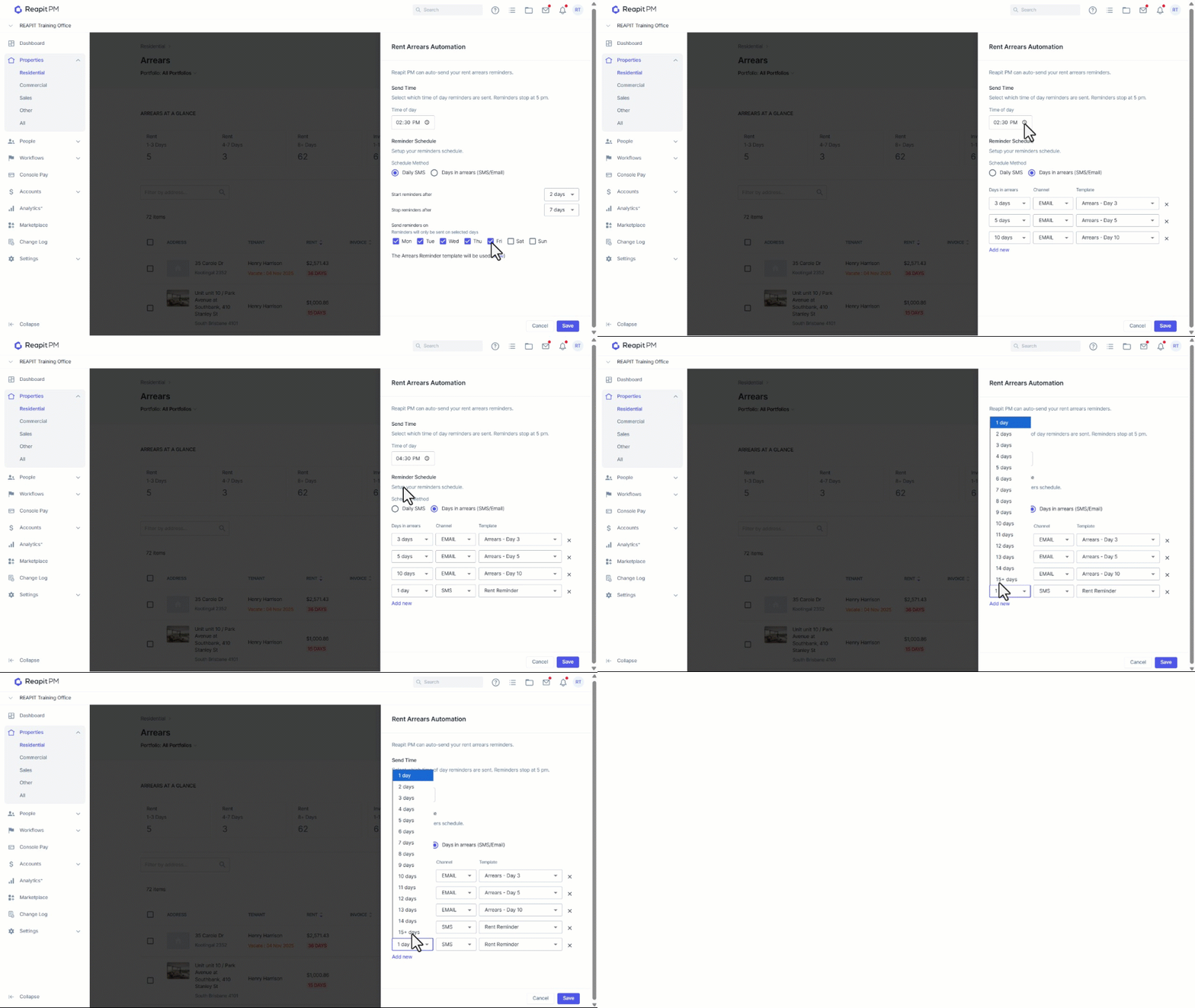
- Select Days in Arrears (SMS/Email) option in the Reminder Schedule section.
- Choose the time of day that you would like the SMS and/or Email sent.
- To set up which days that you would like to send a SMS and/or Email adjust the Days in Arrears, Channel & Template options to suit by clicking on the drop arrow in each section.
- To add additional reminders click Add New.
- Select Days in arrears, Channel and Template.
- Repeat as necessary and click Save.
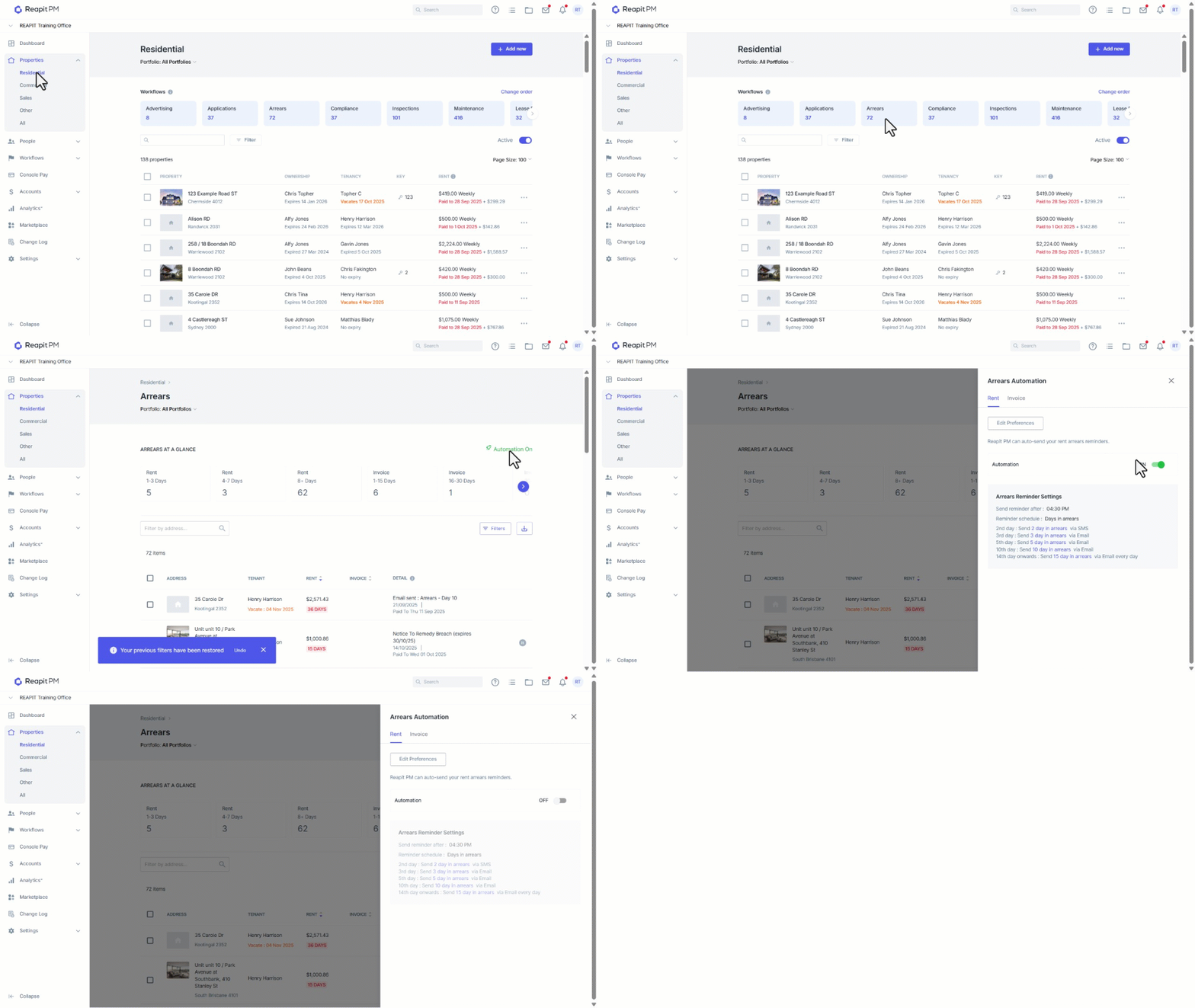
How to Turn off Automated Reminders
- Click on Properties.
- Click on Residential.
- Navigate to and select the Arrears workflow.
- Click Automation On.
- Switch Automation toggle to Off.
How to Turn off Individual Automated Reminders
You can turn reminders off or on against a Tenant’s arrears workflow. Note: This only applies to the current arrears against a Tenant. Any future arrears will default back to being sent as per the Automation set up.
- Click on Properties.
- Click on Residential.
- Navigate to and select the Arrears workflow.
- Search and select the relevant address.
- Switch Auto Reminders toggle to Off.