'%20d='M0%208a8%208%200%200%201%208-8h24a8%208%200%200%201%208%208v24a8%208%200%200%201-8%208H8a8%208%200%200%201-8-8V8Z'/%3e%3cpath%20fill='%23fff'%20d='M8.375%2013v14L20.5%2034l12.124-7v-7.737l-1.687-.975-2.806-1.62-1.082-.624v4.83l-.002%204.83H13.95V16.07l3.275-1.89%202.192-1.265%201.082-.625%203.275%201.877%202.192%201.256%201.083.62V9.782L20.5%206%208.376%2013Z'/%3e%3cdefs%3e%3clinearGradient%20id='reapit-pm__a'%20x1='20.702'%20x2='20.702'%20y1='.351'%20y2='31.228'%20gradientUnits='userSpaceOnUse'%3e%3cstop%20stop-color='%235573FD'/%3e%3cstop%20offset='.575'%20stop-color='%234E56EA'/%3e%3c/linearGradient%3e%3c/defs%3e%3c/svg%3e)
How to Reconcile in Reapit PM
This step-by-step guide will take you through the process of reconciling your trust account in Reapit PM and what to do if you go out of balance. The process in this article include: Completing a Reconciliation Reconciliation Reports and History Reconciliation Troubleshooting
Overview
How to Reconcile in Reapit PM
Follow the below process to prepare for, perform and troubleshoot the reconciliation.
Ensure when completing a reconciliation you follow all legislation to your business, we recommend a reconciliation is carried out regularly to prevent any variences and limit troubleshooting.
Prior to conducting a reconciliation ensure you have:
- your internet banking statement downloaded
- all manual and bulk receipting completed
- any unknown funds or transactions are reviewed
The process in this article include:
- Completing a Reconciliation
- Reconciliation Reports and History
- Reconciliation Troubleshooting
Completing a Reconciliation
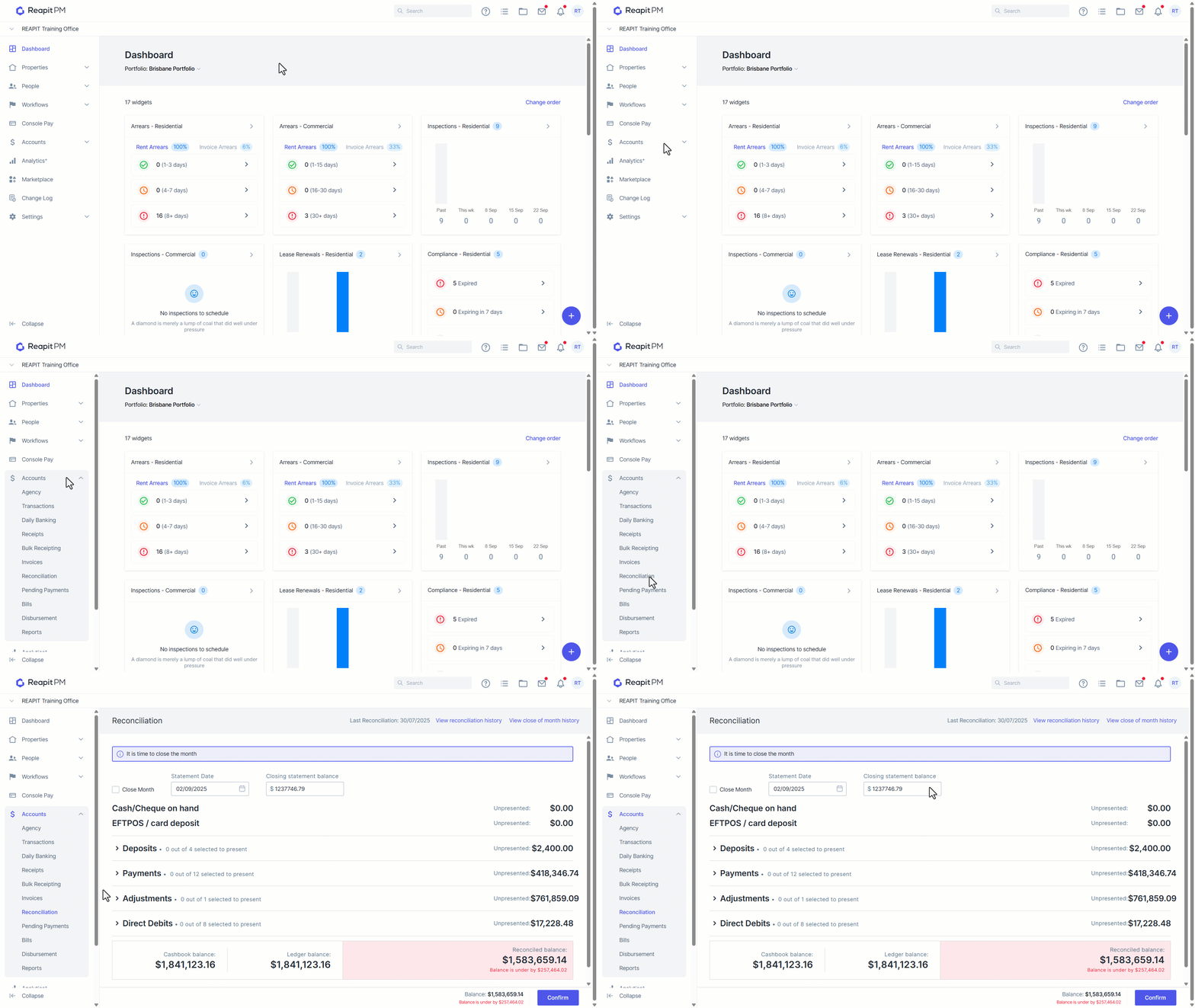
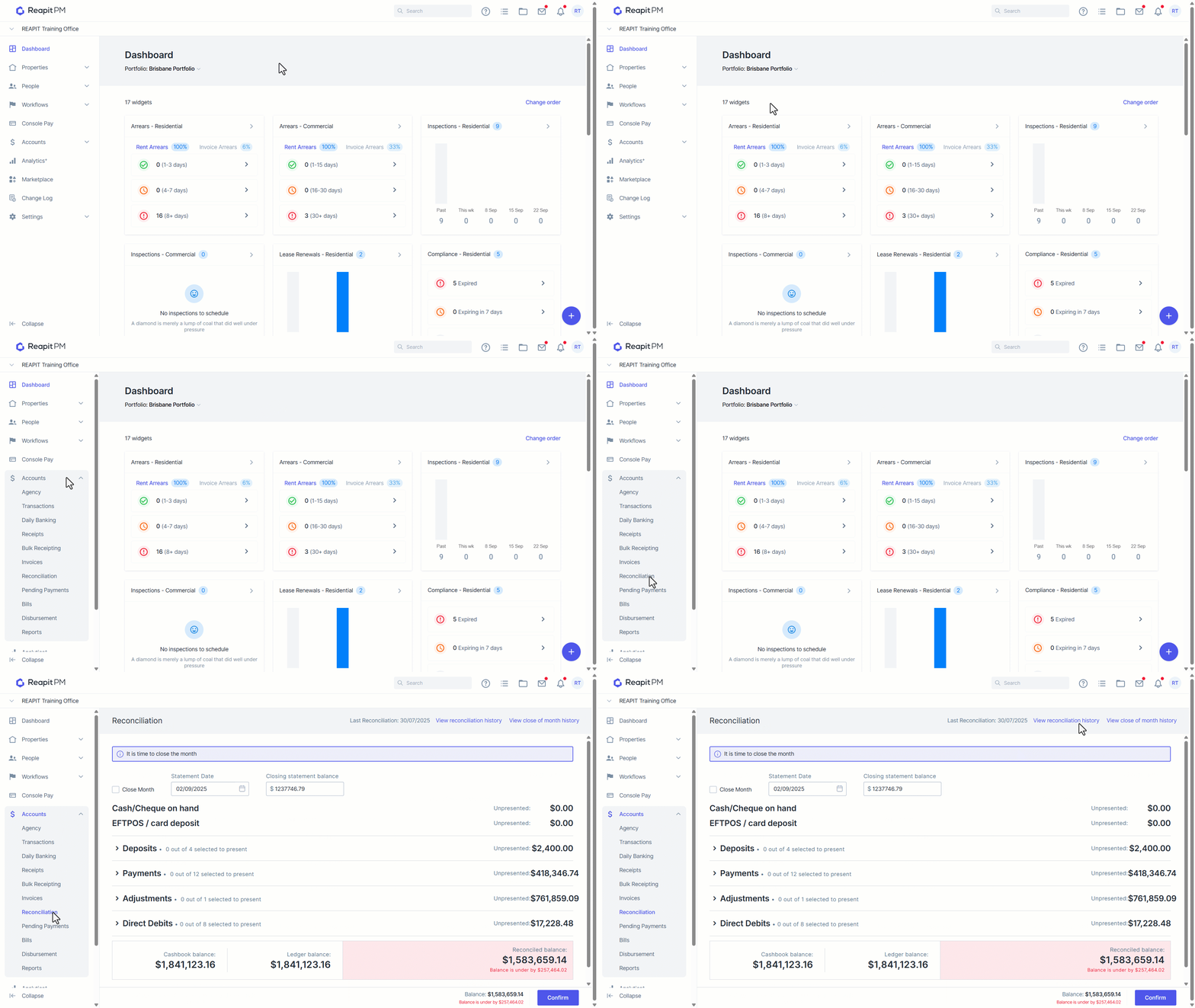
- Navigate to Accounts > Reconciliation.
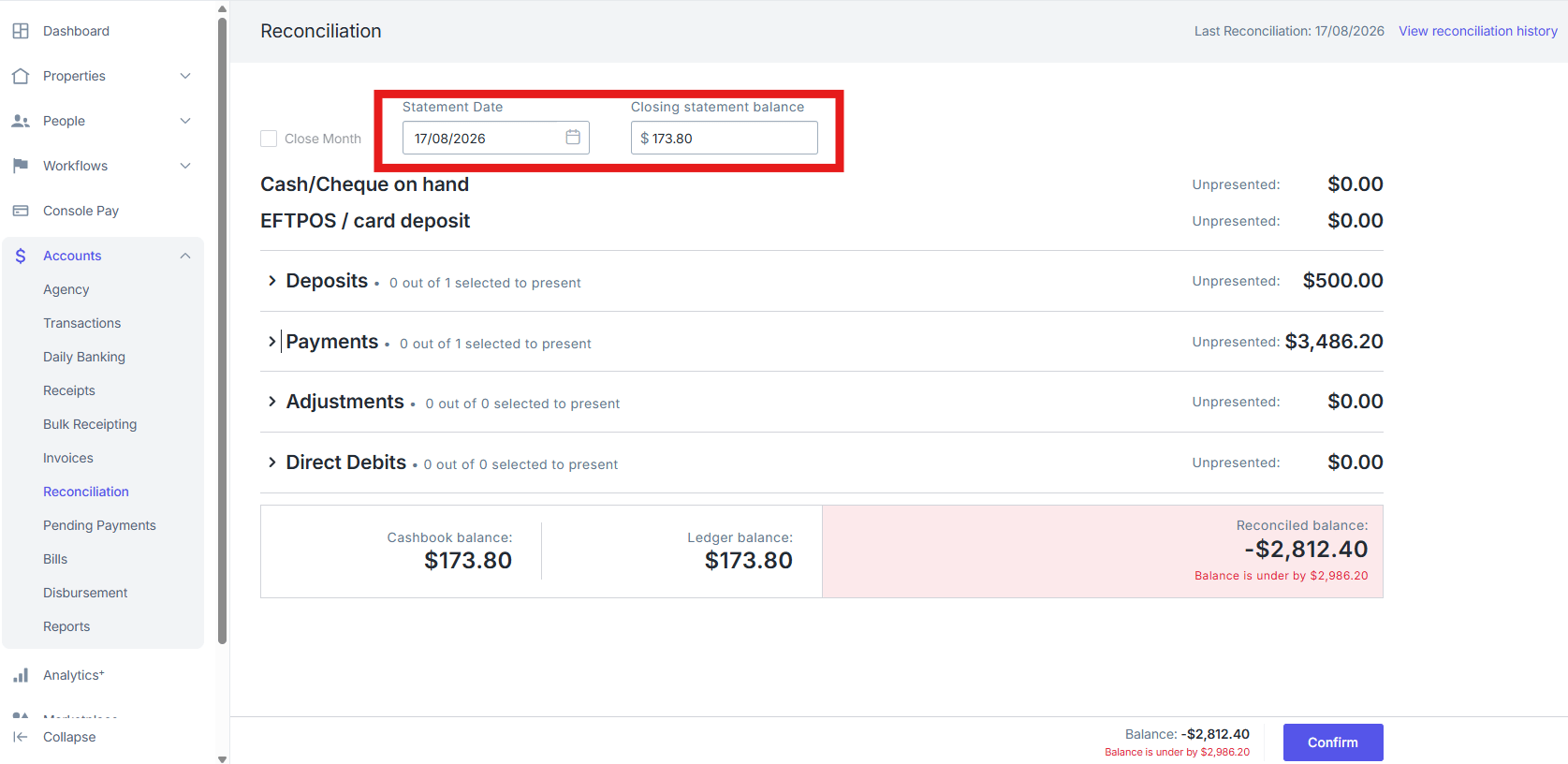
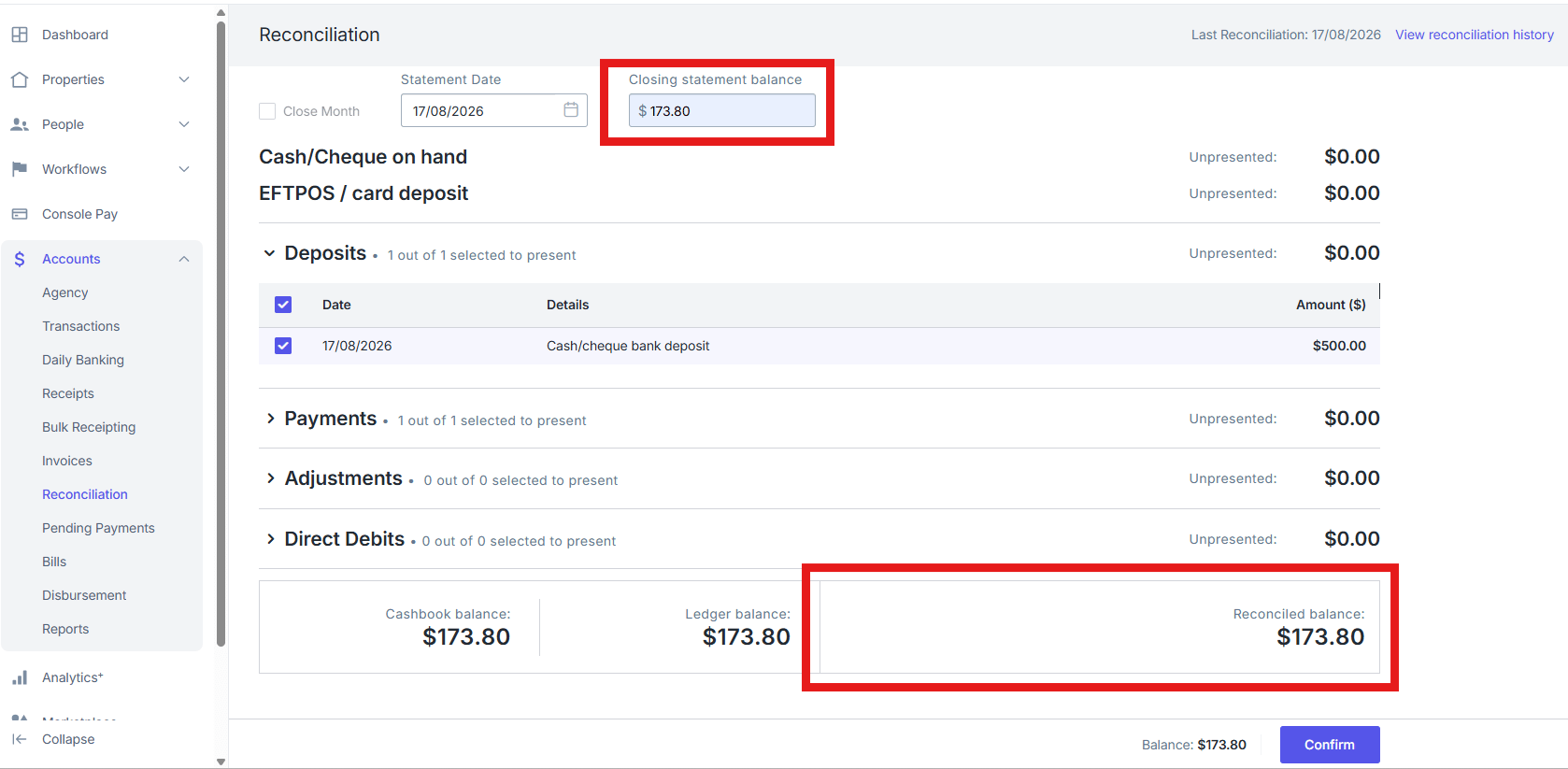
- Enter Statement Date and Closing Balance. This should be as per your internet banking.
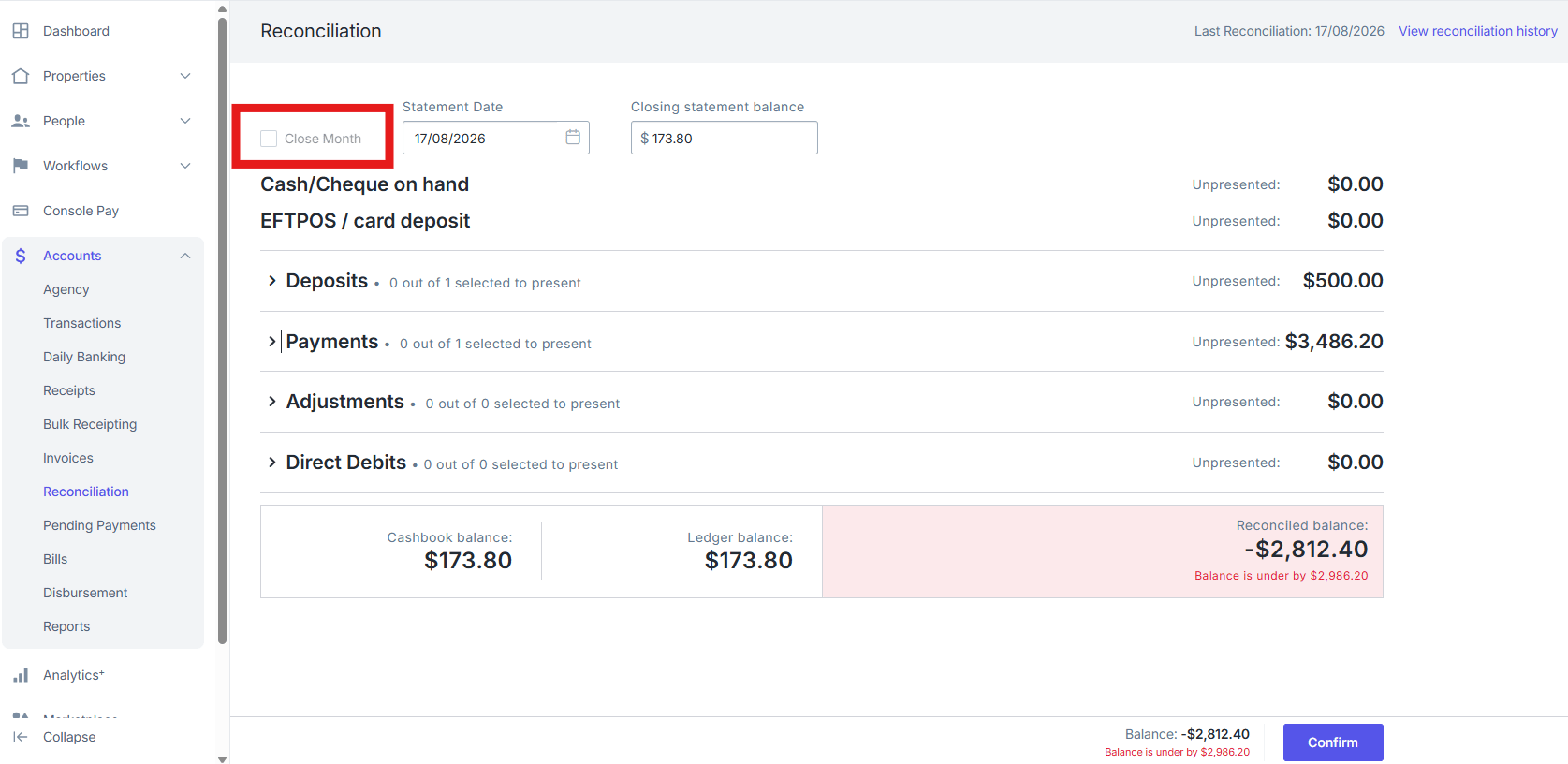
- Select to Close Month if it is your final End of Month Reconciliation.
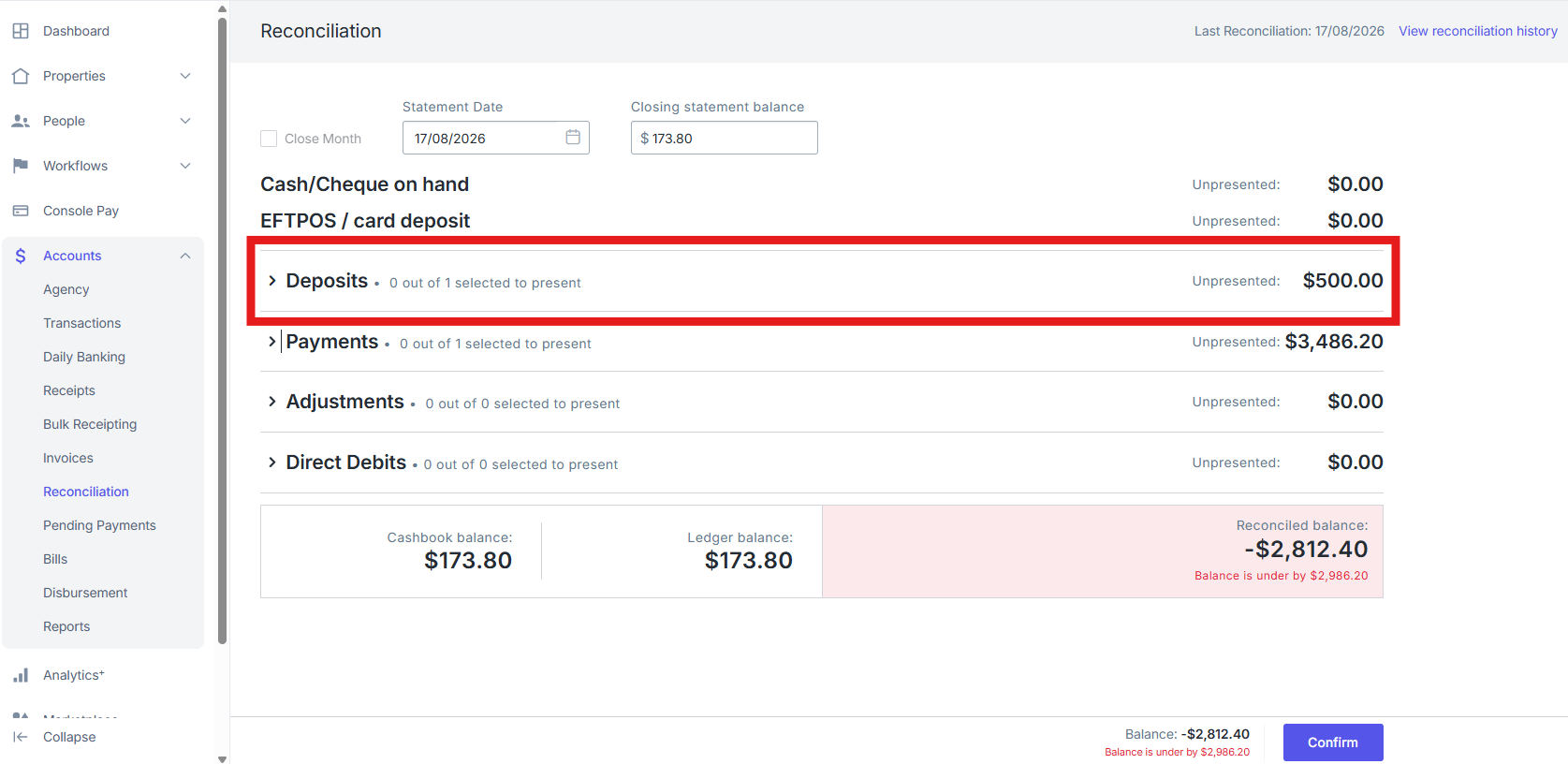
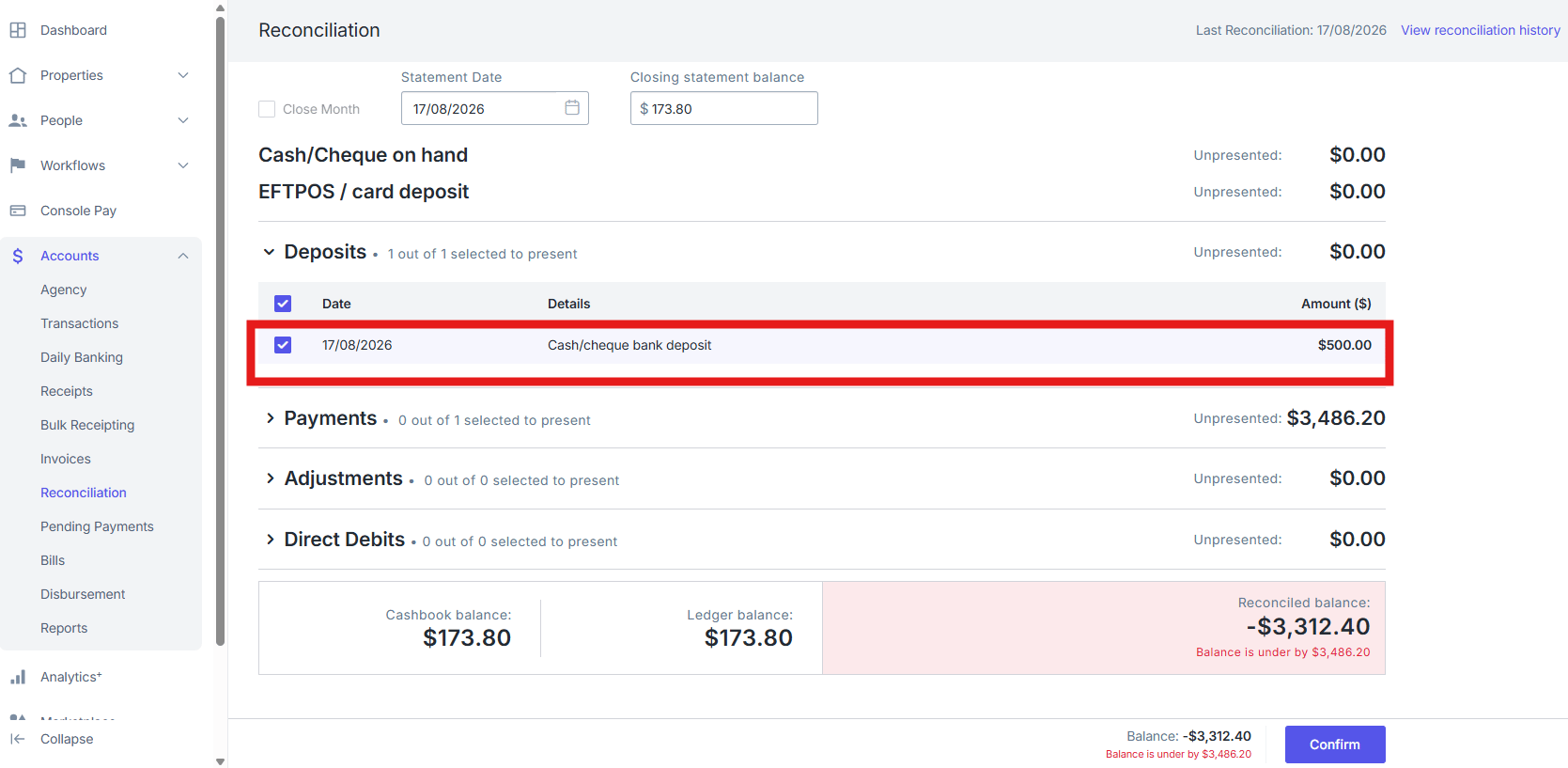
- Click on Deposits dropdown to view deposits recorded in Reapit PM. Only amounts that have been banked through daily banking will appear in the deposits section i.e. Cash, Cheque, EFT. Anything receipted with payment method 'deposit' will not need to be presented.
- Tick the Checkbox next to the deposit to mark it as reconciled.
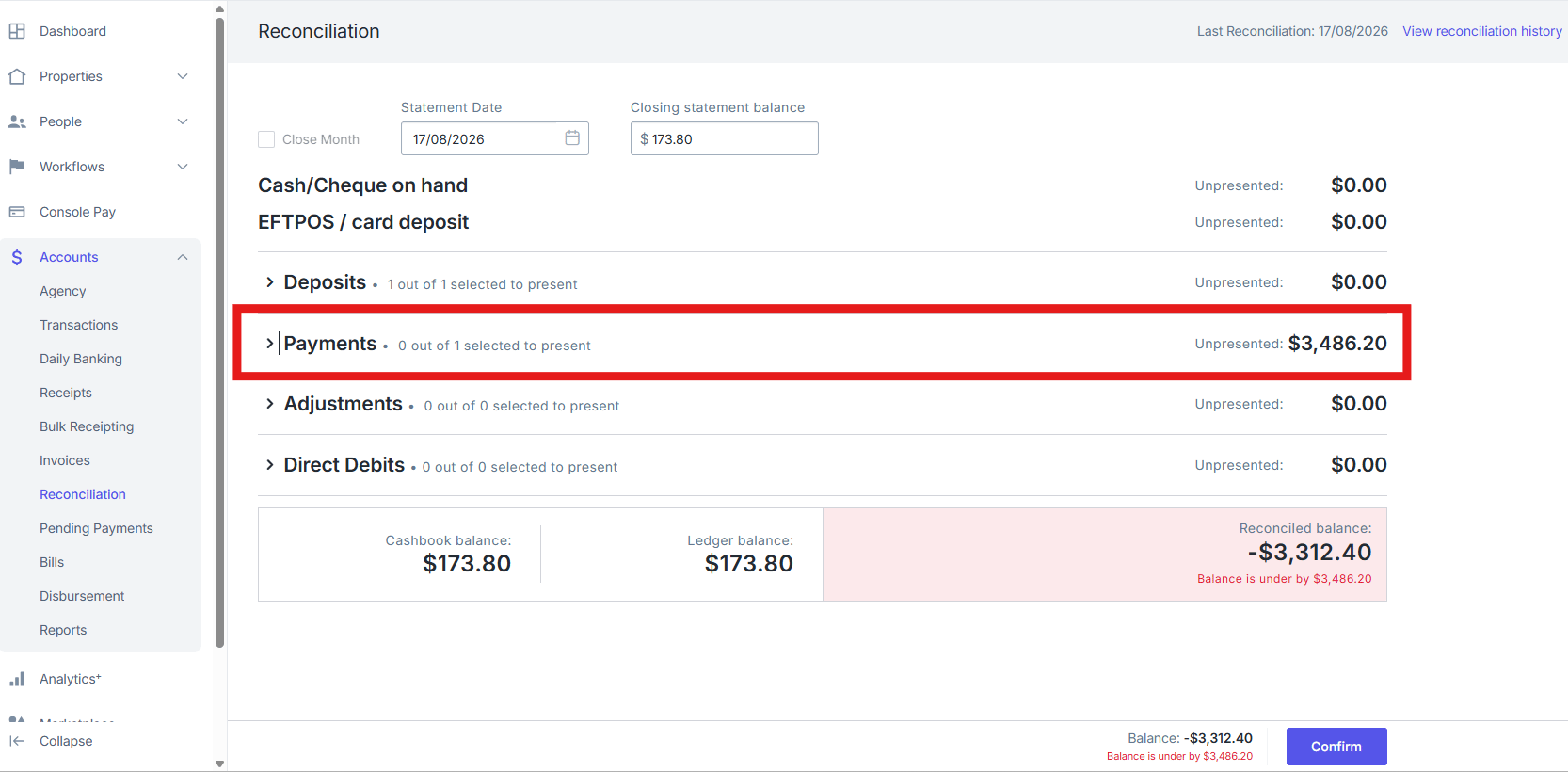
- Click on the Payments dropdown to view payments recorded in Reapit PM.
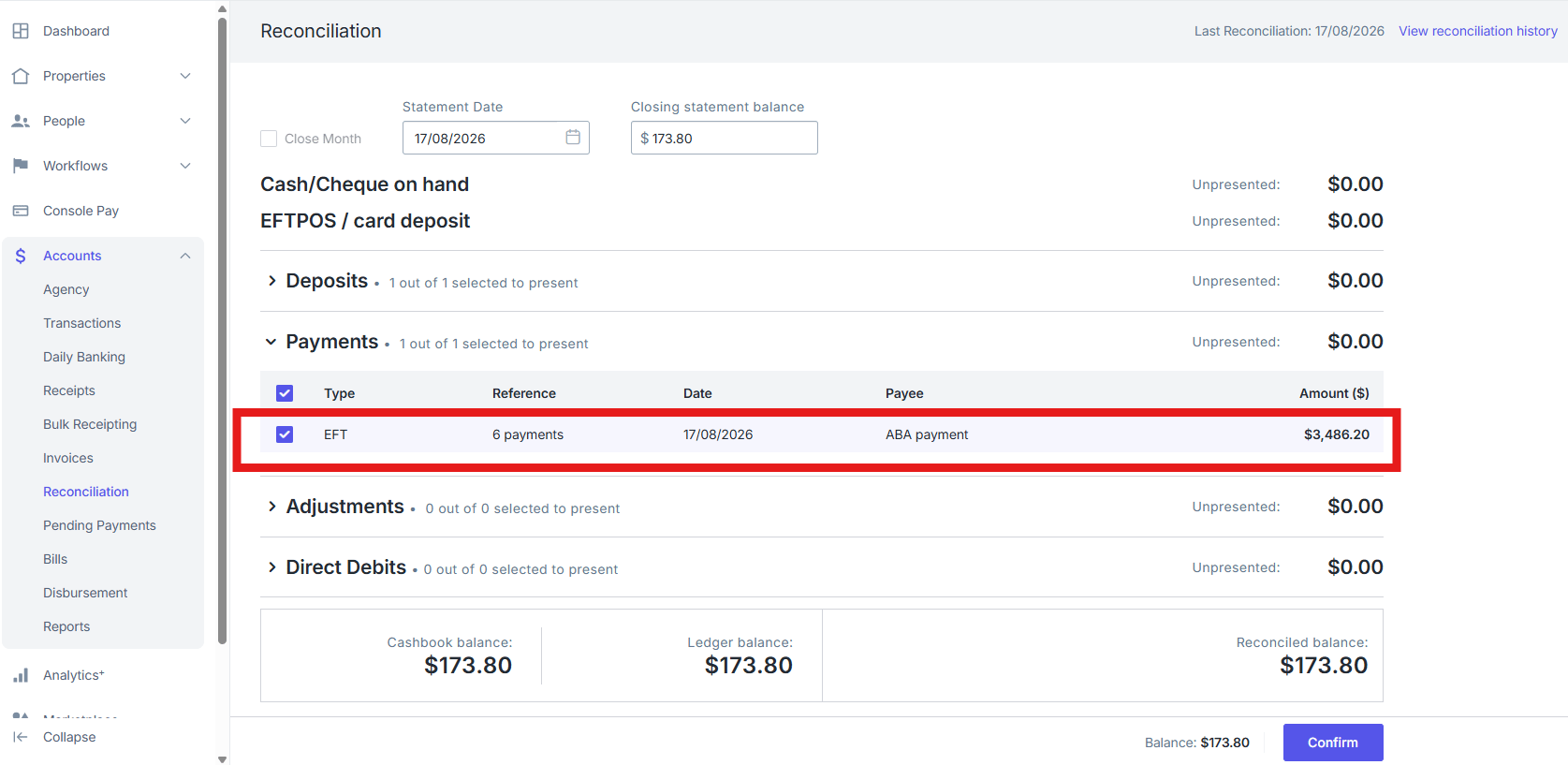
- Tick the Checkbox next to the payment to mark it as reconciled.
- Click on the Adjustments drop down to present any previously recorded Adjustments or to add a new adjustment.
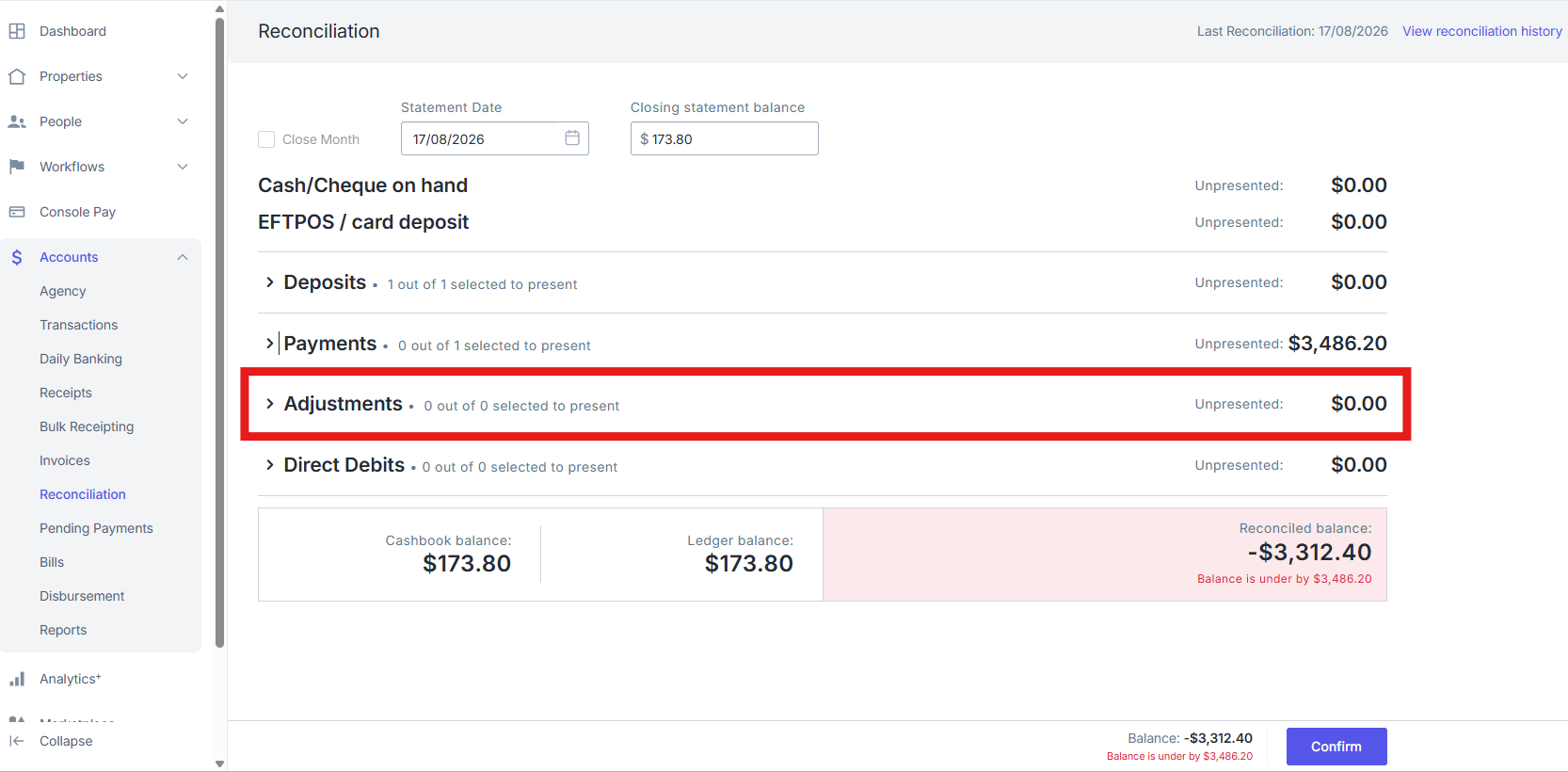
- Tick the Checkbox to present an adjustment.
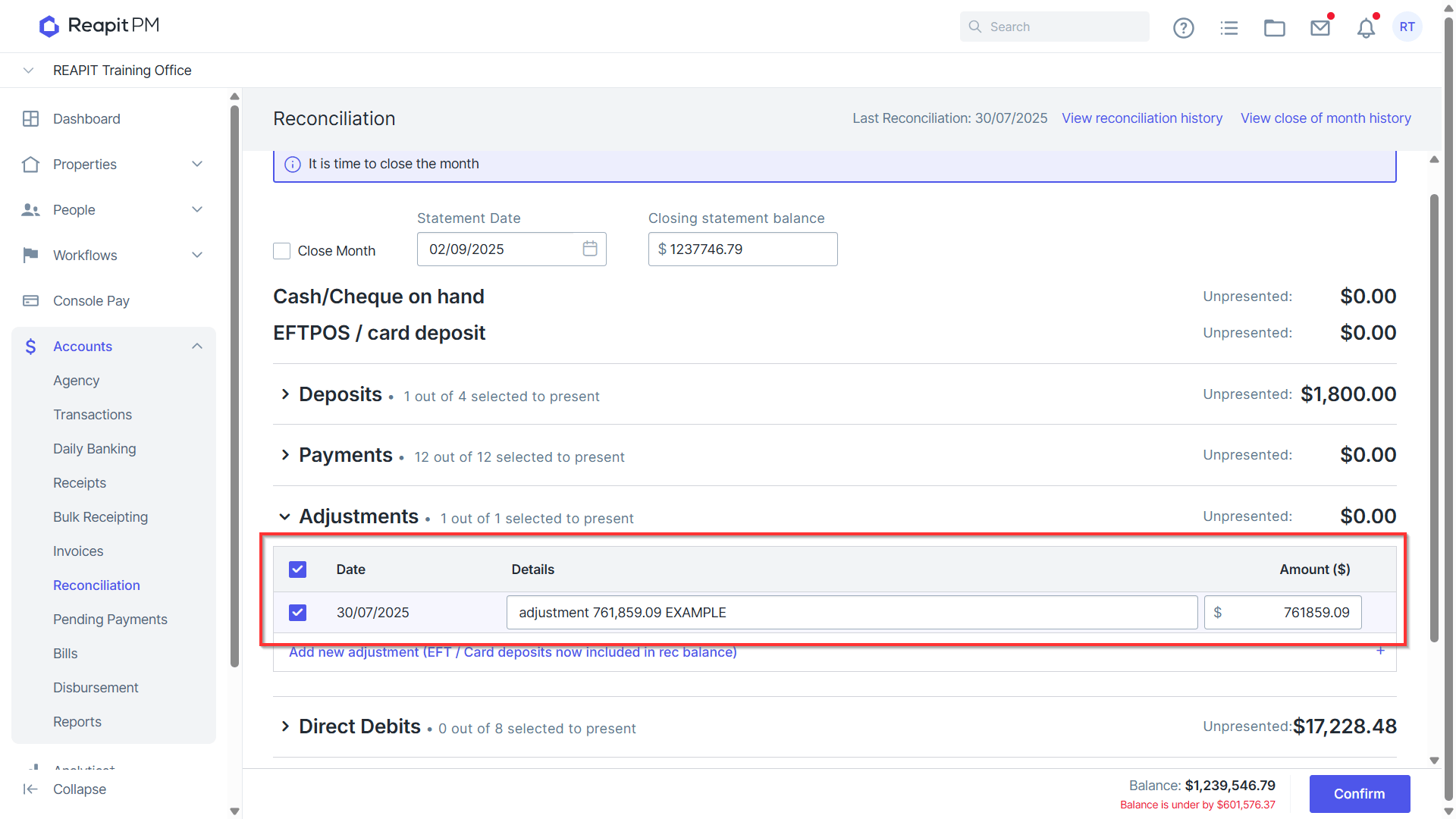
- Click on Add new adjustment to add if required.
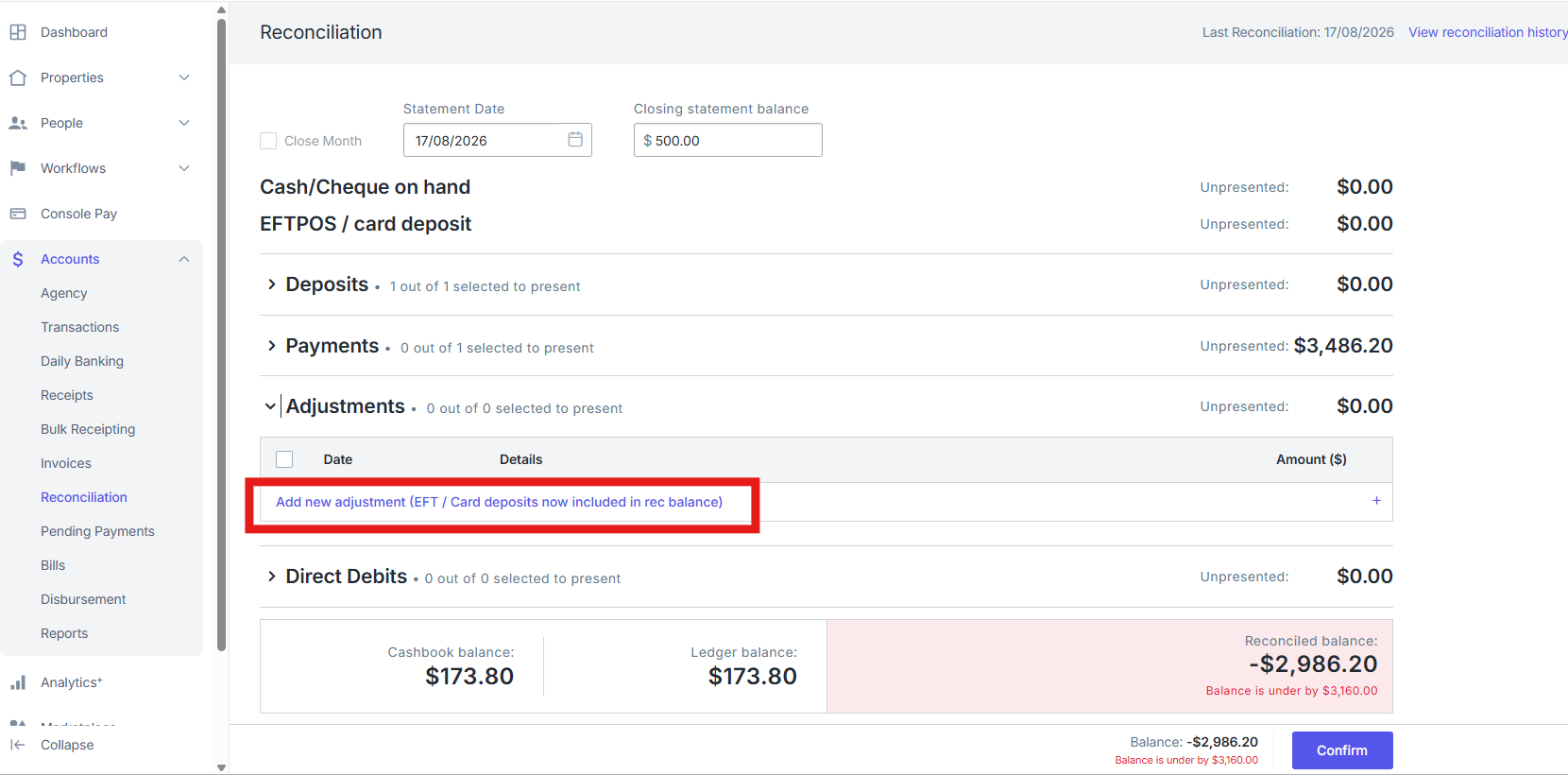
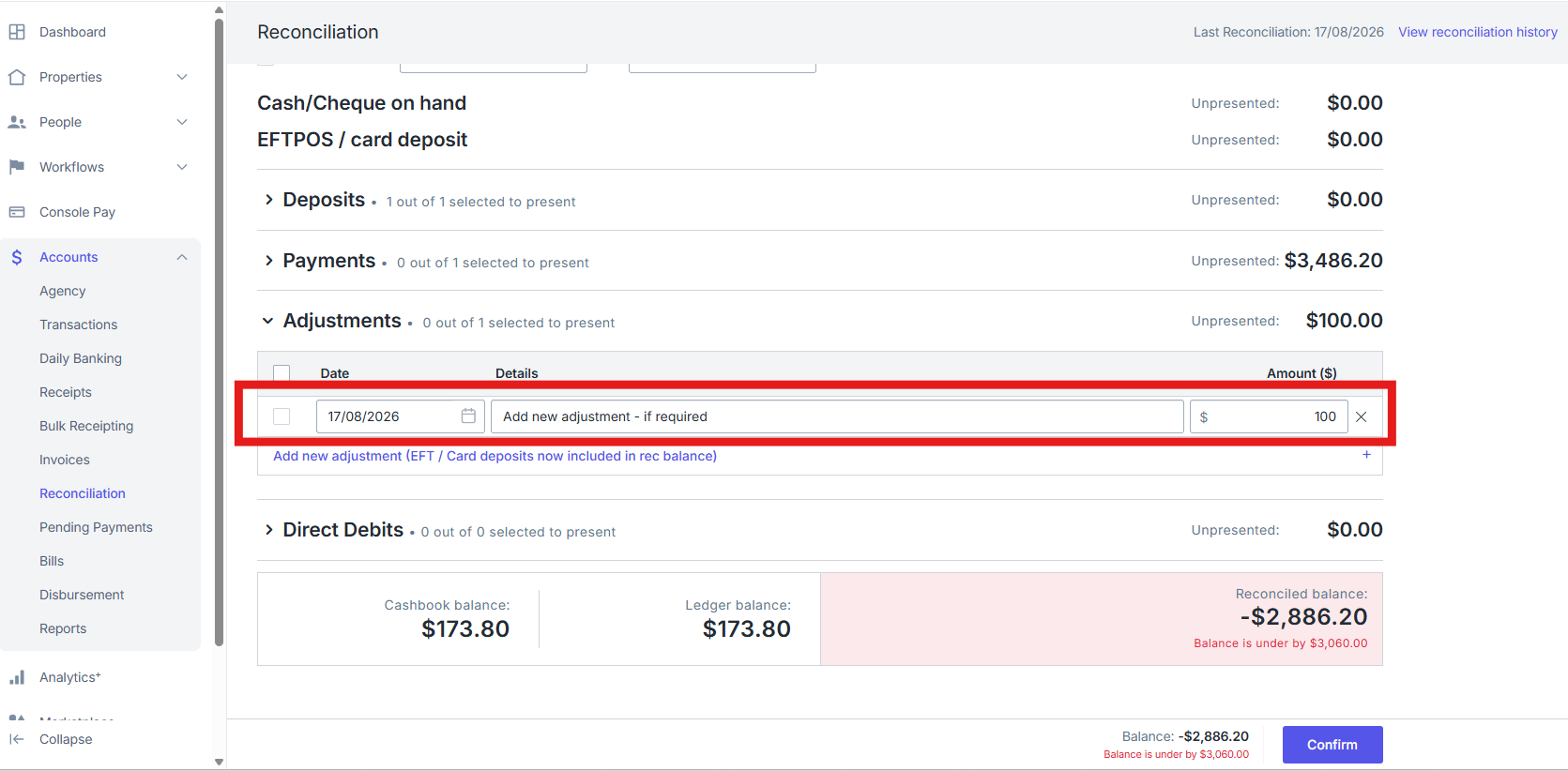
- Enter Date, Details and Amount. N.B. A Positive Adjustment will need to be entered if less money is in the trust then in PM, a Negative Adjustment will need to be entered if more money is in the trust then in PM.
- Click on the Direct Debits dropdown (if applicable) to reconcile any bonds debited from your account.
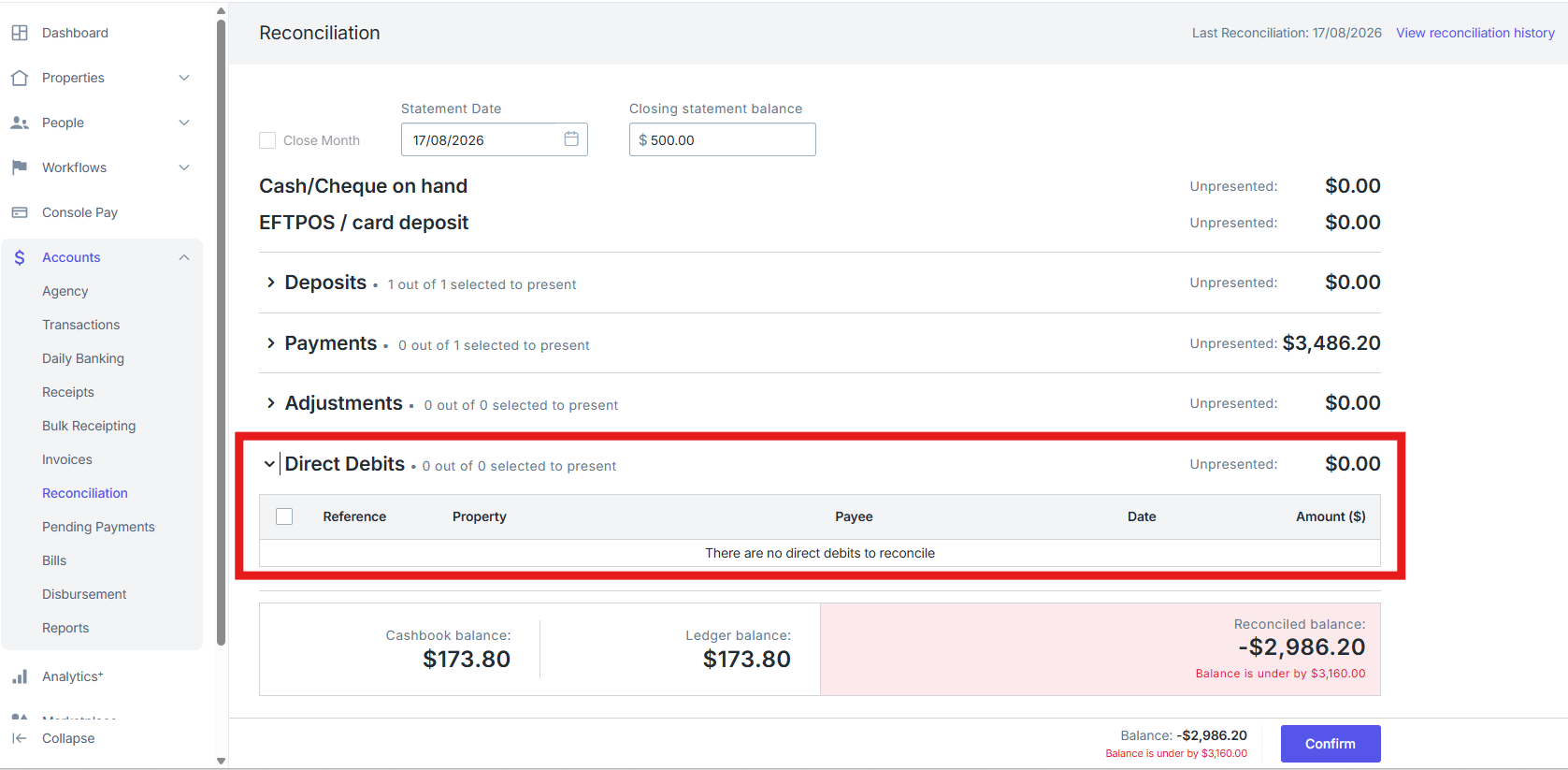
- Tick the Checkbox to reconcile, ensure the date of debit reflects your bank statement.
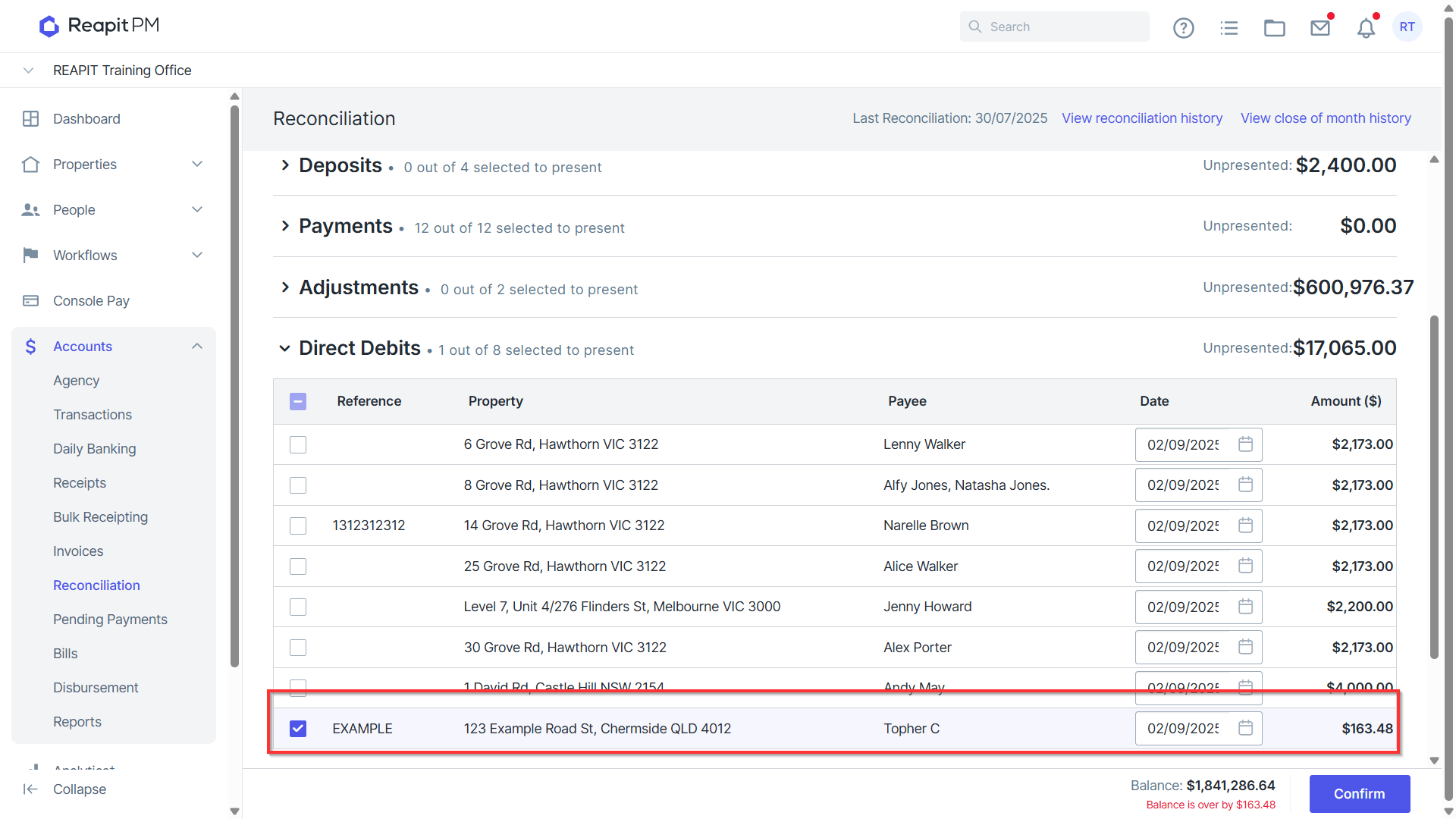
Check that your reconciliation has reconciled by viewing the reconciled balance.
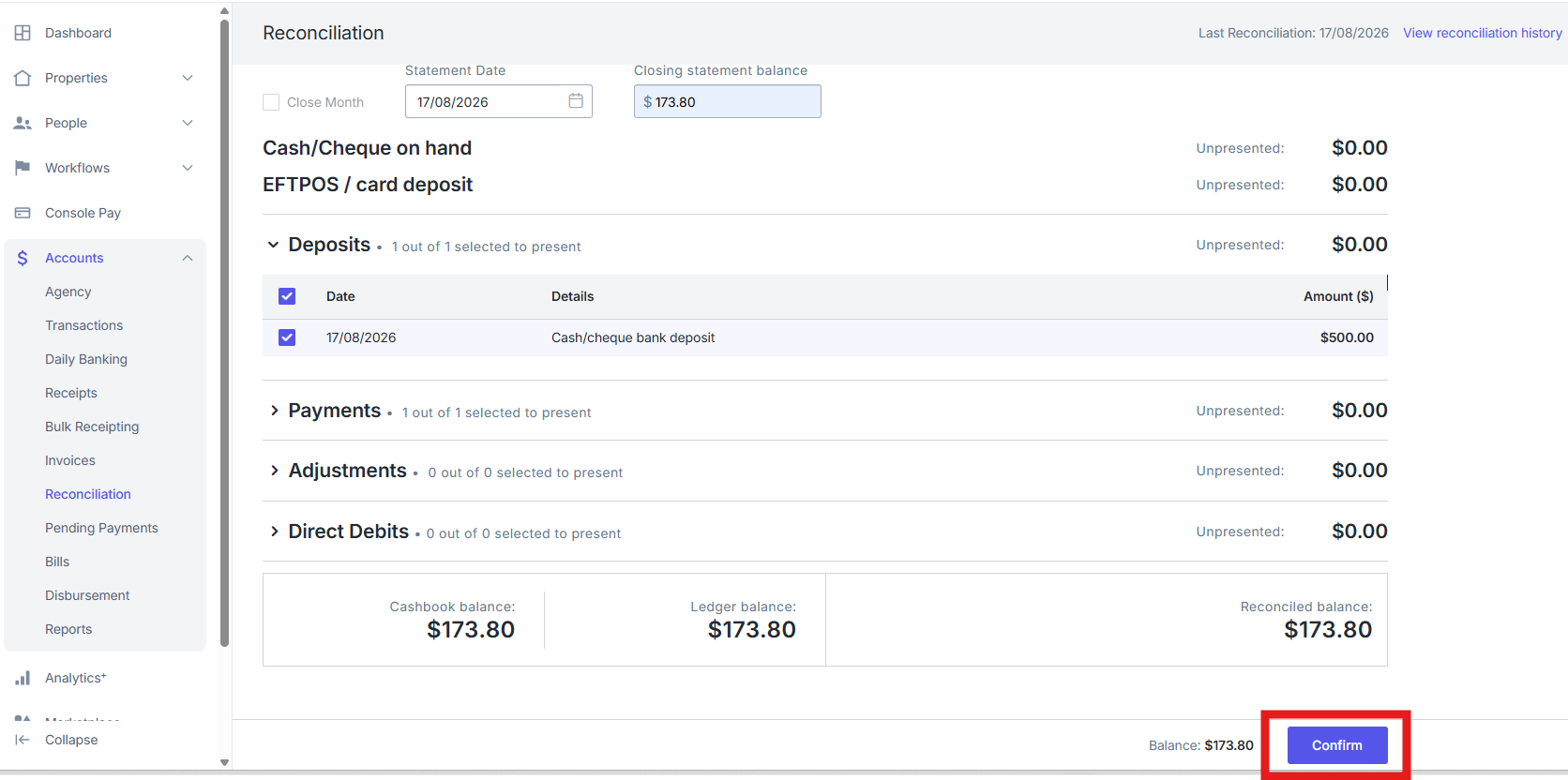
Click Confirm for daily reconciliation.
or Close Month if it is the End of Month reconciliation.
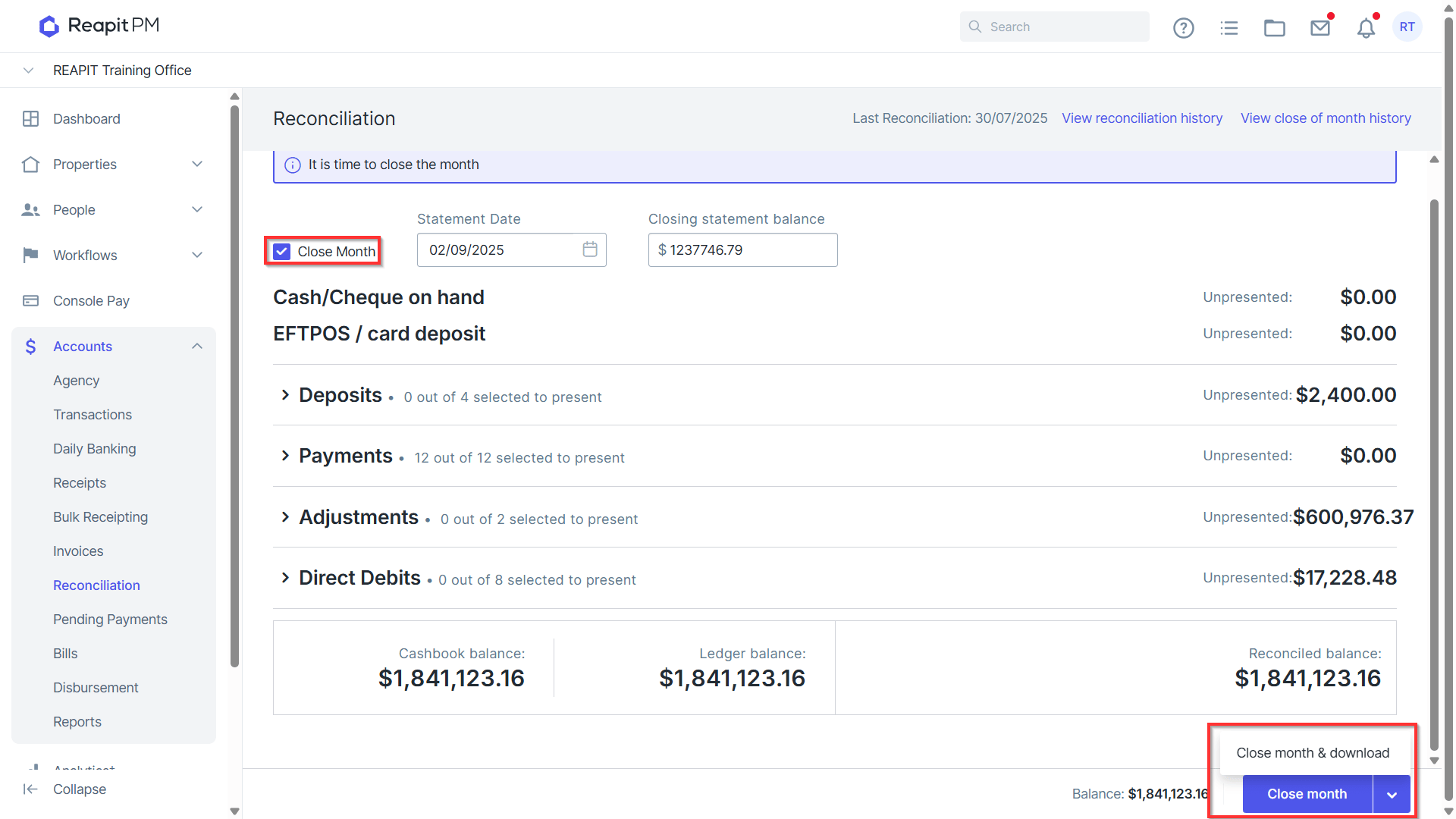
- Your Reconciliation processes and generates your Reconciliation Reports in PDF format. These reports include:
- Trust Account Reconciliation
- Unpresented Deposits
- Unpresented Payments
- Unpresented Adjustments
- Presented Deposits, Payments and Adjustments
Close of Month reports will include:
Reconciliation Report (Post-EOM)
Agency Fee Ledger
Bond Authority Ledger
Creditor Ledgers
Monthly Cashbook
Owner Ledgers
Owner Statements (to be printed or emailed)
Tenant Ledgers
Trial Balances for Owners: Bond; Agency Fees; Sales and Tenants
Reconciliation Reports and History
- To view reconciliation or close of month history, navigate to Accounts > Reconciliation.
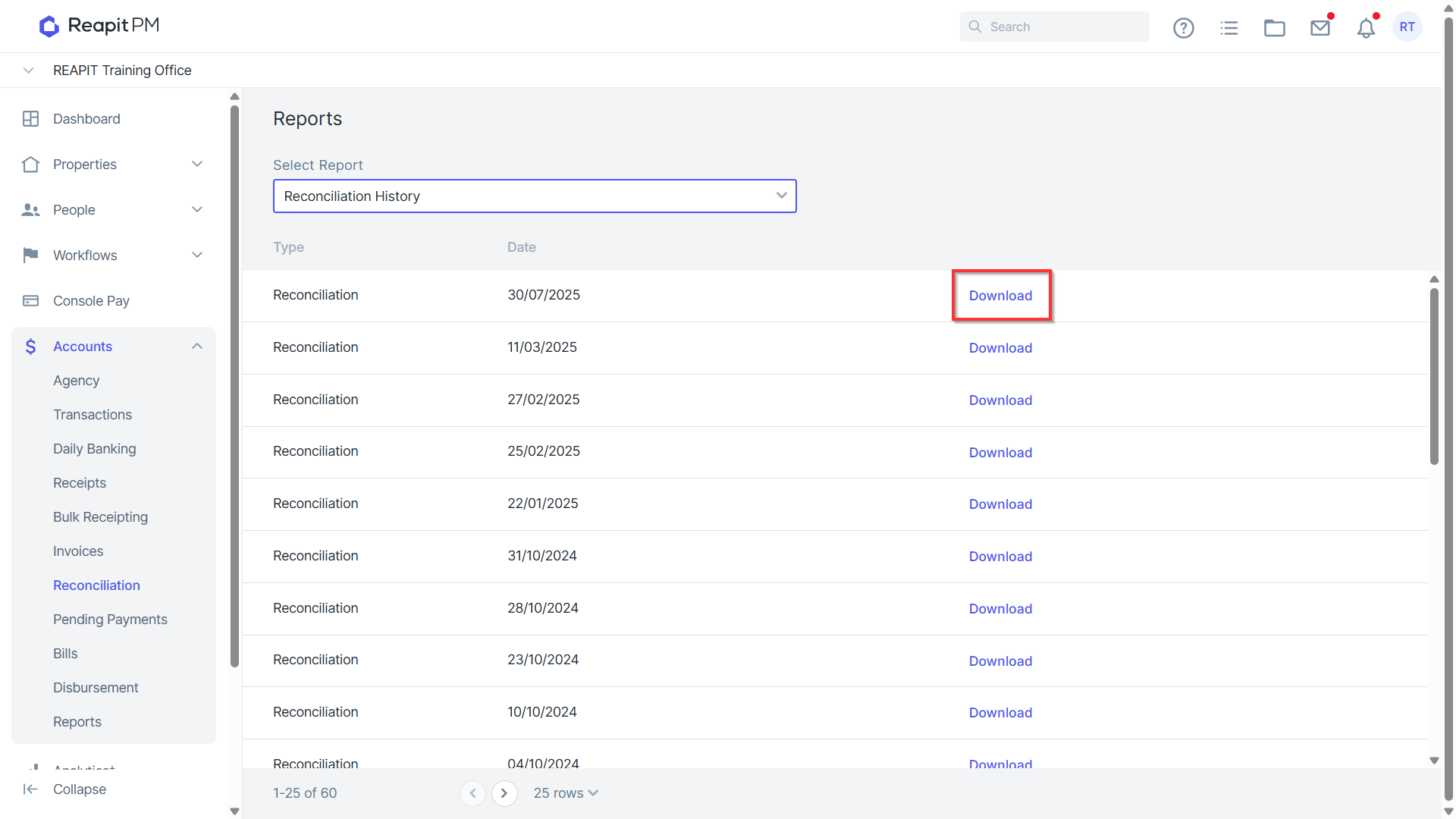
- Click on View reconciliation history to access reconciliation history.
Click on Download against the relevant reconciliation to redownload the PM Reports.
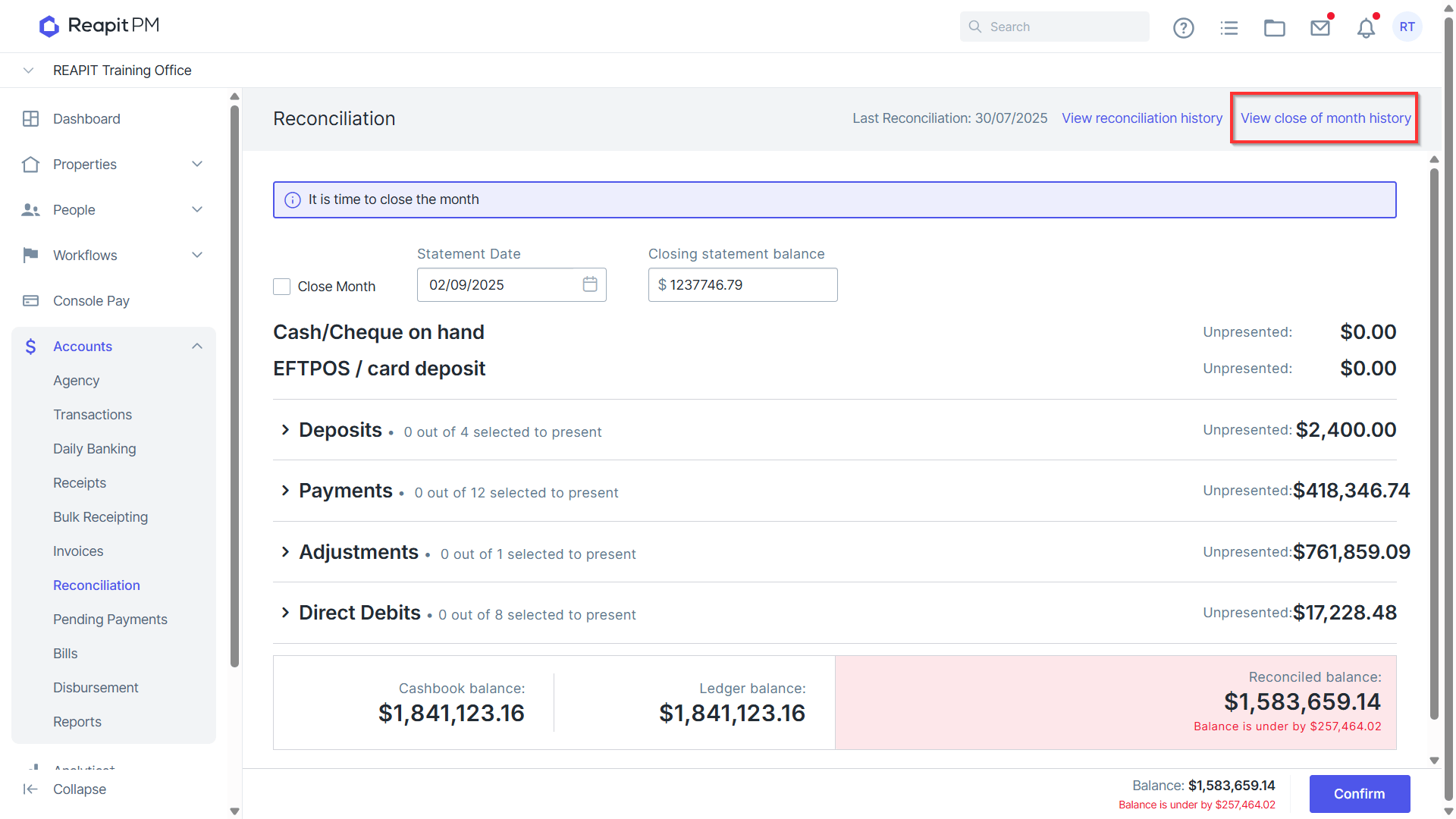
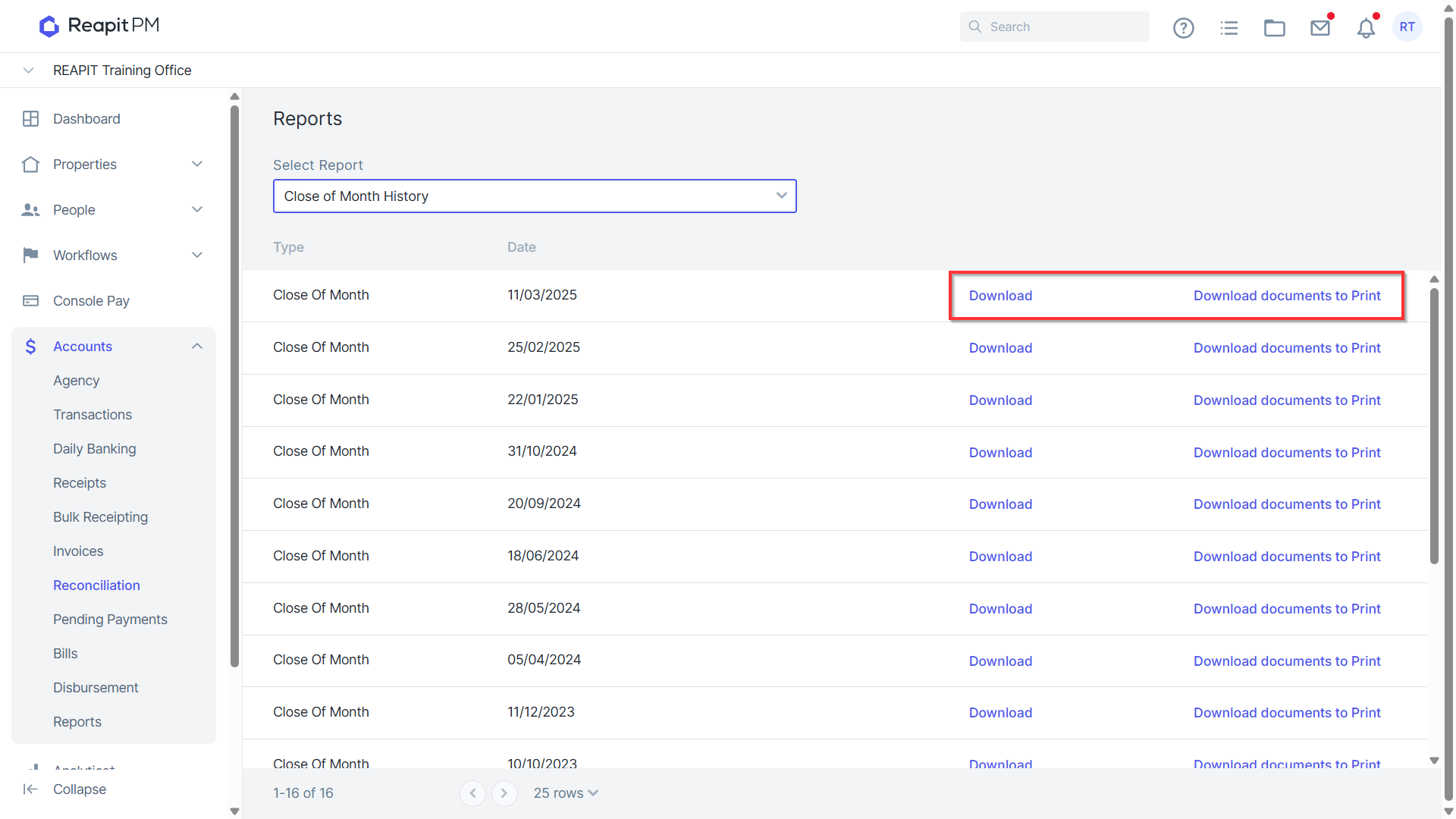
Click on View close of month history to access reconciliation history and print documents.
Click on Download to download Close of Month Reports or Download documents to Print to download any Ownership Statements to be printed.
Reconciliation Troubleshooting
If a Reconciliation does not balance, the Reconciled balance section is highlighted in red, with the discrepancy amount shown. You must resolve the discrepancy prior to proceeding.
If the Balance is Under, ****it means there is less money held in the trust account than is recorded in Reapit PM. For example, this may occur when money is receipted into the PM in error i.e. a duplicate receipt.
If the Balance is Over, this means there is more money held in the trust account than is recorded in Reapit PM. For example, this may occur when money has entered the trust account but has not been receipted into PM.
Common troubleshooting steps:
- Check the Closing statement balance entered is correct.
- Check all payments appearing on your statement are reflected in PM.
- Check all deposits appearing on your statement are reflected in PM
- Check all deposits, payments or adjustments have been presented as per your bank statement
- Check any new adjustments have been entered correctly
- Check data entry on any receipts/payments entered since you last balanced.
- Check any reversals have been correctly entered into PM
If you are still unable to reconcile your trust account, we recommend that you seek professional help, we have a large network of certified partners able to assist on Reapit PM.