'%20d='M0%208a8%208%200%200%201%208-8h24a8%208%200%200%201%208%208v24a8%208%200%200%201-8%208H8a8%208%200%200%201-8-8V8Z'/%3e%3cpath%20fill='%23fff'%20d='M8.375%2013v14L20.5%2034l12.124-7v-7.737l-1.687-.975-2.806-1.62-1.082-.624v4.83l-.002%204.83H13.95V16.07l3.275-1.89%202.192-1.265%201.082-.625%203.275%201.877%202.192%201.256%201.083.62V9.782L20.5%206%208.376%2013Z'/%3e%3cdefs%3e%3clinearGradient%20id='reapit-pm__a'%20x1='20.702'%20x2='20.702'%20y1='.351'%20y2='31.228'%20gradientUnits='userSpaceOnUse'%3e%3cstop%20stop-color='%235573FD'/%3e%3cstop%20offset='.575'%20stop-color='%234E56EA'/%3e%3c/linearGradient%3e%3c/defs%3e%3c/svg%3e)
Tasks
This article will guide you through how to create and manage tasks. The process in this article includes: Accessing Tasks Create a New Task Edit, Delete or Mark as Complete Filters Search Settings / Tasks
This article will guide you through how to create and manage tasks.
The process in this article includes:
- Accessing Tasks
- Create a New Task
- Edit, Delete or Mark as Complete
- Filters
- Search
- Settings / Tasks
Tasks can be used for ad hoc tasks not covered in daily workflows.
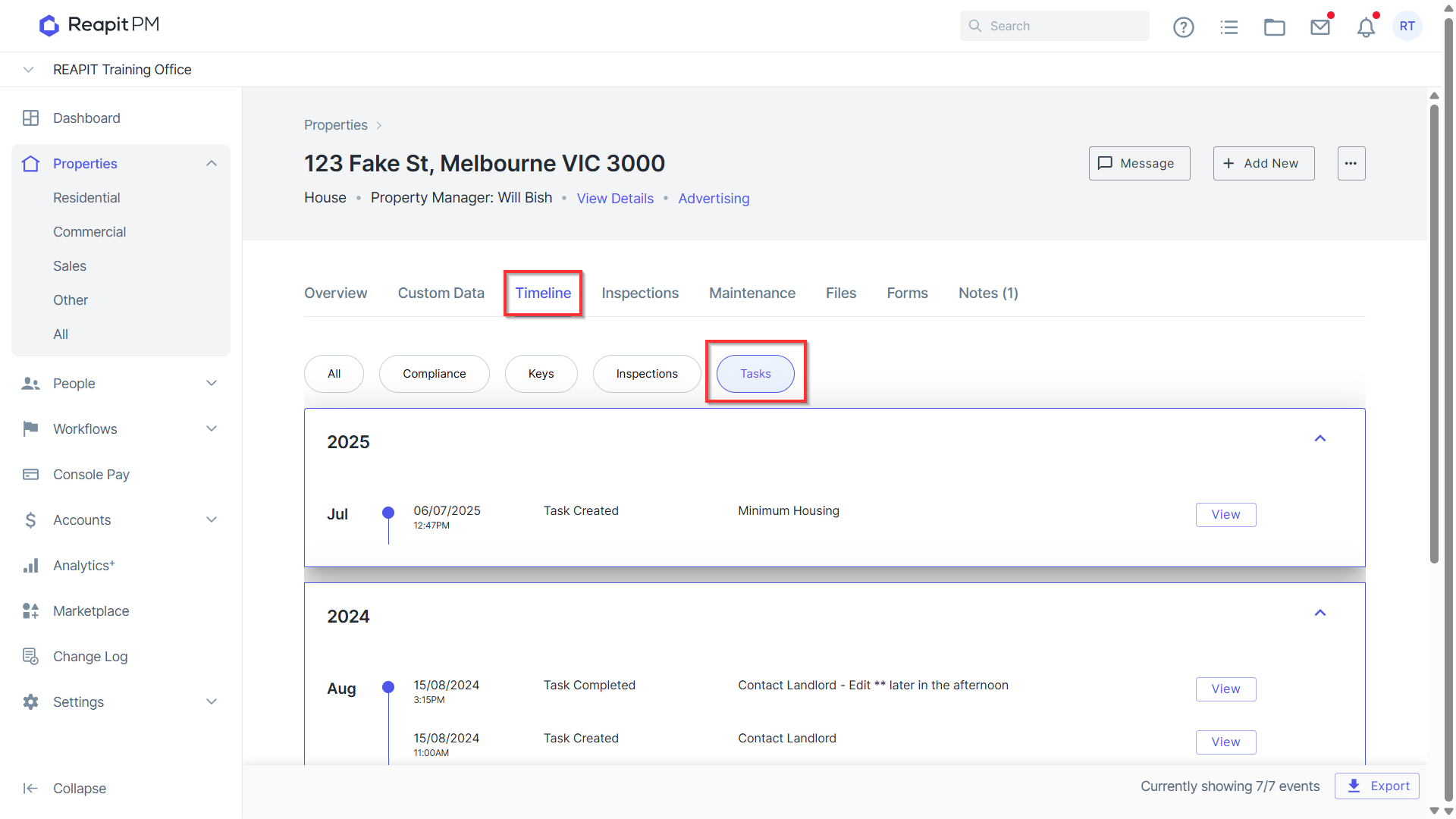
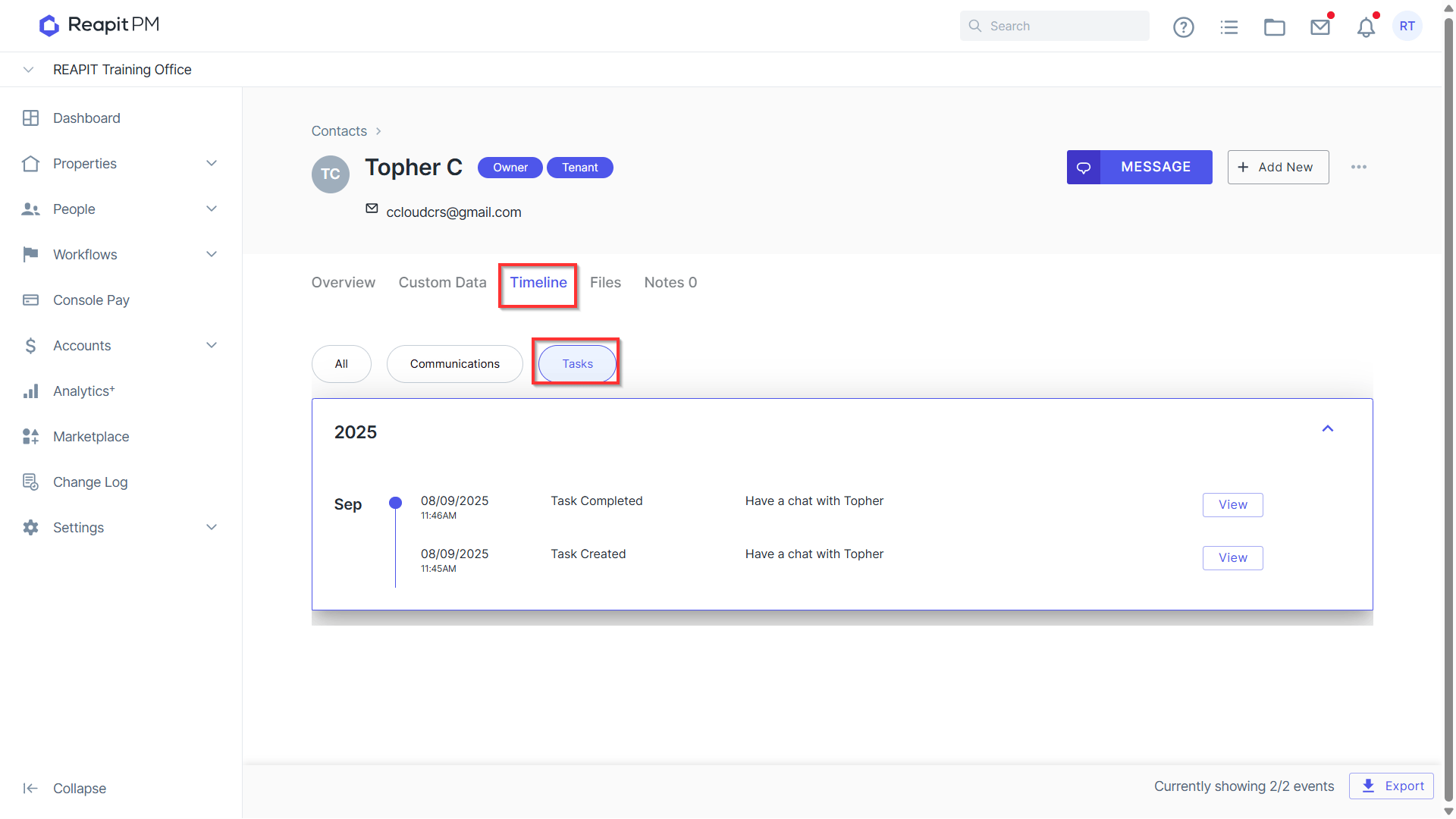
All tasks created will be stored on the tagged property and contact timelines that can be exported to a PDF.
Set up Email reminders for an email to be sent to all users who have overdue and due task.
Accessing Tasks
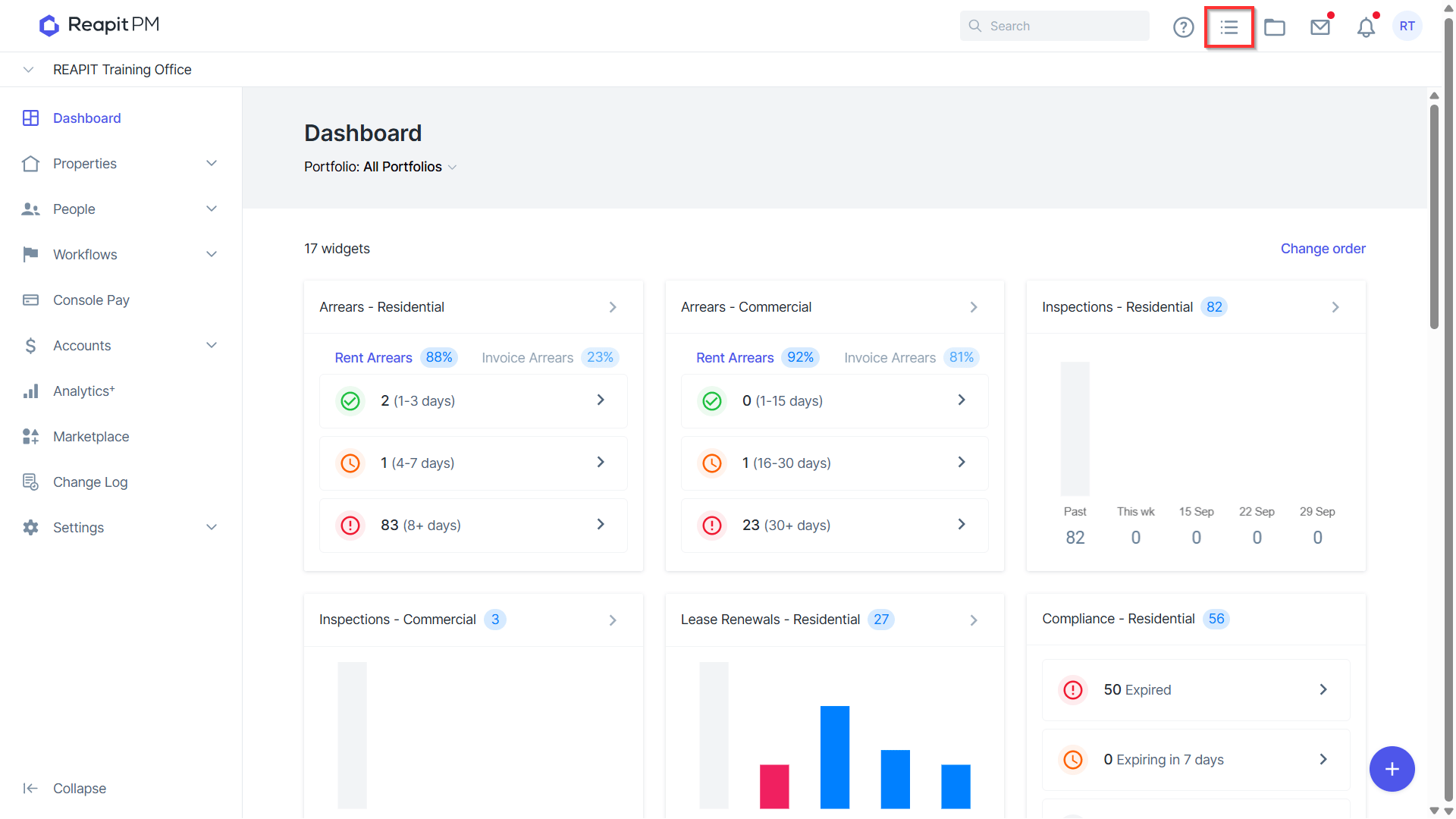
1. Accessible from all areas of PM, select the Tasks Icon in the top navigation.
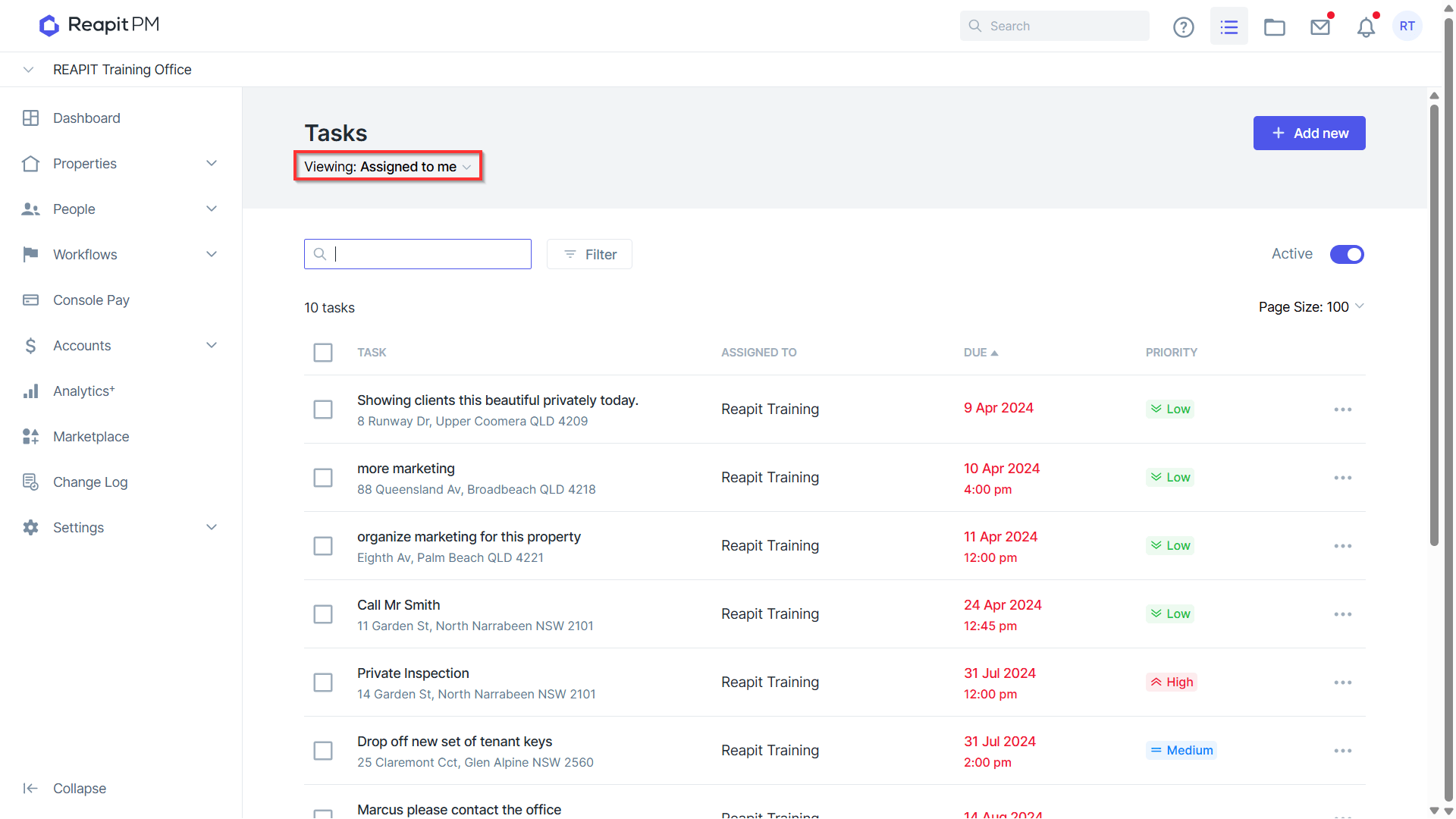
2. The list view will auto default to “Assigned to me”.
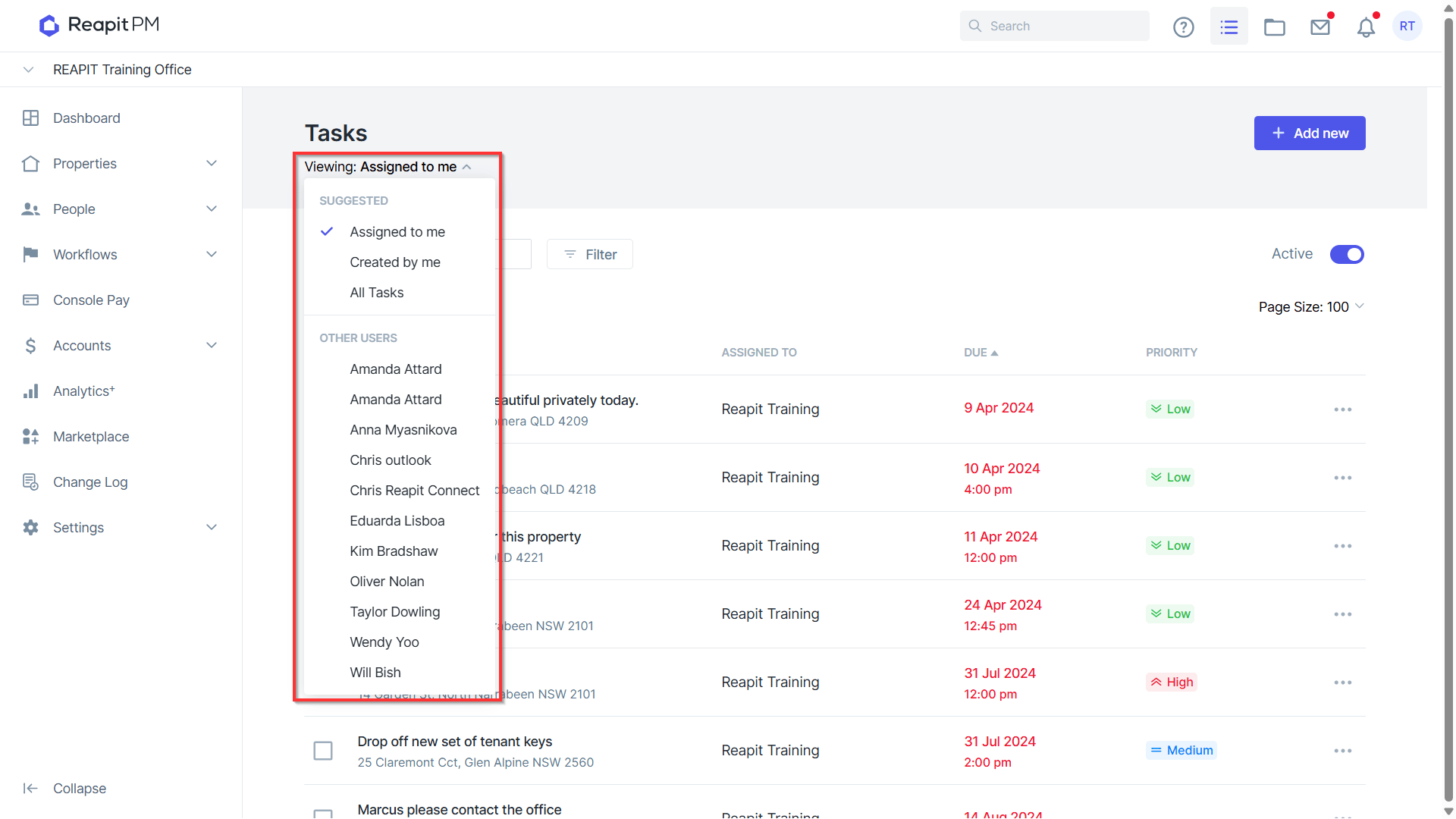
3. The page filter also allows you to view All Tasks, and all other users tasks.
Create a New Task
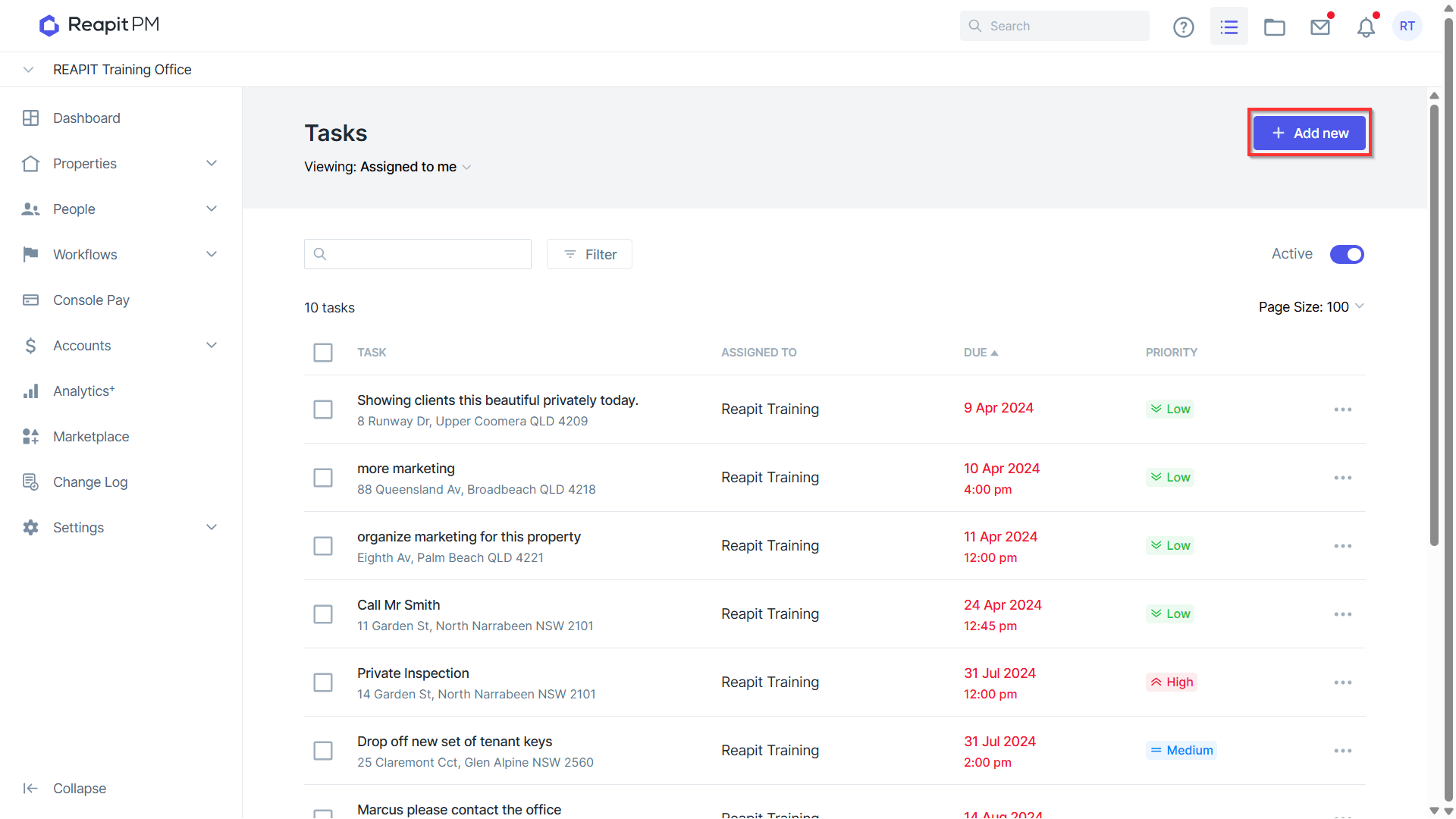
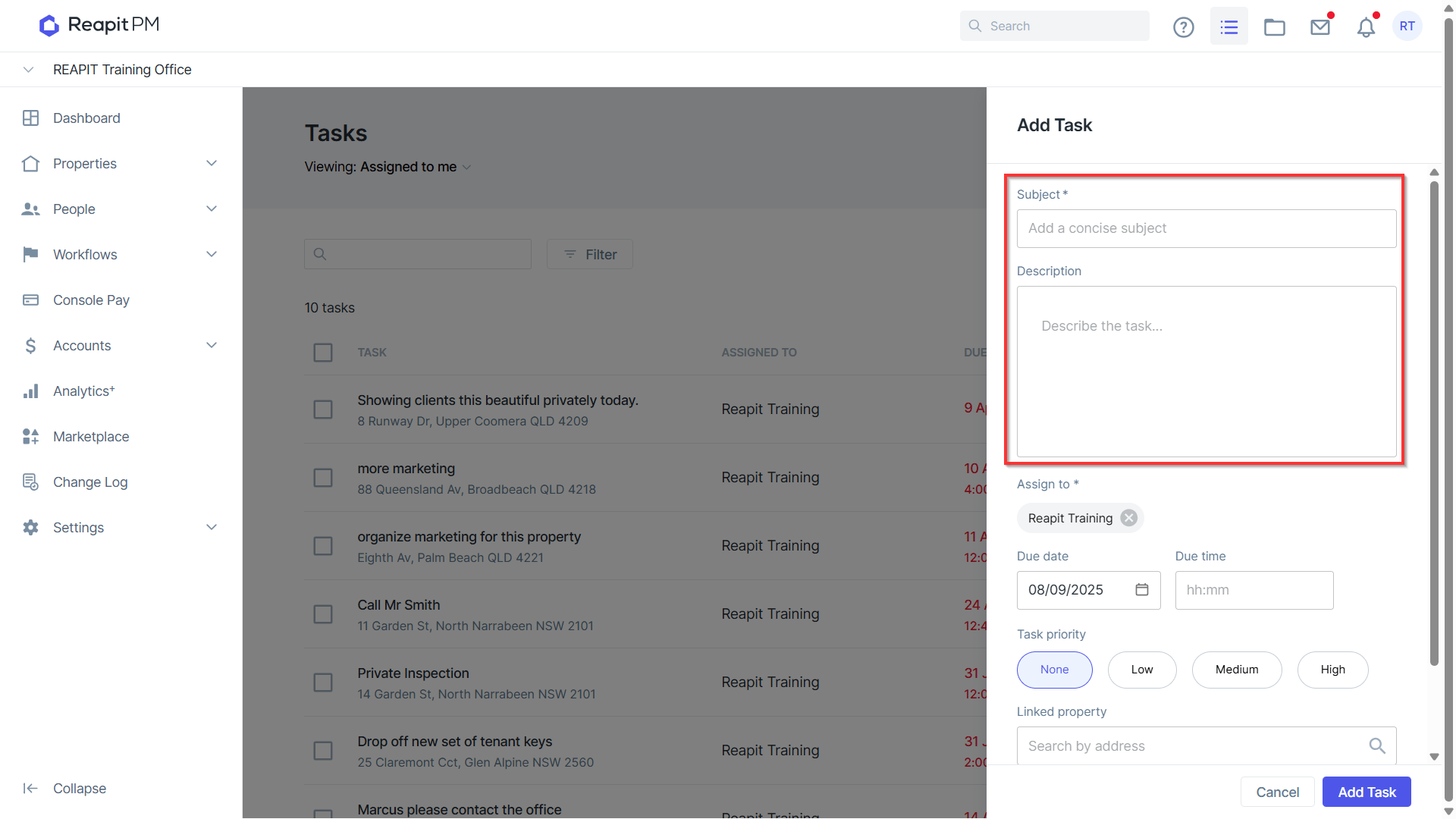
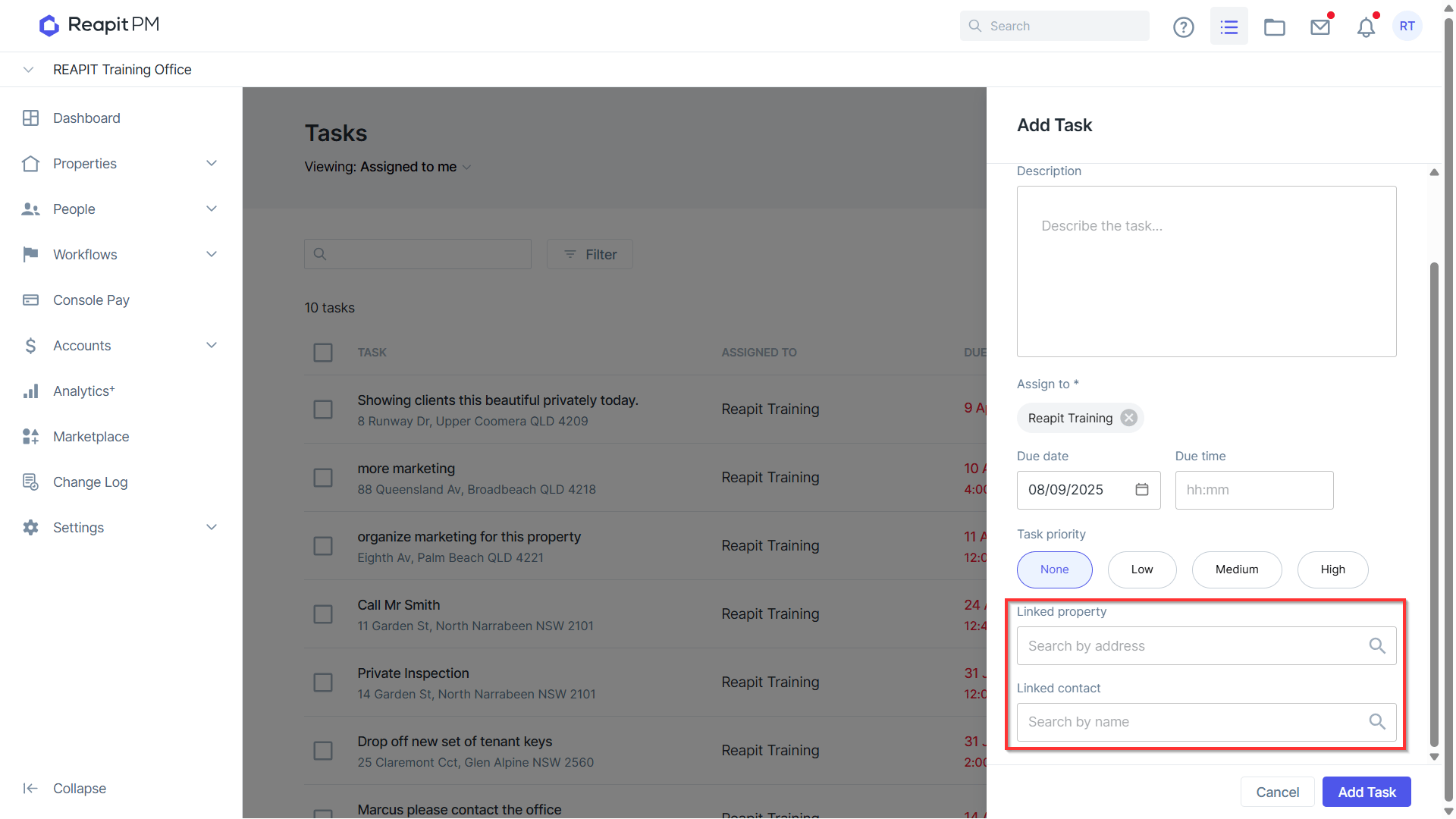
1. Within Tasks, click the + Add New icon. Enter a Subject and Description.
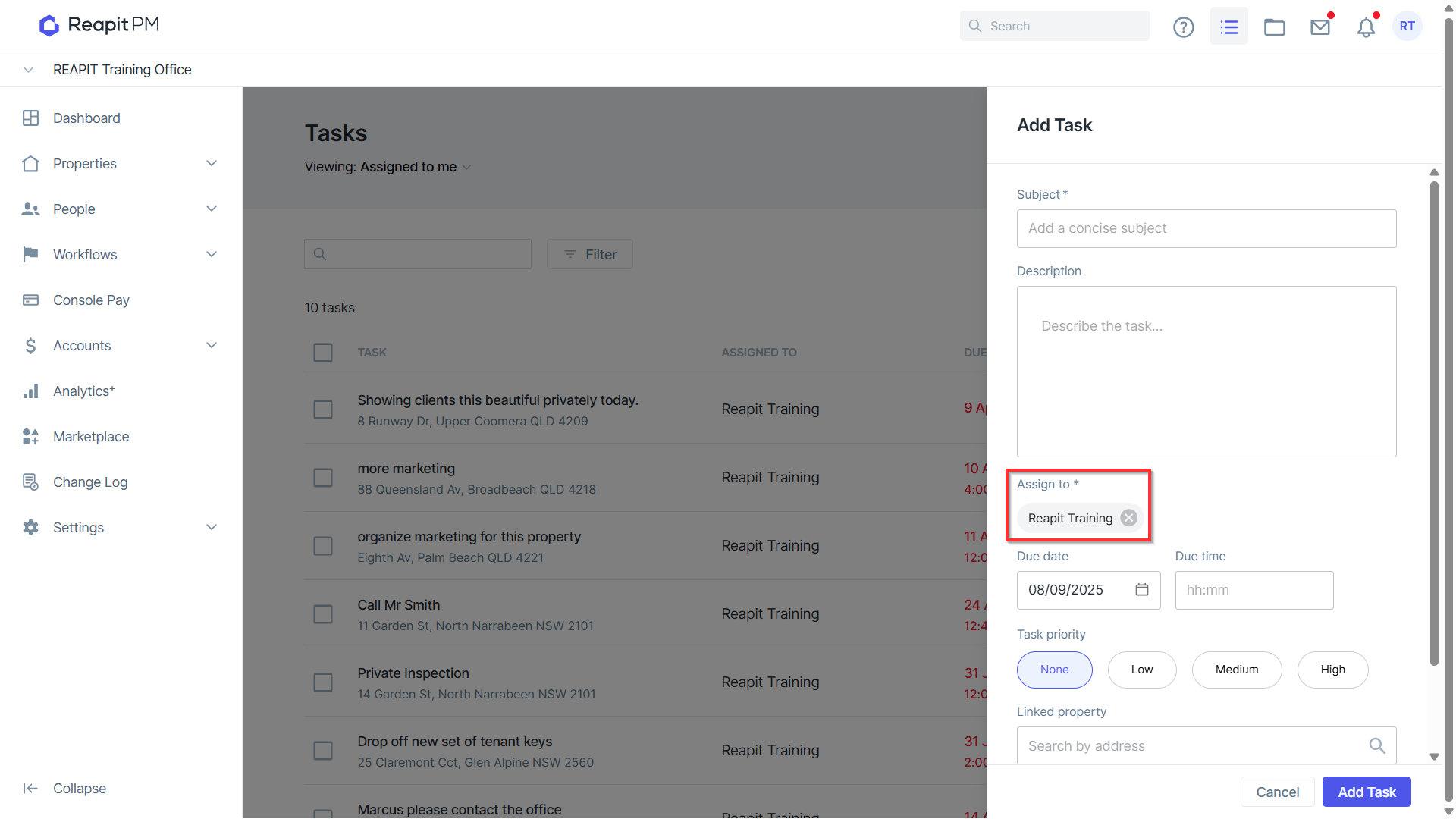
2. The assigned to is auto defaulted to you and can be changed to any other user.
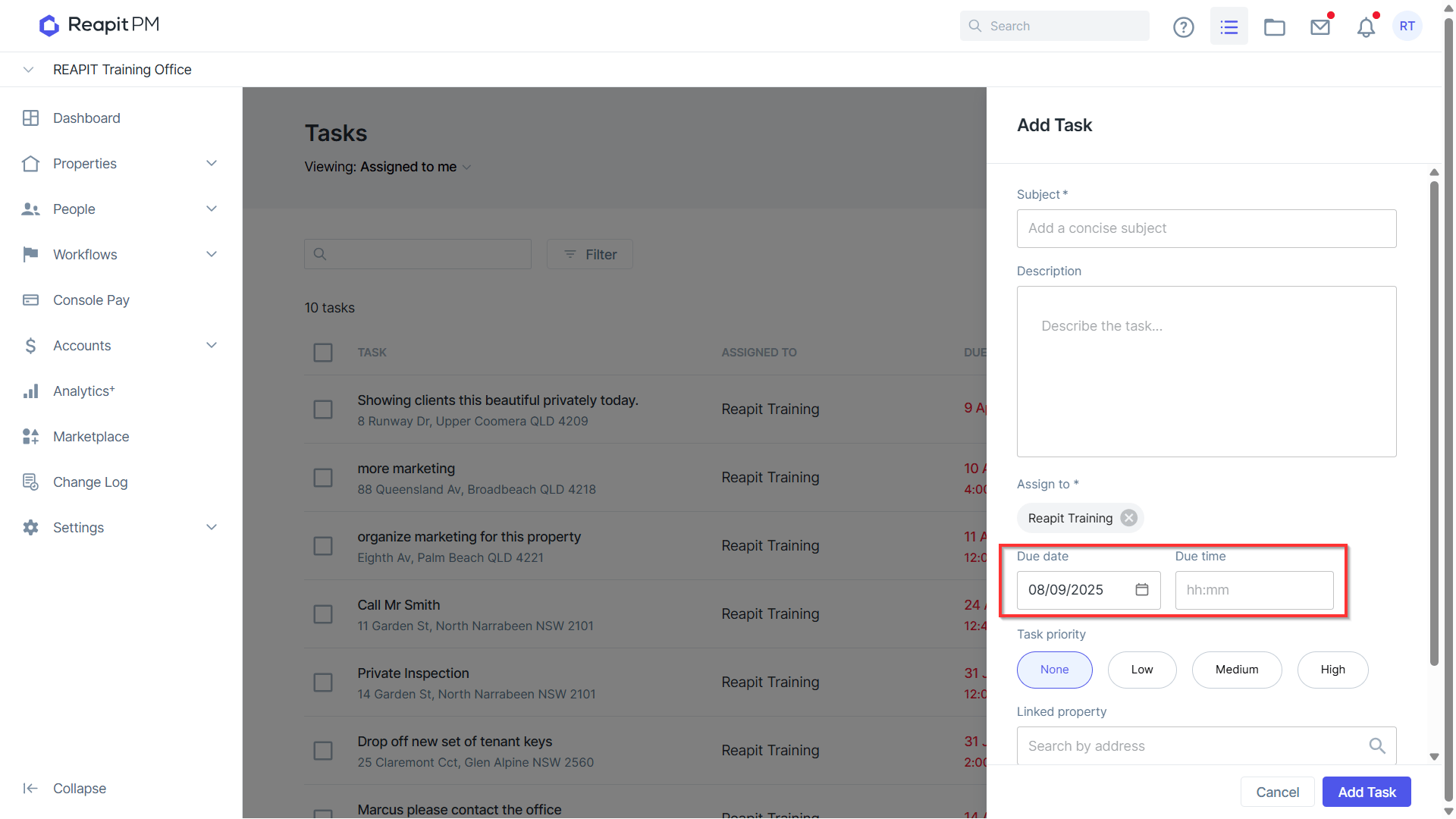
3. The default due date is set to the created date and can be edited or removed.
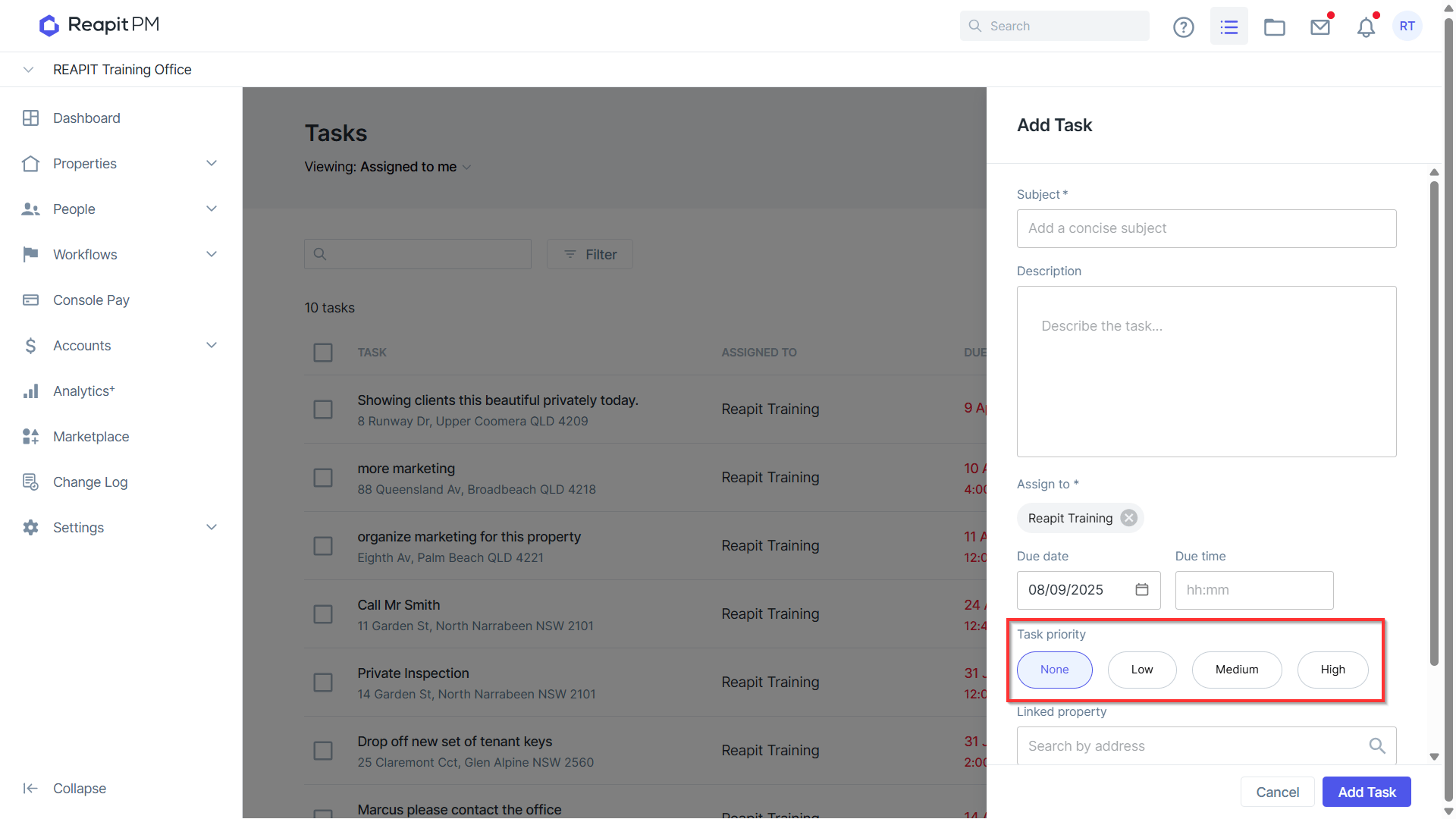
4. Set a priority for ease of follow up based on urgency
5. To record the tasks on a property or contact timeline assign the relevant property and/or contact.
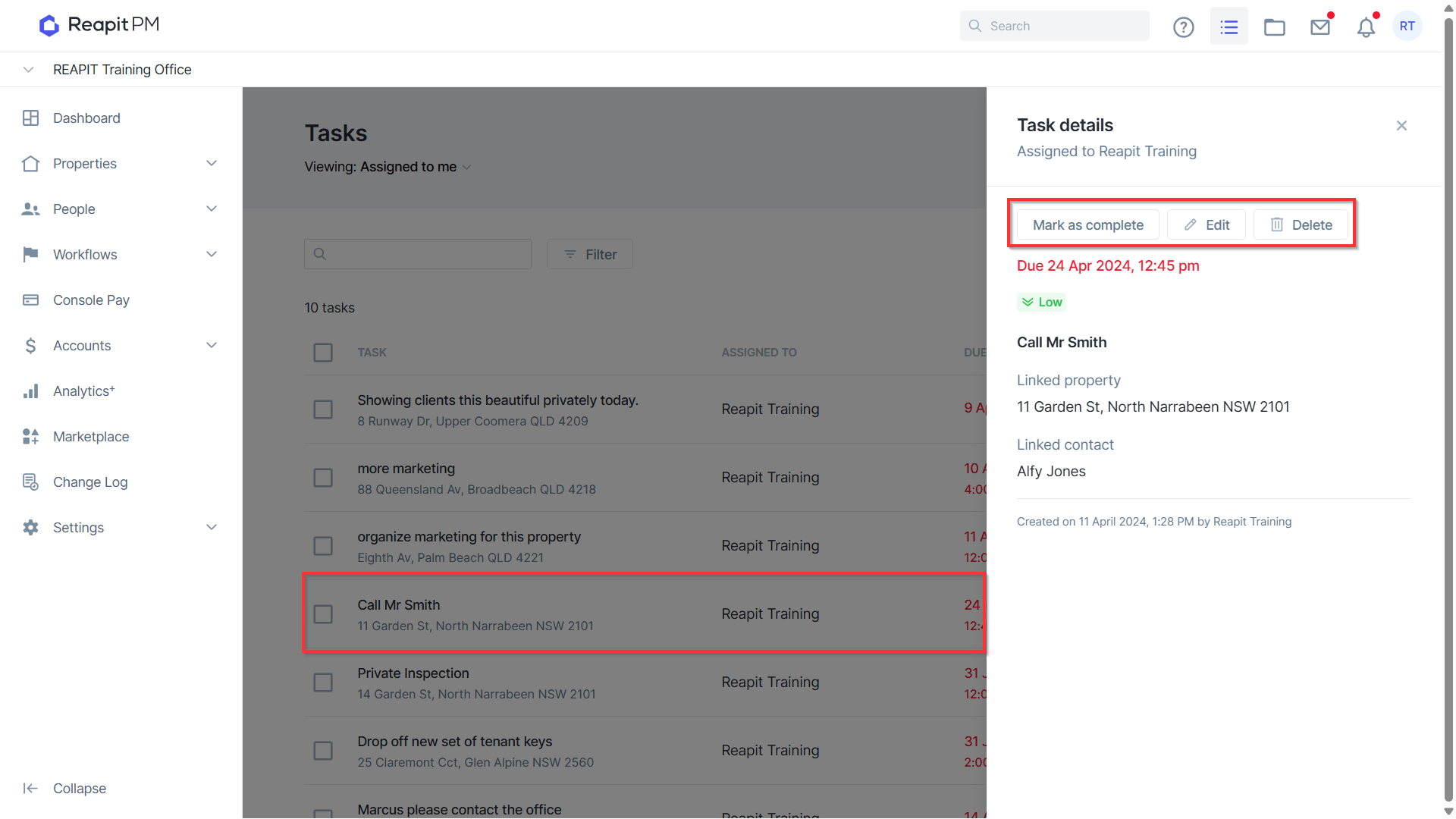
Edit, Delete or Mark as Complete
1. Click on the task and select either option.
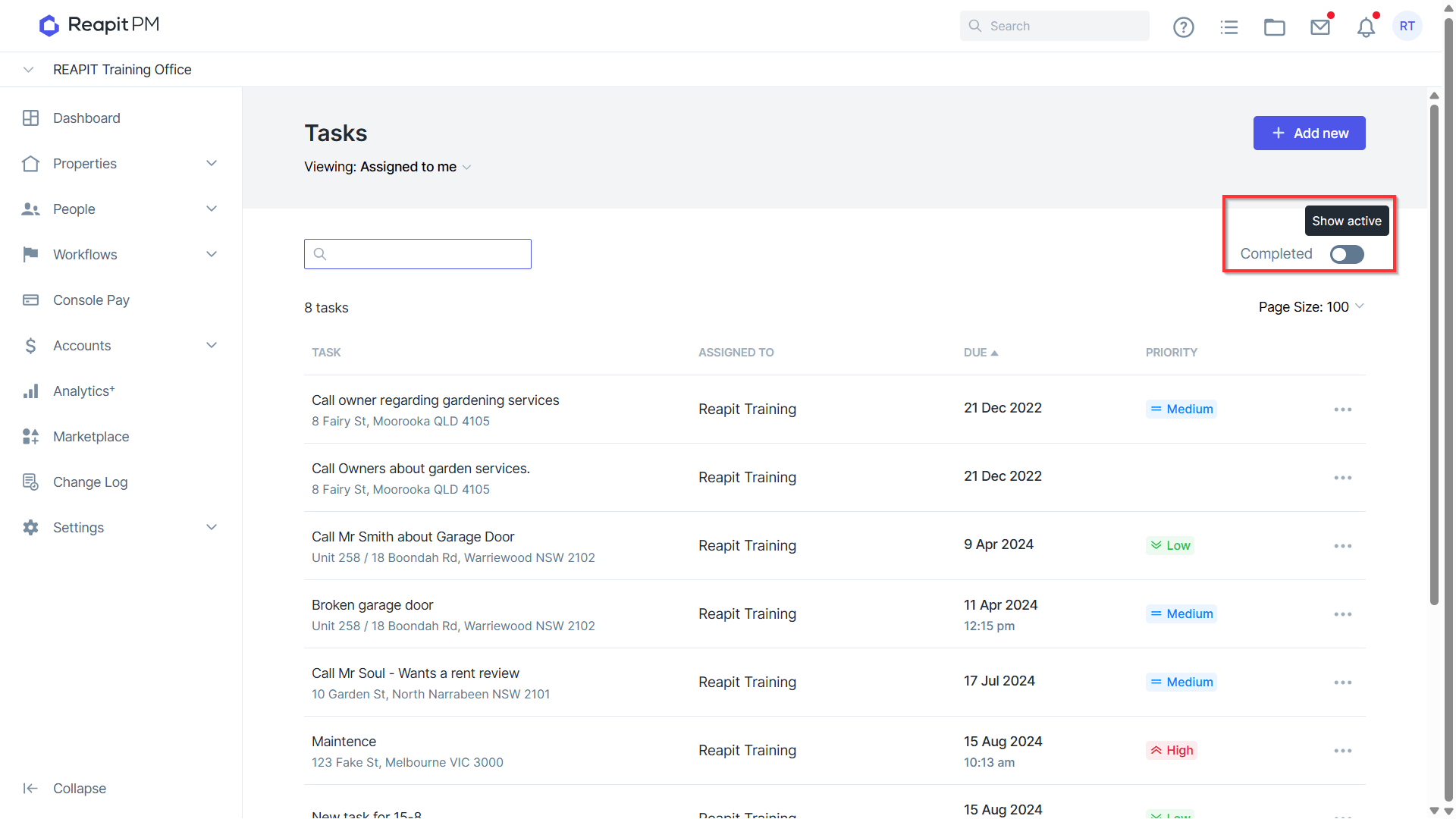
2. All tasks that have been marked as complete will appear the completed list that can be accessed by switching the toggle from Active to Complete.
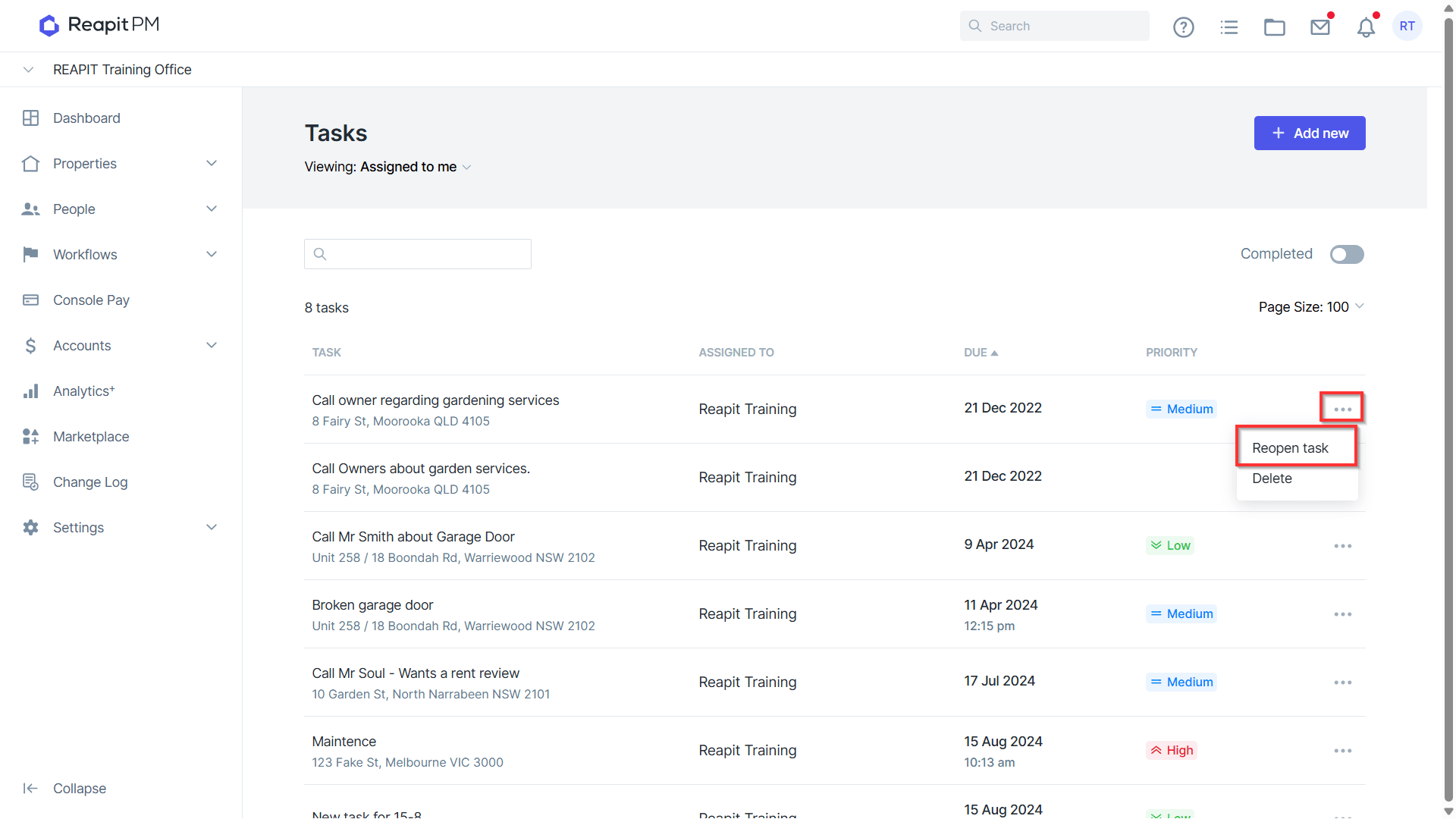
3. Tasks that have been completed can also be re-opened if more work is required.
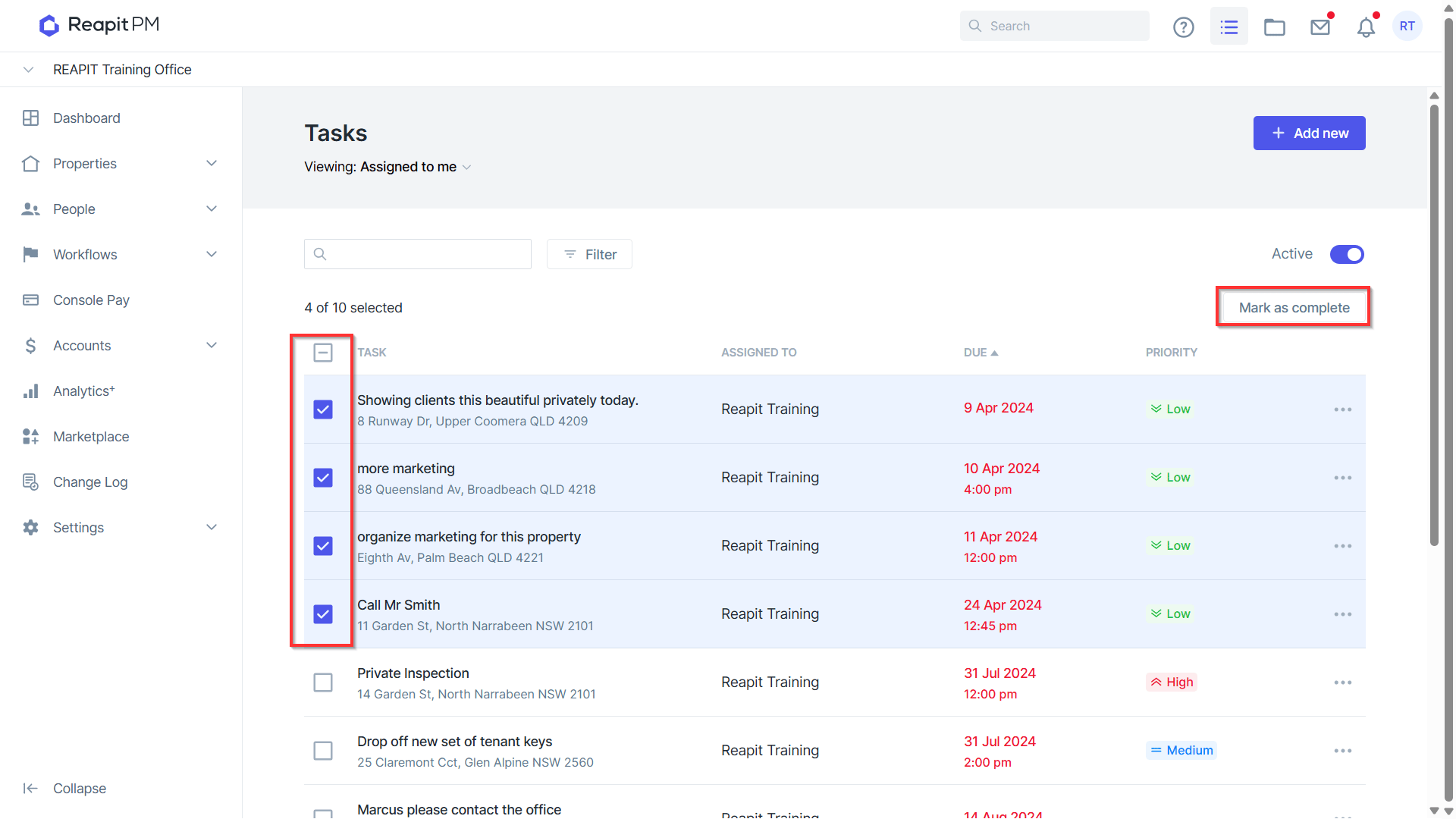
4. The list view also allows you to bulk select tasks to Mark as complete.
Filters
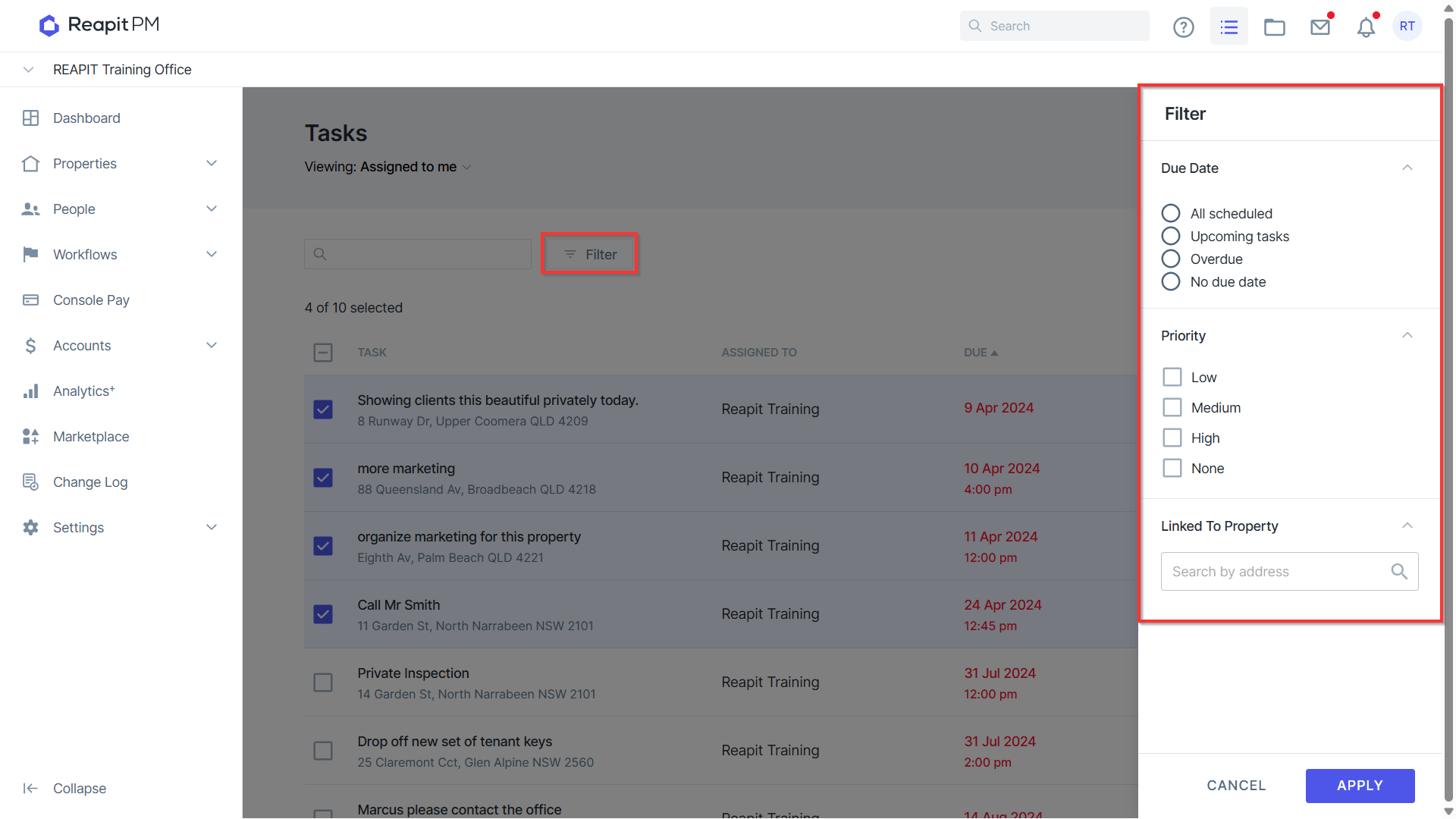
1. Filter tasks from the list view to view by Due Date, Priority and Linked Property.
Search
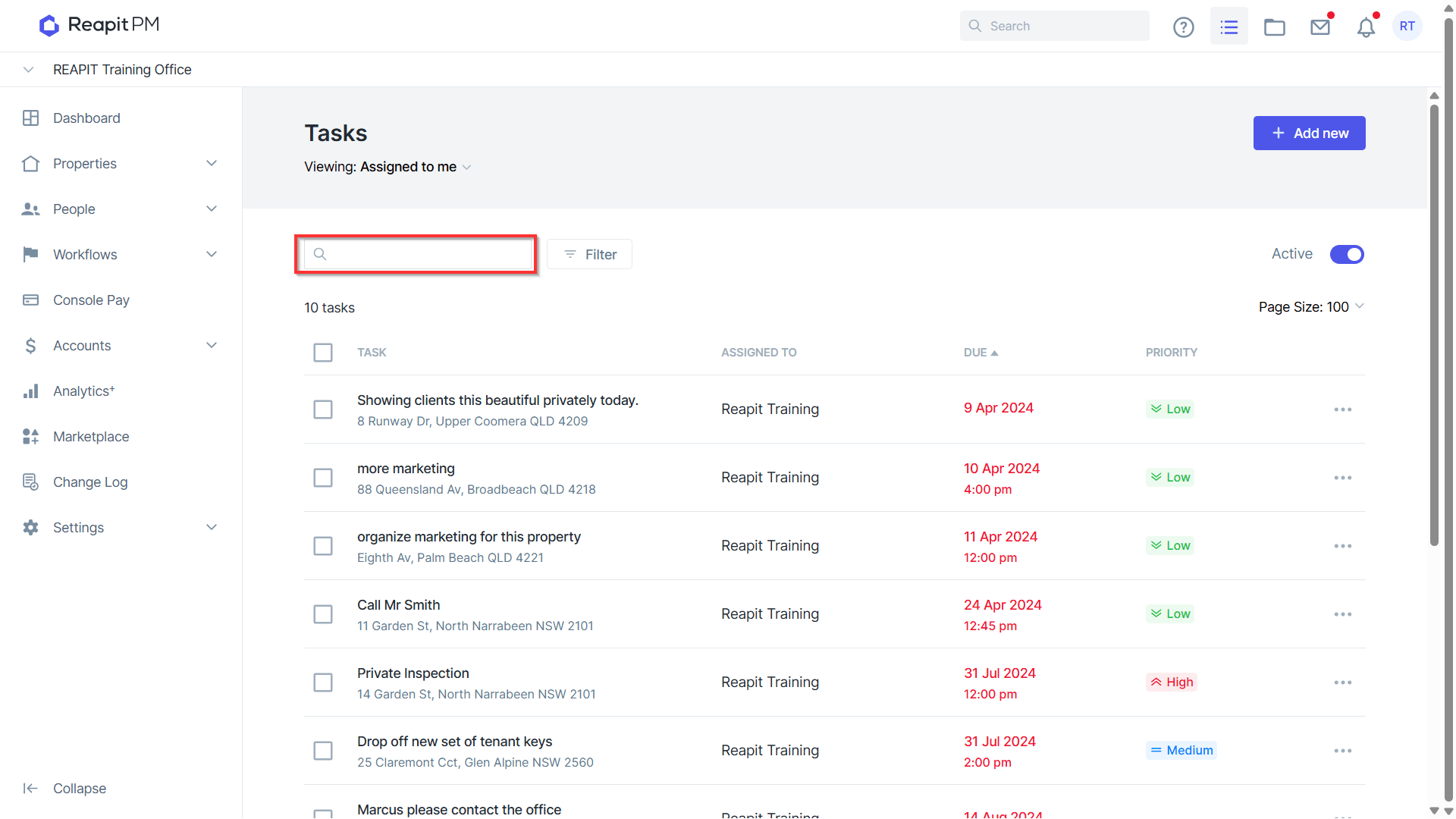
1. You can also use the search bar to search by property or subject.
Property timeline view.
Contact timeline view.
Settings / Tasks
1. Daily/Weekly email notifications - Task email reminders can be set up from Settings > Tasks.
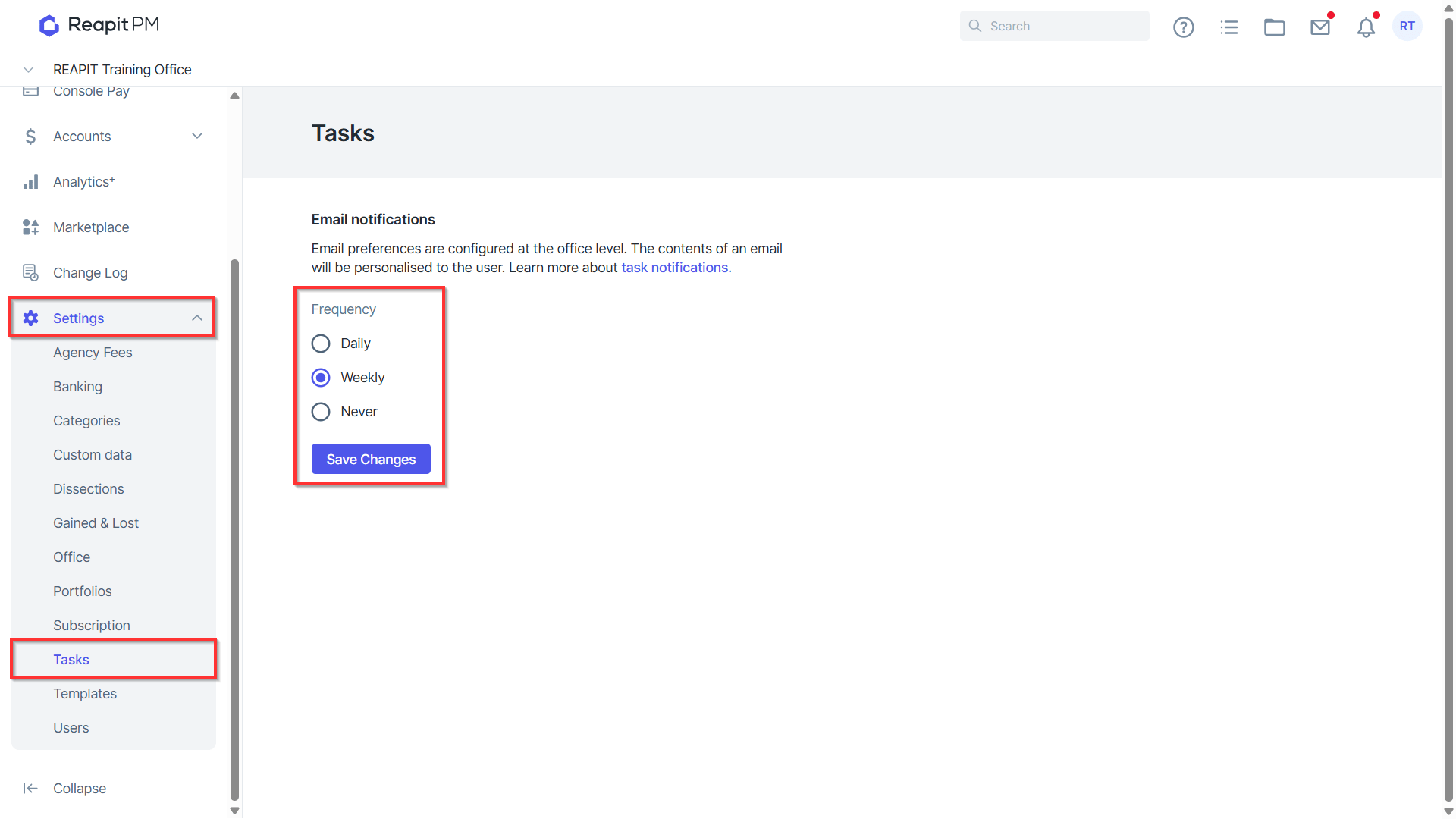
Note: Emails are sent either daily or weekly prior to 8am.