'%20d='M0%208a8%208%200%200%201%208-8h24a8%208%200%200%201%208%208v24a8%208%200%200%201-8%208H8a8%208%200%200%201-8-8V8Z'/%3e%3cpath%20fill='%23fff'%20d='M8.375%2013v14L20.5%2034l12.124-7v-7.737l-1.687-.975-2.806-1.62-1.082-.624v4.83l-.002%204.83H13.95V16.07l3.275-1.89%202.192-1.265%201.082-.625%203.275%201.877%202.192%201.256%201.083.62V9.782L20.5%206%208.376%2013Z'/%3e%3cdefs%3e%3clinearGradient%20id='reapit-pm__a'%20x1='20.702'%20x2='20.702'%20y1='.351'%20y2='31.228'%20gradientUnits='userSpaceOnUse'%3e%3cstop%20stop-color='%235573FD'/%3e%3cstop%20offset='.575'%20stop-color='%234E56EA'/%3e%3c/linearGradient%3e%3c/defs%3e%3c/svg%3e)
Creating and Editing Templates
This article is a guide on how to Create and Edit templates in Reapit PM.
Overview
Creating and Editing Templates
This article is a guide on how to Create and Edit templates in Reapit PM.
Templates are used to message from PM. There is a suite of SMS and email templates already created, however, these can be edited and personalised to your business needs.
The processes in this article include:
- How to create an Email Template
- How to create an SMS Template
- How to edit a Template
How to Create an Email Template
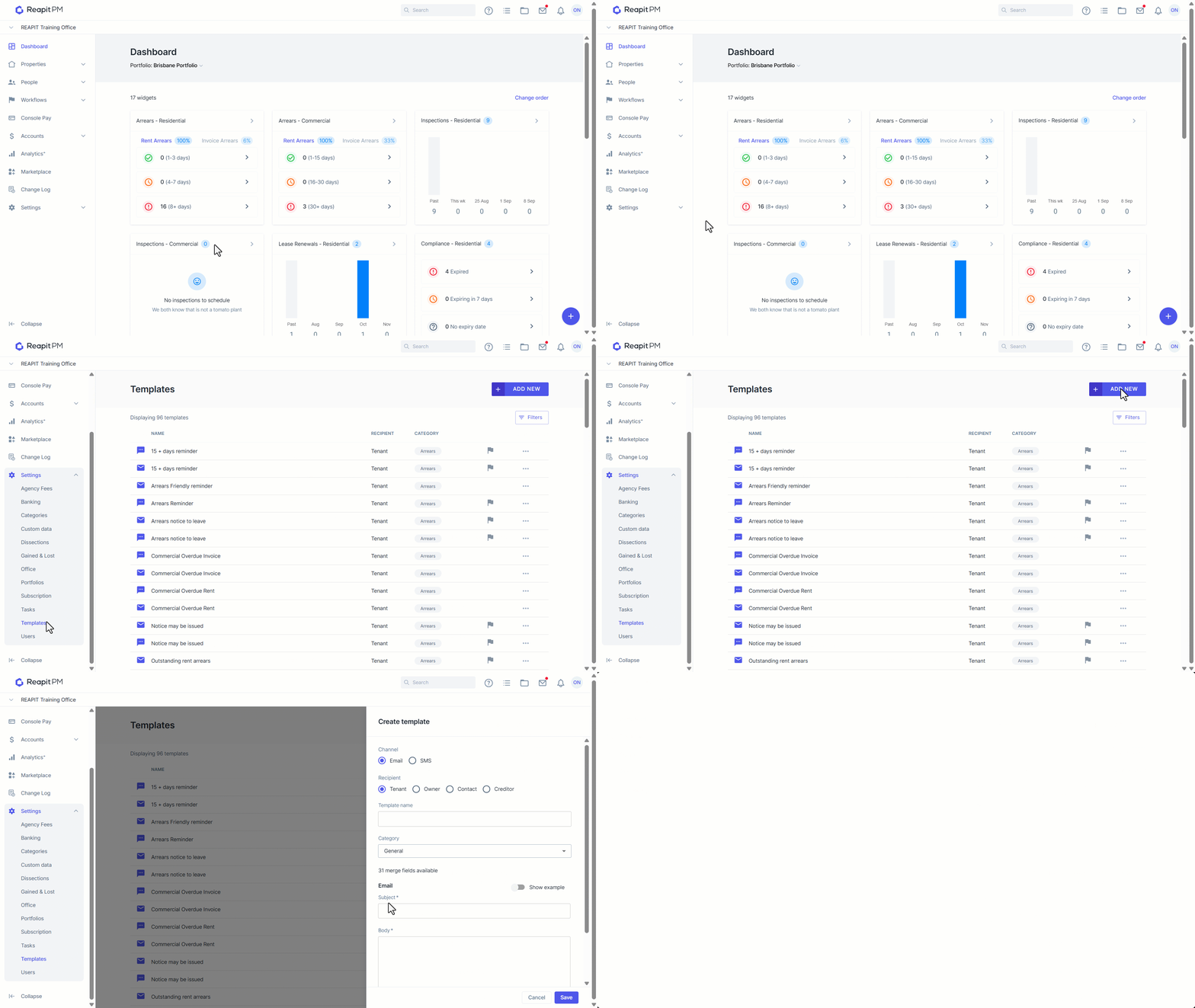
When creating an email template, you are able to add Merge Fields to both the Subject and Body fields. Available merge fields appear once the field is selected. A merge field is used to pull data from Reapit PM and include it in the communication.
Use the Show Example toggle at any stage to preview how the email will appear to a recipient.
- Click on Settings.
- Click on Templates.
- Click on Add New.
- Set the Channel as Email.
- Set the Recipient.
- Enter a Template Name.
- Select a Category.
- Enter a Subject.
- Enter an email Body.
- Click on Save.
How to Create an SMS Template
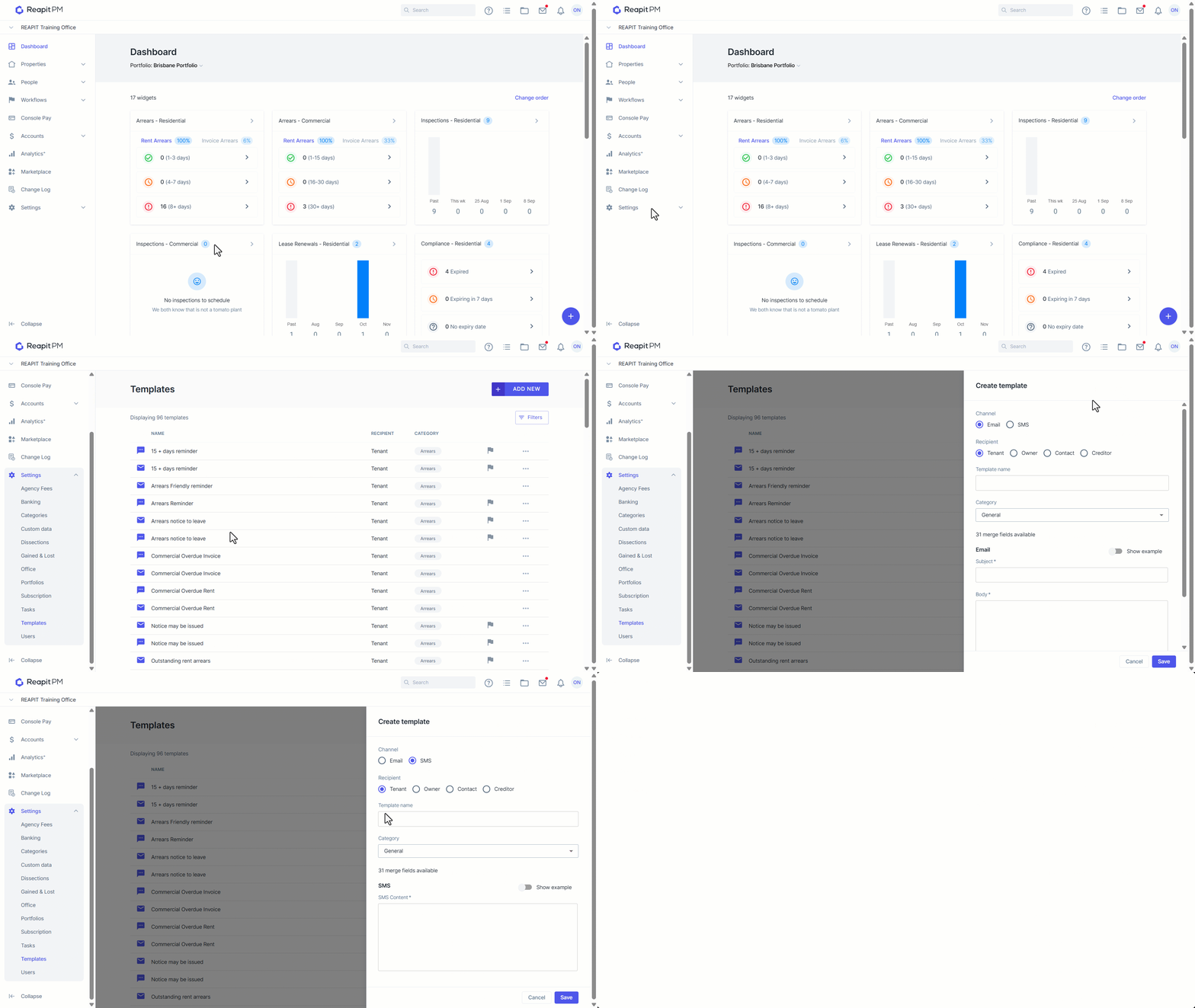
When creating an SMS template, you are able to add Merge Fields to SMS Content field. Available merge fields appear once the field is selected. A merge field is used to pull data from Reapit PM and include it in the communication.
Use the Show Example toggle at any stage to preview how the email will appear to a recipient.
- Click on Settings.
- Click on Templates.
- Click on Add New.
- Set the Channel as SMS.
- Set the Recipient,
- Enter a Template Name.
- Select a Category.
- Enter the SMS Content.
- Click on Save.
How to Edit Message Templates
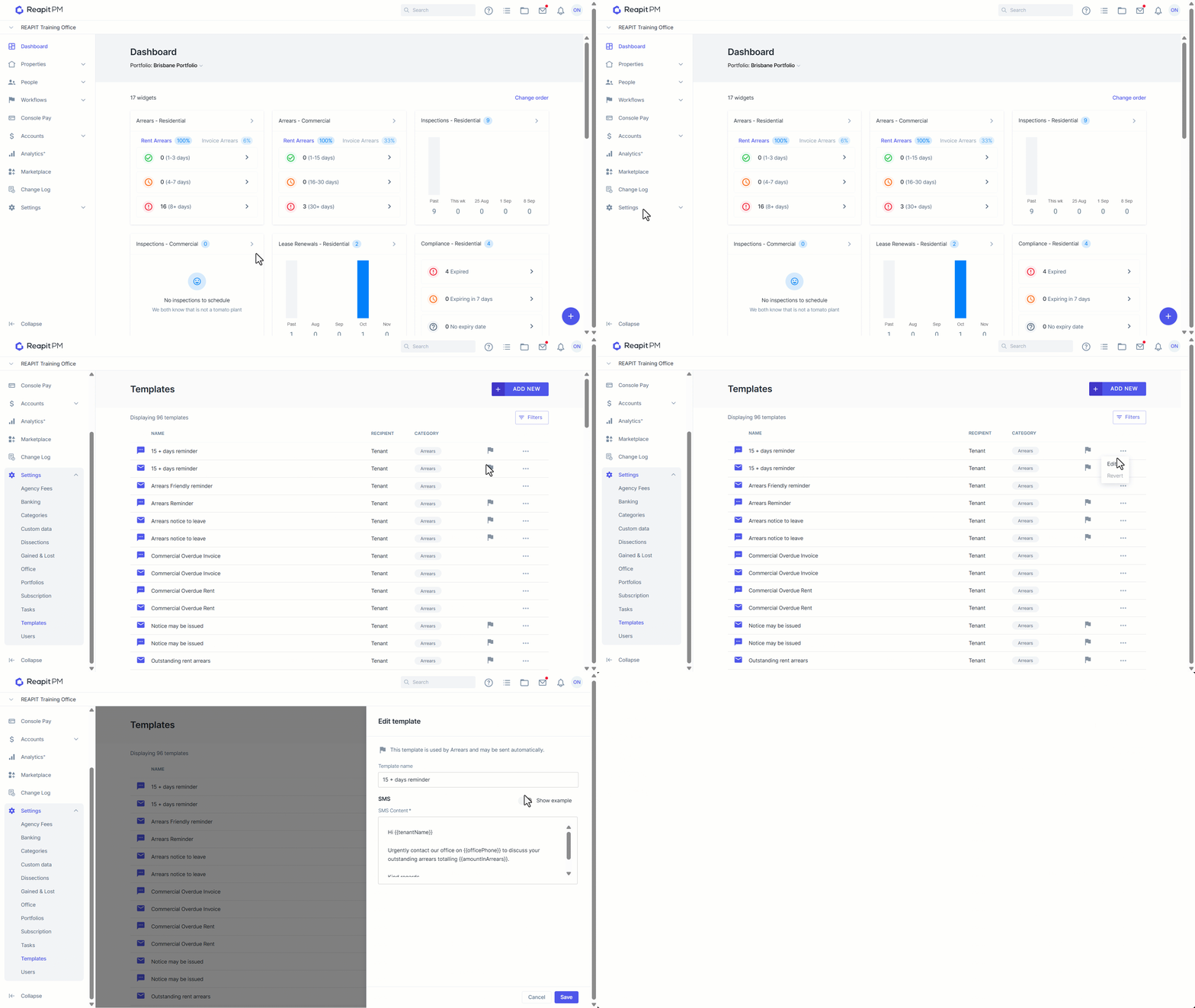
- Click on Settings.
- Click on Templates.
- Select the 3-dot icon and click Edit.
- Edit the message content.
- Click on Save.