'%20d='M0%208a8%208%200%200%201%208-8h24a8%208%200%200%201%208%208v24a8%208%200%200%201-8%208H8a8%208%200%200%201-8-8V8Z'/%3e%3cpath%20fill='%23fff'%20d='M8.375%2013v14L20.5%2034l12.124-7v-7.737l-1.687-.975-2.806-1.62-1.082-.624v4.83l-.002%204.83H13.95V16.07l3.275-1.89%202.192-1.265%201.082-.625%203.275%201.877%202.192%201.256%201.083.62V9.782L20.5%206%208.376%2013Z'/%3e%3cdefs%3e%3clinearGradient%20id='reapit-pm__a'%20x1='20.702'%20x2='20.702'%20y1='.351'%20y2='31.228'%20gradientUnits='userSpaceOnUse'%3e%3cstop%20stop-color='%235573FD'/%3e%3cstop%20offset='.575'%20stop-color='%234E56EA'/%3e%3c/linearGradient%3e%3c/defs%3e%3c/svg%3e)
Creating and Managing a Building
This article is a guide to learn how to create and manage a building in Reapit Pm Commercial and group properties of that building together.
Overview
Creating and Managing a Building
This article is a guide to learn how to create and manage a building in Reapit Pm Commercial and group properties of that building together.
How to Create a Building
- Navigate to Properties > Commercial.
- Select Add New, then from the drop-down choose Building.
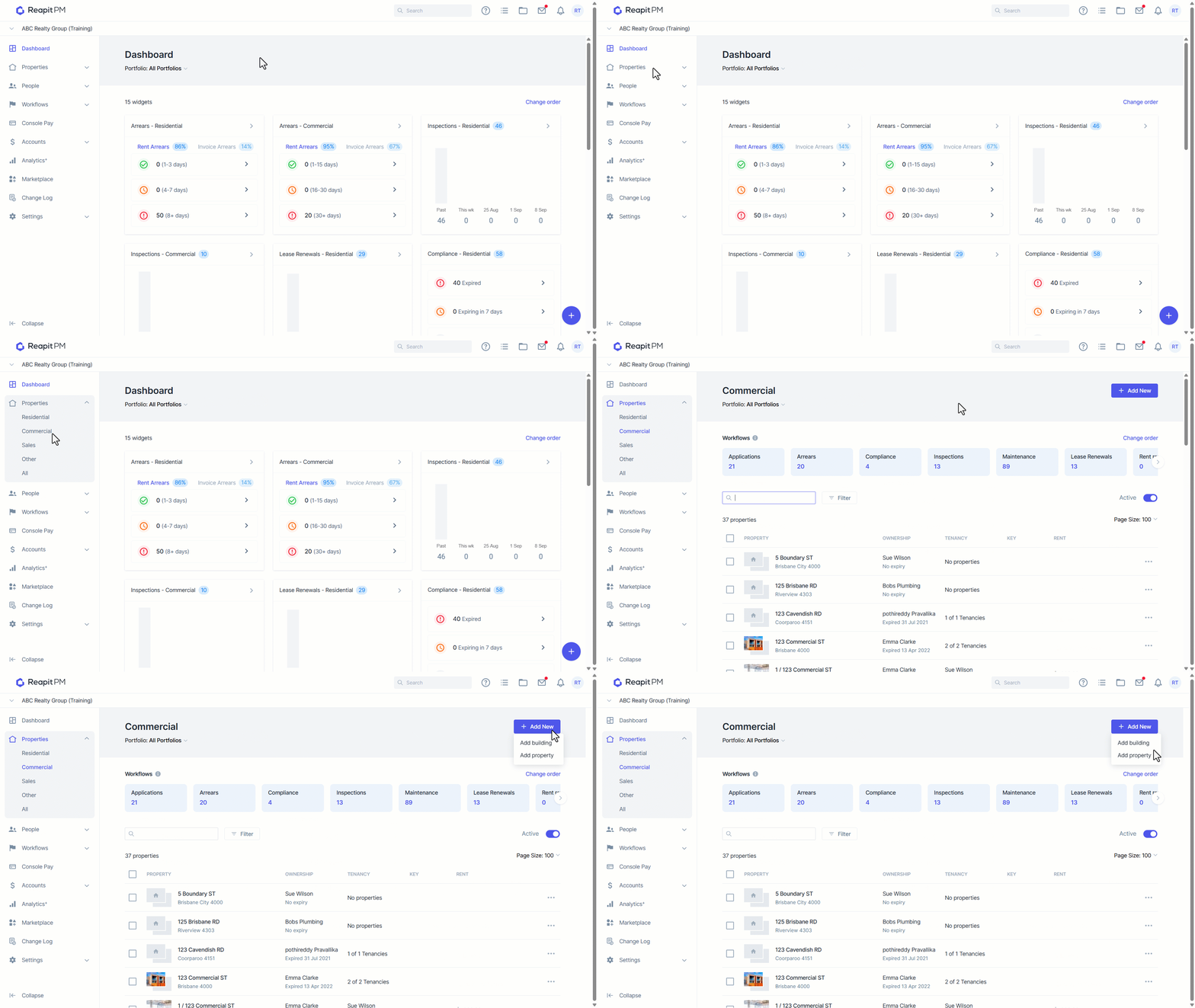
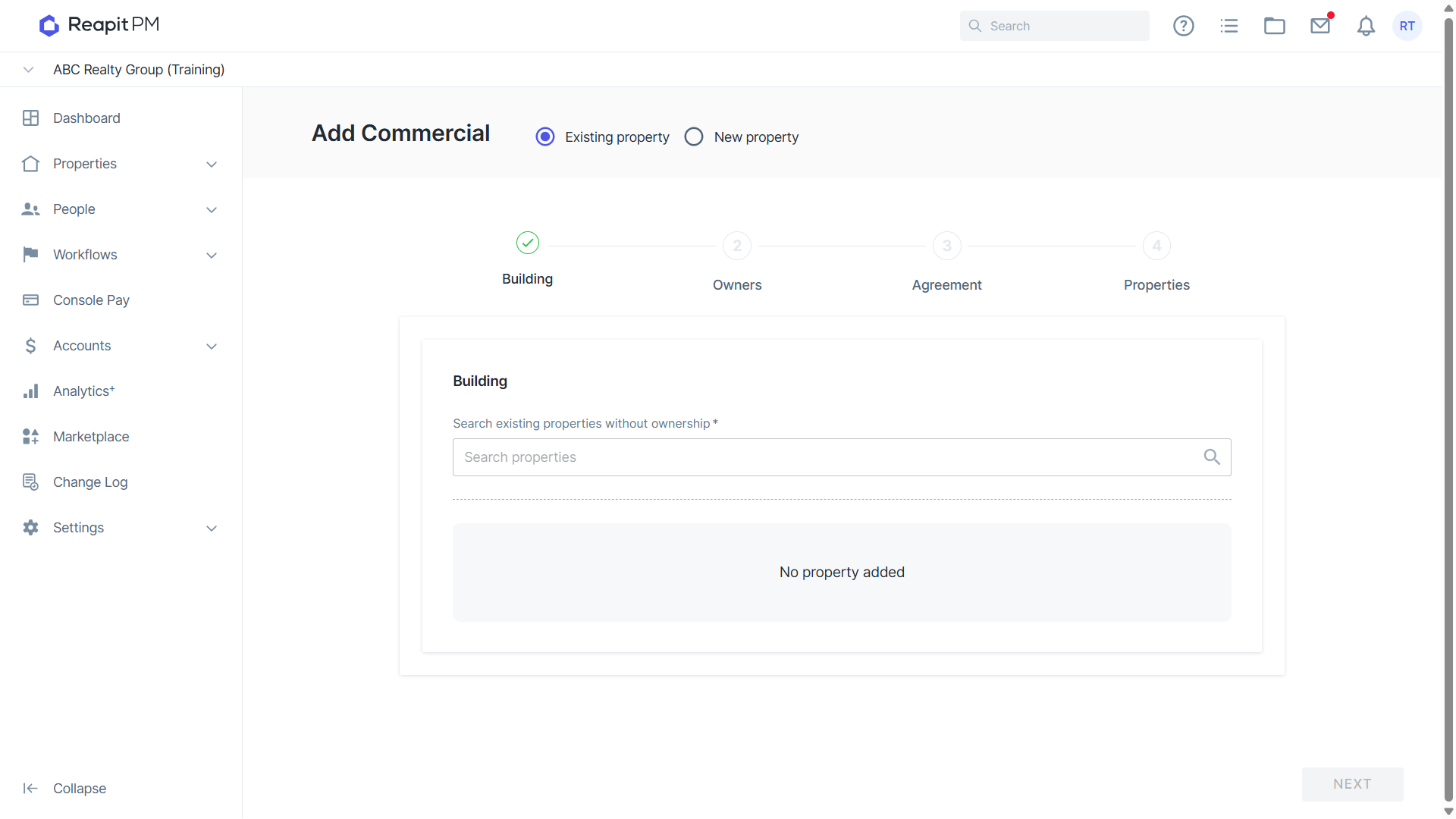
- From here you can either transfer an existing property in Cloud into a new building, or select New Property to create one.
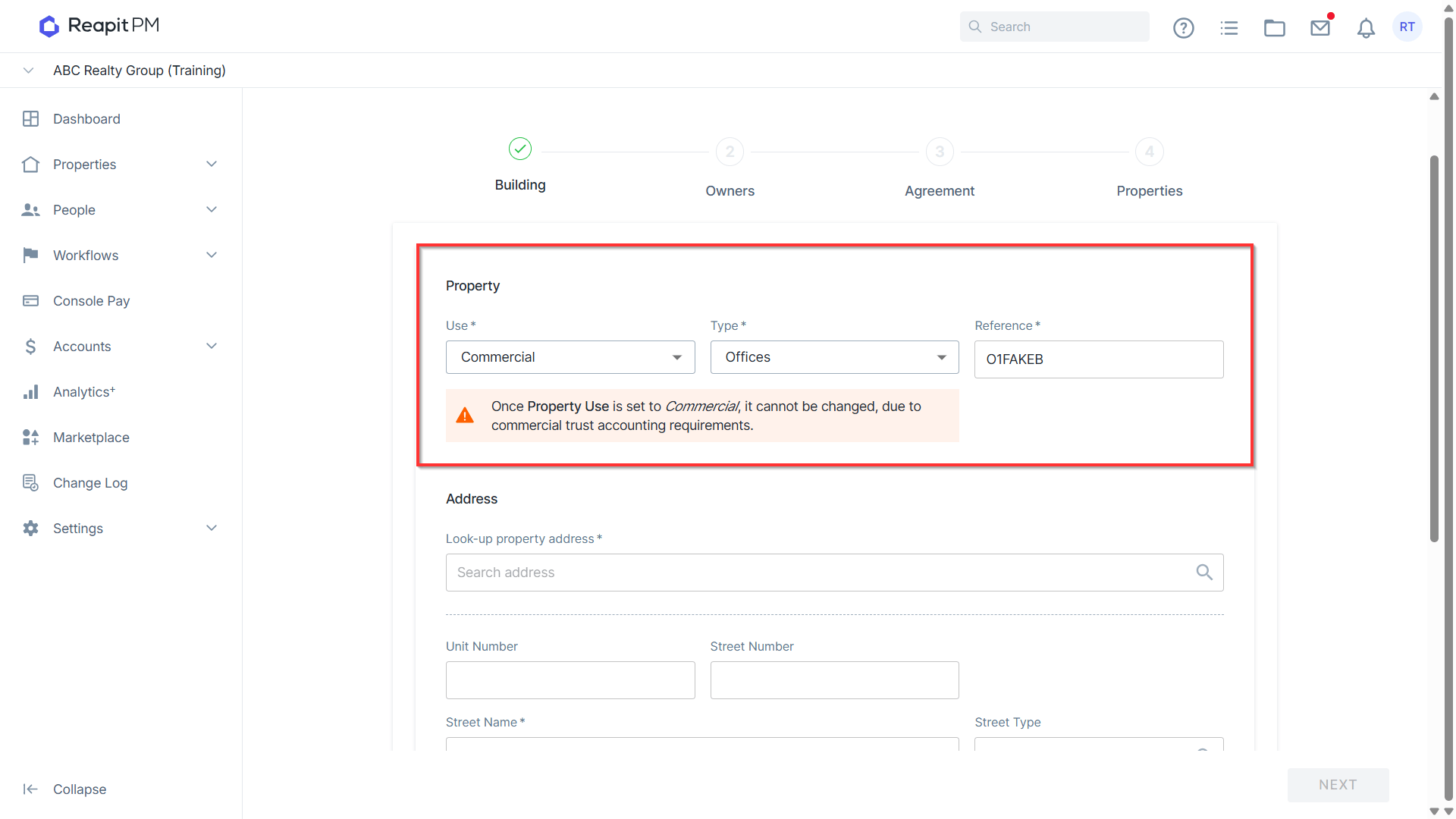
- Enter the building use and type, such as Commercial Offices. Then enter a unique internal reference.
- Scroll down to enter the building address.
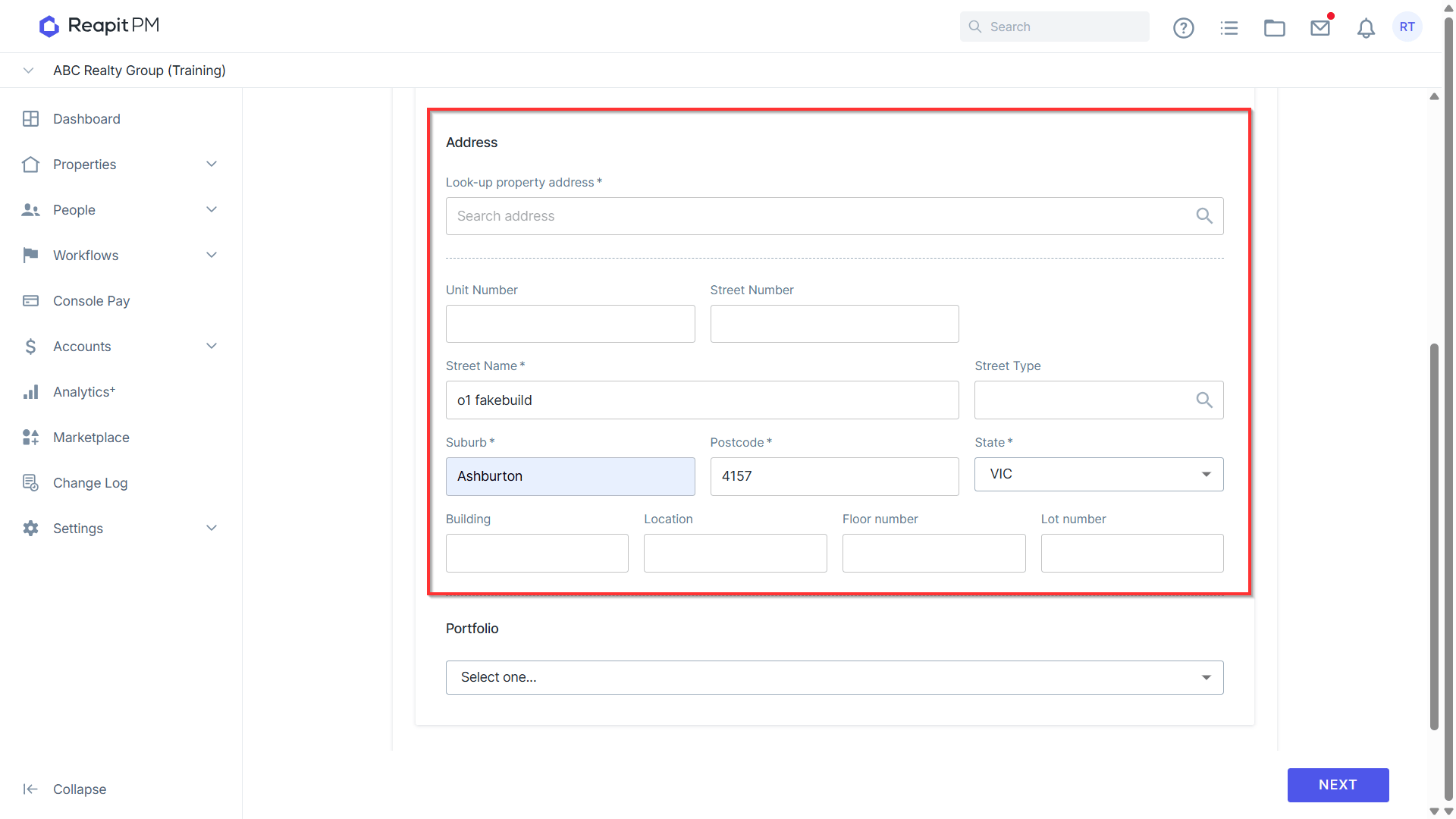
- Finally, assign the building to a portfolio if required.
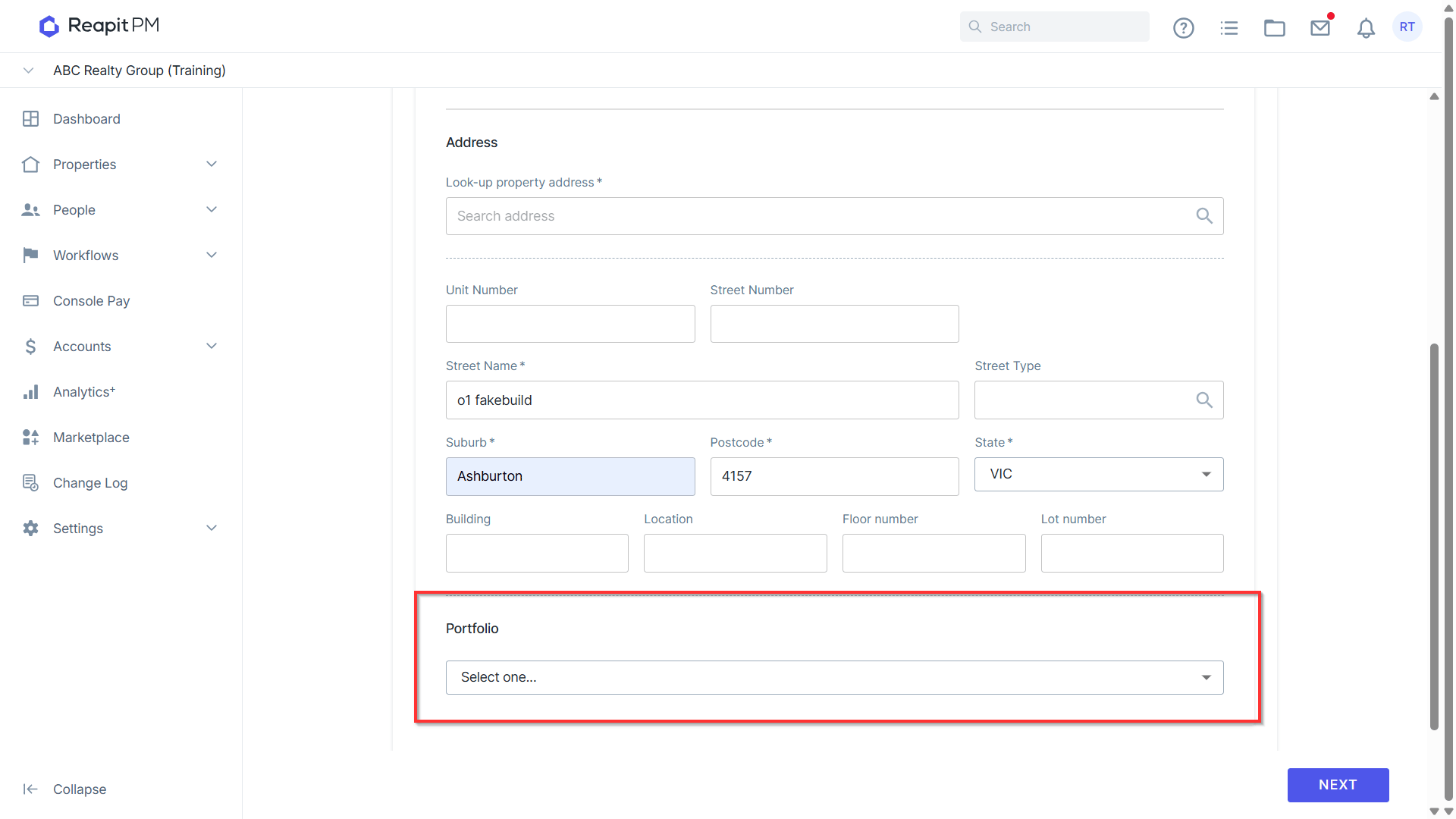
- Once done, select Next.
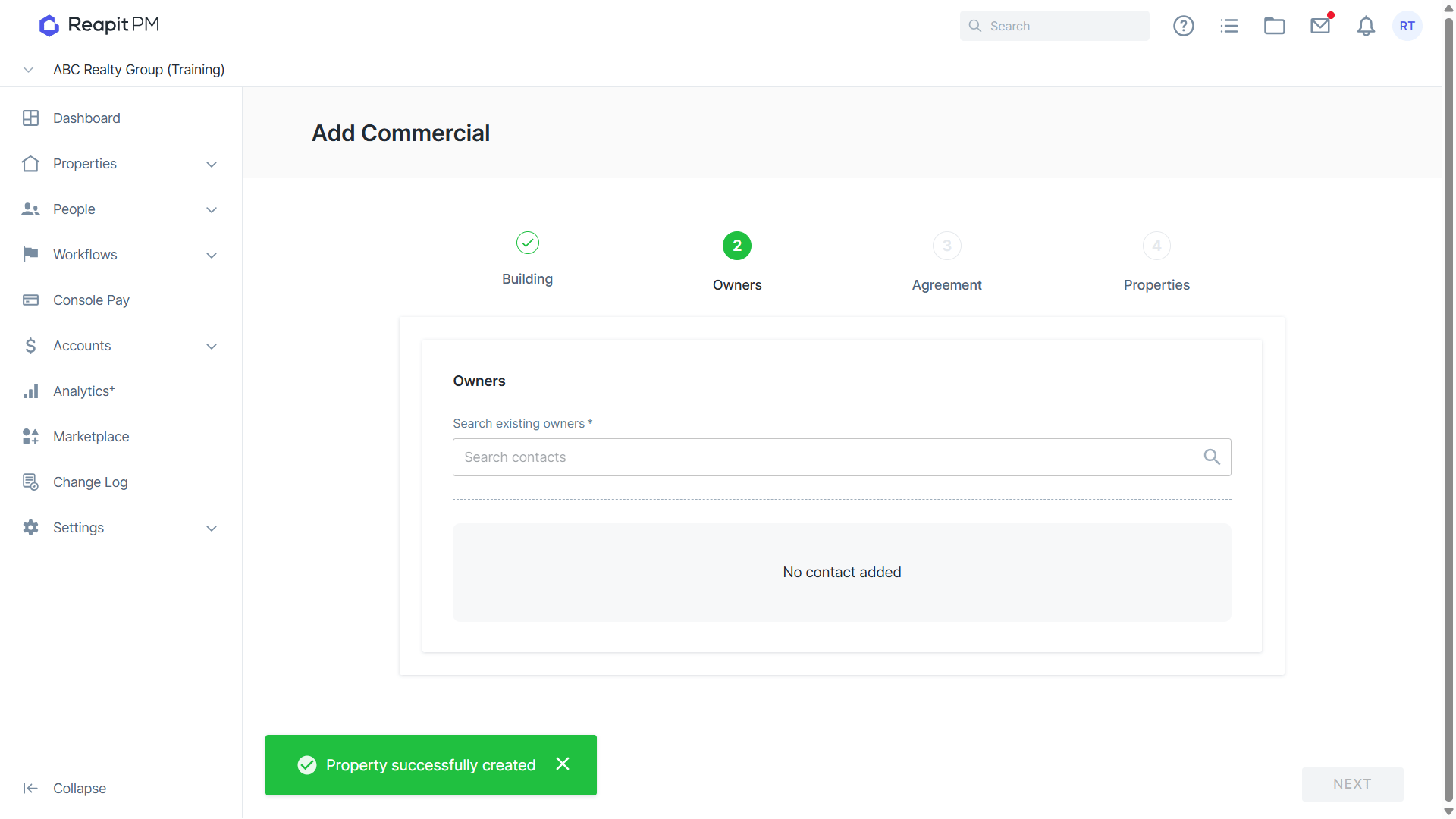
- Once done you can then select the Owner and choose Next.
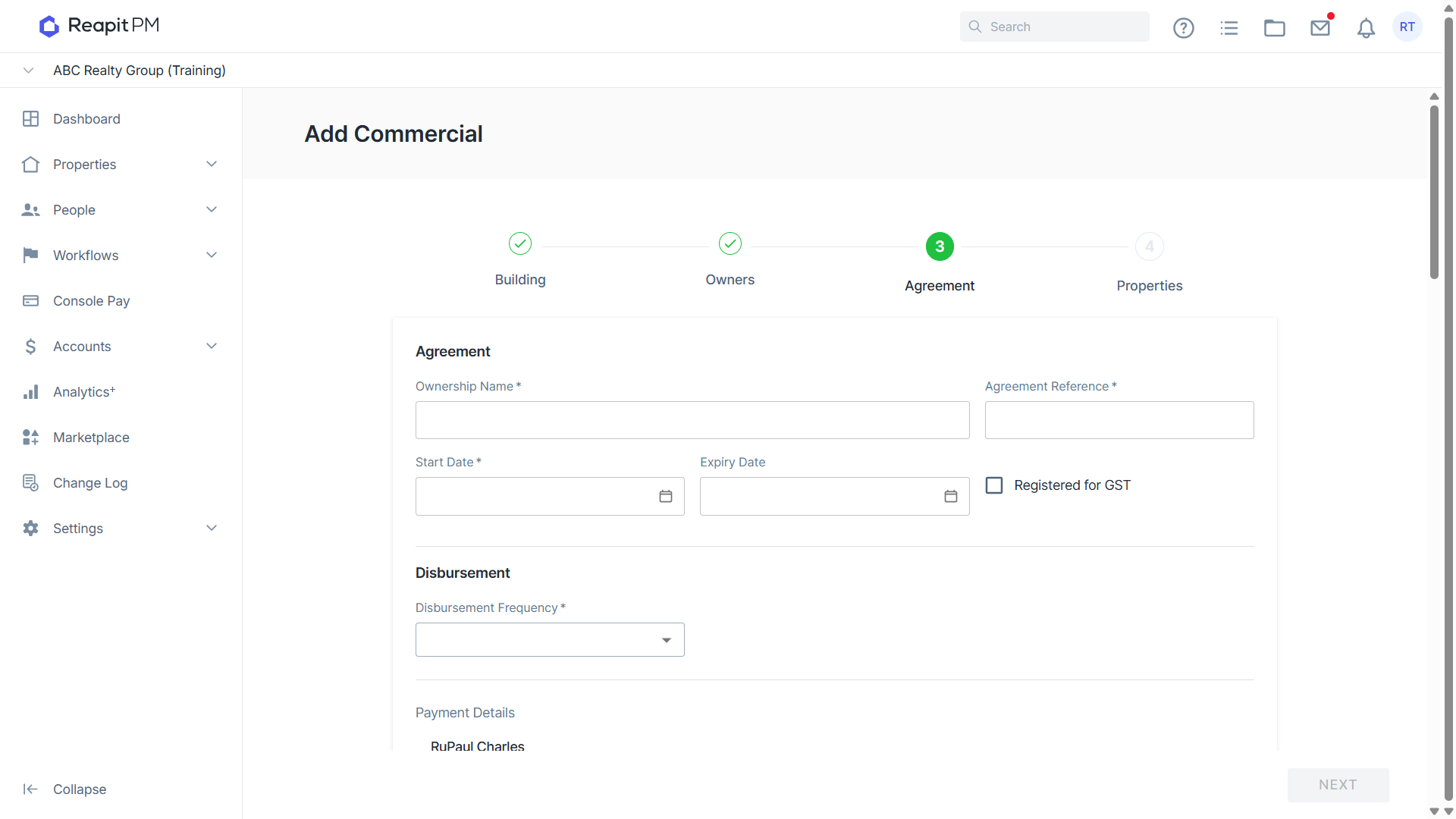
- You’ll then need to enter the agreement information.
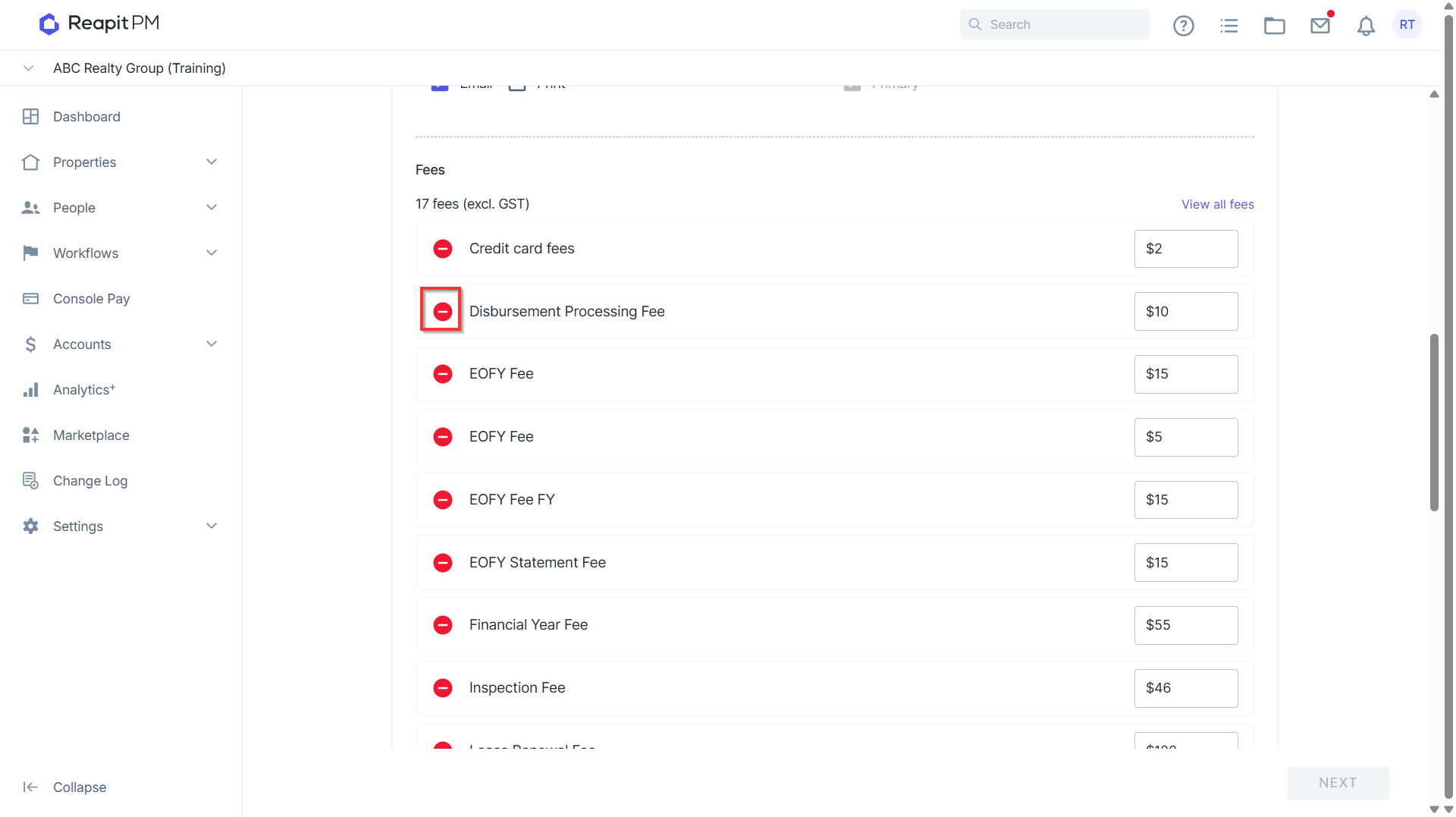
- When selecting the fees, choose the red ‘remove’ button to exclude any fees from this ownership.
Note: Commercial Building Management Agreements can have fees enabled, but since they do not receive any direct income like rent, commission cannot be charged to a building. You can charge fees like sundry fees or disbursement fees to Commercial Building owners.
- Once done select Next.
- You can then add any properties that are already in your database under this owner. Alternatively, if you have not yet added any properties, select Skip and you can add these later.
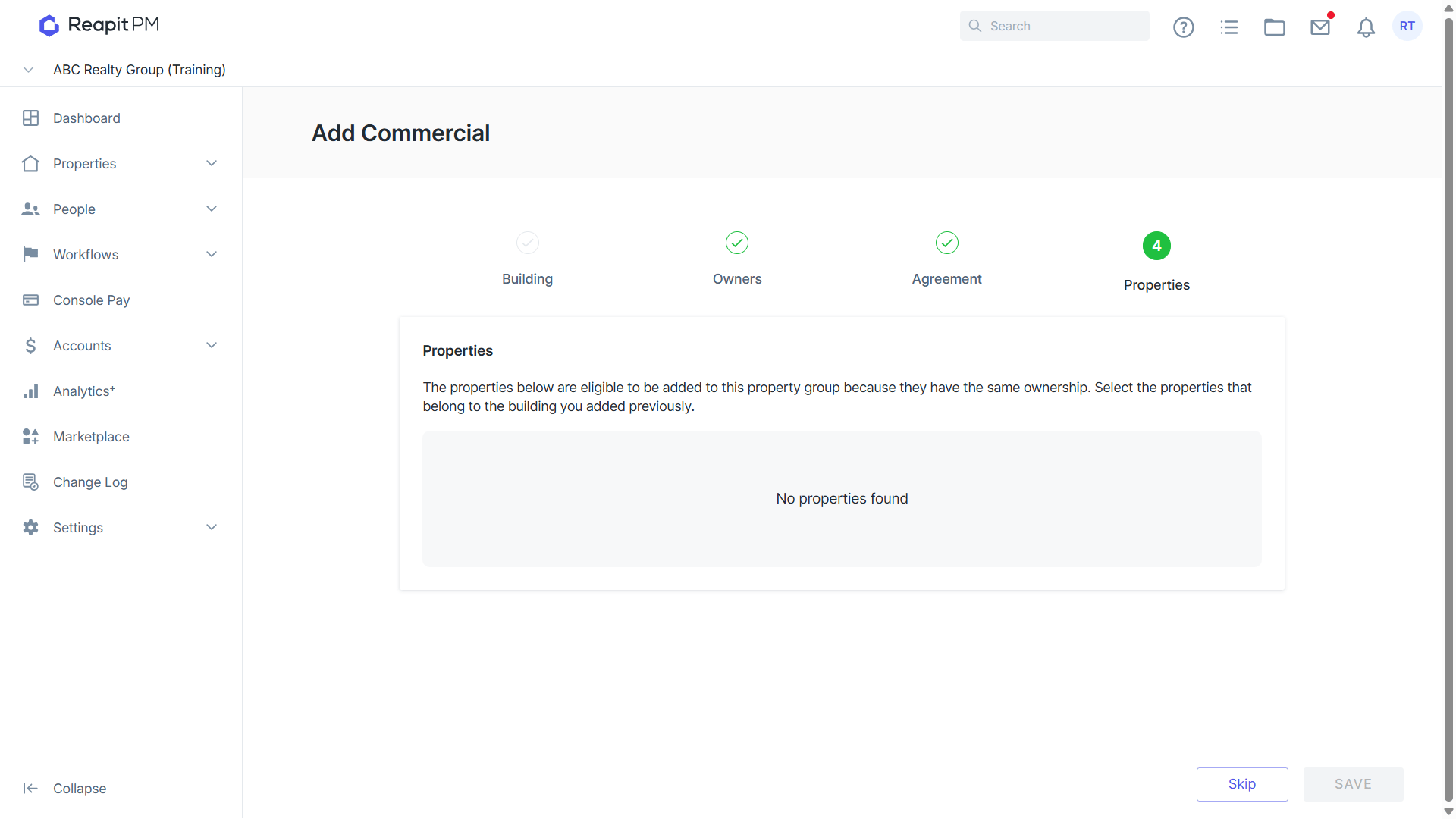
- To add/group properties to this building, scroll down and select the ellipses tool next to Properties, then choose Add New.
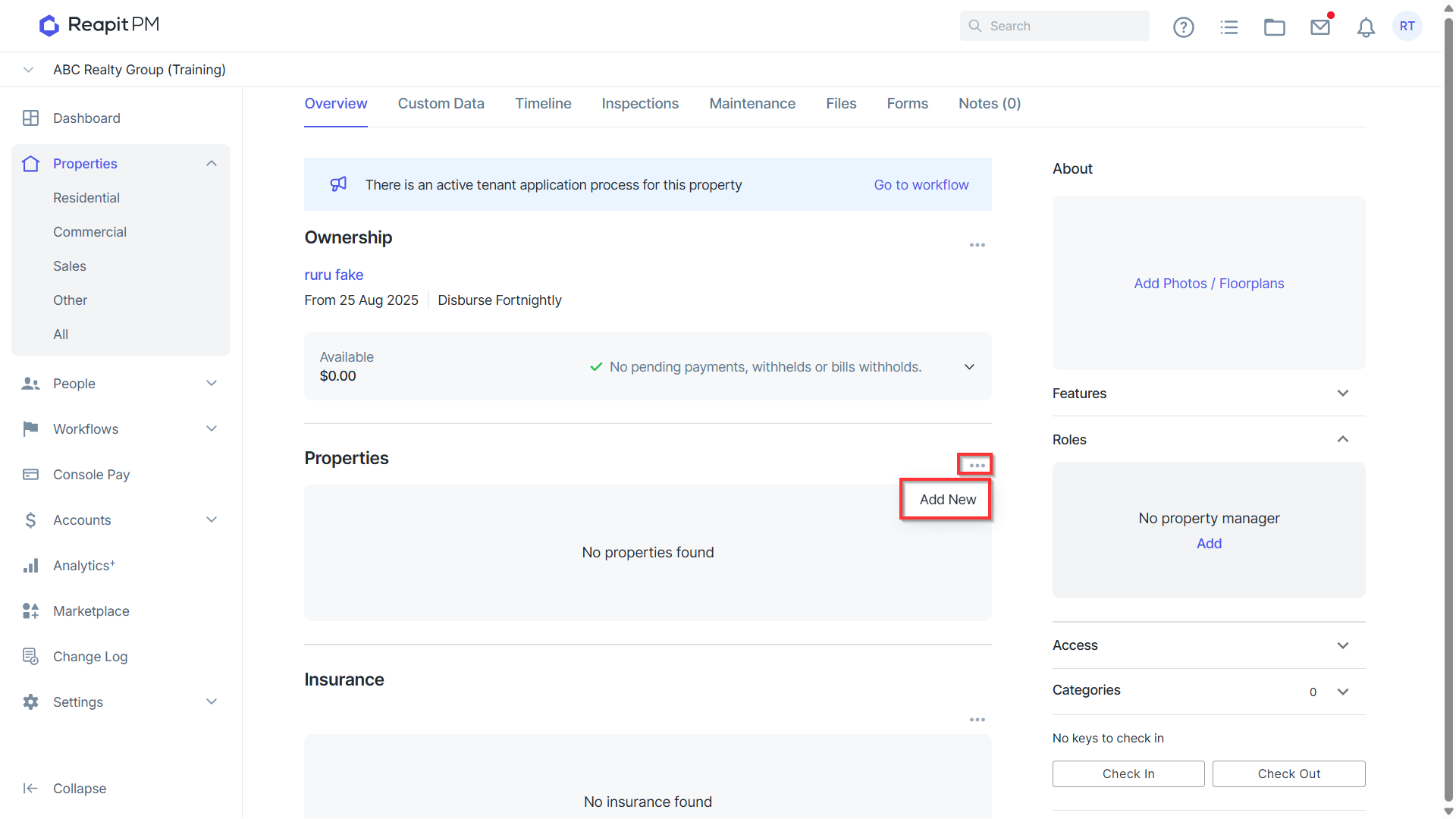
- You can then select the properties that this owner owns to group within this building.
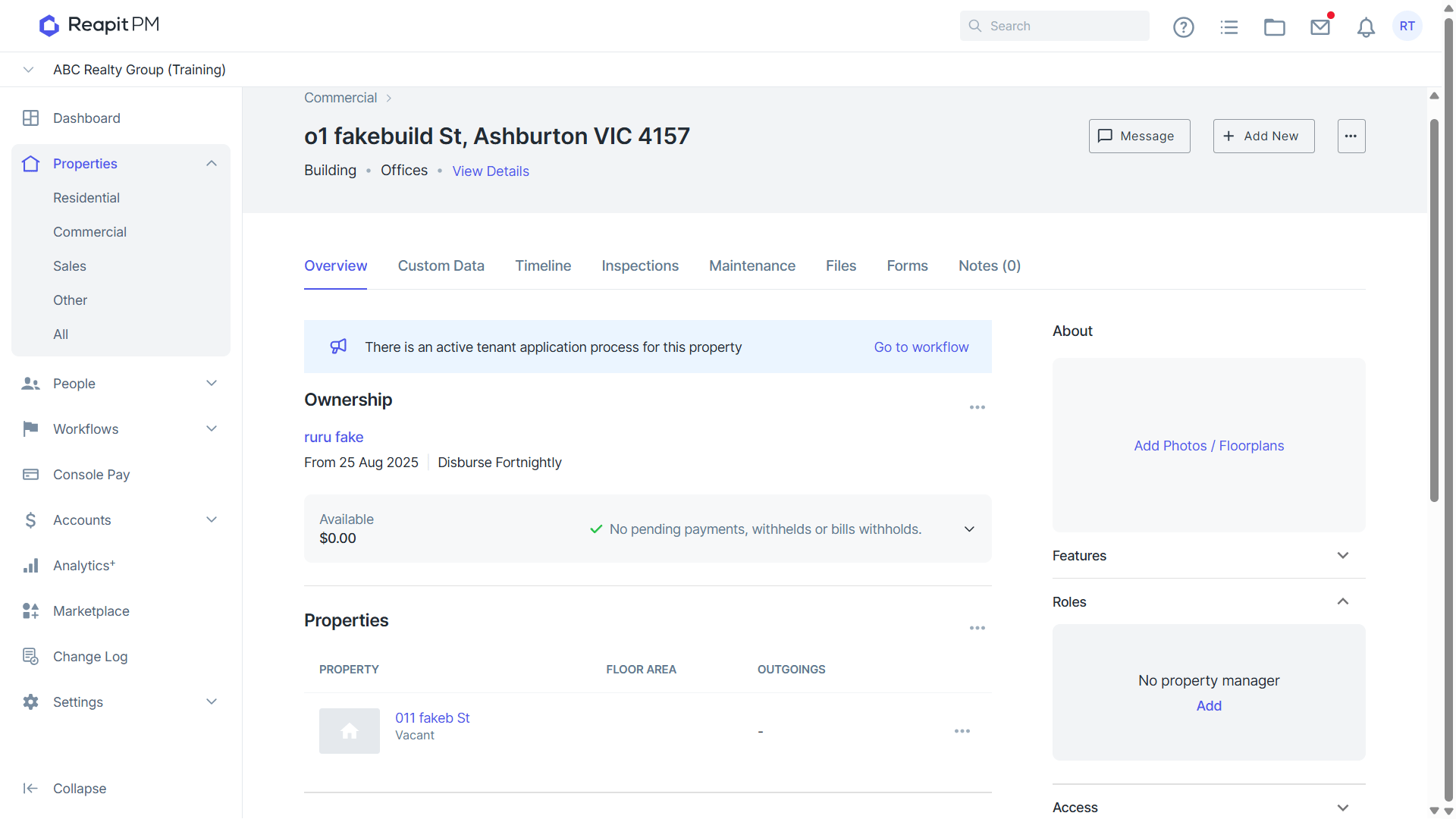
- You’ll then see the properties and tenancy information within the building screen.
Managing Buildings
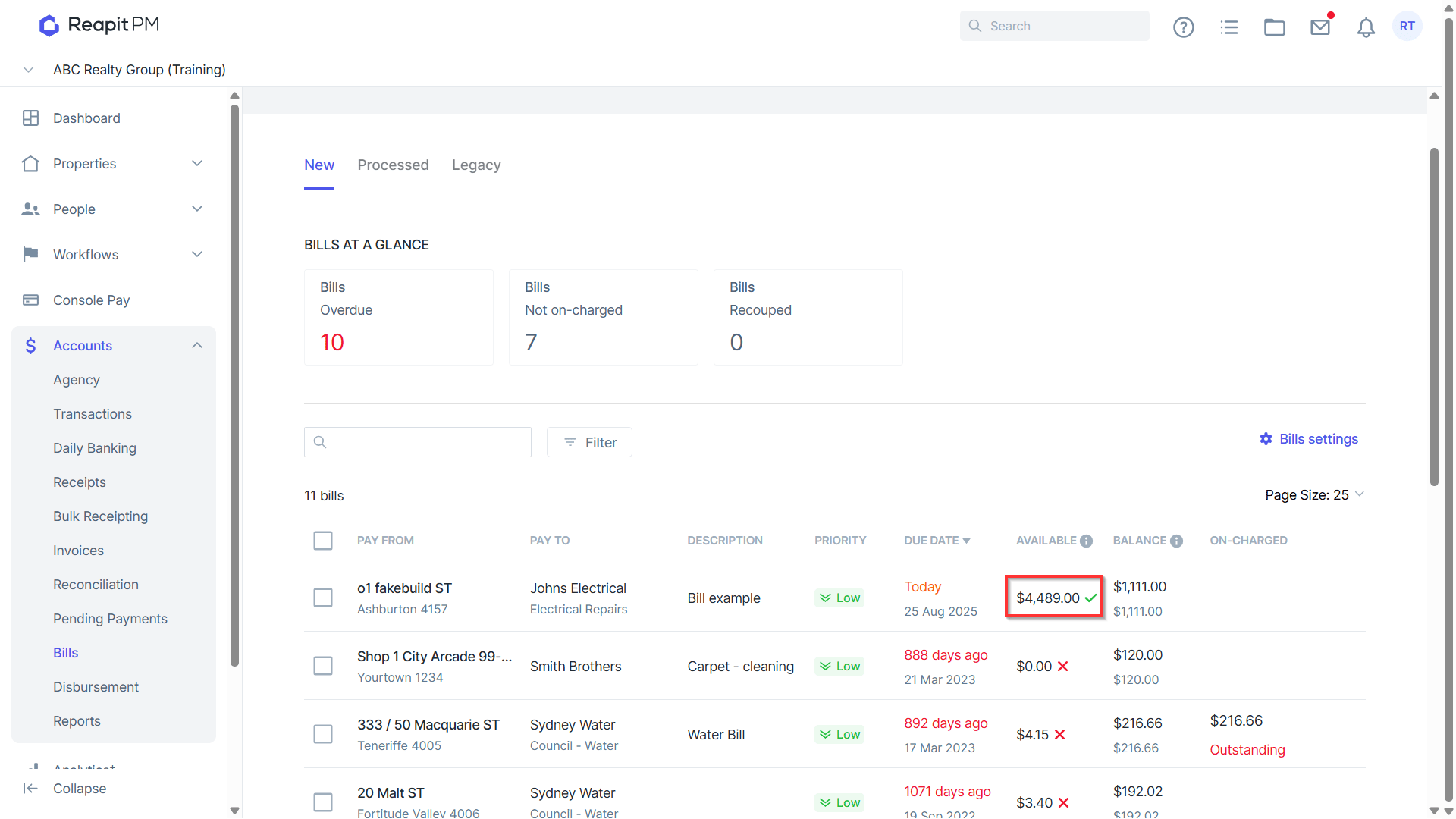
- When you process a bill for a building the funds used will be taken from the properties within that building.
Note: The available balance will represent the balance for the whole building.
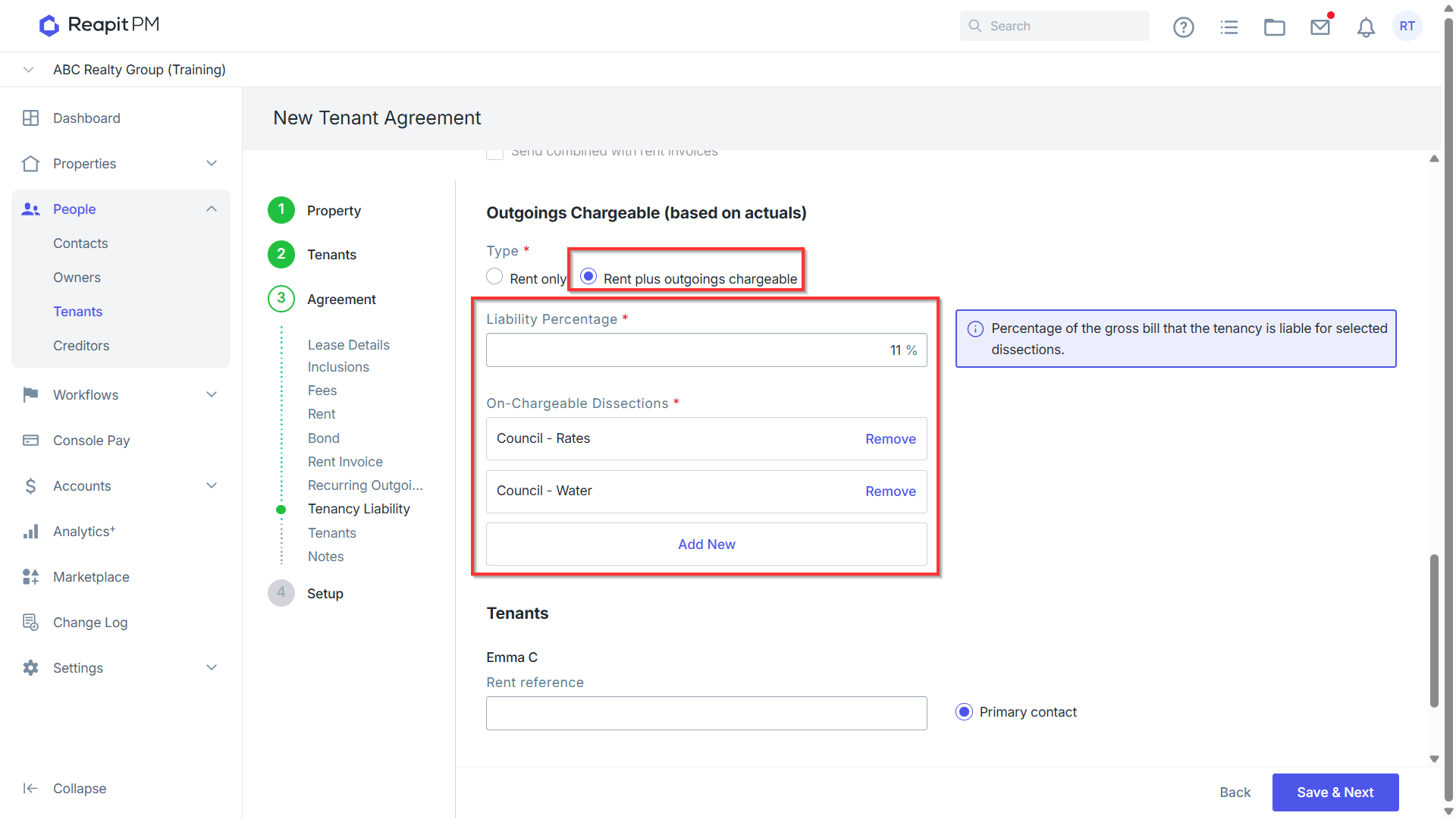
- On charging - You can only On Charge a tenant if they have the Rent Plus Outgoings Chargeable ticked within the tenant agreement. Additionally, the dissection you have used on the bill must match the dissection you select for the tenant.
- If your office has statements set to send ‘On Disbursement’, expenses charged to the building will not be included on the owner’s statement unless they are disbursed. We would recommend disbursing buildings, even if a $0 disbursement, to ensure they see the building expenses on their statement.
Updating Ownership Details
To update ownership details, please refer to Adding or Removing a contact from a management agreement.