'%20d='M0%208a8%208%200%200%201%208-8h24a8%208%200%200%201%208%208v24a8%208%200%200%201-8%208H8a8%208%200%200%201-8-8V8Z'/%3e%3cpath%20fill='%23fff'%20d='M8.375%2013v14L20.5%2034l12.124-7v-7.737l-1.687-.975-2.806-1.62-1.082-.624v4.83l-.002%204.83H13.95V16.07l3.275-1.89%202.192-1.265%201.082-.625%203.275%201.877%202.192%201.256%201.083.62V9.782L20.5%206%208.376%2013Z'/%3e%3cdefs%3e%3clinearGradient%20id='reapit-pm__a'%20x1='20.702'%20x2='20.702'%20y1='.351'%20y2='31.228'%20gradientUnits='userSpaceOnUse'%3e%3cstop%20stop-color='%235573FD'/%3e%3cstop%20offset='.575'%20stop-color='%234E56EA'/%3e%3c/linearGradient%3e%3c/defs%3e%3c/svg%3e)
Reapit PM Inspect Setting up Property Inspection Templates
This article will show how to set up property inspection templates on the app.
Setting up Property Inspection Templates
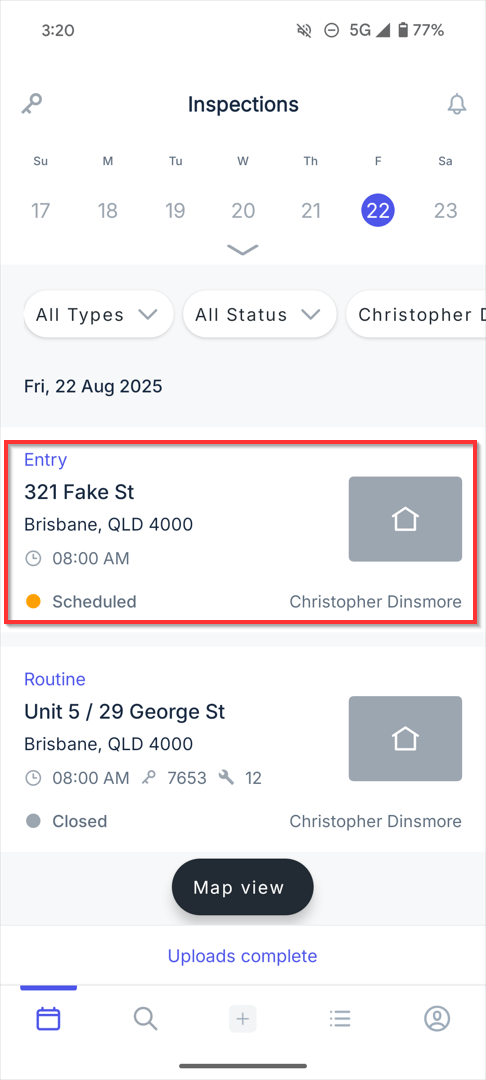
1. From the app, select the inspection.
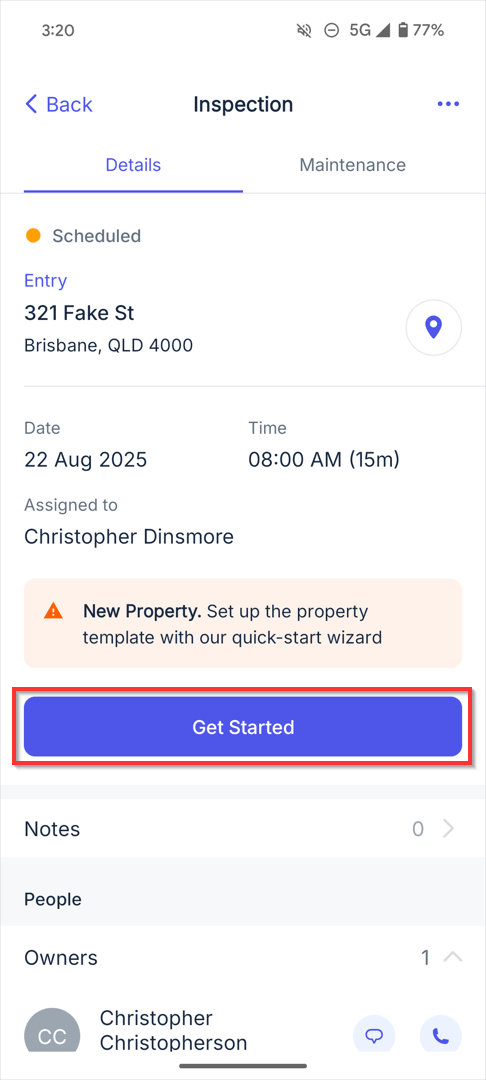
2. Click Get Started.
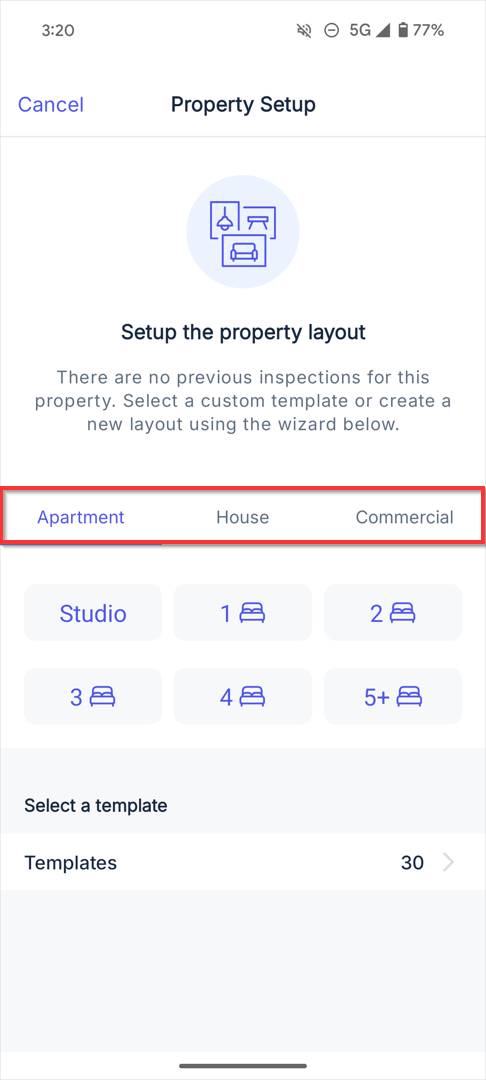
3. As there are no previous inspections for this property, select the appropriate property type: Apartment or House.
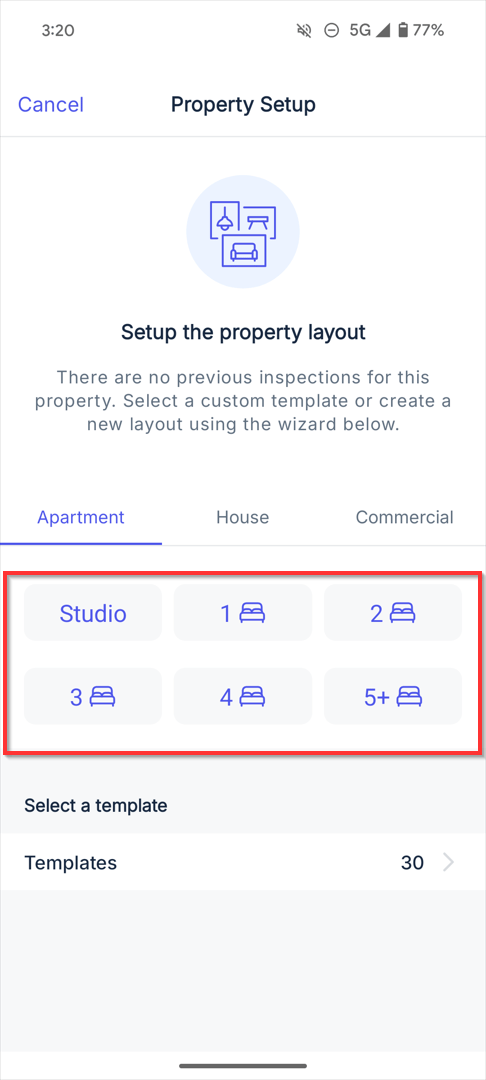
4. Select the number of bedrooms.
5. To add an area, click on the + icon.
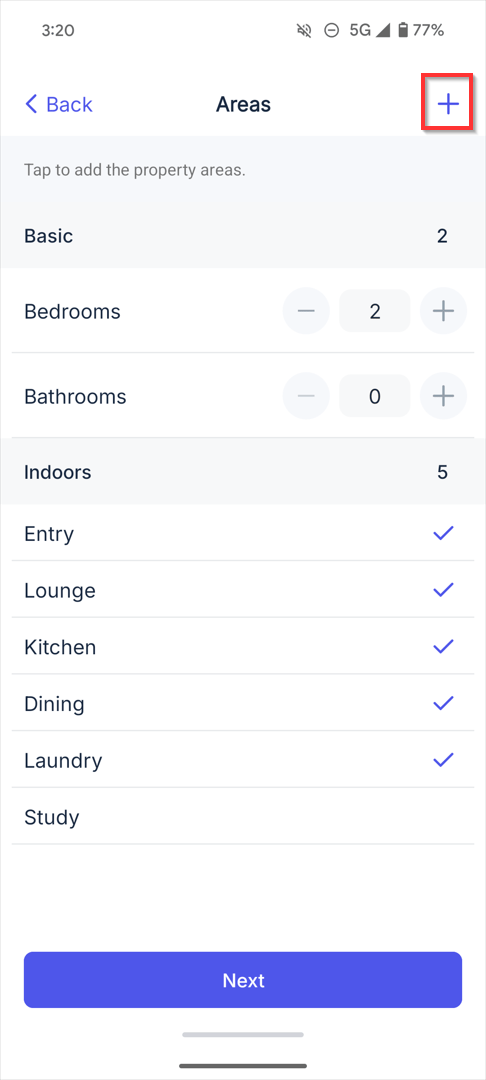
6. Enter the name and choose the area type.
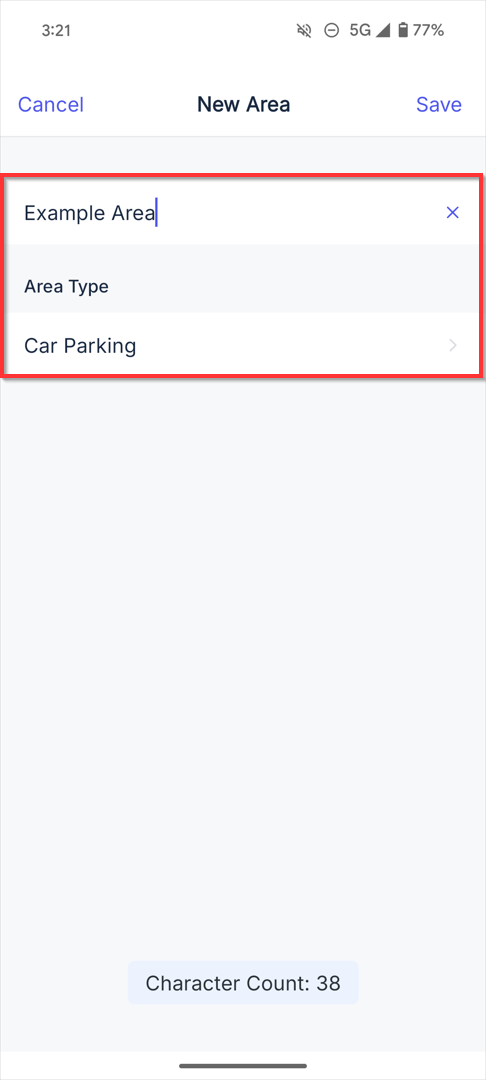
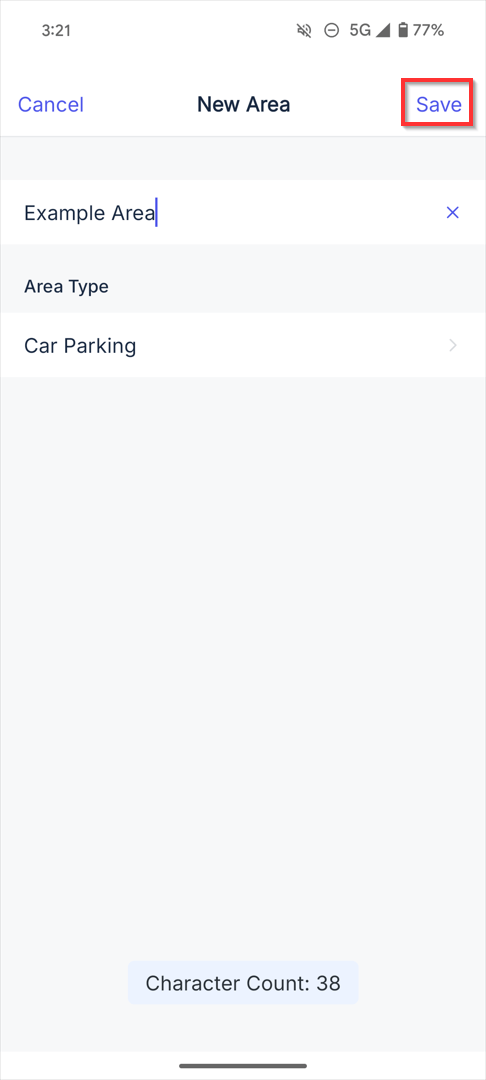
7. Click Save.
8. Once done, click Next.
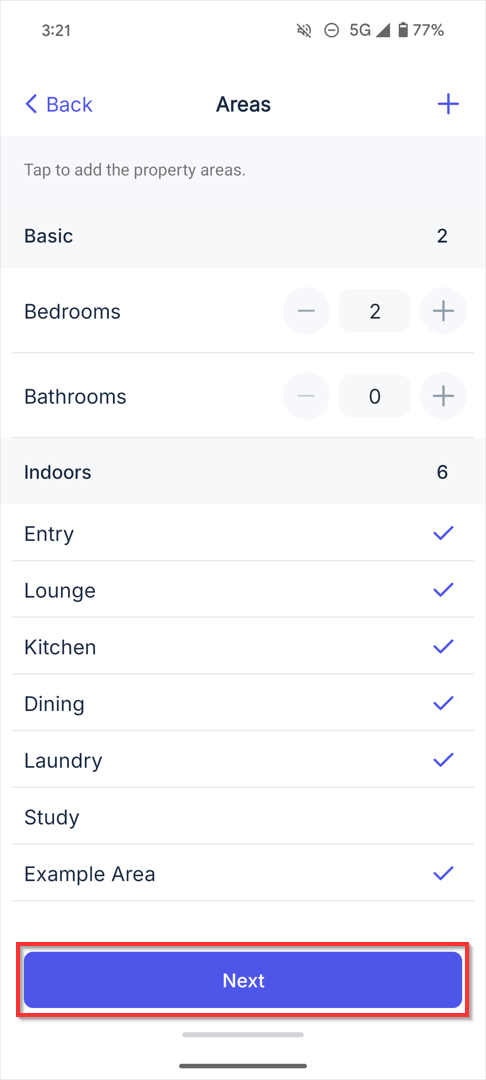
9. You can now start your inspection.
Commercial Master Inspection Templates
*Note: Available to Premium Subscribers (i.e., must have the Commercial module).
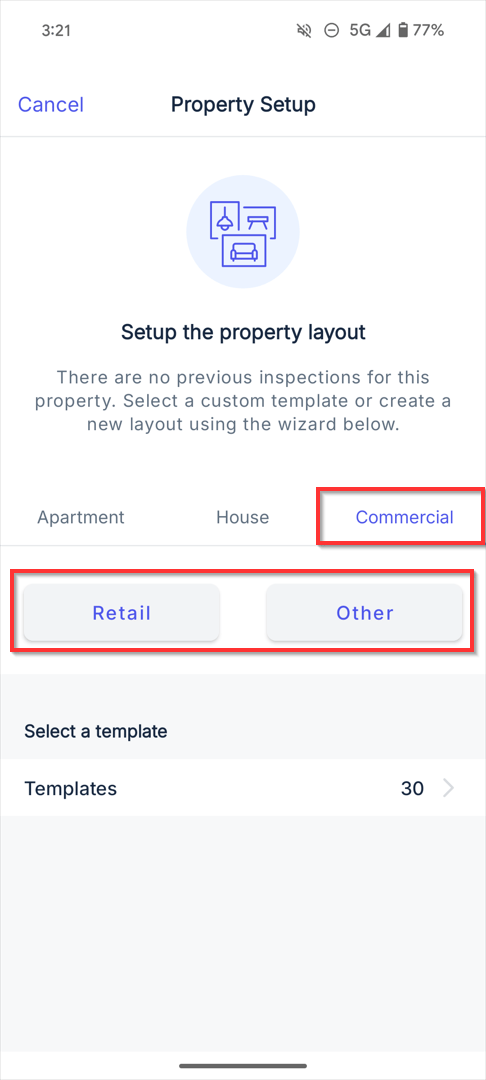
1. When starting a property inspection for the first time, if it is a Commercial property, the tab will default to Commercial and you can select the Retail or Other template.
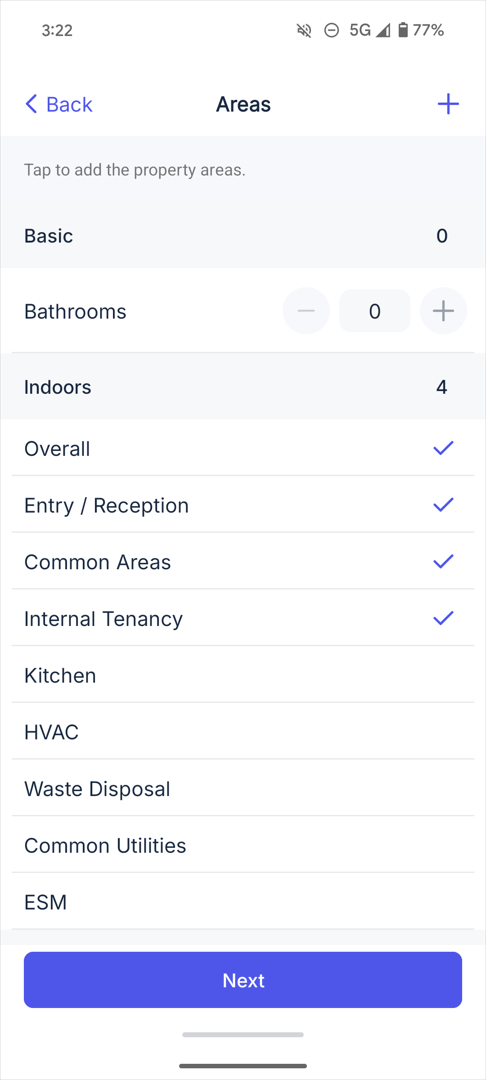
2. You will then be able to customise the areas and if applicable Area Items (if using Entry reports).
3. If using the Entry Report - note that the currently the first page script is not applicable to commercial properties legislation