'%20d='M0%208a8%208%200%200%201%208-8h24a8%208%200%200%201%208%208v24a8%208%200%200%201-8%208H8a8%208%200%200%201-8-8V8Z'/%3e%3cpath%20fill='%23fff'%20d='M8.375%2013v14L20.5%2034l12.124-7v-7.737l-1.687-.975-2.806-1.62-1.082-.624v4.83l-.002%204.83H13.95V16.07l3.275-1.89%202.192-1.265%201.082-.625%203.275%201.877%202.192%201.256%201.083.62V9.782L20.5%206%208.376%2013Z'/%3e%3cdefs%3e%3clinearGradient%20id='reapit-pm__a'%20x1='20.702'%20x2='20.702'%20y1='.351'%20y2='31.228'%20gradientUnits='userSpaceOnUse'%3e%3cstop%20stop-color='%235573FD'/%3e%3cstop%20offset='.575'%20stop-color='%234E56EA'/%3e%3c/linearGradient%3e%3c/defs%3e%3c/svg%3e)
Managing DEFT integration
DEFT by Macquarie can be integrated into Reapit PM. This article will walk you through how to activate, manage and deactivate the DEFT integration in Reapit PM. The processing in this article include: • Activating the DEFT Integration • Managing the DEFT Integration • Checking for DEFT Errors • DEFT and Tenant Agreements • Deactivating the DEFT Integration
Overview
DEFT Integration
DEFT by Macquarie can be integrated into Reapit PM.
This means that payments that are made via the DEFT system are imported directly to Reapit PM in the Bulk Receipting screen, saving you a heap of time!
This article will walk you through how to activate, manage and deactivate the DEFT integration in Reapit PM.
Please note: This integration facilitates the automatic creation of DRN (Deposit Reference Numbers) for tenants, enabling them to pay rent directly via the DEFT website (deft.com.au) only. It does not support BPAY payments.
The processing in this article include:
- Activating the DEFT Integration
- Managing the DEFT Integration
- Checking for DEFT Errors
- DEFT and Tenant Agreements
- Deactivating the DEFT Integration
Activating the DEFT Integration
Note: You will need to have set up DEFT account first to complete this process, if you are unsure of your details, please contact DEFT / Macquarie at www.deft.com.au
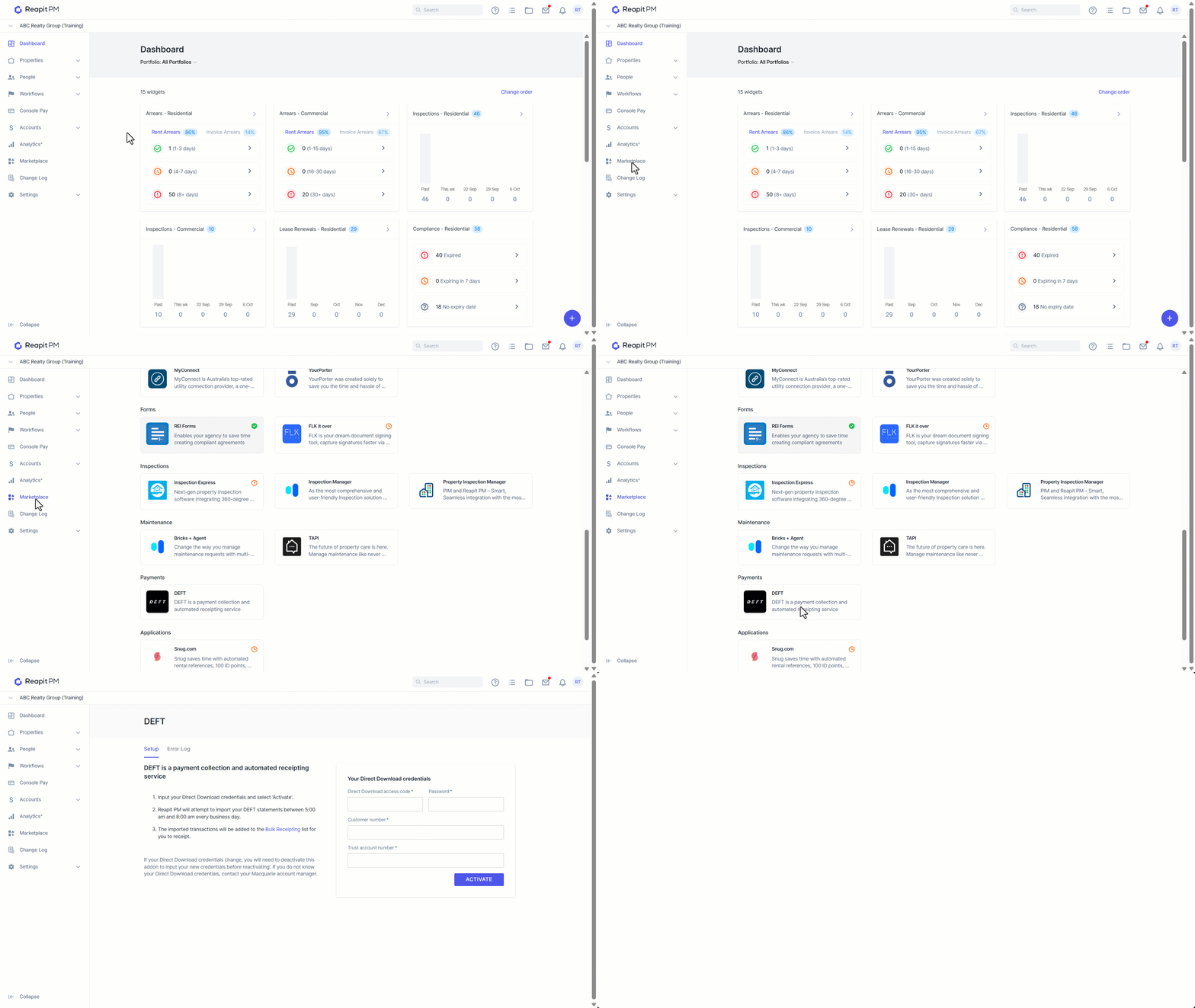
- Click on Marketplace
- Navigate to Payments and select DEFT.
- Enter your Direct Download access code, Password, Customer Number and trust account number.
- Click Activate
- Your DEFT integration is now active and transactions will now import to your Bulk Receipting list.
Managing DEFT integration
- Click on Marketplace
- Navigate to Payments and select DEFT.
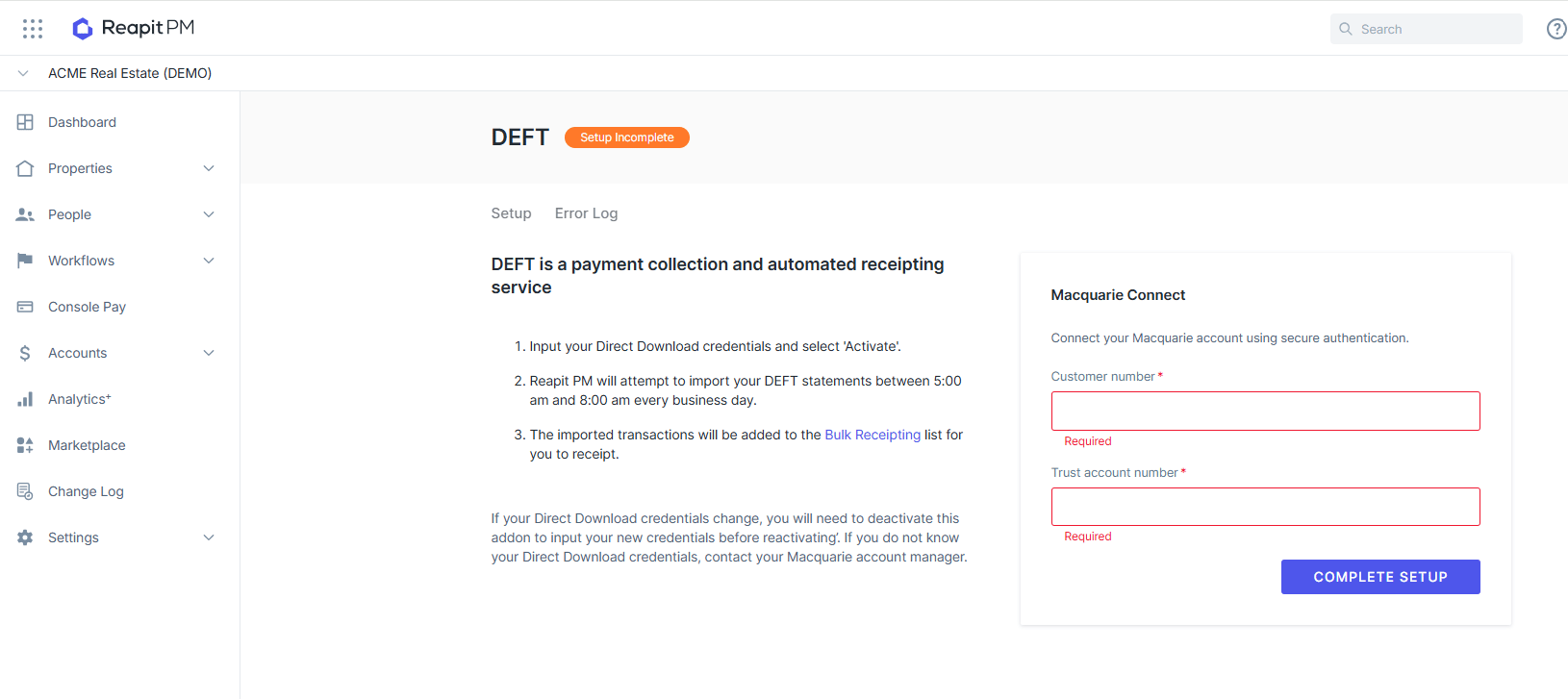
- You will see 2 tabs, Setup and Error Log.
- To change your DEFT account details, click Setup. From here you can enter or change your account details.
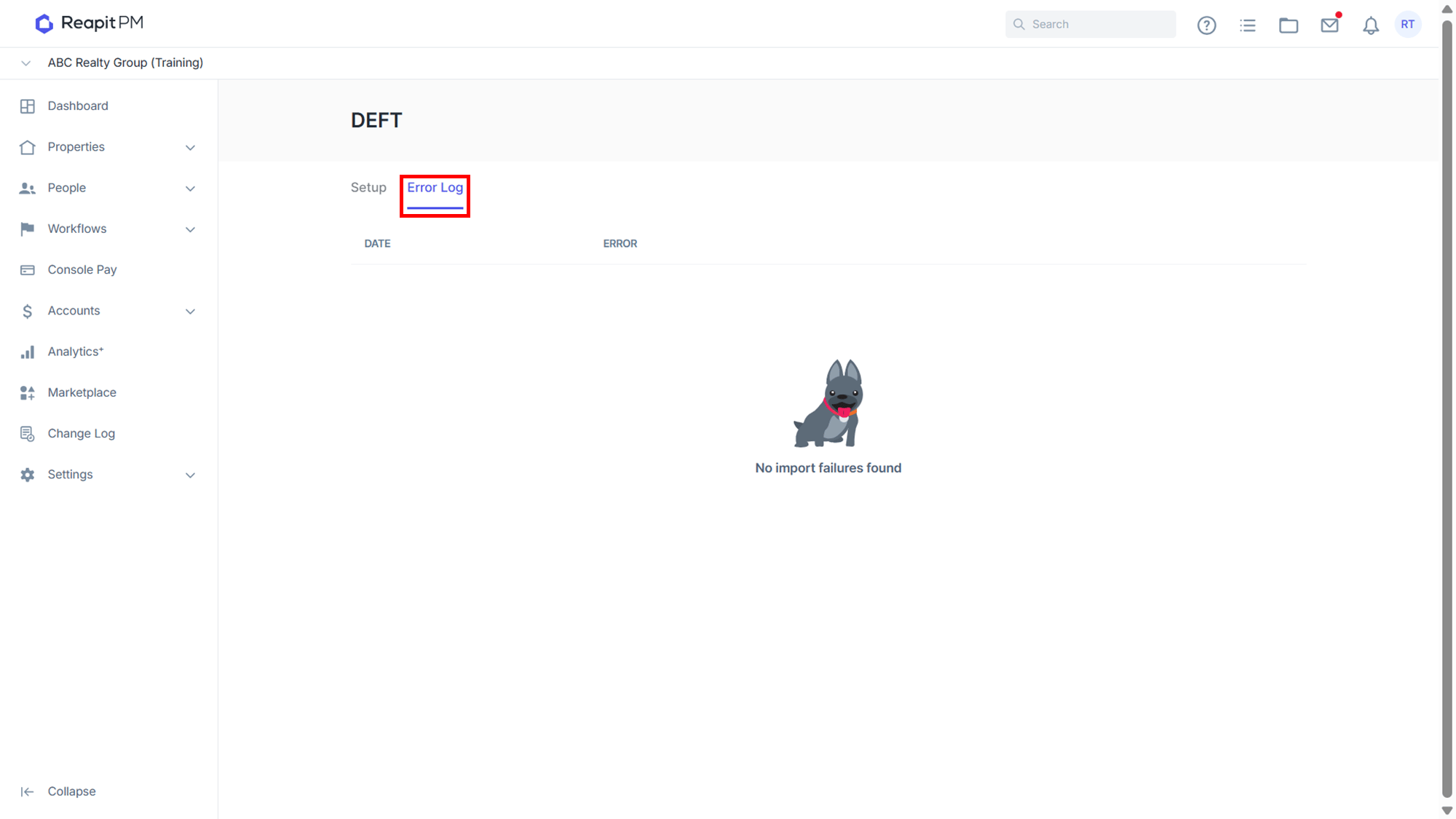
- To check for errors, click Error Log. This will display any errors. If there are none it will display No Import Failures Found.
Checking for DEFT Errors
- Click Error Log. This will display any errors. If there are none, it will display No Import Failures Found.
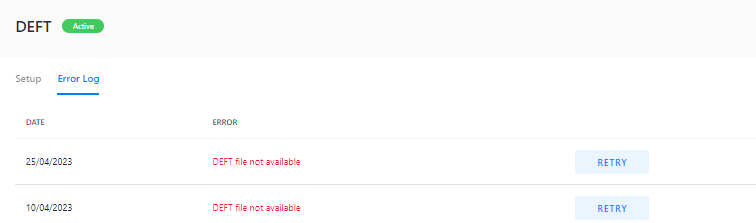
- Errors will show as below, Press Retry next to any of the failures, if there should be DEFT transactions available for that day.
DEFT and Tenant Agreements
Once DEFT is activated in your office, this will allow you to automatically generate DEFT reference numbers for tenants and automatically match rent payments to tenants. You can get a DEFT reference number for either an existing or a new tenant agreement.
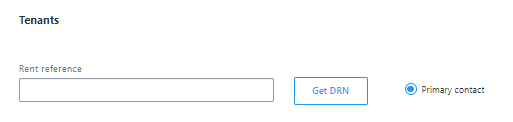
The option will appear in the setup screen for a new tenant, and will appear in the Edit screen of an existing tenant in the Rent References section.
Invoice and Display Options
If your agency invoices tenants for Rent or Outgoings via the Banking Settings, you will be able to select between one of three options for displaying the invoice payment details on the invoice PDF:
- Hide Details (use this if implementing PAYID office-wide)
- Bpay Details
- Trust Account Details
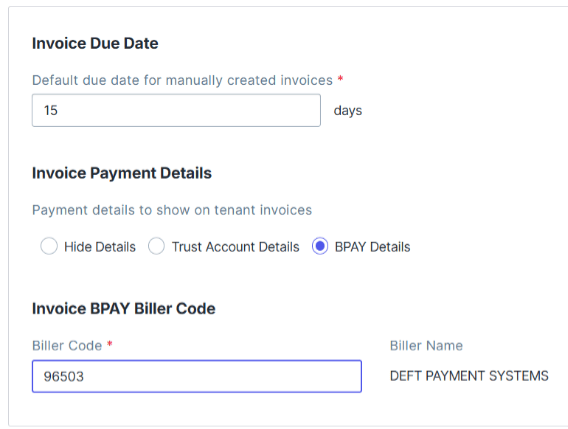
Note: This setting is office-wide.
Paying invoices using PAYID:
When using the Hide Details (PAYID) option, the DRN number generated on the tenancy will need to be included on the front of the PAYID email address, e.g. {{rent_reference_primary}}@deft.com.au . This will be conveyed to the tenant via an email as no details will appear on the invoice pdf.
Note: See email template example below.
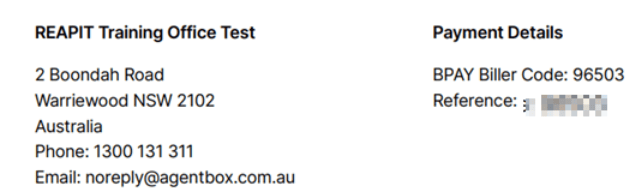
Paying Invoices using BPAY:
This setting will ask you to add the BPAY Biller Code: 96503
The invoice pdf will then display both the Biller code and the DRN
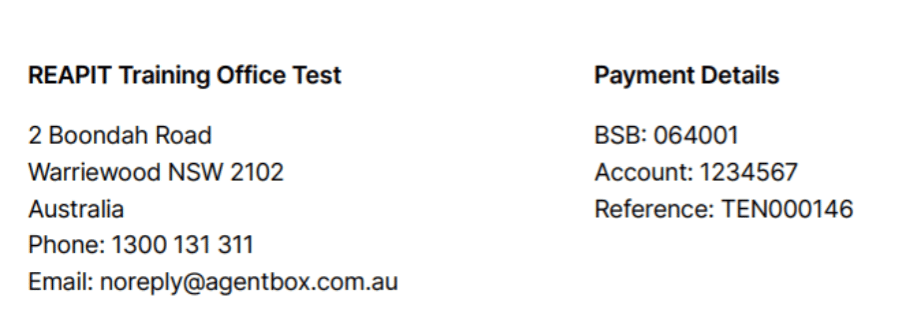
Paying invoices using Trust Account:
This setting will toggle the bank details to display on the invoice
The invoice will display the BSB, Account number, and tenant reference for payment identification.
** Below is an example of the suggested email template for DEFT payments to use when sending the details to the tenant.
{{tenantName}}
{{propertyAddress}}
Dear {{tenantName}},
An easier way to pay We are changing the way you can pay your rent. As of {{insert date}}, please pay your rent using Macquarie’s DEFT Payment System. To do this, you’ll need your DEFT Reference Number {{rent_reference_primary}}.
The payment options are as follows:
PayID You can make a payment directly from your banking app or internet banking using your unique PayID – no extra downloads or new logins needed.
Your unique PayID is {{rent_reference_primary}}@deft.com.au
Pay in three simple steps:
- In your banking app or internet banking, choose to pay with PayID.
- Enter your unique PayID (above).
- You'll see DEFT* followed by our name on your screen, then follow the prompts to confirm and pay. For more information, visit www.deft.com.au/payid.
BPAY® - Via Online Banking You can also choose to pay rent through your regular online or mobile banking, by making a BPAY payment from your bank account. The BPAY biller code for your rent payment is 96503 and you should use your DEFT Reference Number {{rent_reference_primary}} as the BPAY customer reference number.
BPAY® - Via Phone banking You can pay your rent via phone banking through your bank. If you don’t have phone banking, please contact your bank directly to set this up. Once this has been set up, the BPAY biller code for your rent payment is 96503 and you should use your DEFT Reference Number as the BPAY customer reference number.
Bank Account
Simply visit deft.com.au and click ‘register’. DEFT offers a wide range of payment options. Once registered, you can make recurring or one-off payments online.
-Bank account – You can set up Direct Debit payments via DEFT to pay your rent straight from your bank account. Most bank, building society or credit union transaction accounts can be used for this. Simply add your bank account details to your DEFT profile.
Should you have any questions relating to the above or are not able to pay your rent using either of these options, please contact our office on {{officePhone}}.
Yours sincerely
{{propertyManager}}
{{officeTradingName}}
{{officeEmail}}
{{officePhone}}
BPAY® Registered to BPAY Pty Ltd ABN 69 079 137 518 PayID is a registered trademark of NPP Australia Ltd ABN 68 601 428 737
Please note: DEFT transactions will automatically import to the Bulk Receipting screen every morning between 5am – 8am. These transactions will match to tenants in PM based on the DEFT reference number saved against the tenant agreements. All you need to do is select all DEFT transactions in Bulk Receipting and press Receipt Selected at the bottom right.
Deactivating the DEFT Integration
- Click on Marketplace
- Navigate to Payments and select DEFT.
- Under the Setup tab, click Deactivate.
- A confirmation box will appear asking to confirm that you want to deactivate the DEFT integration - Click Confirm.
PM will no longer import and of your transactions from DEFT account.