'%20d='M0%208a8%208%200%200%201%208-8h24a8%208%200%200%201%208%208v24a8%208%200%200%201-8%208H8a8%208%200%200%201-8-8V8Z'/%3e%3cpath%20fill='%23fff'%20d='M8.375%2013v14L20.5%2034l12.124-7v-7.737l-1.687-.975-2.806-1.62-1.082-.624v4.83l-.002%204.83H13.95V16.07l3.275-1.89%202.192-1.265%201.082-.625%203.275%201.877%202.192%201.256%201.083.62V9.782L20.5%206%208.376%2013Z'/%3e%3cdefs%3e%3clinearGradient%20id='reapit-pm__a'%20x1='20.702'%20x2='20.702'%20y1='.351'%20y2='31.228'%20gradientUnits='userSpaceOnUse'%3e%3cstop%20stop-color='%235573FD'/%3e%3cstop%20offset='.575'%20stop-color='%234E56EA'/%3e%3c/linearGradient%3e%3c/defs%3e%3c/svg%3e)
Reapit PM App
The Reapit PM App gives you all of your tenant, landlord and property information on your mobile or tablet – so you can communicate on the go.
The Reapit PM App gives you all of your tenant, landlord and property information on your mobile or tablet – so you can communicate on the go. An additional option to sign up to Reapit PM Inspect, which allows you to conduct inspections and manage maintenance within the mobile app can be found in Marketplace.
Downloading Reapit PM on your Device
Reapit PM Go can be downloaded from the Apple or Google App Stores by searching for Reapit PM (below icon).
Using the Reapit PM Features
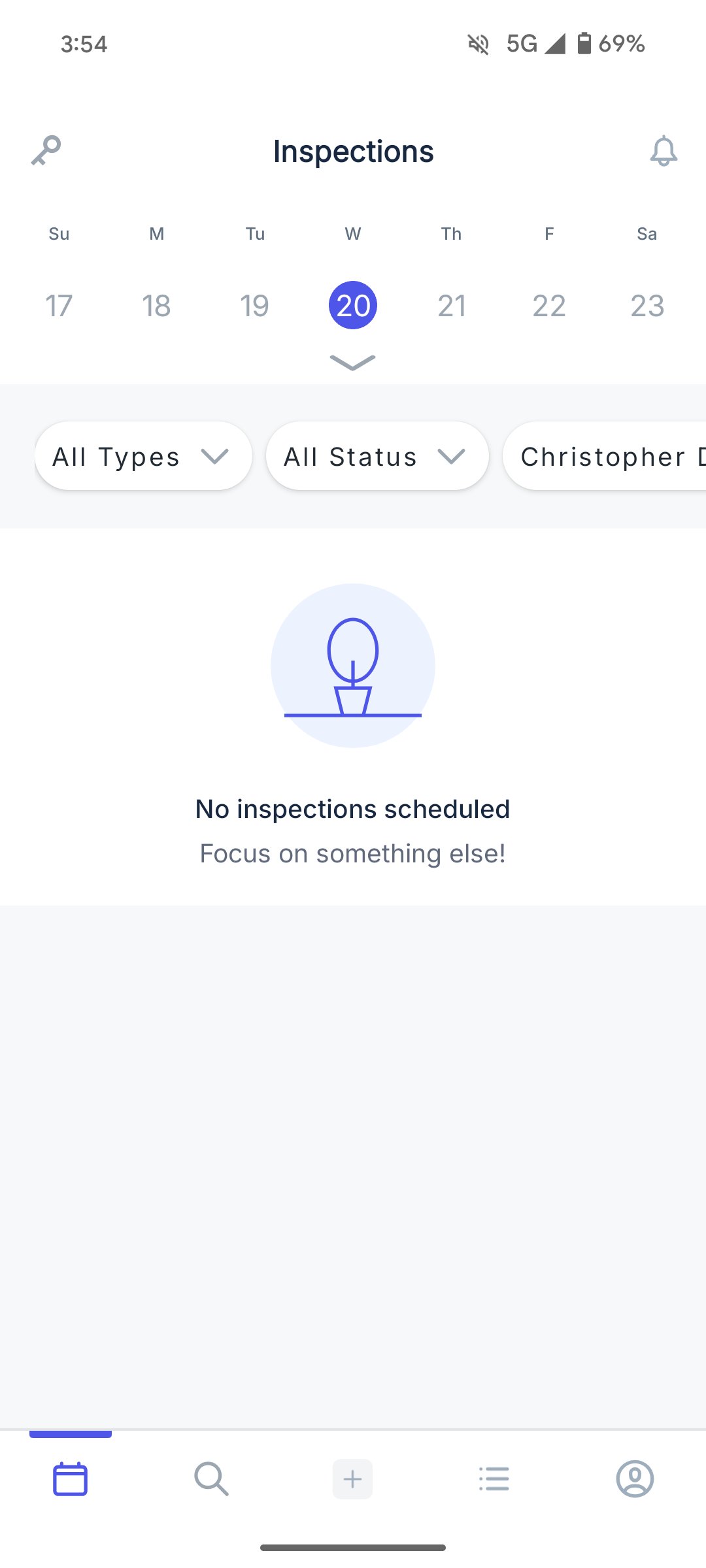
Any dates with Inspections that you have set up in Reapit PM will show in the calendar, but this feature is unable to be used to inspect properties in Go until you have subscribed to Reapit PM Inspect. You can find this in the Marketplace.
Property & Contact Details
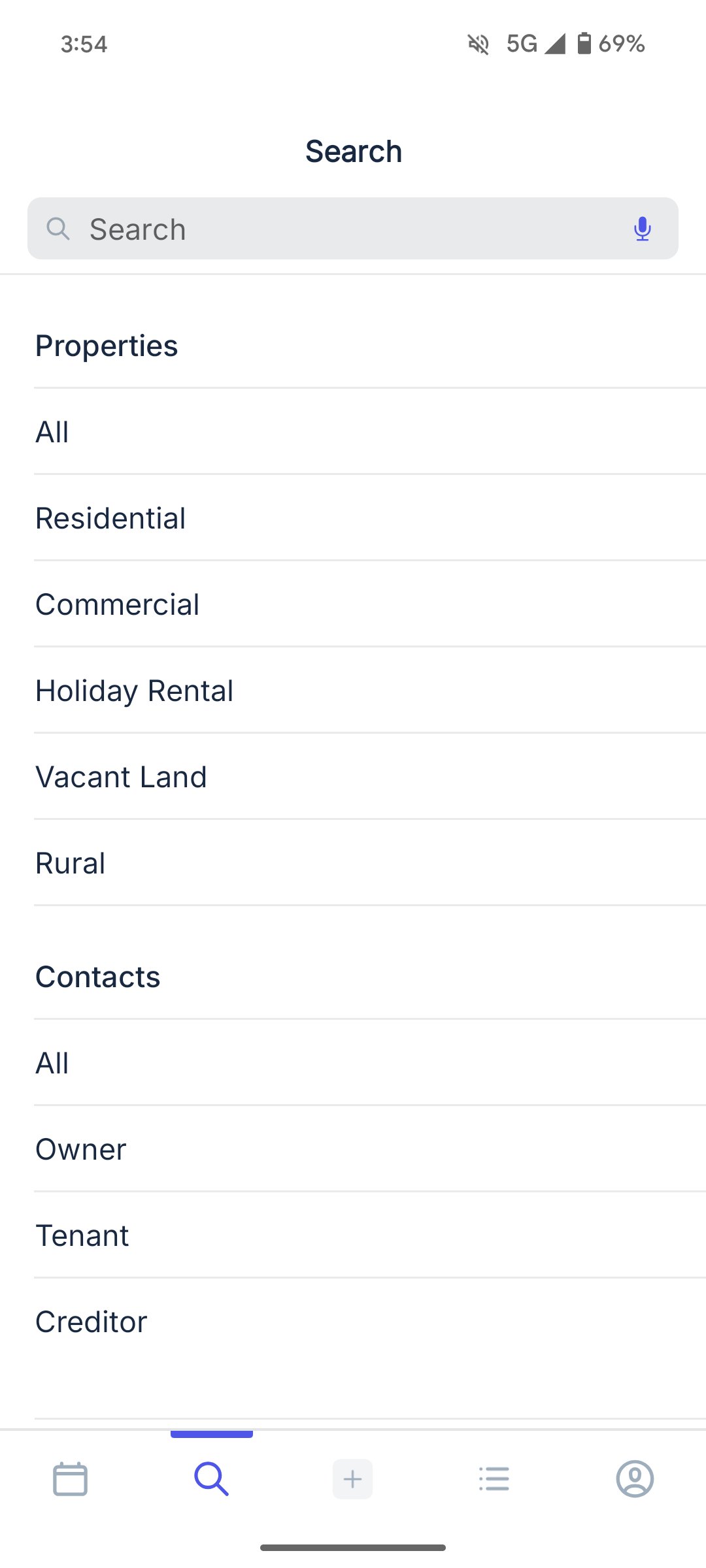
To find any Property or Contact details, click on the magnifying glass at the bottom of the screen.
Property Details
After selecting a property option you then have the choice to either type the address of a property or scroll through the list.
Note: To include photos on the thumbnails, you just need to go into a Property in Reapit PM and attach a photo to the About section (to the right-hand).
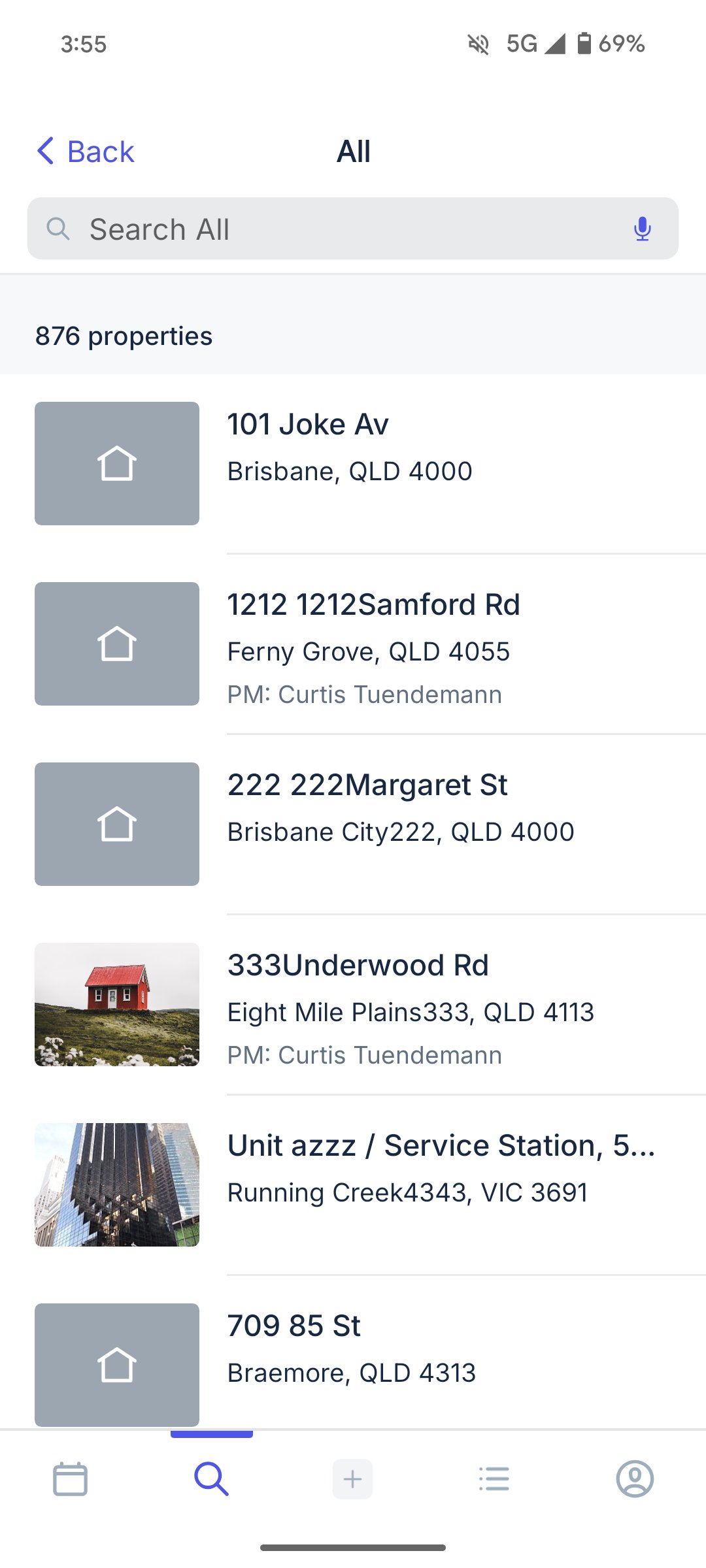
When you have clicked on the property it takes you to property details.
You are able to open each of these options for more detailed information.
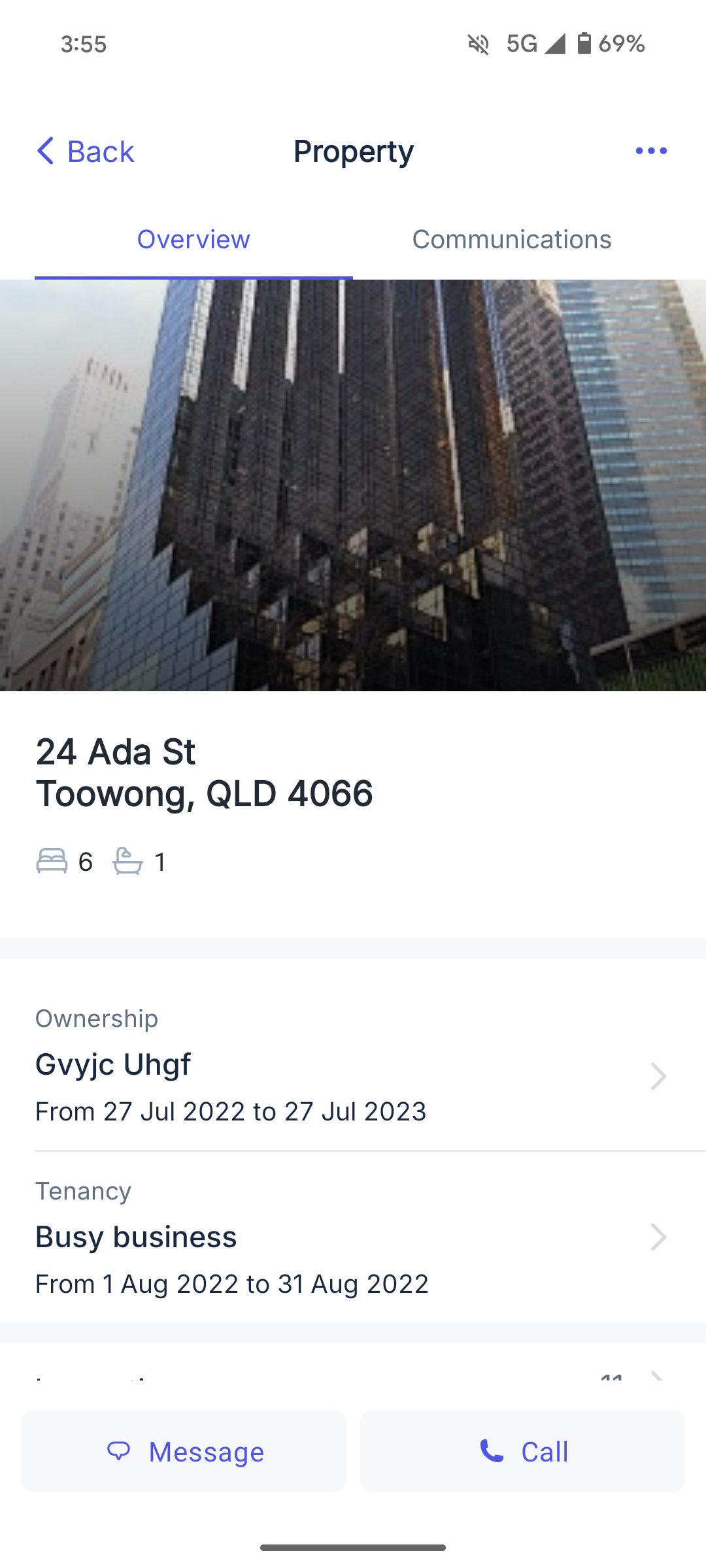
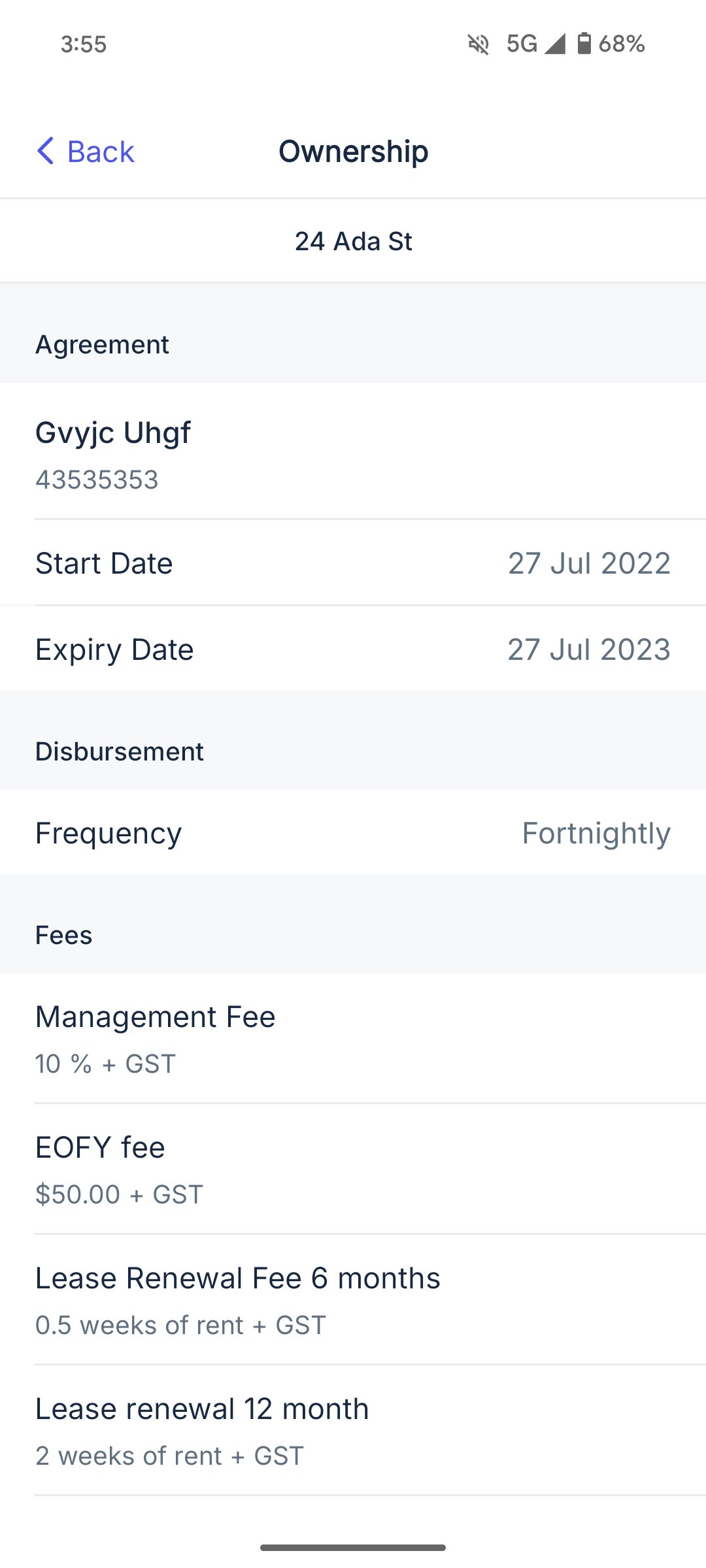
Ownership
By clicking on this you will find basic Management Agreement details for the Owner of the Property that you have open.
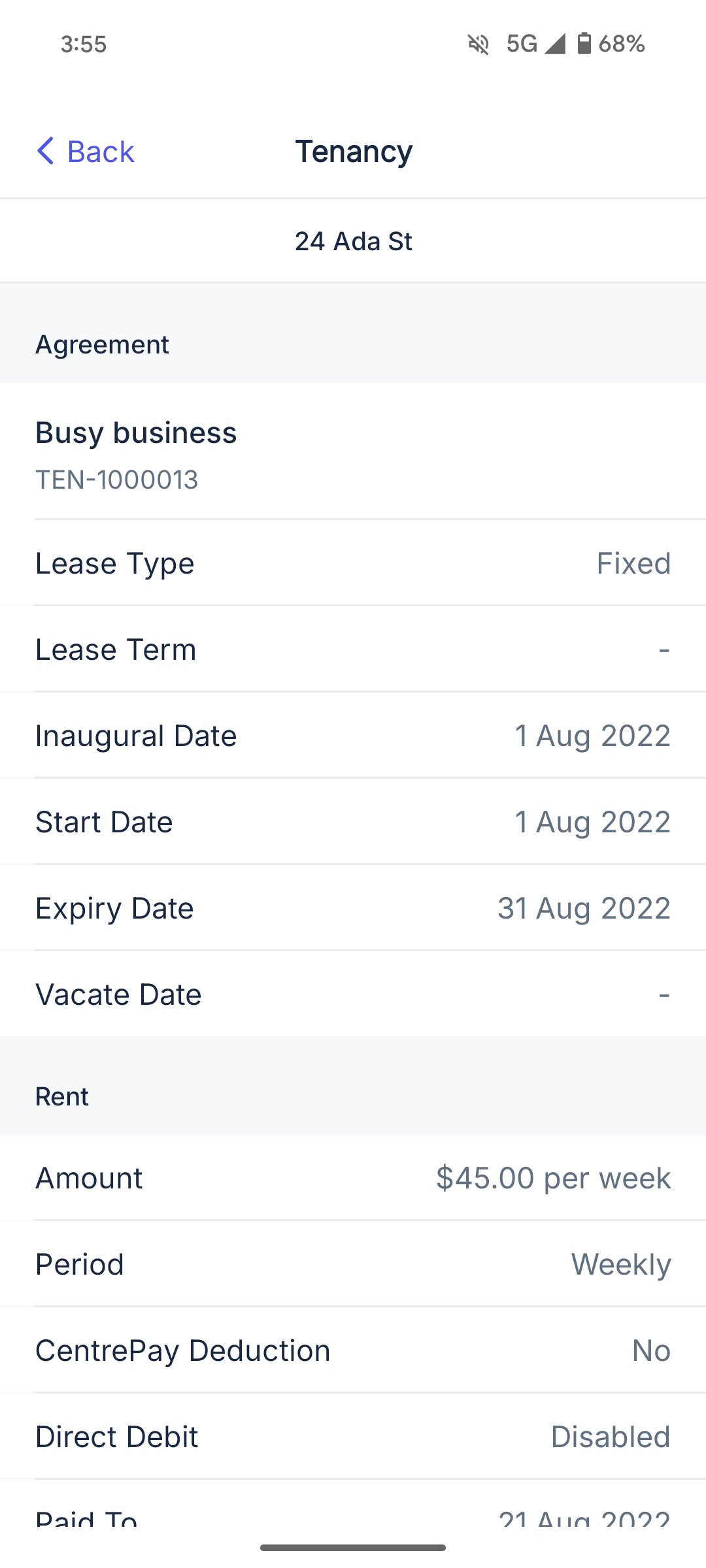
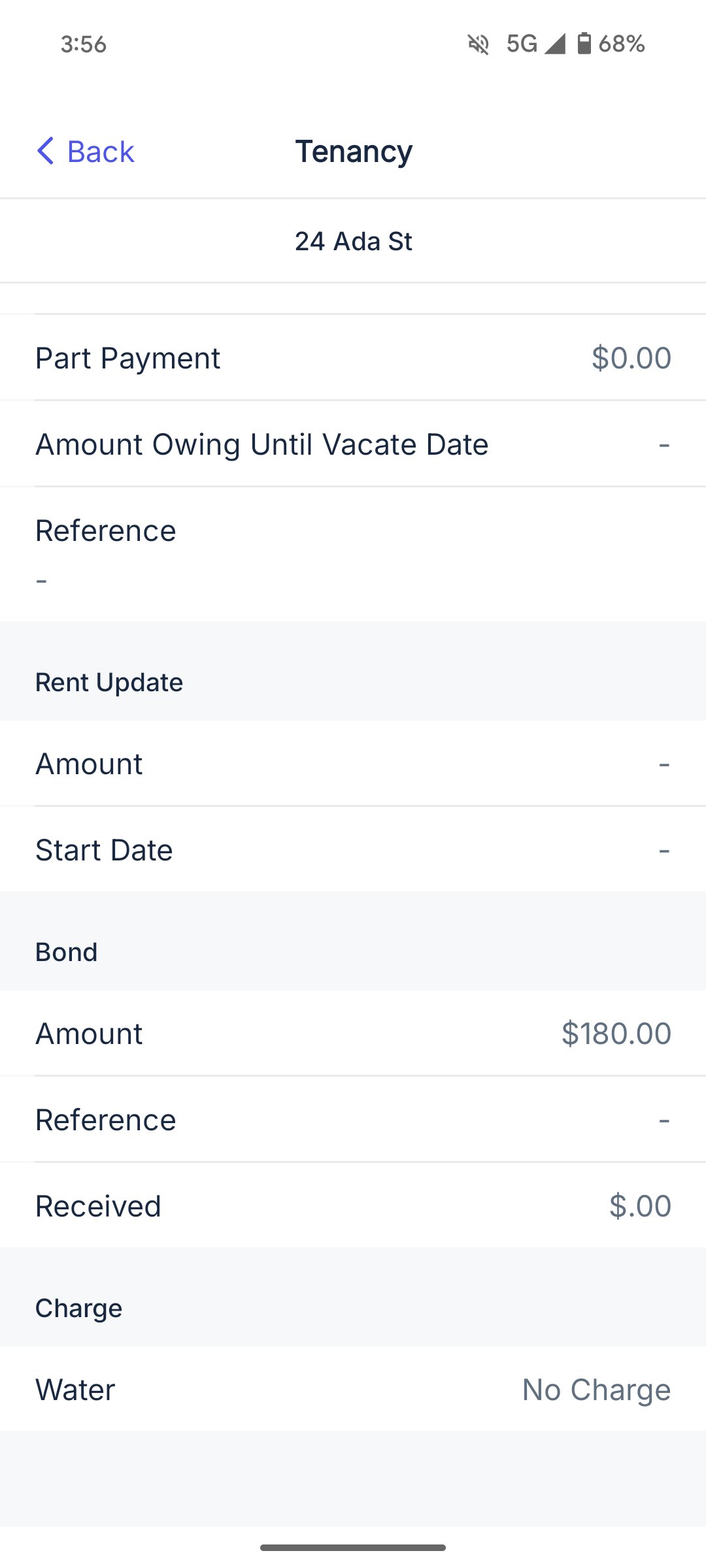
Tenancy
Includes details from the Tenant Agreement in Reapit PM.
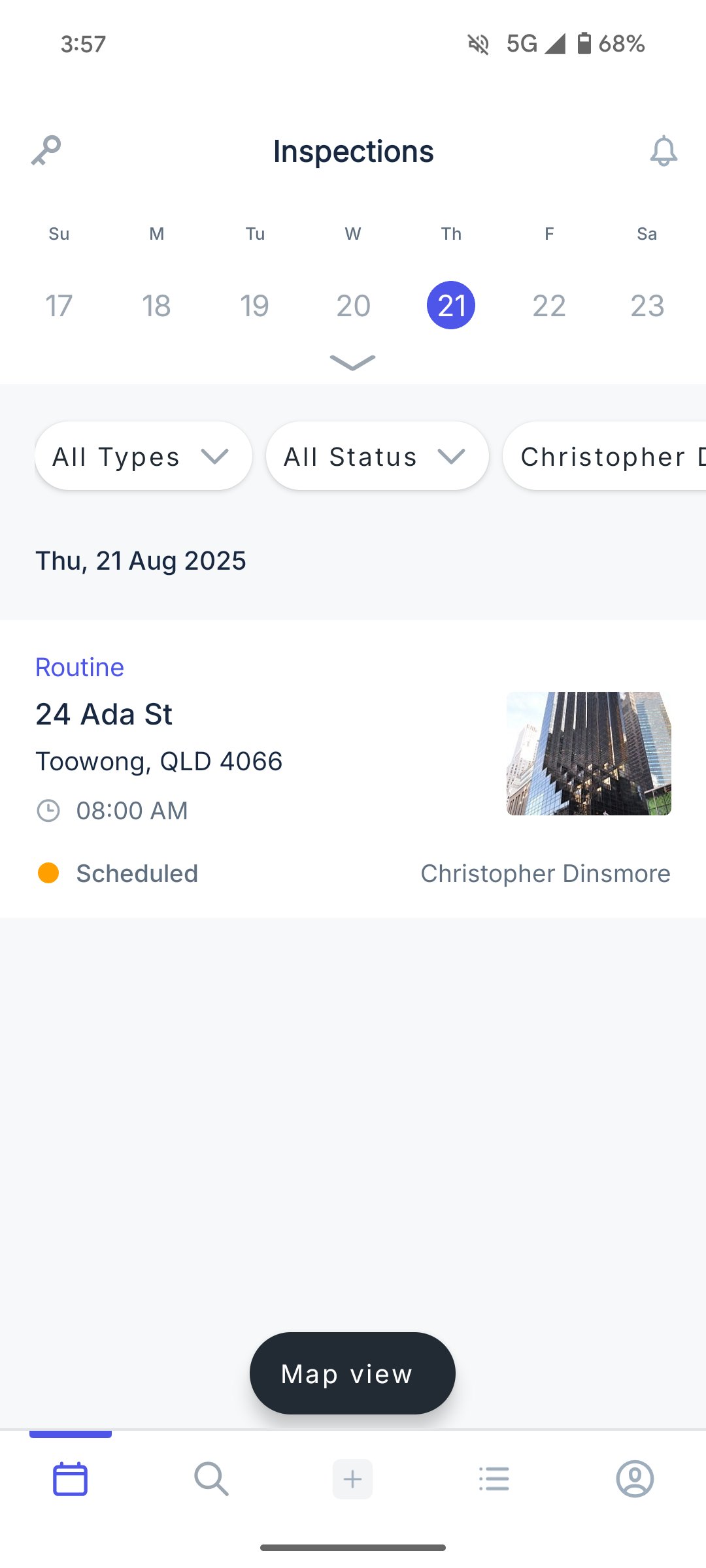
Inspections
This section includes all inspections, open & closed, that have been done or scheduled to be done at the property.
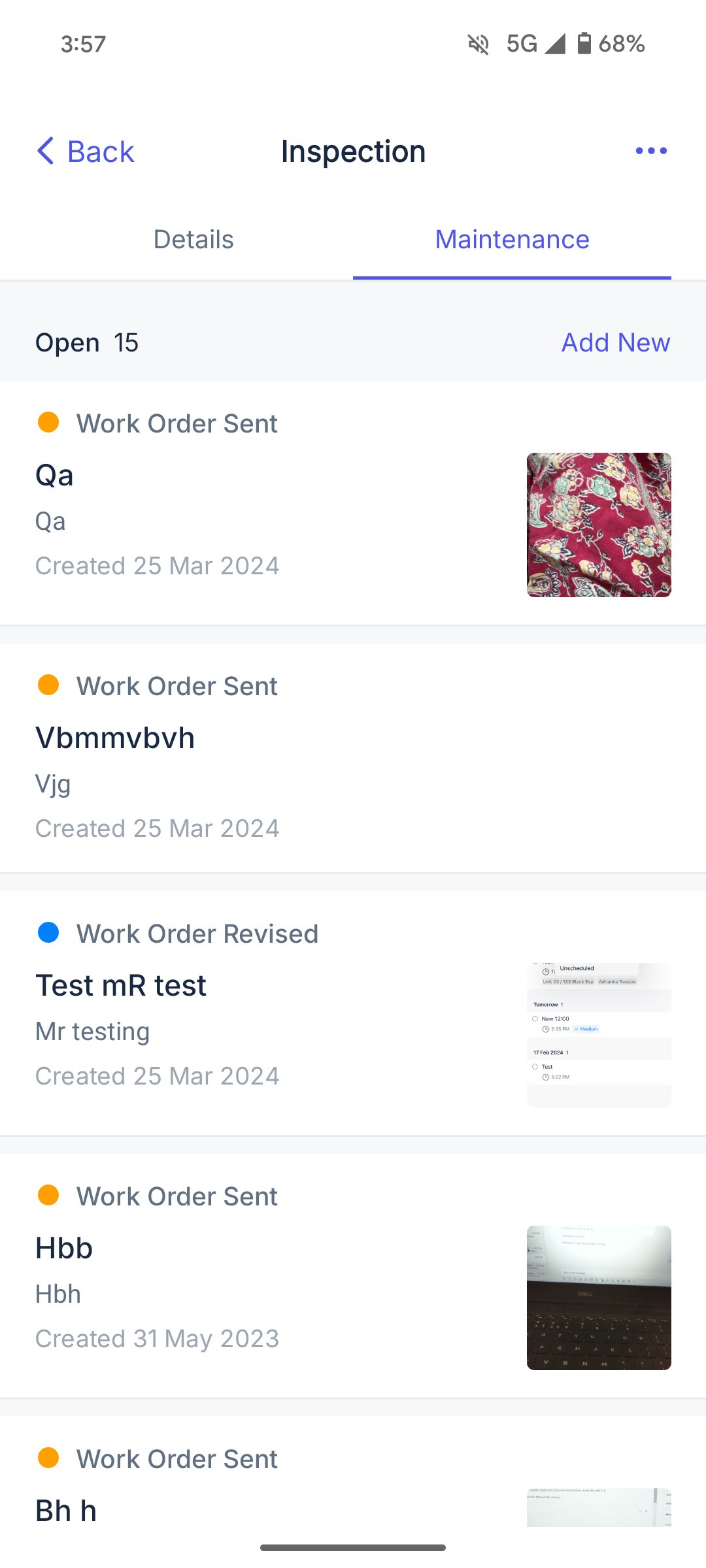
Maintenance
This section includes all maintenance that has been completed or scheduled to be done at the property. It also includes the status of the current Maintenance Request.
Note: For more detailed maintenance information please refer to the Reapit PM Go Maintenance Knowledge Base article.
More
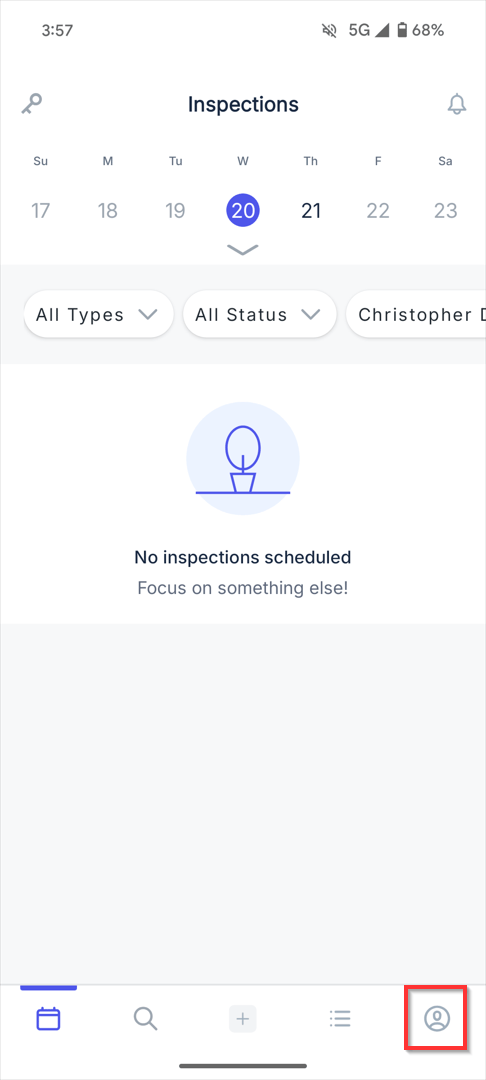
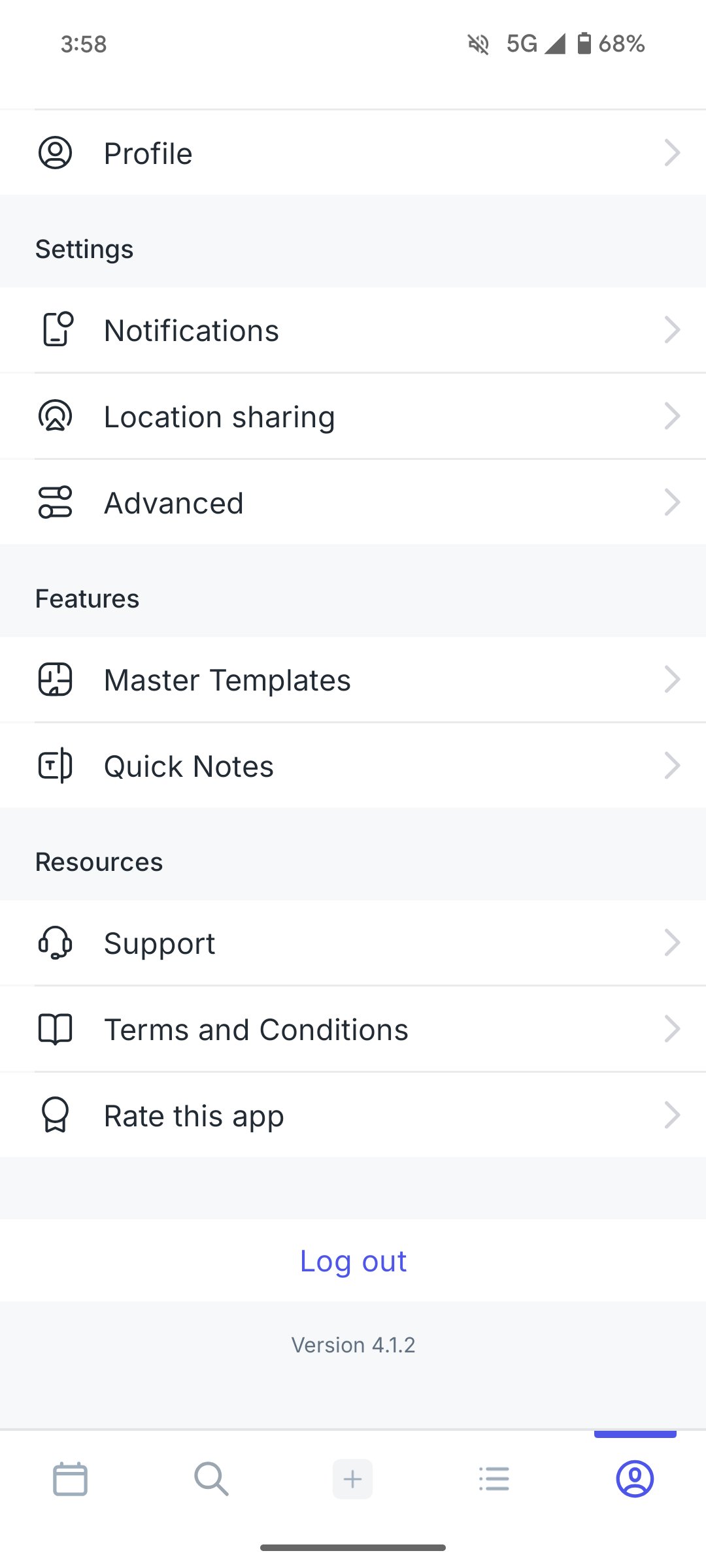
You will find this section by clicking on the 3 dots to the bottom right of the main page. This section includes your Profile and Settings.
Office
If you are included in more than one office through your Agency you have the ability to switch between the offices in this section. Click on current office name and it will show you a list of the other offices that you are a User in.
My Profile
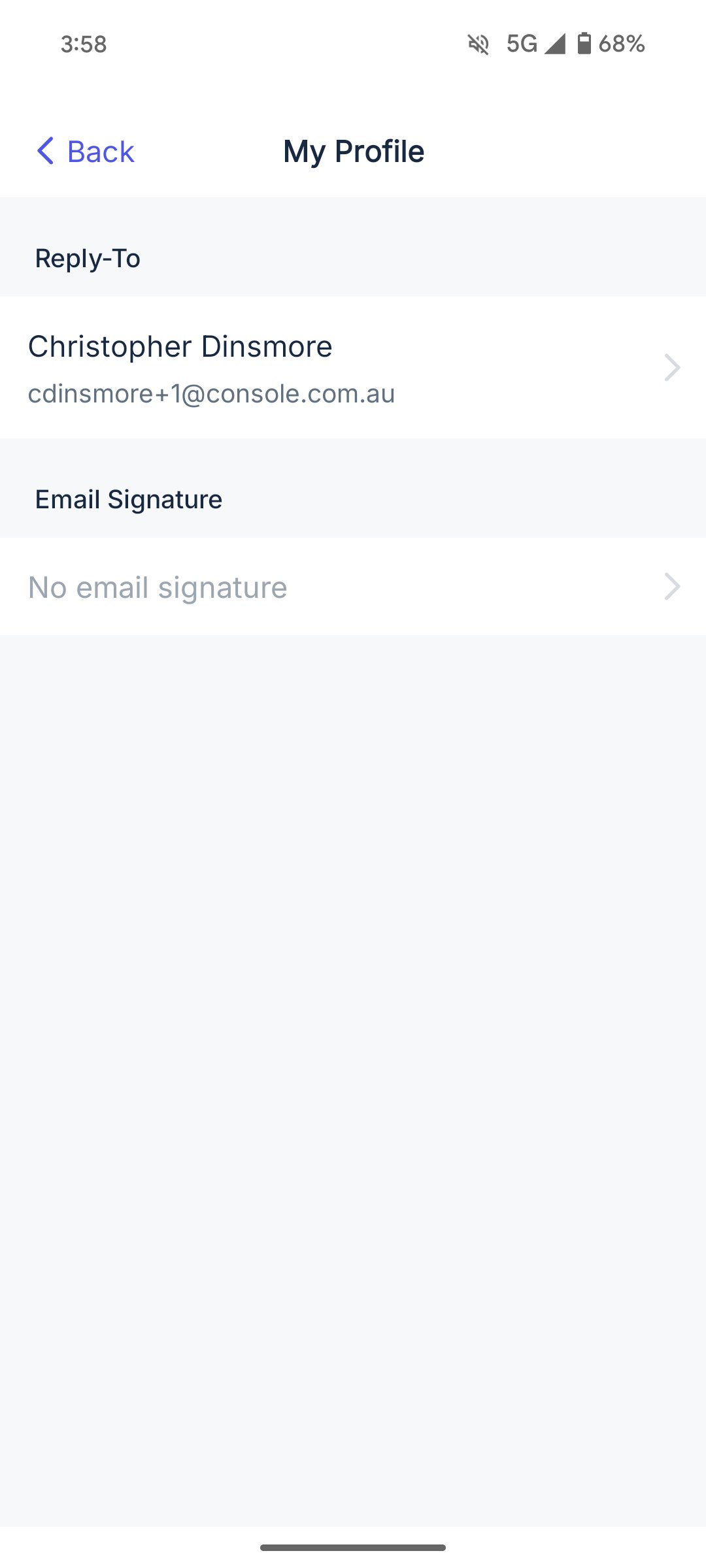
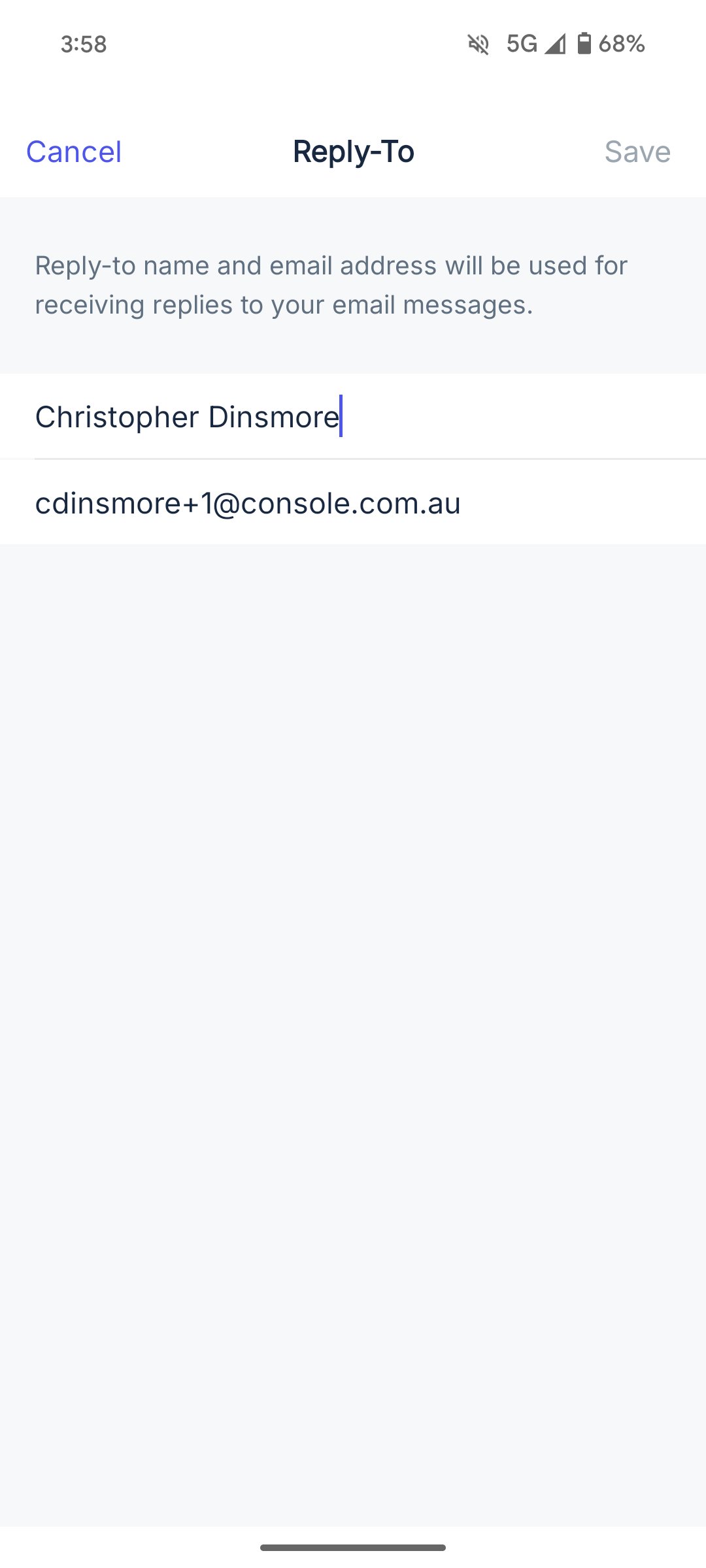
Takes you to your profile details. You have the ability to update this information by clicking in either the Reply To or Email Signature body.
Advanced
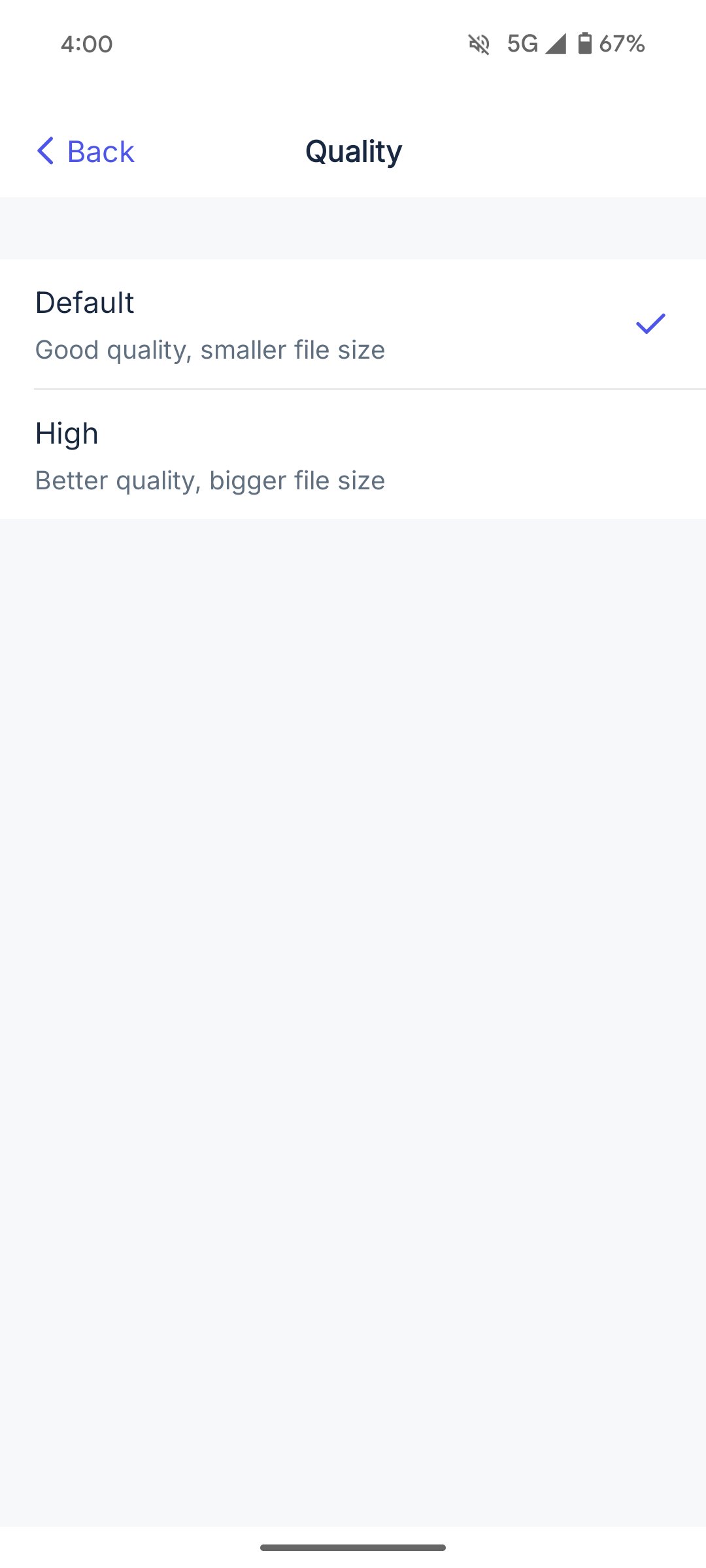
Refers to the background settings for Reapit PM and includes, Photo Quality settings, the ability to turn on and off the saving to your Gallery/ Camera Roll on your phone, clearing out the Cached Data and syncing your Inspections to your Calendar.
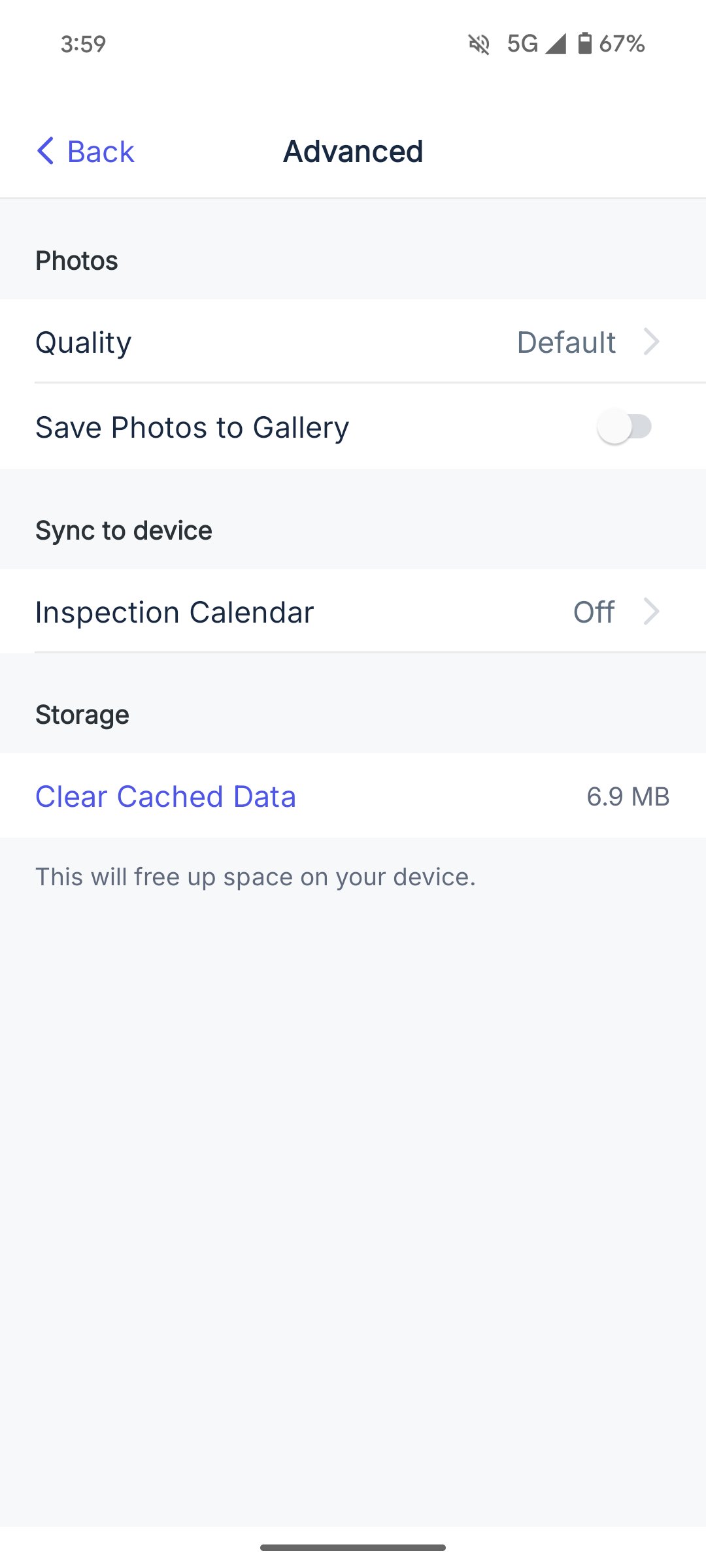
Photo Quality
Allows you to choose between the Default or High quality which relates to the size of the photo you are taking.
Clear Cached Data
We recommend that this option is only used when requested by a Reapit PM Support Specialist.
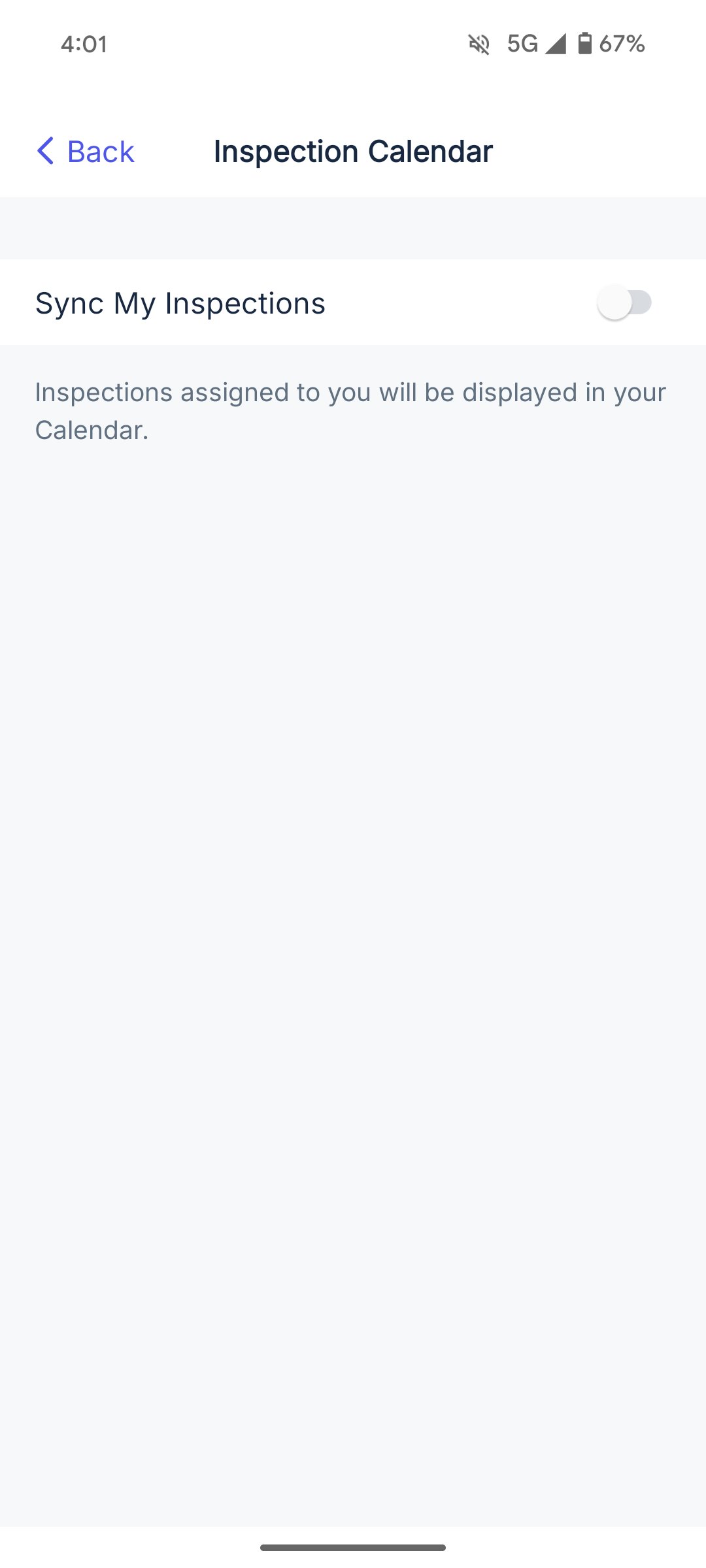
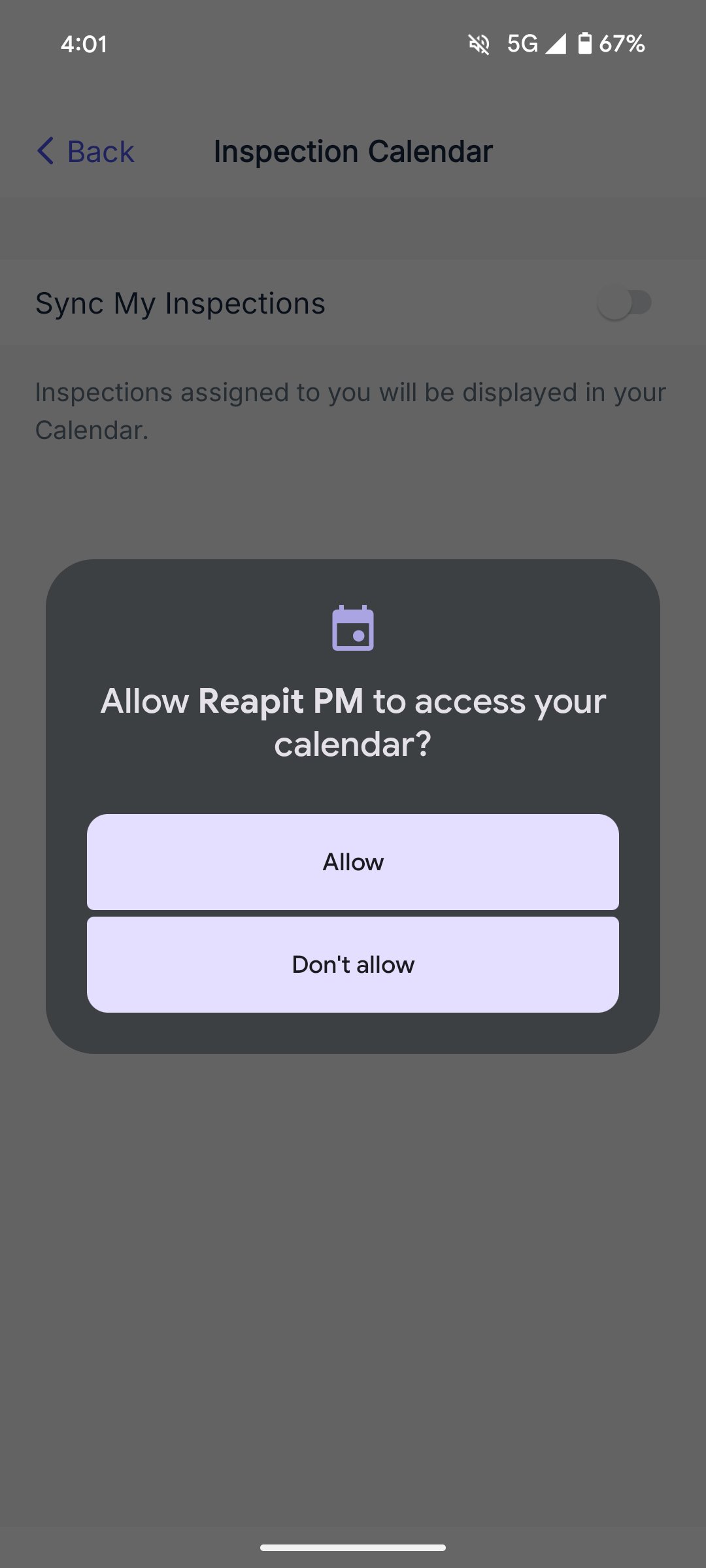
Sync My Inspections
You have the option to sync your inspections to your calendar on your device.