'%20d='M0%208a8%208%200%200%201%208-8h24a8%208%200%200%201%208%208v24a8%208%200%200%201-8%208H8a8%208%200%200%201-8-8V8Z'/%3e%3cpath%20fill='%23fff'%20d='M8.375%2013v14L20.5%2034l12.124-7v-7.737l-1.687-.975-2.806-1.62-1.082-.624v4.83l-.002%204.83H13.95V16.07l3.275-1.89%202.192-1.265%201.082-.625%203.275%201.877%202.192%201.256%201.083.62V9.782L20.5%206%208.376%2013Z'/%3e%3cdefs%3e%3clinearGradient%20id='reapit-pm__a'%20x1='20.702'%20x2='20.702'%20y1='.351'%20y2='31.228'%20gradientUnits='userSpaceOnUse'%3e%3cstop%20stop-color='%235573FD'/%3e%3cstop%20offset='.575'%20stop-color='%234E56EA'/%3e%3c/linearGradient%3e%3c/defs%3e%3c/svg%3e)
Reapit PM Inspect Maintenance
Reapit PM Inspect will allow you to create and/ or edit the maintenance request when doing an inspection, and then you can send a work order directly from the request.
Creating a Maintenance Request
1. To create a Maintenance Request open the Property in the App by clicking on Magnifying Glass symbol top the bottom of the screen.
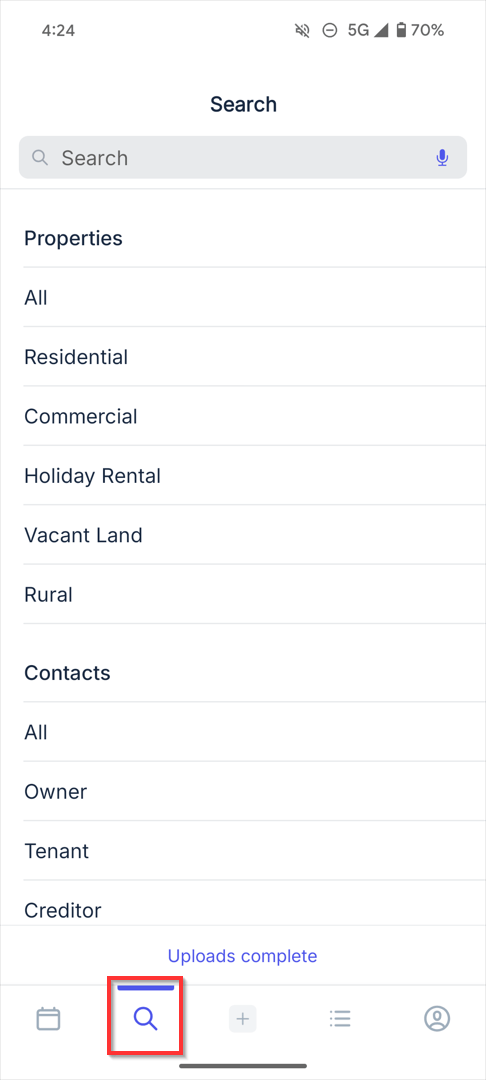
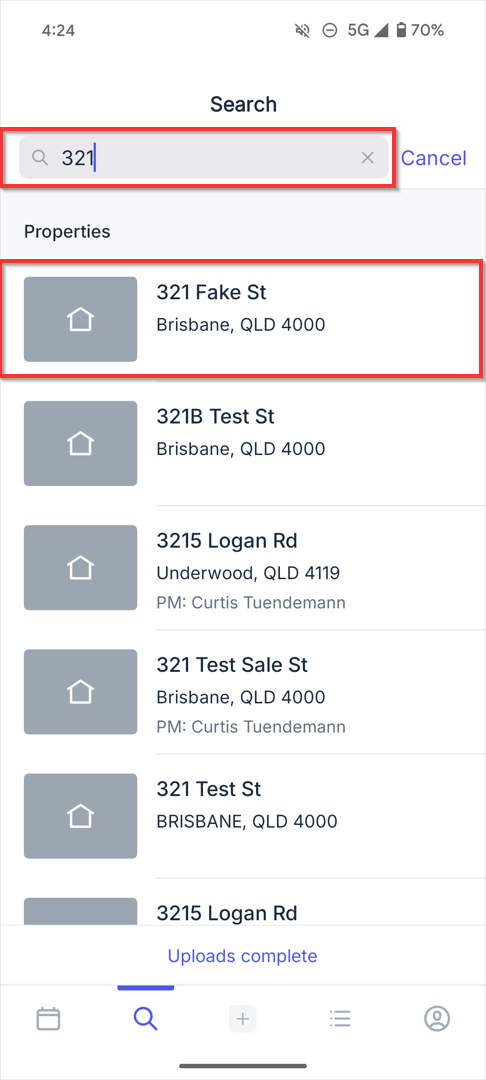
2. Search for Property that you would like to create Maintenance.
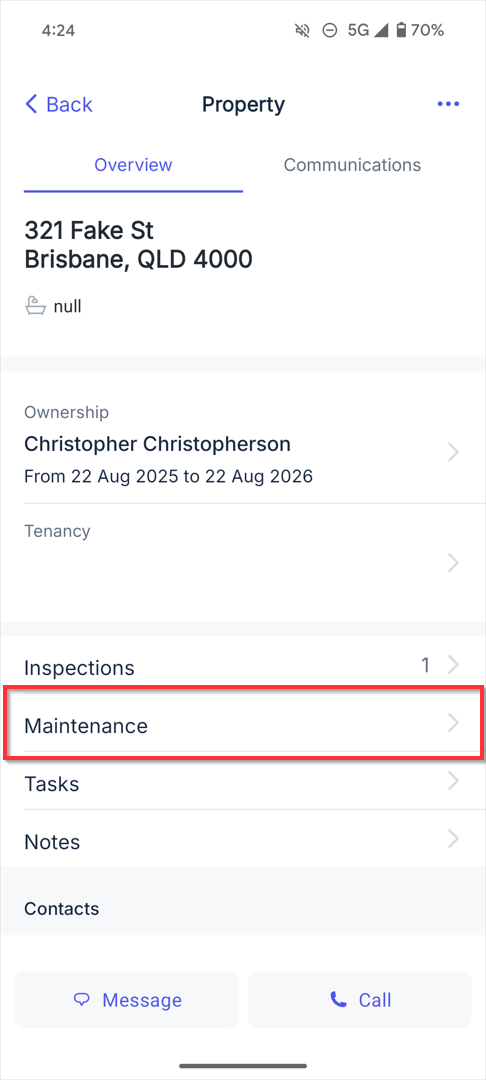
3. Click to open the relevant Property. Click on Maintenance, when in the Property.
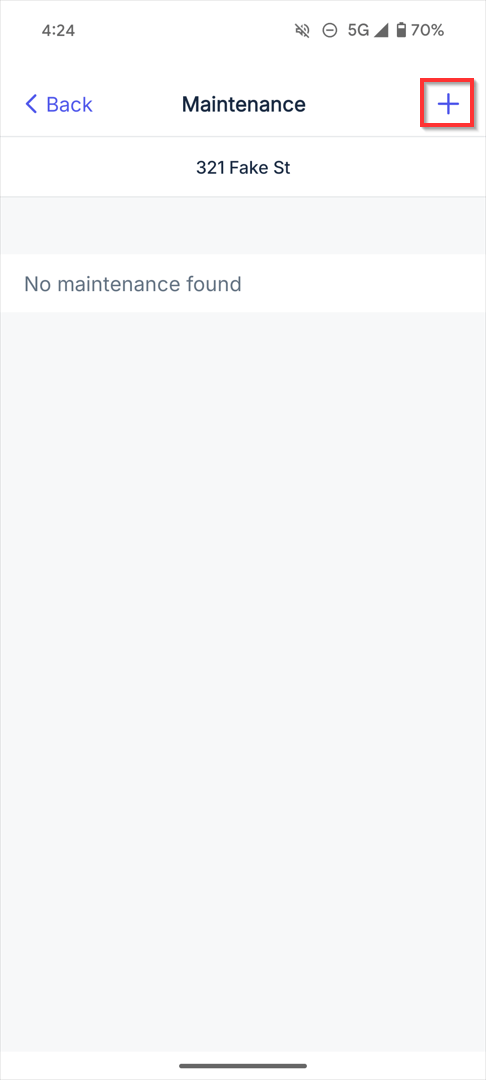
4. Click on the + to the top right to add New Maintenance
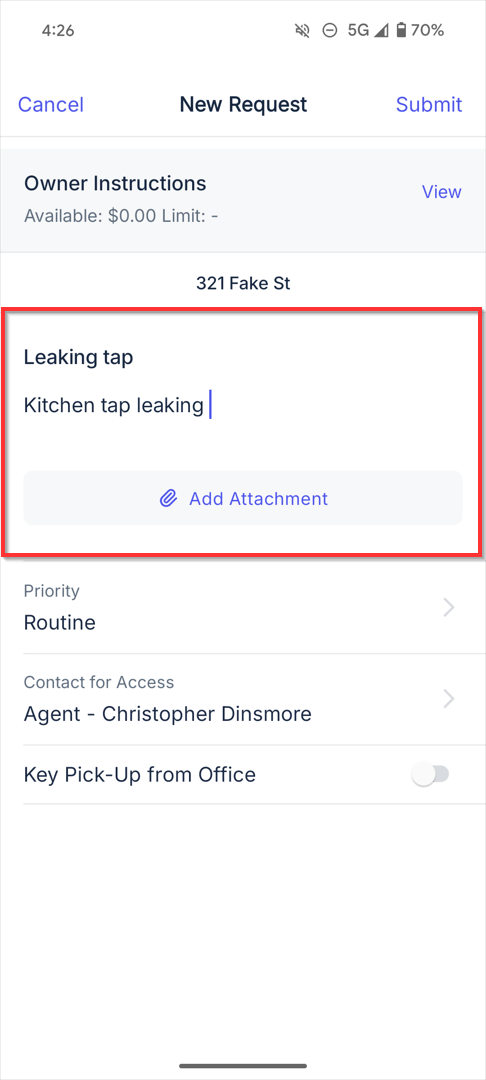
6. Add the Title/Subject & Details. Take a photo, if required by clicking on the Camera icon.
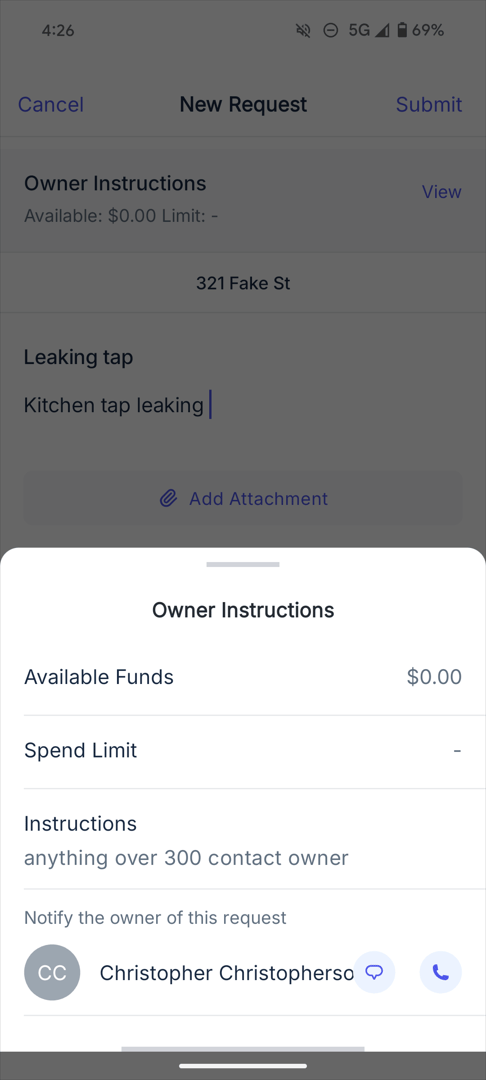
Note: You can view the owners available funds when viewing/ creating maintenance requests and work orders.
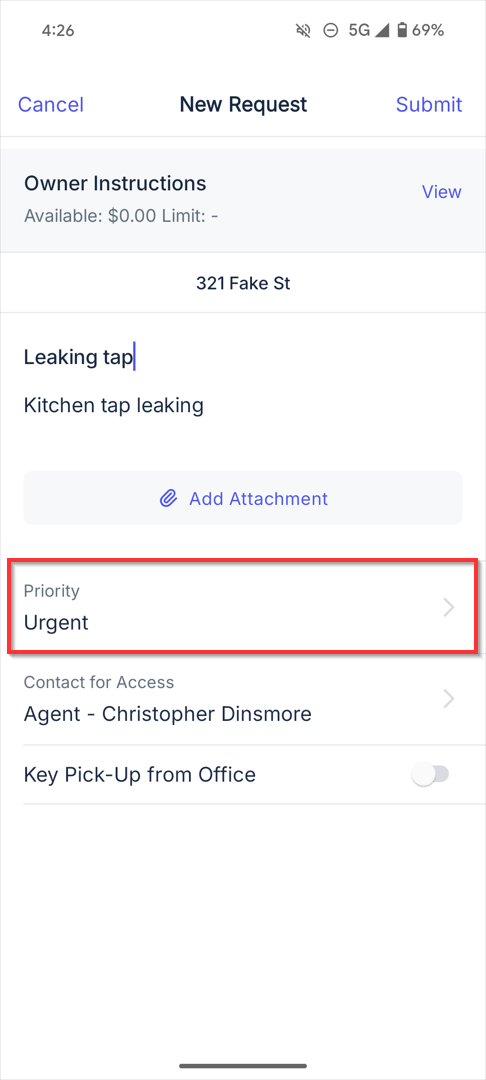
8. Select the Priority.
9. Select who is to be contacted for access to the Property
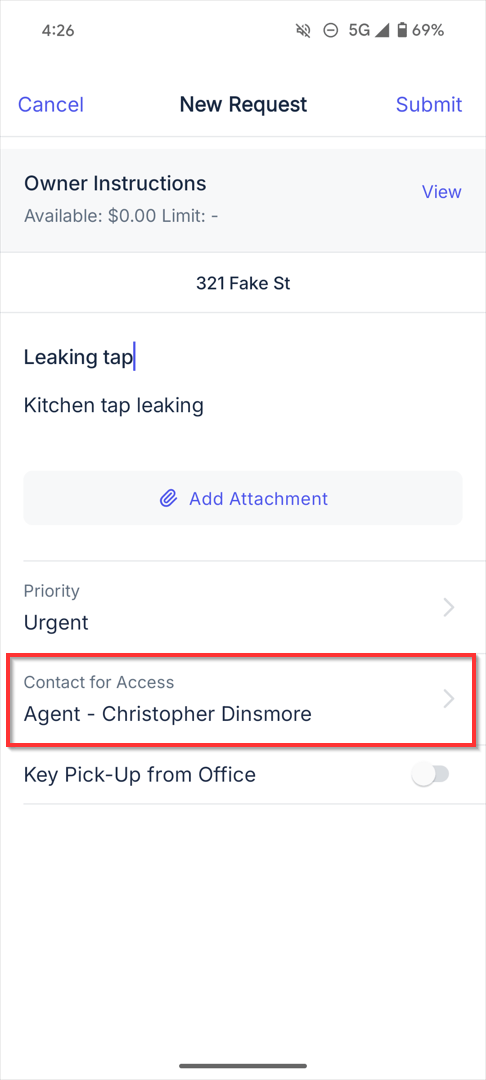
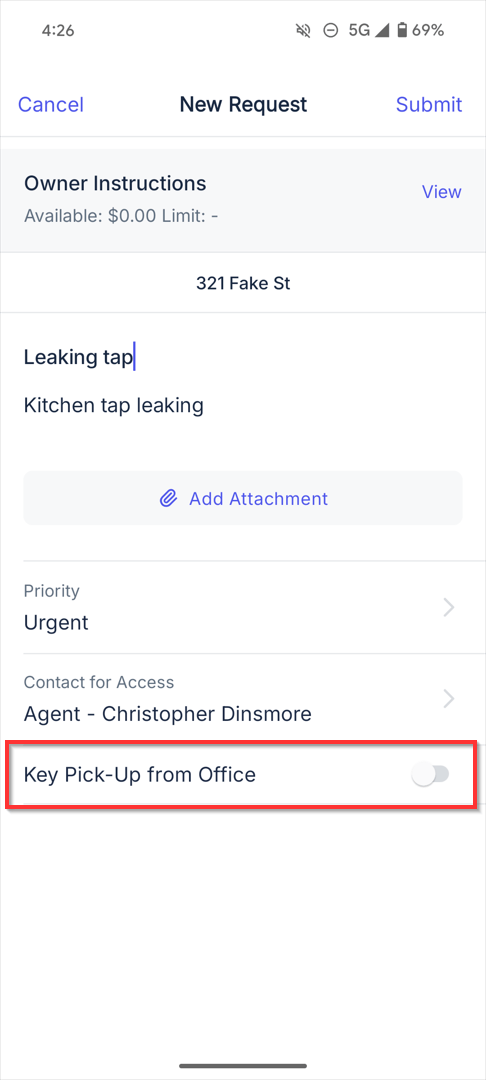
10. You can also advise the Tradesman to pick up the keys from the office, if required, by clicking on the toggle button.
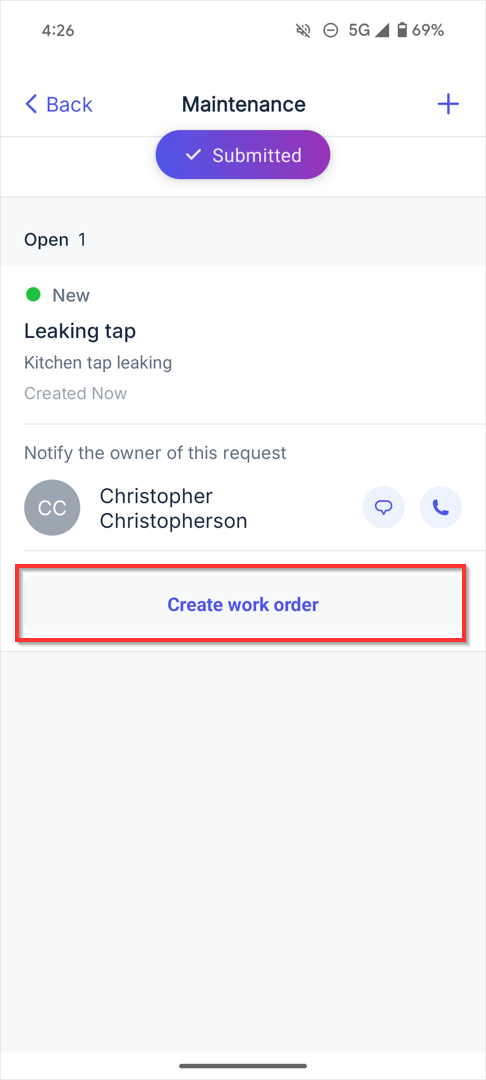
11. Once you have completed the Maintenance Request you click on Submit.
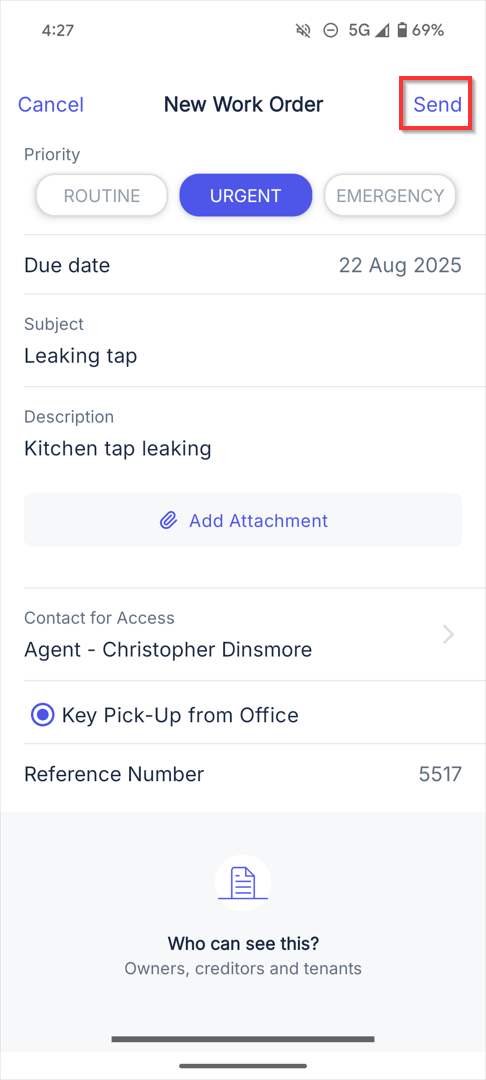
12. Once you have completed this step your Maintenance Request is ready to be actioned in Reapit PM. Alternatively, you can select Create Work Order from within the app or give the owner a call to notify him of the request.
13. Assign to a contractor, select the priority, enter the due date, subject, description and add an attachment.
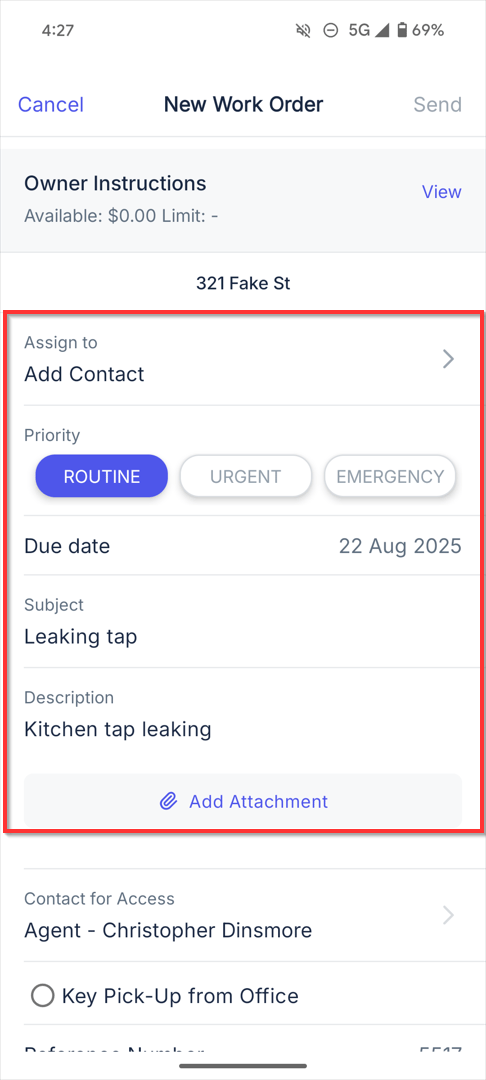
14. Select the contact for access or if you would like the tradesperson to pick up the keys from the office.
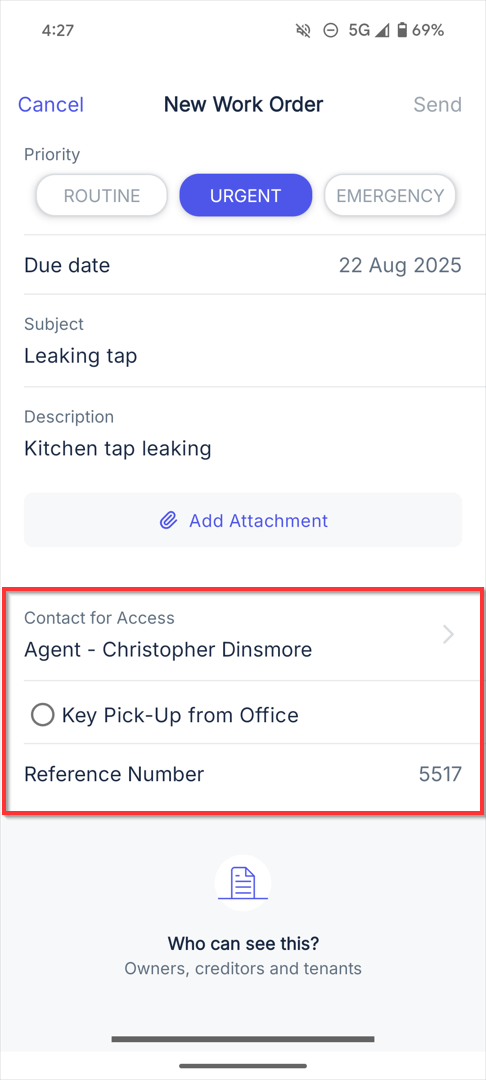
15. Click Send.