'%20d='M0%208a8%208%200%200%201%208-8h24a8%208%200%200%201%208%208v24a8%208%200%200%201-8%208H8a8%208%200%200%201-8-8V8Z'/%3e%3cpath%20fill='%23fff'%20d='M8.375%2013v14L20.5%2034l12.124-7v-7.737l-1.687-.975-2.806-1.62-1.082-.624v4.83l-.002%204.83H13.95V16.07l3.275-1.89%202.192-1.265%201.082-.625%203.275%201.877%202.192%201.256%201.083.62V9.782L20.5%206%208.376%2013Z'/%3e%3cdefs%3e%3clinearGradient%20id='reapit-pm__a'%20x1='20.702'%20x2='20.702'%20y1='.351'%20y2='31.228'%20gradientUnits='userSpaceOnUse'%3e%3cstop%20stop-color='%235573FD'/%3e%3cstop%20offset='.575'%20stop-color='%234E56EA'/%3e%3c/linearGradient%3e%3c/defs%3e%3c/svg%3e)
Receipting for Commercial Tenants
This article is a guide to receipt rent, bond, invoices and deposits for commercial tenants in Reapit PM. The process in this article include: Receipting Rent, Bond, Invoices and Deposits.
Overview
Receipting for Commercial Tenants
This article is a guide to receipt rent, bond, invoices and deposits for commercial tenants in Reapit PM.
The process in this article include:
- Receipting Rent, Bond, Invoices and Deposits.
Receipting Rent, Bond, Invoices and Deposits
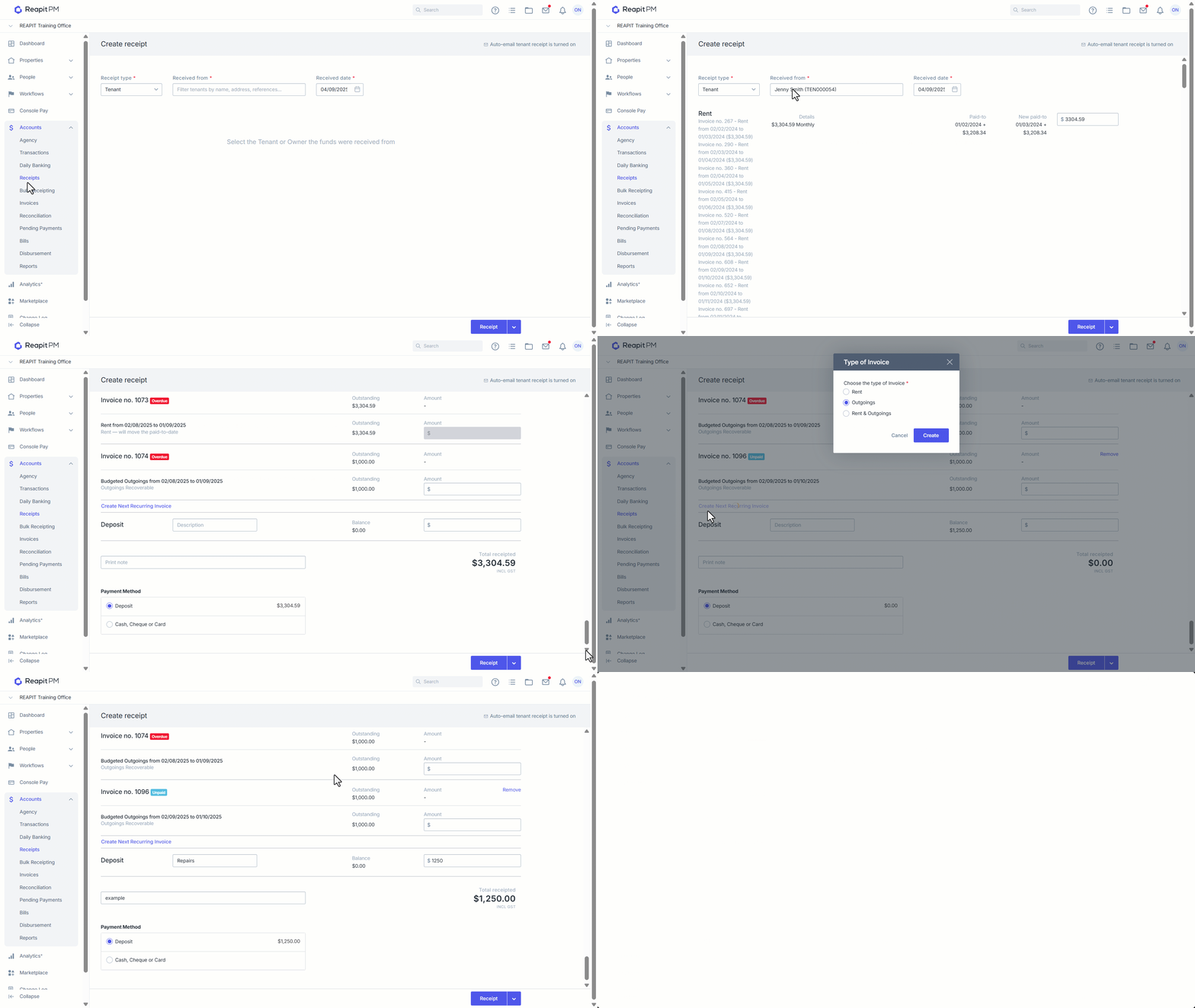
- Navigate to Accounts > Receipts.
- Search and select the Received from field using the tenants name or address.
- The receipt options display:
- Rent - within the New paid-to field, enter the amount to be receipted. If a full rent period payment is made the New Paid to date updates or if only a part payment is made then the part payment will display.
- Rent invoices raised through the recurring rent screen are receipted to as rent. You’ll see current outstanding rent invoices and their details below the rent heading.
- Bond - enter the amount of bond. Outstanding amounts are shown, for tenancies where bond is held externally the option to receipt to bond will not display.
- Outstanding Invoices will also appear, enter the amount paid next to the appropriate invoice
Note: If receipting past the date of either a rent review or a rent invoice credit, PM will auto adjust and apply these events during receipting.
Create Next Recurring Invoice - This allows you to generate an upcoming recurring invoice when receipting past the current invoice. Select the type of invoice and click Create.
Enter the amount of deposit and add Description (if applicable). Enter a Print note if required.
Choose the Payment Method.
Deposited: is used when monies have been deposited directly into the trust account.
Cash, Cheque or Card: is used when selected, a side menu displays. Enter the total amount for each method and details then click Save.
Note: The amounts make up part of your cash drawer for your daily banking.
- Click Receipt. A confirmation prompt appears and a receipt downloads to your computer.
Note: You are not required to print a receipt unless the tenant presents cash at your office.