'%20d='M0%208a8%208%200%200%201%208-8h24a8%208%200%200%201%208%208v24a8%208%200%200%201-8%208H8a8%208%200%200%201-8-8V8Z'/%3e%3cpath%20fill='%23fff'%20d='M8.375%2013v14L20.5%2034l12.124-7v-7.737l-1.687-.975-2.806-1.62-1.082-.624v4.83l-.002%204.83H13.95V16.07l3.275-1.89%202.192-1.265%201.082-.625%203.275%201.877%202.192%201.256%201.083.62V9.782L20.5%206%208.376%2013Z'/%3e%3cdefs%3e%3clinearGradient%20id='reapit-pm__a'%20x1='20.702'%20x2='20.702'%20y1='.351'%20y2='31.228'%20gradientUnits='userSpaceOnUse'%3e%3cstop%20stop-color='%235573FD'/%3e%3cstop%20offset='.575'%20stop-color='%234E56EA'/%3e%3c/linearGradient%3e%3c/defs%3e%3c/svg%3e)
Navigation Icons
This article will give you a guide to the top navigation icons within Reapit PM. The top navigation icons provide information and allow you to communicate with your contacts. Below are the top navigation icons: User Profiles Notifications Conversations Documents Tasks Help Menu Search Box
This article will give you a guide to the top navigation icons within Reapit PM.
The top navigation icons provide information and allow you to communicate with your contacts.
In total there are 7 Icons which are designed to provide data and assist you in communicating and creating tasks to help your business.
Below are the top navigation icons:
- User Profiles
- Notifications
- Conversations
- Documents
- Tasks
- Help Menu
- Search Box
Navigation Bar
1. Navigate to theTop Navigation Bar.
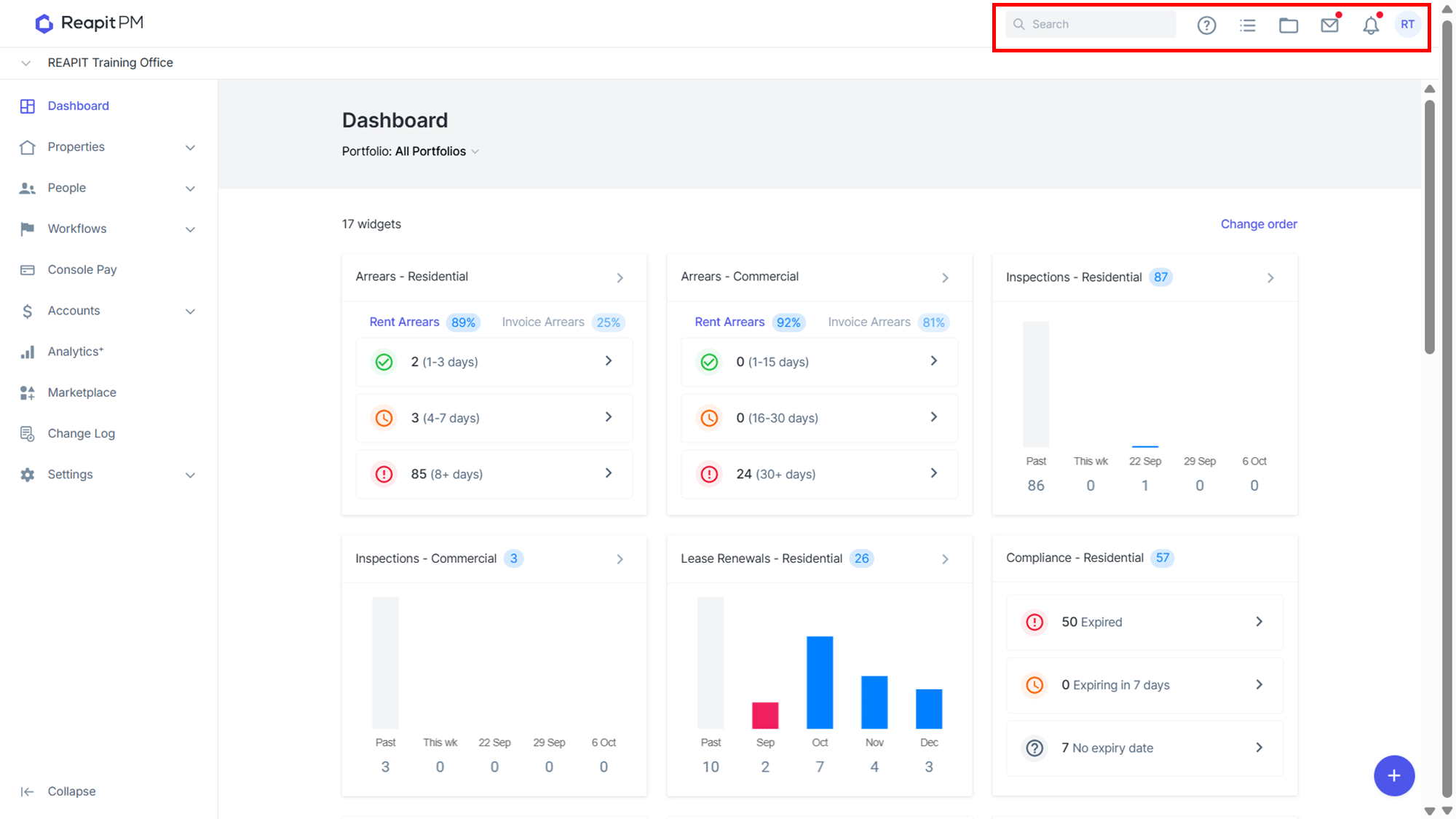
- Search Box -
- Search for someone in the PM ( Tenant, Owner, Creditor).
- Select the feedback to see their details.

- Help Menu - Allow you to learn more about
- Courses
- Read Forums
- Watch Webinars
- Read Knowledge Base Articles
- Live Chat with support
- Office ID number (Customer support will ask you for this number)

- Tasks - Tasks that you have created or that have been assigned to you.
- List of tasks in detail and time stamped.

- Documents - Shared Office documents.

- Conversations - This is where all your emails sit. You will see from here what’s been sent and then also if they’ve been opened.
- You can click on them to see the details of the email or sms.
- Email- View details and time stamp when it was delivered, opened and the body of the email and its attachments.
- Reply to SMS messages and look at the details of what has been sent.
- Failed communications and the time stamp on when it failed.

- Notifications - New notification will come up here if there’s any maintenance that’s been logged through the tenant App.
You will be alerted here when:
- A tenant submits a new maintenance request
- A tenant submits a self inspection report
- Owners and tenants indicate lease renewal intentions
- A tenant reviews. Signs and completes an entry inspection.

- User Profiles:
- You can change the name, email address & signature.
- Manage and add second layer security to your 2 Factor Authentication.
- You can provide Feedback.
- You can also refer PM to a friend.
- You can log out.
