'%20d='M0%208a8%208%200%200%201%208-8h24a8%208%200%200%201%208%208v24a8%208%200%200%201-8%208H8a8%208%200%200%201-8-8V8Z'/%3e%3cpath%20fill='%23fff'%20d='M8.375%2013v14L20.5%2034l12.124-7v-7.737l-1.687-.975-2.806-1.62-1.082-.624v4.83l-.002%204.83H13.95V16.07l3.275-1.89%202.192-1.265%201.082-.625%203.275%201.877%202.192%201.256%201.083.62V9.782L20.5%206%208.376%2013Z'/%3e%3cdefs%3e%3clinearGradient%20id='reapit-pm__a'%20x1='20.702'%20x2='20.702'%20y1='.351'%20y2='31.228'%20gradientUnits='userSpaceOnUse'%3e%3cstop%20stop-color='%235573FD'/%3e%3cstop%20offset='.575'%20stop-color='%234E56EA'/%3e%3c/linearGradient%3e%3c/defs%3e%3c/svg%3e)
Recurring Monthly Outgoings
This article will walk you through how to use the Recurring Month Outgoings feature in Reapit PM. The processes in this article include: Setup Recurring Monthly Outgoing Invoices How to Change the Recurring Outgoings Invoice Schedule What happens if a tenant doesn’t have an email address?
Overview
Recurring Monthly Outgoings for Commercial
This article will walk you through how to use the Recurring Month Outgoings feature in Reapit PM.
The processes in this article include:
- Setup Recurring Monthly Outgoing Invoices
- How to Change the Recurring Outgoings Invoice Schedule
- What happens if a tenant doesn’t have an email address?
Setup Recurring Monthly Outgoing Invoices
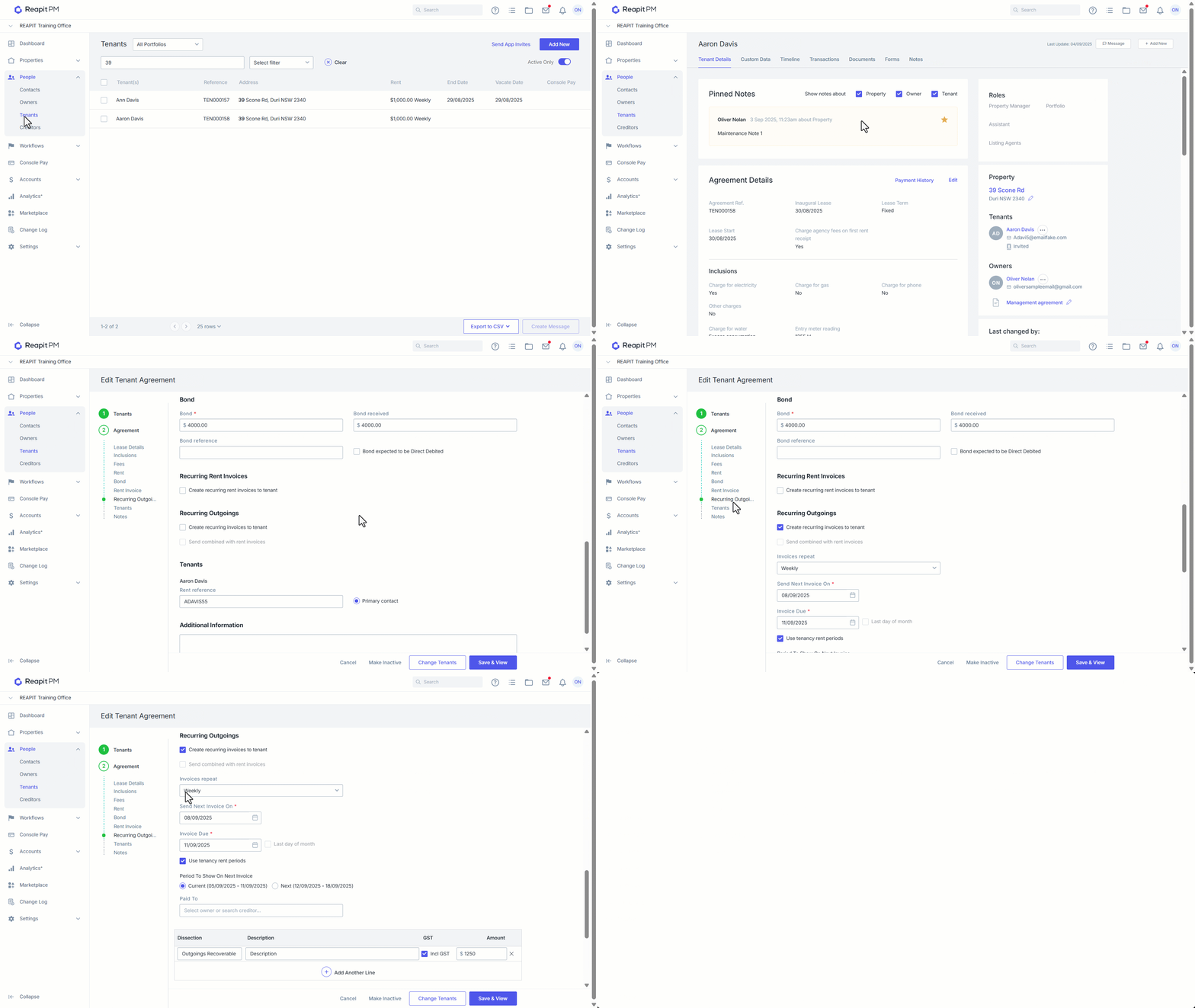
- Click on People.
- Click on Tenants.
- Search and Select the tenancy you wish to apply the recurrence to.
- Click on Edit.
- Scroll down to Recurring Monthly Outgoings, then tick the checkbox to enable.
- Enter the date you want to Send the Next Invoice to the tenant. This date should be between the 1st and the 28th of the month. If a date outside this is selected, the closest available date will be selected for you.
- Enter the Invoice Due Date, or tick Last Day of the Month. Choosing this will schedule each due date to be the last day of each month.
- You then have the option to show which period this invoice lands between, such as the Current period or the Next period. Choose the appropriate tick box to reflect this on the invoice to the tenant. The period will be appended to the end of the description by default.
- Select the Dissection that reflects appropriately to the invoice, such as Outgoings Recoverable, then enter a Description on the invoice. Note that this will appear on the invoice sent to the tenant. ****GST will be ticked by default, then enter the total amount due. If the line item has a GST component, then the total GST inclusive amount should be entered into the Amount field.
- If required, you can choose to add multiple lines to this invoice by selecting Add Another Line.
- Once done, select Save and View.
Note: The invoice will then appear in the Invoices list of the tenancy agreement, and in the Invoices Screen under Accounts.
How to Change the Recurring Outgoings Invoice Schedule
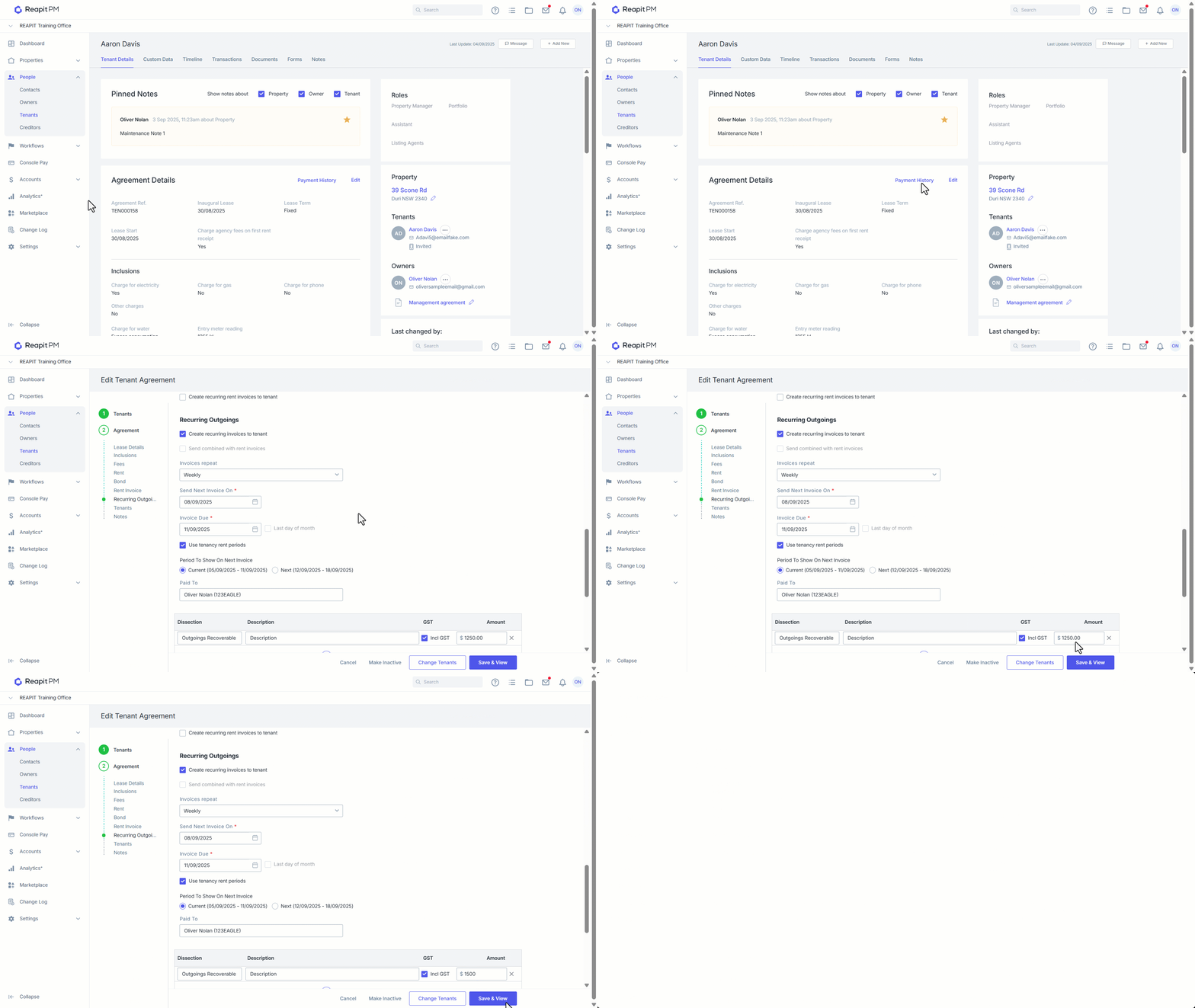
- To change the Outgoings Invoice Schedule, you can return at any time to the Tenancy Agreement you wish to change this for, then click Edit.
- Scroll down to the Recurring Outgoings Invoice currently setup, then make the appropriate changes.
- Once done, click Save & View to save your changes.
- You will only be able to change the schedule for future invoices not yet sent.
What happens if a tenant doesn’t have an email address?
If a tenant doesn't have an email address in Reapit PM but has an automated recurring invoice set up - the system will email the invoice to the 'Office email address' that has been entered (in the 'Office' area of settings). This email will contain the invoice attached, as well as a message warning you that the tenant doesn't have an email address. This enables you to manually issue this invoice to the tenant, and obtain a valid email address from the tenants if possible, to avoid this problem in future.