'%20d='M0%208a8%208%200%200%201%208-8h24a8%208%200%200%201%208%208v24a8%208%200%200%201-8%208H8a8%208%200%200%201-8-8V8Z'/%3e%3cpath%20fill='%23fff'%20d='M8.375%2013v14L20.5%2034l12.124-7v-7.737l-1.687-.975-2.806-1.62-1.082-.624v4.83l-.002%204.83H13.95V16.07l3.275-1.89%202.192-1.265%201.082-.625%203.275%201.877%202.192%201.256%201.083.62V9.782L20.5%206%208.376%2013Z'/%3e%3cdefs%3e%3clinearGradient%20id='reapit-pm__a'%20x1='20.702'%20x2='20.702'%20y1='.351'%20y2='31.228'%20gradientUnits='userSpaceOnUse'%3e%3cstop%20stop-color='%235573FD'/%3e%3cstop%20offset='.575'%20stop-color='%234E56EA'/%3e%3c/linearGradient%3e%3c/defs%3e%3c/svg%3e)
Configuring Auto Reminders for Inspections
This article will run through how Automated SMS or email reminders can be sent to tenants before the scheduled inspection date.
This article will run through how Automated SMS or email reminders can be sent to tenants before the scheduled inspection date. A standard template has been created for both SMS and email messages. You can edit this template as required by going to the Settings > Templates menu.
Note: Automated inspection reminders will be sent exclusively to tenants who have received a Routine Inspection Entry Notice. These notices can be accessed through the Inspection Menu.
Furthermore, the article will offer guidance on customising your Entry and Routine SMS templates.
Advantages of SMS Notifications:
- High Engagement: SMS notifications boast a remarkable 98% open rate, ensuring optimal engagement.
- Efficient Response: The average response time for SMS is significantly lower than email, with SMS responses typically received within 4 hours.
- Minimised Disputes: SMS notifications help in reducing disputes arising from unread or misplaced emails, ensuring tenants are well-informed about inspections and other important matters. This demonstrates due diligence in maintaining effective communication with tenants.
- Reduced Arrears: The use of SMS notifications has been effective in decreasing arrears.
- Enhanced Tenant Relationships: The implementation of SMS communication fosters stronger and more positive relationships with tenants.
- Streamlined Communication: SMS notifications contribute to more streamlined and efficient communication processes, leading to increased tenant satisfaction.
How to Customise your Entry and Routine SMS Templates
1. Navigate to Settings > Templates.
2. Scroll down to Routine Inspection Report (Tenant), click the 3 Action Dots and select Edit.
3. Commence modifying the wording within the body of your template, and click Save once completed.
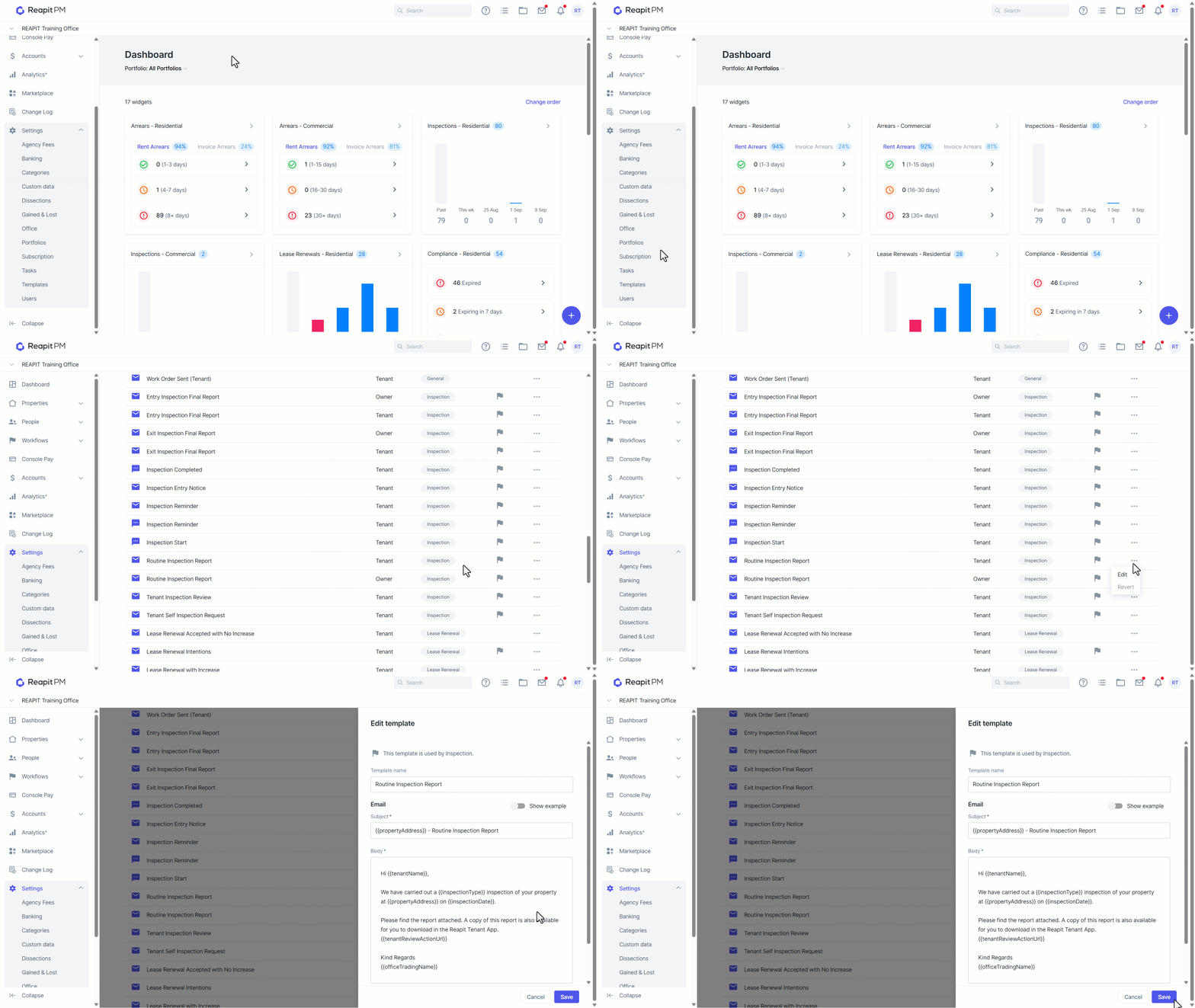
Note: Please ensure to follow the prescribed process while customising your Entry template. In case of inadvertent removal of merge codes, identified by double curly braces {{ }}, promptly reach out to pmsupportanz@reapit.com for assistance.
For additional information on creating and editing templates in Reapit PM, please follow this link: Creating and Editing Templates in Reapit PM
How to Turn on Auto Reminders for Inspections
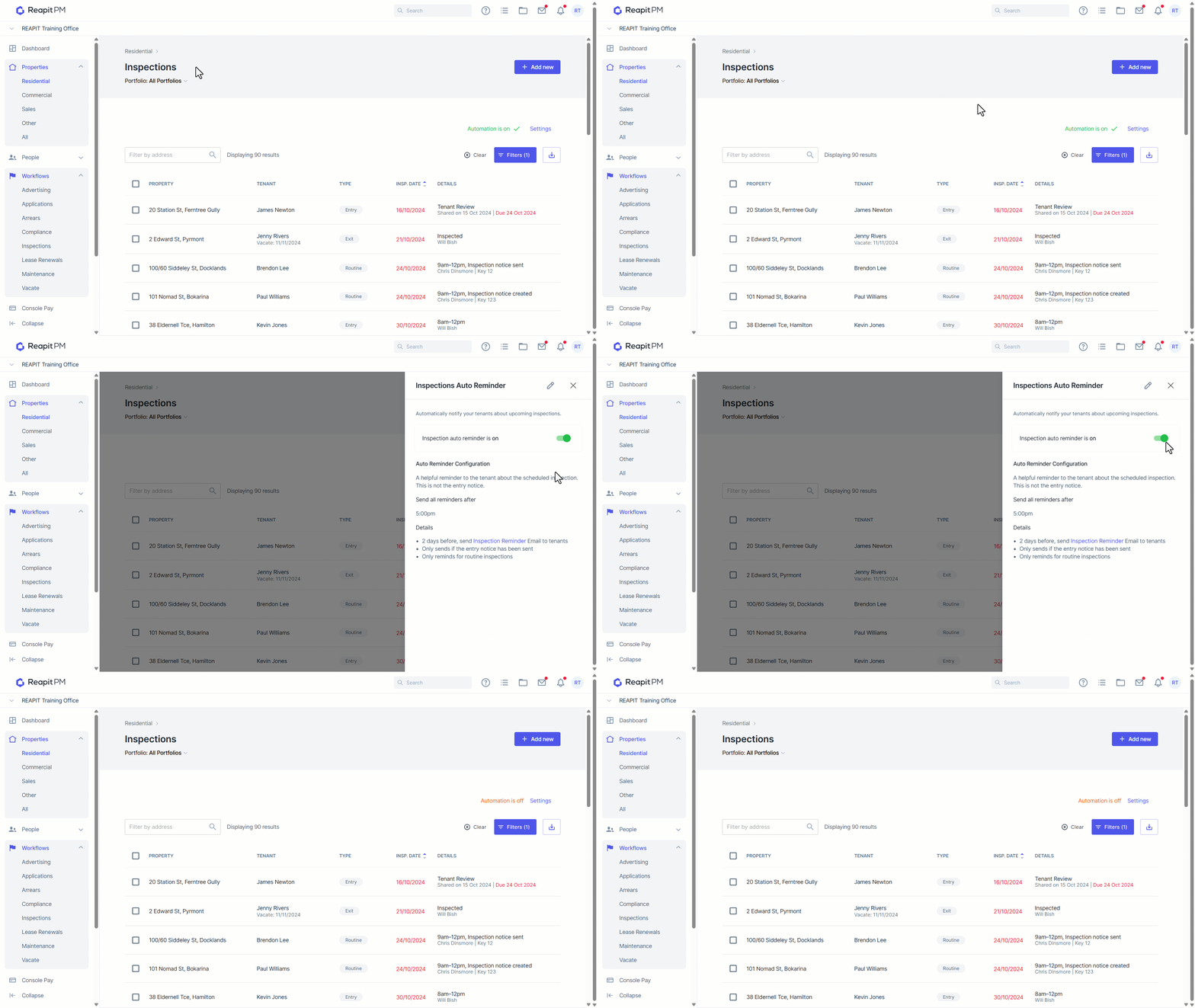
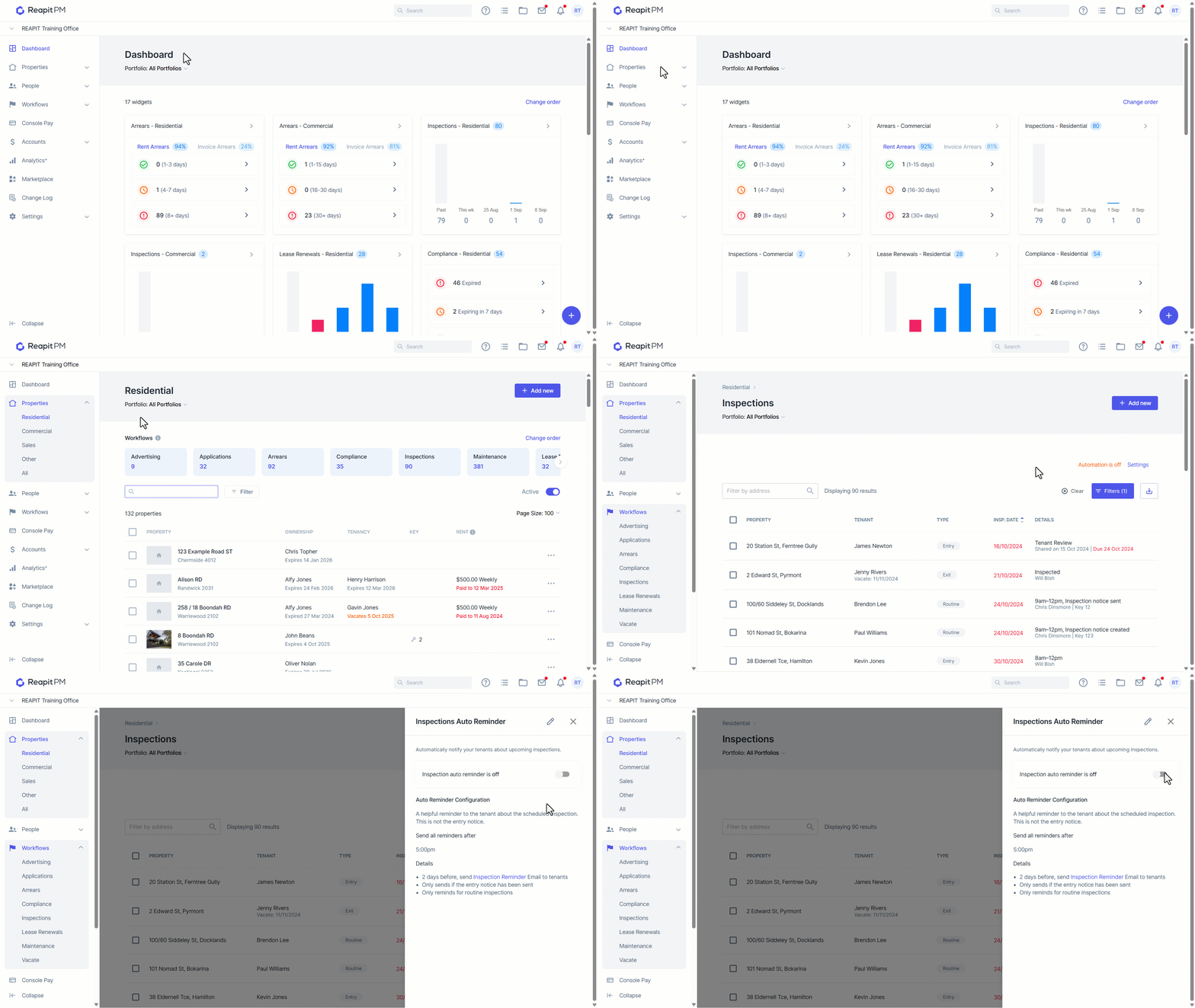
1. Navigate to the drawer on the left-hand side and click Properties > Residential.
2. Select Inspections.
3. In the top right-hand corner, you will see “Automation is off”. Click Settings.
4. Next to ‘Inspection auto-reminder is off’, click on the slider to turn on auto-reminders.
How to Edit the Frequency of Reminders
1. Navigate to the edit pencil.
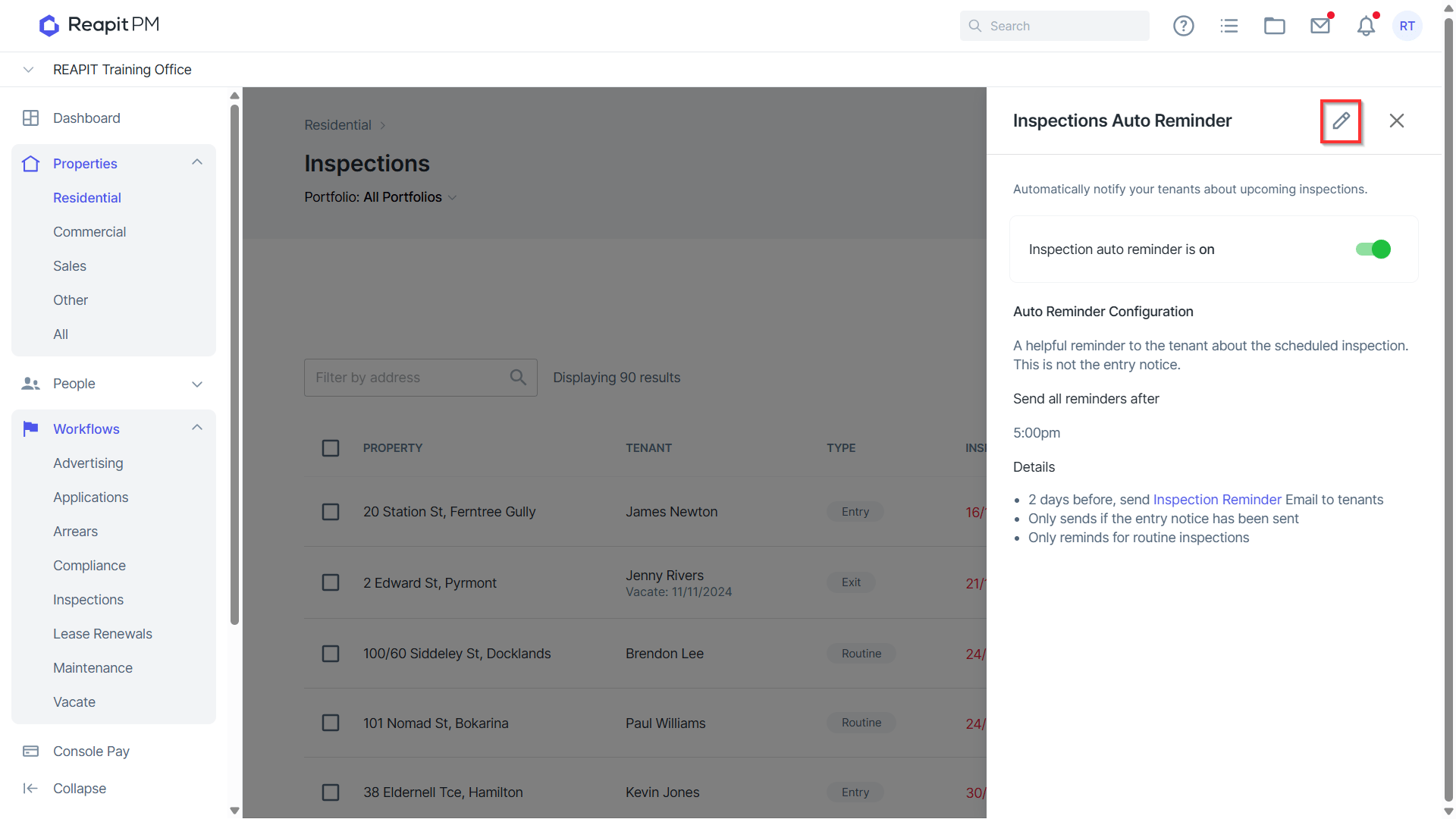
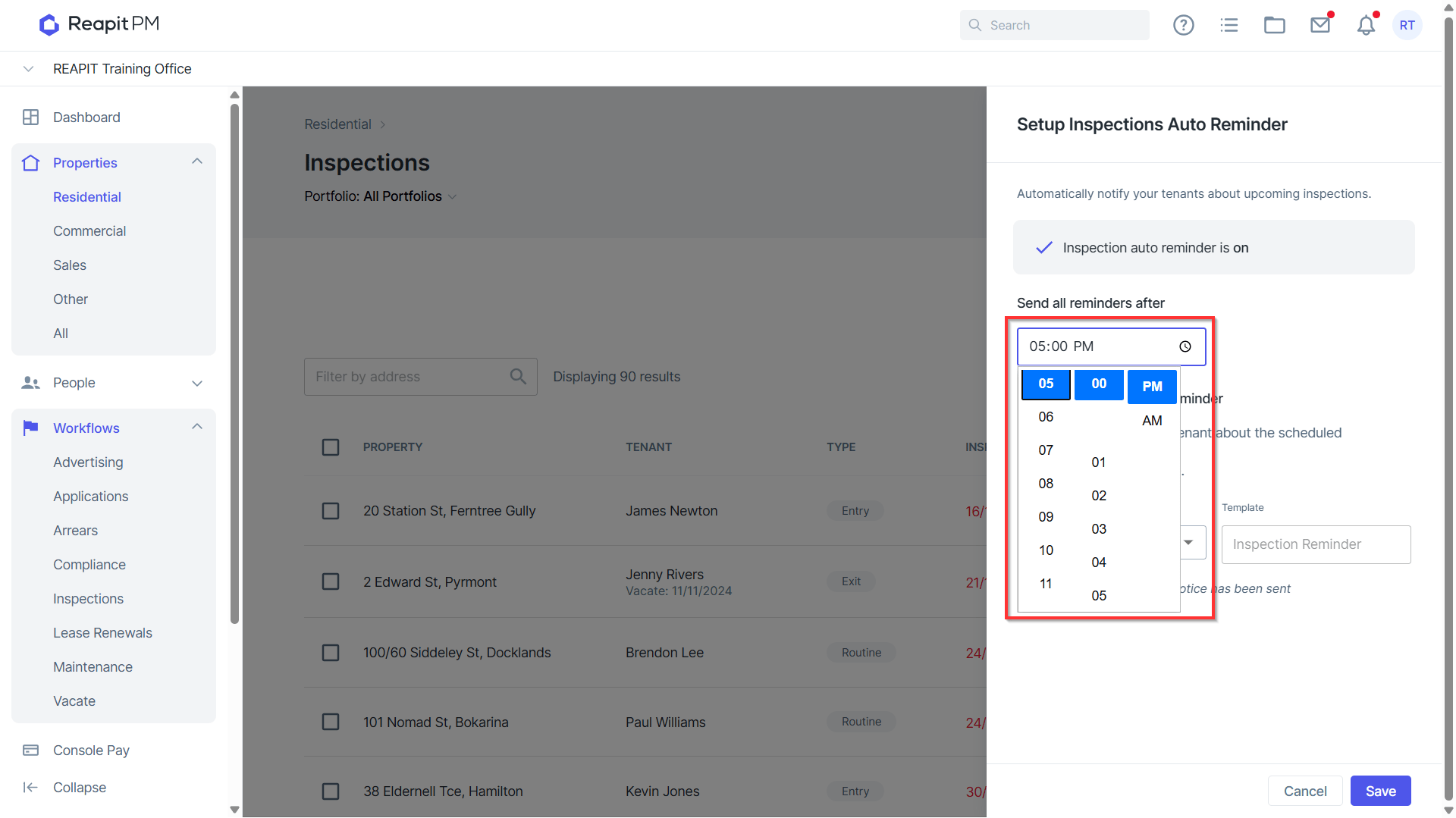
2. Select the time you would like to send all reminders after.
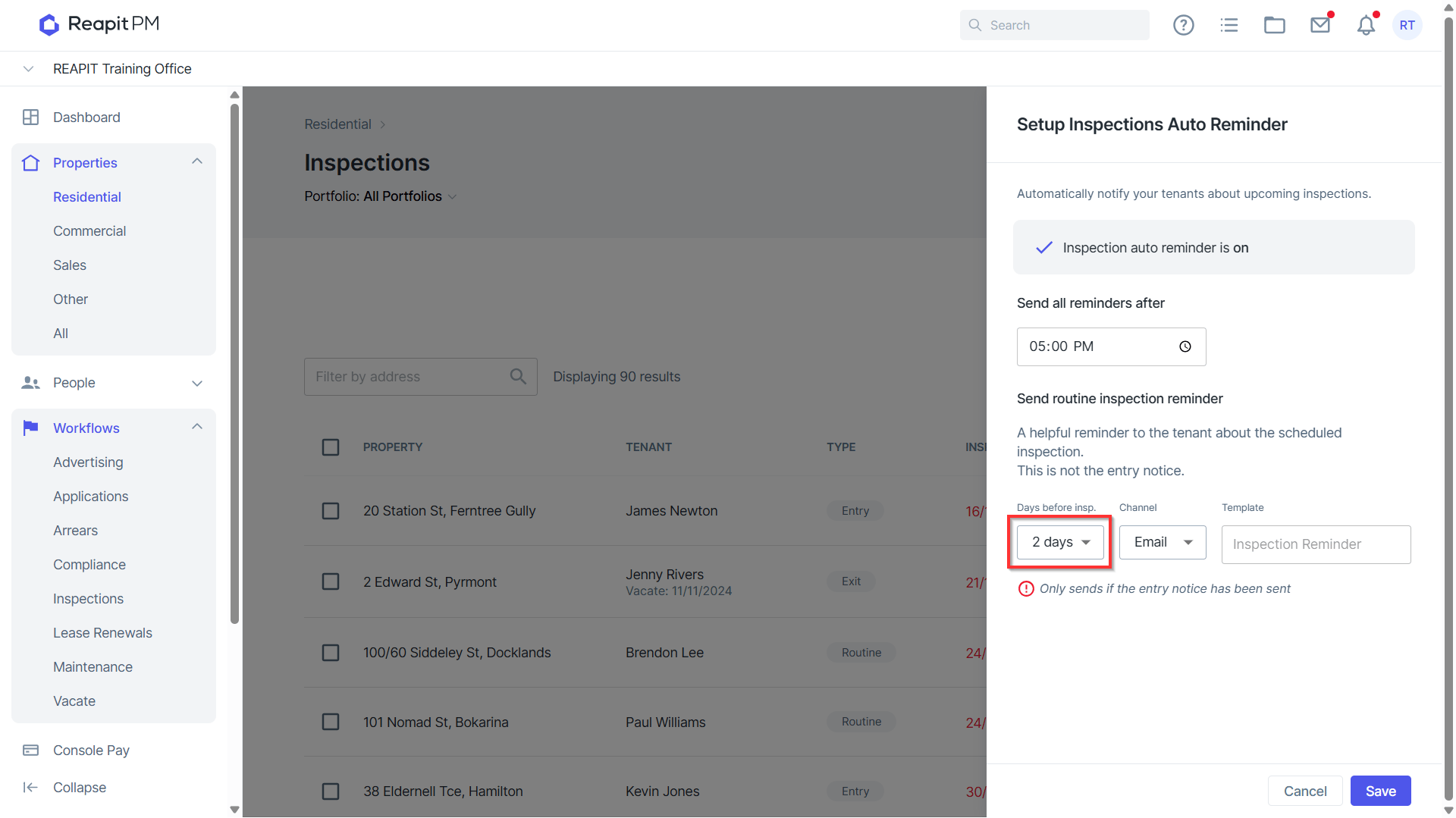
3. Select the number of days before the inspection to send the reminder.
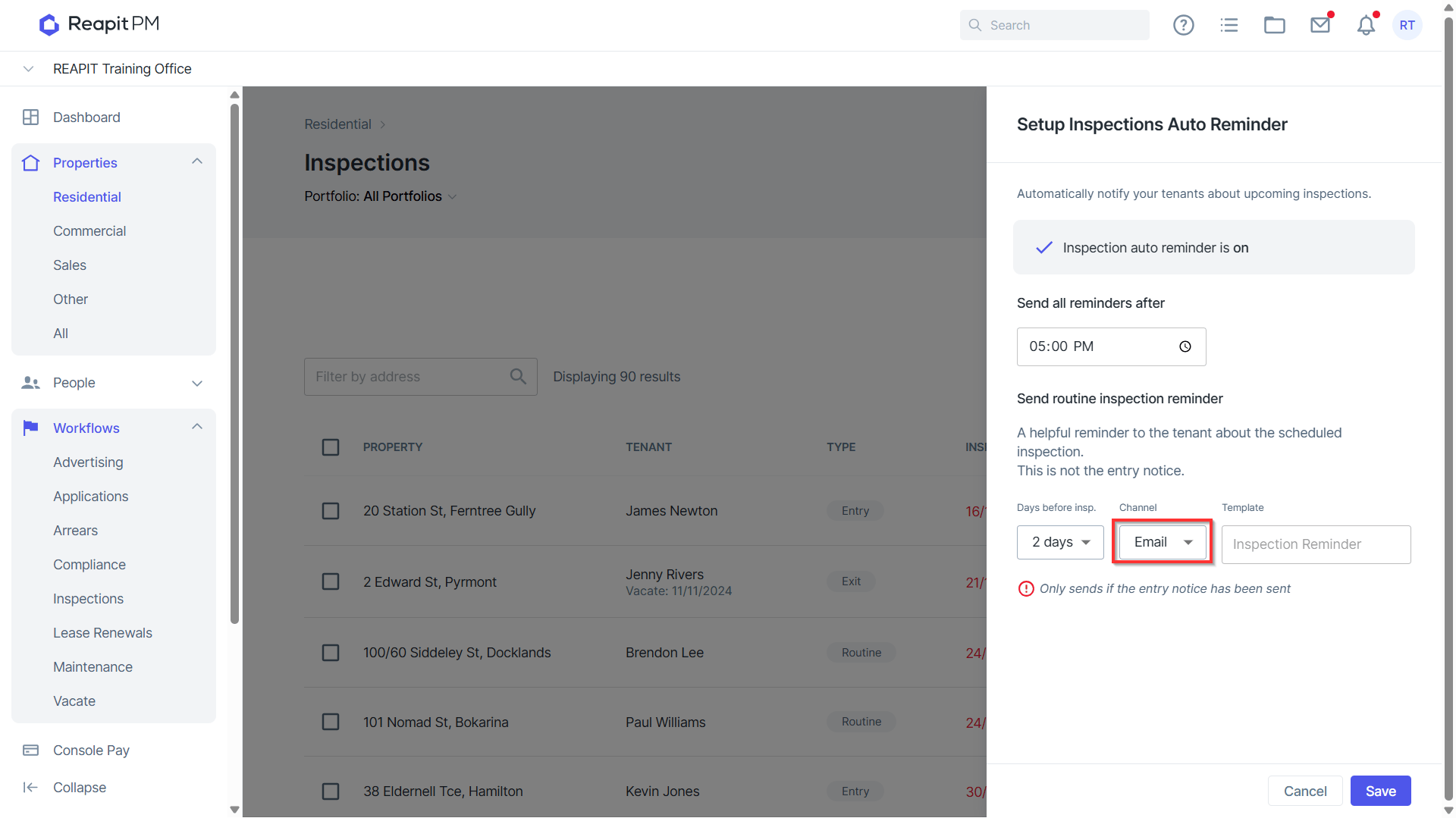
4. Select the Channel of communication you would like to send the reminder through (email or SMS).
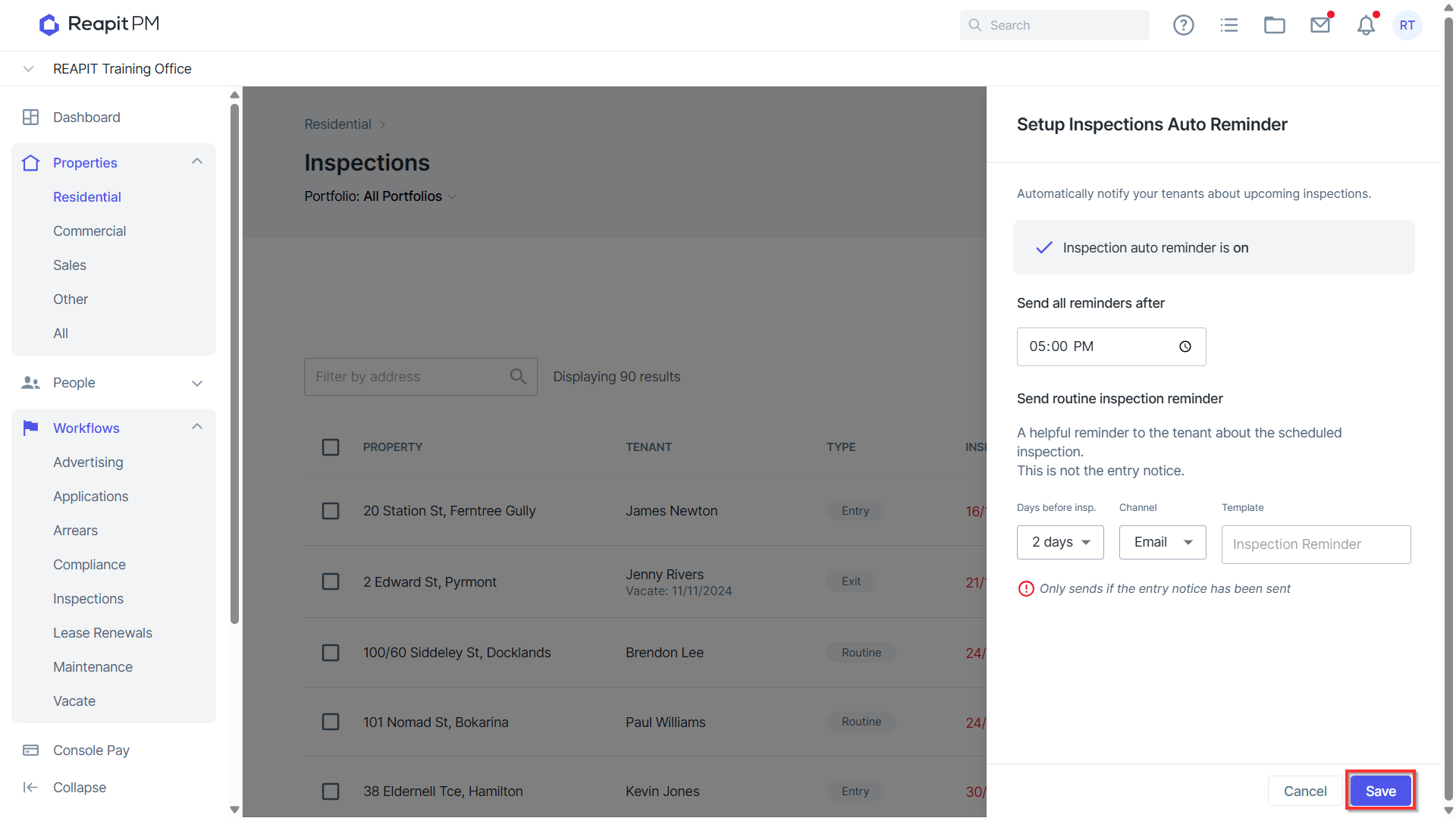
5. Click Save.
How to Turn off Auto Reminders for Inspections
1. In the top right-hand corner, you will see “Automation is on”. Click Settings.
2. Click on the grey slider to turn off automations.