'%20d='M0%208a8%208%200%200%201%208-8h24a8%208%200%200%201%208%208v24a8%208%200%200%201-8%208H8a8%208%200%200%201-8-8V8Z'/%3e%3cpath%20fill='%23fff'%20d='M8.375%2013v14L20.5%2034l12.124-7v-7.737l-1.687-.975-2.806-1.62-1.082-.624v4.83l-.002%204.83H13.95V16.07l3.275-1.89%202.192-1.265%201.082-.625%203.275%201.877%202.192%201.256%201.083.62V9.782L20.5%206%208.376%2013Z'/%3e%3cdefs%3e%3clinearGradient%20id='reapit-pm__a'%20x1='20.702'%20x2='20.702'%20y1='.351'%20y2='31.228'%20gradientUnits='userSpaceOnUse'%3e%3cstop%20stop-color='%235573FD'/%3e%3cstop%20offset='.575'%20stop-color='%234E56EA'/%3e%3c/linearGradient%3e%3c/defs%3e%3c/svg%3e)
Processing Disbursement
This article will cover disbursing owners, creditors, agency fee's and bond in Reapit PM. The processes in this article include: Preparing for Disbursements Processing a Single Disbursement Processing a Full Disbursement Disbursement History
Overview
Processing a Disbursement
Owners, Creditors, Agency Fees and Bond Authorities can all be disbursed from within the Disbursements section of Reapit PM.
Users with relevant permissions can also preview the disbursements, without being able to proceed with the disbursement.
The processes in this article include:
- Preparing for Disbursements
- Processing a Single Disbursement
- Processing a Full Disbursement
- Disbursement History
Preparing for Disbursements
- Prior to disbursement, you should ensure all funds are receipted and reconciled in Reapit PM. For information on receipting and reconciling, please refer to the relevant articles. We also recommend prior to processing a disbursement to review via Excel, manage any owner withholds, preview the disbursements and approve or reject as appropriate.
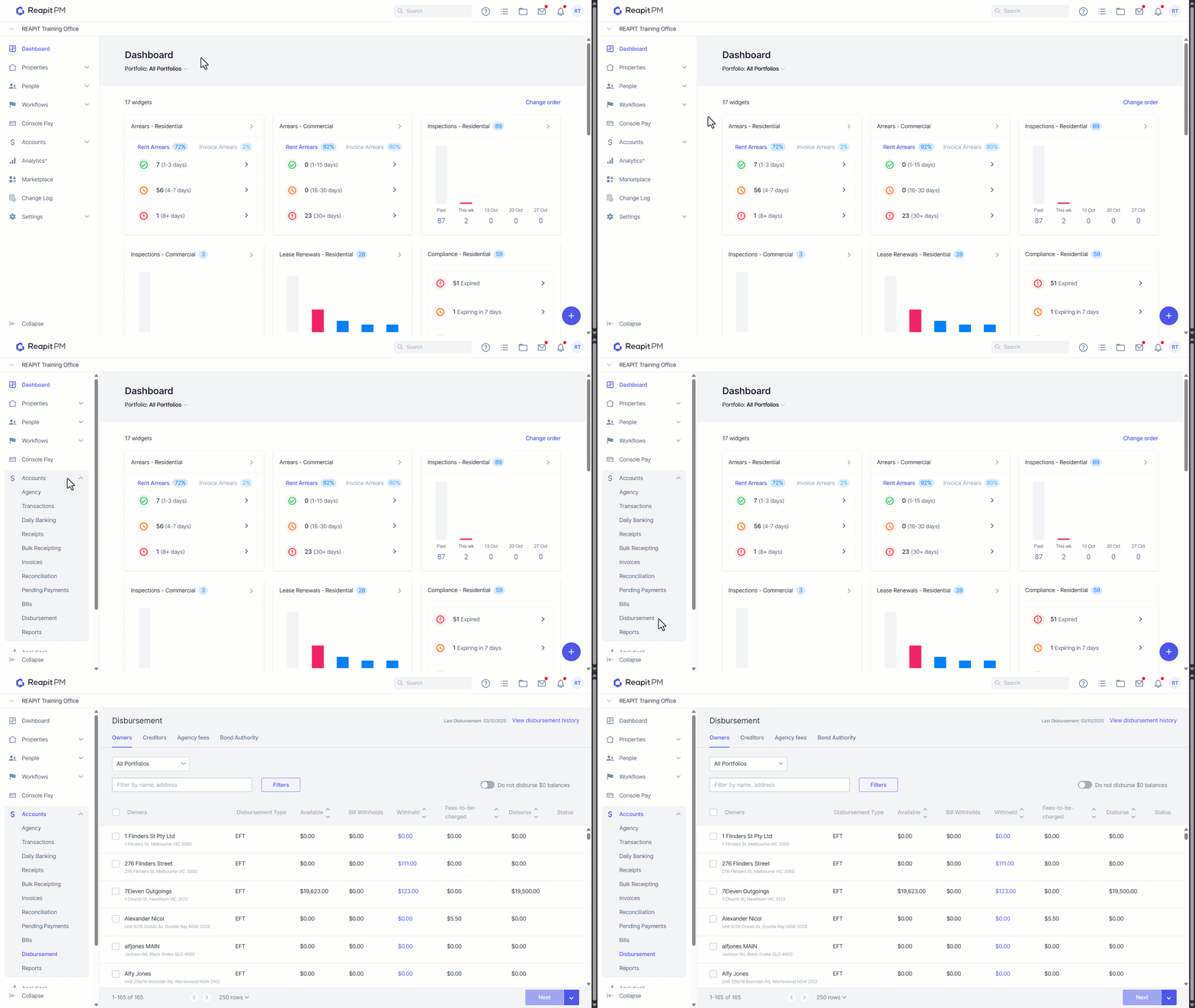
- Navigate to Accounts.
- Navigate to Disbursement.
- From here, you can flip between Owners, Creditors, Agency Fee and Bond disbursements.
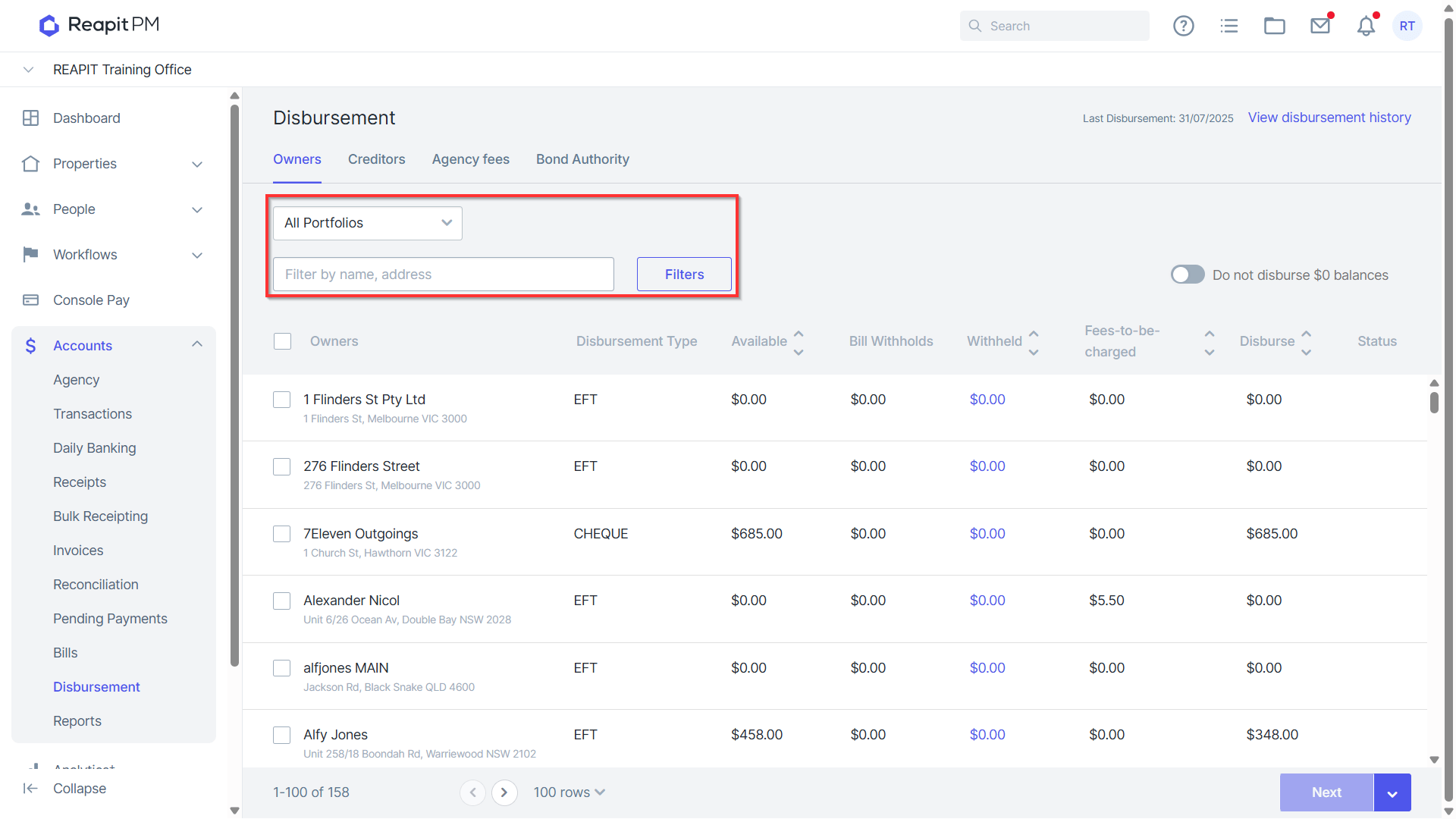
- Apply any Portfolio or Payment Filters as applicable.
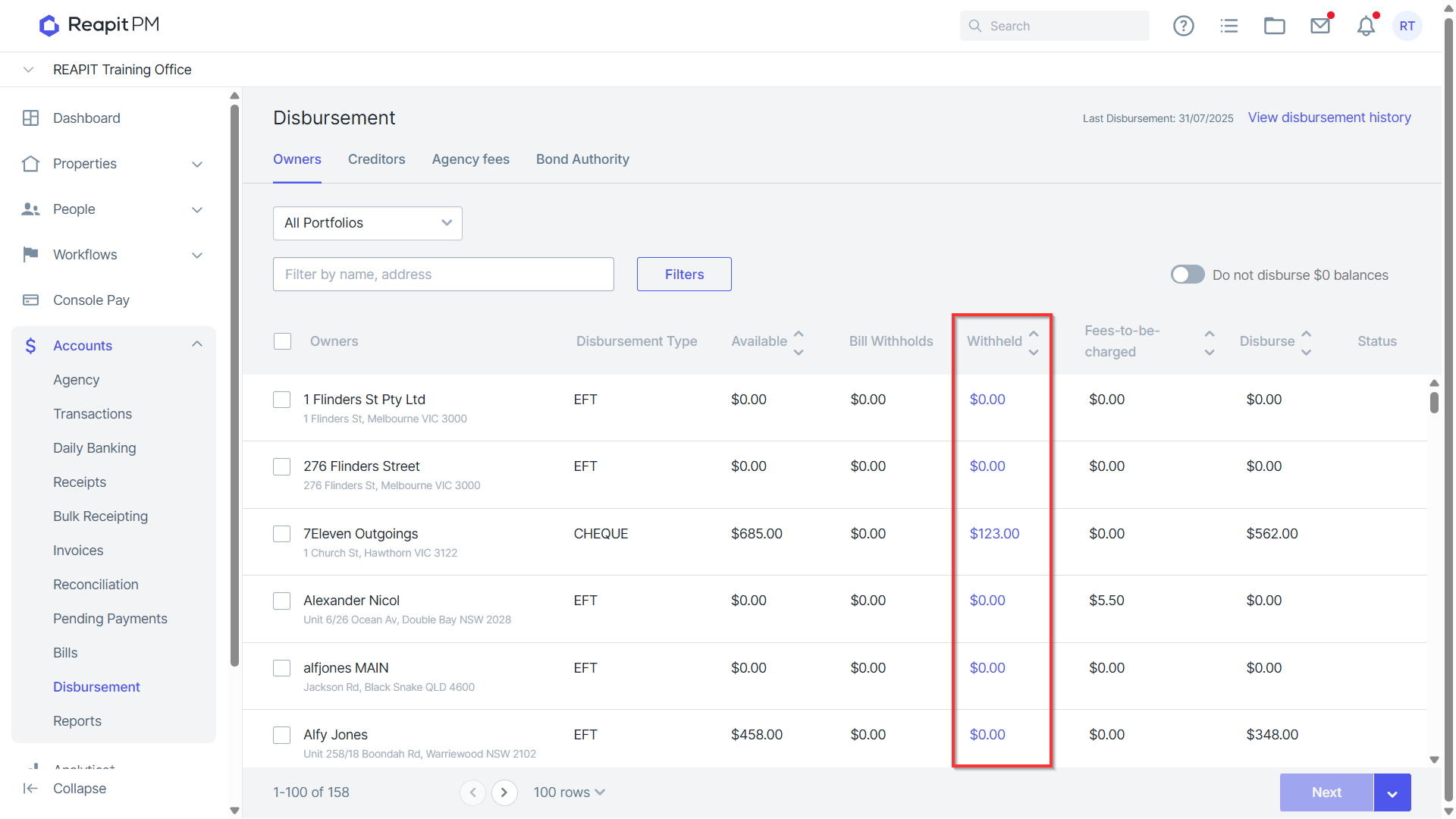
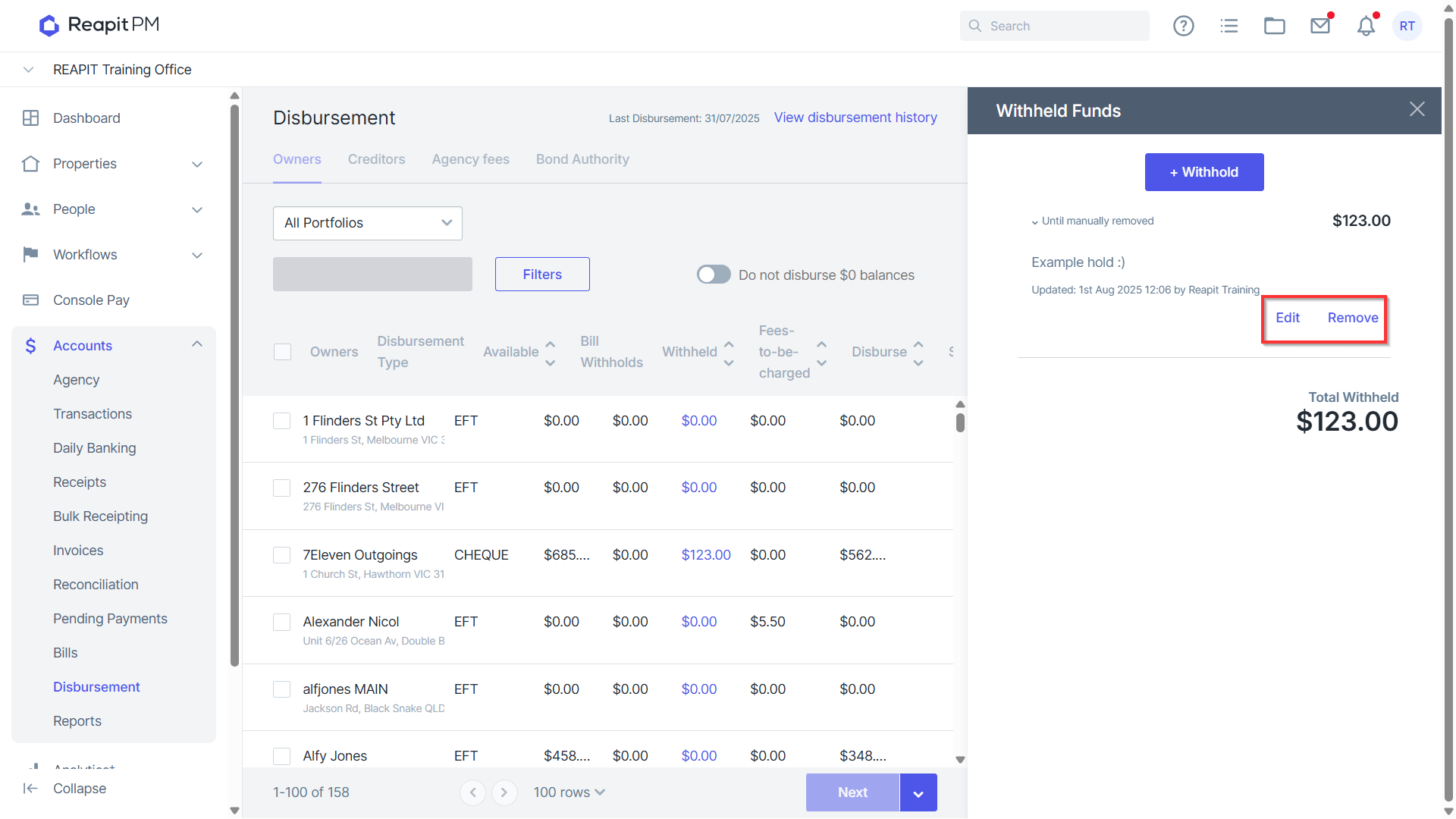
- Review disbursement details, including any Withholds, by clicking into the Withhold.
- For existing Withholds, you will be able to Edit or Remove the Withold.
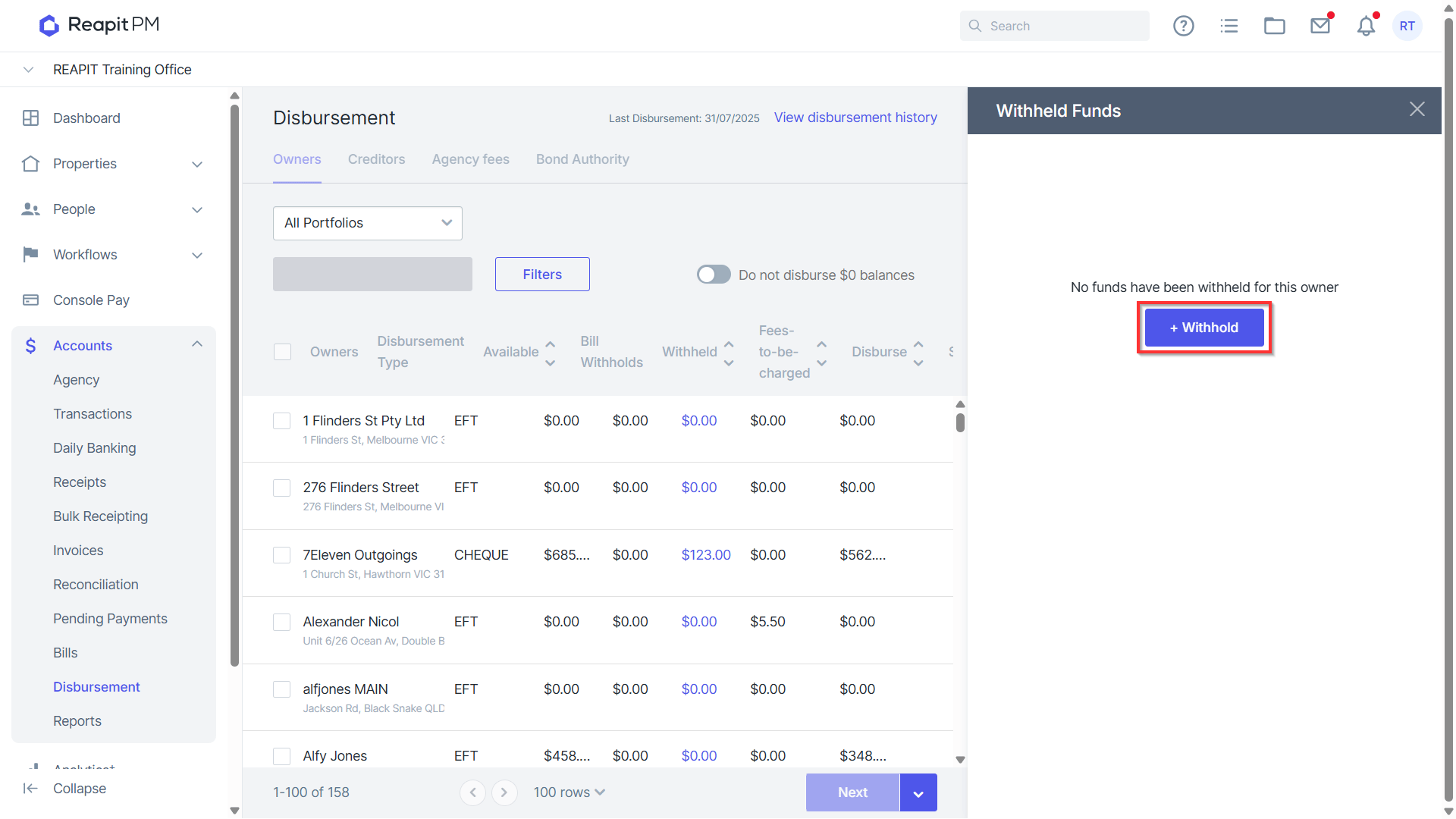
- To create a new Withhold, click + Withhold.
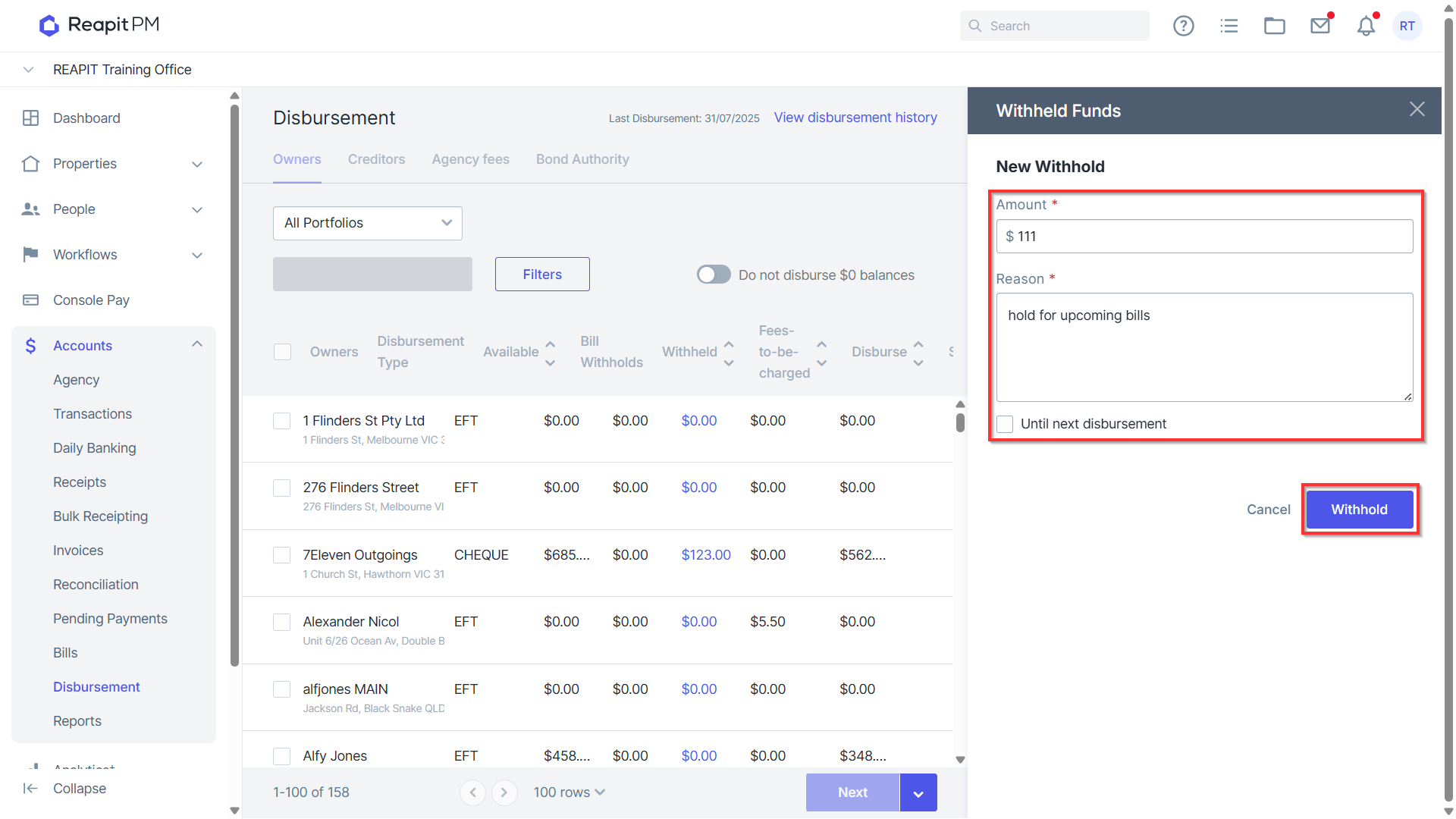
- Add Amount, Reason and select to withhold Until next disbursement. Click Withhold.
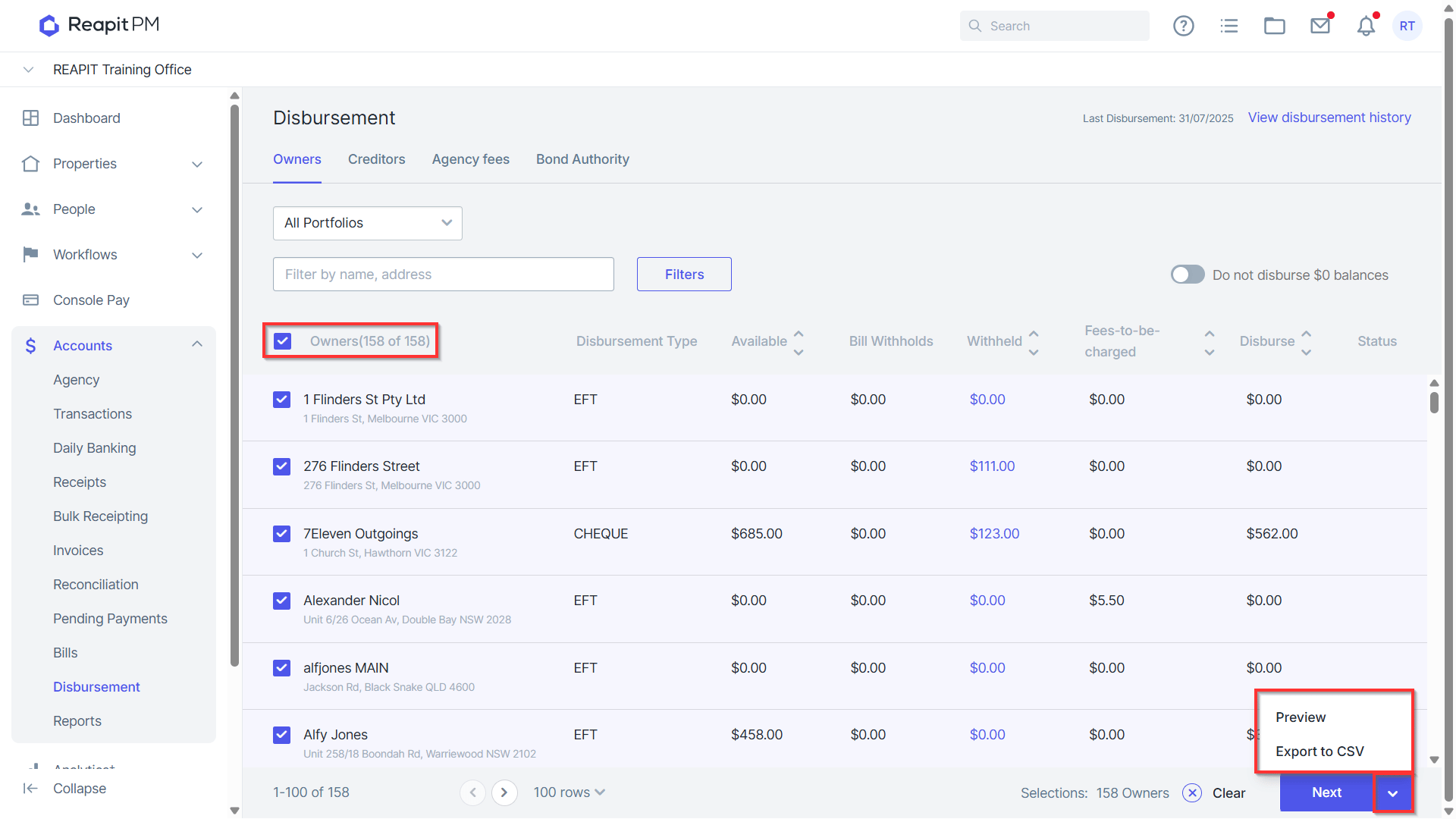
- Once Withholds are reviewed, select relevant accounts to pay and choose to Export to CSV for review, or Preview disbursement.
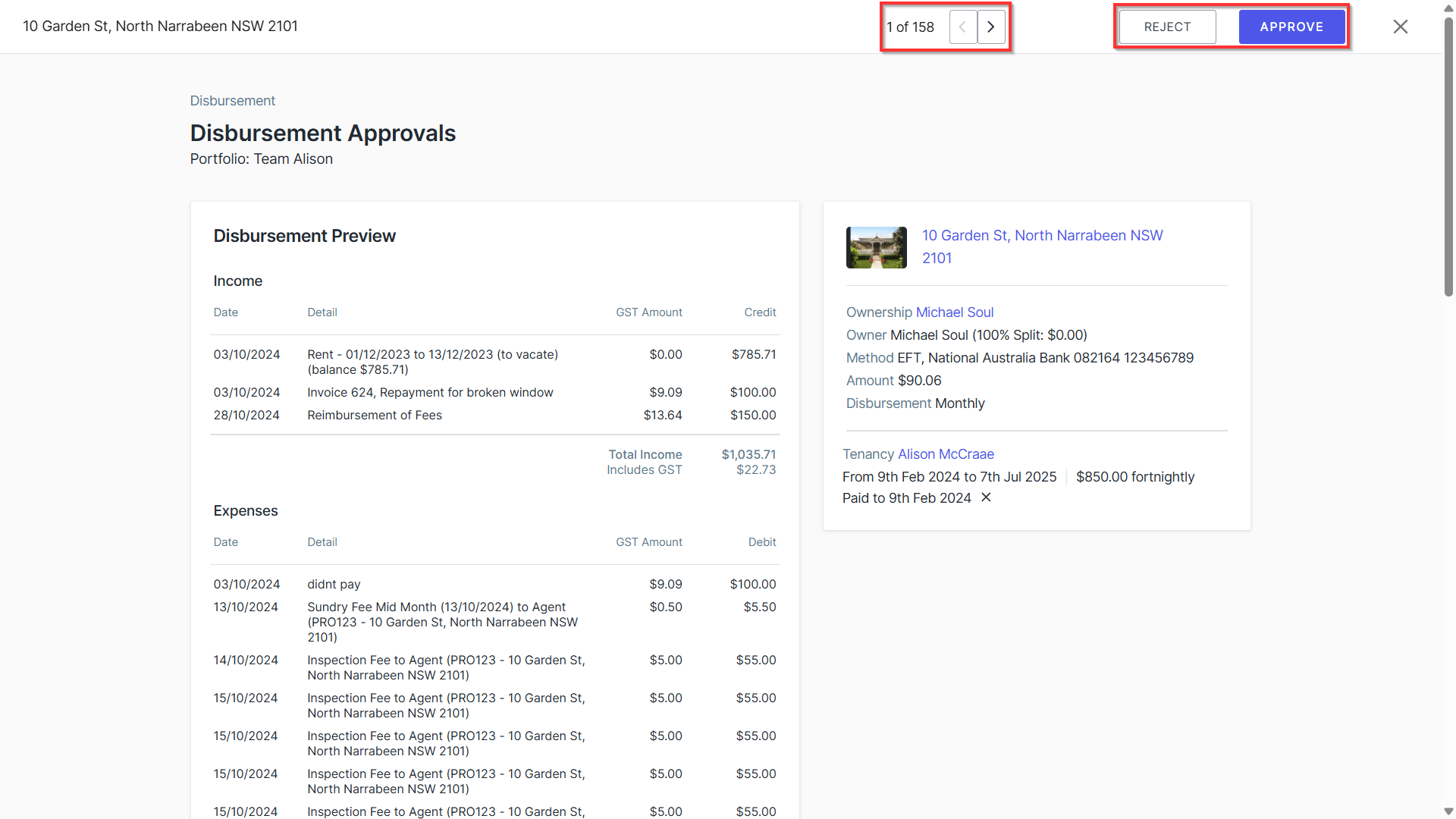
- Preview will provide an overview of the funds to be disbursed by Owner/Creditor, allowing you to Approve or Reject the disbursement.
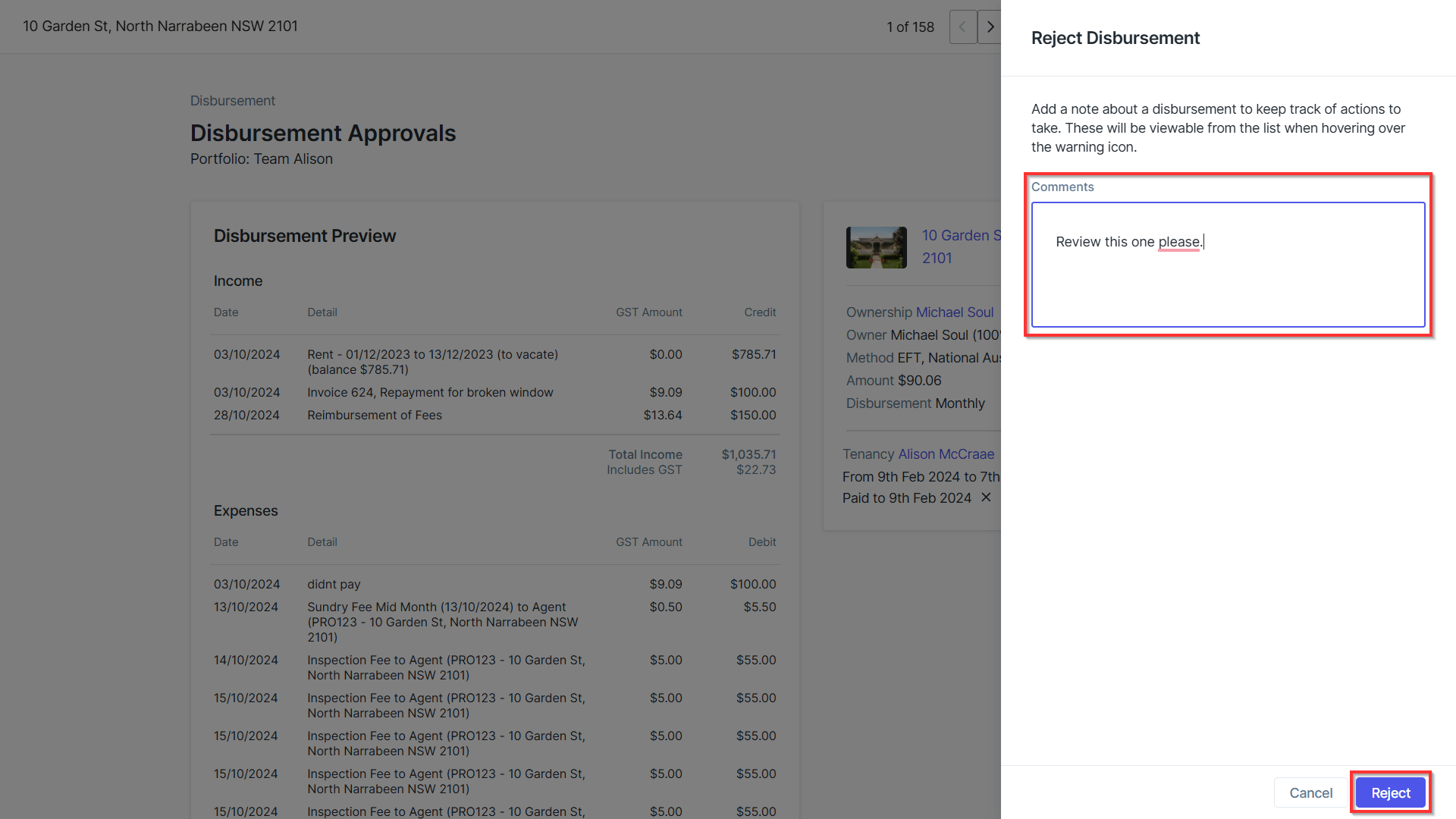
- For any rejected disbursements you will be prompted to add a comment then click Reject.
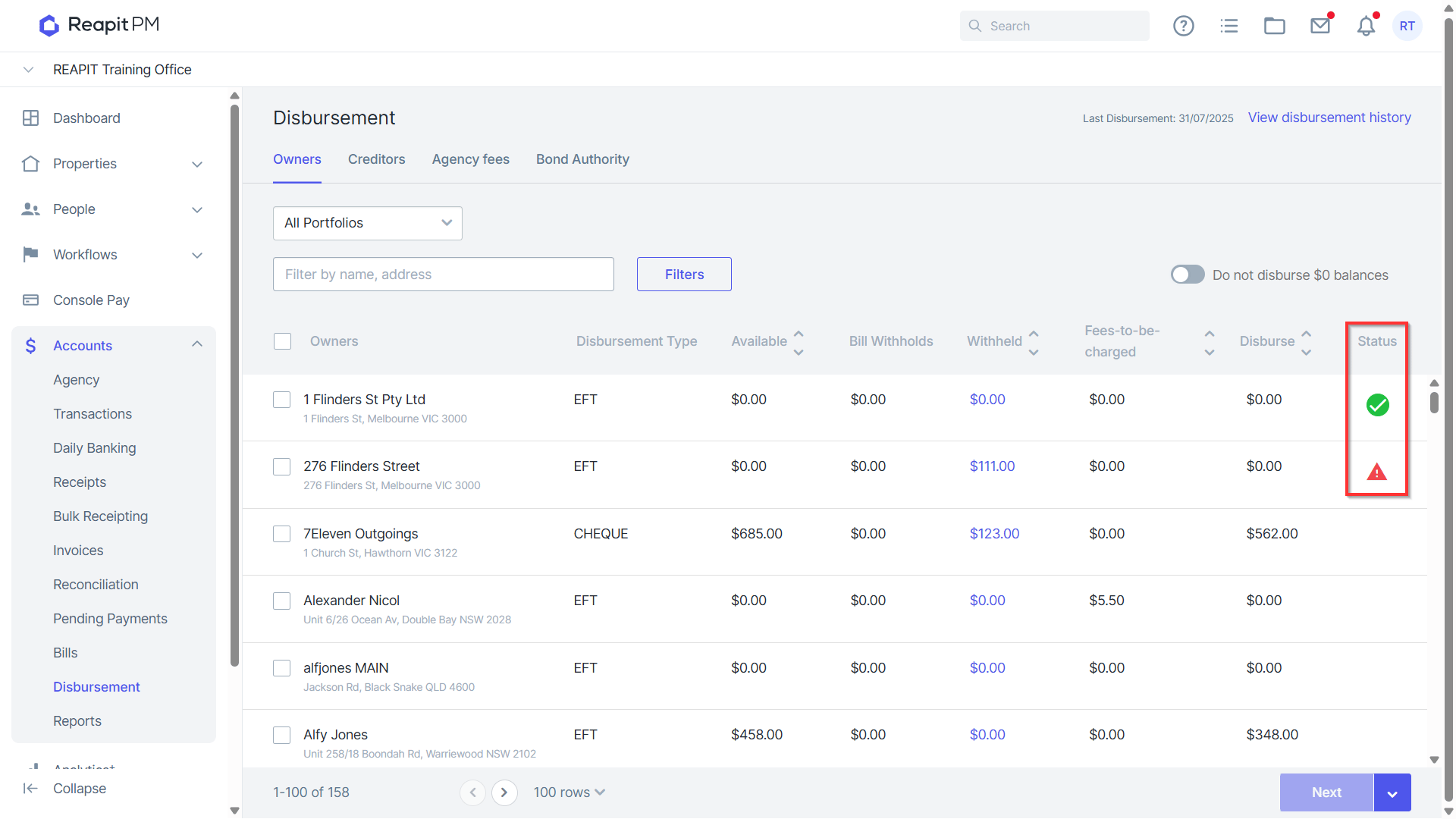
- Disbursement status will appear within the disbursement list, filters can be applied for approved, rejected or not reviewed disbursements.
Processing a Single Disbursement
- Navigate to the Accounts.
- Navigate to Disbursement. ****
- Select the relevant disbursement to process.
- Select the relevant account to disburse and click Next.
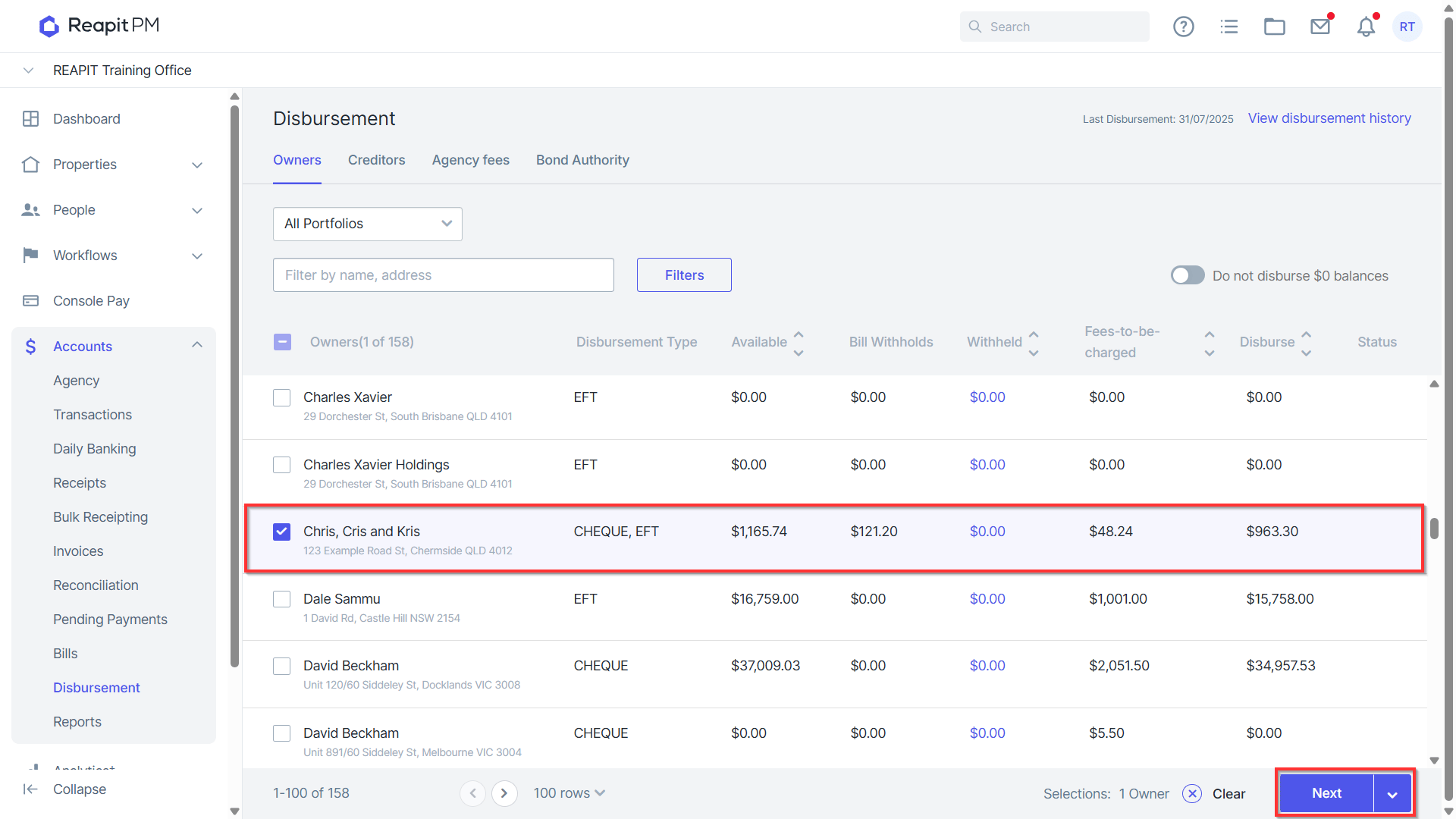
- Click Disburse.
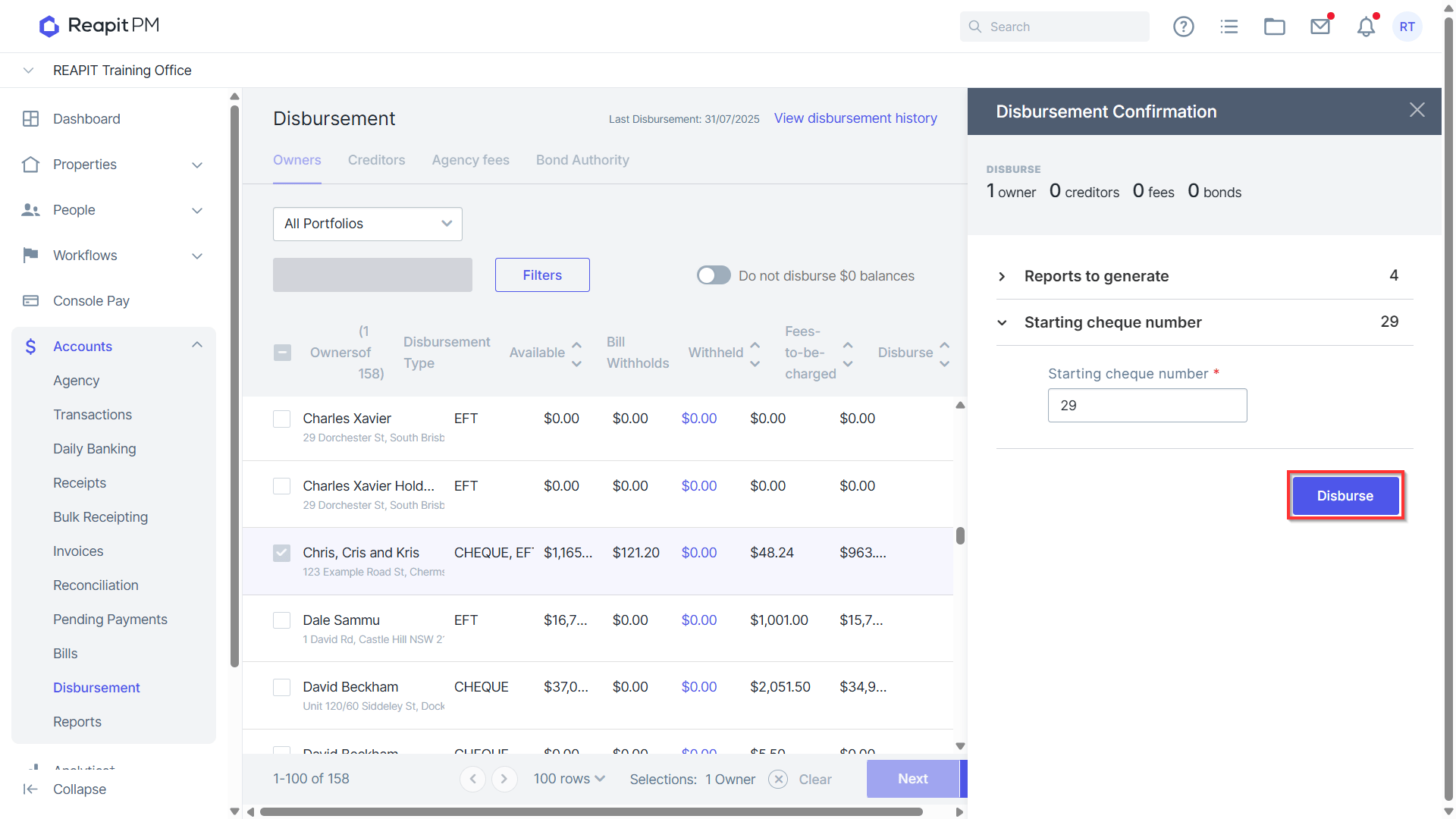
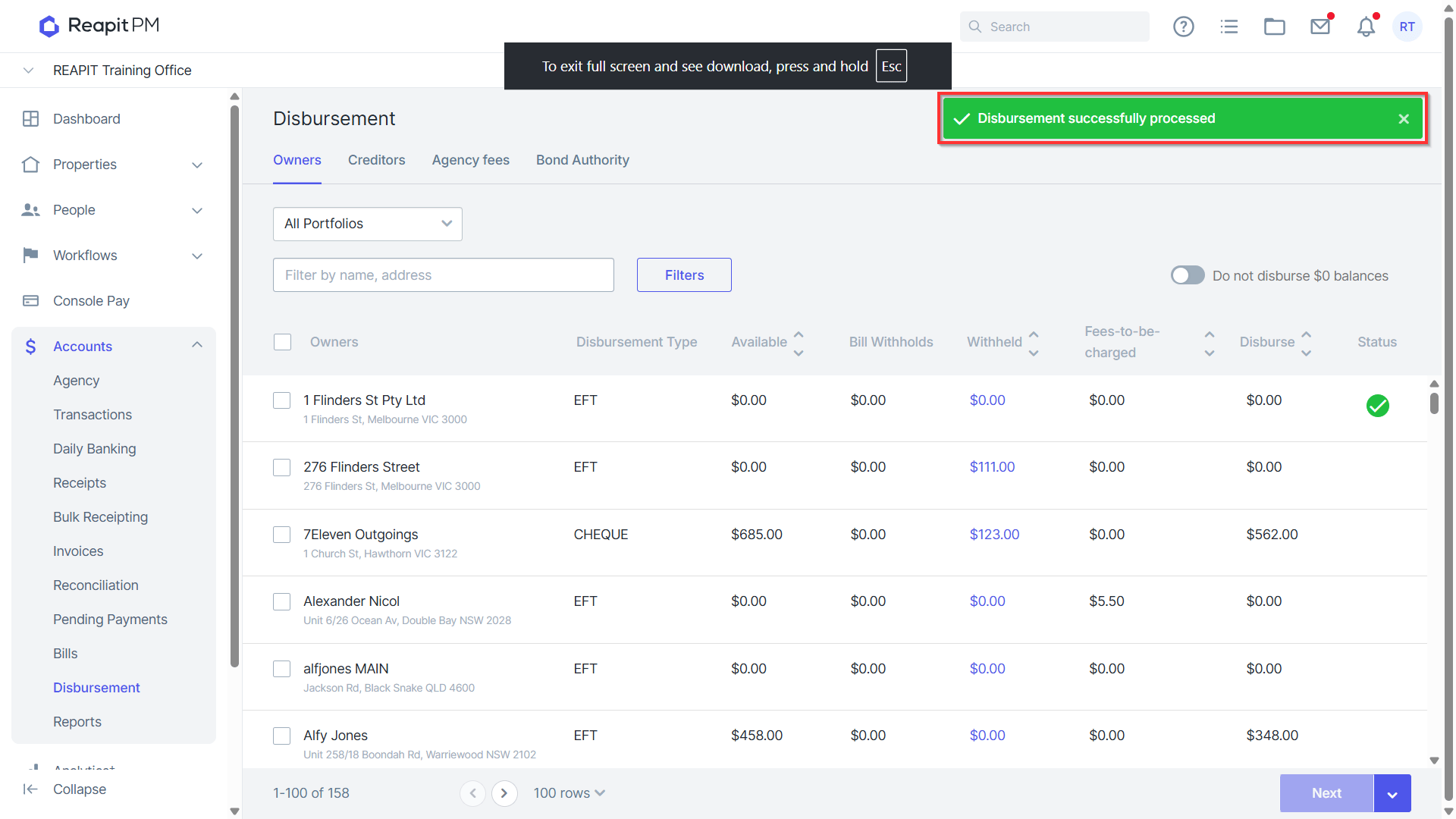
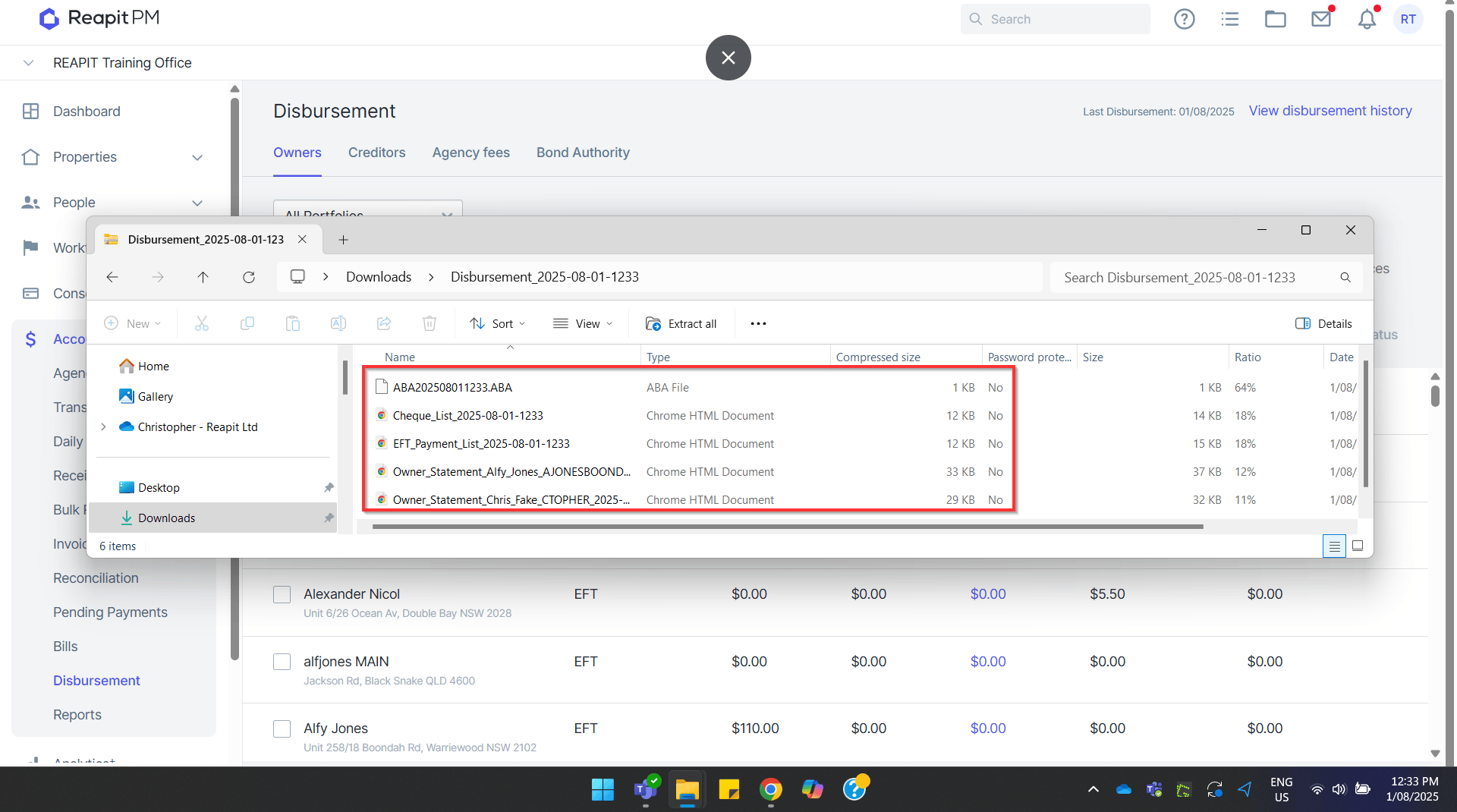
- Once Disbursed, Statements/Reports and banking files will download allowing you to process via your internet banking platform.
Processing a Full Disbursement
- Navigate top Accounts. ****
- Navigate to Disbursement
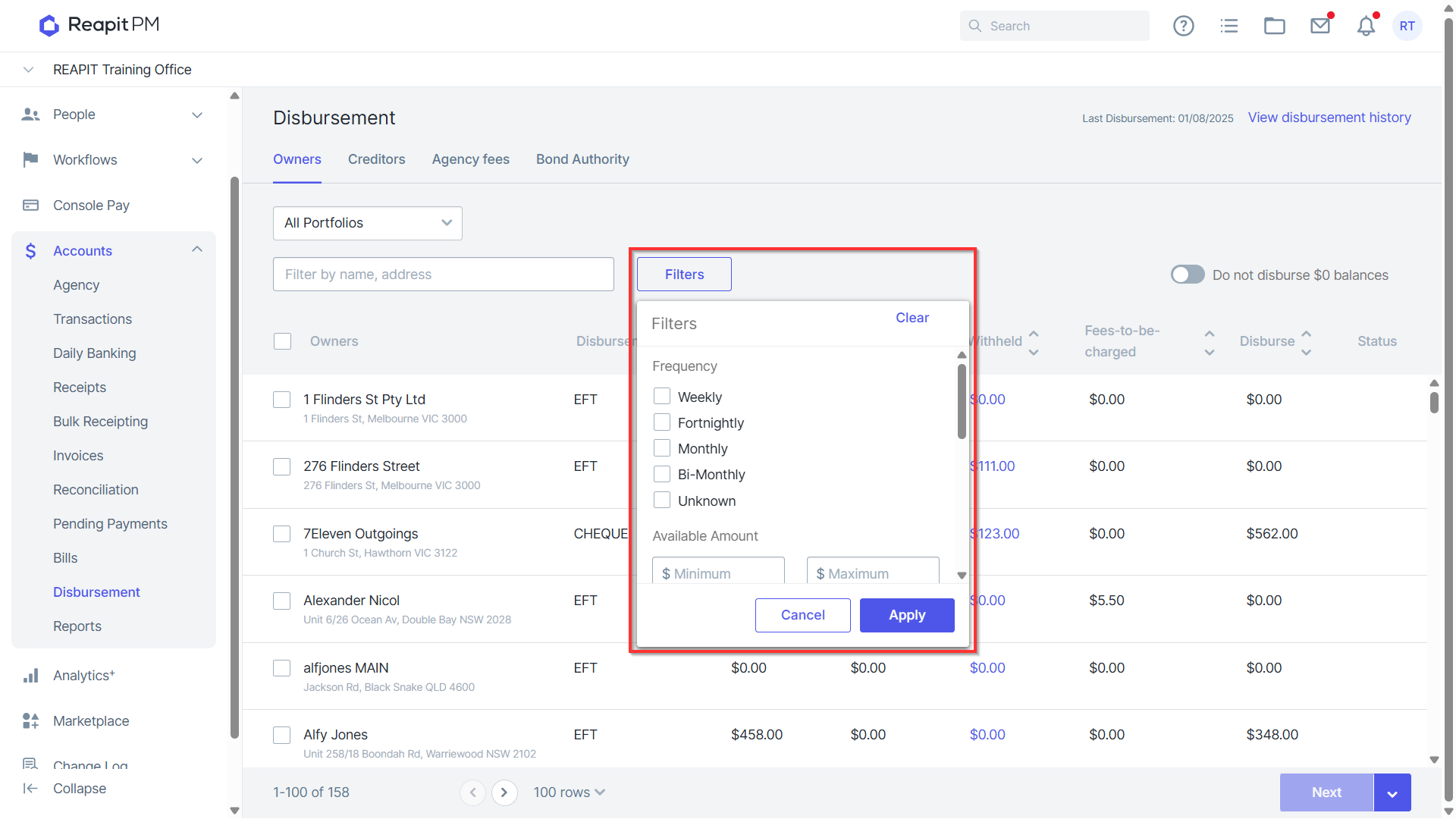
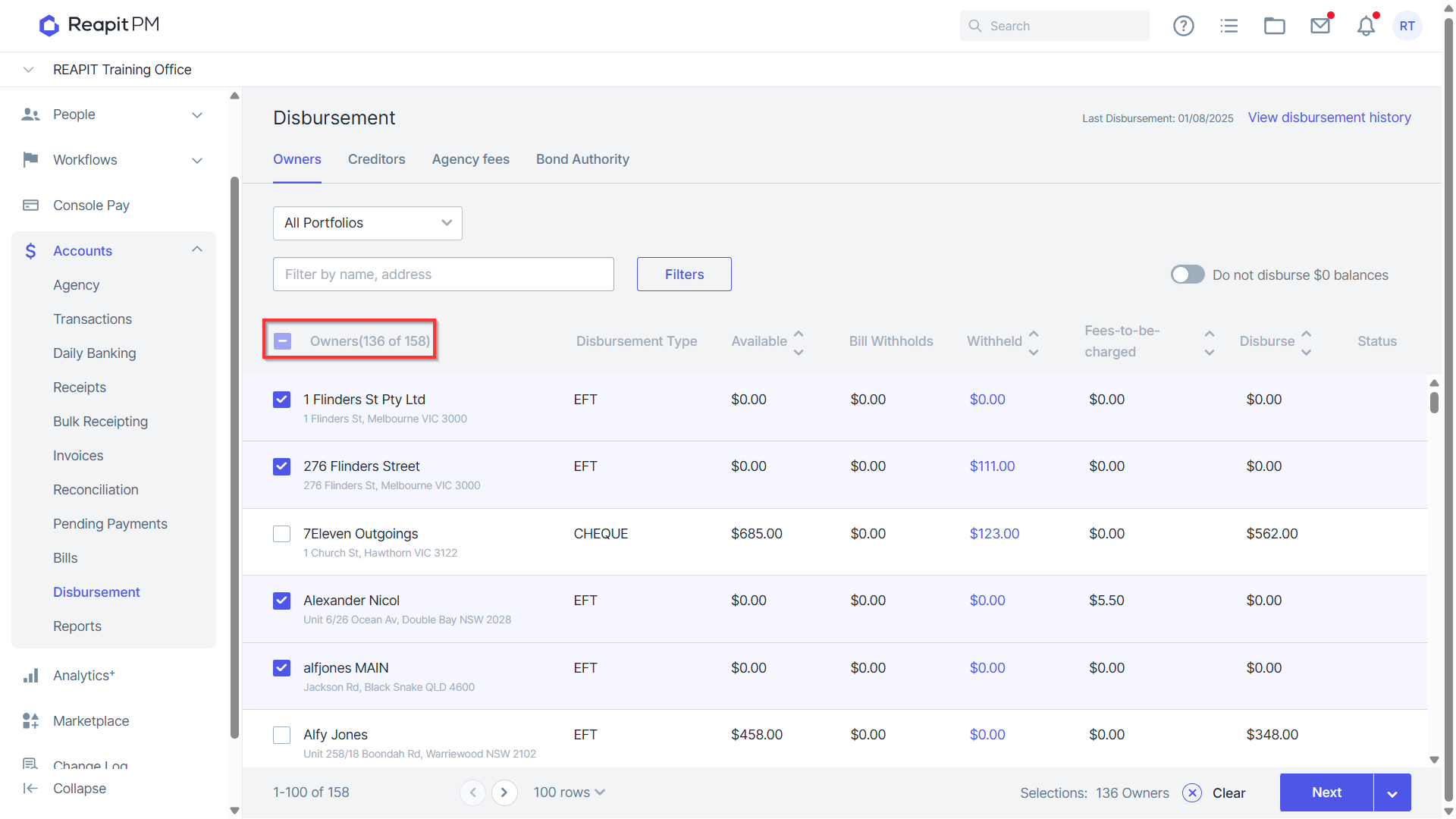
- Apply any filters as applicable, including selecting Ownership payment frequency and approval status.
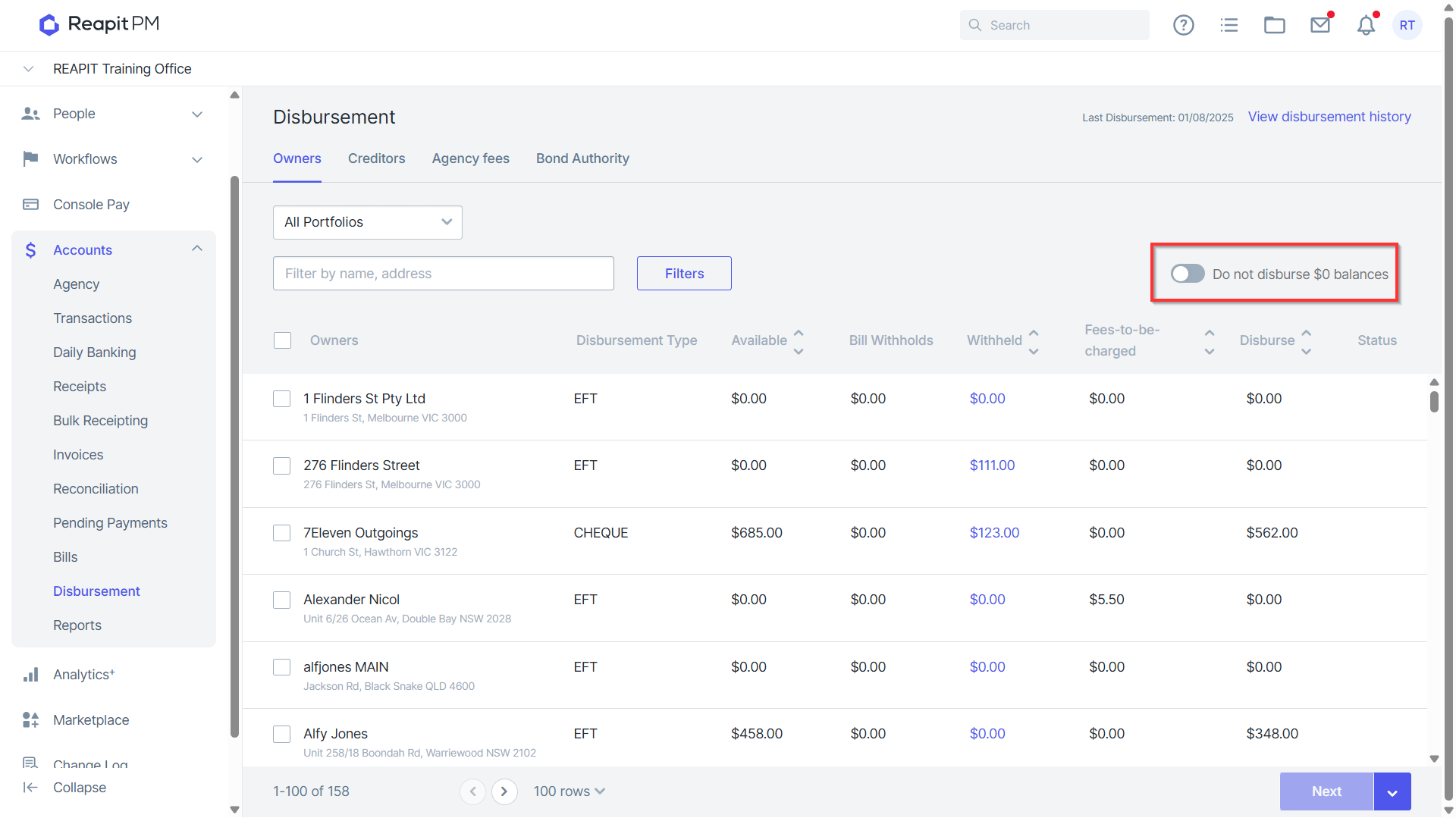
- Select whether to Disburse $0 balances.
- Bulk Select payments to process, individual owners may be deselected as need be.
- Click Next.
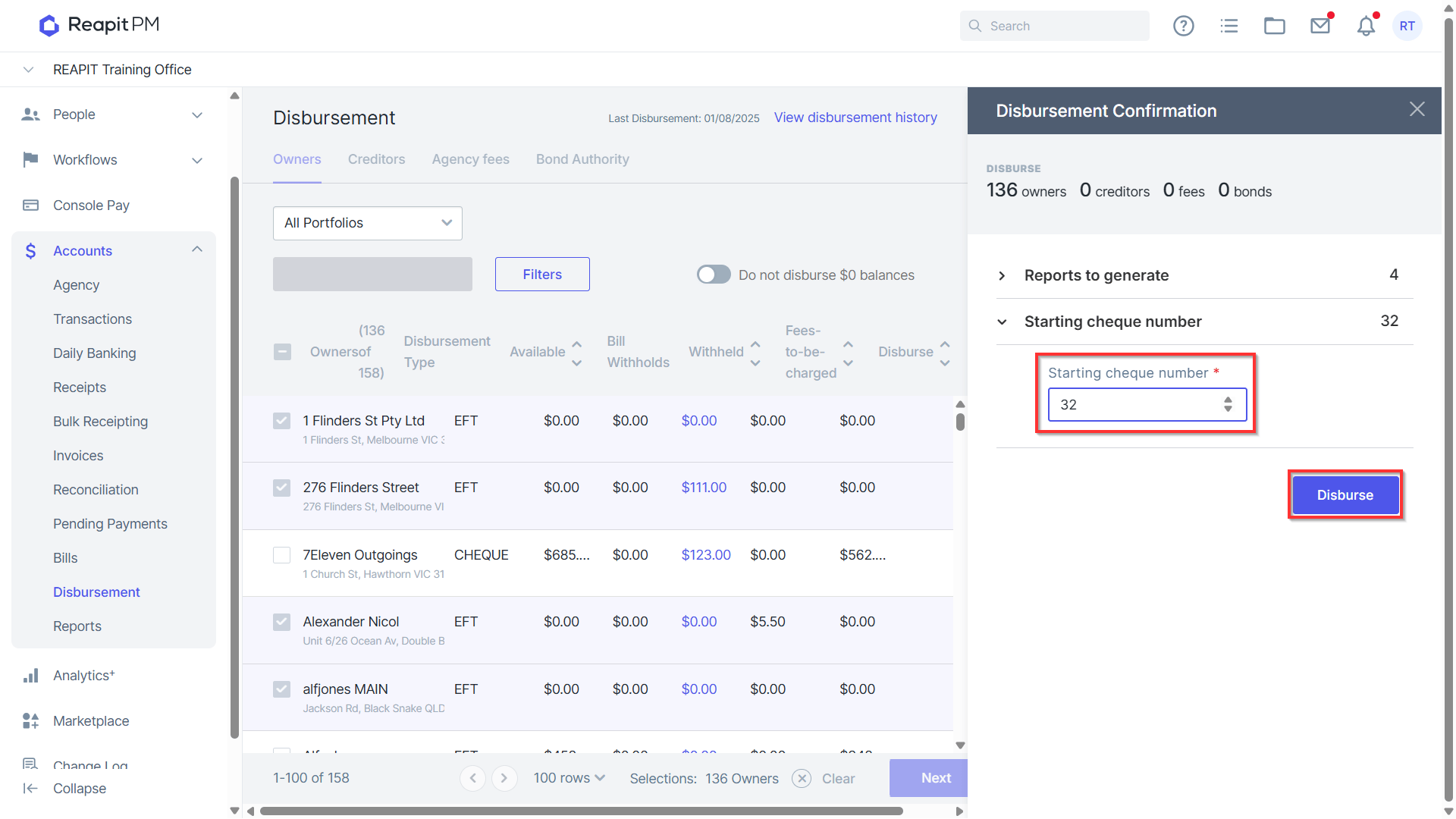
- Confirm starting cheque number if applicable.
- Click Disburse.
- Once Disbursed, Statements/Reports and banking files will download allowing you to process via your internet banking platform.
- Repeat this process across your Creditor, Agency and Bond disbursements as applicable.
Disbursement History
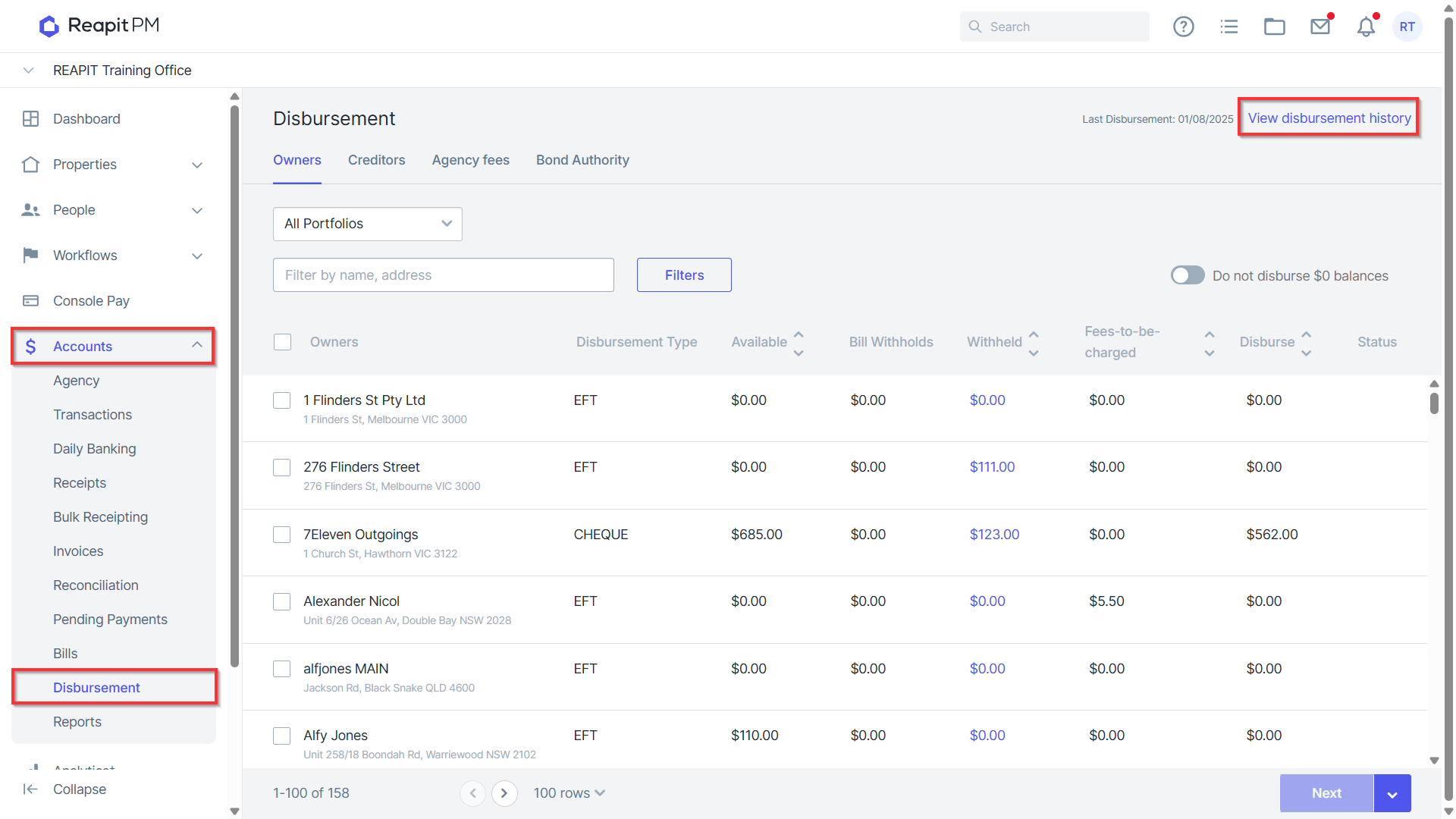
- Navigate top Accounts.
- Navigate ****to Disbursement.
- Click View disbursement history.
Note: this is also available in Accounts > Reports > Disbursement History.
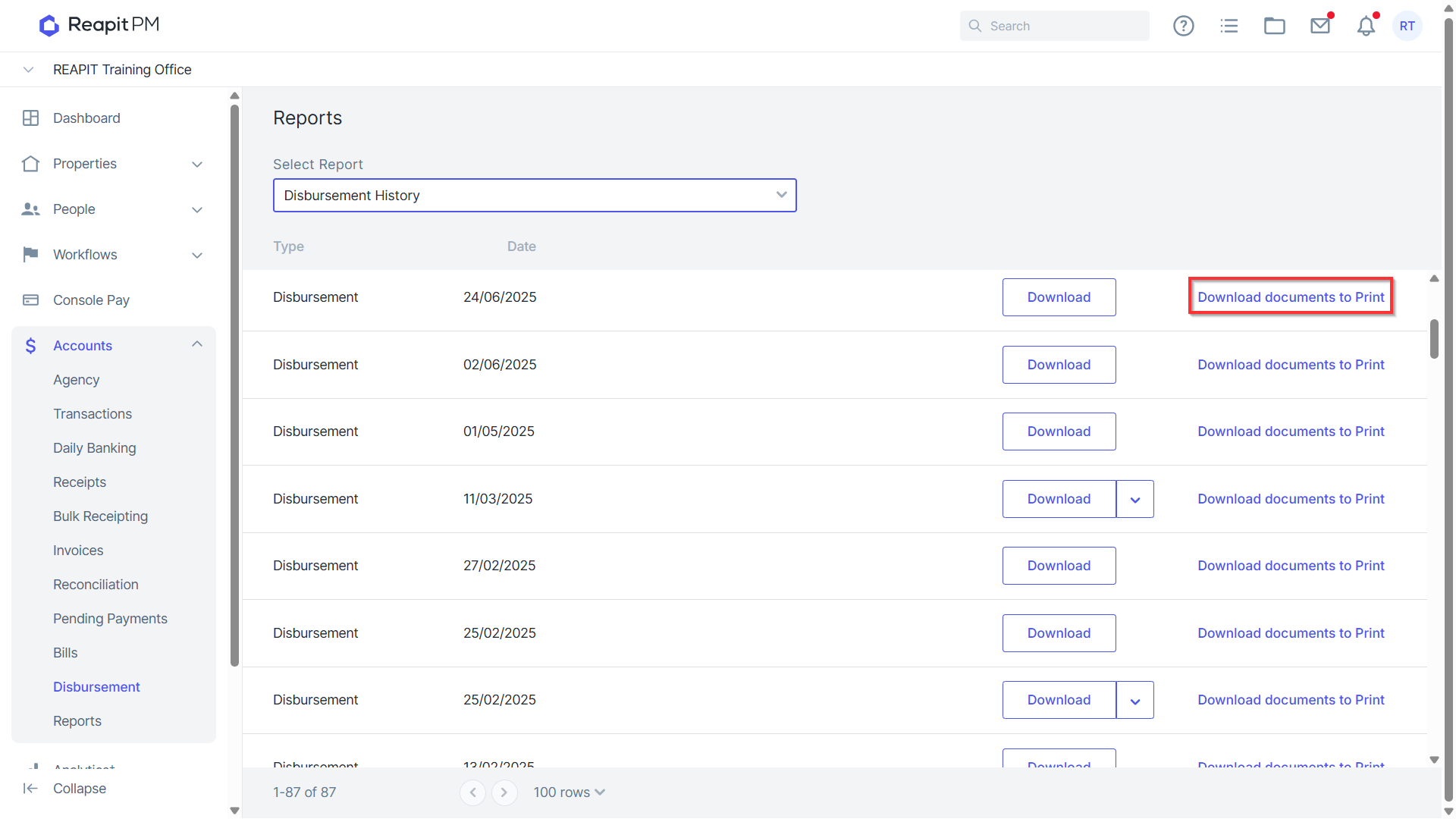
- Download will allow you to download any relevant banking files and statements. BPAY files can be regenerated via the arrow next to the download button.
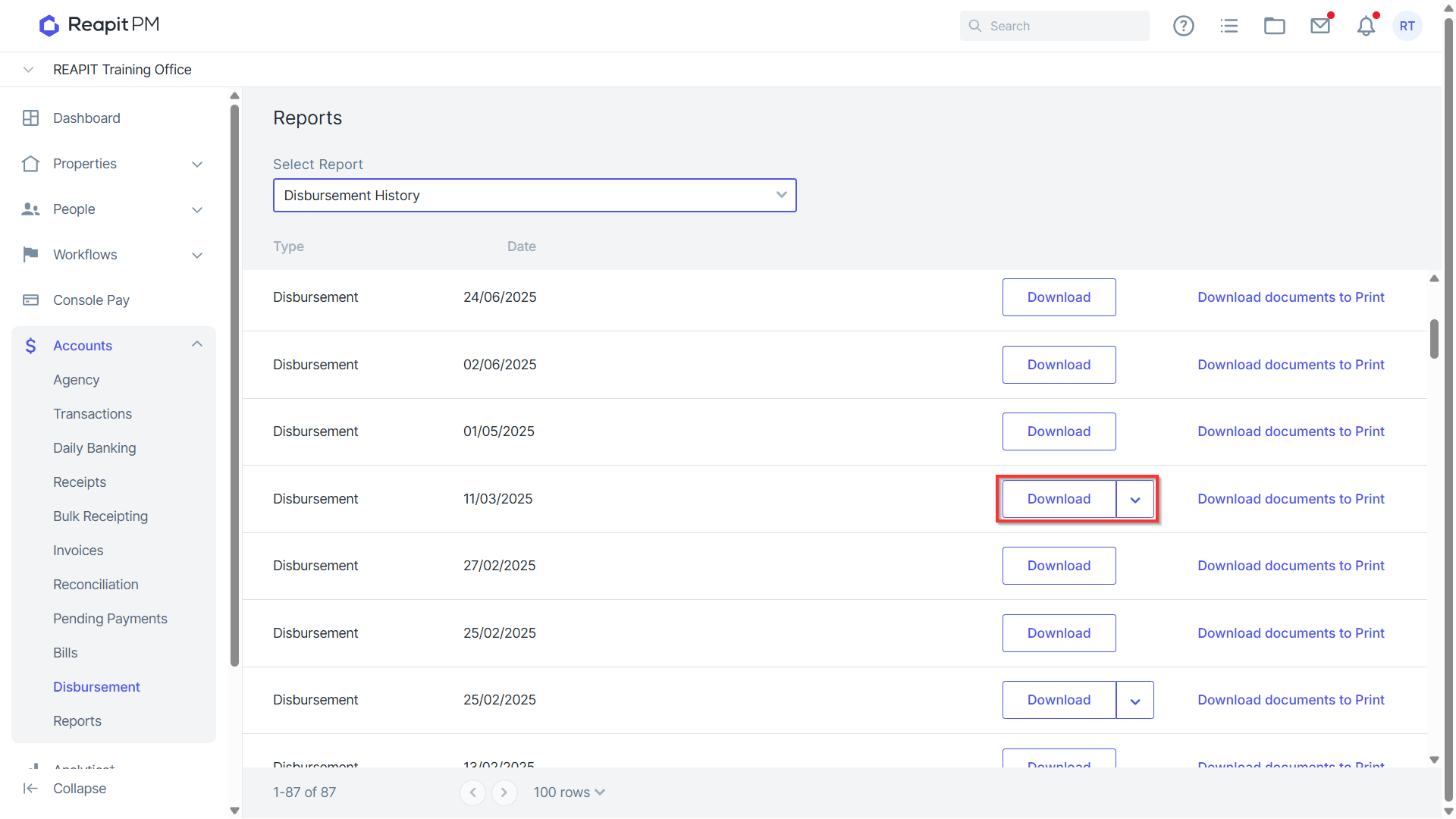
- Download documents to Print will allow you to download payment statements for printing.