'%20d='M0%208a8%208%200%200%201%208-8h24a8%208%200%200%201%208%208v24a8%208%200%200%201-8%208H8a8%208%200%200%201-8-8V8Z'/%3e%3cpath%20fill='%23fff'%20d='M8.375%2013v14L20.5%2034l12.124-7v-7.737l-1.687-.975-2.806-1.62-1.082-.624v4.83l-.002%204.83H13.95V16.07l3.275-1.89%202.192-1.265%201.082-.625%203.275%201.877%202.192%201.256%201.083.62V9.782L20.5%206%208.376%2013Z'/%3e%3cdefs%3e%3clinearGradient%20id='reapit-pm__a'%20x1='20.702'%20x2='20.702'%20y1='.351'%20y2='31.228'%20gradientUnits='userSpaceOnUse'%3e%3cstop%20stop-color='%235573FD'/%3e%3cstop%20offset='.575'%20stop-color='%234E56EA'/%3e%3c/linearGradient%3e%3c/defs%3e%3c/svg%3e)
Receipting and Reversals in Reapit PM
Reapit PM allows you to process and enter Tenant, Owner or Miscellaneous receipts into the system. Once receipts are entered into the system, they can then be managed via the Transactions tab. The processes in this article include: Adding a Receipt Reversing a Receipt
Overview
Receipting and Reversals in Reapit PM
Reapit PM allows you to process and enter Tenant, Owner or Miscellaneous receipts into the system.
Once receipts are entered into the system, they can then be managed via the Transactions tab.
The processes in this article include:
- Adding a Receipt
- Reversing a Receipt
Adding a Receipt
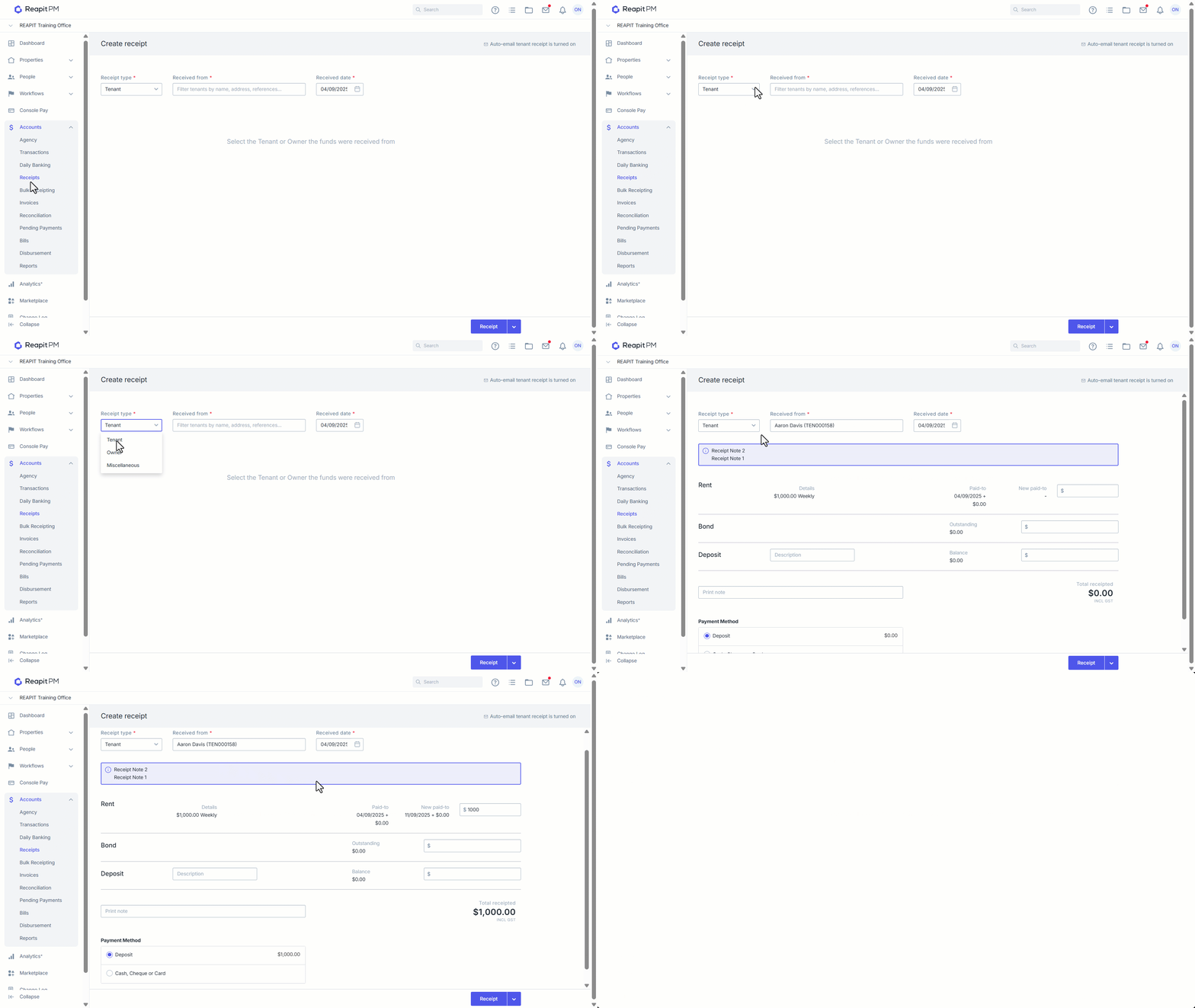
Click on Accounts.
Click on Receipts.
Select the Receipt Type; Tenant, Owner or Miscellaneous.
Tenant Receipts allow you to receipt to Rent, Bond, Invoices or hold as Deposit.
Owner Receipts allow you to receipt to the Tenant Deposit or against the Ownership.
Miscellaneous receipts allow you to receipt one off funds that are not rent, bond or deposits.
Enter Received from and Received date, for Miscellaneous receipts you will be required to select where to Receipt to (Owner or Credit).
Enter the funds against the desired line item (s). Note: Part Payment - A Part Payment is a payment that is less than the whole amount owed.
Enter Payment Method and Click Receipt.
Once receipted the transaction will be available in Accounts > Transactions and against the relevant Tenant/Owner Agreement where it can be downloaded.
Reversing a Receipt
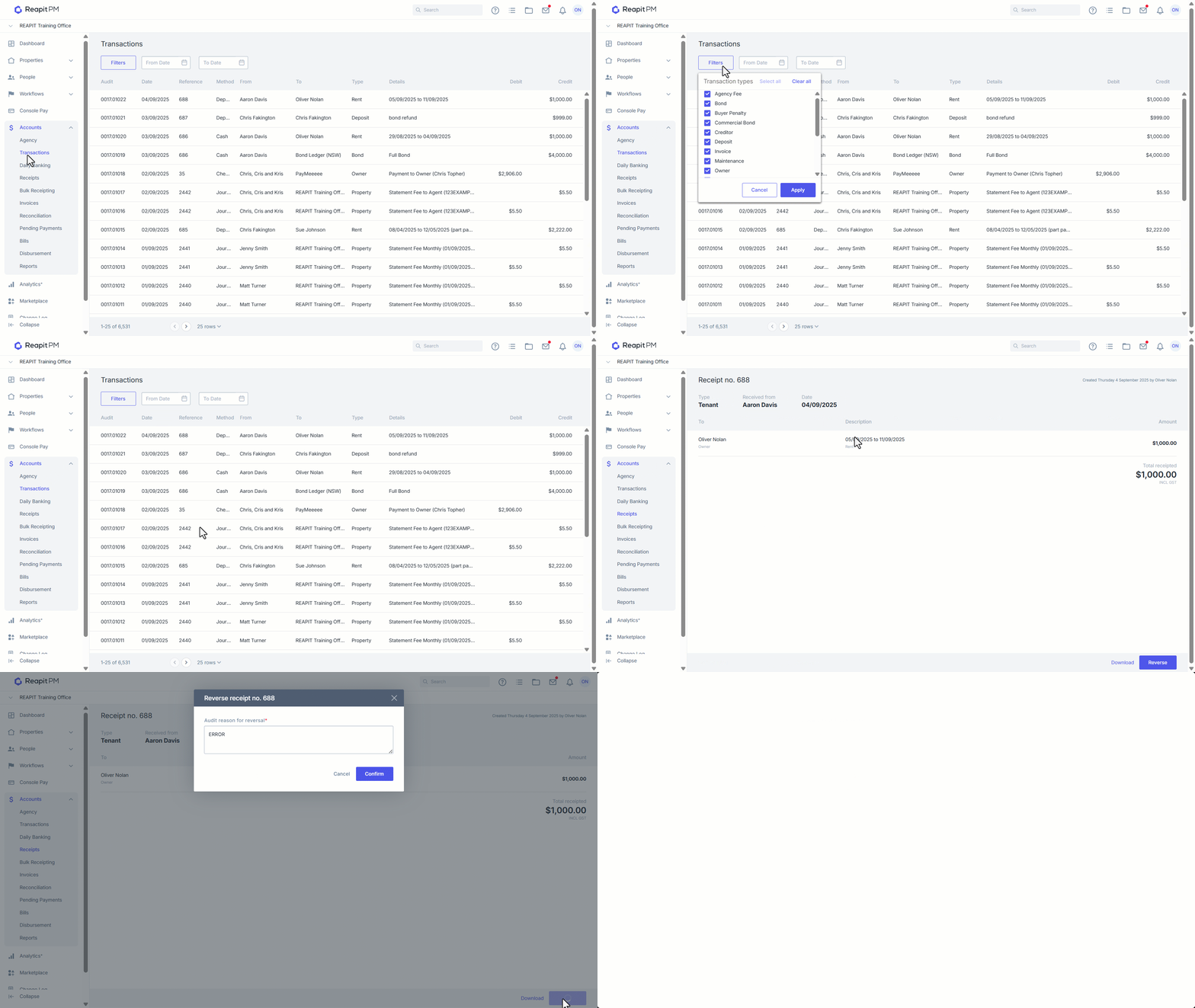
- Click on Accounts.
- Click on Transactions.
- Filter across a particular transaction type, and/or date range if appropriate.
- From the search results select the relevant transaction, note each allocation will appear as a separate transaction, however once clicked will show the matching receipt.
- Click Reverse. If insufficient funds are available you will not be able to review the receipt.
- If sufficient funds exist, you will have to enter an Audit reason and click Confirm. Any fees charged should also be reversed if applicable.