'%20d='M0%208a8%208%200%200%201%208-8h24a8%208%200%200%201%208%208v24a8%208%200%200%201-8%208H8a8%208%200%200%201-8-8V8Z'/%3e%3cpath%20fill='%23fff'%20d='M8.375%2013v14L20.5%2034l12.124-7v-7.737l-1.687-.975-2.806-1.62-1.082-.624v4.83l-.002%204.83H13.95V16.07l3.275-1.89%202.192-1.265%201.082-.625%203.275%201.877%202.192%201.256%201.083.62V9.782L20.5%206%208.376%2013Z'/%3e%3cdefs%3e%3clinearGradient%20id='reapit-pm__a'%20x1='20.702'%20x2='20.702'%20y1='.351'%20y2='31.228'%20gradientUnits='userSpaceOnUse'%3e%3cstop%20stop-color='%235573FD'/%3e%3cstop%20offset='.575'%20stop-color='%234E56EA'/%3e%3c/linearGradient%3e%3c/defs%3e%3c/svg%3e)
Managing Portfolios
This article is a guide on how to manage and use portfolios in Reapit PM. The process in this article include: Viewing Your Office by Portfolios Add a New Portfolio Editing a Portfolio Deleting a Portfolio
Overview
Managing Portfolios
This article is a guide on how to manage and use portfolios in Reapit PM.
Portfolios enable you to filter many of your screens, to only show the information applicable for a select group of properties.
The process in this article include:
- Viewing Your Office by Portfolios
- Add a New Portfolio
- Editing a Portfolio
- Deleting a Portfolio
Viewing Your Office by Portfolios
Portfolio filters can be applied against the dashboard, property lists, workflows and more.
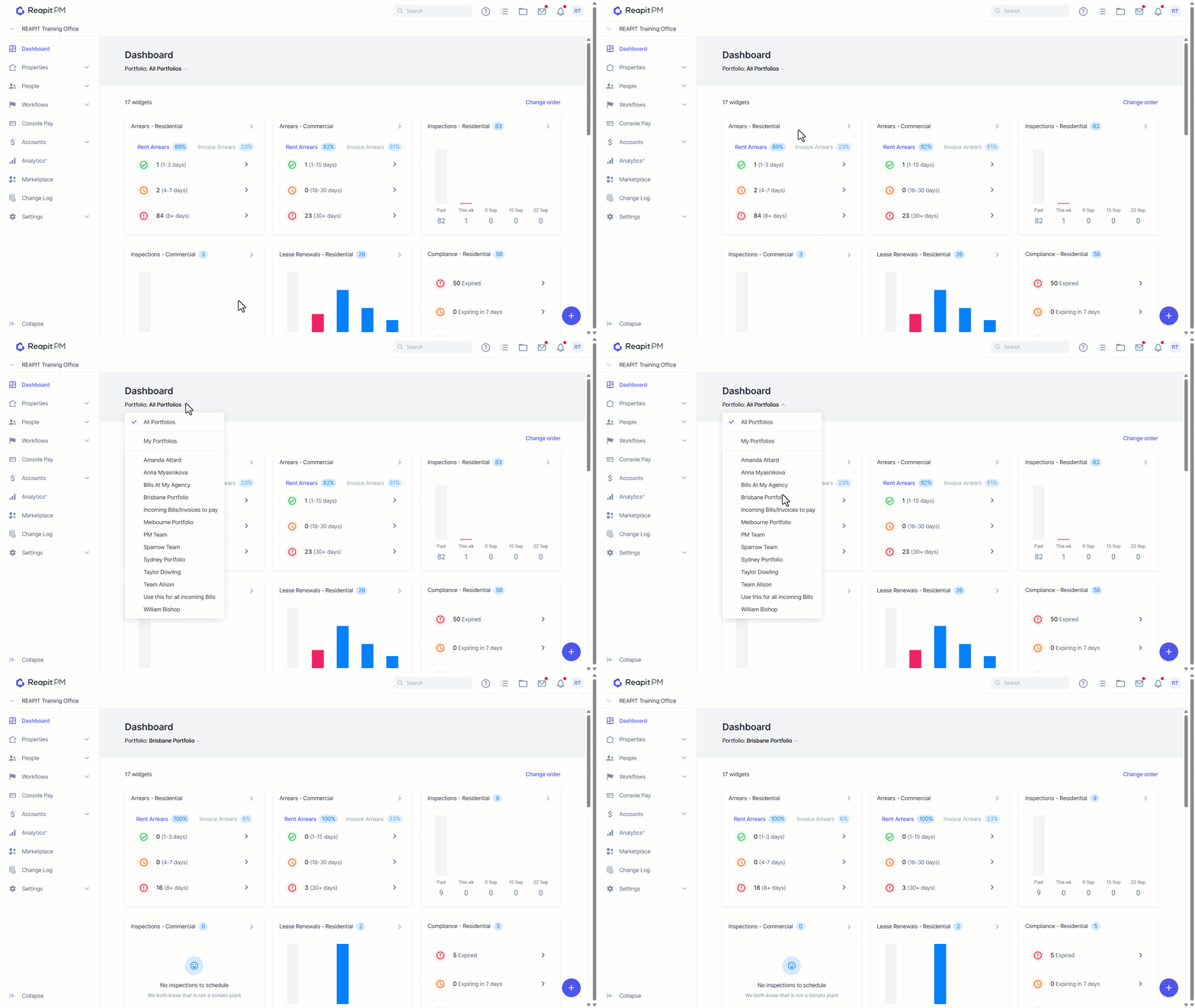
Select Dashboard > Click on the Portfolios drop down box in the top left.
Select the portfolio you would like to apply.
The screen will now display insights or information for properties linked to that portfolio.
Add a New Portfolio
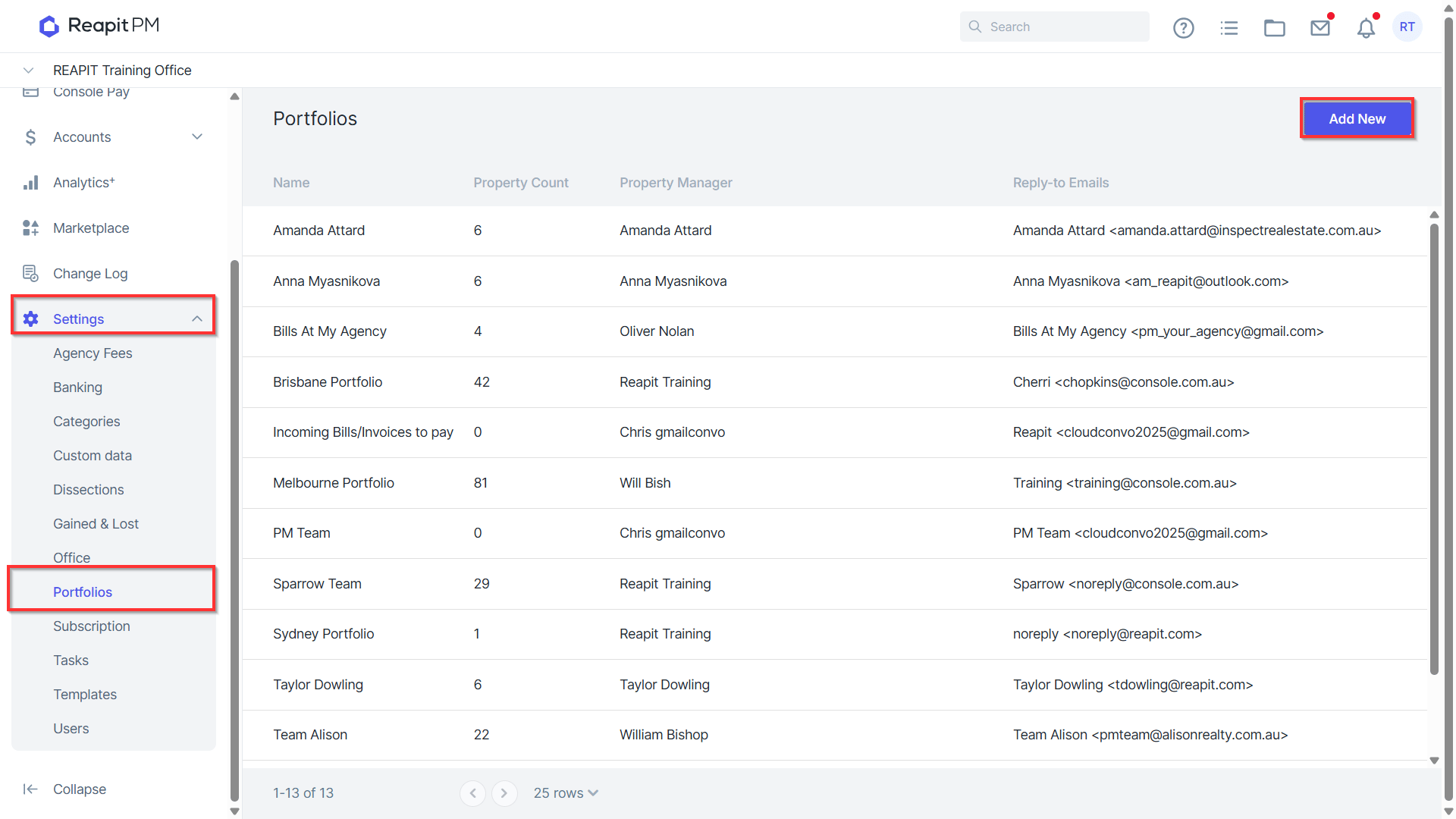
- Navigate to Settings > Portfolios > Add New.
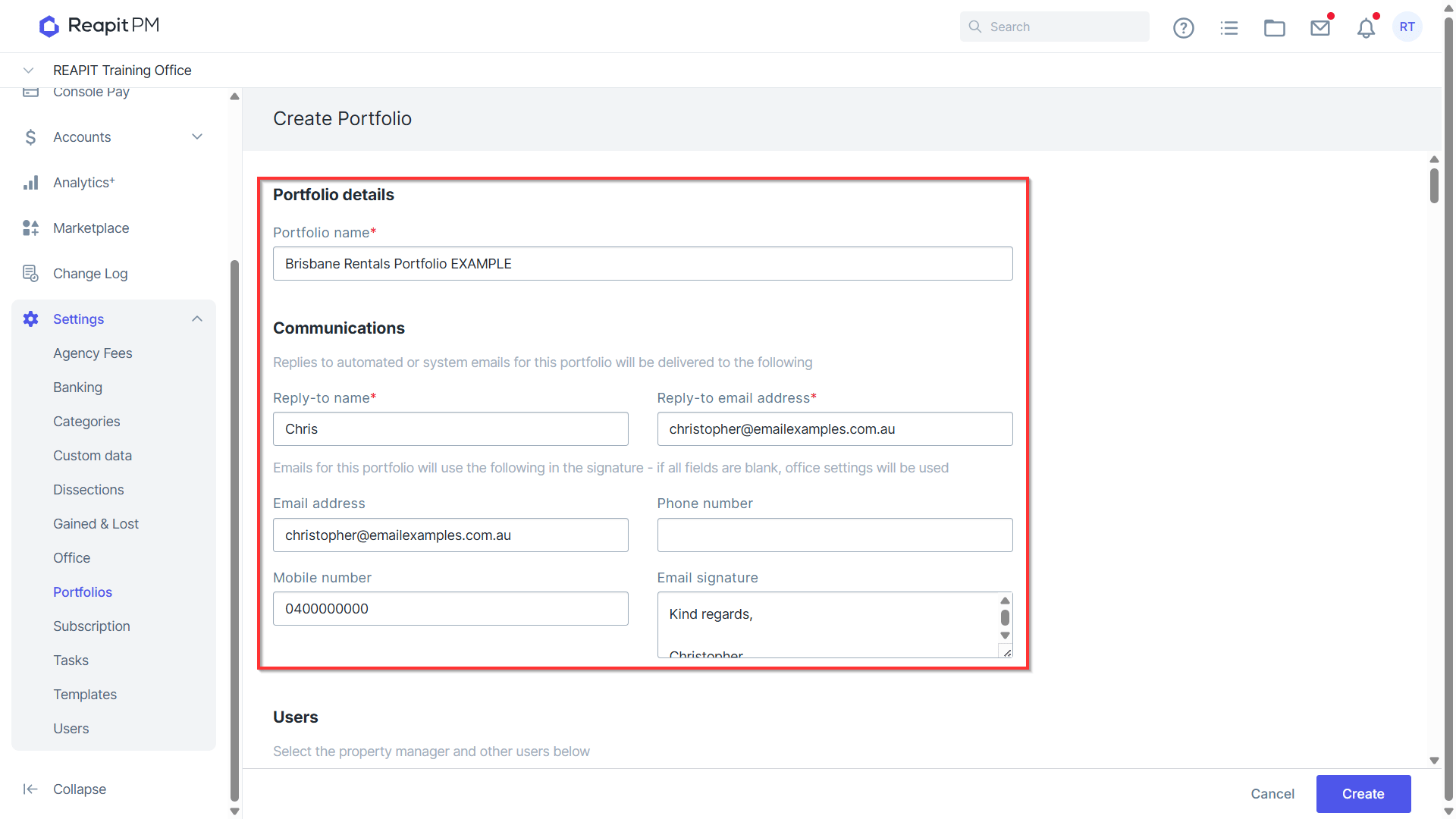
- Enter the Portfolio name.
- Enter the Reply-to Name & email address.
- Enter the plain text signature email address, phone numbers, and email signature text.
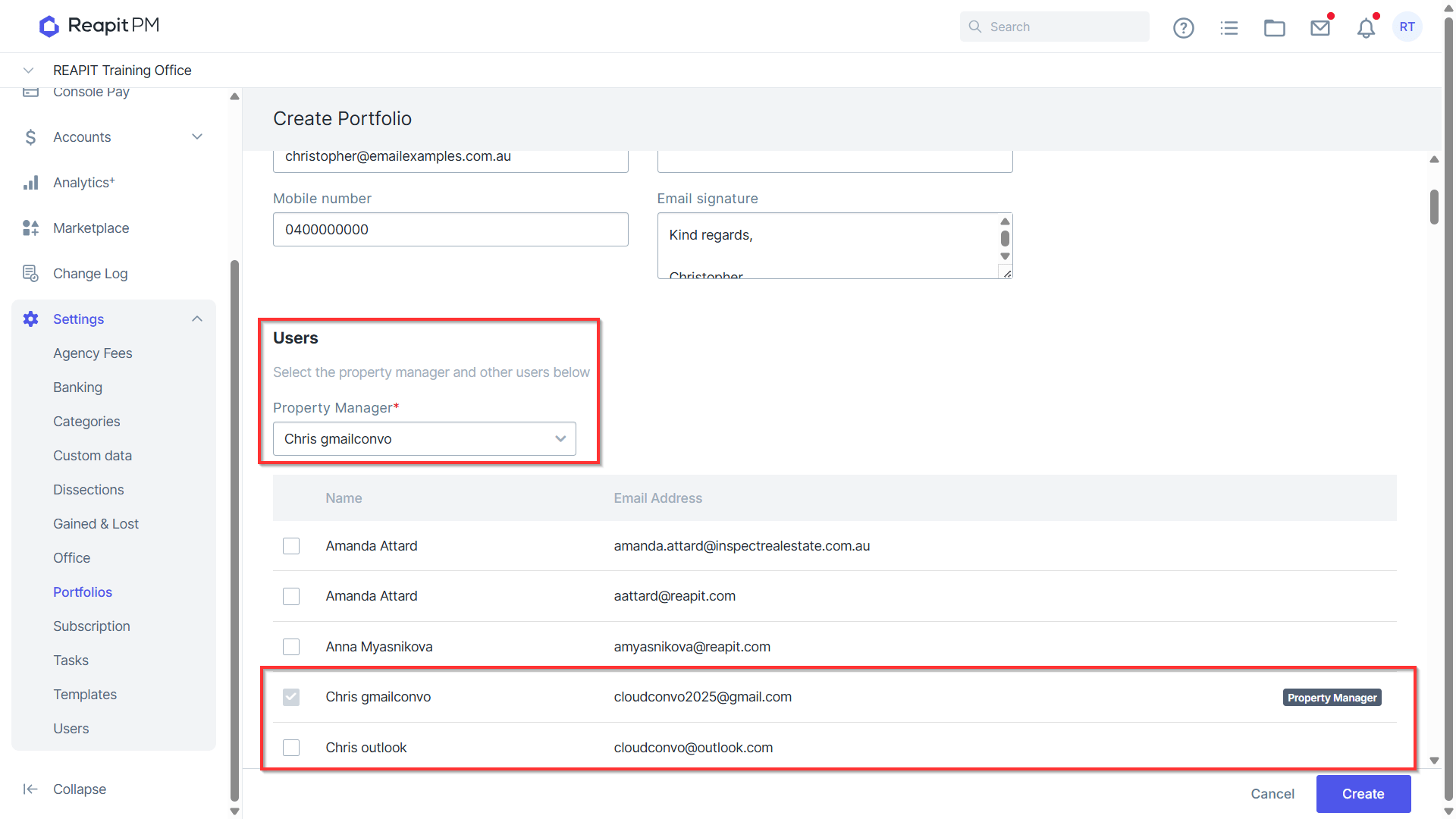
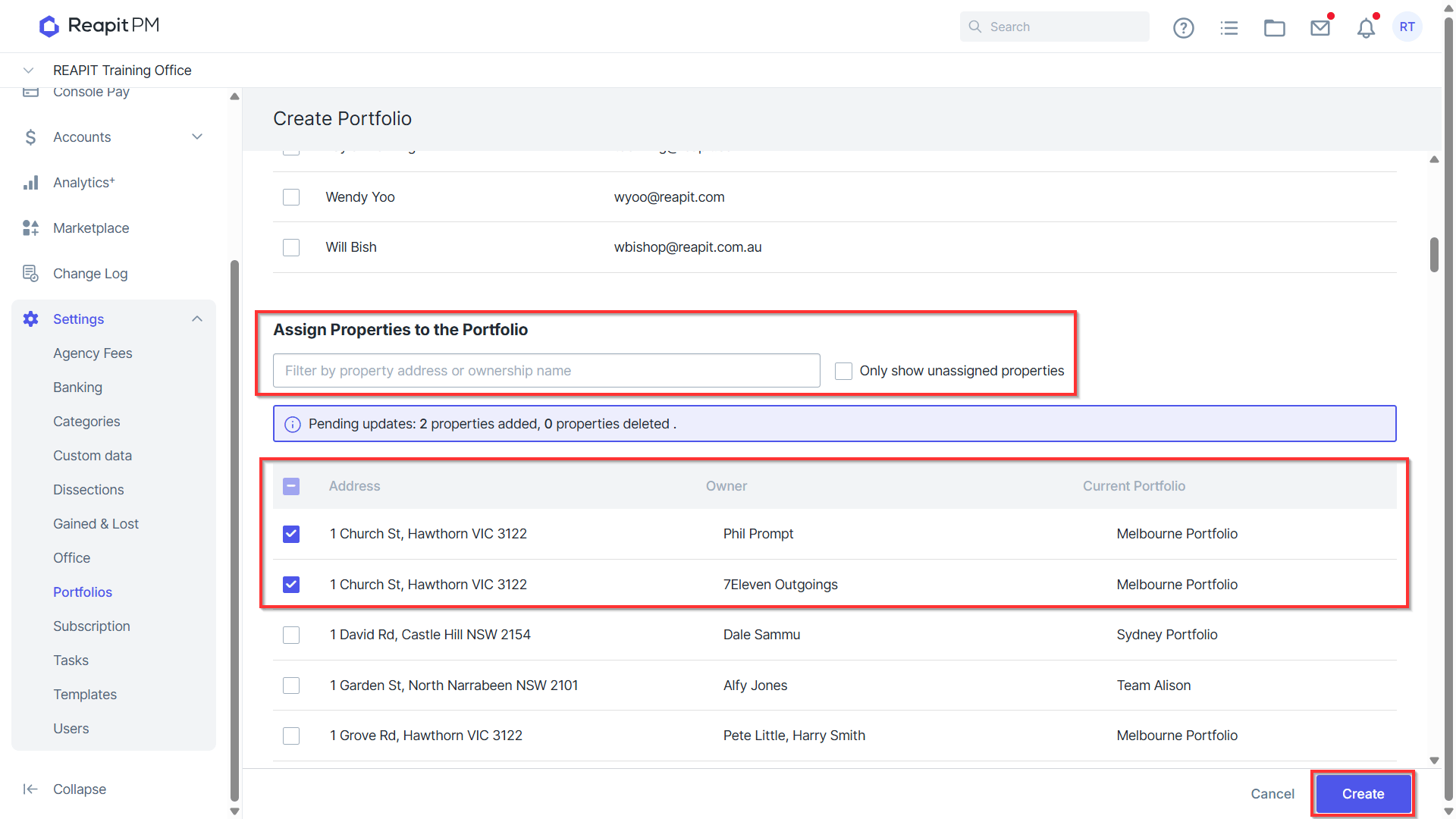
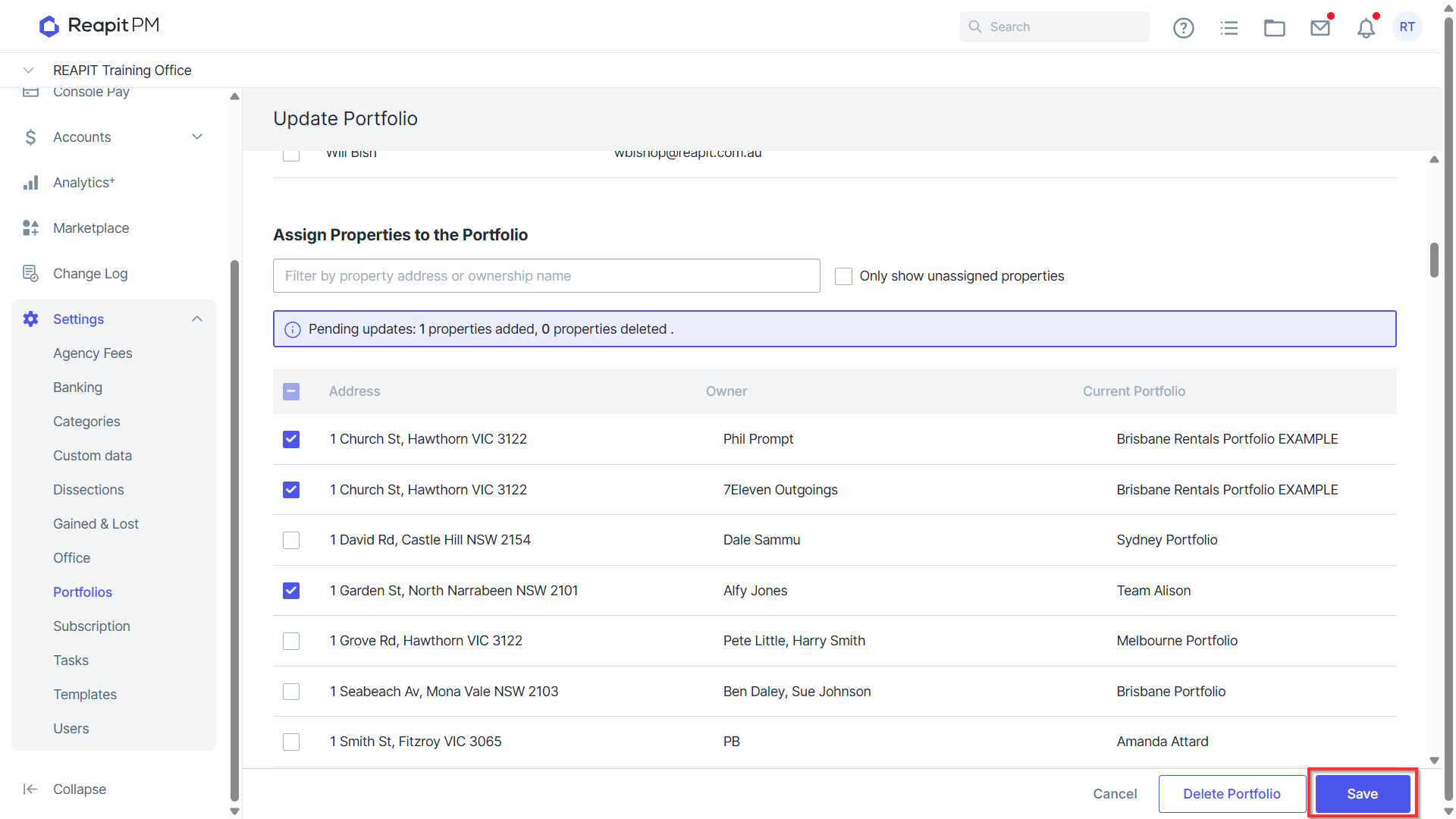
- Select the properties you would like to add to the portfolio.
Important Note: a property can only belong to one portfolio. If you assign a property that is already assigned to a different portfolio, it will be removed from the previous portfolio and added to the new one.
- Select Create.
Editing a Portfolio
- Select Settings > P**ortfolio and select the portfolio that you would like to edit. This will display the portfolio details.
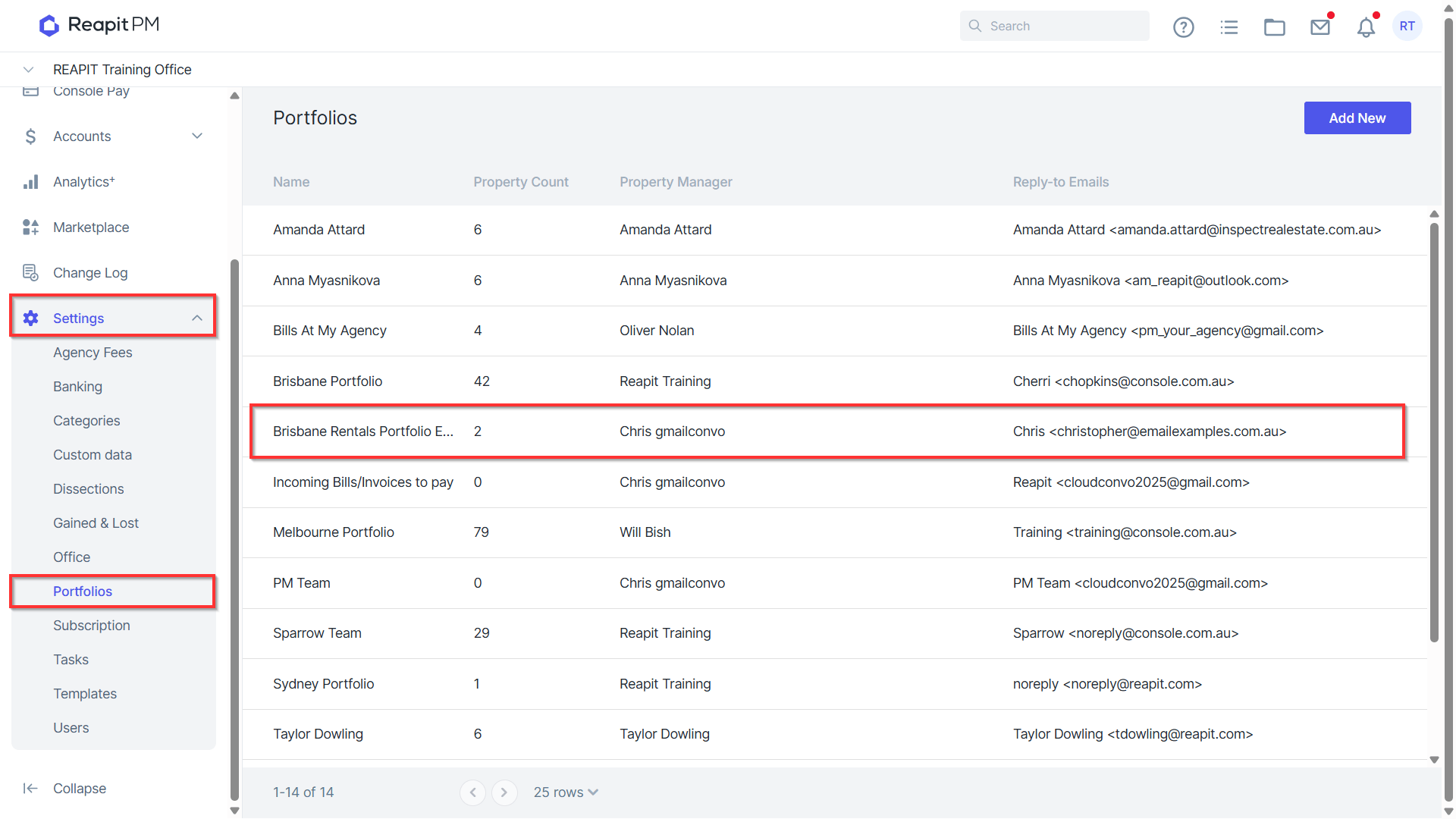
- Select > Edit.
- You will then be able to update the following:
- Portfolio name – change the name of your portfolio * Reply to & Signature – This allows you to have a single reply to address and name for a portfolio as well as a standard plain text signature.
Important Note: The plain text signature stored for a portfolio will appear on all system generated and automated communications only. For example : owner statements, owner payment advice, tenant invoices, maintenance work orders, quotes., automated arrears reminders, inspection reminders, and compliance emails.
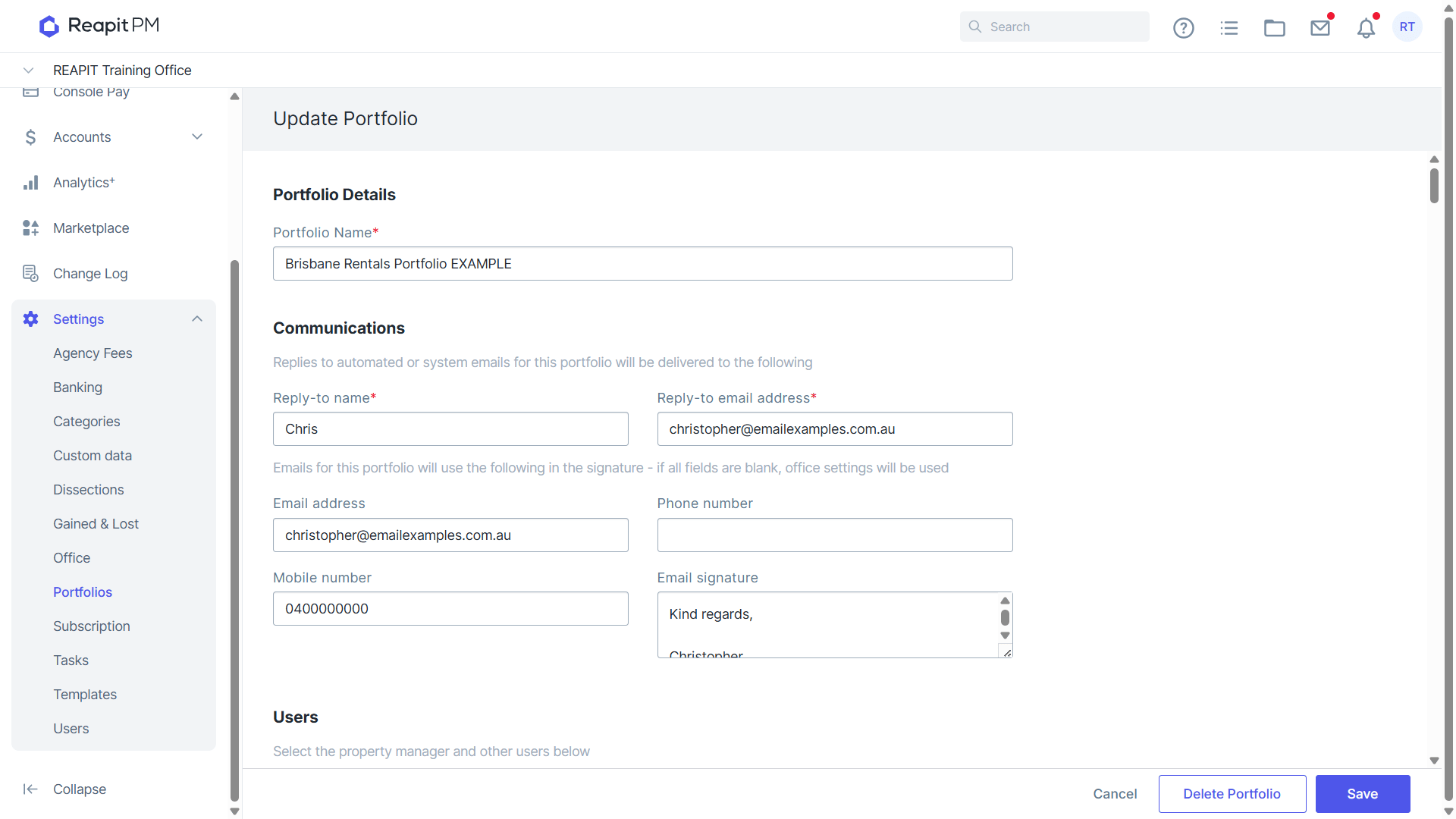
- Property Manager – the property manager in charge of/ or the main contact for the portfolio 5. Users – Add Property managers and staff who work across properties in that portfolio by selecting their name 6. To add or remove properties from the portfolio, tick or untick the box next to the property. 7. You can also use the search box to search for specific properties in a specific area, including unassigned properties Select > Save.
Deleting a Portfolio
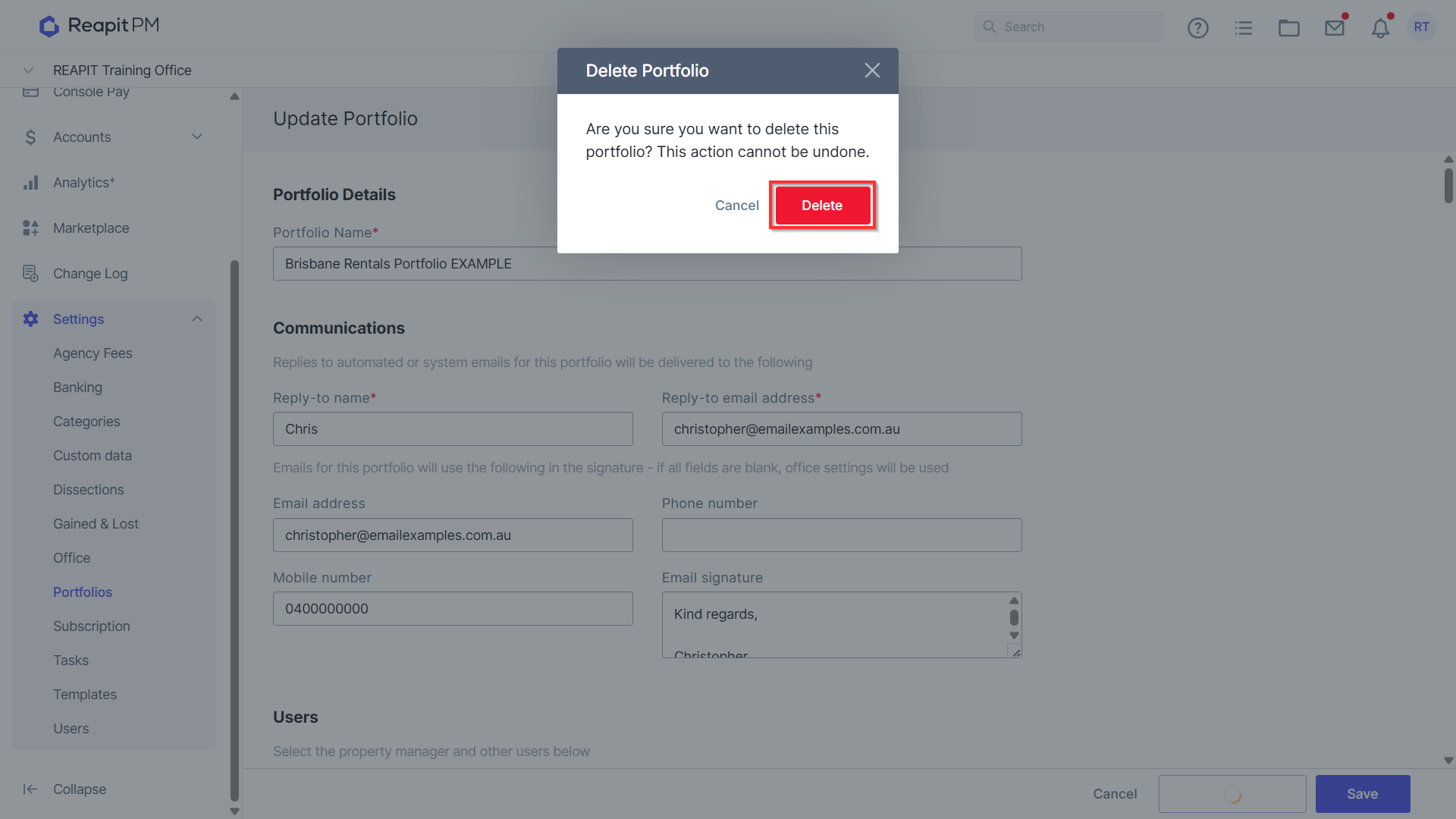
- Navigate to Settings > Portfolio. Select the portfolio you wish to delete. 2. Select the portfolio you wish to delete.
- Click Edit.
4. At the bottom, select Delete Portfolio.
5. Click Delete. Note: Once you a delete a portfolio this can not be undone.