'%20d='M0%208a8%208%200%200%201%208-8h24a8%208%200%200%201%208%208v24a8%208%200%200%201-8%208H8a8%208%200%200%201-8-8V8Z'/%3e%3cpath%20fill='%23fff'%20d='M8.375%2013v14L20.5%2034l12.124-7v-7.737l-1.687-.975-2.806-1.62-1.082-.624v4.83l-.002%204.83H13.95V16.07l3.275-1.89%202.192-1.265%201.082-.625%203.275%201.877%202.192%201.256%201.083.62V9.782L20.5%206%208.376%2013Z'/%3e%3cdefs%3e%3clinearGradient%20id='reapit-pm__a'%20x1='20.702'%20x2='20.702'%20y1='.351'%20y2='31.228'%20gradientUnits='userSpaceOnUse'%3e%3cstop%20stop-color='%235573FD'/%3e%3cstop%20offset='.575'%20stop-color='%234E56EA'/%3e%3c/linearGradient%3e%3c/defs%3e%3c/svg%3e)
Charging and Reversing Fees
Fees can be charged on demand, or configured to charge at a certain event or date within Reapit RM. For information on configuring fees see our article on fee configuration. The processes in this article include: Charging on Demand Fees Reversing Fees
Overview
Charging and Reversing Fees
Fees can be charged on demand, or configured to charge at a certain event or date within Reapit RM. For information on configuring fees see our article on fee configuration.
The processes in this article include:
- Charging on Demand Fees
- Reversing Fees
Charging on Demand Fees
- Prior to charging an on-demand fee the fee must be applied to the ownership agreement. Once applied follow the below steps to charge the fee.
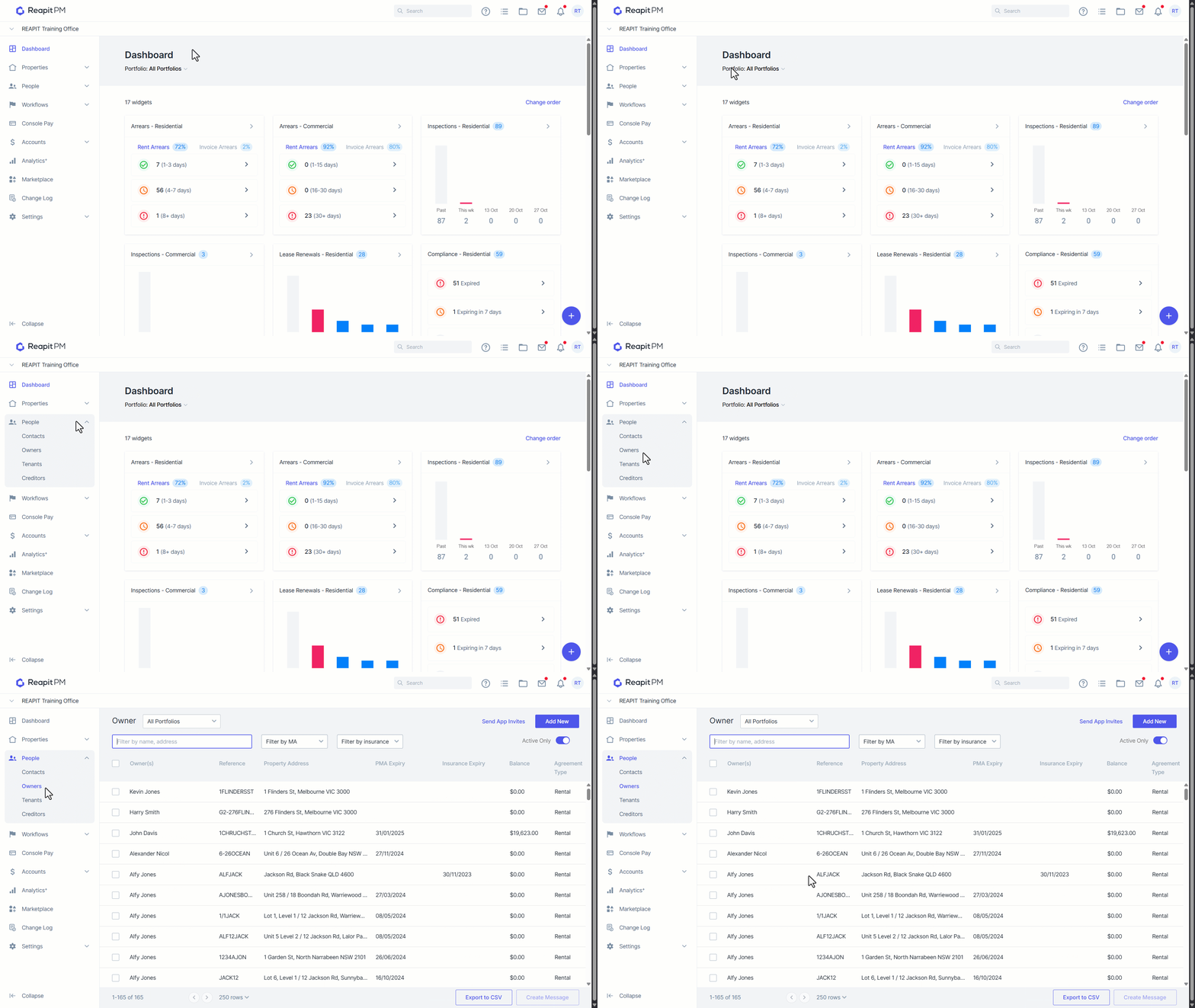
- Navigate to People.
- Click Owners.
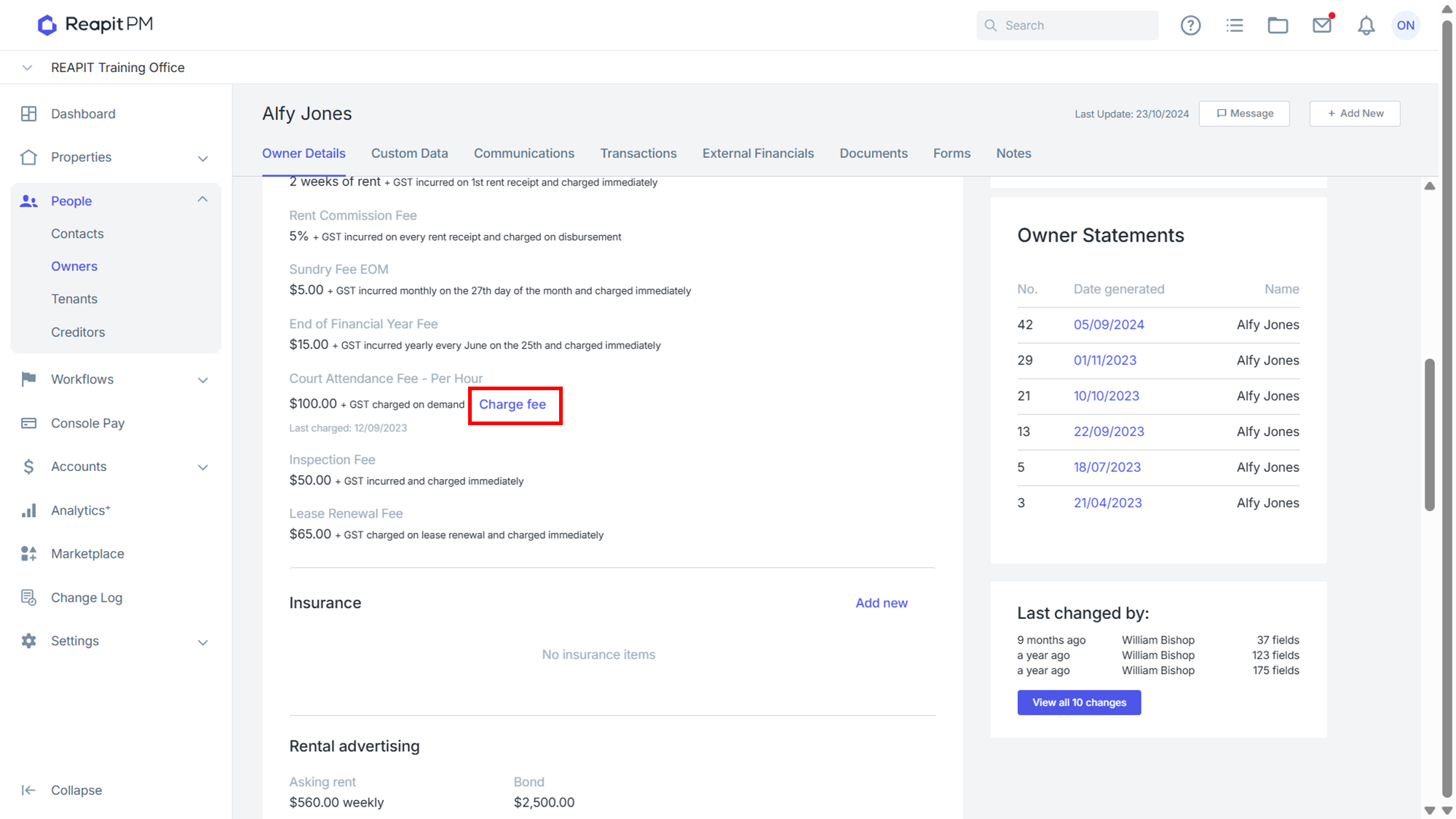
- Within the relevant Ownership scroll down to the Commission & Fees section of the profile.
- Against the relevant fee, click Charge fee.
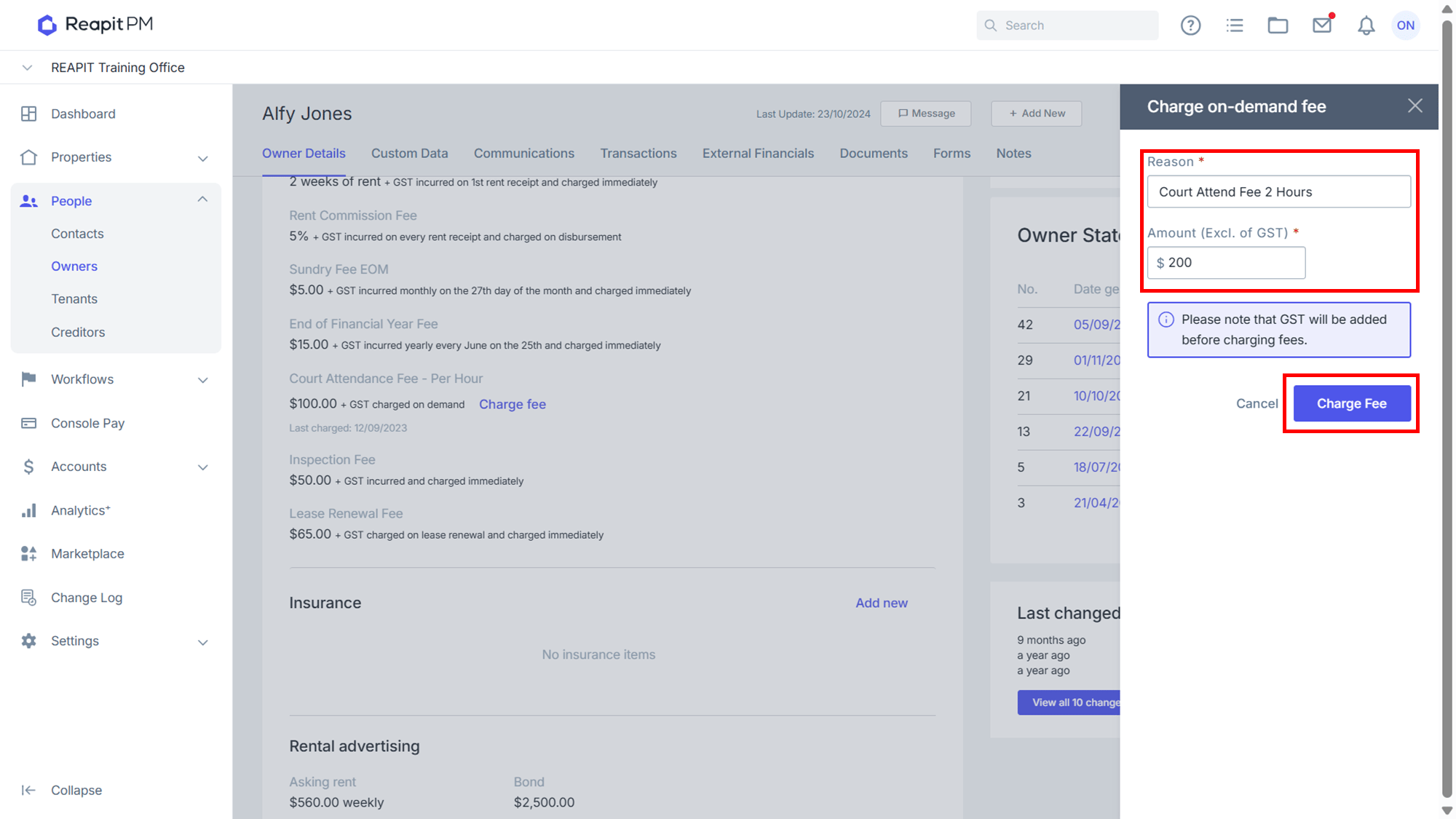
- Enter the reason,
- Enter the amount.
- Click Charge Fee.
Reversing Fees
- Fees can be reversed after charging, provided that there is sufficient funds in the available balance. Fees attached to an event (i.e. rent receipted) will also need to be reversed if the event is reversed.
- Navigate to Accounts.
- Click Agency.
- Funds can either be transferred from the Agency to the Owner or the fee reversed directly.
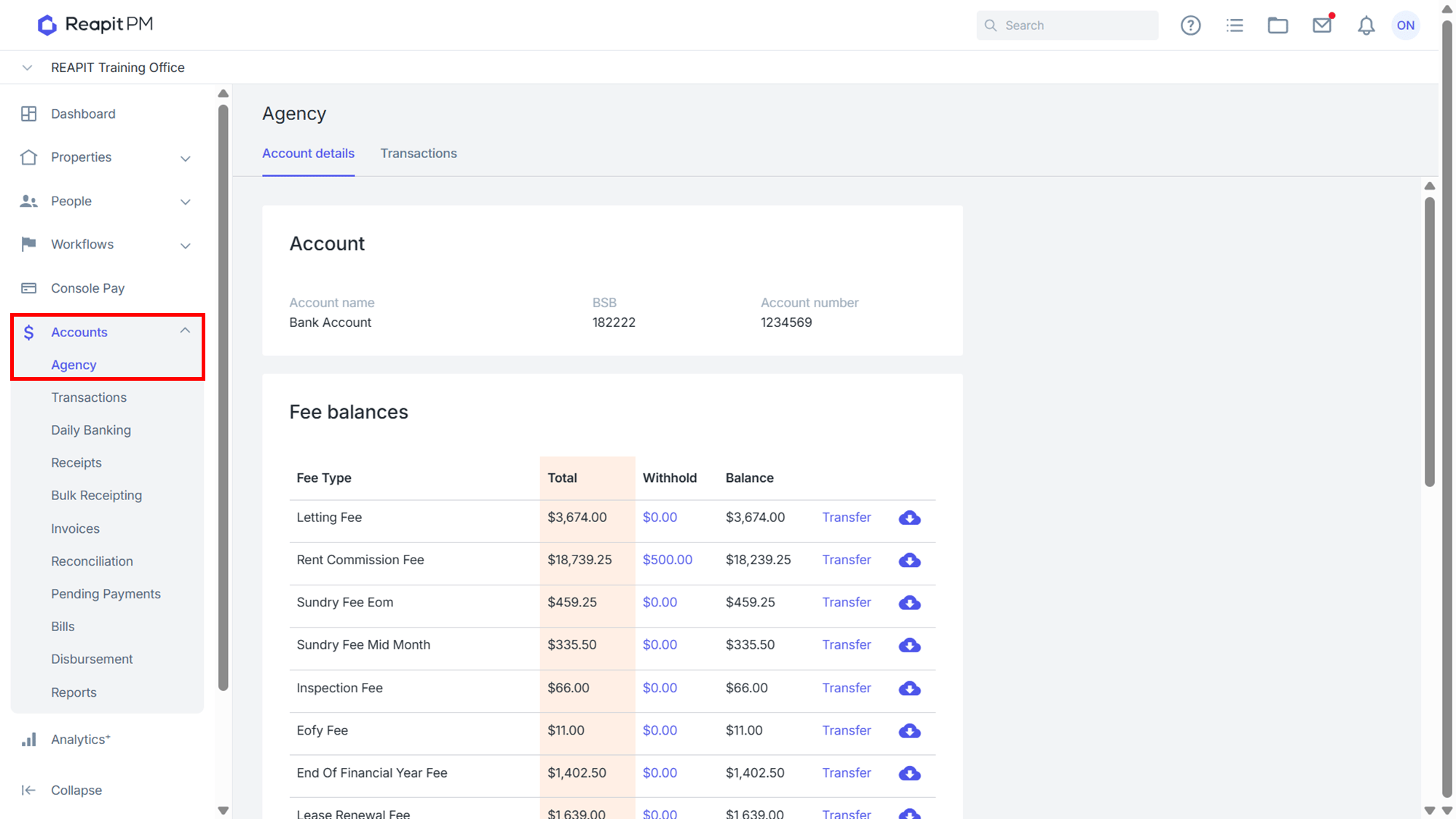
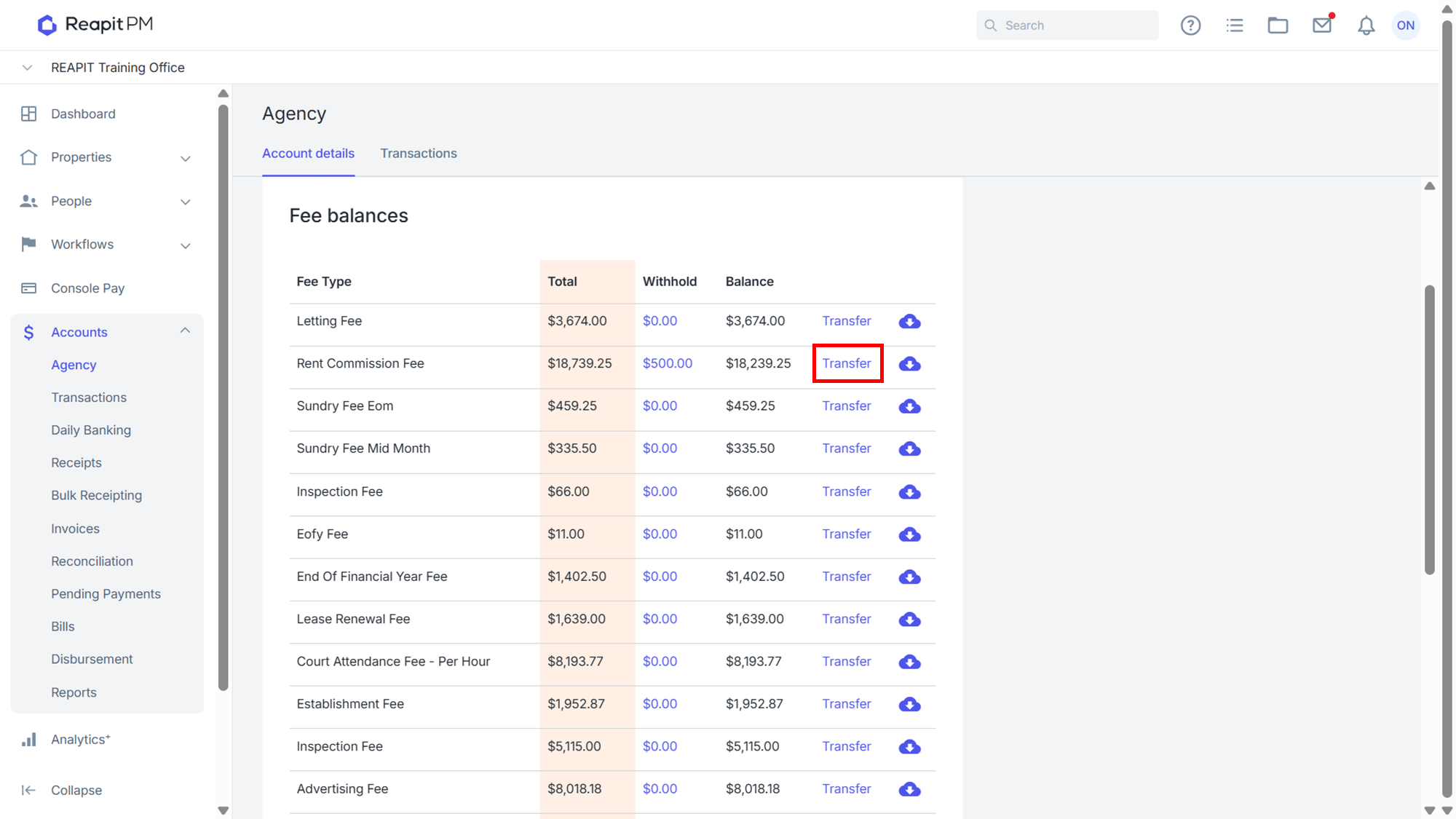
- Against the relevant account, click Transfer.
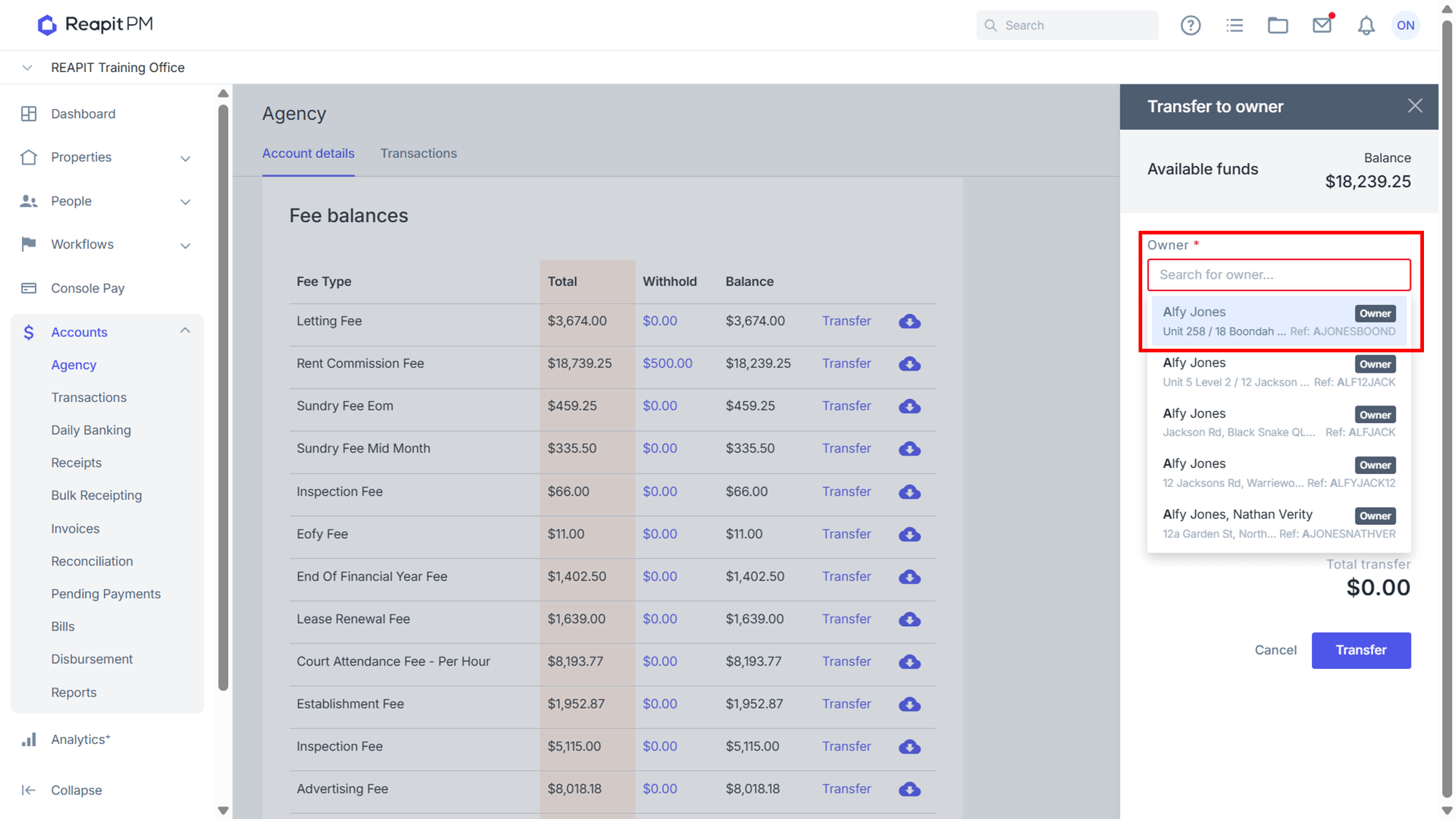
- Search and Select the Owner.
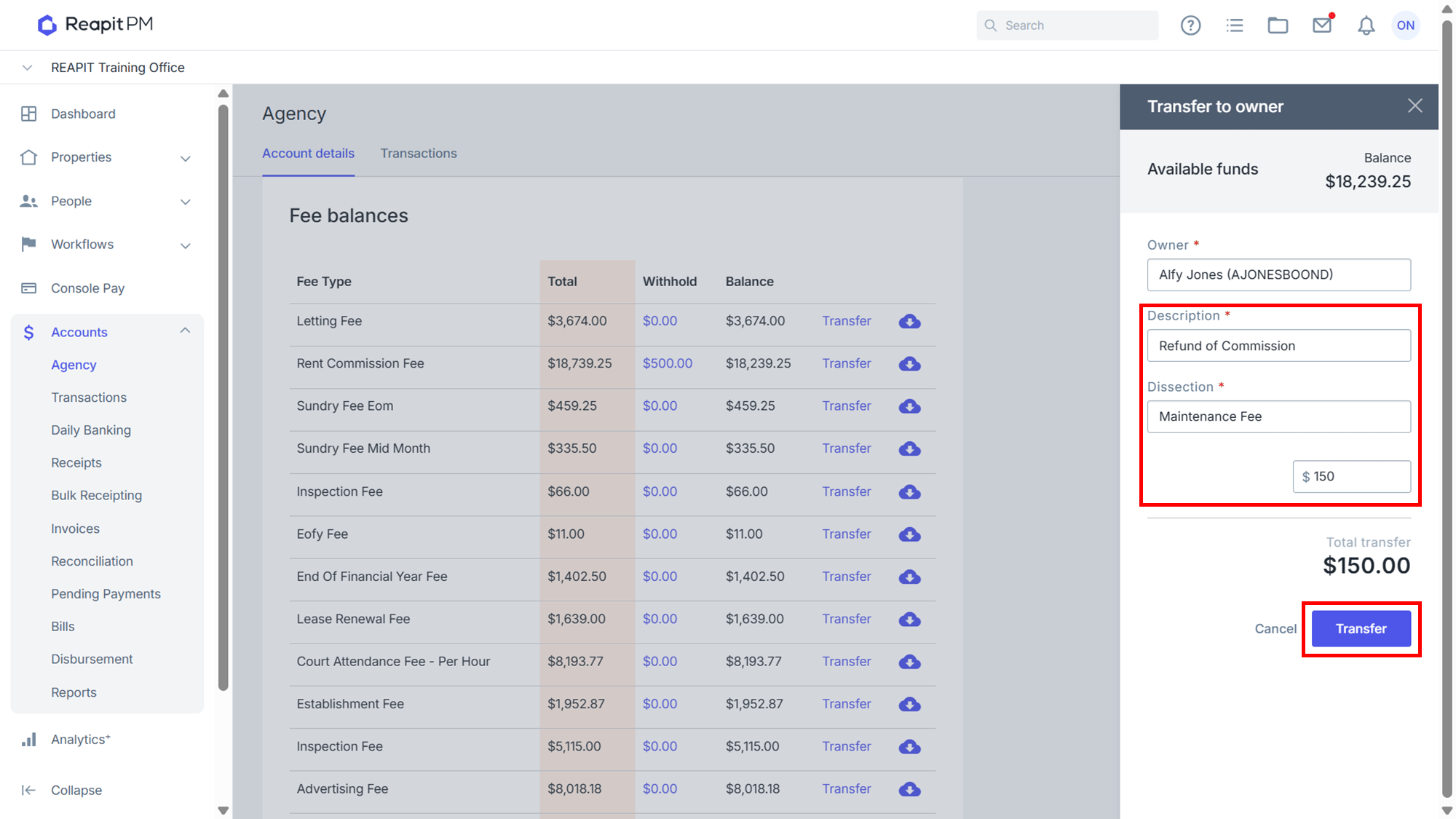
- Add the Description, select the Dissection and enter an amount and Click Transfer.
- Alternatively, to reverse a particular fee, navigate to Accounts.
- Click Agency.
- Click Transactions.
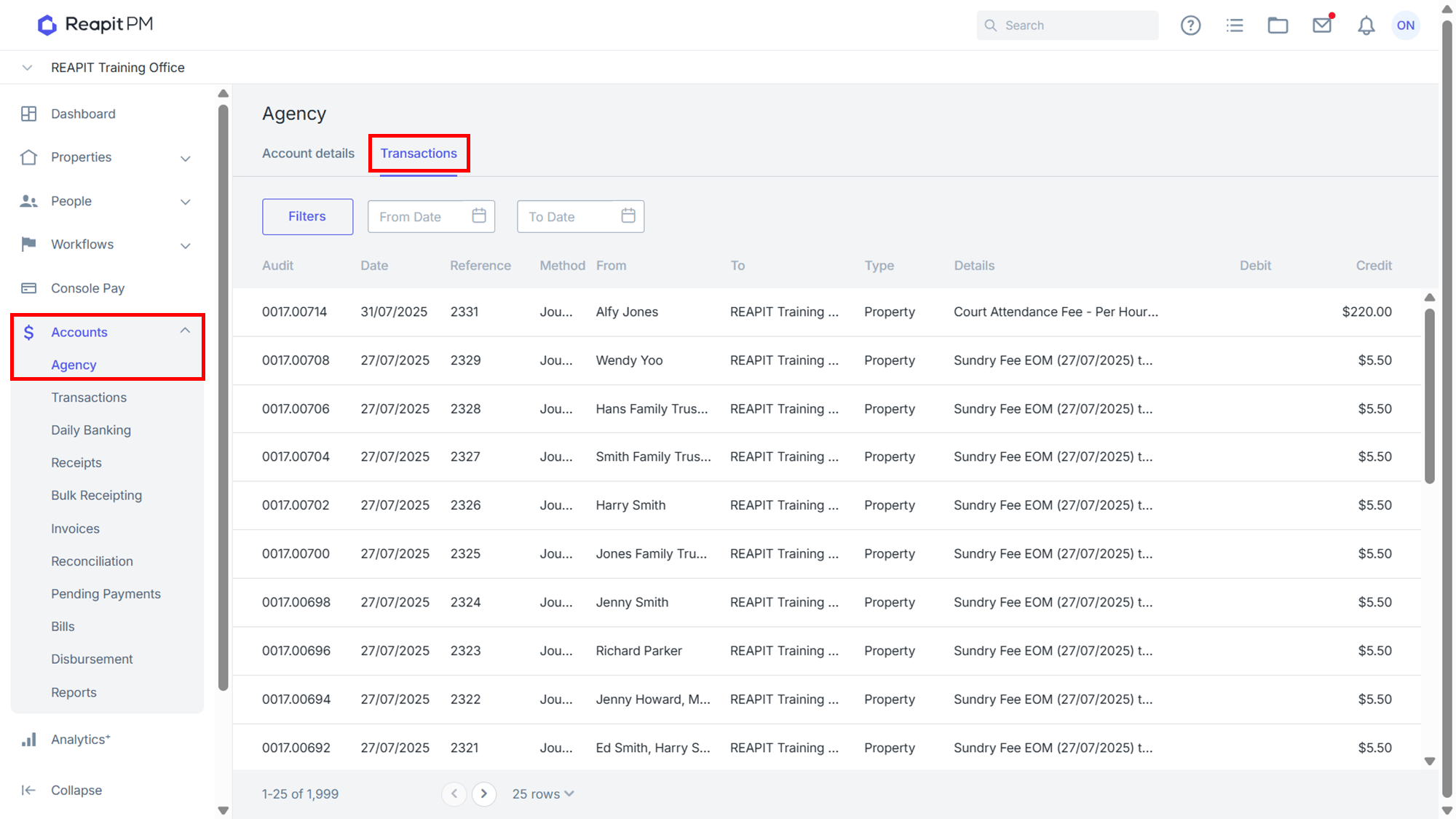
- Click into the relevant fee.
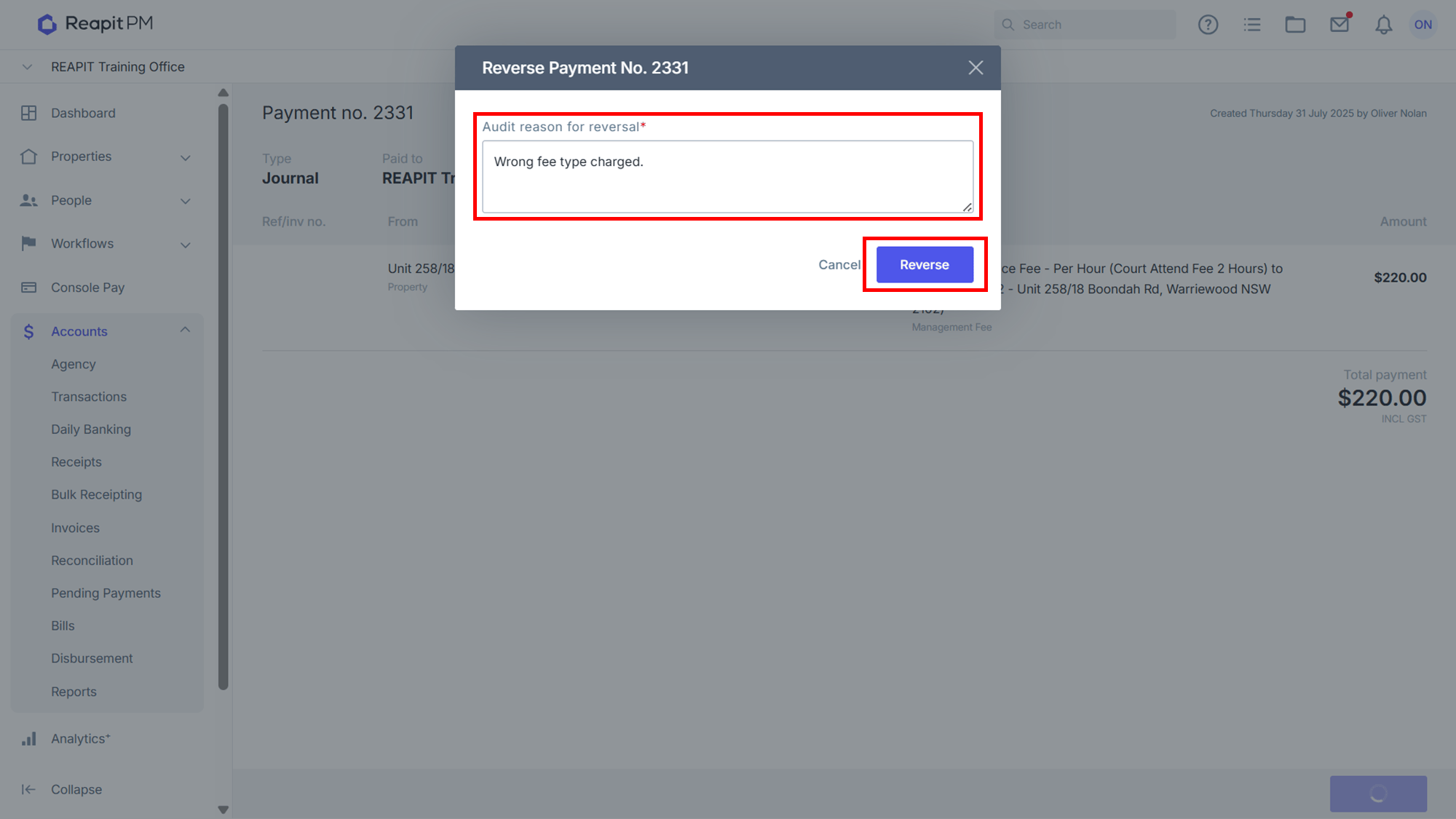
- Click Reverse.
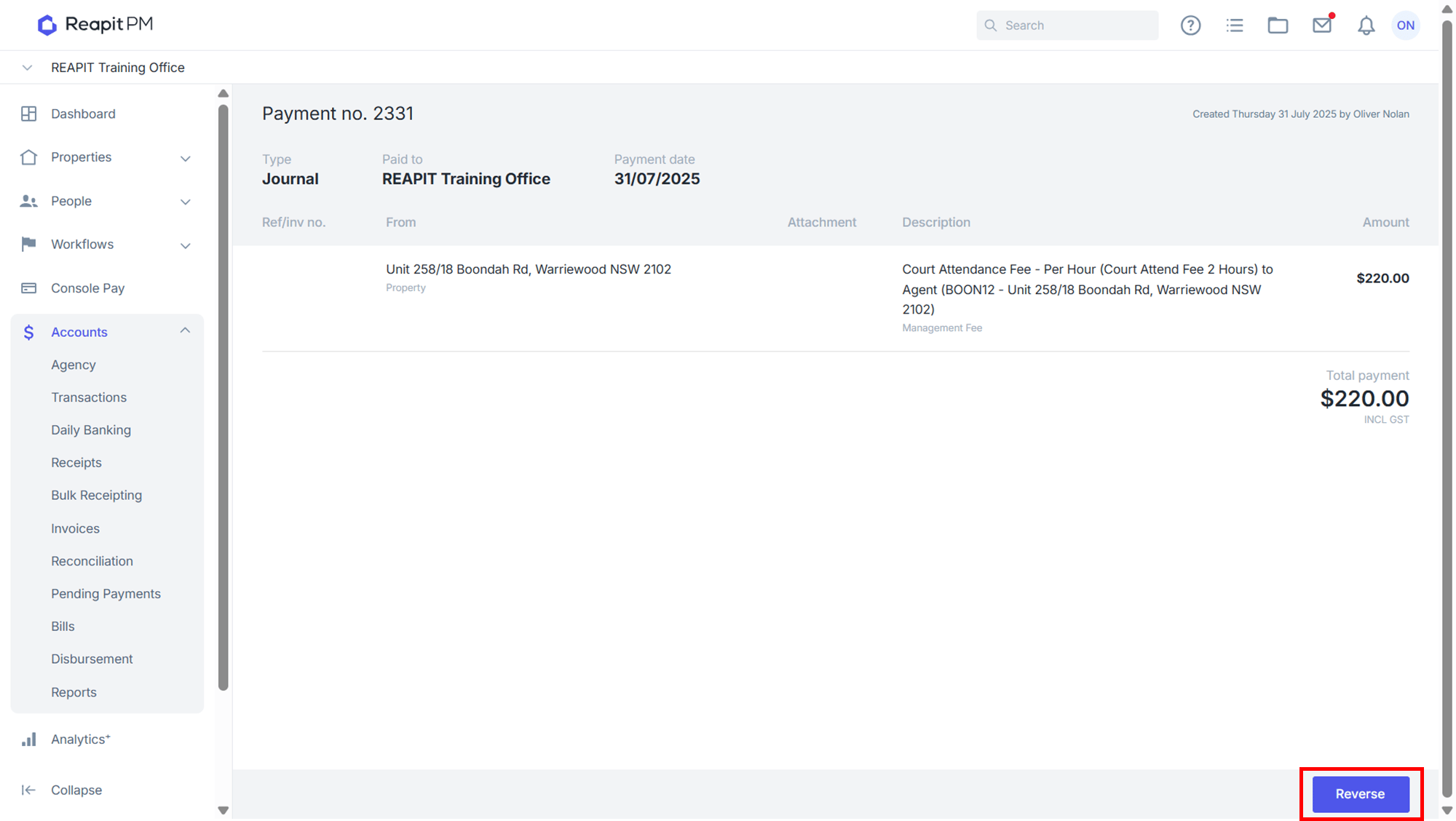
- Enter an Audit reason for reversal.
- Click Reverse.