'%20d='M0%208a8%208%200%200%201%208-8h24a8%208%200%200%201%208%208v24a8%208%200%200%201-8%208H8a8%208%200%200%201-8-8V8Z'/%3e%3cpath%20fill='%23fff'%20d='M8.375%2013v14L20.5%2034l12.124-7v-7.737l-1.687-.975-2.806-1.62-1.082-.624v4.83l-.002%204.83H13.95V16.07l3.275-1.89%202.192-1.265%201.082-.625%203.275%201.877%202.192%201.256%201.083.62V9.782L20.5%206%208.376%2013Z'/%3e%3cdefs%3e%3clinearGradient%20id='reapit-pm__a'%20x1='20.702'%20x2='20.702'%20y1='.351'%20y2='31.228'%20gradientUnits='userSpaceOnUse'%3e%3cstop%20stop-color='%235573FD'/%3e%3cstop%20offset='.575'%20stop-color='%234E56EA'/%3e%3c/linearGradient%3e%3c/defs%3e%3c/svg%3e)
Cancelling a Tenancy
This article will guide you through the process of cancelling a tenant agreement, making the agreement inactive, and reinstating a cancelled tenancy in Reapit PM.
When Tenant Agreement is created in Reapit PM, and then the tenant withdraws their application for the property, the tenancy needs to be cancelled.
Cancelling a tenancy allows another tenancy agreement to be created on the property with the same or overlapping lease dates.
If a tenant is vacating a property, please follow the steps in this guide instead: How to Manage a Vacate
Cancelling a tenancy does not perform or reverse any transactions. If you need to reverse any bond/rent/deposit receipts, follow the steps in this guide: Receipting and Reversals
The processes in this article include
- How to Cancel a Tenant Agreement
- Making the Tenant Agreement Inactive
- Reinstating a Cancelled Tenancy
How to Cancel a Tenant Agreement
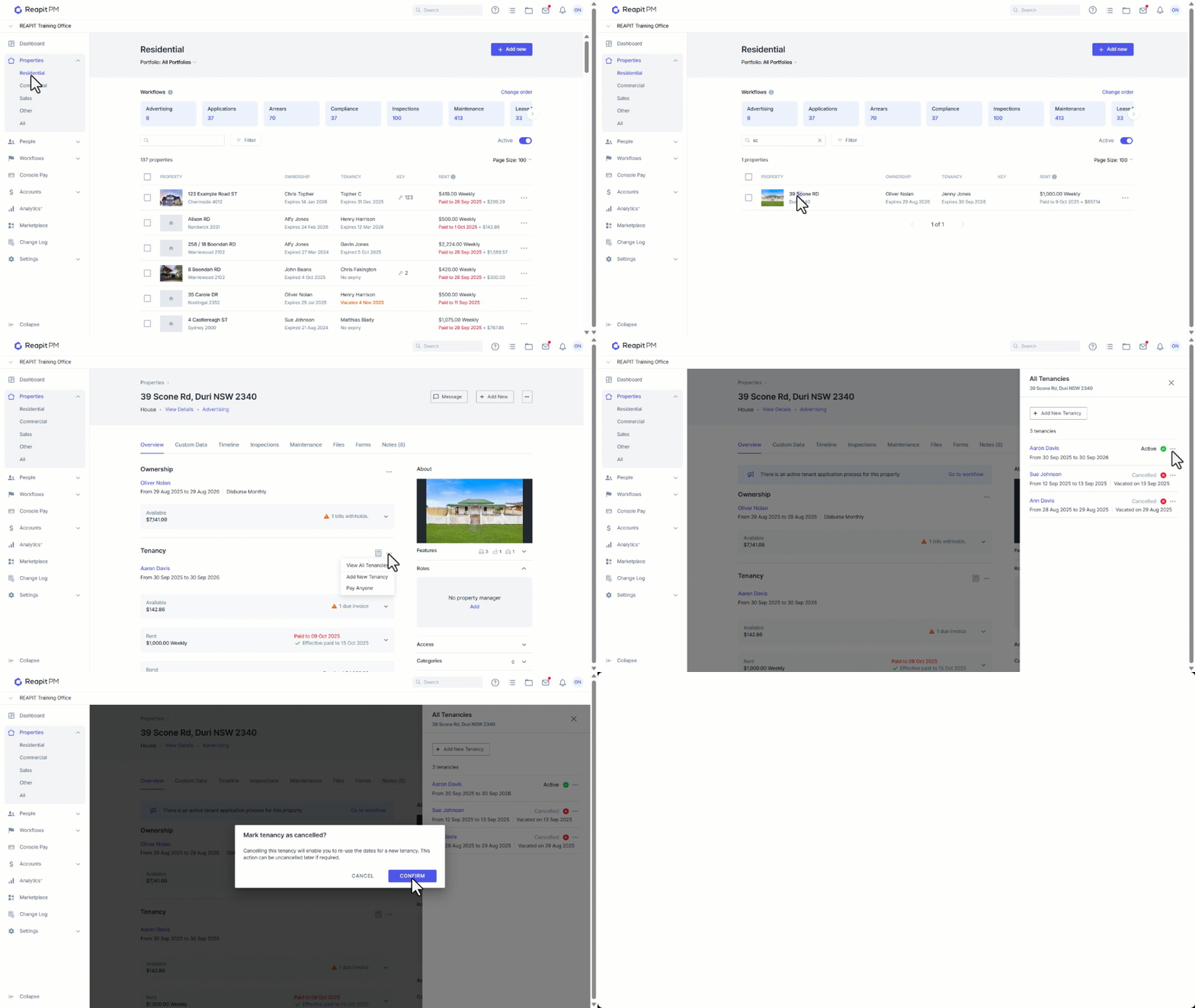
- Click on Properties.
- Click on Residential.
- Search and select a property.
- Navigate to the Tenancy section and click the 3 dots and select View All Tenancies.
- From the All Tenancies drawer click the 3 dots next to the tenancy you wish to cancel, and select Cancel Tenancy.
- Click on Confirm.
Making the Tenant Agreement Inactive
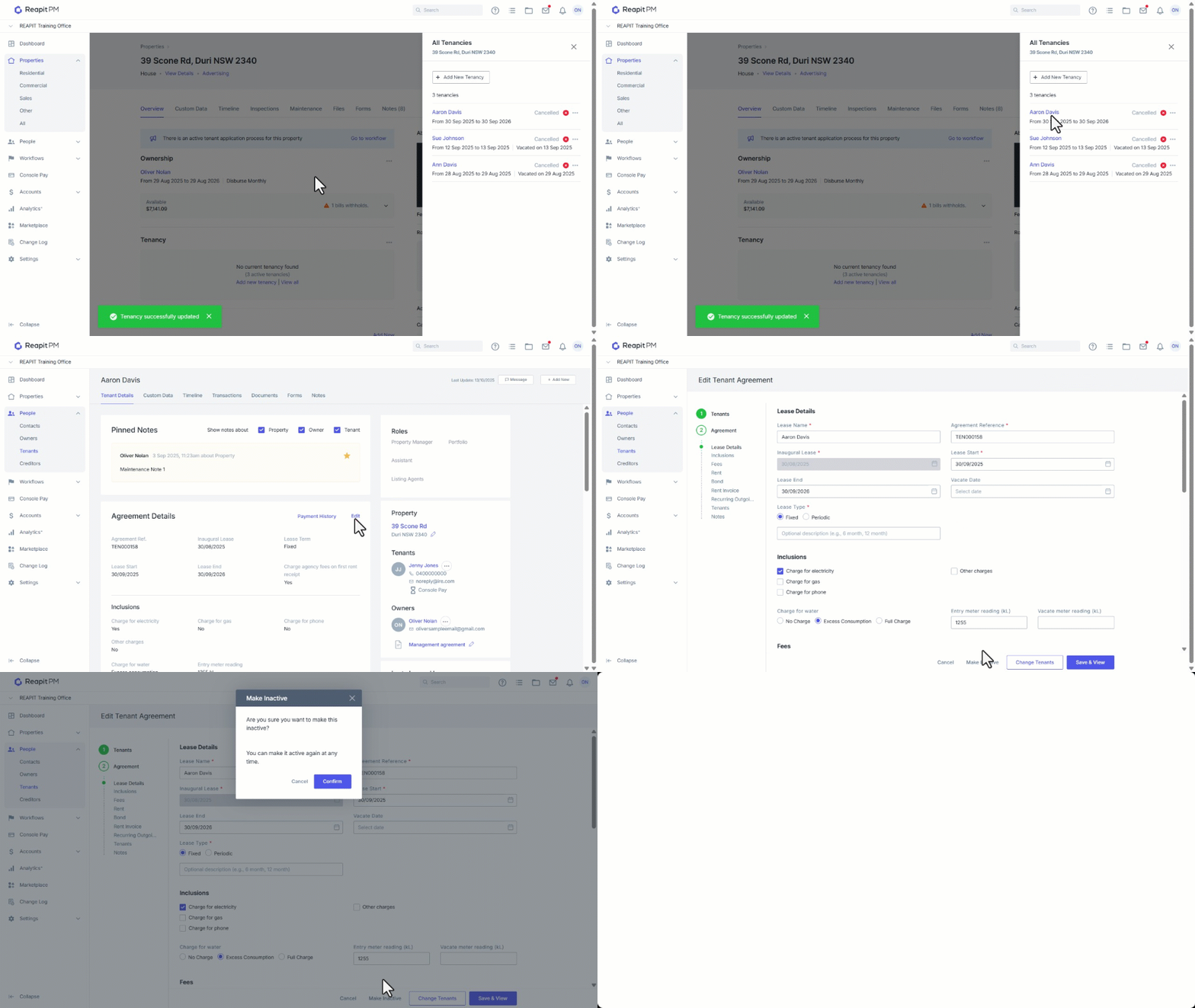
Cancelling the tenancy does not delete or make the tenant agreement inactive. If you need to make the tenant agreement inactive, you will need to do this after cancelling the tenancy.
- Open the tenant agreement by clicking on the tenant’s name in the ‘View All Tenancies’ drawer.
- Navigate to Agreement Details and click Edit.
- Navigate to the bottom of the screen and click on Make Inactive.
- Click on Confirm.
Reinstating a Cancelled Tenancy
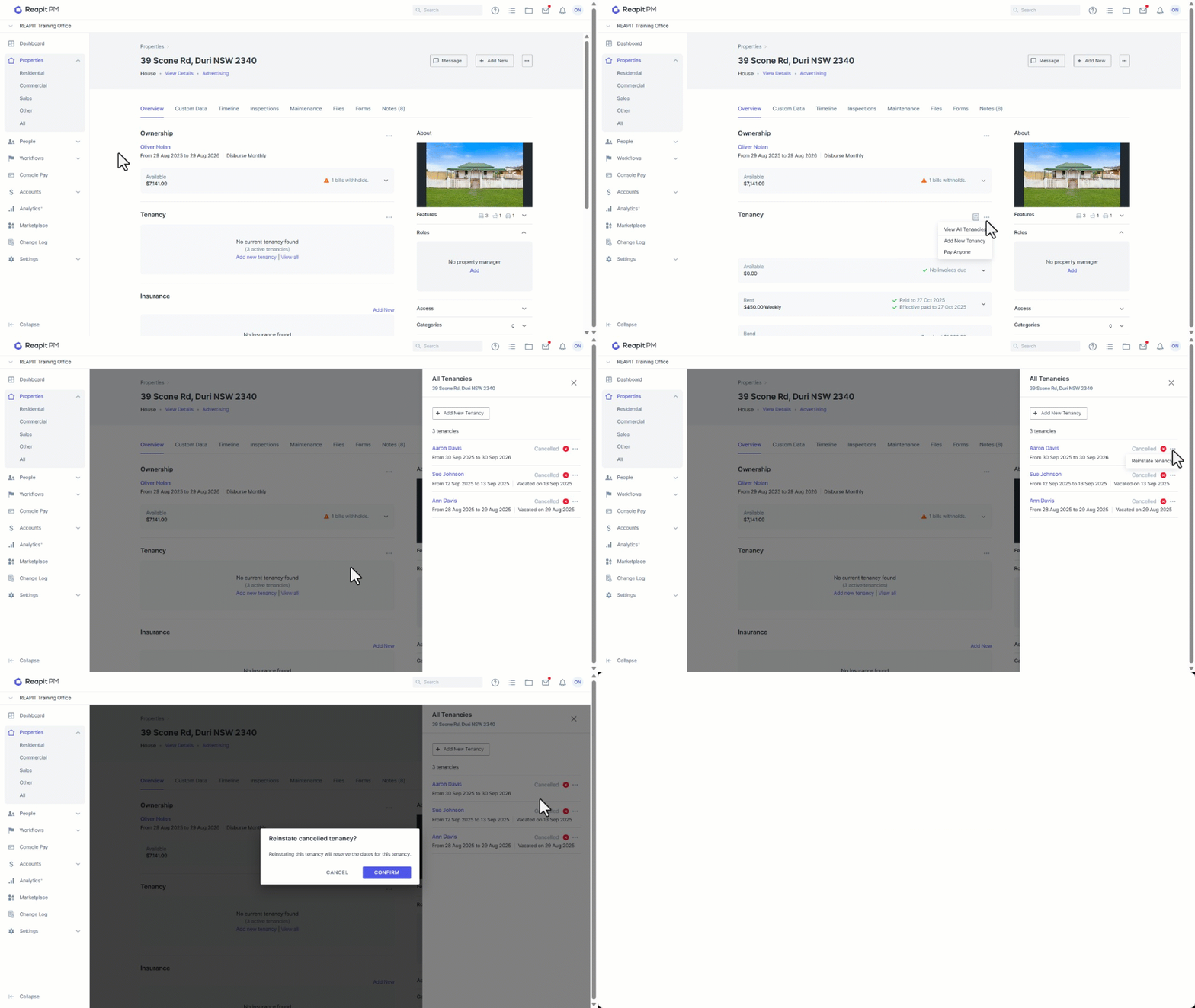
- From View All Tenancies, click on the 3 dots next to the cancelled tenancy and select Reinstate Tenancy.
- Click on Confirm.
- The tenancy is now reinstated, and you will not be able to create any tenancy with the same or overlapping dates as this tenant.
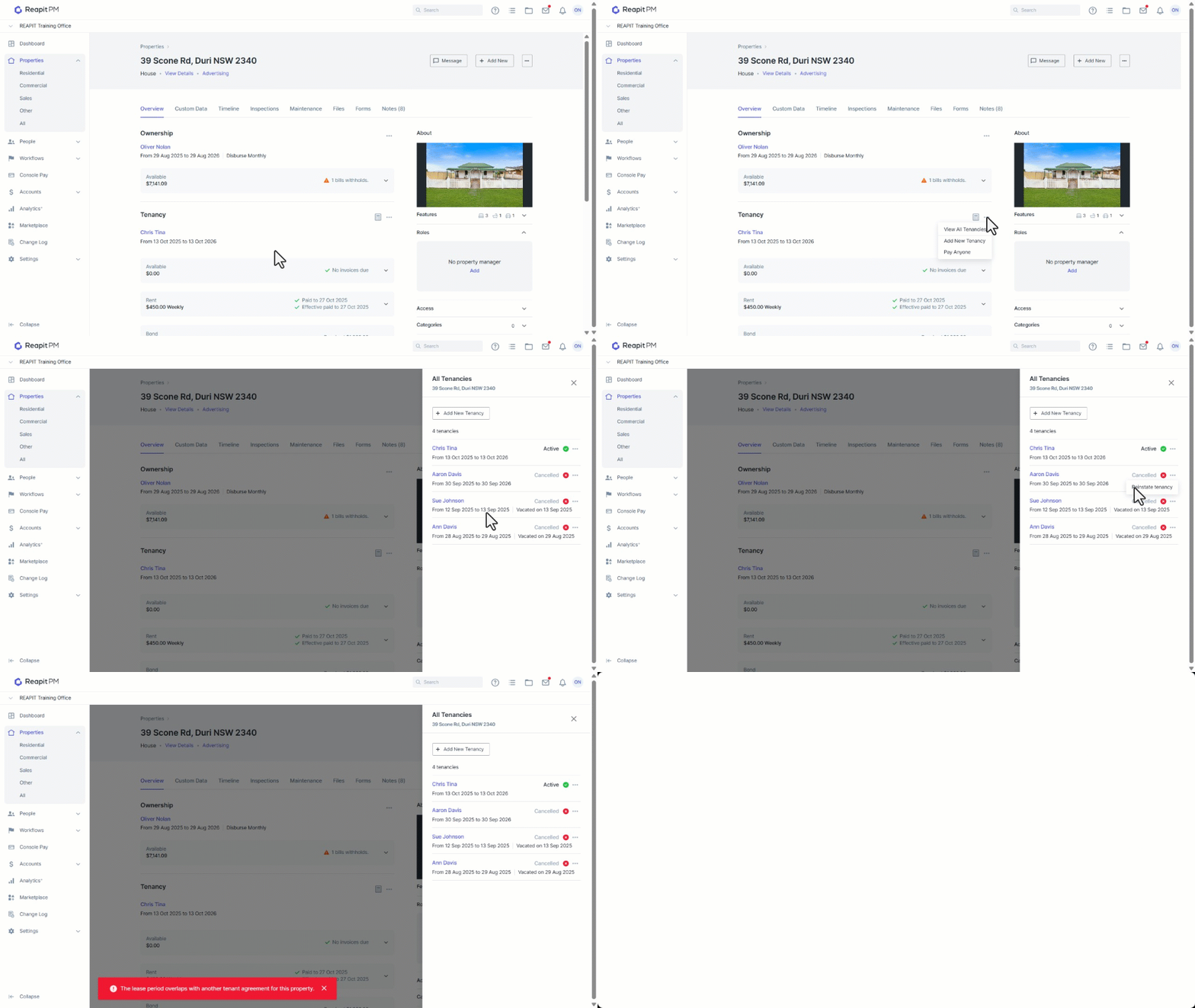
- If you do try to reinstate a tenancy, where another tenant agreement has already been created with overlapping lease dates, you will see an error at the bottom right of your screen.
- To resolve this error, you will need to cancel the other active tenant agreement first, then reinstate your tenant agreement.