'%20d='M0%208a8%208%200%200%201%208-8h24a8%208%200%200%201%208%208v24a8%208%200%200%201-8%208H8a8%208%200%200%201-8-8V8Z'/%3e%3cpath%20fill='%23fff'%20d='M8.375%2013v14L20.5%2034l12.124-7v-7.737l-1.687-.975-2.806-1.62-1.082-.624v4.83l-.002%204.83H13.95V16.07l3.275-1.89%202.192-1.265%201.082-.625%203.275%201.877%202.192%201.256%201.083.62V9.782L20.5%206%208.376%2013Z'/%3e%3cdefs%3e%3clinearGradient%20id='reapit-pm__a'%20x1='20.702'%20x2='20.702'%20y1='.351'%20y2='31.228'%20gradientUnits='userSpaceOnUse'%3e%3cstop%20stop-color='%235573FD'/%3e%3cstop%20offset='.575'%20stop-color='%234E56EA'/%3e%3c/linearGradient%3e%3c/defs%3e%3c/svg%3e)
How to Complete an Entry or Exit Inspection Using the Reapit PM Inspect App
This article will cover completing an Entry or Exit inspection using the Reapit PM Inspect App.
The processes in this article include:
- How to Complete an Entry or Exit Inspection Using the Reapit PM Inspect App
- Tenant Checklist Feature (exit reports only)
- AI in the Reapit PM App (In BETA)
How to Complete an Entry or Exit Inspection Using the Reapit PM Inspect App
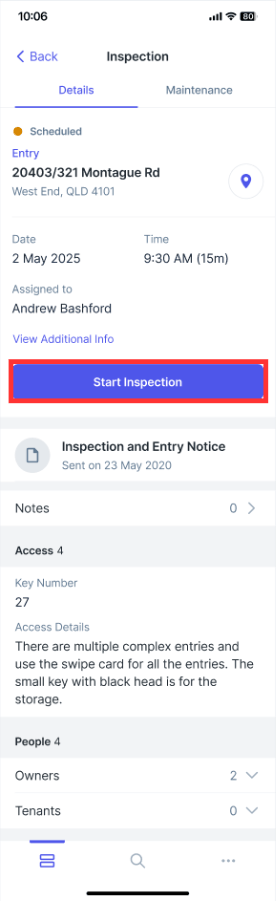
1. Once signed in to the app, select the property to inspect.
2. Click Start Inspection.
3. If you have previously completed any inspections on the property, a list of closed inspections for the property will appear that you can copy from. Choose to copy from the inspection and if you wish to also include the photos.
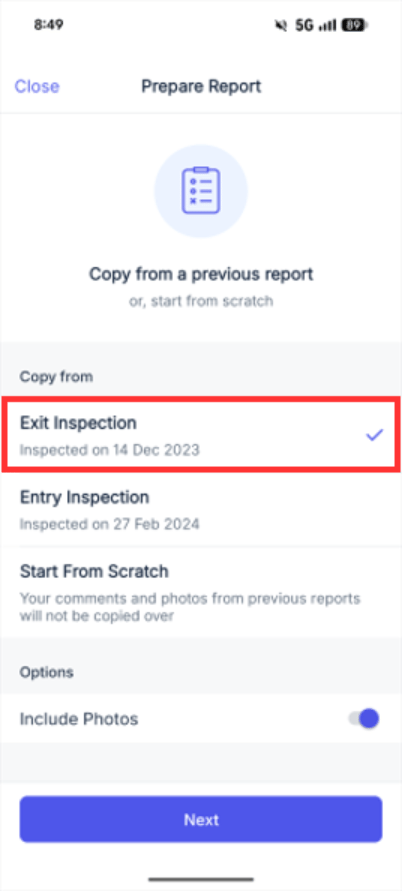
4. Alternatively, select Start From Scratch to perform a new inspection.
5. Click Next.
6. The camera will appear on the app. This screen serves as the initial landing point, and required inspection actions can be completed within it. Tap the sections drop-down to select areas throughout the property.
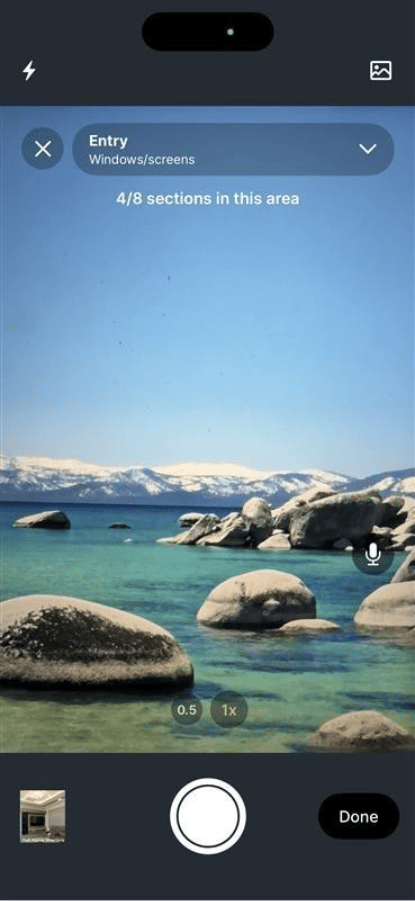
7. Proceed with taking/selecting the required images as well as adding voice-to-text notes, and click Done
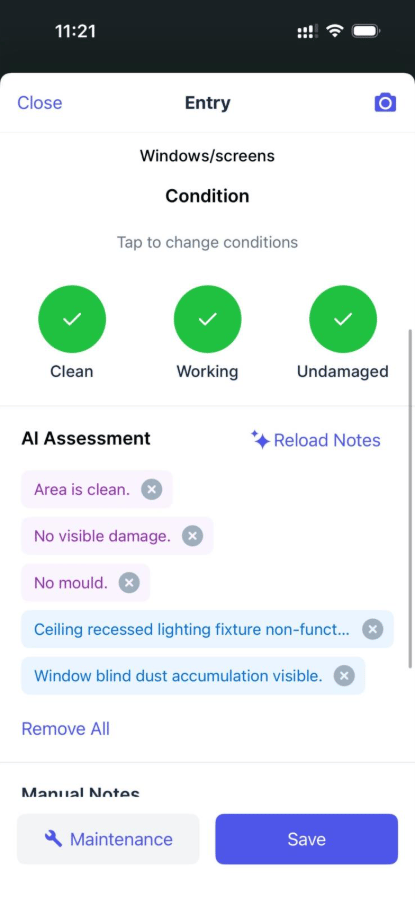
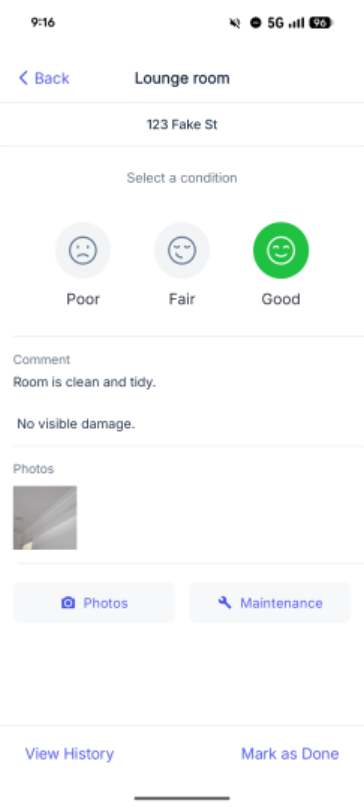
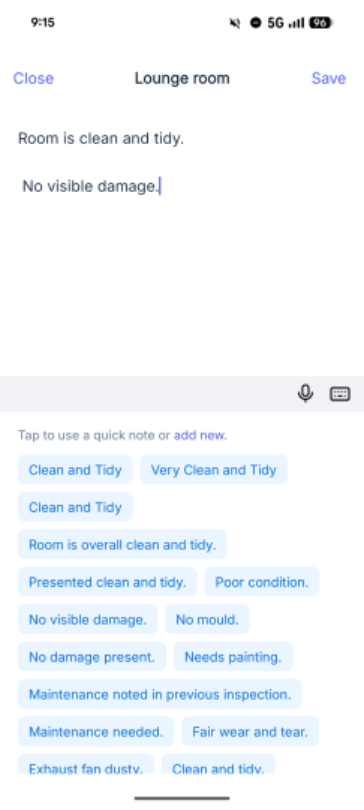
8. Select the conditions for the area. Add comments or quick notes and click Save. Additionally, if you notice something requires maintenance, tap the Maintenance button to create a new maintenance request. Enter in the details and press Save.
When entering comments, previously created office quick notes will appear to add in as comments. Select a quick note that best suits the description of the area, or click add new to create a new note.
9. The camera will display on the screen again, allowing you to continue working through the next area of the property.
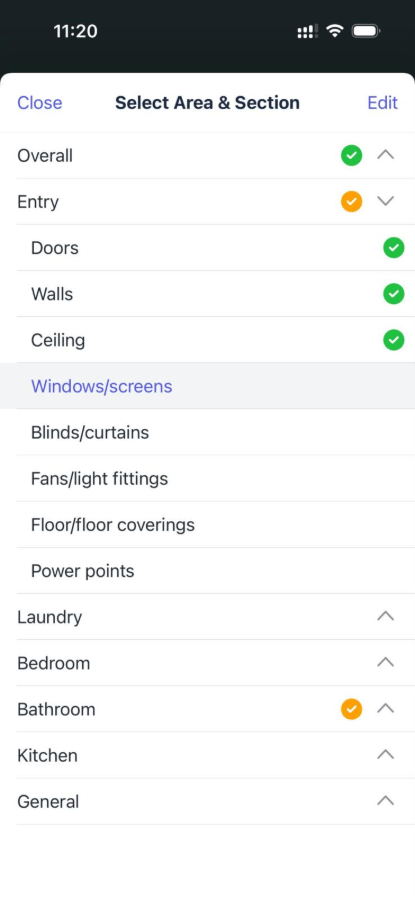
10. Pressing the X on the camera screen will display the Area & Selection screen, displaying your progress through the inspection.
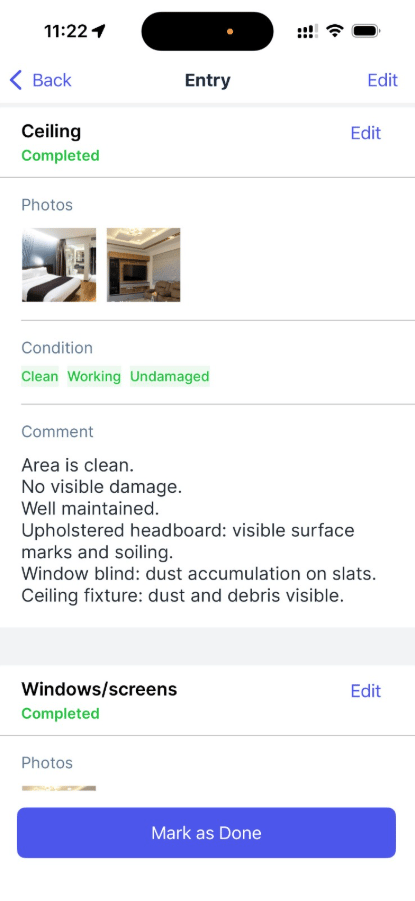
11. Once finished with entering the comments and checklist information, click Mark as Done.
12. Once all sections are done, enter a summary and click Complete Inspection.
Tenant Checklist Feature (exit reports only)
During the inspection, you can add notes to the Tenant Checklist area. These are typically items requiring a tenant's attention upon exit.
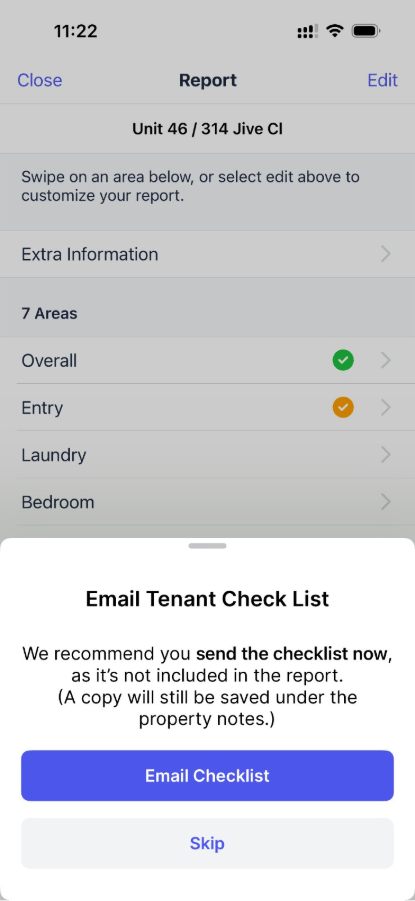
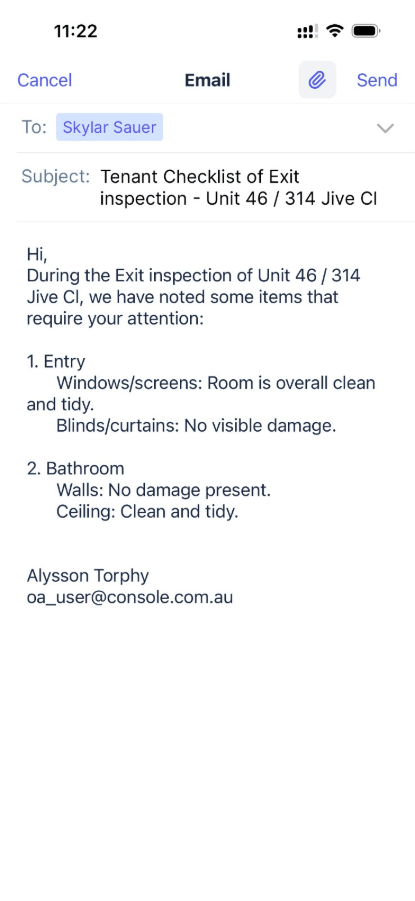
Upon finishing the inspection, the Email Tenant Checklist prompt will appear. Comments left in the Tenant Checklist notes section of each area will merge through to here for you to send your inspection findings to the tenant. By default, a copy of this checklist will be saved to the property and appear under property file in Notes.
Tenant Checklist Feature (exit reports only)
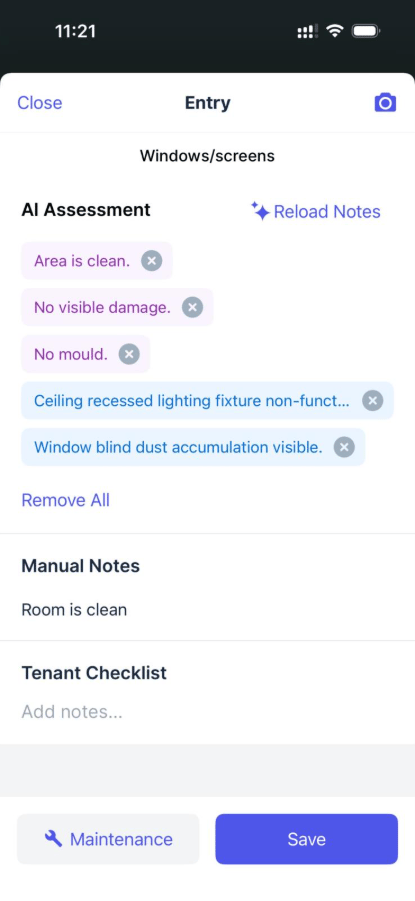
AI in the Reapit PM app automatically generates descriptive quick-notes for images by combining your office’s existing relevant quick notes with new AI‑generated quick notes. The feature processes the first five images in each section, creating a clear, consistent summary without requiring manual input.
Note: You can edit these comments in the area summary section once notes have been saved.
Colour indicators:
Purple: AI generated quick notes
Blue: AI identified existing office quick notes