'%20d='M0%208a8%208%200%200%201%208-8h24a8%208%200%200%201%208%208v24a8%208%200%200%201-8%208H8a8%208%200%200%201-8-8V8Z'/%3e%3cpath%20fill='%23fff'%20d='M8.375%2013v14L20.5%2034l12.124-7v-7.737l-1.687-.975-2.806-1.62-1.082-.624v4.83l-.002%204.83H13.95V16.07l3.275-1.89%202.192-1.265%201.082-.625%203.275%201.877%202.192%201.256%201.083.62V9.782L20.5%206%208.376%2013Z'/%3e%3cdefs%3e%3clinearGradient%20id='reapit-pm__a'%20x1='20.702'%20x2='20.702'%20y1='.351'%20y2='31.228'%20gradientUnits='userSpaceOnUse'%3e%3cstop%20stop-color='%235573FD'/%3e%3cstop%20offset='.575'%20stop-color='%234E56EA'/%3e%3c/linearGradient%3e%3c/defs%3e%3c/svg%3e)
Recurring Maintenance Requests
Learn how to enter and manage a recurring maintenance request. Recurring maintenance will save you time and will automatically create maintenance requests that can then be sent as work orders to the chosen creditor. The process in this article include: How to enter a Recurring Maintenance Request Viewing Upcoming Recurring Maintenance Requests Editing or Closing a Recurring Maintenance Request
Learn how to enter and manage a recurring maintenance request. Recurring maintenance will save you time and will automatically create maintenance requests that can then be sent as work orders to the chosen creditor.
The process in this article include:
- How to enter a Recurring Maintenance Request
- Viewing Upcoming Recurring Maintenance Requests
- Editing or Closing a Recurring Maintenance Request
How to enter a Recurring Maintenance Request
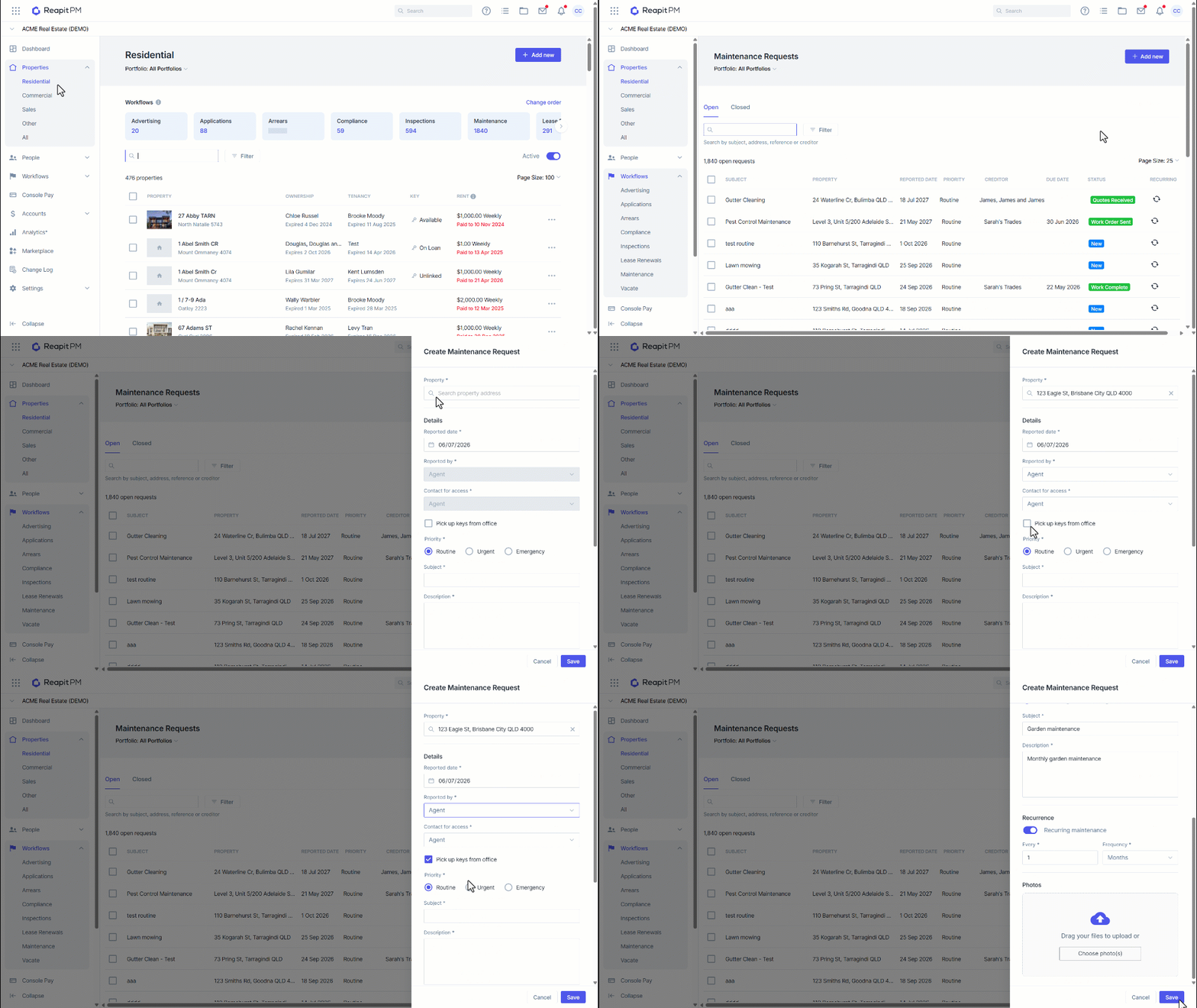
- Click on Properties.
- Select a Property Type.
- Click on the Maintenance Workflow.
- Click Add New.
- Search and Select a Property address.
- The Reported Date defaults to today's date, but may be amended if required.
- Reported by defaults to Agents, however, select Tenant, Owner or Other as appropriate.
- Select a contact for access and whether the keys should be picked up from the office. Note: the phone and email details appear on the Work Order for whichever Contact you select
- Select Priority, click to select Routine, Urgent or Emergency as appropriate.
- Enter a Subject and description as required.
- Tick Recurring Maintenance and enter the frequency of recurrence in Days, Weeks or Months.
- Attach files or photos to the request as required.
- Click Save.
- A confirmation pop-up appears in the top right corner. Within the request, you will see the details, including the frequency of the recurrence.
You will now be able to create work orders and process the maintenance request, for information on managing maintenance requests visit our Creating a Maintenance Request article.
Viewing Upcoming Recurring Maintenance Requests
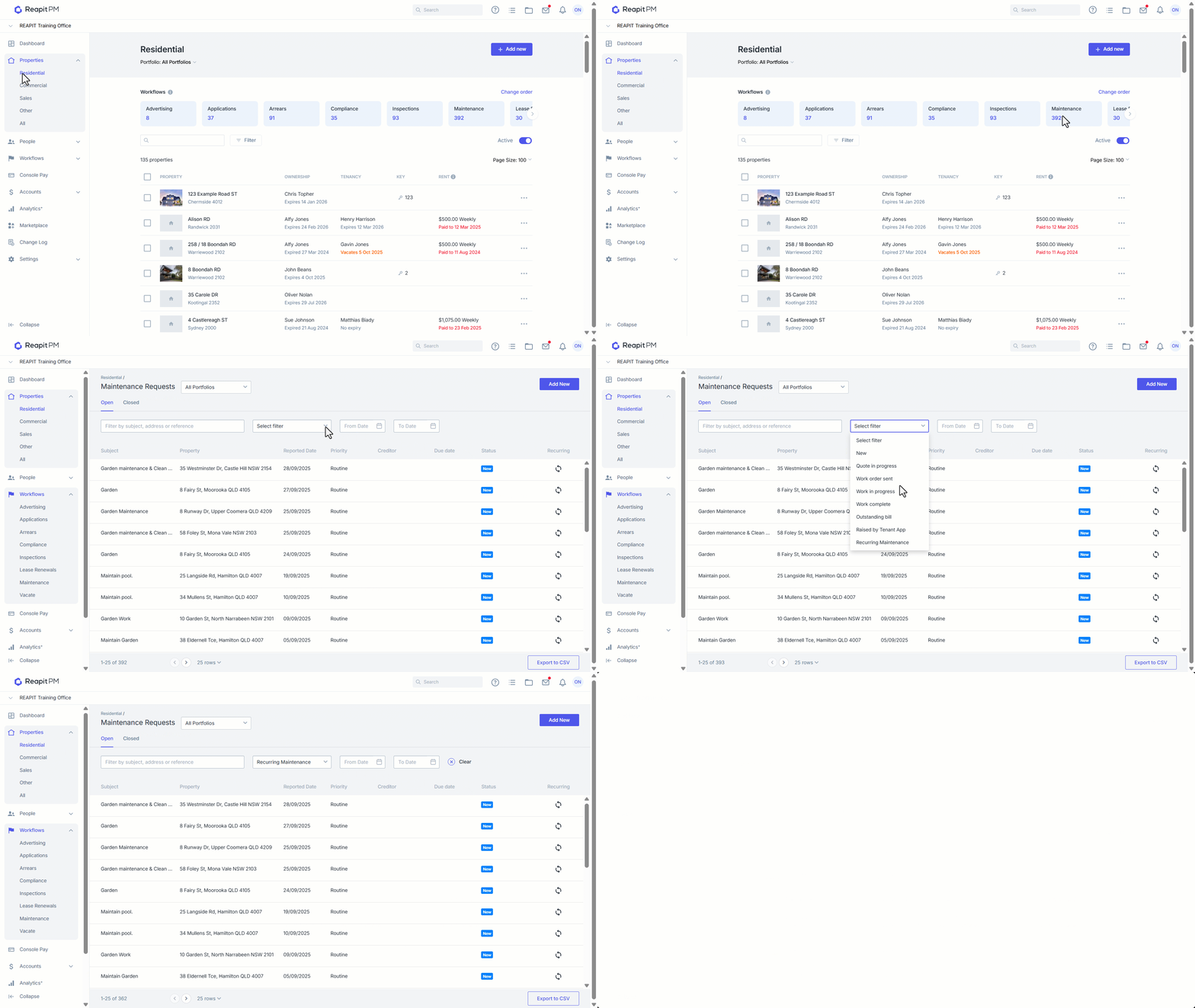
- Click on Properties.
- Select a Property Type.
- Click on the Maintenance Workflow.
- Filter to Recurring Maintenance to find all recurring maintenance, recurring maintenance is also identified by the recurring column in the maintenance workflow.
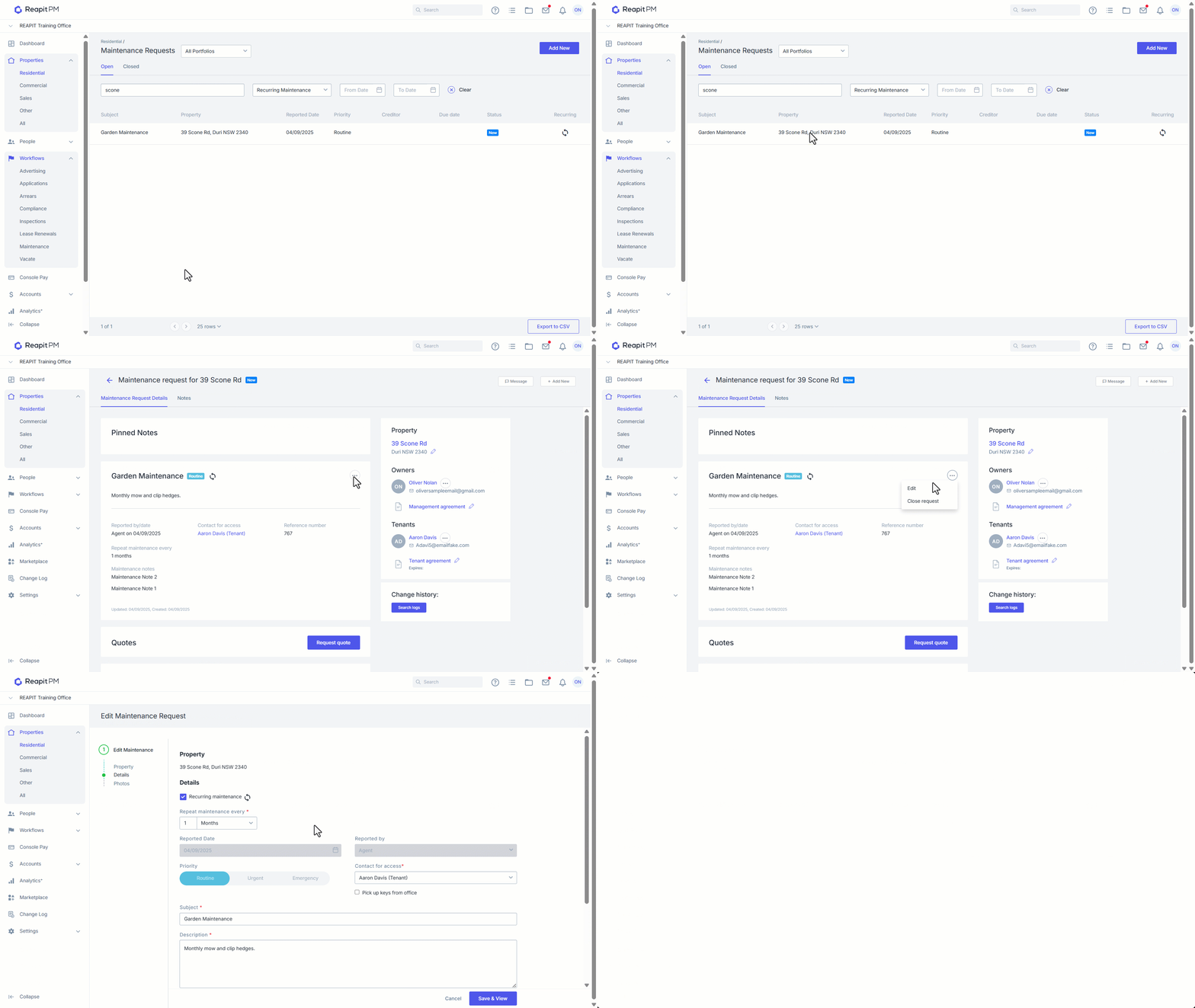
Editing or Closing a Recurring Maintenance Request
- Navigate to the request
- Click on the 3-dots and click Edit or Close request as applicable.
- From within the Edit screen you can change it from recurring to a one of maintenance request, update the recurrence frequency, the access information and the subject/description.
- Click Save & View once complete.