'%20d='M0%208a8%208%200%200%201%208-8h24a8%208%200%200%201%208%208v24a8%208%200%200%201-8%208H8a8%208%200%200%201-8-8V8Z'/%3e%3cpath%20fill='%23fff'%20d='M8.375%2013v14L20.5%2034l12.124-7v-7.737l-1.687-.975-2.806-1.62-1.082-.624v4.83l-.002%204.83H13.95V16.07l3.275-1.89%202.192-1.265%201.082-.625%203.275%201.877%202.192%201.256%201.083.62V9.782L20.5%206%208.376%2013Z'/%3e%3cdefs%3e%3clinearGradient%20id='reapit-pm__a'%20x1='20.702'%20x2='20.702'%20y1='.351'%20y2='31.228'%20gradientUnits='userSpaceOnUse'%3e%3cstop%20stop-color='%235573FD'/%3e%3cstop%20offset='.575'%20stop-color='%234E56EA'/%3e%3c/linearGradient%3e%3c/defs%3e%3c/svg%3e)
MyConnect Integration
This article will walk you through how to set up your MyConnect Integration within Reapit PM. The processes in this article include: • Activating the MyConnect Integration • Sending New Tenancy Leads • Opting In and Opting Out a Tenant • Viewing Sent Leads • Deactivating the MyConnect Integration
Overview
MyConnect Integration
This article will walk you through how to set up your MyConnect Integration within Reapit PM.
Important information
- This integration is only available to Australian based offices and will automate new tenancy leads. MyConnect is not part of Reapit.
- Only office admins can add the integration.
- It is your responsibility as an agency to obtain permission from the tenant to share their details with MyConnect.
- You are required to accept MyConnects T&C’s when presented with them on the new account.
- If any commissions are due you will be paid directly from MyConnect.
The processes in this article include:
- Activating the MyConnect Integration
- Sending New Tenancy Leads
- Opting In and Opting Out a Tenant
- Viewing Sent Leads
- Deactivating the MyConnect Integration
Activating the MyConnect Integration
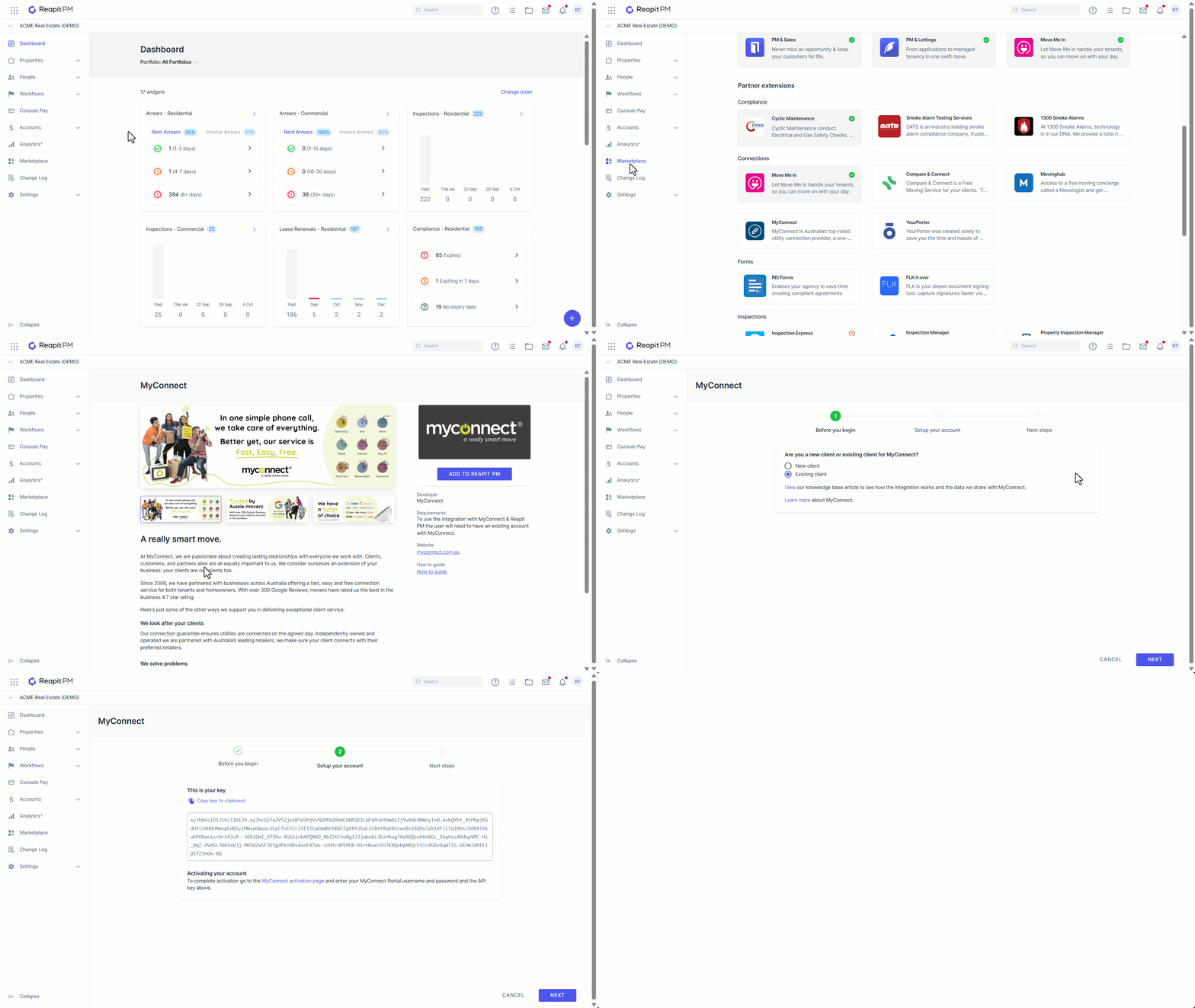
- Click on Marketplace.
- Navigate to Connections and Select MyConnect.
- Click Add to Reapit PM.
- You will now be guided through the rest of the setup in the activation wizard.
- Once you have completed the activation wizard the integration will show as installed.
Sending New Tenancy Leads
When a new tenancy agreement is created in Reapit PM and one or more tenants have opted in, a lead is sent from Reapit PM to MyConnect.
Leads are only sent on the initial creation of the tenancy agreement. Leads are to be tracked in your MyConnect account.
Opting In and Opting Out a Tenant
When the integration is active, you will have the option to opt the tenant in and out from the edit tenancy agreement screen. This is required to be completed for each tenant when creating or saving an agreement.
Please note that opting out a tenant only applies to leads that have not been sent yet. If you need to opt a tenant out once a lead has been sent, you need to contact MyConnect directly. If a Tenant is Opted In by mistake on a tenancy lead, you need to contact MyConnect to cancel the application.
Viewing Sent Leads
You can view what leads have been sent by logging into your MyConnect account.
You can also see what leads have been sent and if they were successfully received by MyConnect when the integration is active.
- Click on Marketplace.
- Navigate to Connections and Select MyConnect.
- You can now view the activity log for the integration.
Deactivating the MyConnect Integration
- Click on Marketplace.
- Navigate to Connections and Select MyConnect.
- Click D****eactivate.
- Confirm you want to deactivate.
Once deactivated, Reapit PM will no longer ask the PM to opt the tenant in or out and no more leads will be sent. Your MyConnect account will remain active.