'%20d='M0%208a8%208%200%200%201%208-8h24a8%208%200%200%201%208%208v24a8%208%200%200%201-8%208H8a8%208%200%200%201-8-8V8Z'/%3e%3cpath%20fill='%23fff'%20d='M8.375%2013v14L20.5%2034l12.124-7v-7.737l-1.687-.975-2.806-1.62-1.082-.624v4.83l-.002%204.83H13.95V16.07l3.275-1.89%202.192-1.265%201.082-.625%203.275%201.877%202.192%201.256%201.083.62V9.782L20.5%206%208.376%2013Z'/%3e%3cdefs%3e%3clinearGradient%20id='reapit-pm__a'%20x1='20.702'%20x2='20.702'%20y1='.351'%20y2='31.228'%20gradientUnits='userSpaceOnUse'%3e%3cstop%20stop-color='%235573FD'/%3e%3cstop%20offset='.575'%20stop-color='%234E56EA'/%3e%3c/linearGradient%3e%3c/defs%3e%3c/svg%3e)
Arrears Workflow
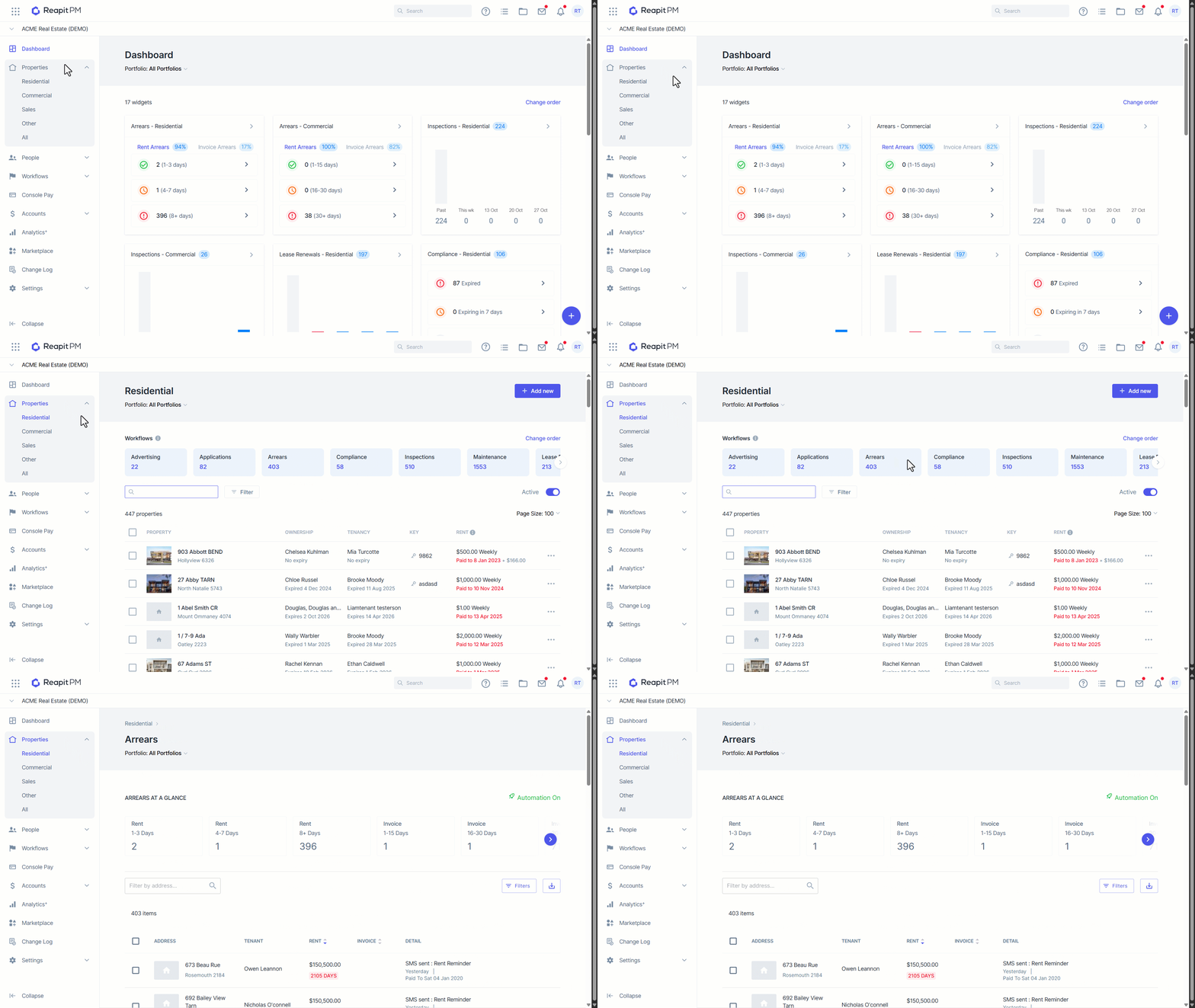
This article will cover how to navigate around your Arrears workflow in Reapit PM.
Please note: For Reapit PM Premium offices, all non-commercial rent and invoice arrears can be found in this workflow.
For Legacy and Accelerate Reapit PM offices all rent arrears can be found in this workflow, including your commercial properties.
- Navigate to Properties.
- Select Property Type.
- Select Arrears
- This will lead you to the Arrears at a glance page.
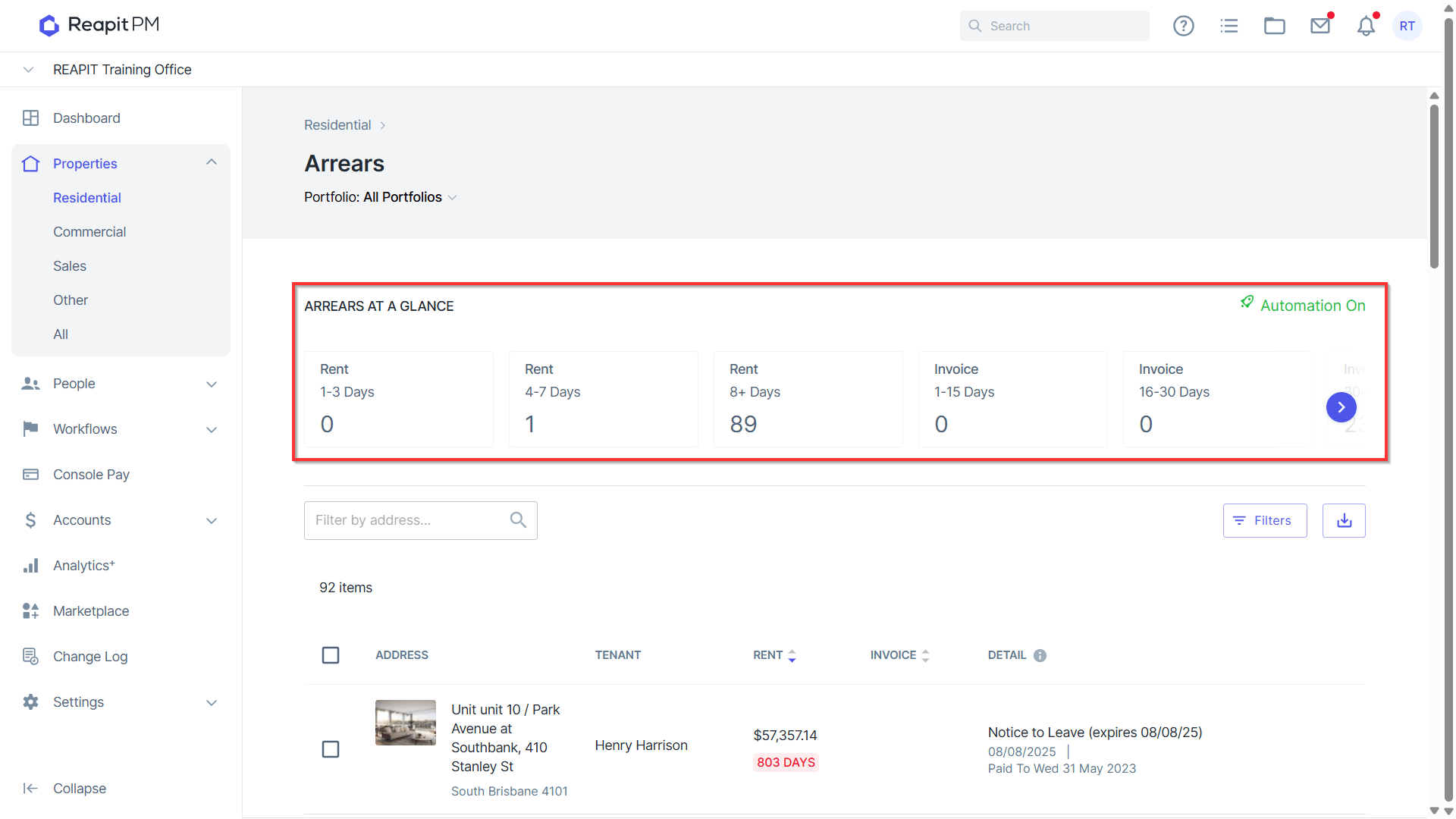
- This page gives you the option to view and click to filter to tenants in rent or invoice arrears across different date ranges, or who have Auto Reminders disabled.
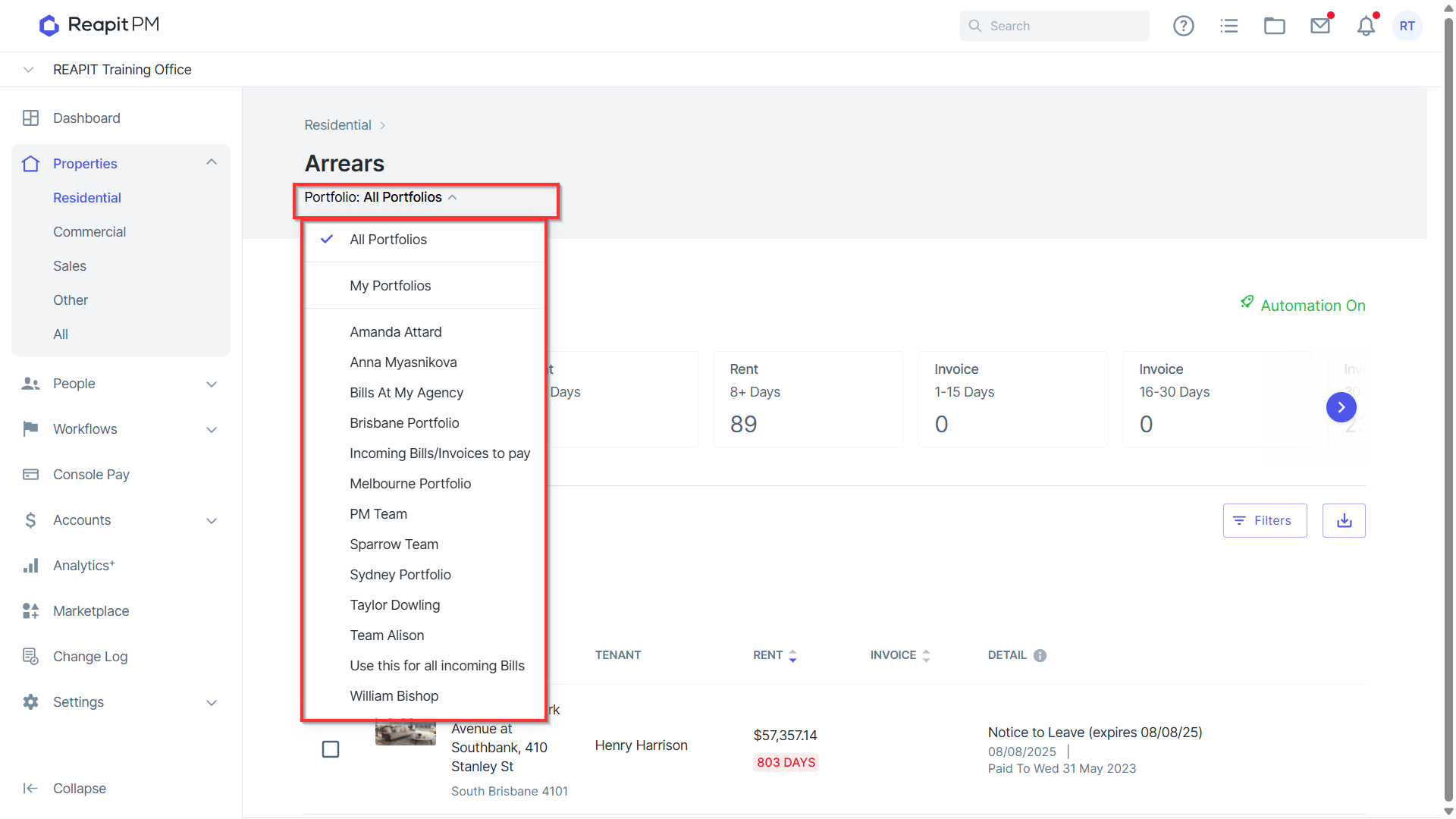
- This page also allows you to filter between portfolios by selecting All Portfolios and selecting the relevant portfolio from the drop down.
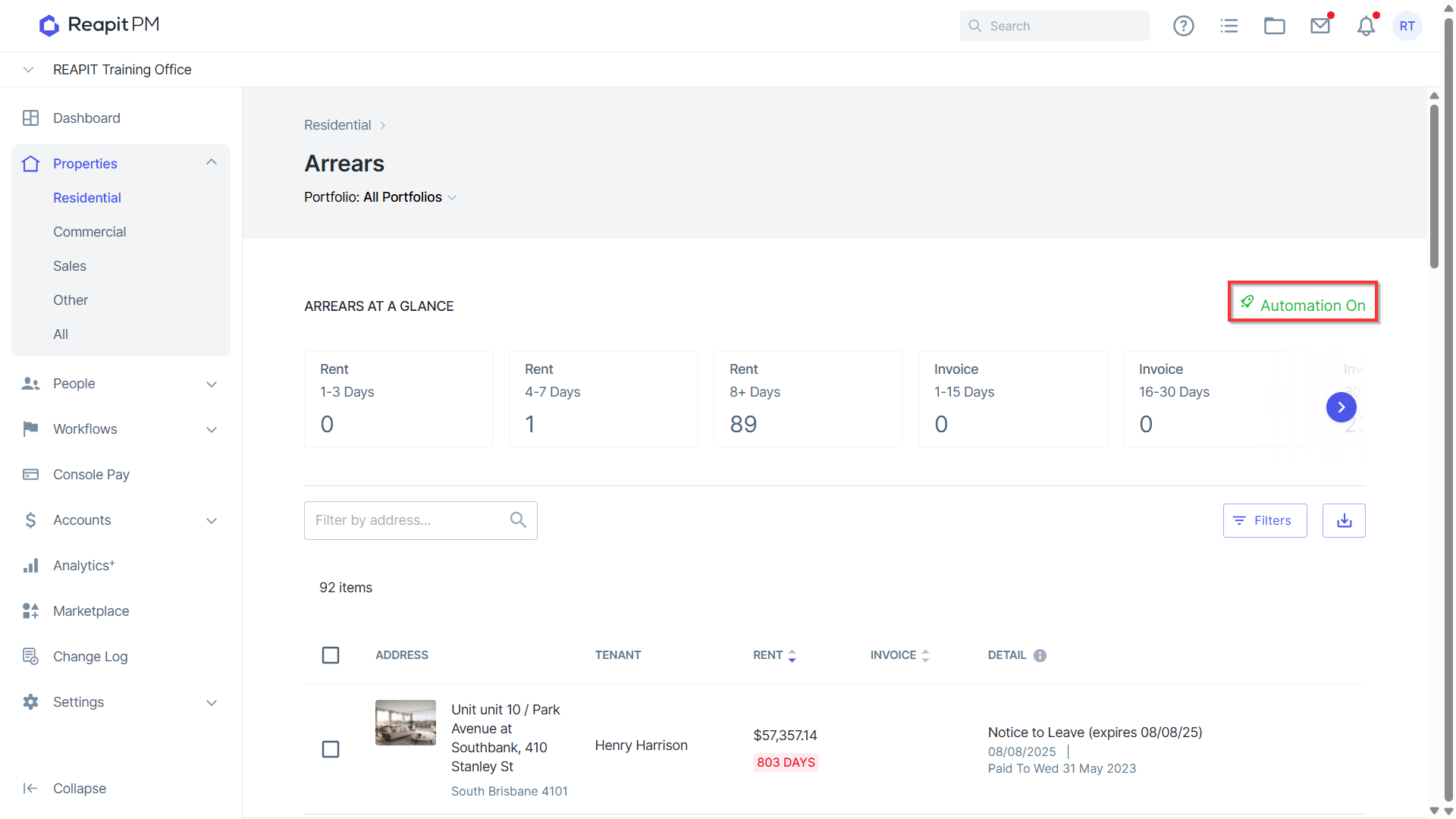
- You can also identify if arrears automations are switched on or configure the automations.
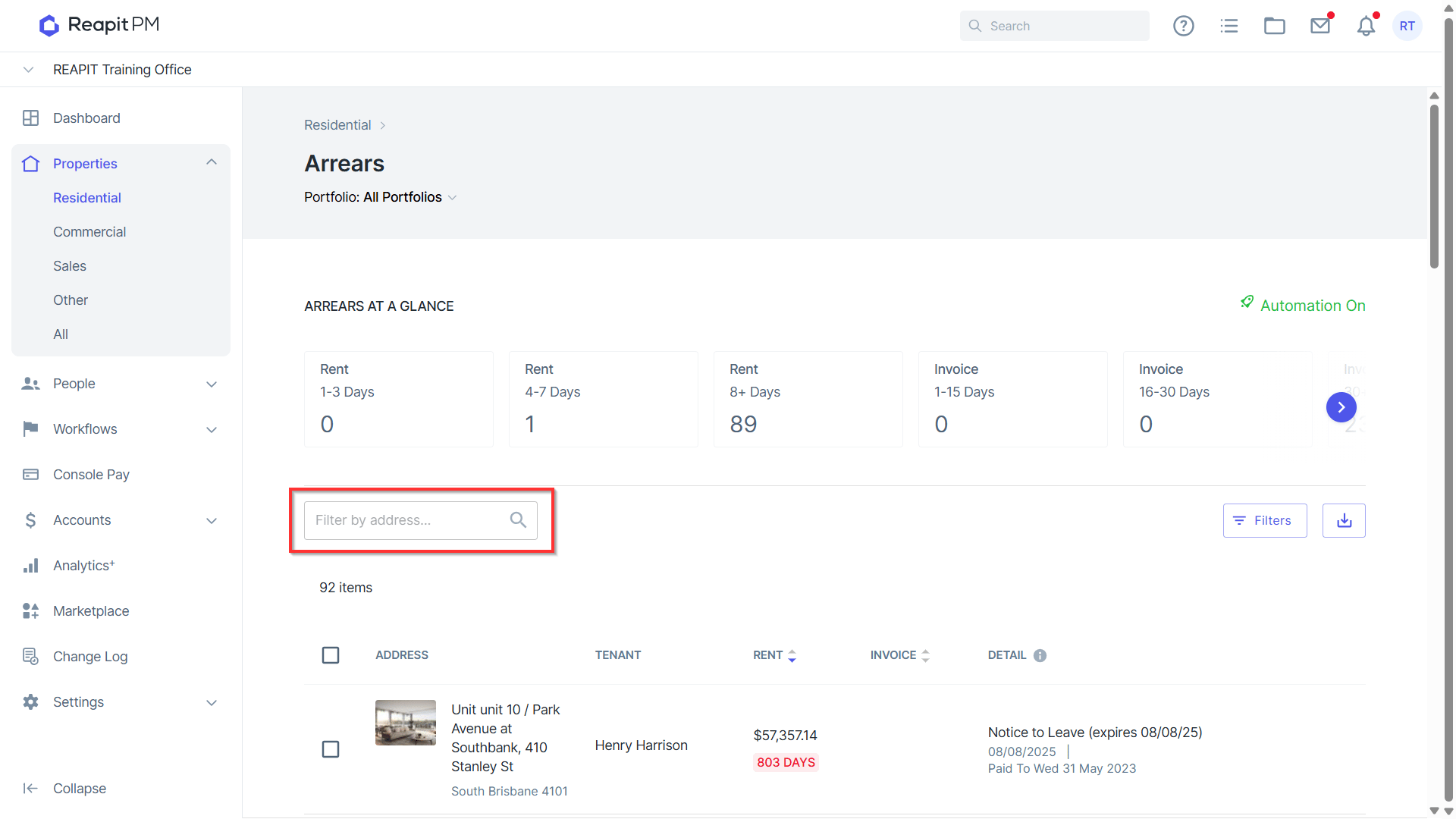
- You can look for a tenancy or property by using the below search box.
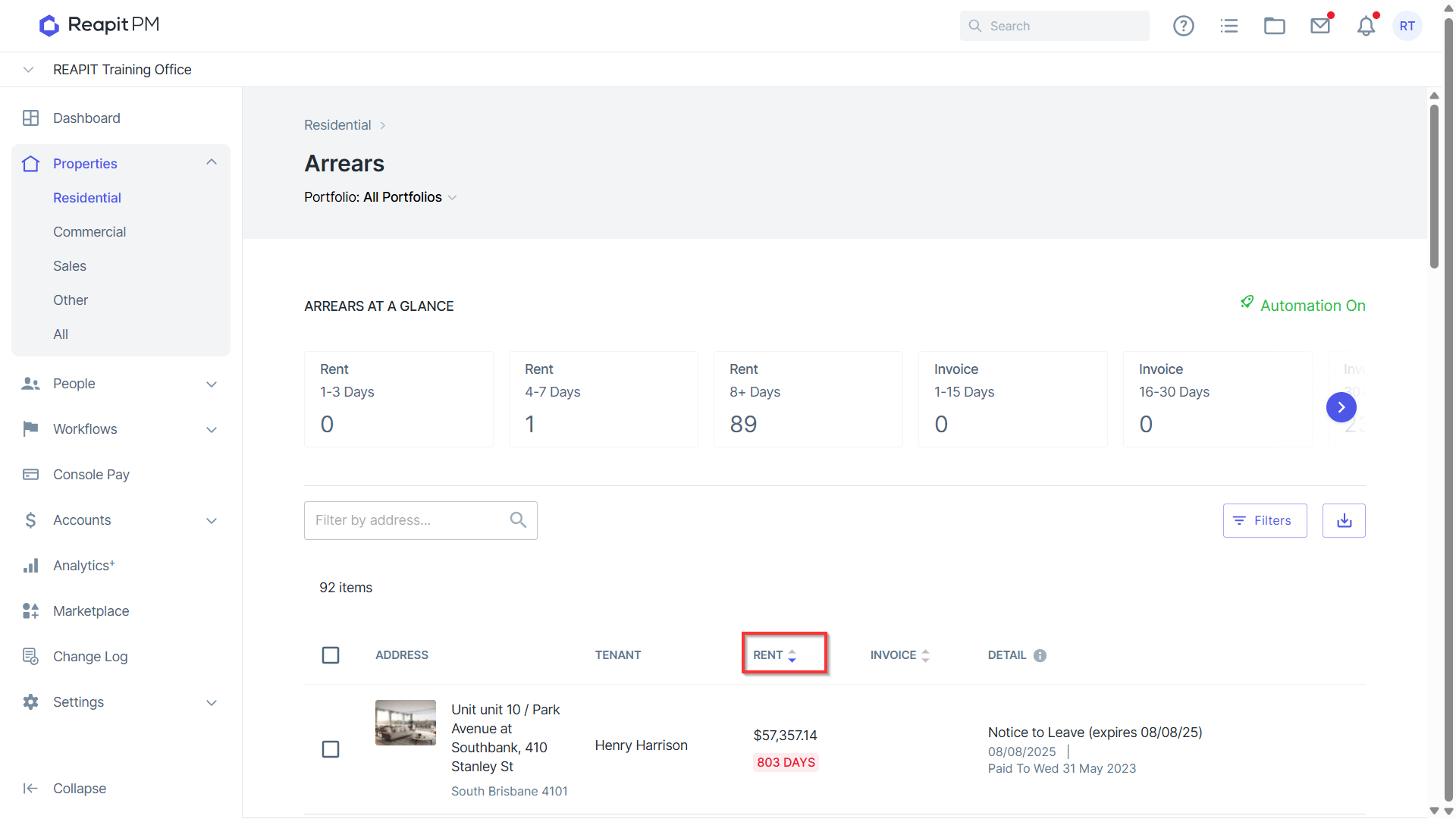
- Click on the rent column to sort the records by number of days in arrears.
- Click on a property to see more information.
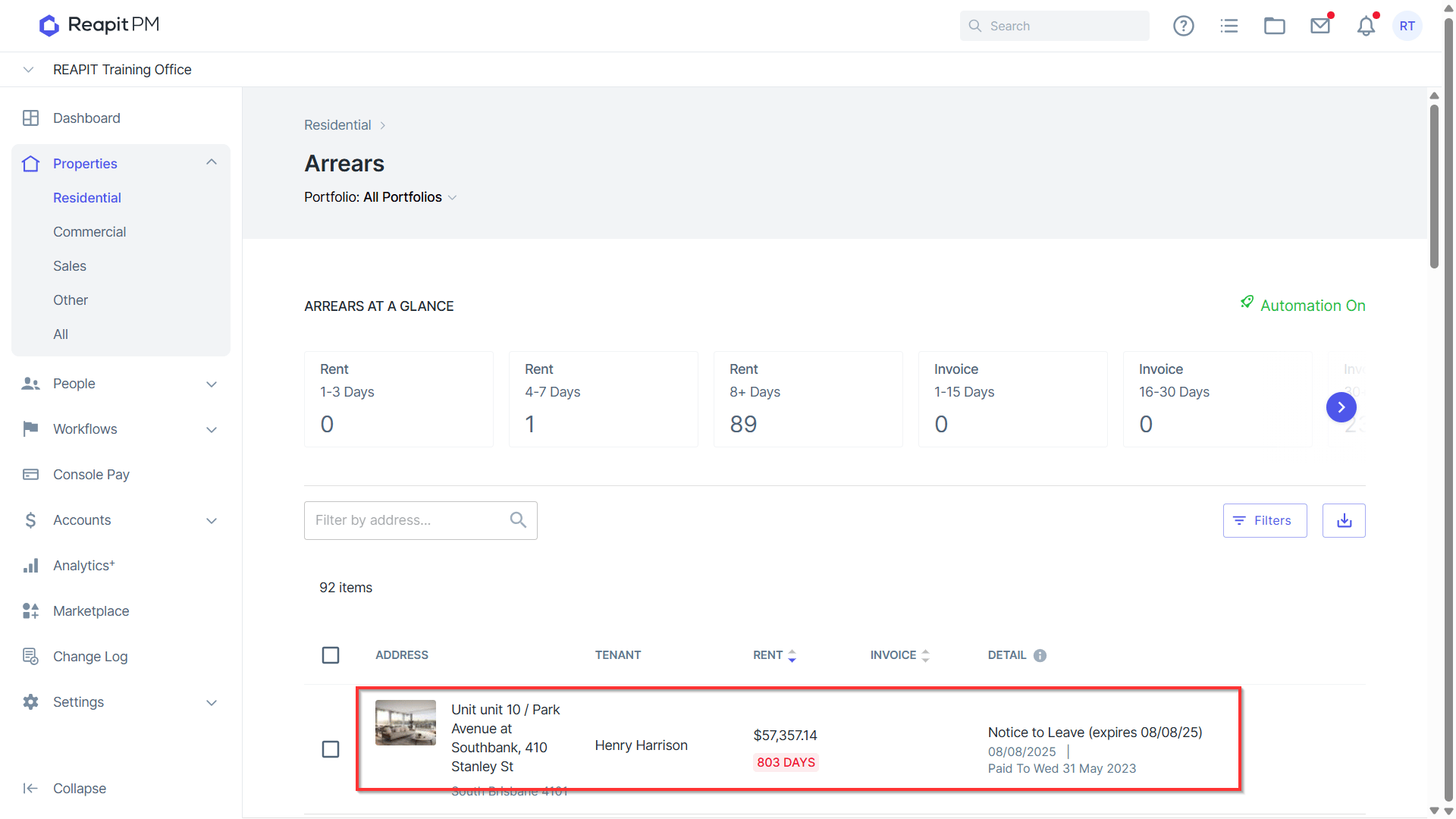
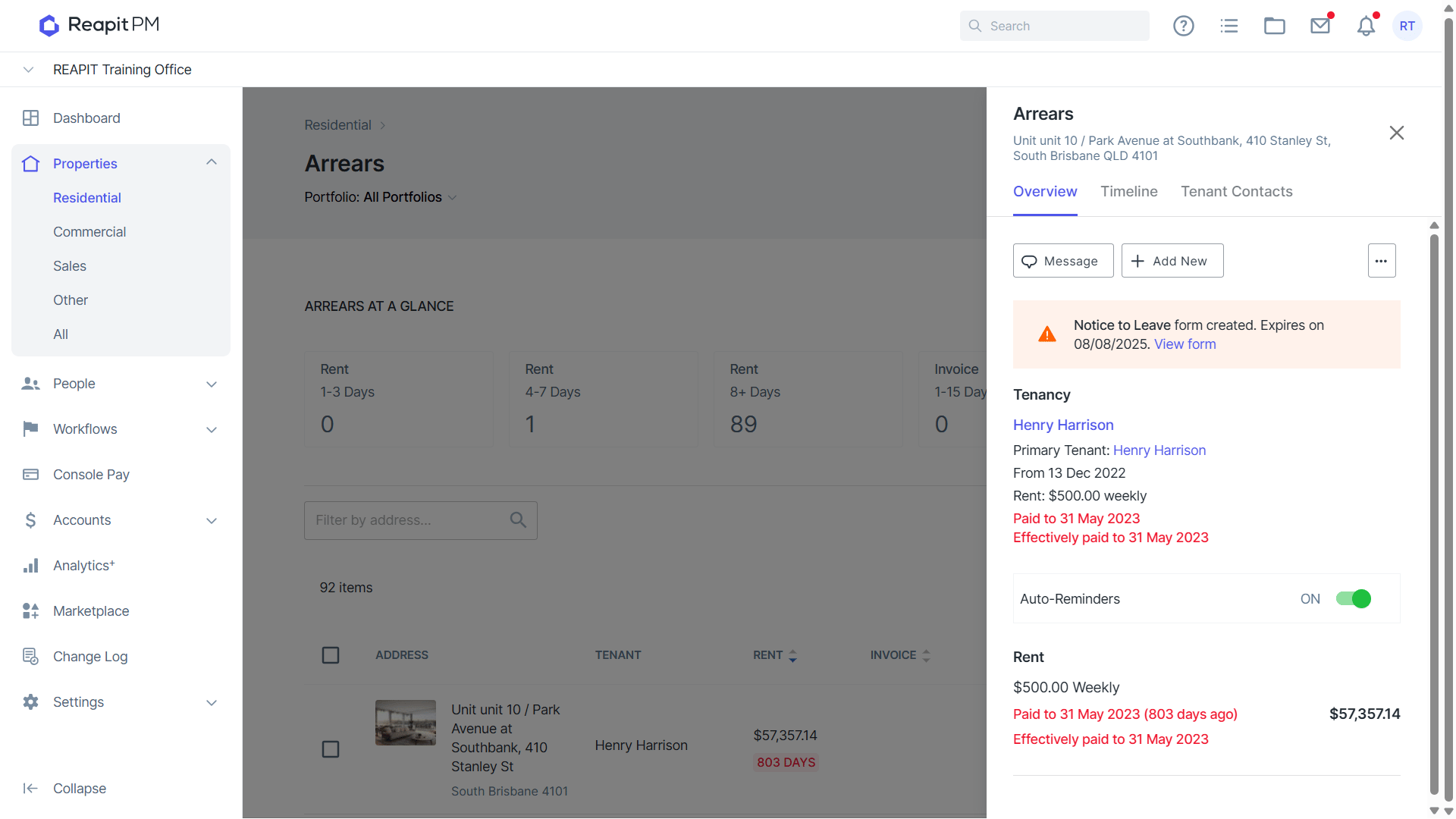
- This will lead you to the Arrears Draw which will appear on the right side of the screen giving you an overview of the specific tenancy.
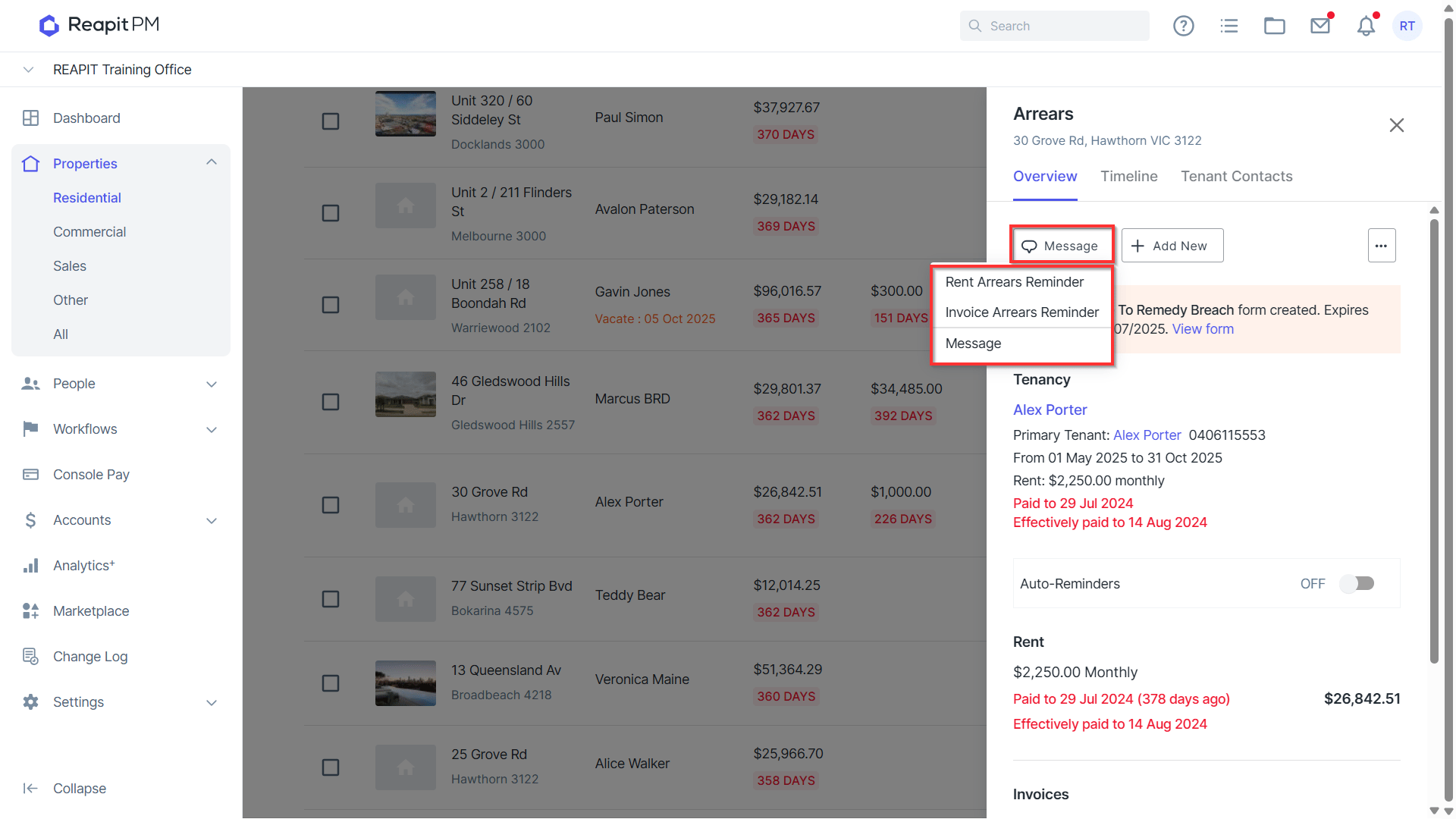
- Click the Message button to send a manual arrears reminder. This will give you three options:
- Rent Arrears Reminders
- Invoice Arrears Reminders
- Message
You can message and remind individuals by using these default Rent or Invoice Arrears templates. You also have the option to send a tailored message.
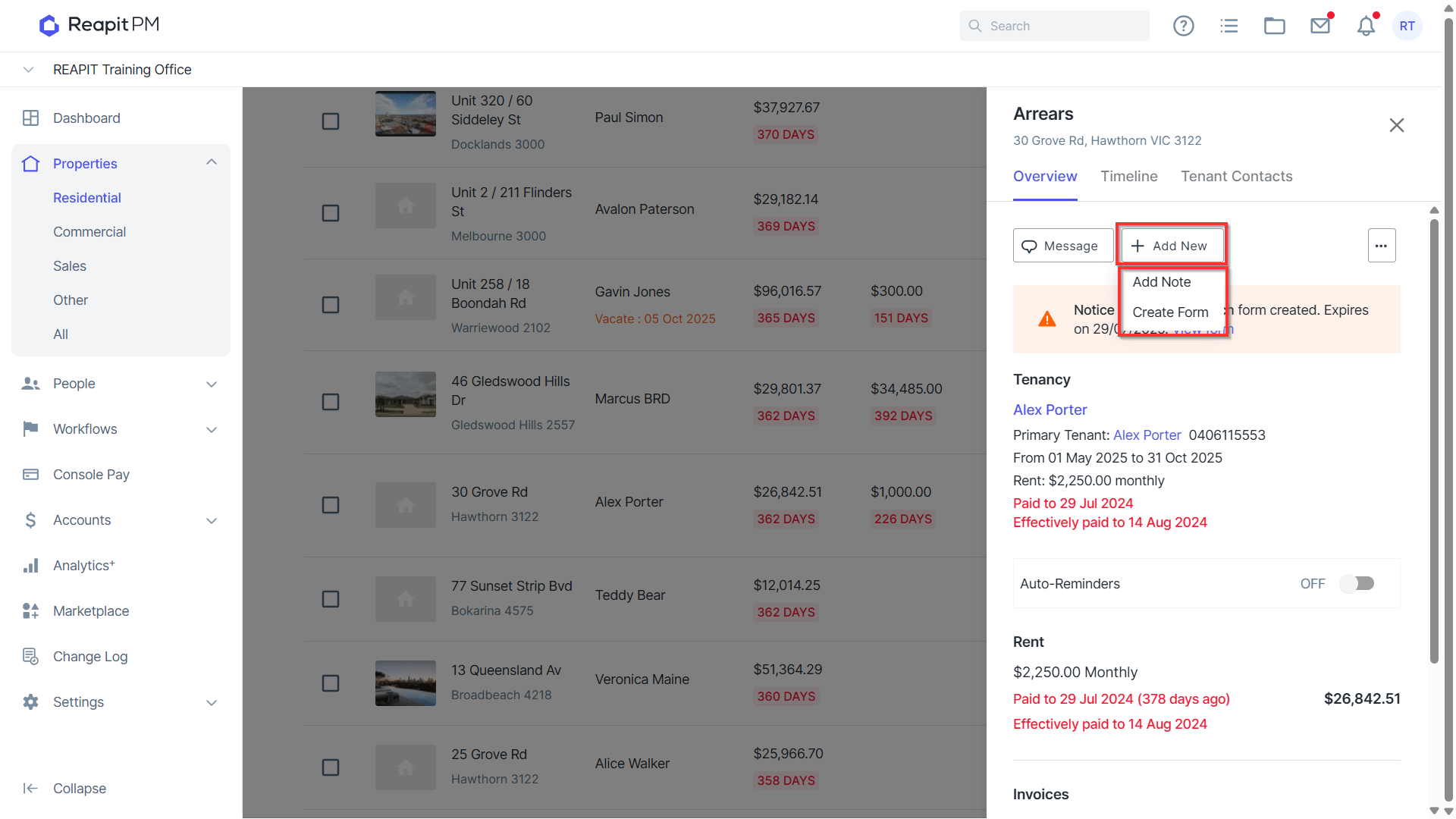
- Click the Add New button.
- Select Add Note to add a note to the workflow.
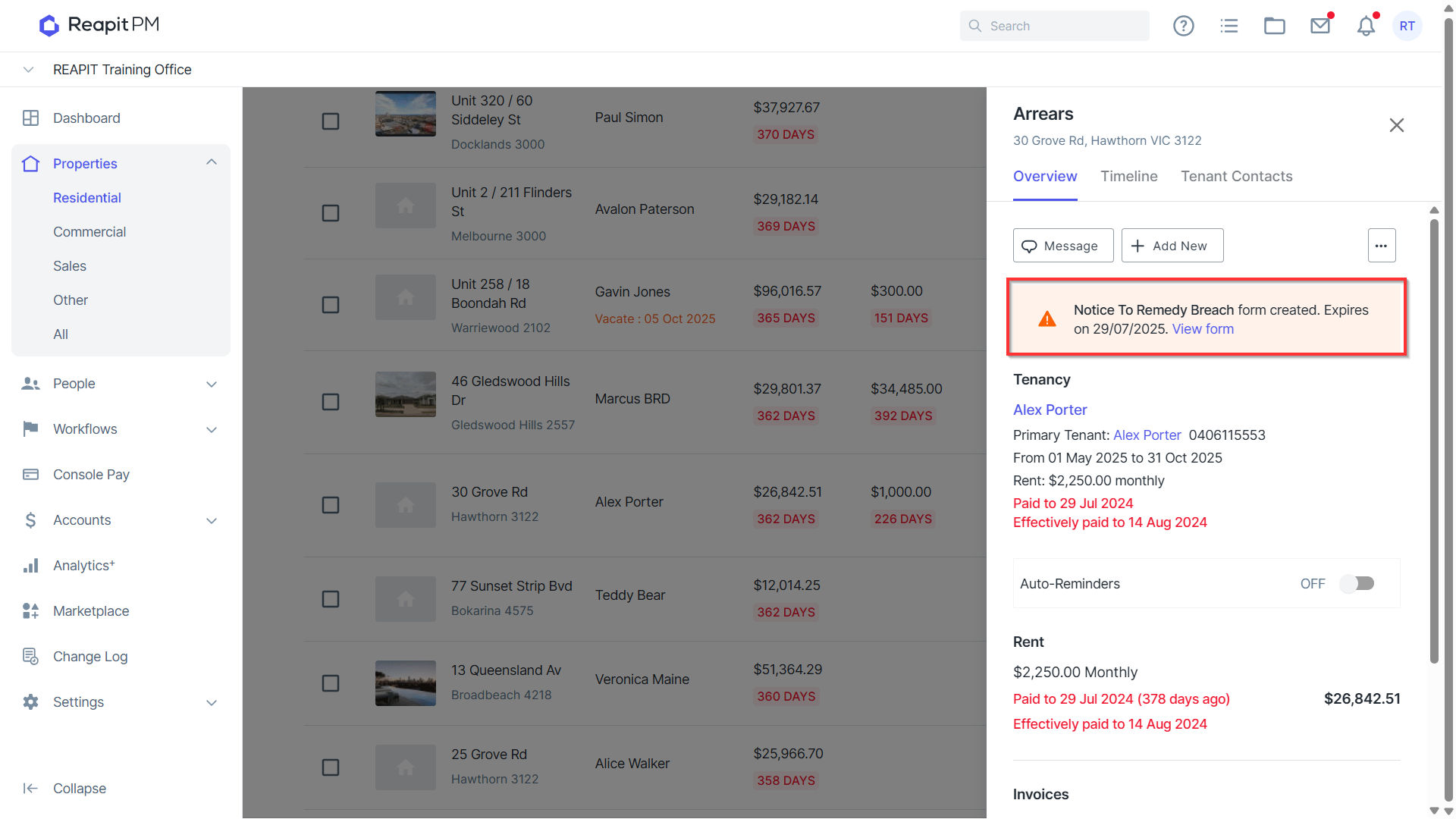
- Select Create Form to create a form using the REI Form integration. Once the form is created, the form name and expiry date will be shown.
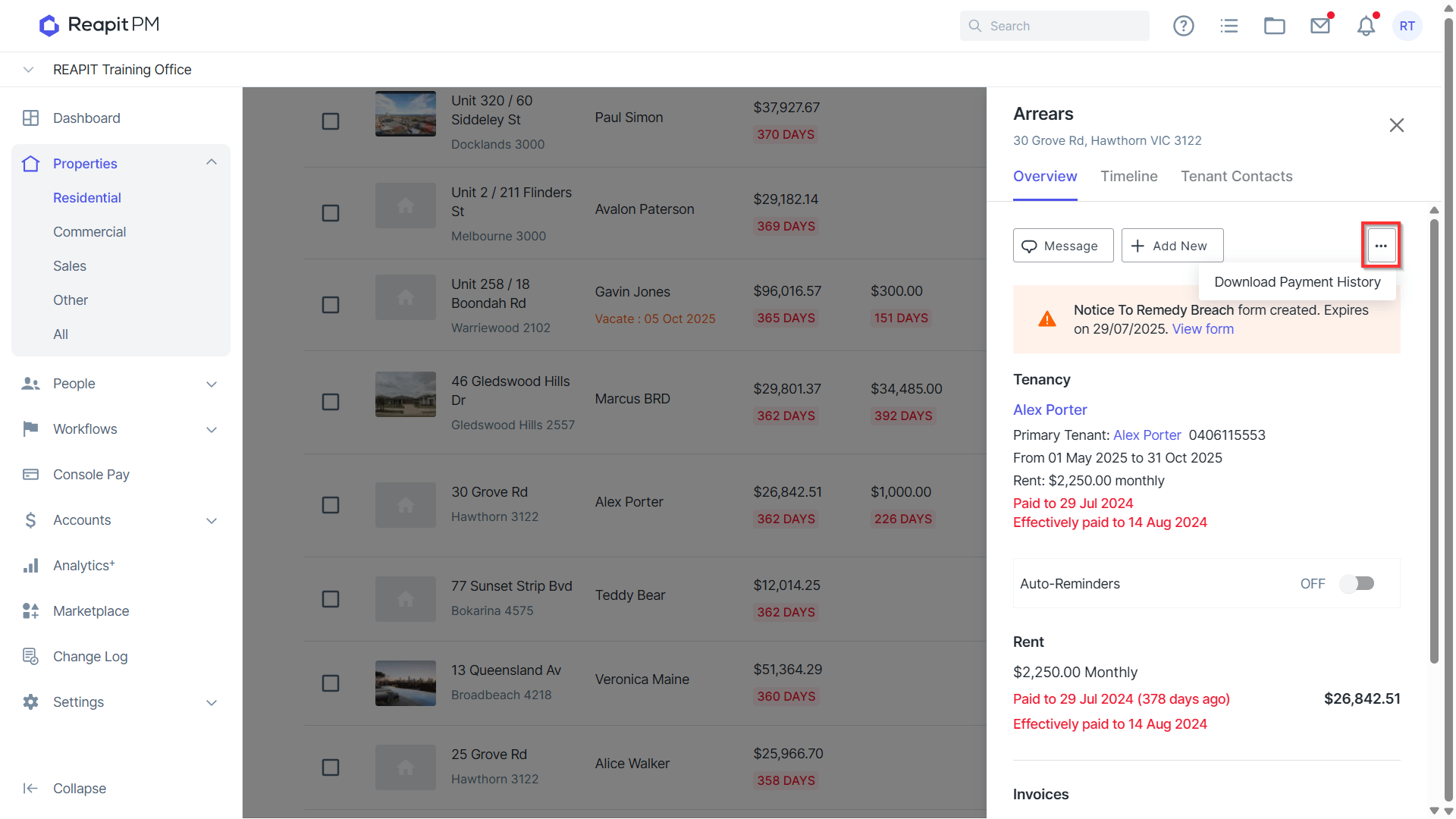
- Click the three dots to Download payment history as a PDF.
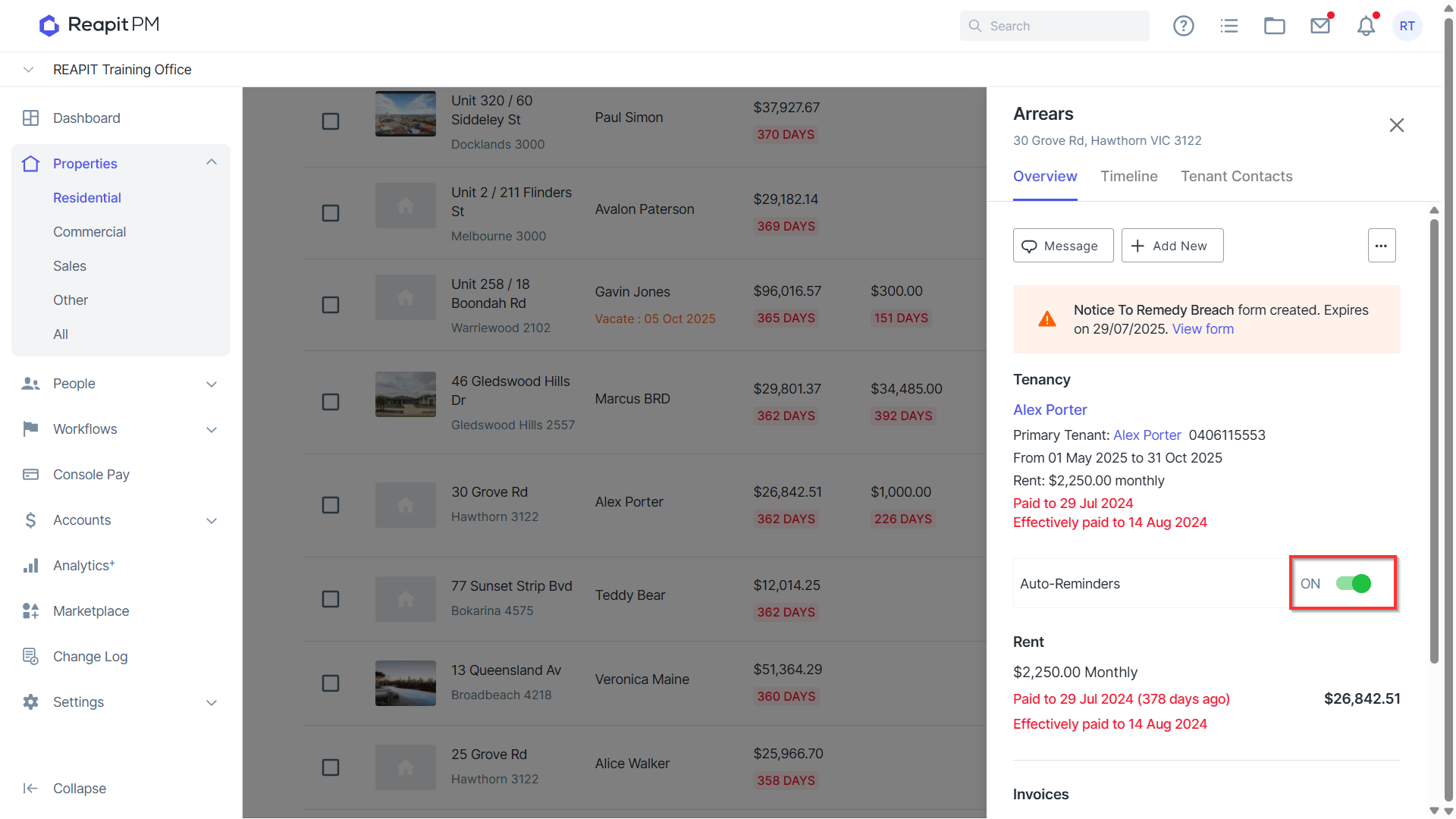
- Select the Auto - Reminders toggle from left to right. This will turn your reminders on or off for the Tenancy.
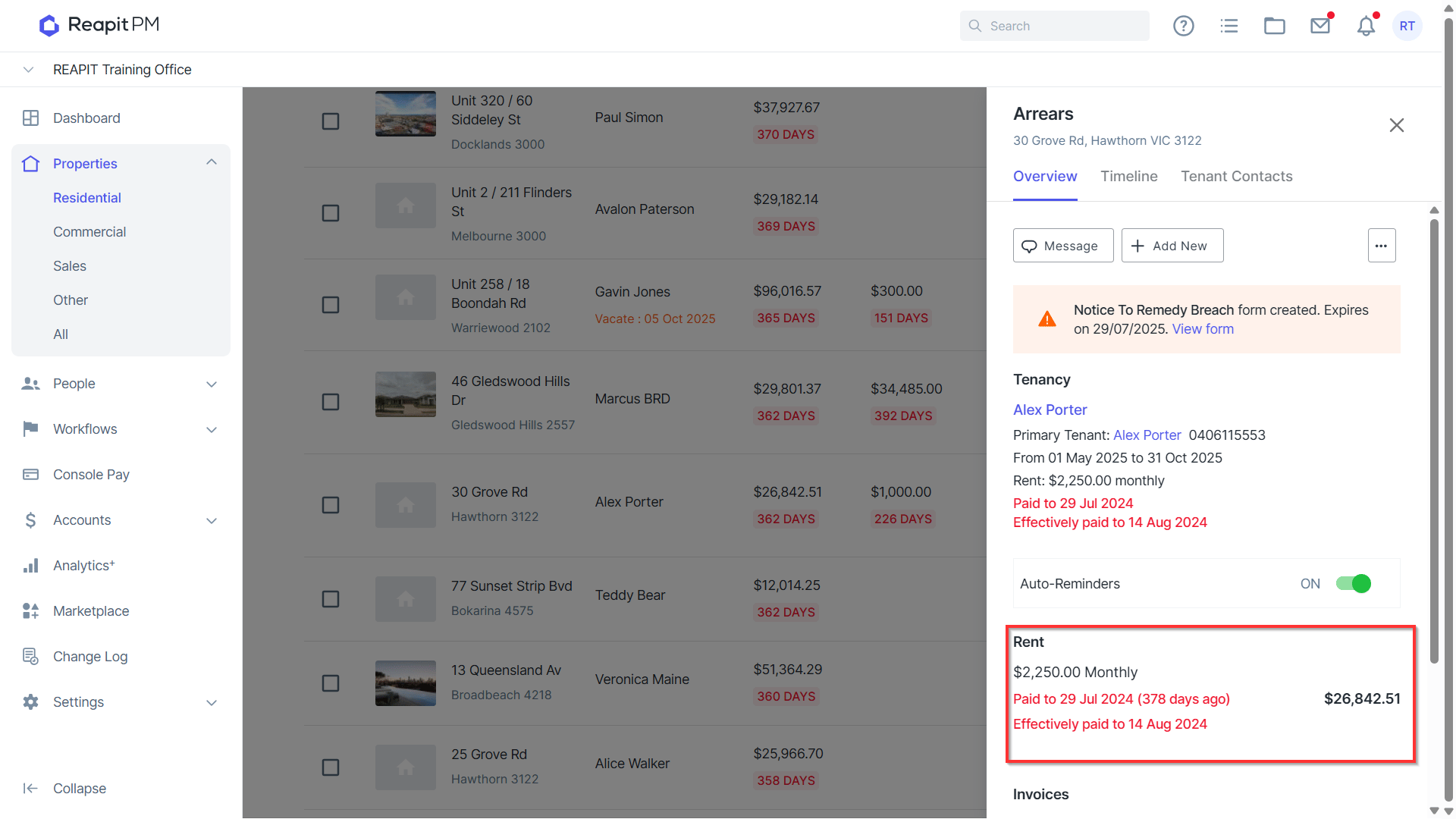
- The draw also shows you the Rent and Invoice information.
- You can also see overdue Tenant Invoices in the draw.
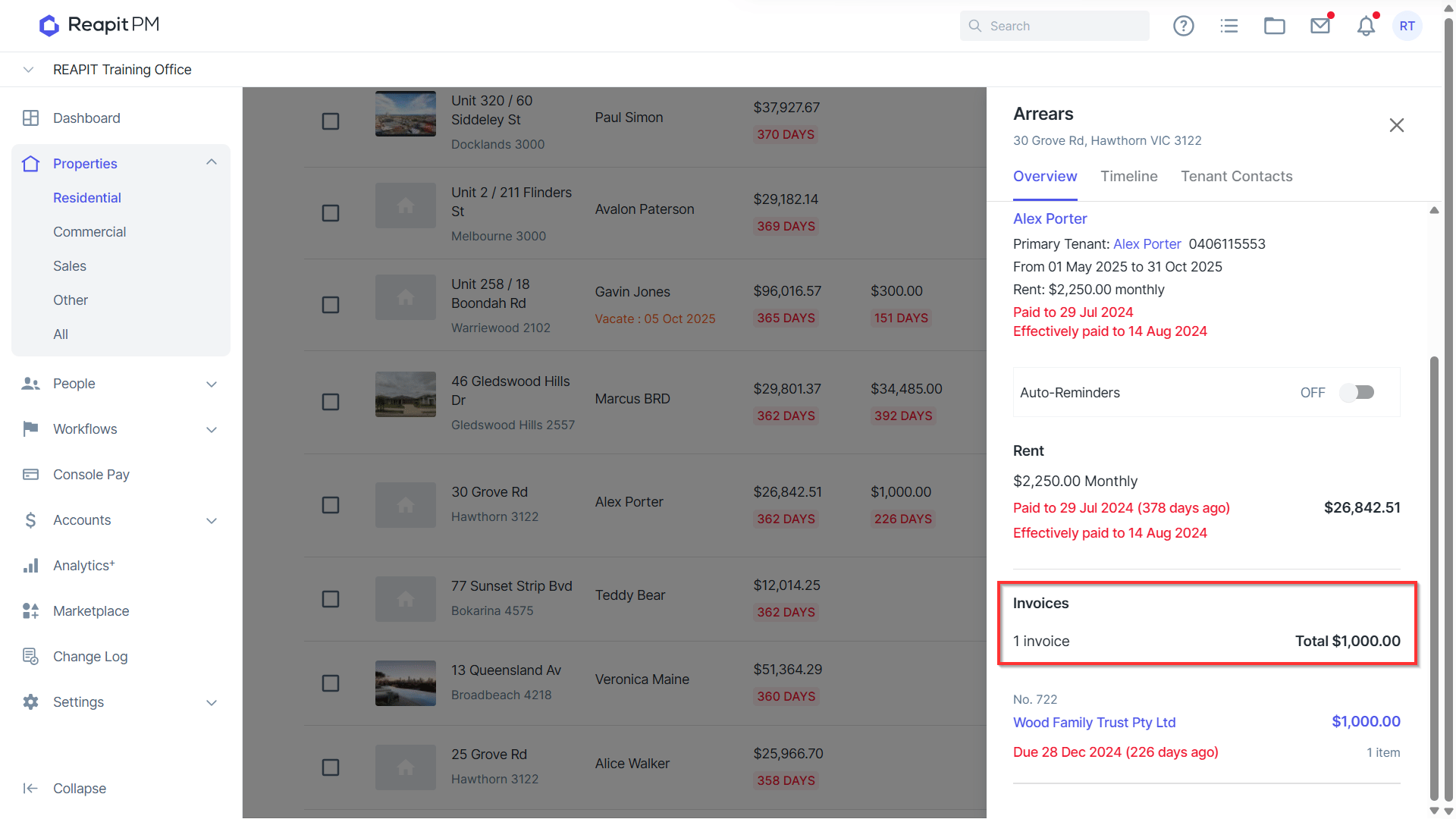
- If you click on the invoice you will see the invoice details, and you can download the pdf.
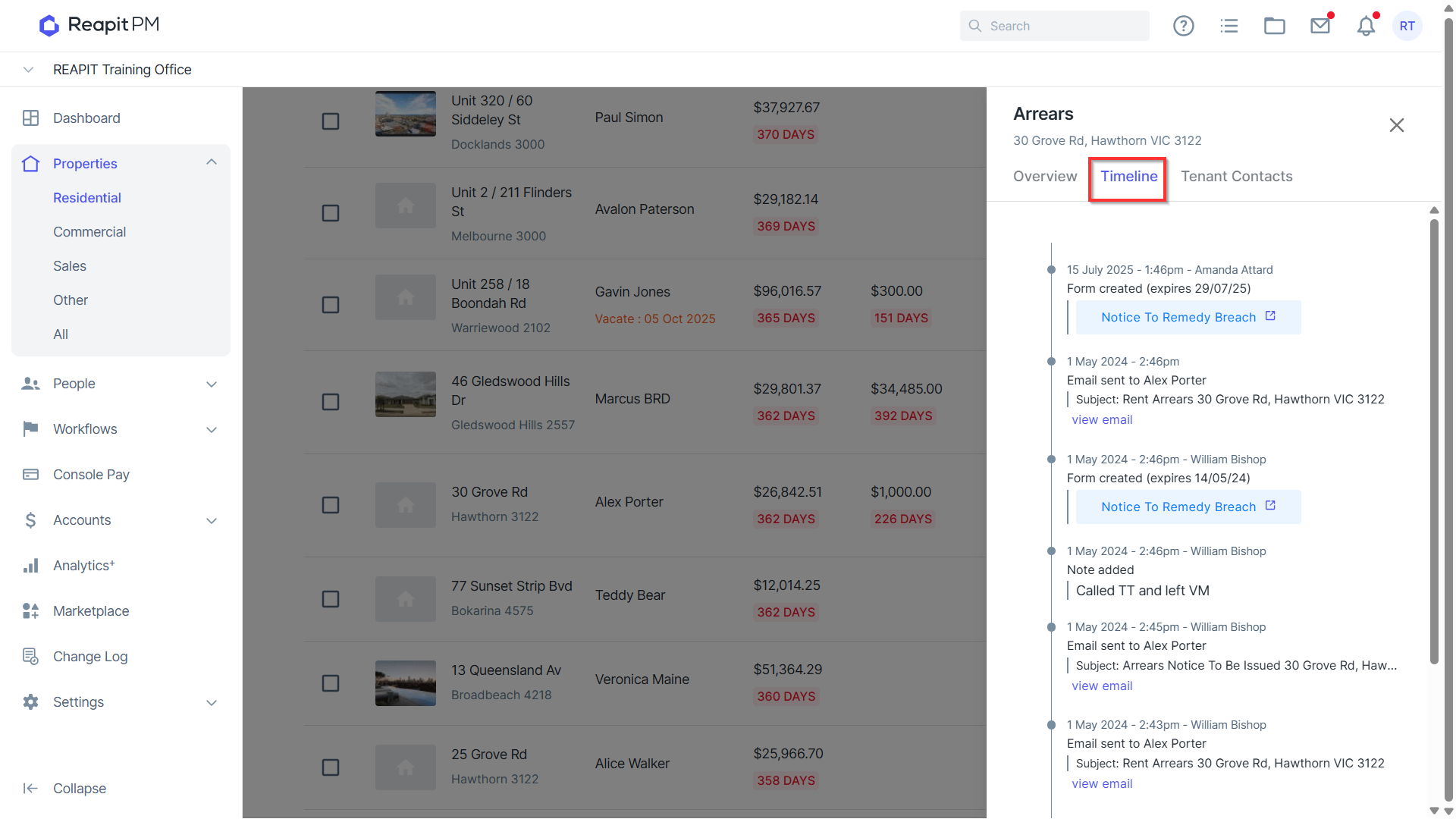
- The Arrears draw also allows you to see the arrears timeline. Simply click on Timeline. Then click the view email to view in detail.
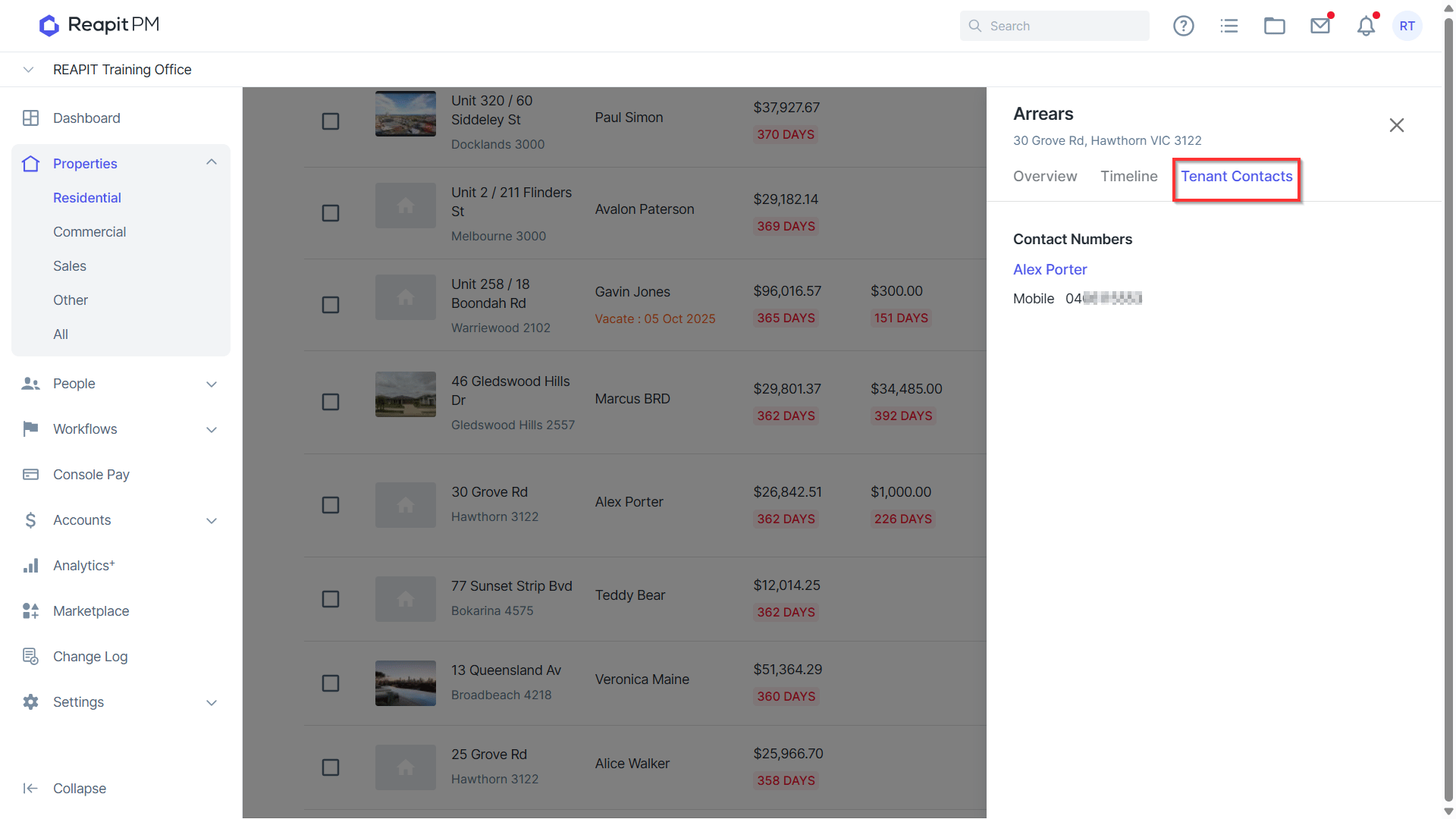
- The Tenant Contacts draw allows you to view the tenants details, for example Name, phone, email.