'%20d='M0%208a8%208%200%200%201%208-8h24a8%208%200%200%201%208%208v24a8%208%200%200%201-8%208H8a8%208%200%200%201-8-8V8Z'/%3e%3cpath%20fill='%23fff'%20d='M8.375%2013v14L20.5%2034l12.124-7v-7.737l-1.687-.975-2.806-1.62-1.082-.624v4.83l-.002%204.83H13.95V16.07l3.275-1.89%202.192-1.265%201.082-.625%203.275%201.877%202.192%201.256%201.083.62V9.782L20.5%206%208.376%2013Z'/%3e%3cdefs%3e%3clinearGradient%20id='reapit-pm__a'%20x1='20.702'%20x2='20.702'%20y1='.351'%20y2='31.228'%20gradientUnits='userSpaceOnUse'%3e%3cstop%20stop-color='%235573FD'/%3e%3cstop%20offset='.575'%20stop-color='%234E56EA'/%3e%3c/linearGradient%3e%3c/defs%3e%3c/svg%3e)
Reapit AI Maintenance Agent
This article introduces the Reapit AI Maintenance Agent in Reapit PM. Content in this article includes: Steps to improve AI Functionality How to enable / disable the Maintenance Agent AI and Maintenance Requests
This article introduces the Reapit AI Maintenance Agent in Reapit PM.
Content in this article includes:
- Steps to improve AI Functionality
- AI and Maintenance Requests
- How to enable / disable the Maintenance Agent
Steps to improve AI Functionality
The Reapit AI Maintenance Agent works best when there is information within each property to assist it with providing solutions.
The agent takes information from the following areas:
- Creditor Setup both Preferred and dissection name
- Notes on Management Agreements
- Notes on properties tagged to type “Maintenance”
- Previous maintenance for the property
Based upon the information the maintenance agent has access to review, it will recommend one of the following to each Maintenance Request.
- Recommending Quotes Request
- Maintenance Requests
- Manual Entry Required
- Recommend Declining Job
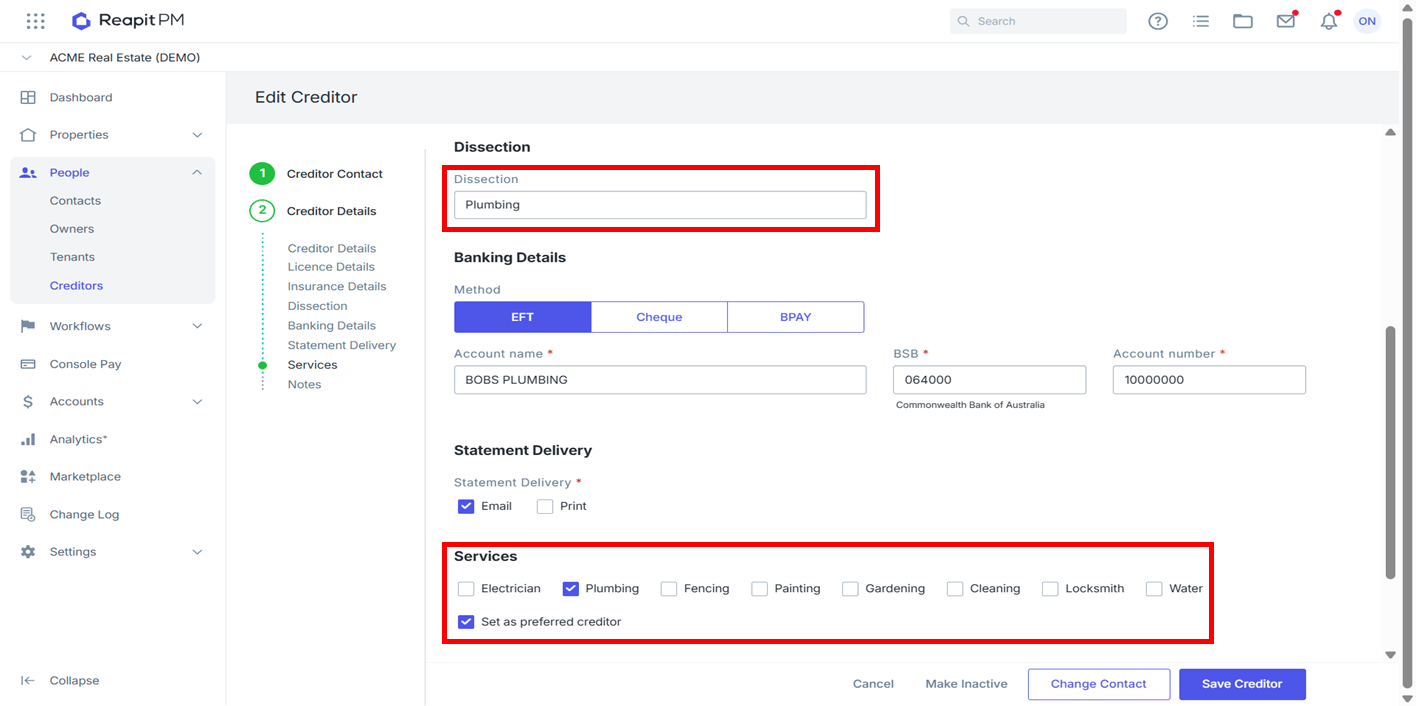
Creditors
Within Creditor AI will look at certain information.
- Dissection (what this trade normally does. If the desired dissection is not available, go to Settings > Dissections > Add New.
- Select a Services Tick Box and Set as preferred creditor if applicable. If the available services do not match the creditor, do not tick anything and just use Dissection.
Directions:
People > Creditors > Search and Select Creditor > Creditor Details – Edit > Dissection
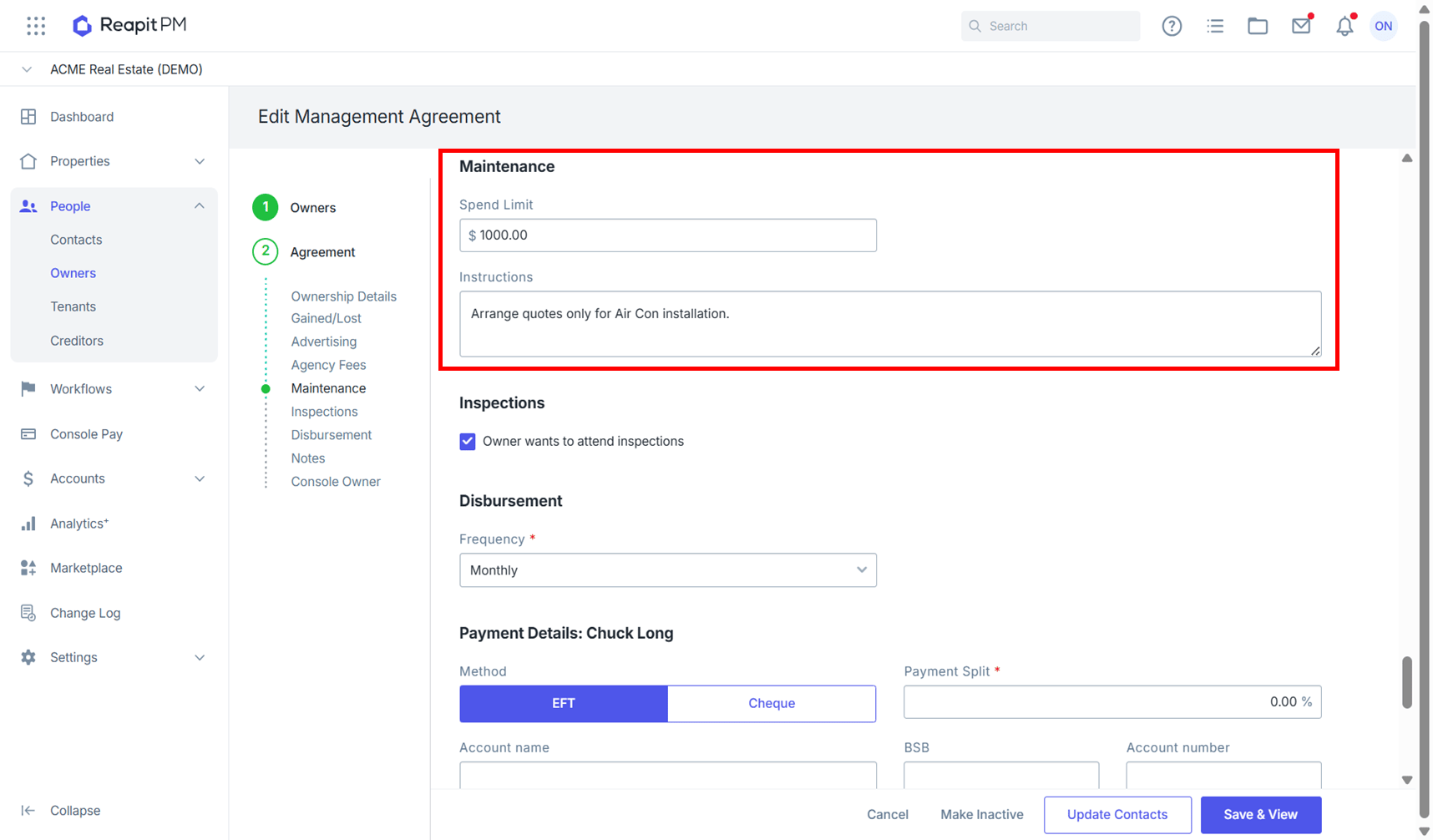
Owner instructions in Management Agreement
Adding in as much detail as known will improve AI responses, as it drawers from property specific instruction included I the Management Agreement.
Directions:
People > Owners > Search and Select Property Address > Owner Details > Edit > Maintenance
- Enter a Spend Limit up to the amount authorised by the owner.
- Enter any further Instructions from the owner regarding to Maintenance.
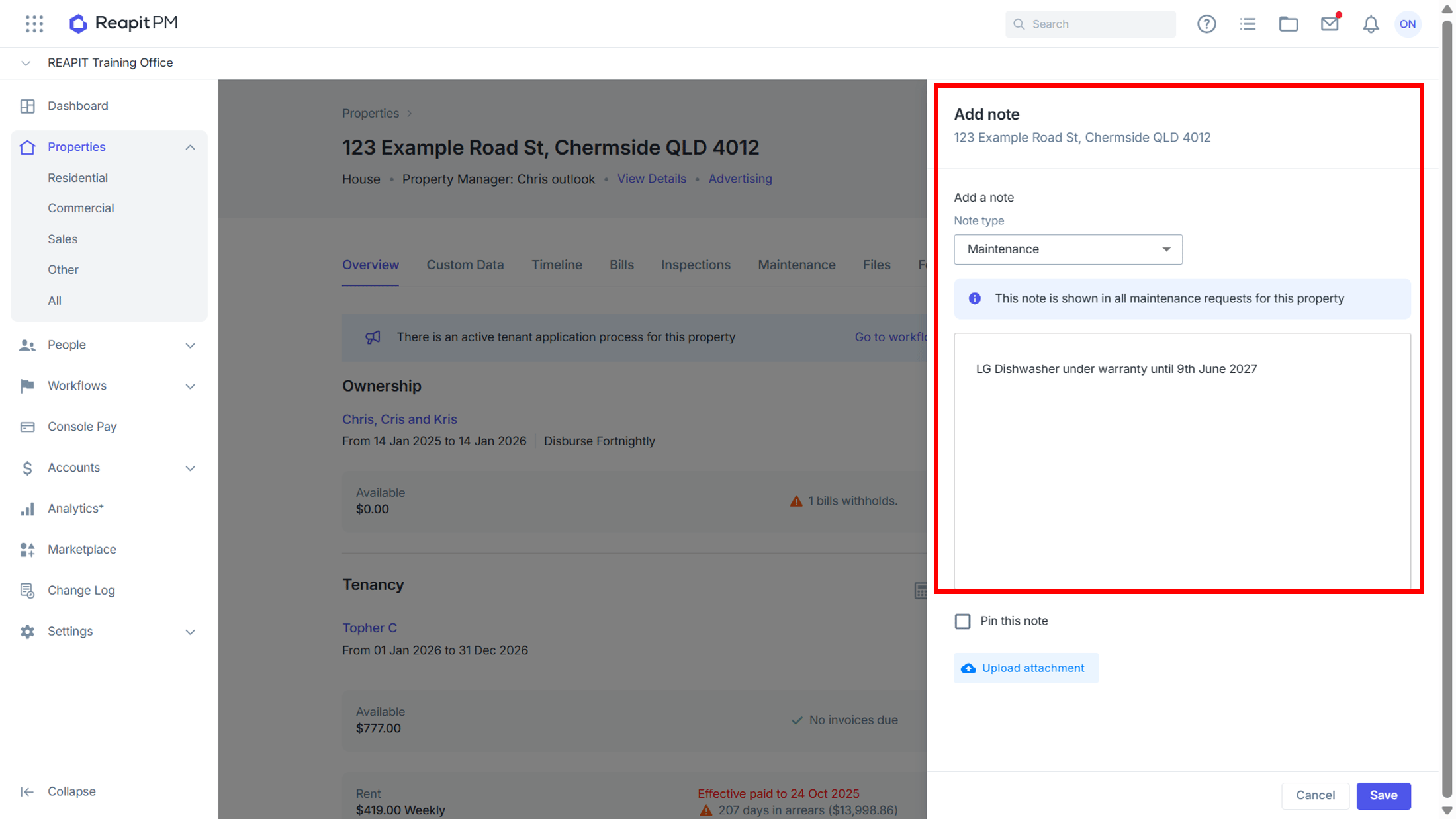
Property Notes
Adding property notes gives the maintenance agent more general information about a property.
- Add Warranty Details.
- Owner preferred trades.
Directions:
Search and select Property from Universal Search > Notes Tab > Add New Note > Note Type Maintenance > Enter Note
Previous maintenance for the property
Maintenance Agent will look at the history will look at job type and who it was sent to in the past. From this, it will recommend sending to the same creditor.
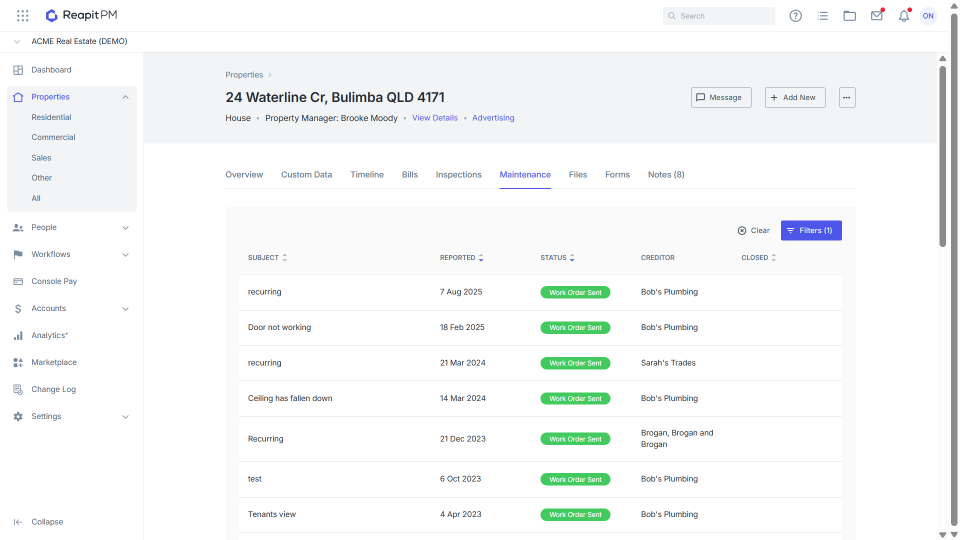
Directions:
Search and select Property from Universal Search > Maintenance Tab
How to use AI in the Maintenance Workflow
The more it is used, the better the description is. AI continually learns and improves with use.
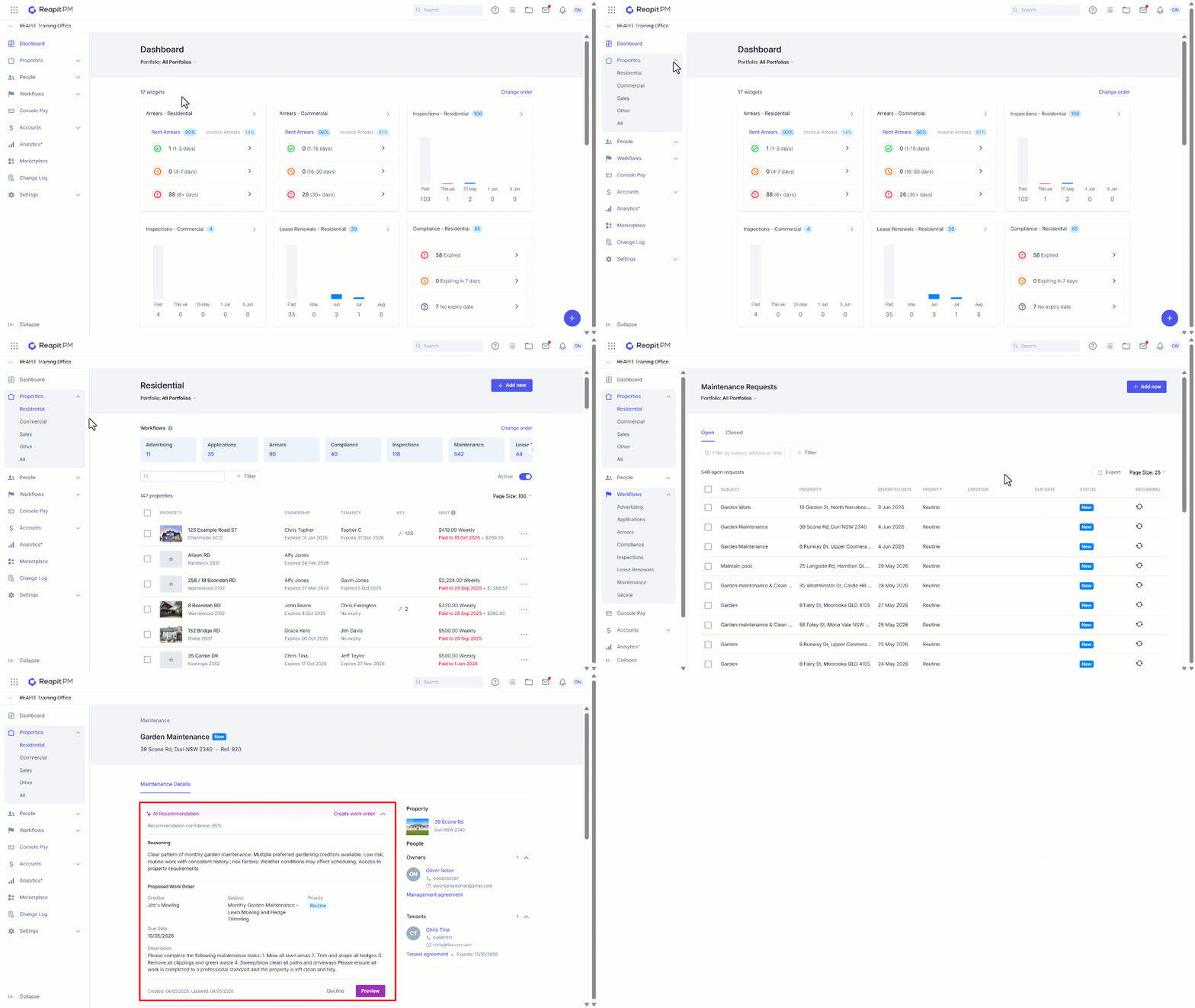
- Click on Properties.
- Select Residential or Sales.
- Select the Maintenance workflow.
- Select the required Maintenance Request.
- Review the Reasoning and proposed solution provided under Reapit Ai.
Based on the information available within the property and the request, one of the following recommendations will suggest the next steps:
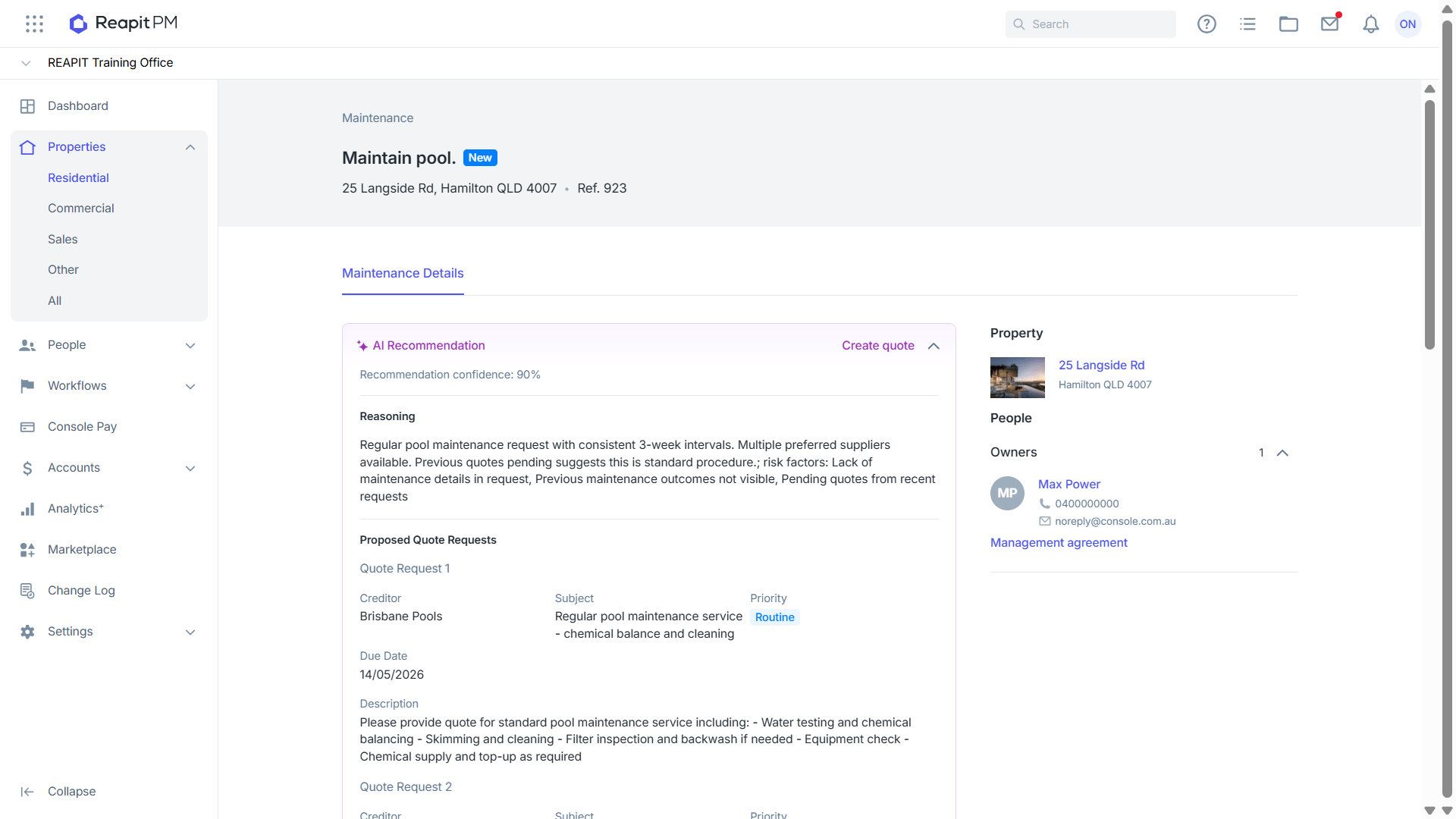
Recommendation: Create Quote
Next Steps:
When multiple Proposed Quote Requests are presented, review the options provided. Once ready to send a quote request, click on the Preview button. In the Send Quote request drawer, the Creditor will default the to one listed under Quote Request 1. To send the initial quote request to one of the alternatives, simply search and select from the Creditor field before reviewing the remaining fields and clicking on Send quote request. To request additional Quotes 2 & 3, copy and past the description and click & complete Add Quote Request from the Quotes section.
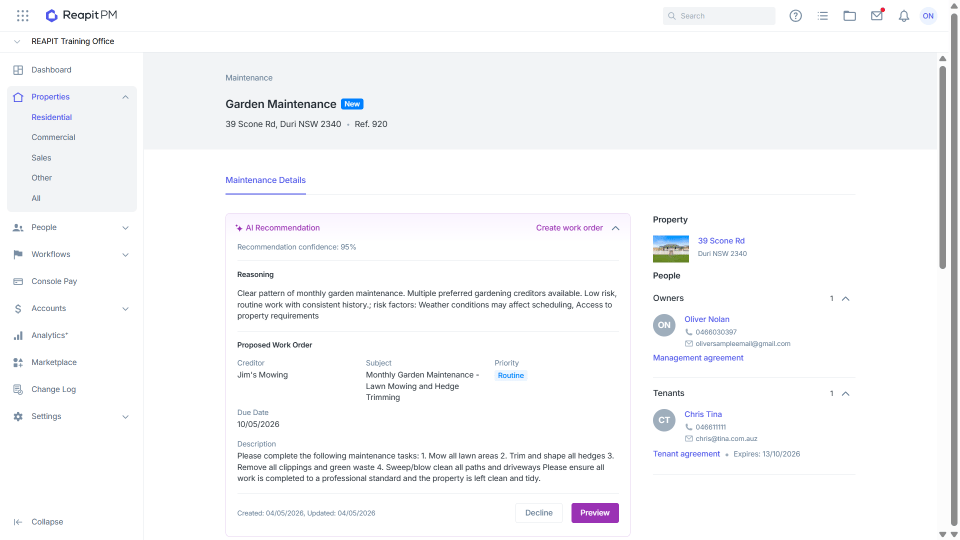
Recommendation: Create Work Order
Next Steps:
The reasoning will justify the progression directly to creating a work order. This can be based on historical use of the supplier and may identify the solution is included in lease conditions. Click on Preview to open the send work order drawer
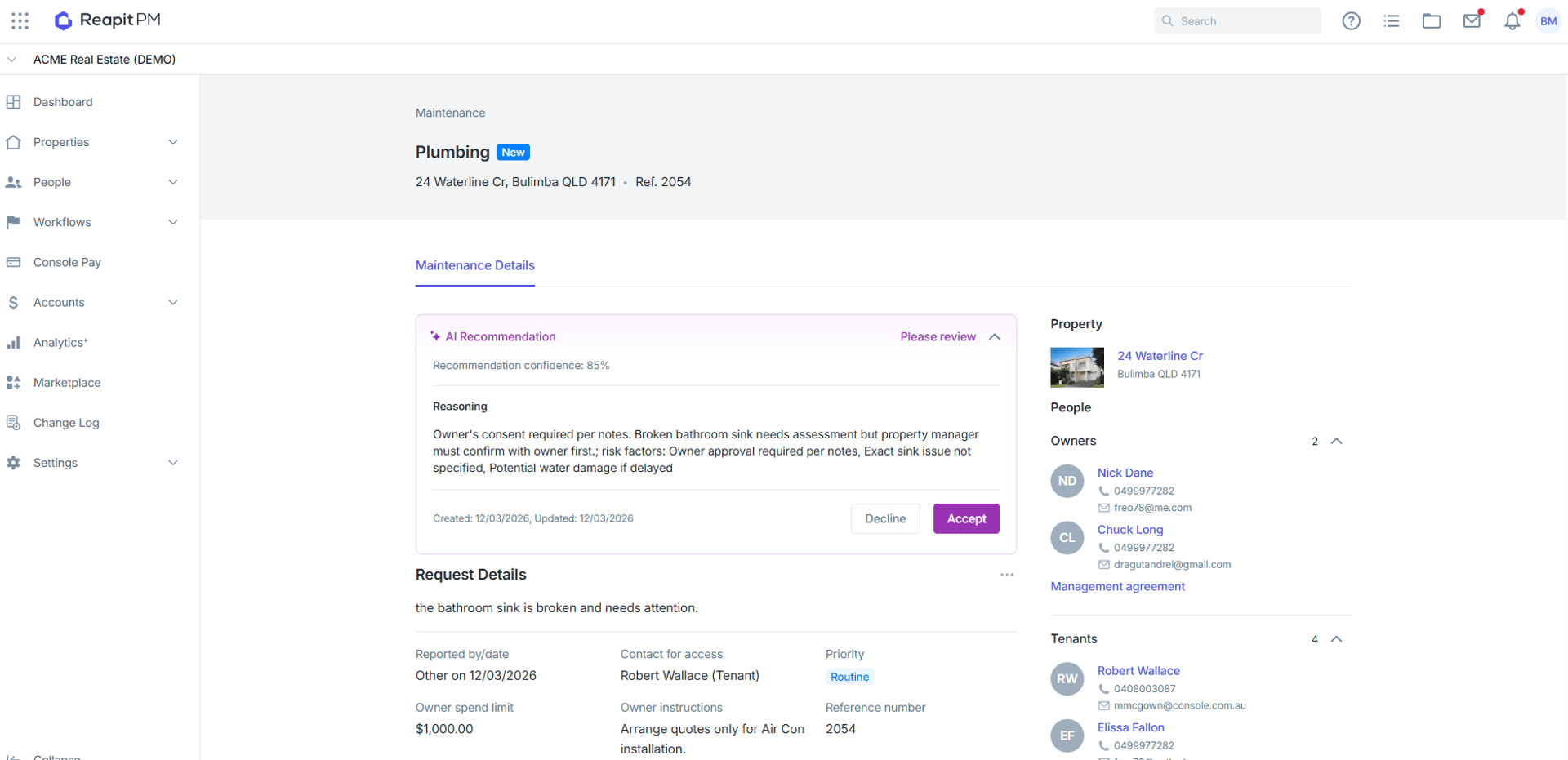
Recommendation: Please Review
Next Steps:
Review the Reasoning for the justification. An example for this recommendation may be that all maintenance requests are to be approved by the owner before quoting, review fields before requesting quotes.
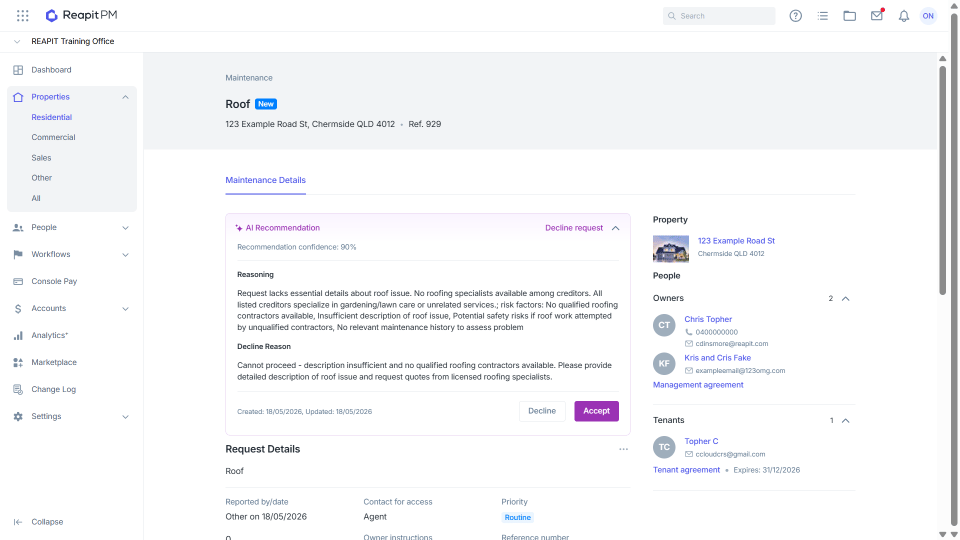
Recommendation: Decline Request
Next Steps:
The reasoning will explain why the request should be declined. Reasons may include lack of information available in the maintenance request to generate meaningful quote or work order from the information included.
How to Enable / Disable the Maintenance Agent
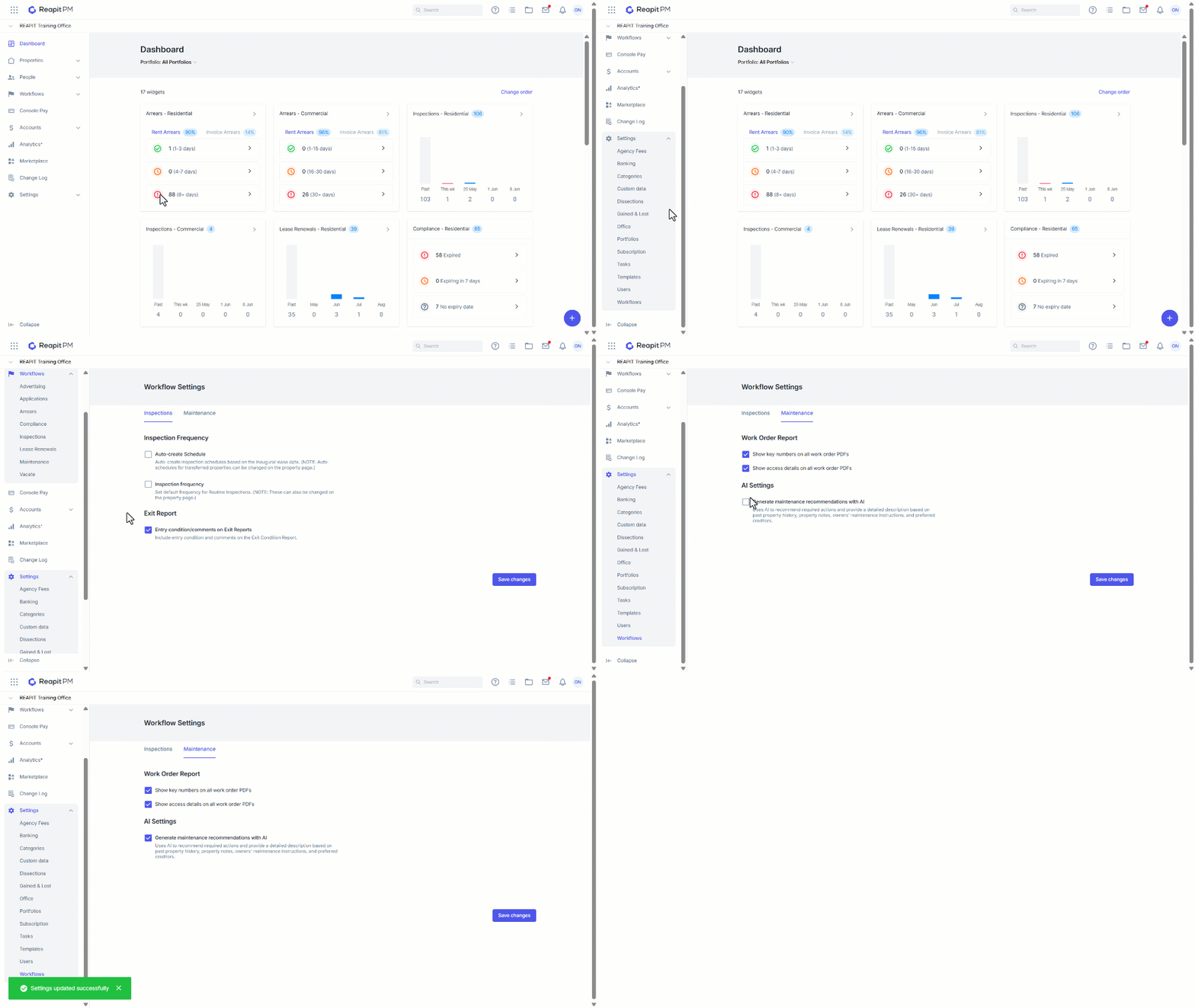
Follow the steps below to enable or disable the AI Maintenance Agent.
- Click on Settings.
- Click on Workflows.
- Select the Maintenance tab.
- Navigate to AI Setting a select the checkbox to enable / disable AI maintenance agent functionality.
- Click on Save changes.