'%20d='M0%208a8%208%200%200%201%208-8h24a8%208%200%200%201%208%208v24a8%208%200%200%201-8%208H8a8%208%200%200%201-8-8V8Z'/%3e%3cpath%20fill='%23fff'%20d='M8.375%2013v14L20.5%2034l12.124-7v-7.737l-1.687-.975-2.806-1.62-1.082-.624v4.83l-.002%204.83H13.95V16.07l3.275-1.89%202.192-1.265%201.082-.625%203.275%201.877%202.192%201.256%201.083.62V9.782L20.5%206%208.376%2013Z'/%3e%3cdefs%3e%3clinearGradient%20id='reapit-pm__a'%20x1='20.702'%20x2='20.702'%20y1='.351'%20y2='31.228'%20gradientUnits='userSpaceOnUse'%3e%3cstop%20stop-color='%235573FD'/%3e%3cstop%20offset='.575'%20stop-color='%234E56EA'/%3e%3c/linearGradient%3e%3c/defs%3e%3c/svg%3e)
Commercial Invoice / Rent Credits
This article will walk you through how to manage commercial invoice credits in Reapit PM.
The processes in this article include:
- Adding an Invoice Credit - Once Off
- Adding an Invoice Credit - Recurring
- Removing or Editing an Invoice Credit
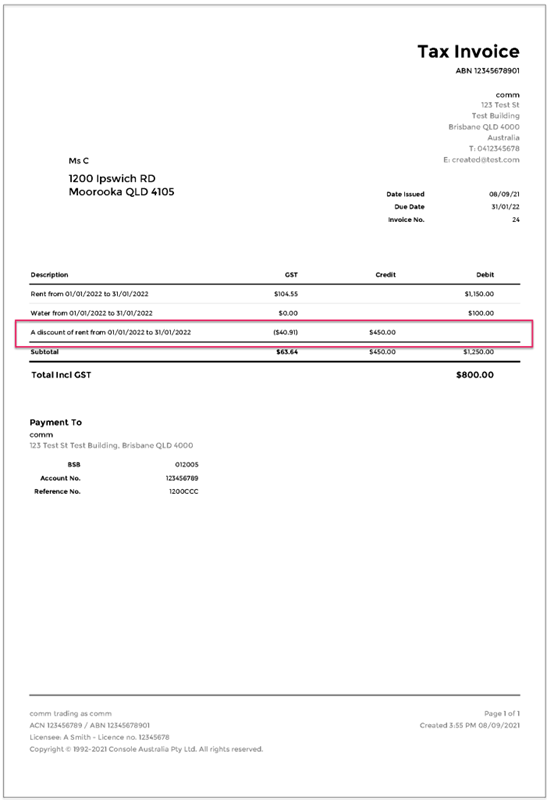
- How Credits Appear on Rent Invoices
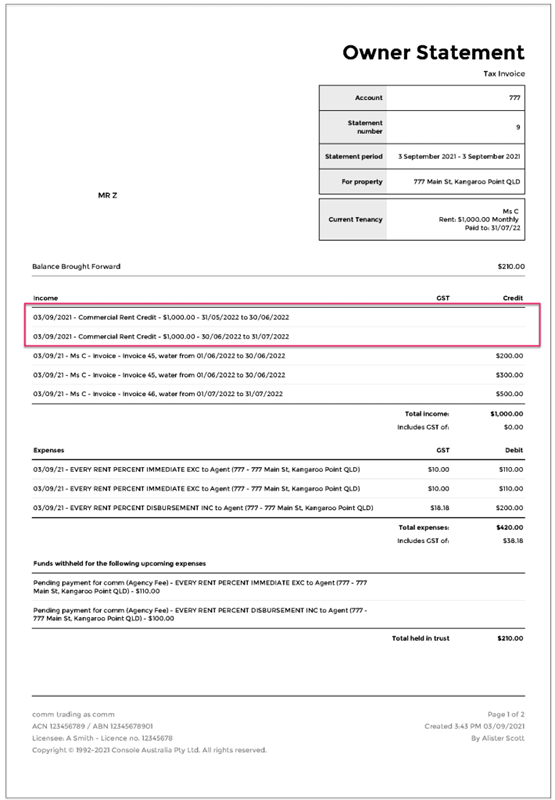
- How Credits Appear on Owner Statements
Adding an Invoice Credit - Once Off
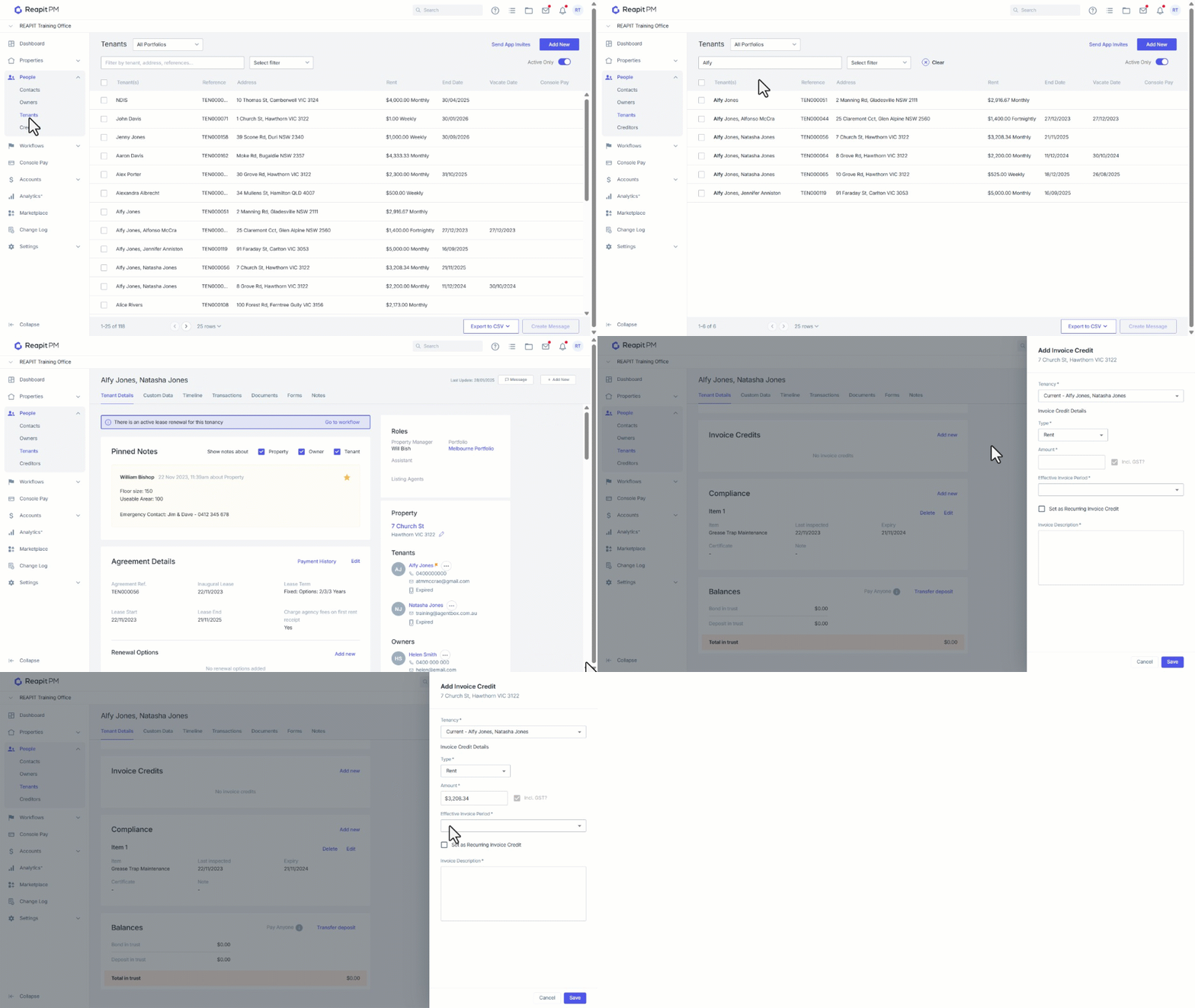
Invoice credits can be added via the tenant agreement details screen.
- Click on People.
- Click on Tenants.
- Search and Select the tenant.
- Navigate to Invoice Credits and click Add new.
- Select and enter the information. Enter an Invoice Description (same description used on owner statement).
- Click Save.
- The credit will be automatically applied to the selected period and will appear on owner statements (upon receipt).
Adding an Invoice Credit - Recurring
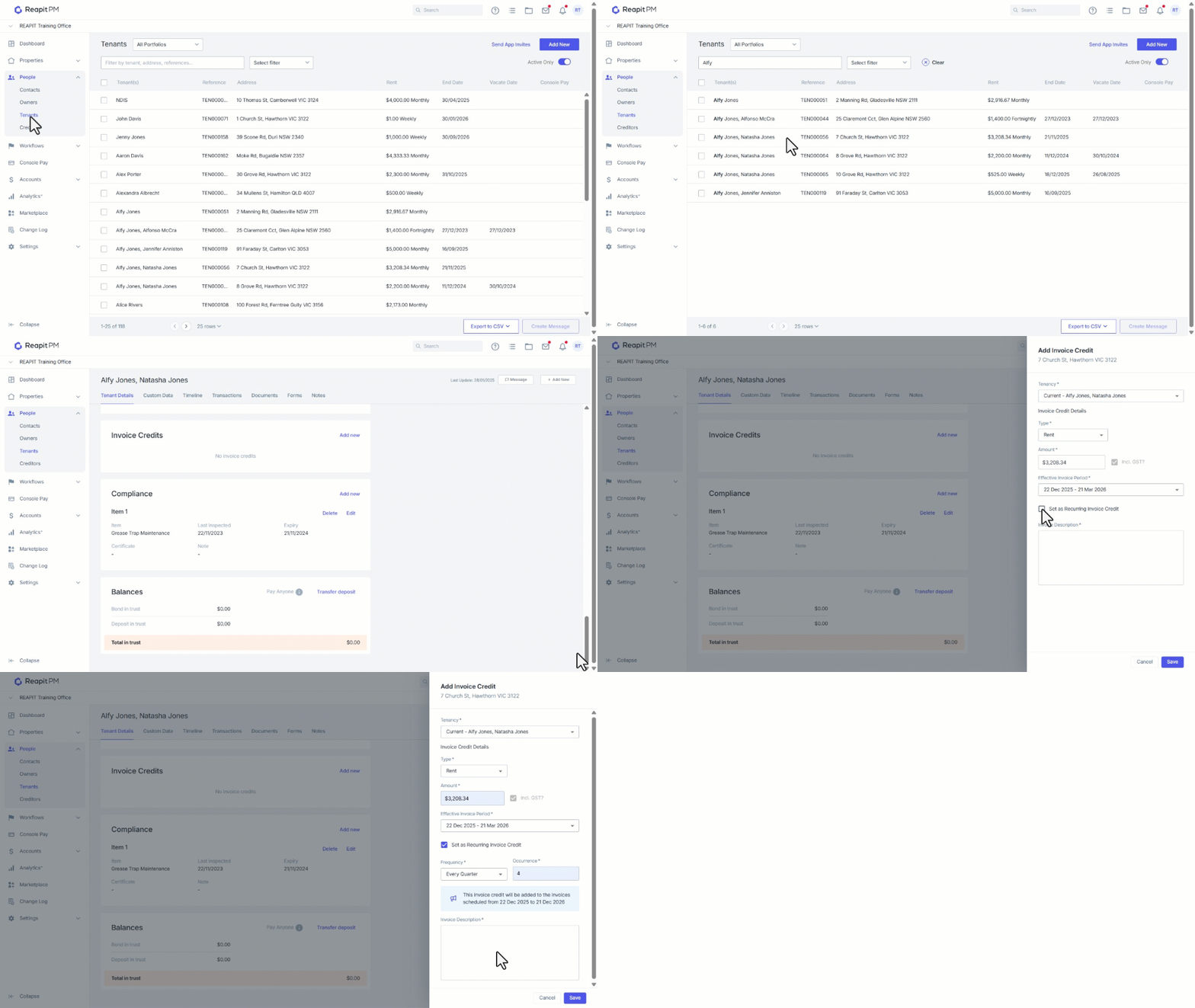
You also have the ability to apply recurring invoice credits to multiple periods, this can be set up in the tenant agreement details screen.
- Click on People.
- Click on Tenants.
- Search and Select the tenant.
- Navigate to Invoice Credits and click Add new.
- Select and enter the information. Enter an Invoice Description (same description used on owner statement).
- Tick the Set as Recurring Invoice Credit check box.
- Select the Frequency. Enter the number of occurrence times and Invoice Description.
- Click Save. Your credits will be applied automatically to the selected periods.
Removing or Editing an Invoice Credit
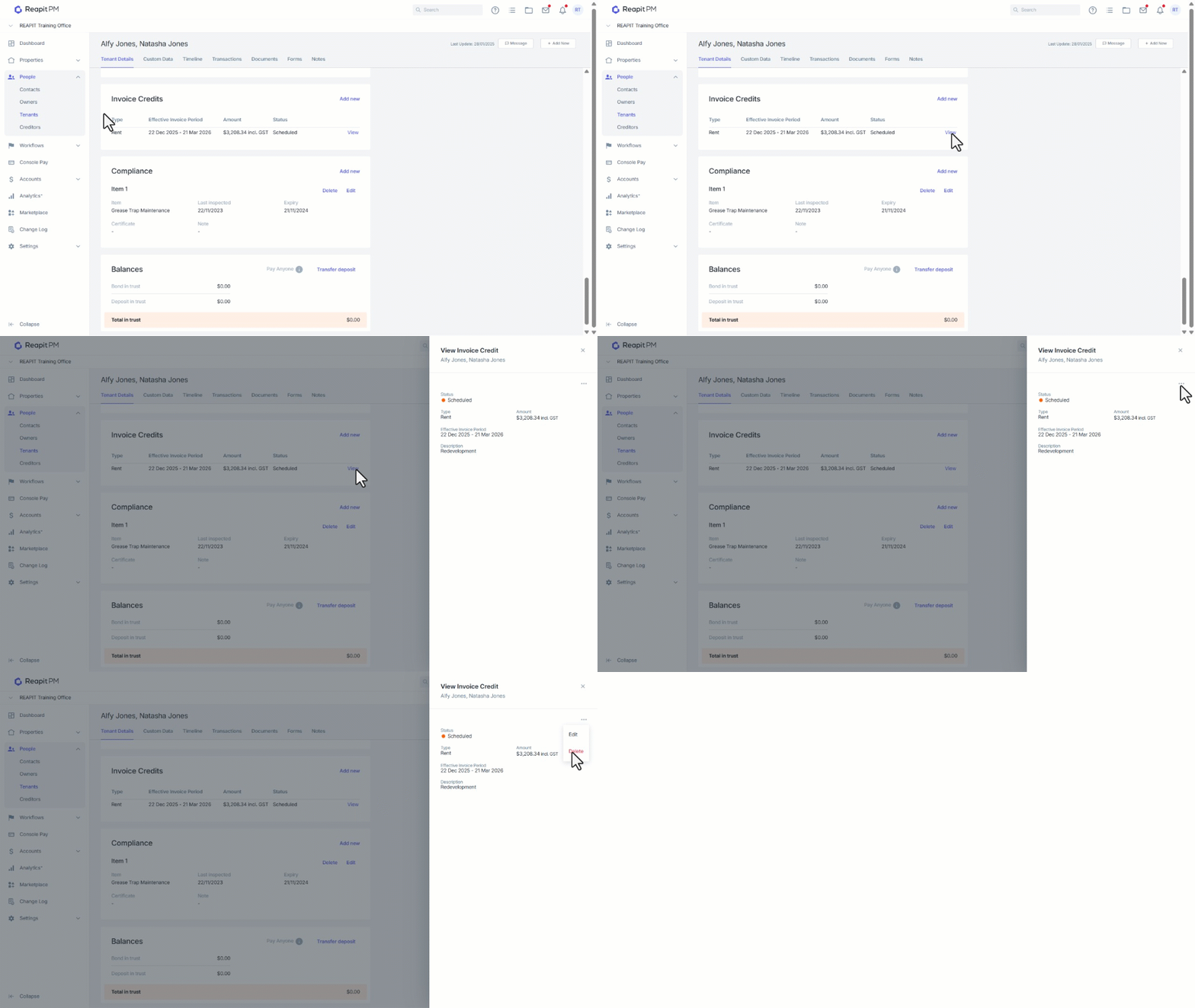
Invoice credits can be edited or removed as long as the credit has not already been applied to the period. you can edit/delete the entire series of (unpublished) credits or just the one you have selected.
- Navigate to Invoice Credits in the Tenant File
- Click View on the credit you would like to edit or remove.
- Click the 3 dots and select edit if you would like to Edit or Delete to remove the credit.
- If you are editing, make sure you save any changes you have made to apply them.
How Credits Appear on Rent Invoices
Credits will appear in the description as a line item.
How Credits Appear on Owner Statements
Credits will appear in the income section as individual line items.