'%20d='M0%208a8%208%200%200%201%208-8h24a8%208%200%200%201%208%208v24a8%208%200%200%201-8%208H8a8%208%200%200%201-8-8V8Z'/%3e%3cpath%20fill='%23fff'%20d='M8.375%2013v14L20.5%2034l12.124-7v-7.737l-1.687-.975-2.806-1.62-1.082-.624v4.83l-.002%204.83H13.95V16.07l3.275-1.89%202.192-1.265%201.082-.625%203.275%201.877%202.192%201.256%201.083.62V9.782L20.5%206%208.376%2013Z'/%3e%3cdefs%3e%3clinearGradient%20id='reapit-pm__a'%20x1='20.702'%20x2='20.702'%20y1='.351'%20y2='31.228'%20gradientUnits='userSpaceOnUse'%3e%3cstop%20stop-color='%235573FD'/%3e%3cstop%20offset='.575'%20stop-color='%234E56EA'/%3e%3c/linearGradient%3e%3c/defs%3e%3c/svg%3e)
Console Pay Scenario - Existing Tenancy Agreement with outgoings (Rent + Invoice in arrears)
This article will guide you through enabling Console Pay for a Tenant who is in both rent and outgoings arrears while having recurring outgoings enabled within Reapit PM. The process in this article include: Console Pay Scenario - Existing Tenancy Agreement with outgoings (Rent + Invoices in Arrears)
Overview
Console Pay Scenario - Existing Tenancy Agreement with outgoings (Rent + Invoice in arrears)
Note: The feature mentioned in the article is not yet available to all users. If you don't see it as an option or if you're interested in enabling the 'Paid to Date +1' feature, please feel free to contact our support team for further assistance.
This article demonstrates the process that must be followed to set up a tenancy that has recurring invoices who will be paying for rent and invoices with Console Pay. The below process reflects accounts that have debits set to default to the tenants paid to date + 1.
It is essential that all direct debit changes are made in the morning prior to the 1pm AEST cutoff for direct debits and consider 3 business days of clearance.
Invoice creation requires the below calendar day notice to ensure that the scheduler will automatically prepopulate the required debit date for recurring invoices and rent to Paid to Date + 1:
Monthly Rent / Invoices: 16 or More days prior to due date
Fortnightly Rent / Invoices: 8 days prior to due date
Weekly Rent / Invoices: 4 days prior to due date
The process in this article include:
- Console Pay Scenario - Existing Tenancy Agreement with outgoings (Rent + Invoices in Arrears)
- This article will guide you through enabling Console Pay for a Tenant who is in both rent and outgoings arrears while having recurring outgoings enabled.
Note: While this can be set-up with a Tenant in arrears, the recommendation would be to try to clear any outstanding arrears before enabling this for a smoother experience.
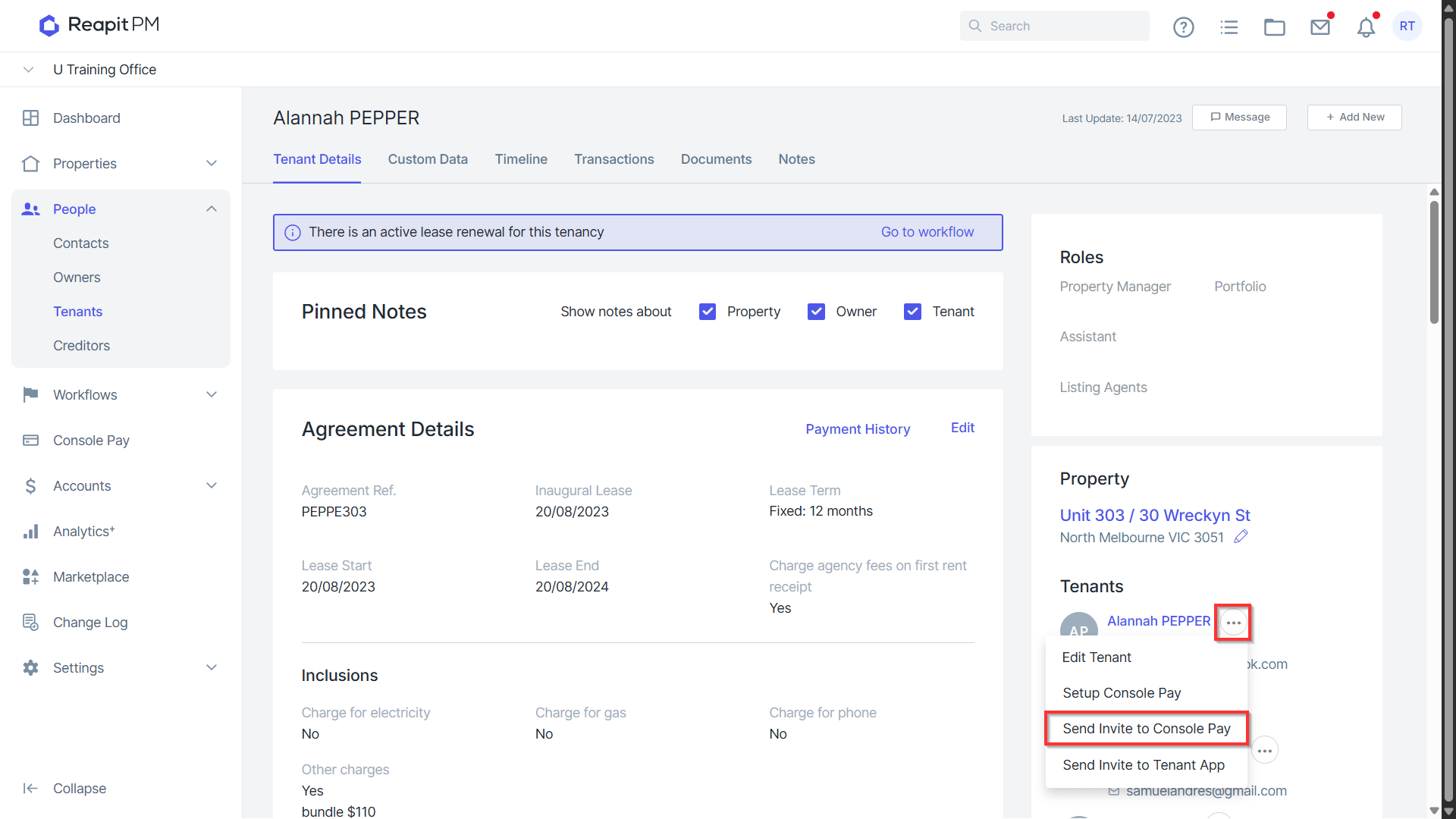
From the Tenancy Agreement, select the 3 action dots to right of the Contact card > send invite to Console Pay.
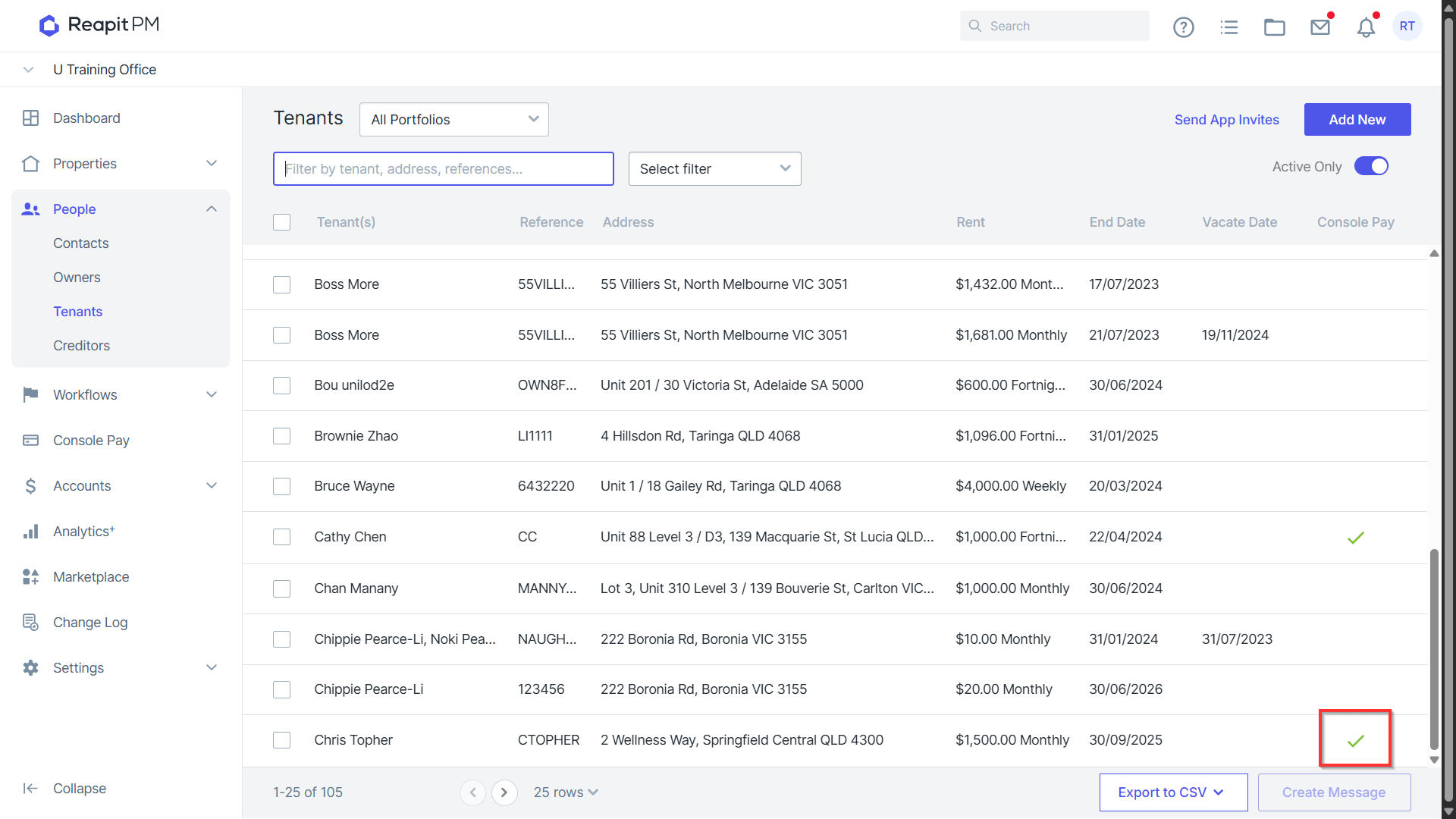
Once the Tenant has completed the application to set up Console Pay a green tick will appear next to the Tenancy from the Tenant list.
Navigate to the Tenancy Agreement > Edit. Navigate to Recurring Outgoings. Update the recurring invoices to Tenant to sync up with the monthly paid to date +1 cycle. Confirm the frequency, invoice dates, paid to and dissections. Click Save & View.
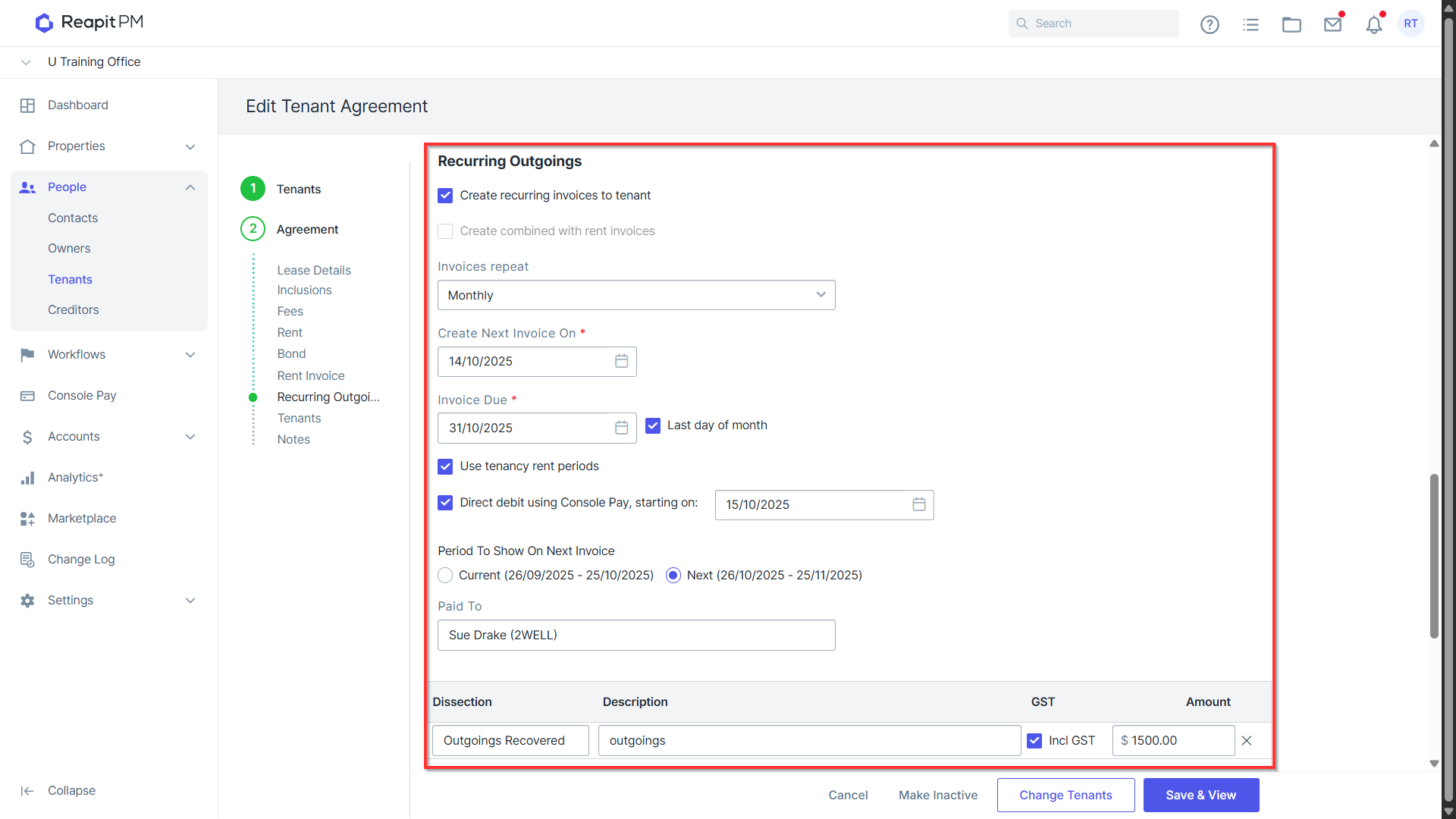
Note: In this scenario, the Tenant is currently paid up to the 25/7/25 leaving them close to two months in arrears. By enabling the scheduler now, the Direct Debit using Console Pay Start on date will populate with the day after the create next invoice on date. You can manually set this date to be the after the paid to date +1 which in this instance would be 26/10/25 the arrears on any previous rent or invoice outgoing amounts will still need to be collected.
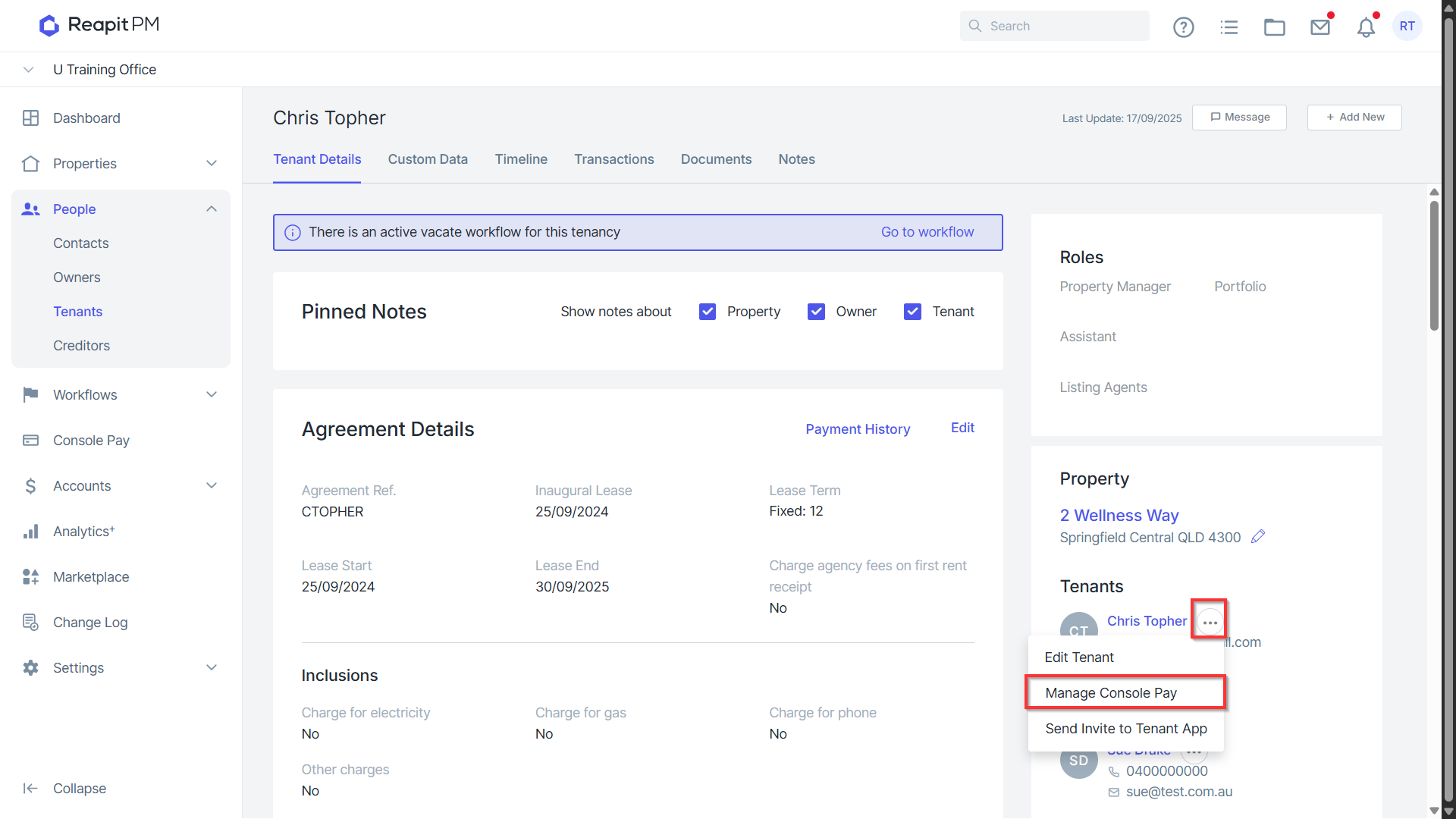
Select the 3 action dots to the right of the Contact card > Manage Console Pay.
Select Create Schedule.
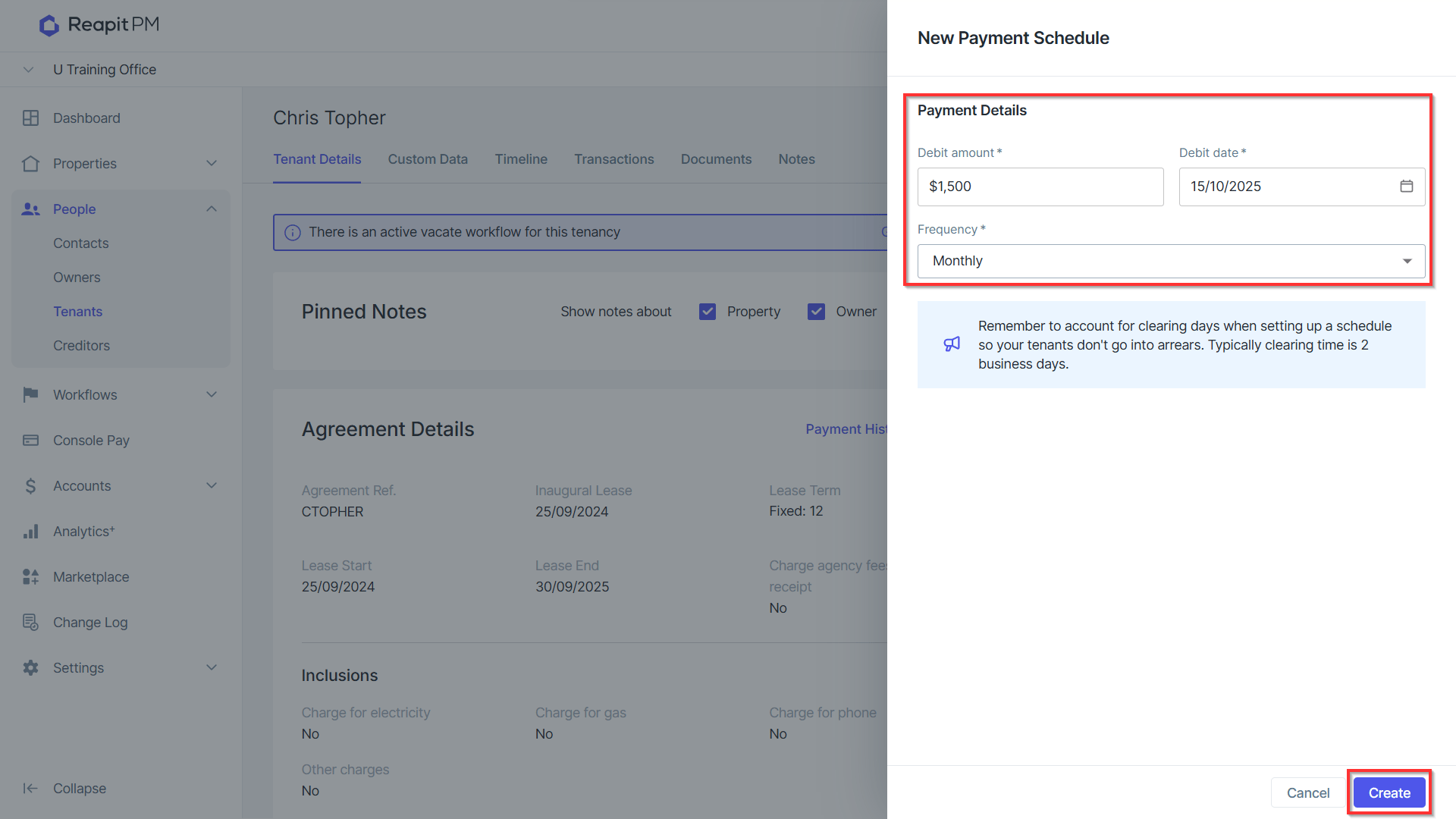
The new Payment schedule will have you confirm the Rent Debit Amount > Debit Date and Frequency. Click Create.
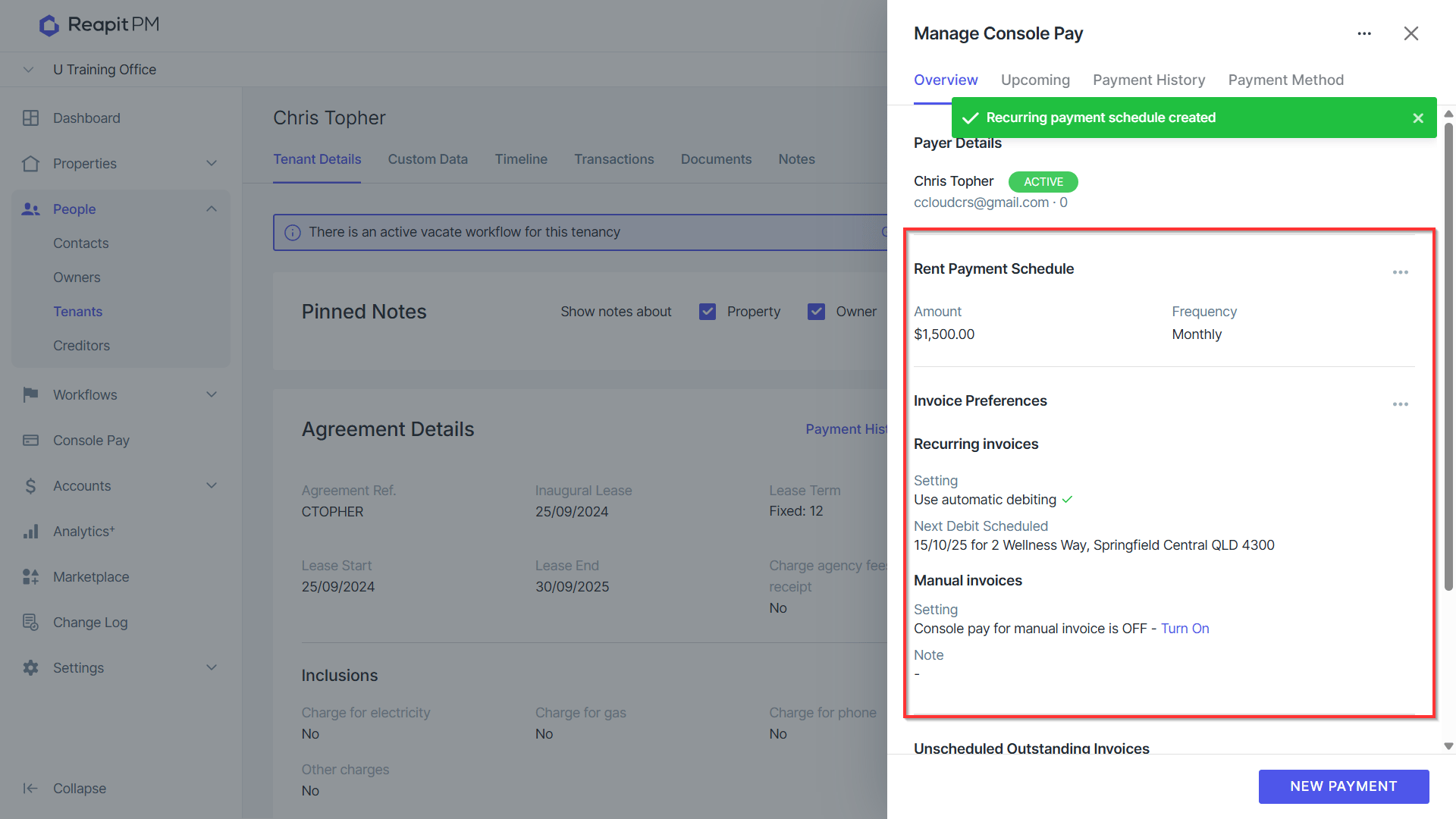
Once created, the schedule will display from the Overview tab. Once the recurring invoices start to generate the invoice preferences will display the amounts to be debited along with the rent amount.
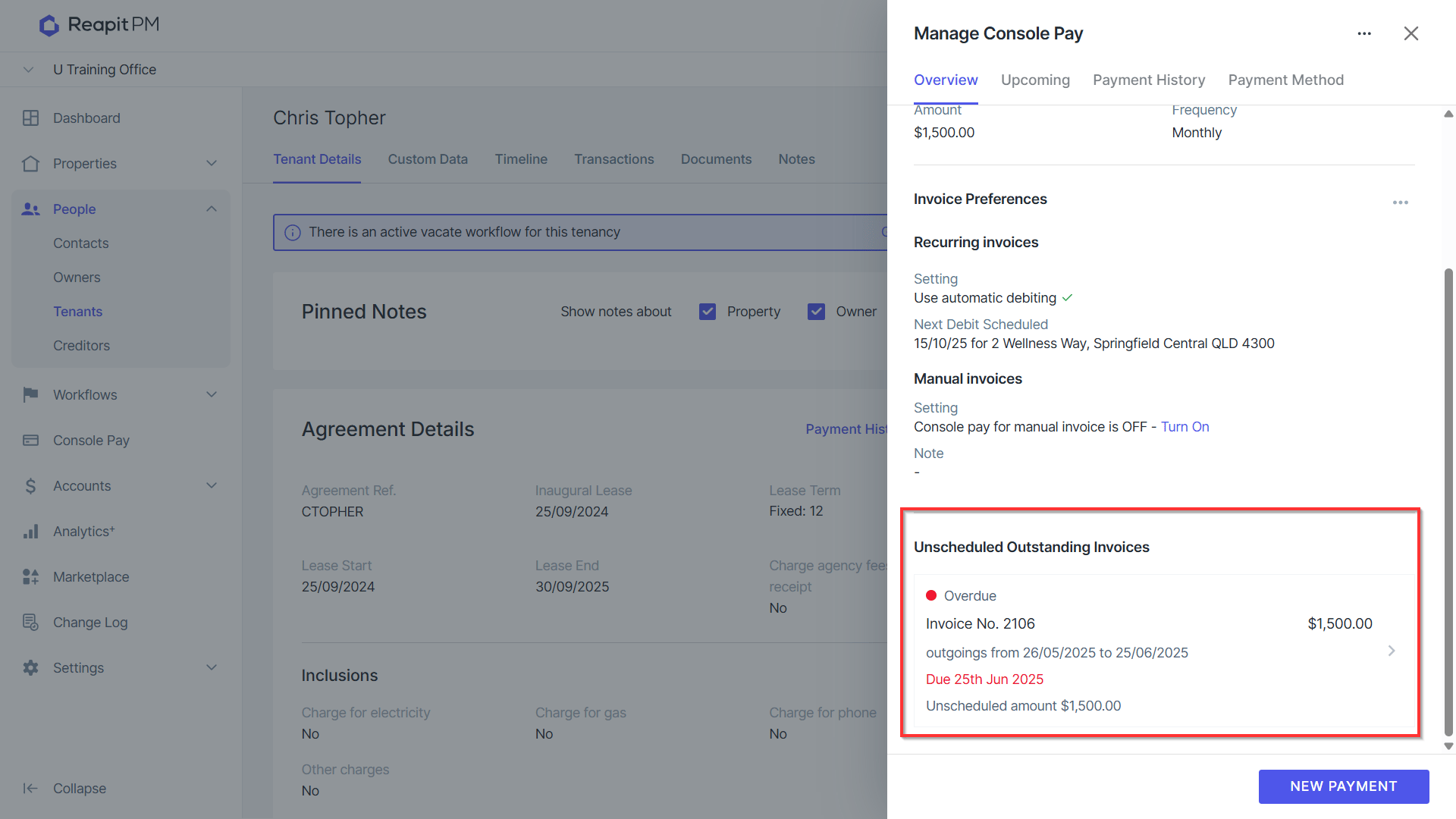
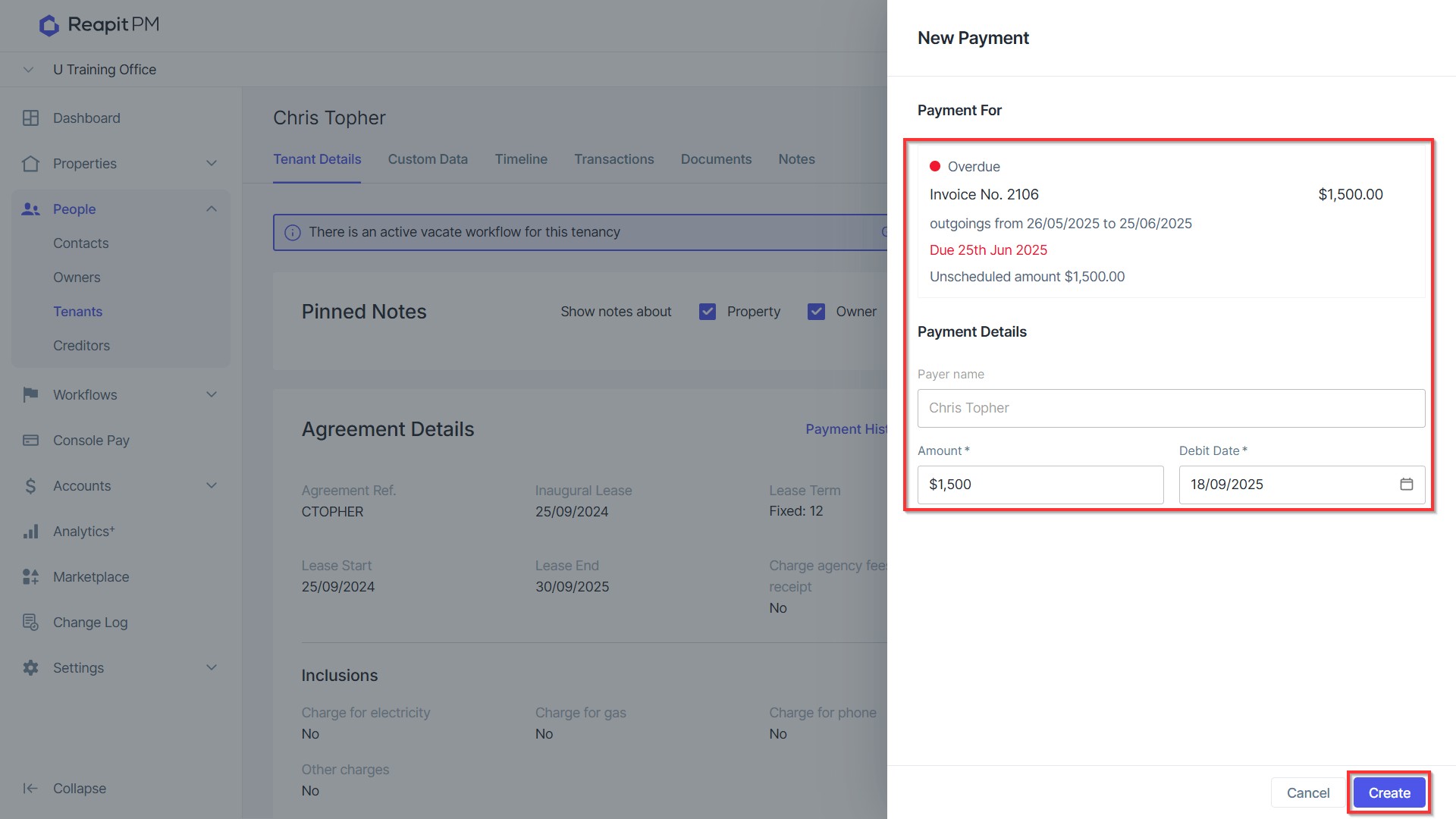
Arrange with the Tenant to recover any unpaid rent taken with a manual Console Pay debit on a scheduled date. If invoice(s) have been raised for this, select the invoice from the Unscheduled Outstanding Invoices section.
Confirm the amount > Select the manual Debit Date > click Create.
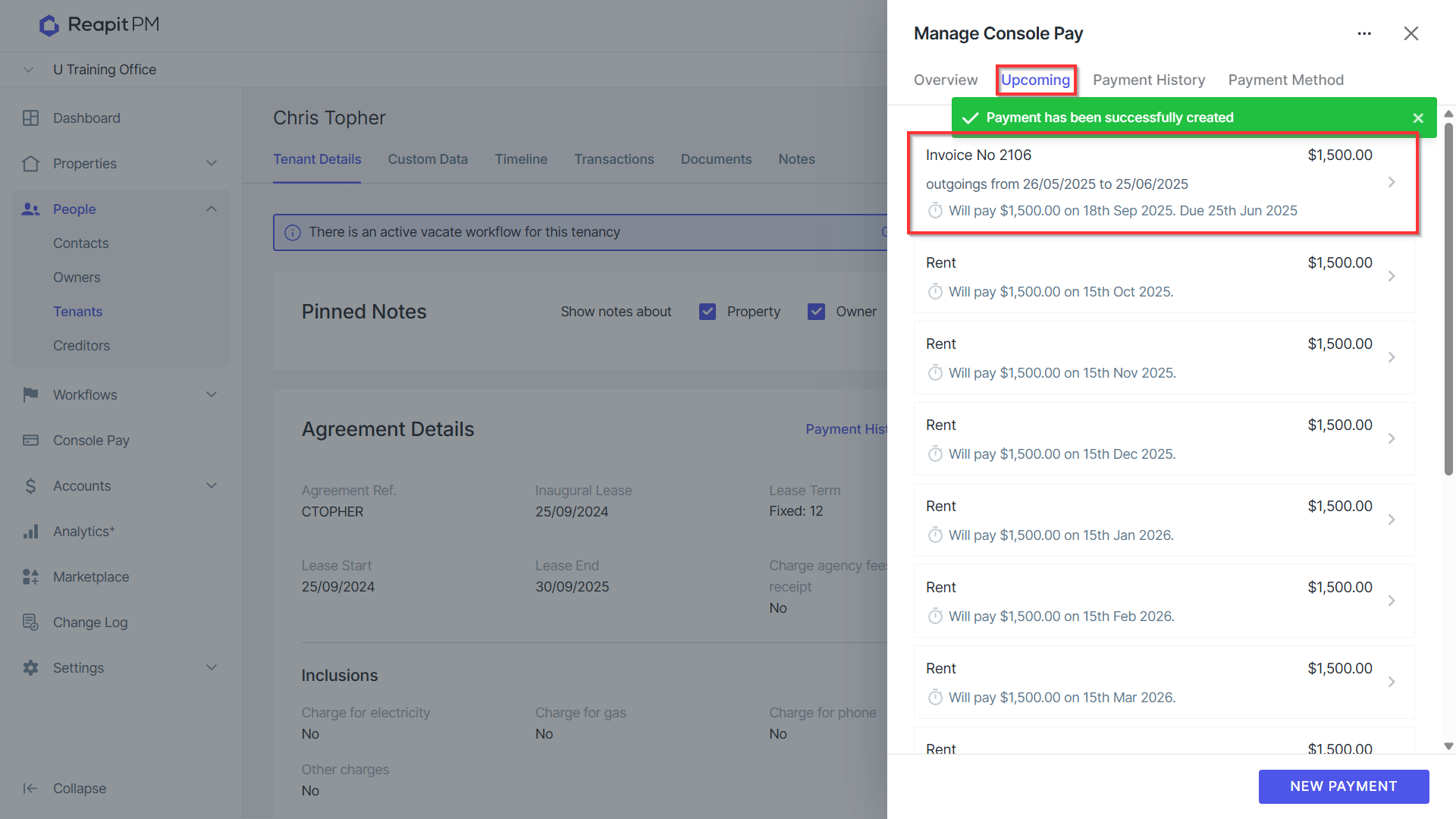
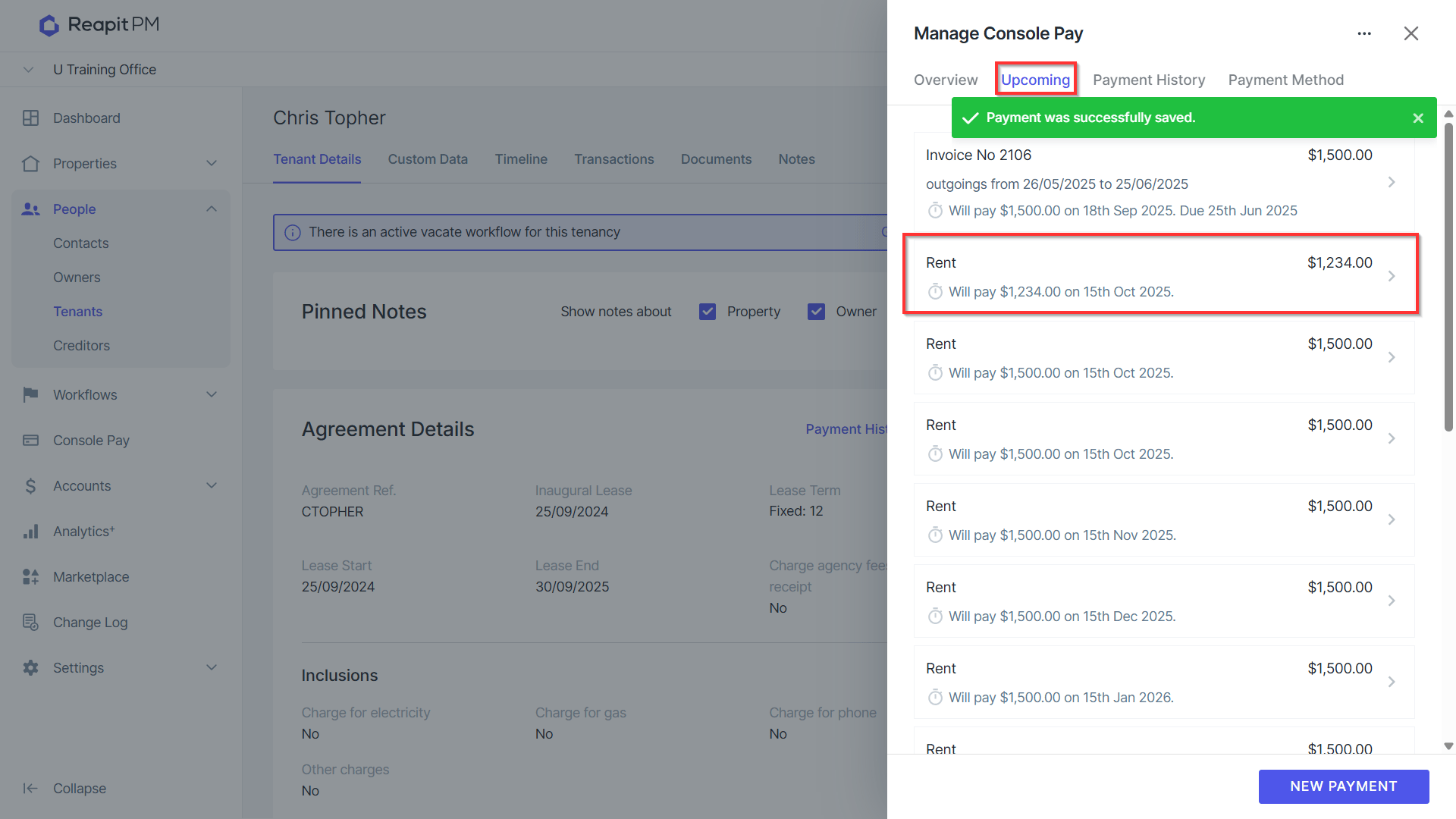
The manual payment will now be displayed under the Upcoming tab with the Invoice number, description, due date and when it will be charged.
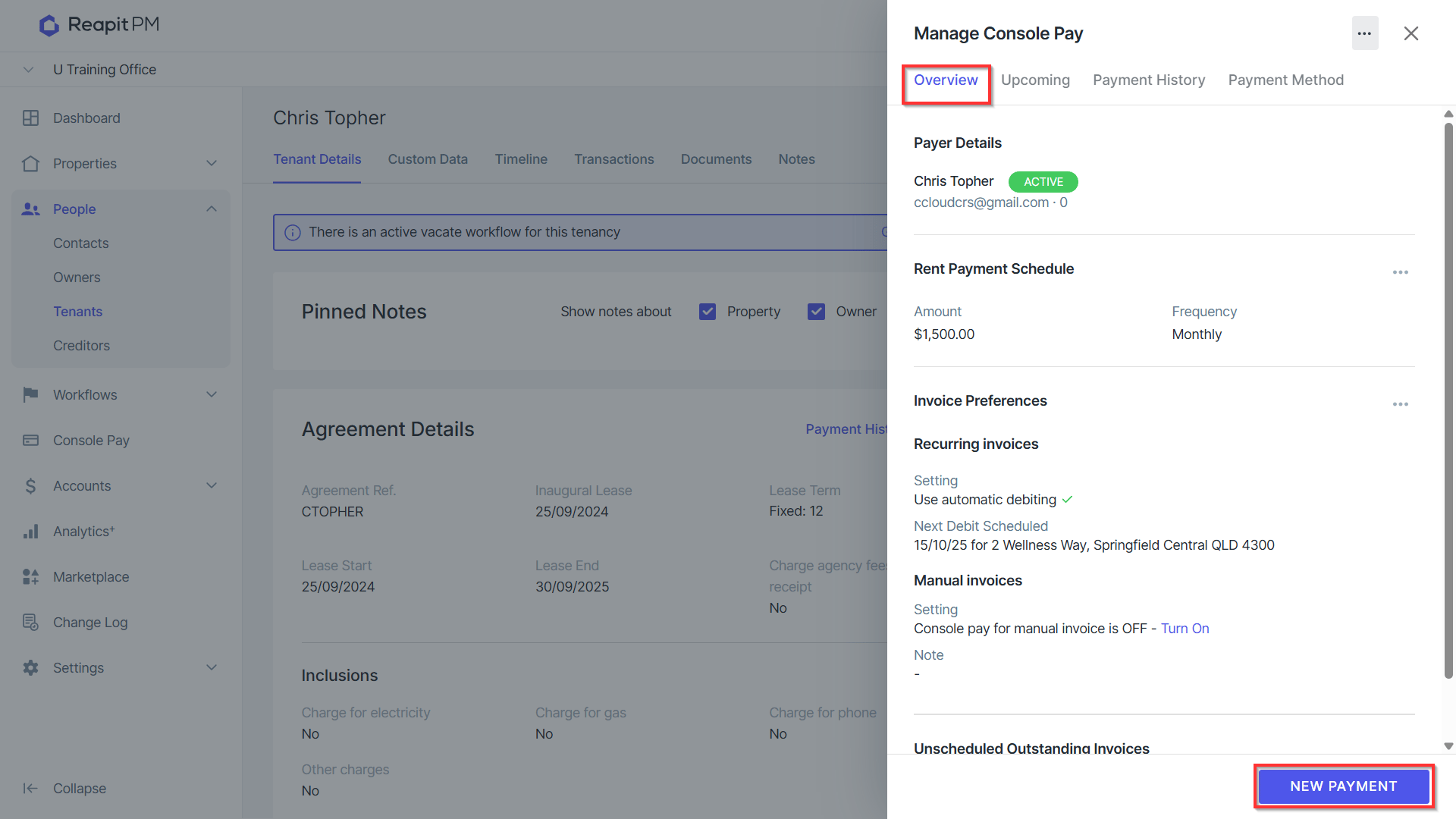
If it has been arranged to take the payments without Invoices, from Overview, select New Payment.
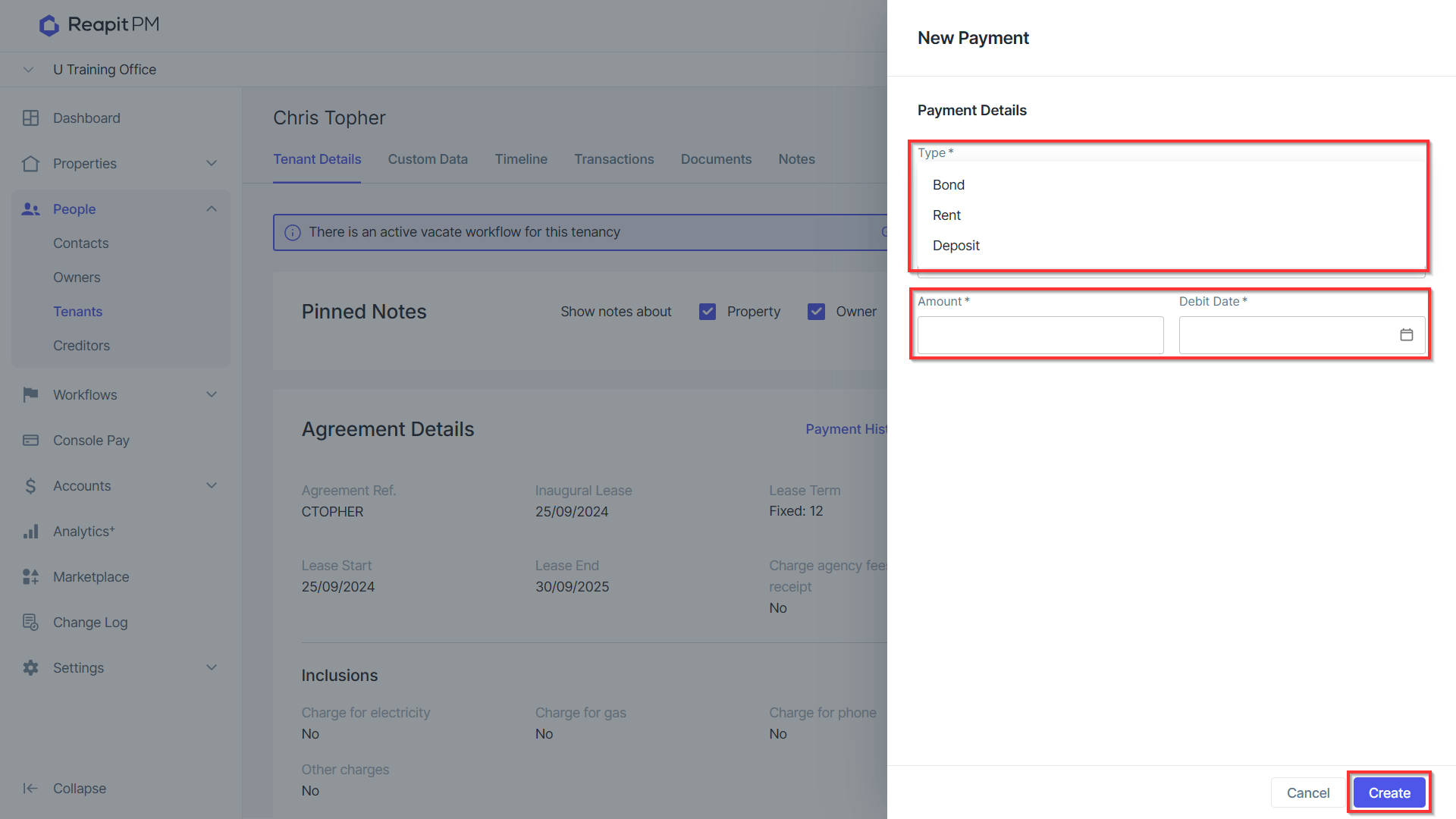
Select the type as rent debit, amount to charge as a one-off and the debit date. Select Create
The one-time payment will appear in the upcoming list to be charged including the date of debit.