'%20d='M0%208a8%208%200%200%201%208-8h24a8%208%200%200%201%208%208v24a8%208%200%200%201-8%208H8a8%208%200%200%201-8-8V8Z'/%3e%3cpath%20fill='%23fff'%20d='M10.41%206v3.779h15.048v19.537h4.132V6H10.41Z'/%3e%3cpath%20fill='%23fff'%20d='M20.967%2034V13.837L10.41%209.78v20.166L20.967%2034Z'/%3e%3cdefs%3e%3clinearGradient%20id='reapit-sales__a'%20x1='20.702'%20x2='20.702'%20y1='.351'%20y2='31.228'%20gradientUnits='userSpaceOnUse'%3e%3cstop%20stop-color='%235573FD'/%3e%3cstop%20offset='.575'%20stop-color='%234E56EA'/%3e%3c/linearGradient%3e%3c/defs%3e%3c/svg%3e)
Send Bulk SMS
This article shows how to send bulk SMS using advanced contact search in Reapit Sales.
Send Bulk SMS
This article shows how to send bulk SMS using advanced contact search in Reapit Sales.
In this tutorial we will demonstrate using an Advanced Contact Search however you may also like to send via an Advanced Property Search or to a list of contacts e.g. Prospective Buyers of a property.
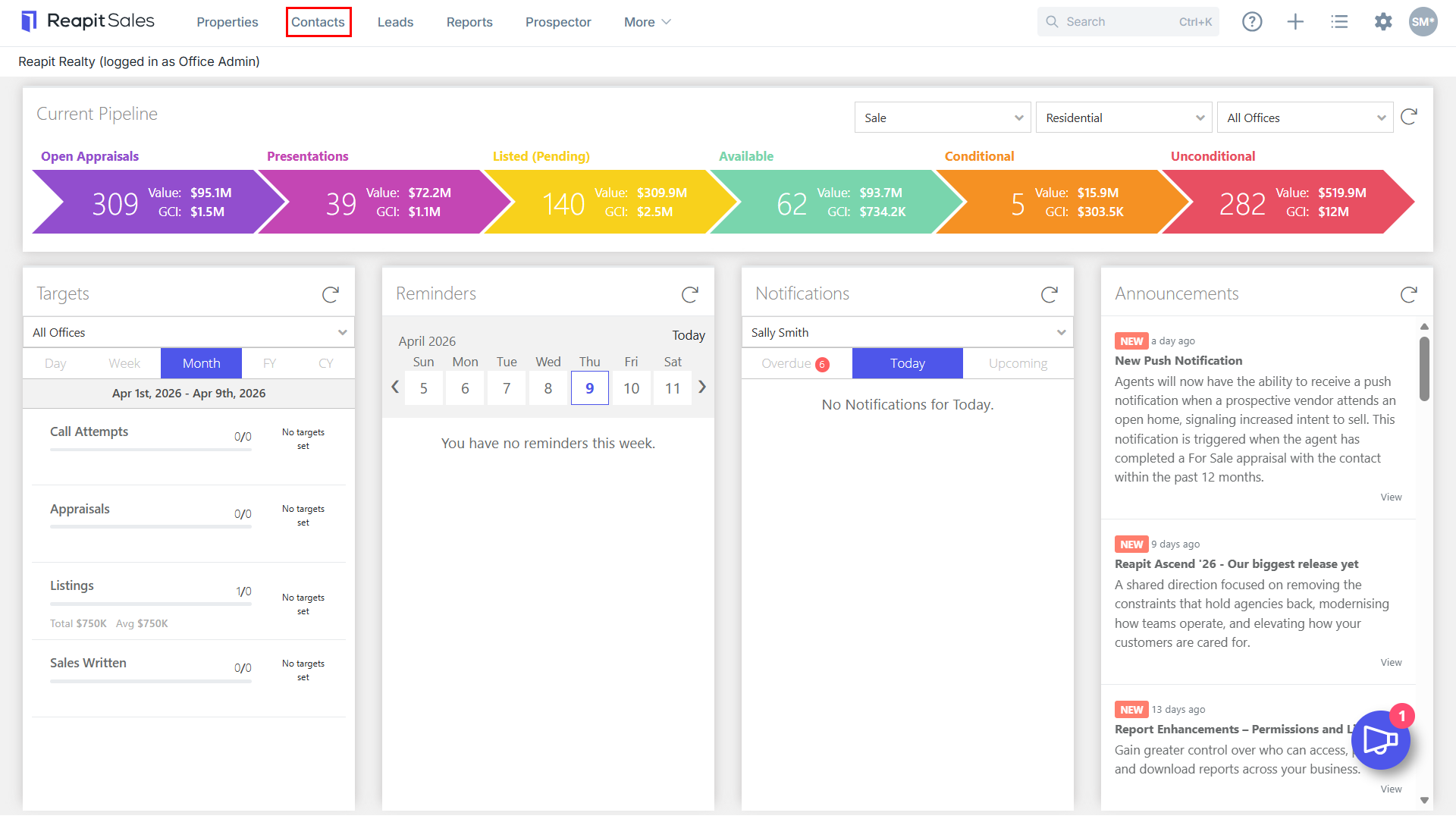
- Click Contacts from the Main Menu.
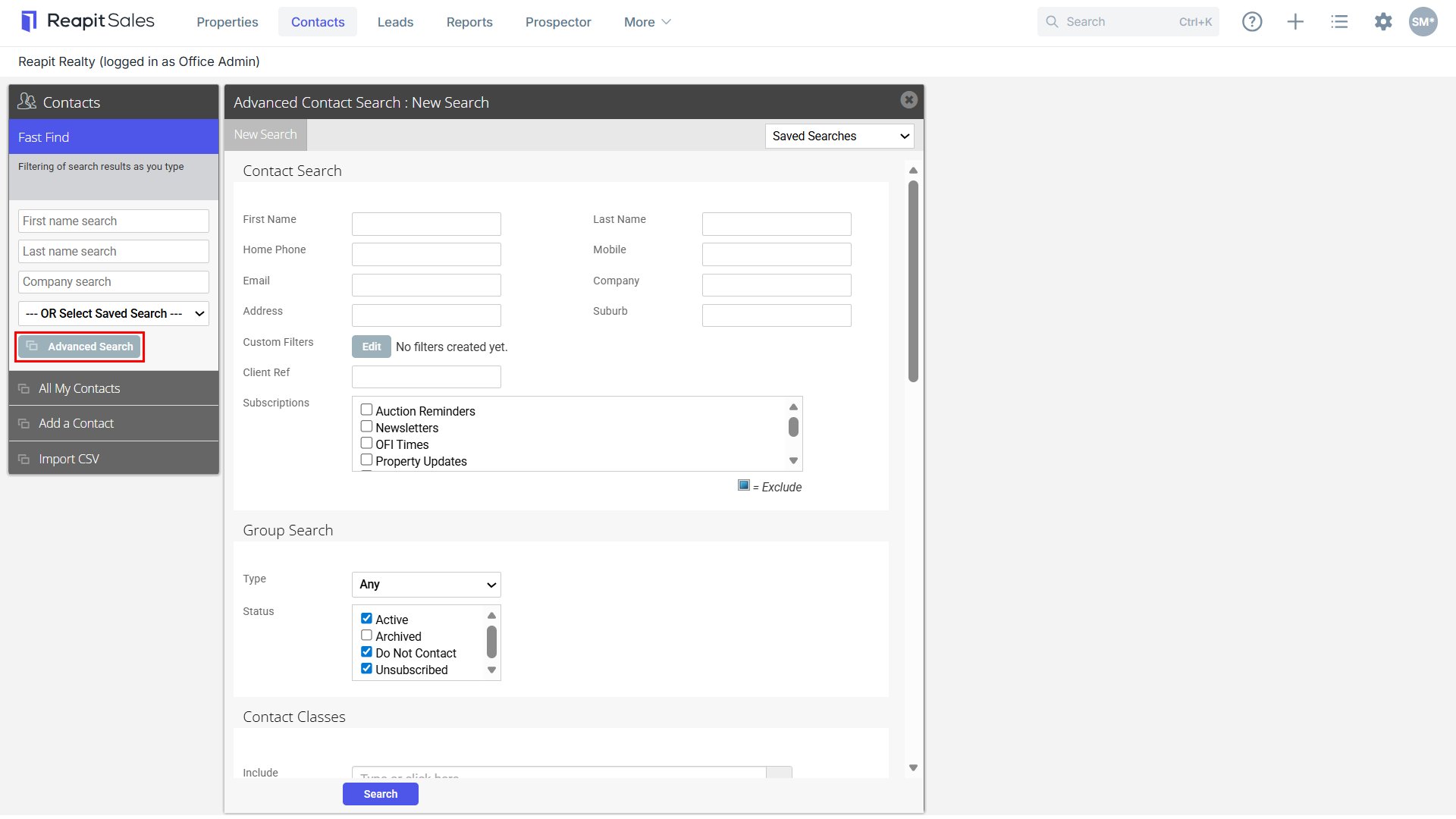
- Conduct an Advanced Contact Search, Advanced Property Search or list of recipients e.g. Prospective Buyers of a property.
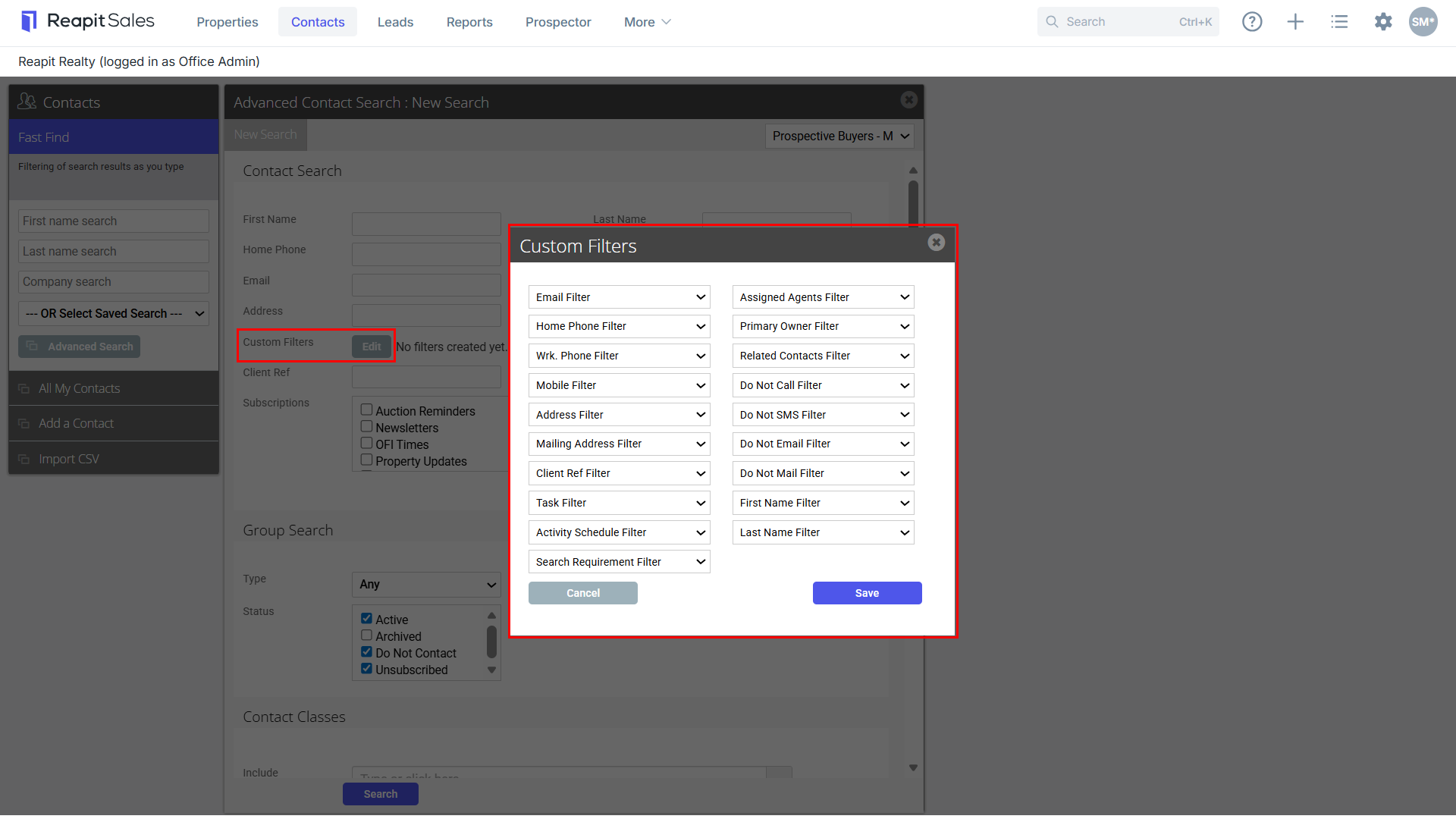
- Enter your Search Criteria into the appropriate fields
- Add Filter: Have Mobile (this is not required however it will give you a more accurate target list. For example you might have 456 contacts in your search but only 324 have a mobile number).
- Click Search
- Your Target List will appear on screen
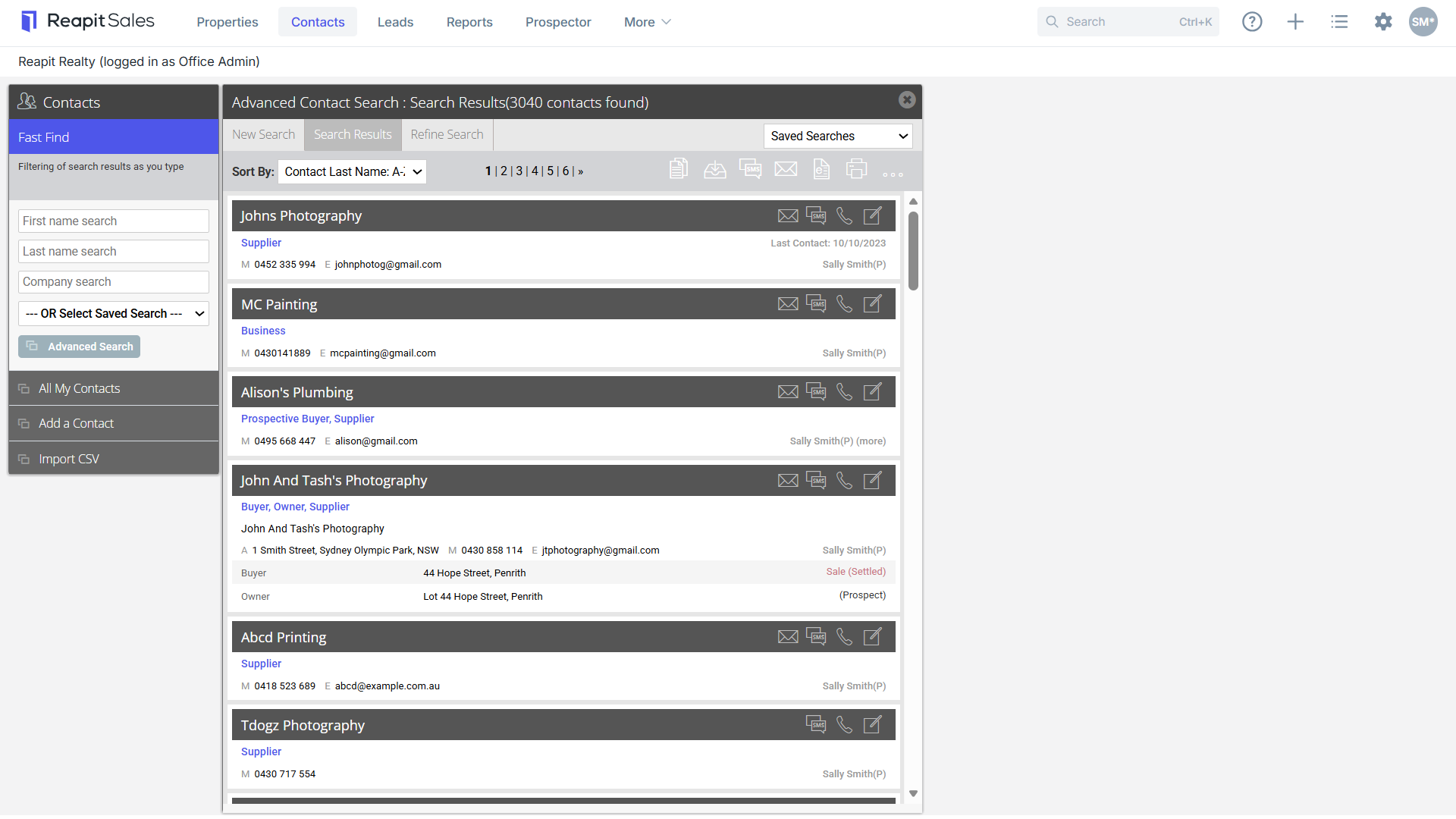
- Select the Send SMS icon in the top right-hand corner of the panel
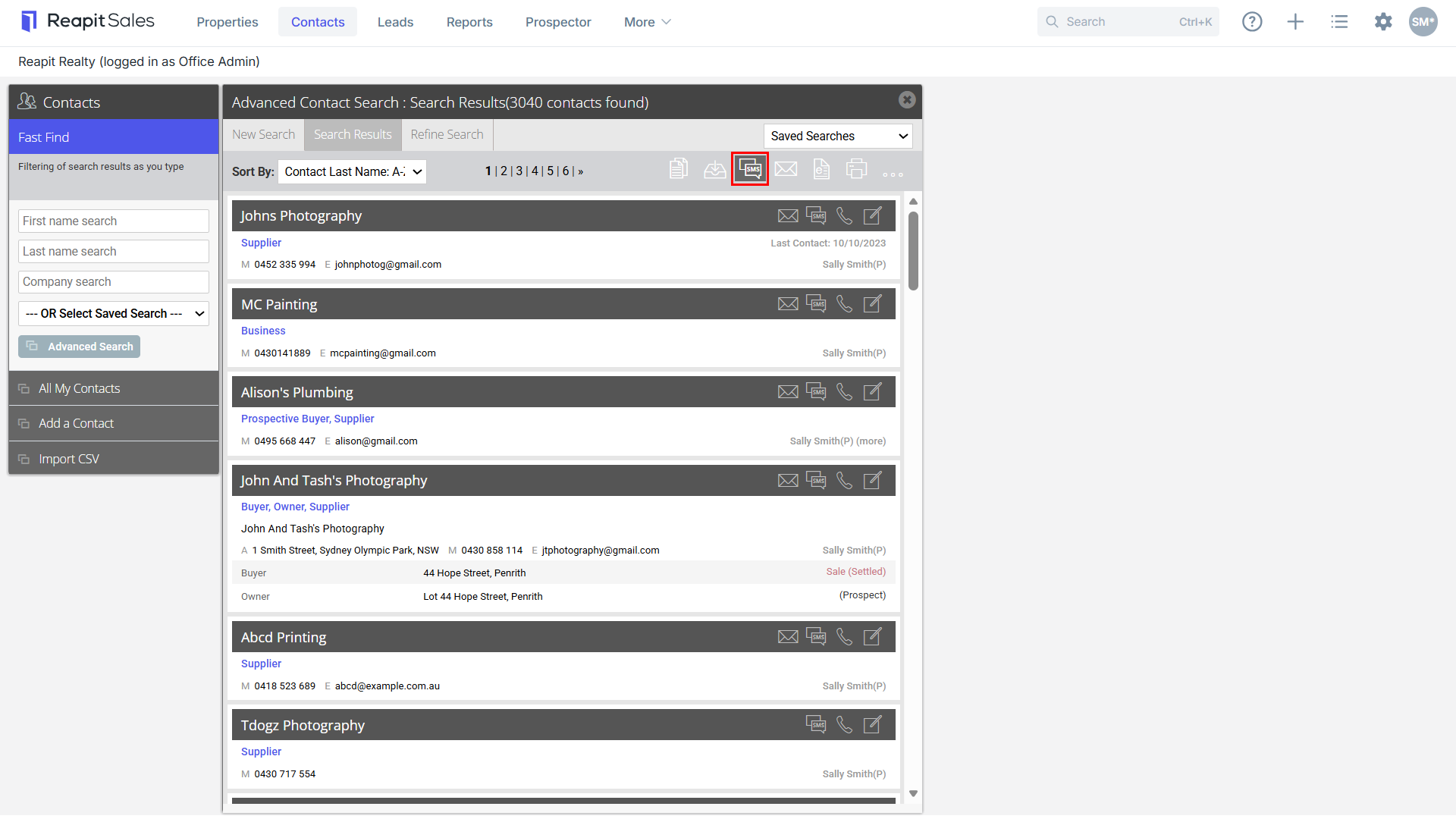
- Create your SMS or select a Template.

- Click Save and Proceed.
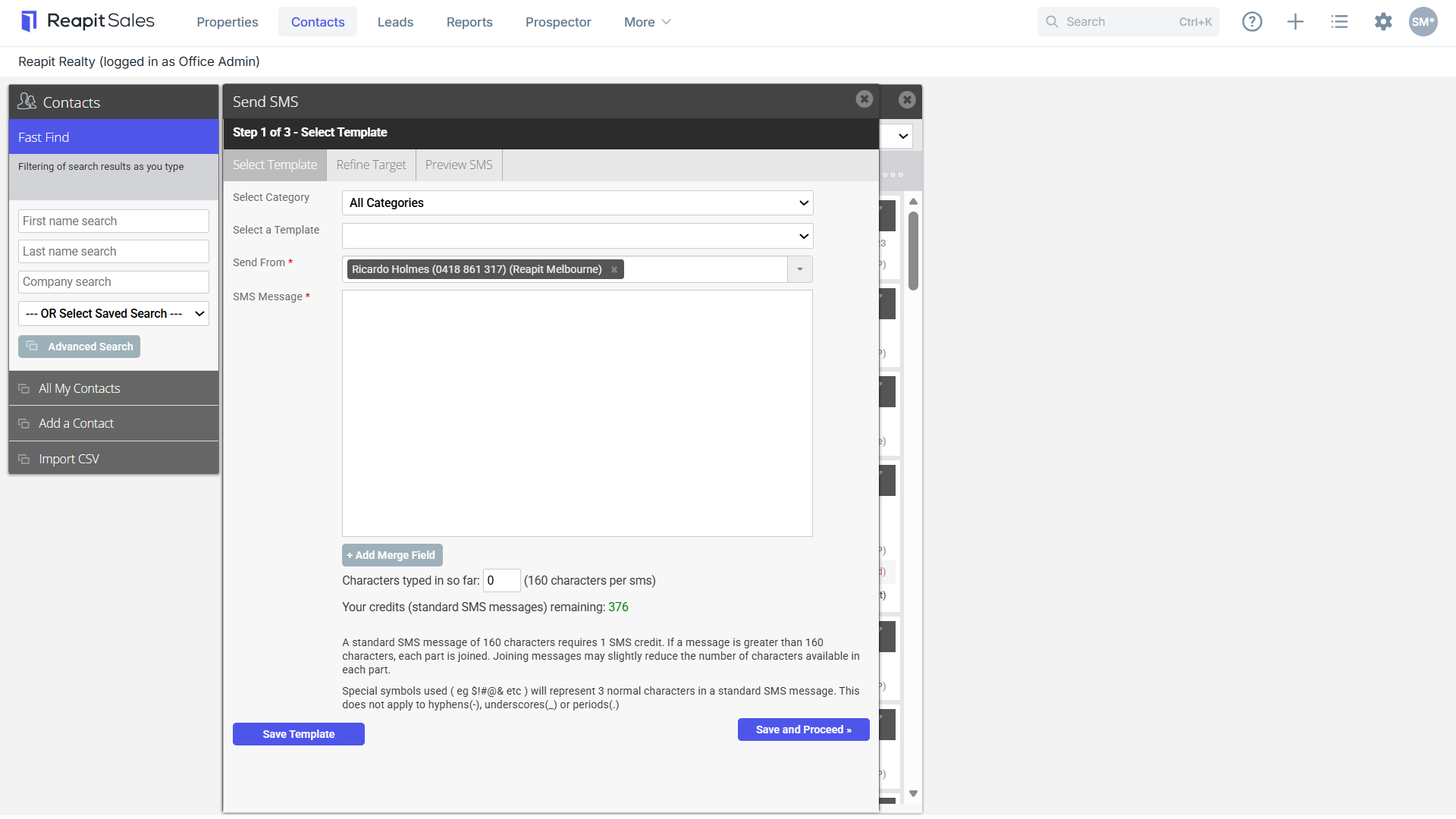
- Refine Target List
Note: Contacts with the DO NOT CONTACT status are included in the recipients list of an SMS Merge sent from the listing card e.g. via Prospective Buyers, however these contacts are now defaulted to un-ticked and a 'DO NOT CONTACT' message appears next to each individual contact. You will have the option whether to include this contact in the communication or leave them un-ticked to not receive the SMS.

- Click Save and Proceed.
- Preview SMS template and SMS summary.
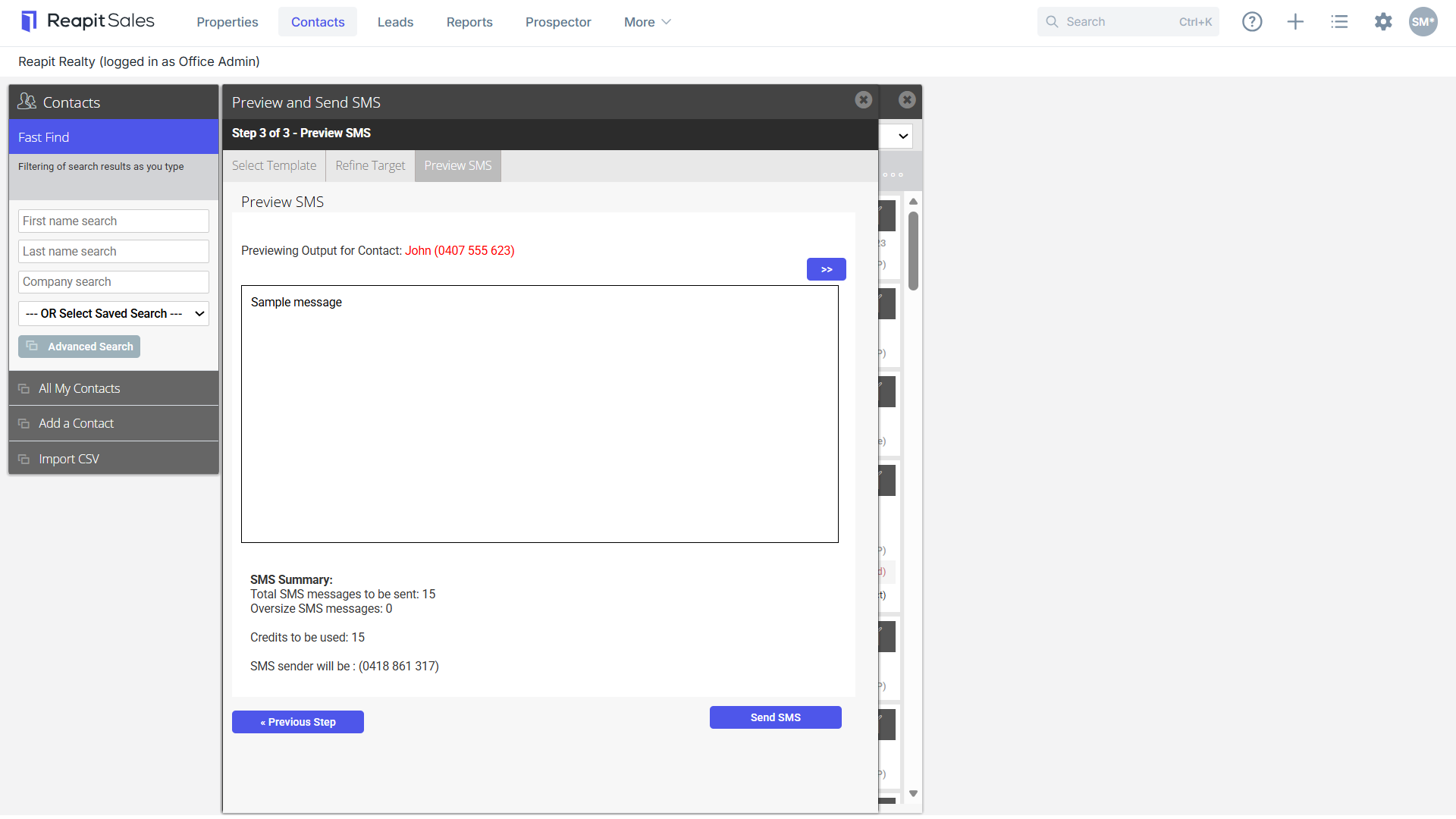
- Select Send SMS if you are happy to proceed.
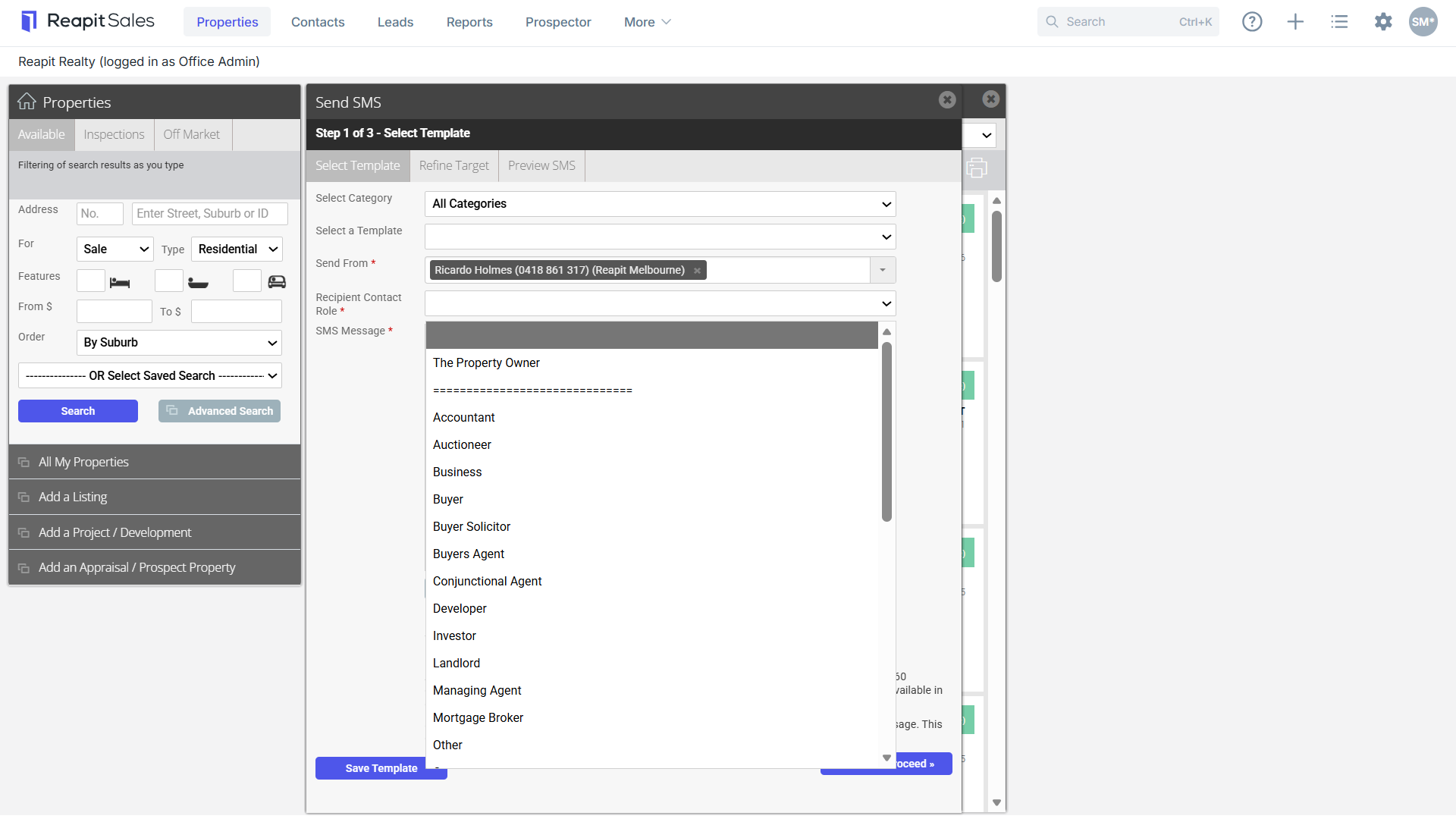
Note: When sending a Bulk SMS via a list of properties you can select a Recipient Contact Role. This will allow you to send to the owner attached to the listing in the agents and contacts tab.
For example, by selecting the role The Property Owner. This will refine the target list to only those assigned to the property record as one of the following 'owner' roles: Owner, Owner Occupier, Owner Absentee, Vendor, Landlord, Prospective Vendor, and Prospective Landlord.