'%20d='M0%208a8%208%200%200%201%208-8h24a8%208%200%200%201%208%208v24a8%208%200%200%201-8%208H8a8%208%200%200%201-8-8V8Z'/%3e%3cpath%20fill='%23fff'%20d='M10.41%206v3.779h15.048v19.537h4.132V6H10.41Z'/%3e%3cpath%20fill='%23fff'%20d='M20.967%2034V13.837L10.41%209.78v20.166L20.967%2034Z'/%3e%3cdefs%3e%3clinearGradient%20id='reapit-sales__a'%20x1='20.702'%20x2='20.702'%20y1='.351'%20y2='31.228'%20gradientUnits='userSpaceOnUse'%3e%3cstop%20stop-color='%235573FD'/%3e%3cstop%20offset='.575'%20stop-color='%234E56EA'/%3e%3c/linearGradient%3e%3c/defs%3e%3c/svg%3e)
Access Appraisals and Listing Presentations
This article will cover accessing appraisals and listing presentations in the Reapit Sales App.
Access Appraisals and Listing Presentations
This article will cover accessing appraisals and listing presentations in the Reapit Sales App.
You can view your past and upcoming Appraisals and Listing Presentations in the Reapit Sales App.
- Tap the magnifying glass icon from the main menu and select Appraisals.
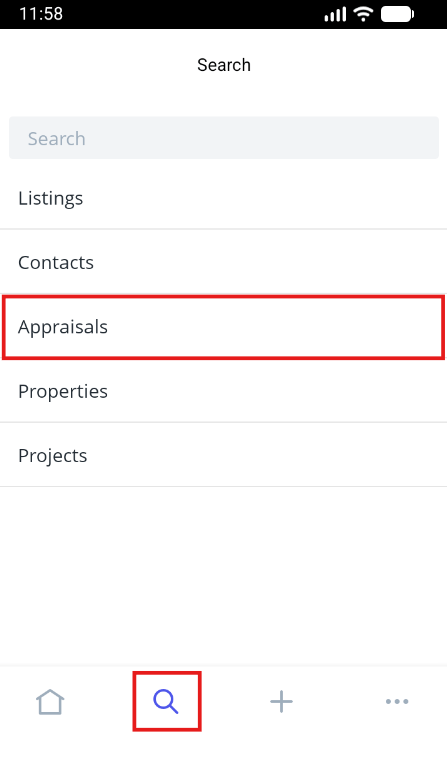
- Tap Appraisals
Locate your Appraisal or Presentation
Search bar Quickly search for a listing using the listing ID or Property Address
Sort By Suburb, Last Updated, Appraisal Date, Price
Apply Filters Filter results by Listing Type, Status, Property Type, Categories, Appraisal Classification, Price Range to and From
- Tap the Quick Add icon to Add a Note or Task
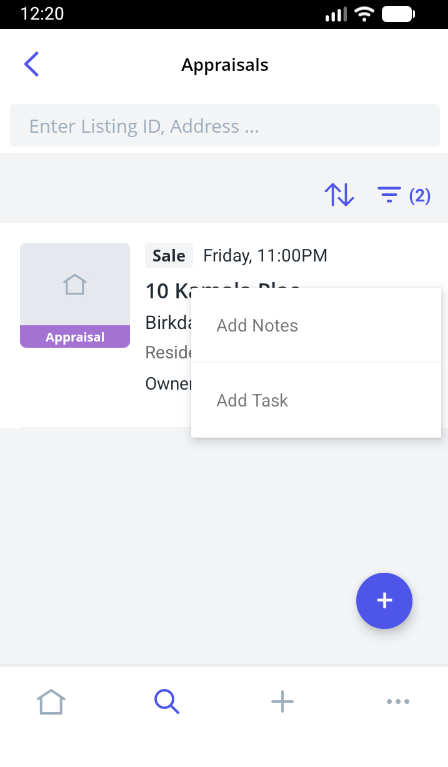
- Tap the Address to open the appraisal or presentation.
- The Details tab includes the general appraisal info and dates, related agents & contacts and google map.
- Tap the Contacts tab, here you can view all related property contacts e.g prospective vendor. Tap the contact to open the contact record or quickly call, SMS or email the related property contact e.g. vendor using the quick action icon next to each contact.
- Tap Buyer Match to view all prospective buyers or tenant based on their property requirements.
- Tap Notes to view notes against the appraisal. Tap the quick action icon to edit or delete (subject to permissions) an entry or tap the + icon to add a new note or note with follow up task.
- Tap Tasks to view incomplete or completed tasks against the appraisal. Tap the quick action icon to edit or delete an entry or tap the + icon to add a new task.
- Tap Appointments to view any appointments against the listing. Tap the quick action icon to edit or delete an entry or tap the + icon to add a new appointment.
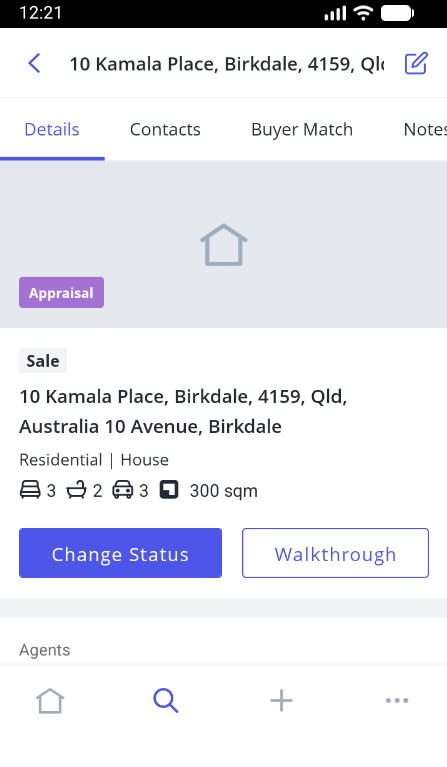
Transition your appraisals to Listing Presentations, Pending Listings or mark as Cancelled/Missed with the new Change Status workflows. Add key details with each status change and add follow up tasks with property and related contacts added automatically with a single tap.