'%20d='M0%208a8%208%200%200%201%208-8h24a8%208%200%200%201%208%208v24a8%208%200%200%201-8%208H8a8%208%200%200%201-8-8V8Z'/%3e%3cpath%20fill='%23fff'%20d='M10.41%206v3.779h15.048v19.537h4.132V6H10.41Z'/%3e%3cpath%20fill='%23fff'%20d='M20.967%2034V13.837L10.41%209.78v20.166L20.967%2034Z'/%3e%3cdefs%3e%3clinearGradient%20id='reapit-sales__a'%20x1='20.702'%20x2='20.702'%20y1='.351'%20y2='31.228'%20gradientUnits='userSpaceOnUse'%3e%3cstop%20stop-color='%235573FD'/%3e%3cstop%20offset='.575'%20stop-color='%234E56EA'/%3e%3c/linearGradient%3e%3c/defs%3e%3c/svg%3e)
Avery Mailing Label Printing
This article will cover performing label printing in Reapit Sales.
*Note: Our mailing label templates are compatible with Avery Labels L7159, L7160, L7161, L7162, L7163.
Advanced Property Search - To pull through contacts attached to properties.
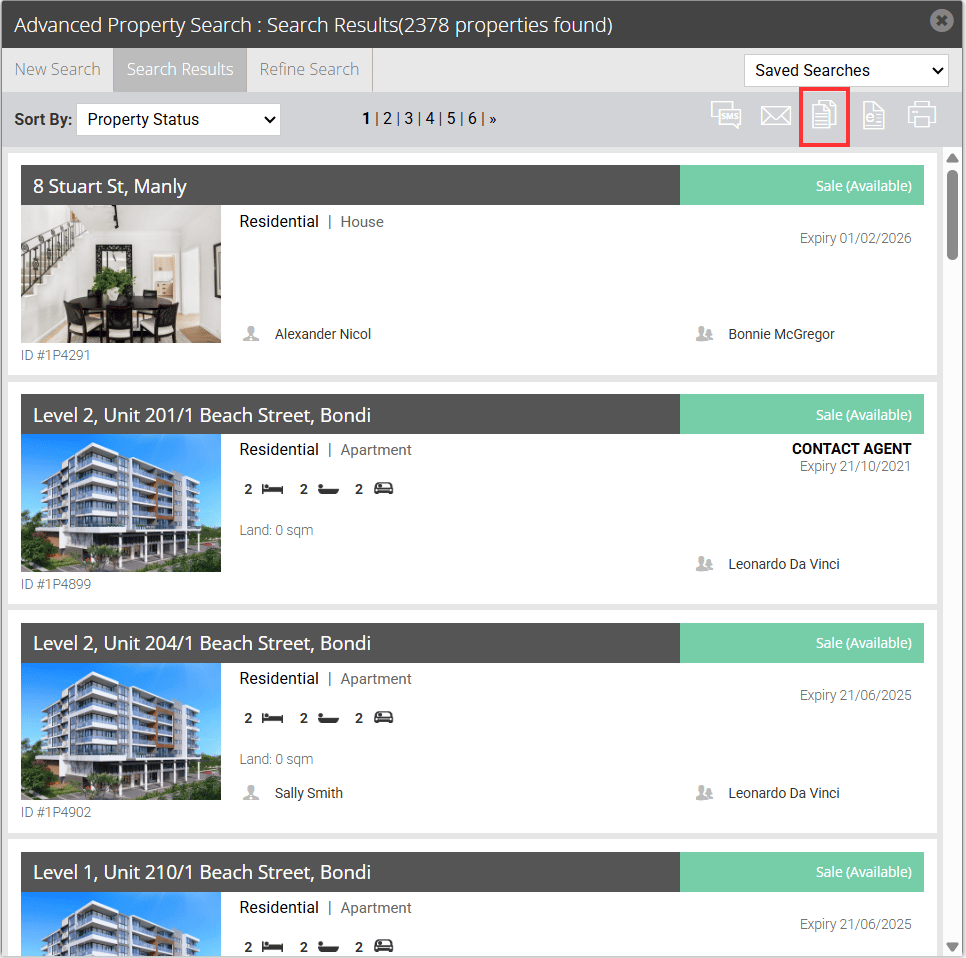
1. You can Print Labels to a group of contacts or group of properties by completing either an Advanced Contact Search, Advanced Property Search or opening any target list, e.g. Inspection Viewers of a property, etc.
2. Click the Print Mail Merge icon at the top of the target list
3. Select [LABEL - PROPERTY] Property Label Template from the Select Template drop-down

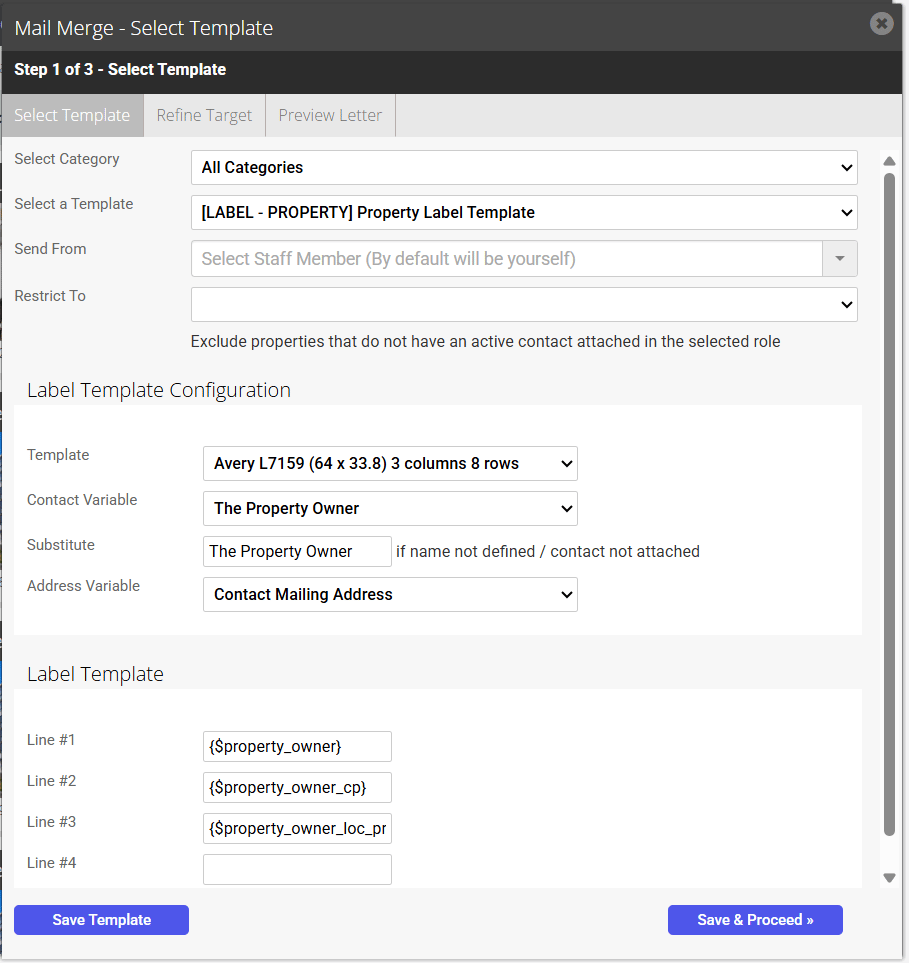
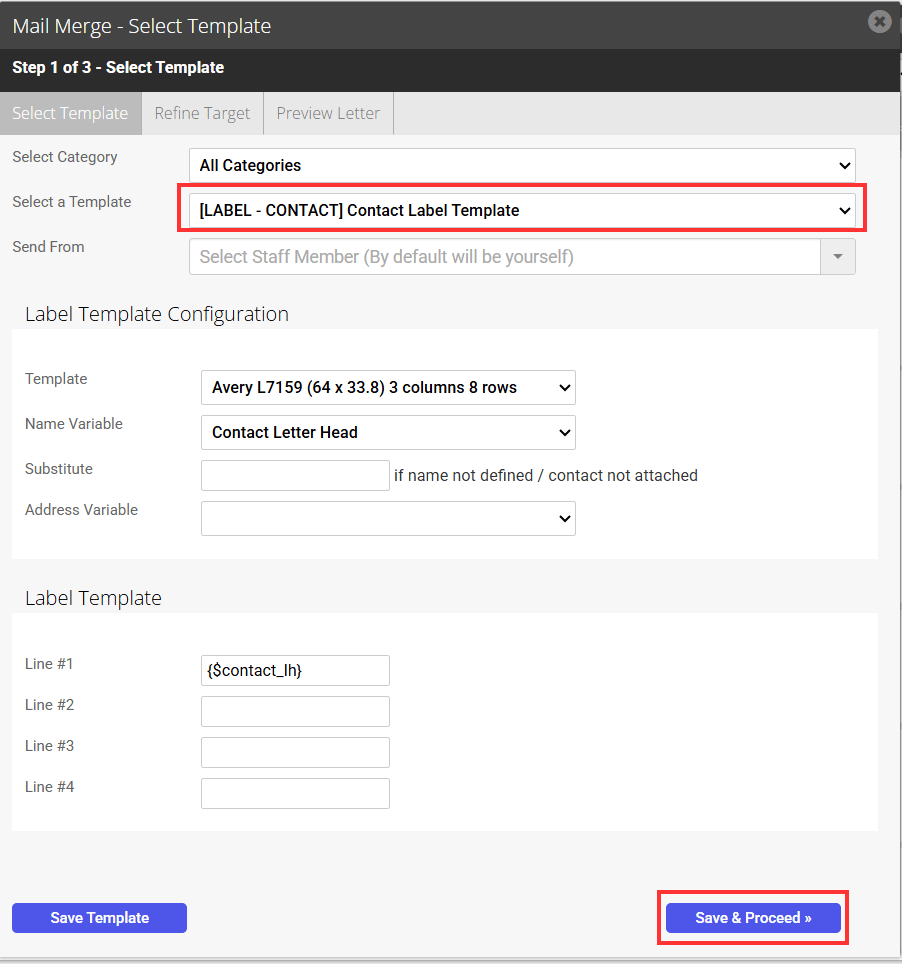
4. Under Label Template Configuration, select the Avery Label template you would like to generate

5. Select the Contact Variable you want to use in the labels. For Contact Variable Best Practice - Rules and Recommendations - click here.

6. Enter in a substitute. A substitute is used if a recipient does not have the specified contact class from the previous step ticked in their contact card

7. Select the address variable to be used
- Contact Postal Address
- Contact Residential Address
- Property Address

8. You may alter the variables under Label Template. For a full list of variables you can use go to Variables or for Contact Variable Best Practice - Rules and Recommendations - click here.

9. Click Save & Proceed
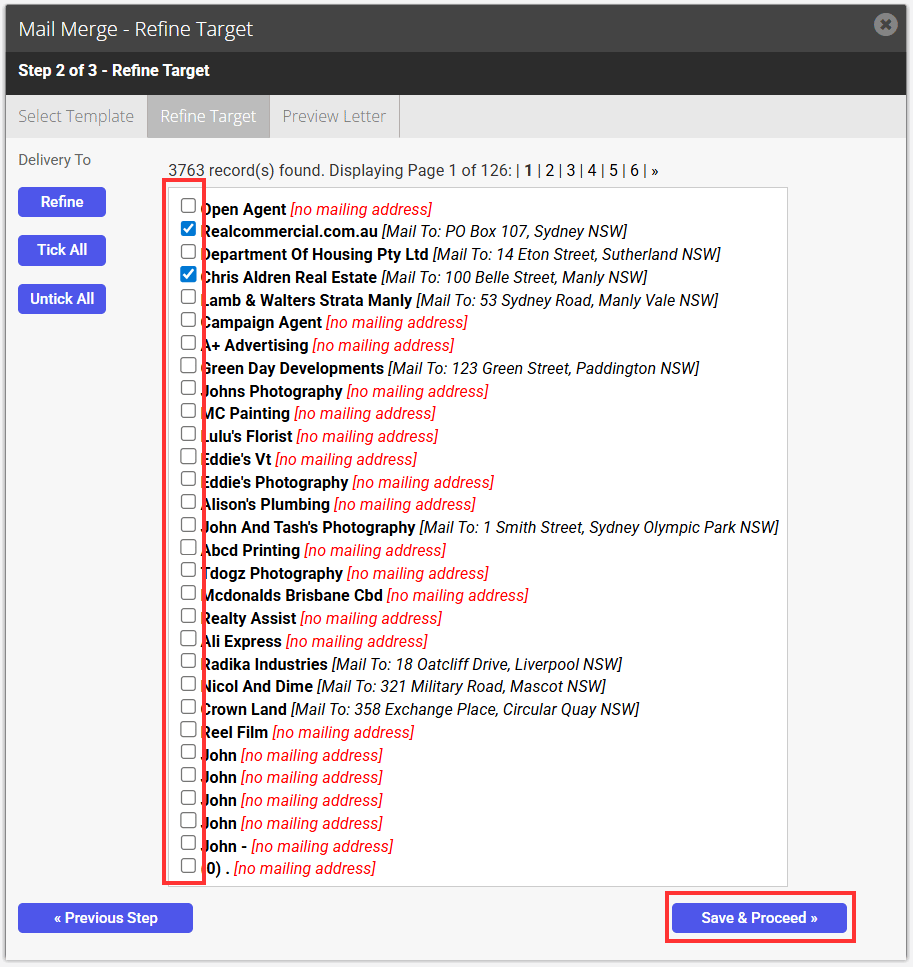
10. Refine your target list
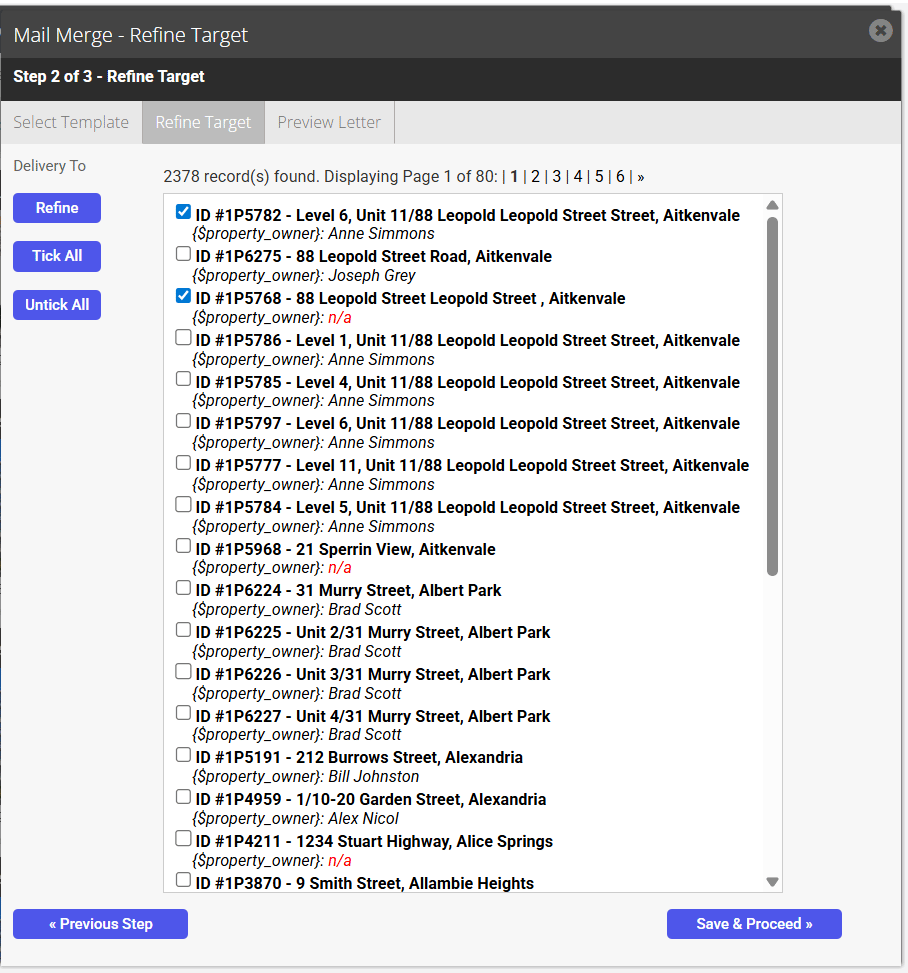
11. Save & Proceed
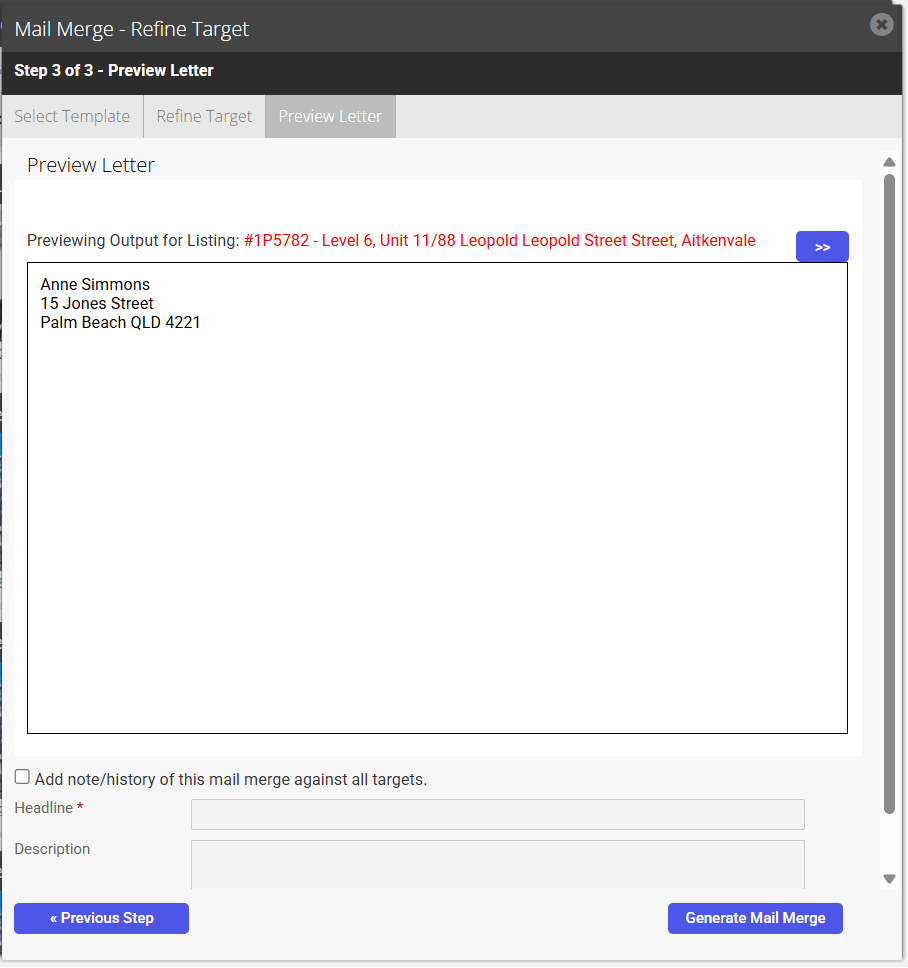
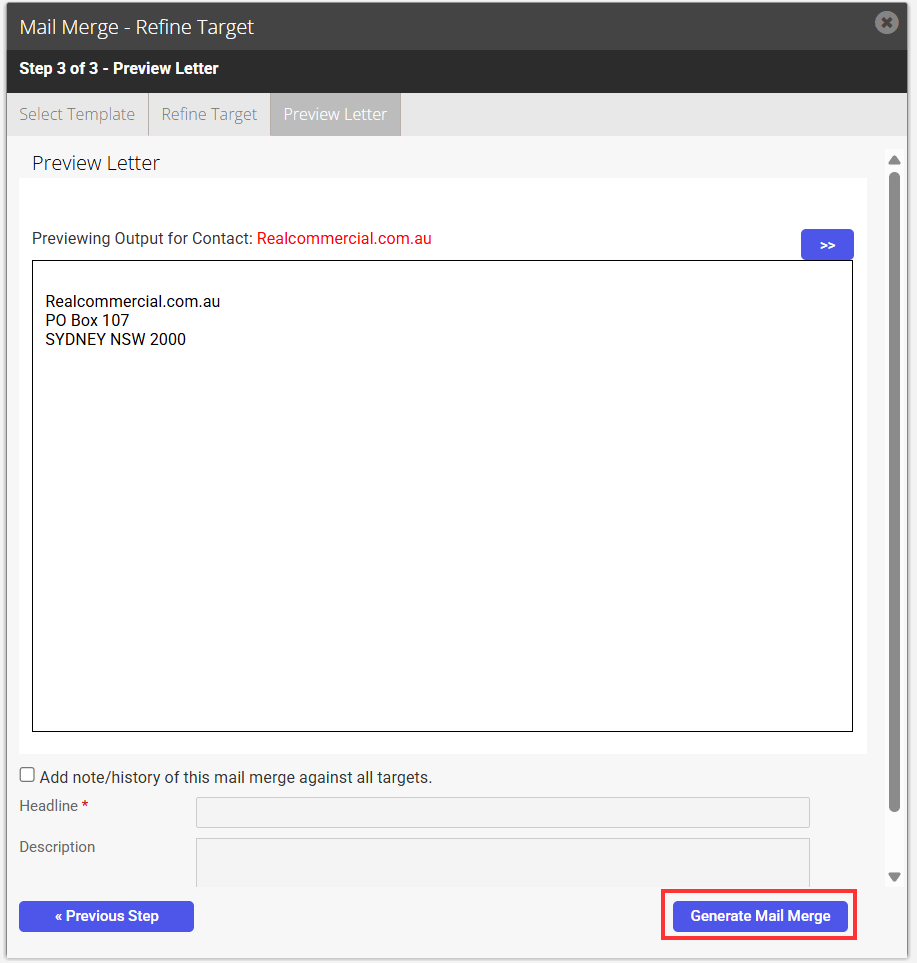
12. You may also attach a note to each contact. Tick the Add note/history checkbox, then enter a Headline and Description

13. Click Generate Mail Merge to generate your labels as a PDF document

14. Insert labels into your printer and Print.
Advanced Contact Search - To pull through contacts with an address
1. Navigate to Contacts on the main menu.

2. Click Advanced Search.
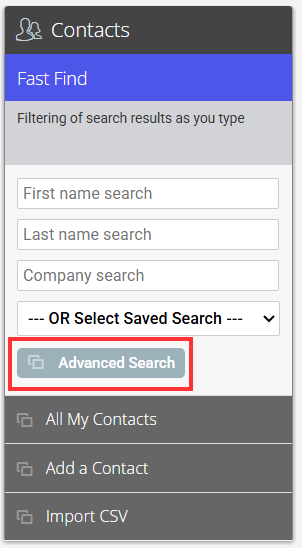
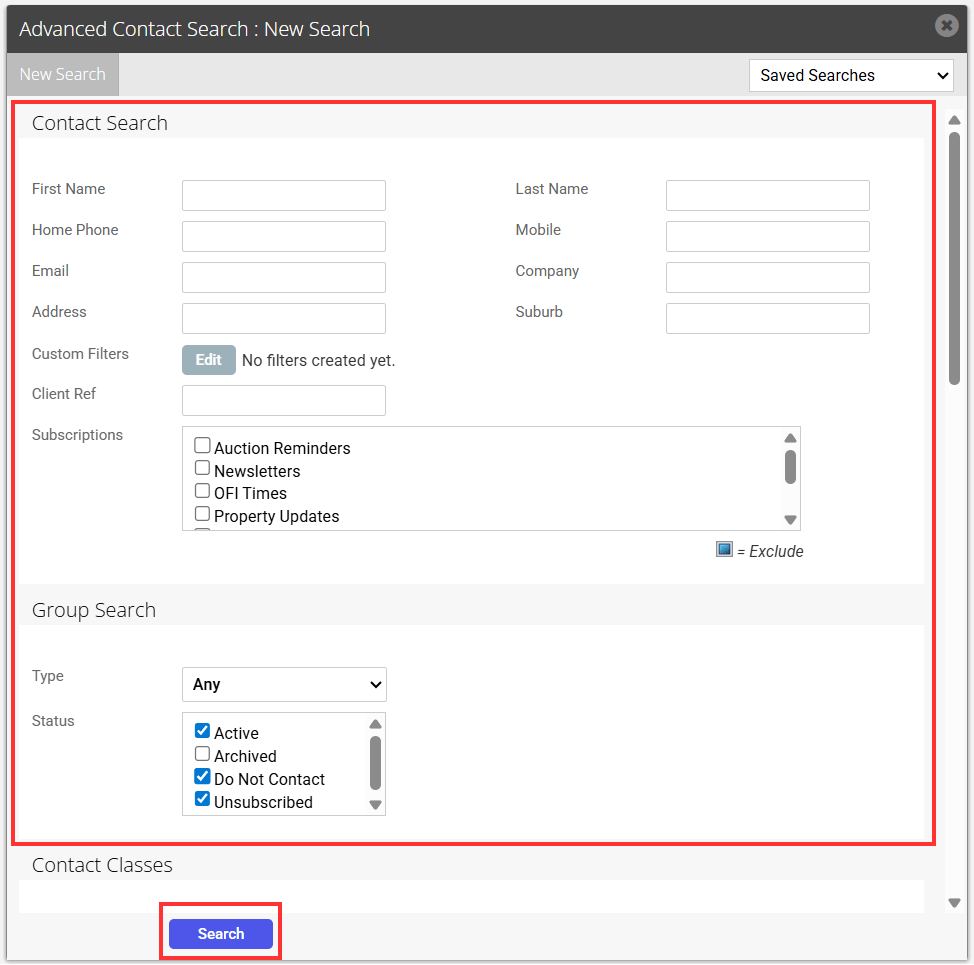
3. Fill out the relevant information. Click Search.
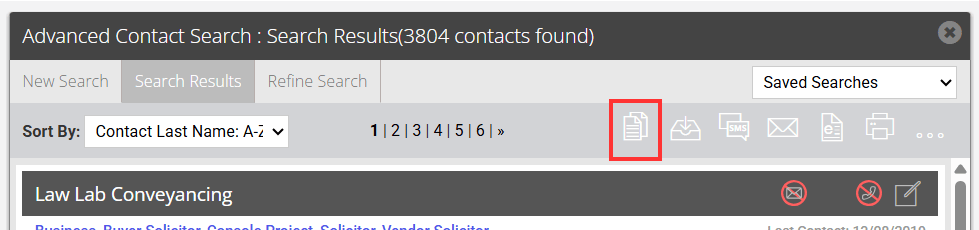
4. Click the Print Letter Mail Merge icon.
5. Select the Contact Label Template.
6. Click Save and Proceed.
7. Tick or untick the contact. Click Save and Proceed.
8. Click Generate Mail Merge to generate your labels as a PDF document