'%20d='M0%208a8%208%200%200%201%208-8h24a8%208%200%200%201%208%208v24a8%208%200%200%201-8%208H8a8%208%200%200%201-8-8V8Z'/%3e%3cpath%20fill='%23fff'%20d='M10.41%206v3.779h15.048v19.537h4.132V6H10.41Z'/%3e%3cpath%20fill='%23fff'%20d='M20.967%2034V13.837L10.41%209.78v20.166L20.967%2034Z'/%3e%3cdefs%3e%3clinearGradient%20id='reapit-sales__a'%20x1='20.702'%20x2='20.702'%20y1='.351'%20y2='31.228'%20gradientUnits='userSpaceOnUse'%3e%3cstop%20stop-color='%235573FD'/%3e%3cstop%20offset='.575'%20stop-color='%234E56EA'/%3e%3c/linearGradient%3e%3c/defs%3e%3c/svg%3e)
Add a Note to a Contact
This article runs through how to add a note to a contact in Reapit Sales. The processes in this article include: Adding a note through the Contact Card Adding a note through the Advanced Contact Search Results Adding a note through the Quick Action Icon Adding a note through the Contact Pop Up Summary via Tasks
Add a Note to a Contact
This article runs through how to add a note to a contact in Reapit Sales.
The processes in this article include:
- Adding a note through the Contact Card
- Adding a note through the Advanced Contact Search Results
- Adding a note through the Quick Action Icon
- Adding a note through the Contact Pop Up Summary via Tasks
There are multiple ways to add a note entry against a contact in Reapit Sales:
- Through the Contact Card
- Advanced Contact Search Results
- Via the Quick Action Icon
- Via the Contact Pop Up Summary via Tasks
Contact Card 1. Search for your Contact open their Contact Card.
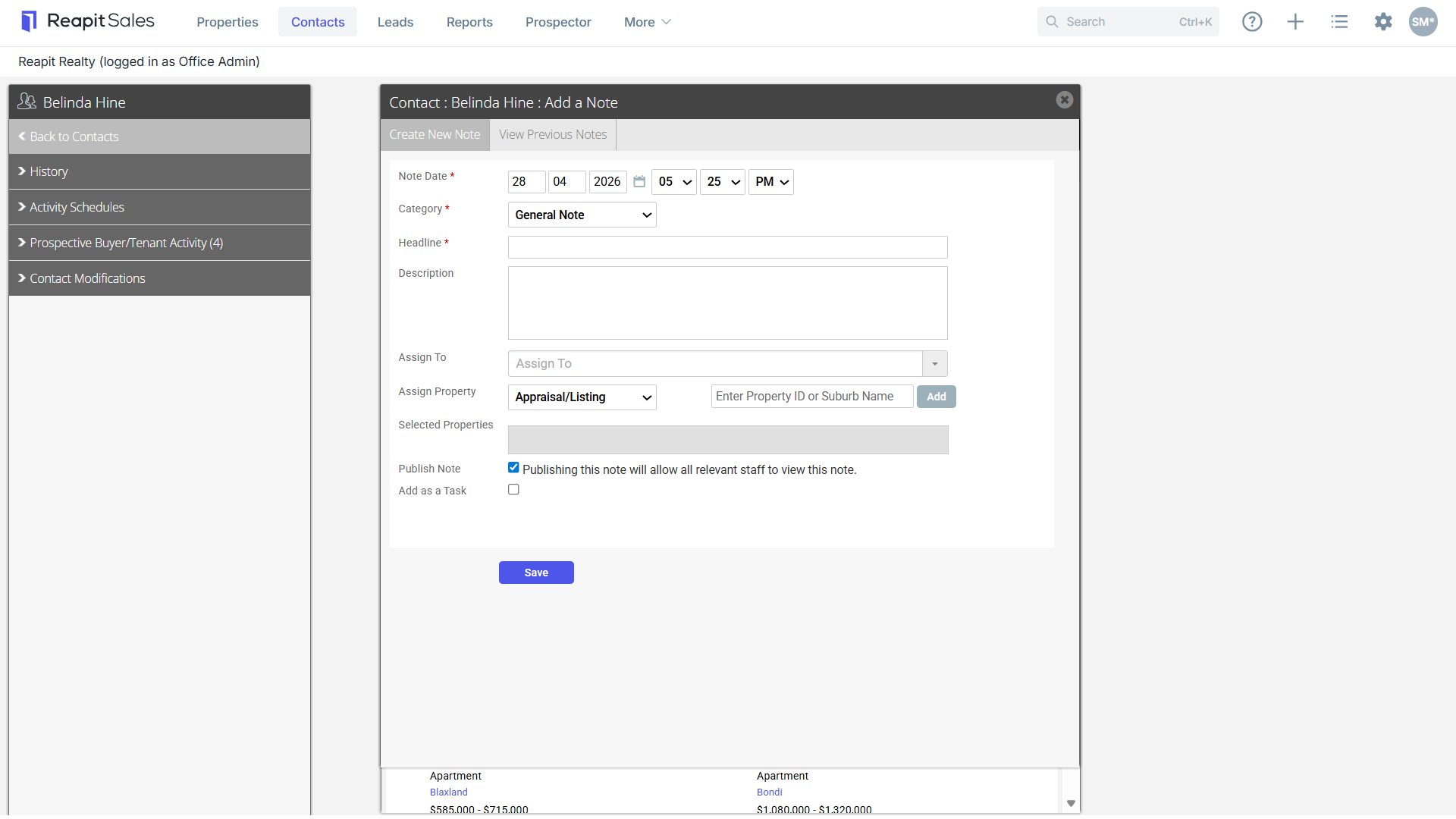
2. Click Add a Note action icon. 
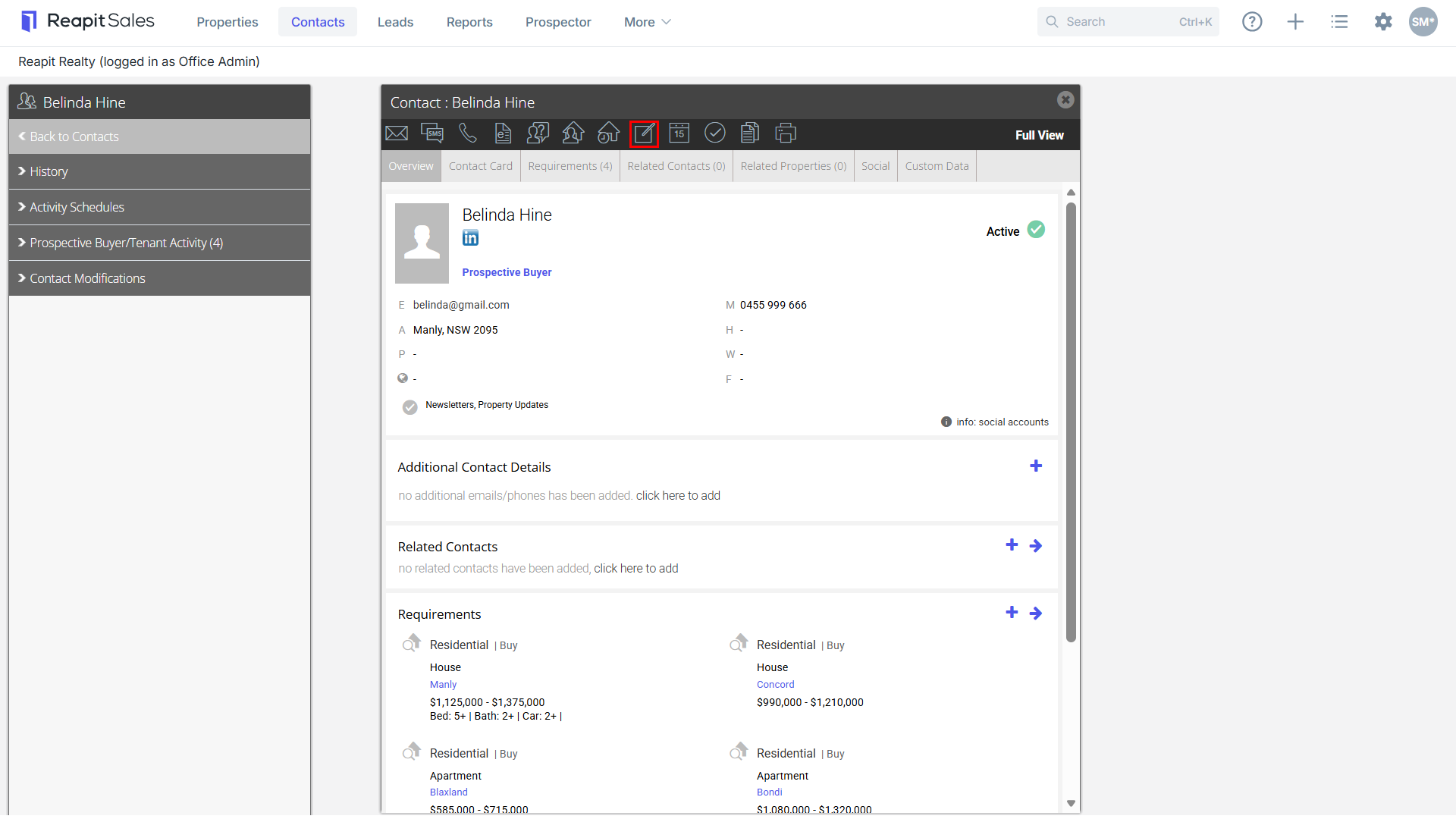
- Search property address
- Select property from drop-down
- click the green add button to ensure it appears in the Selected Properties box
- You can also Publish the note or add a Follow-up task Note: If you tick Publish Note, all staff with access to view the contact will be able to also view the note. If not ticked the note can only be viewed by you.
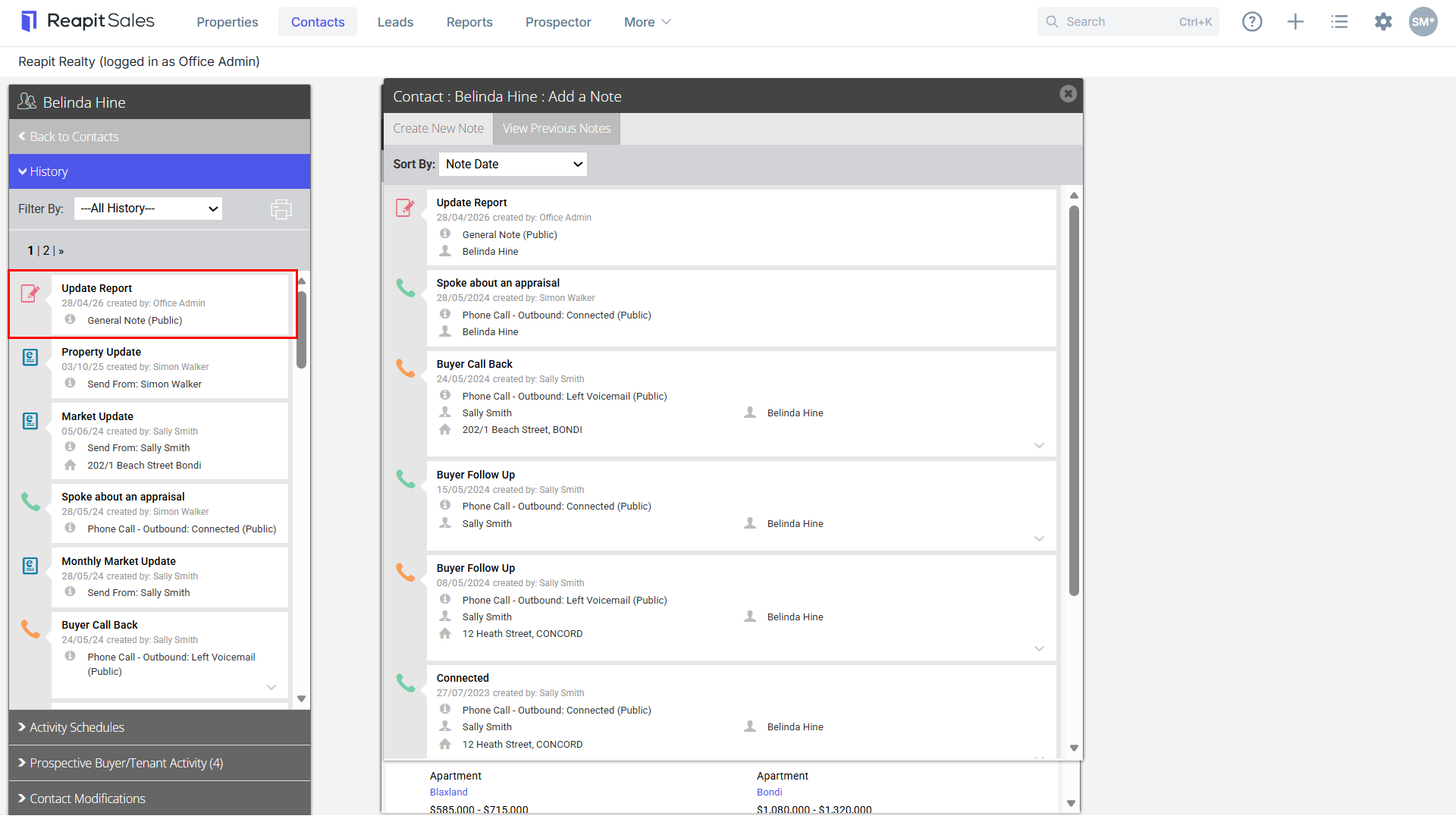
- Click Save. Your Notes will then appear in the left Contact panel for quick reference when accessing your Contact (If the matching left panel is not visible, click Full View in the top right hand corner of the contact card).
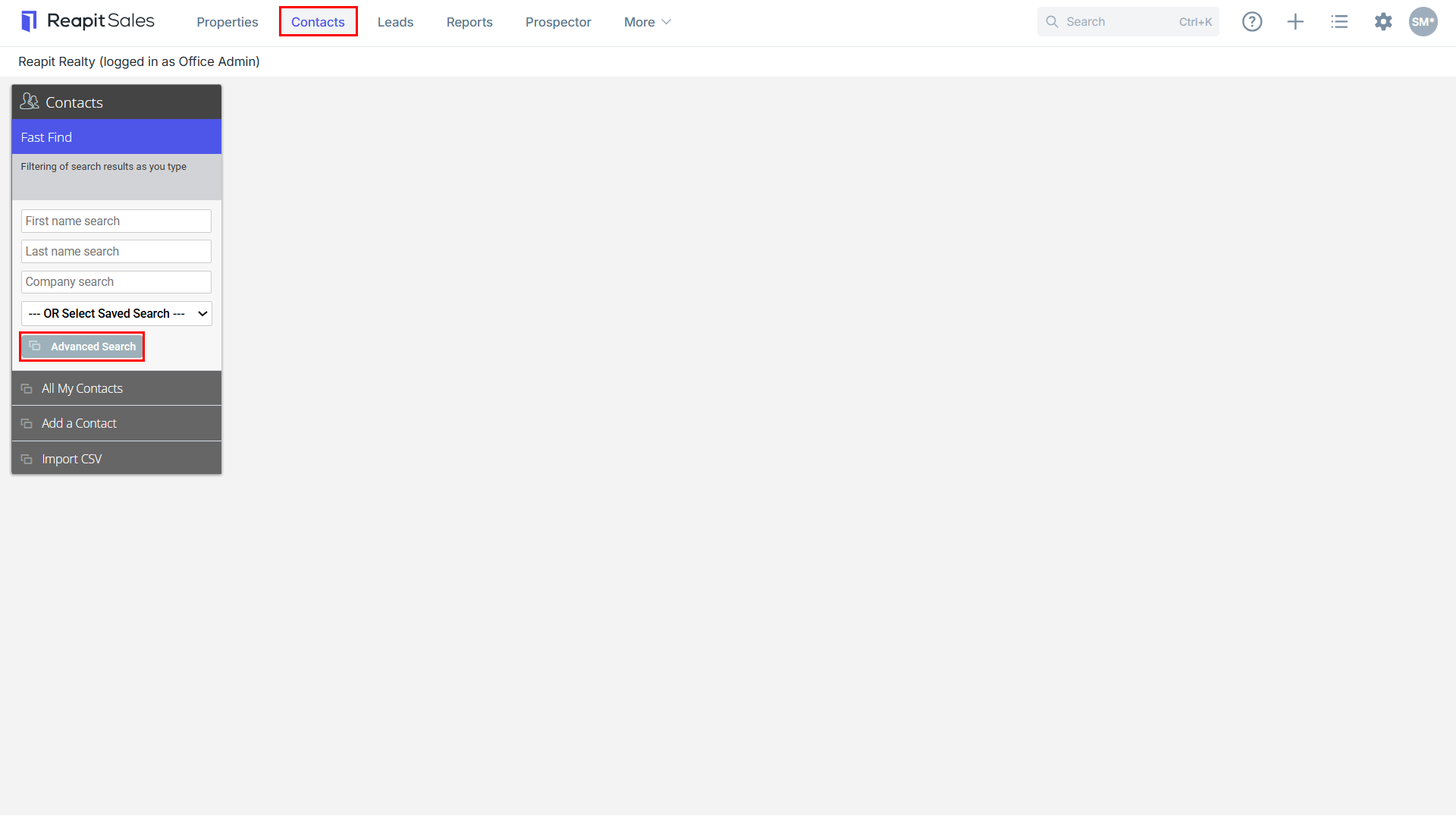
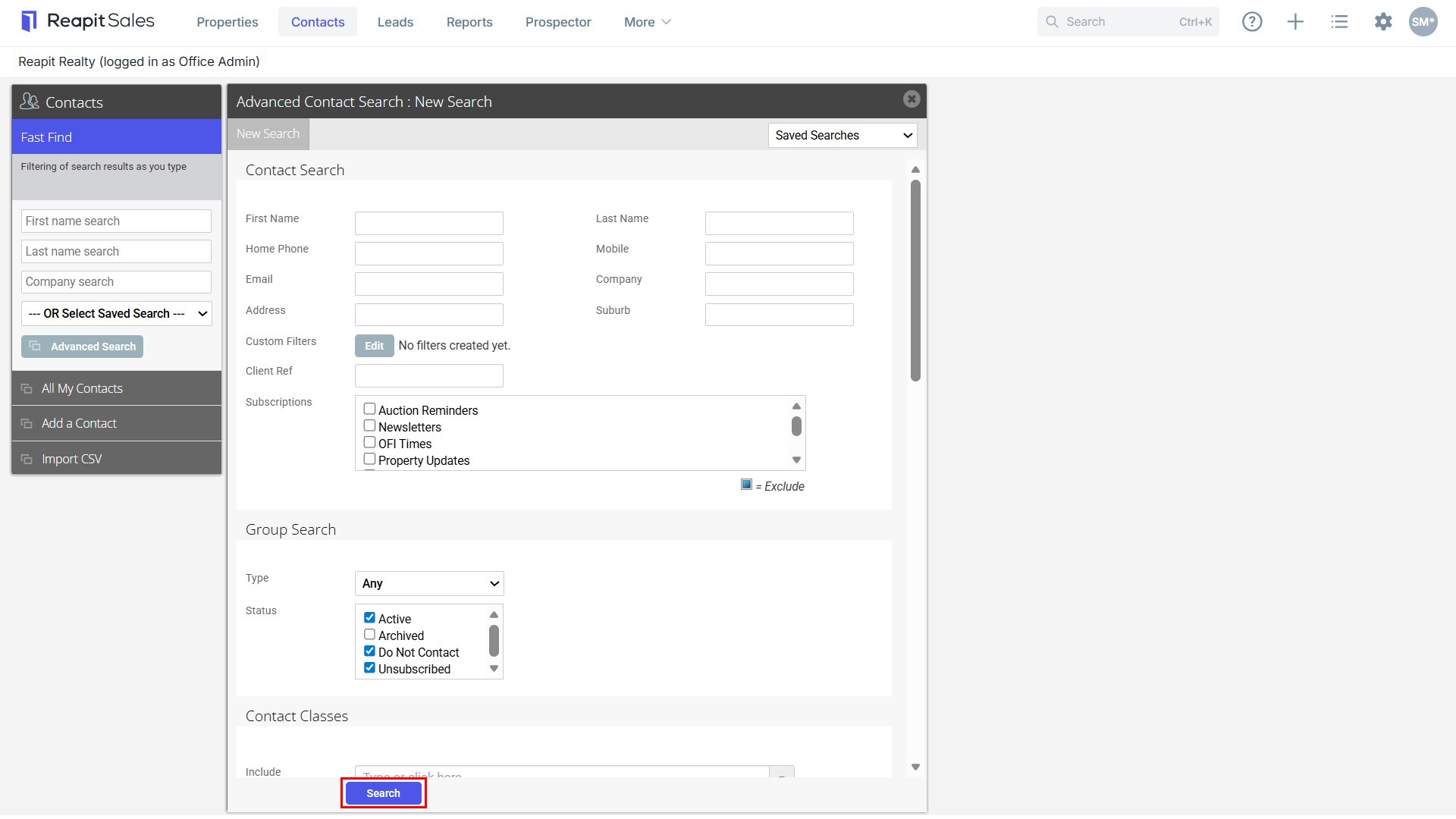
 Advanced Contact Searcg Results 1. Perform an Advanced Contact Search

- Click the Add a Note action icon next to the corresponding Contact.
Via Quick Action Icon 1. Click the Quick Action icon
 from the header and select Add a Note from the drop-down.
Contact Pop Up Summary via Tasks 1. Click Tasks from the Main Menu

2. For tasks with a related contact, you can click on the contact to open the summary pop up and click on the Note action icon

Note: The contact pop up summary will appear throughout the system for easy contact view and quick action. If you see a contact's name you are able to click to open either the full contact card or the summary.