'%20d='M0%208a8%208%200%200%201%208-8h24a8%208%200%200%201%208%208v24a8%208%200%200%201-8%208H8a8%208%200%200%201-8-8V8Z'/%3e%3cpath%20fill='%23fff'%20d='M10.41%206v3.779h15.048v19.537h4.132V6H10.41Z'/%3e%3cpath%20fill='%23fff'%20d='M20.967%2034V13.837L10.41%209.78v20.166L20.967%2034Z'/%3e%3cdefs%3e%3clinearGradient%20id='reapit-sales__a'%20x1='20.702'%20x2='20.702'%20y1='.351'%20y2='31.228'%20gradientUnits='userSpaceOnUse'%3e%3cstop%20stop-color='%235573FD'/%3e%3cstop%20offset='.575'%20stop-color='%234E56EA'/%3e%3c/linearGradient%3e%3c/defs%3e%3c/svg%3e)
Access Contacts in Mobile App
This article shows how to acess contacts in Reapit Sales App.
Access Contacts in Mobile App
This article shows how to acess contacts in Reapit Sales App. ****
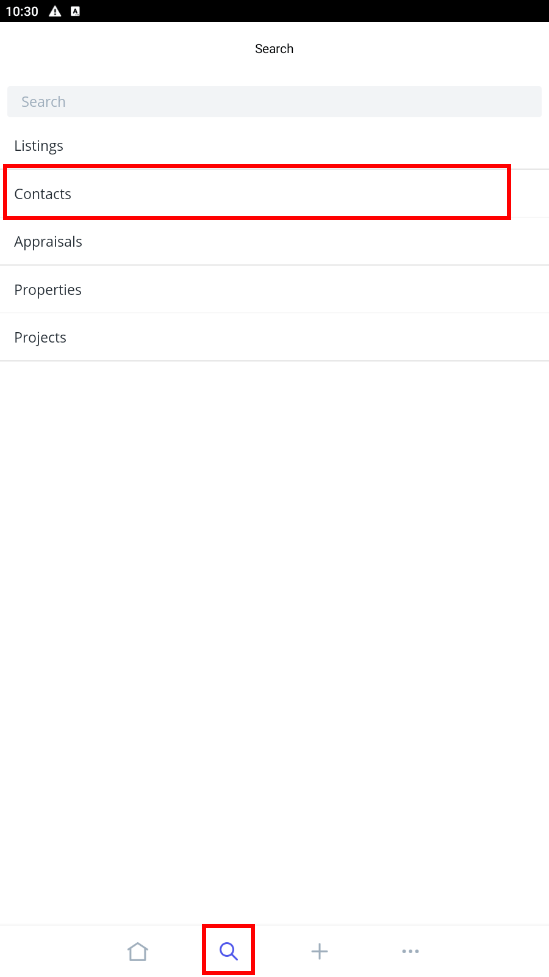
- To access contacts, tap the magnifying glass icon and select 'Contacts'.
- Here you can filter by contacts you are the primary owner of, shared or All (subject to access permissions) or search for contacts.
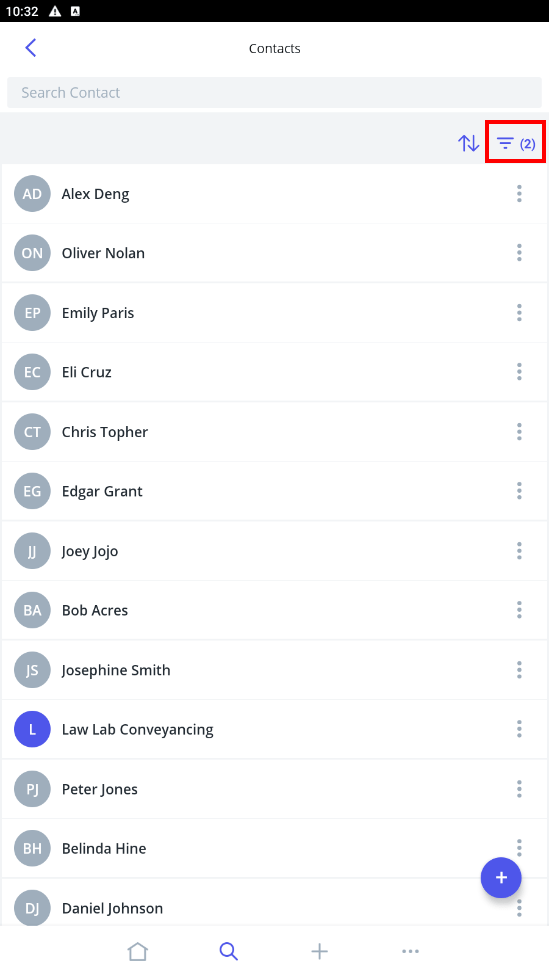
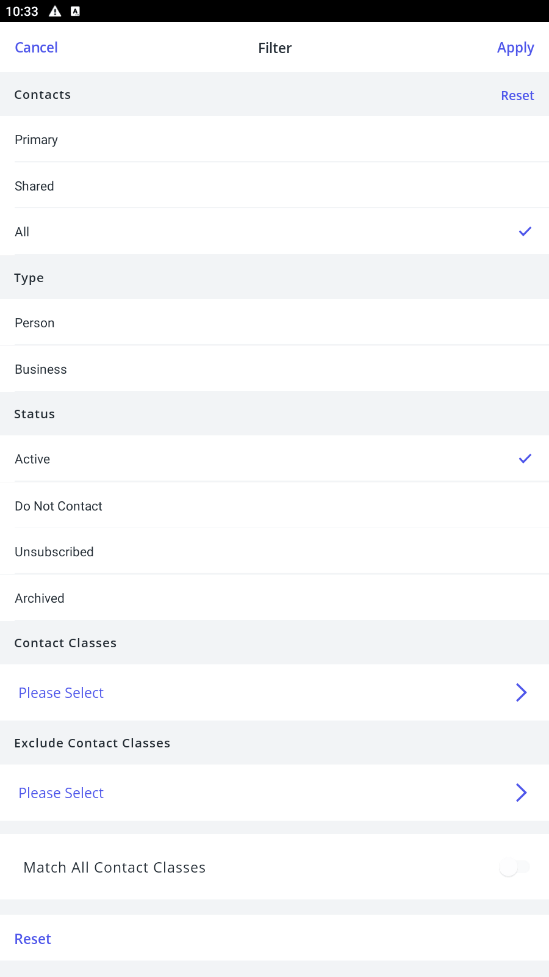
Or click the filter icon in the top left corner to filter contacts by including or excluding contact classes, by type (person or business) or status (active, unsubscribed, do not contact or archived).
- Tap the Contact in the search results to open the contact.
- Use the Quick Add tools to log a note, call, sms or email
Note: To SMS, you will need to have Reapit Sales SMS activated and SMS credits.
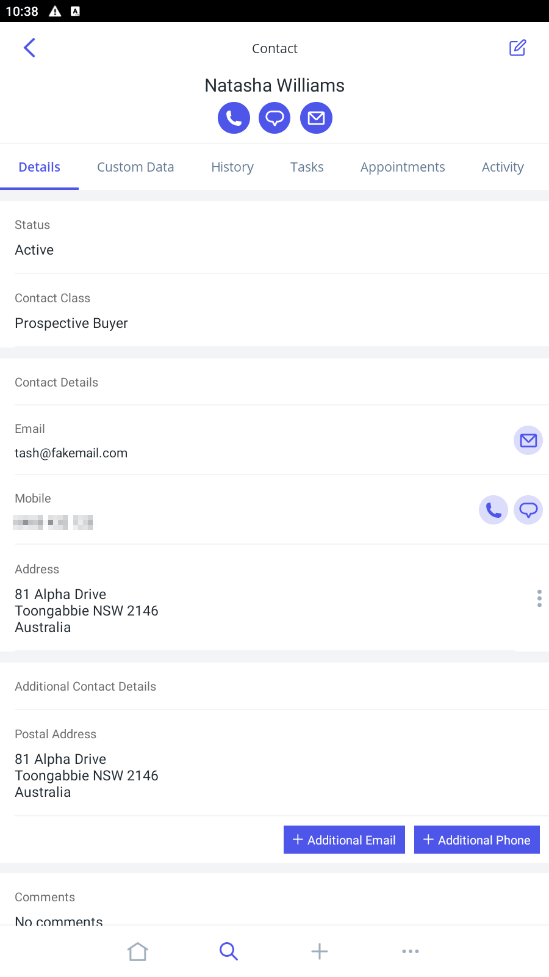
- Tap the Edit icon in the top corner of the screen to edit the contact
- Tap the Contact Details tab to view the key contact information.
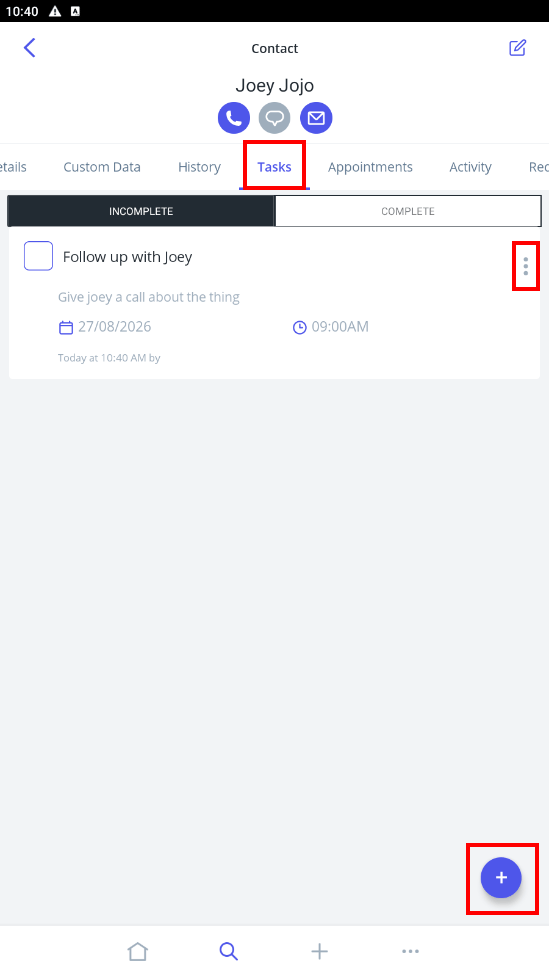
- From Tasks, you can add, edit, snooze, and view outstanding and completed tasks.
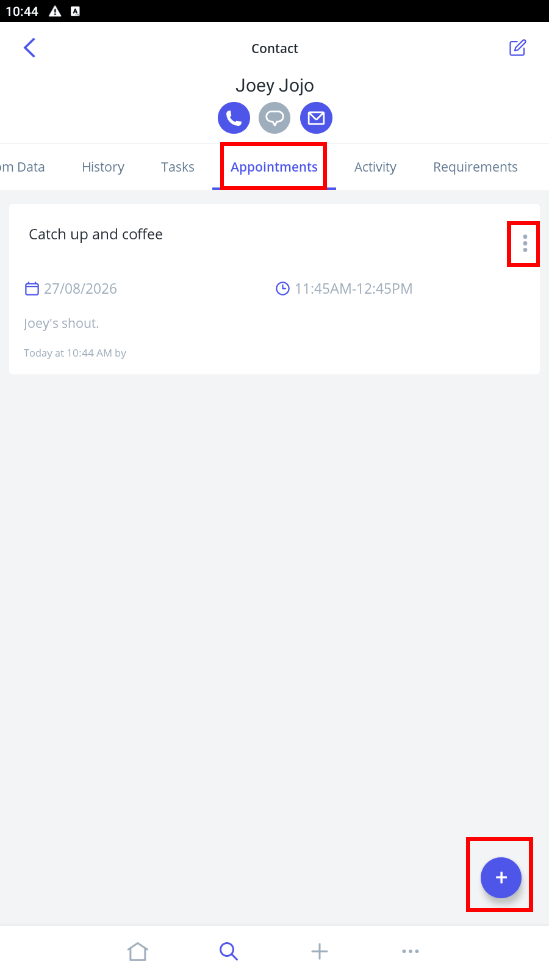
- Tap Appointments to add, edit, or view scheduled meetings.
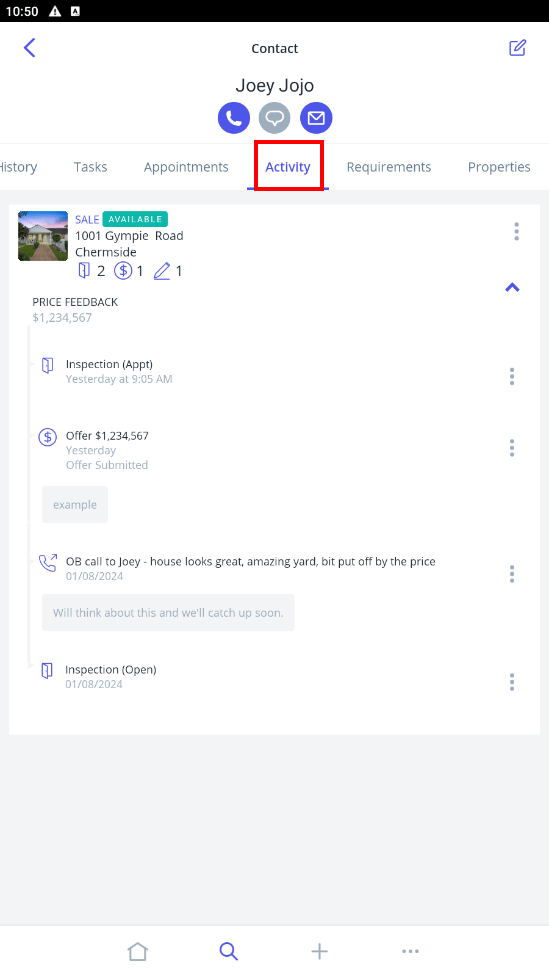
- Tap Activity to view feedback from inspections and to edit inspection comments
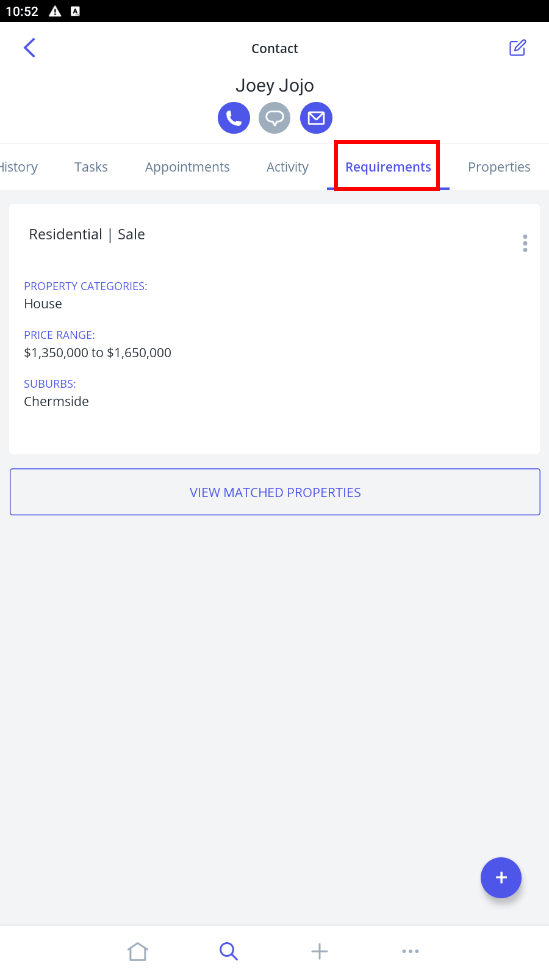
- Tap Requirements to view the contacts' buyer/tenant requirements.
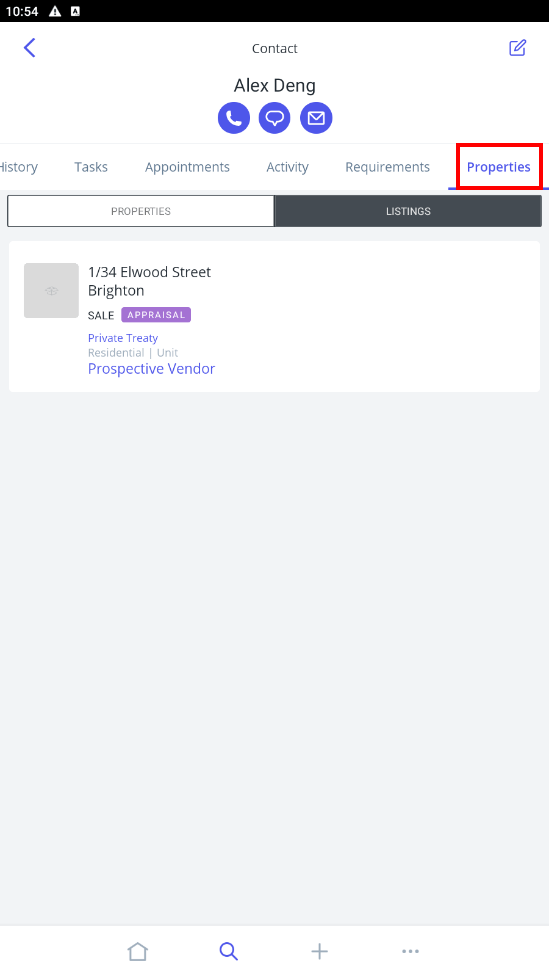
- Tap Properties to view the contacts related properties and listings.
Note: These are the listings they are assigned to in the Agents and Contacts tab of a property e.g. the Property that they own. The Activity tab contains the listings that they have inspected.