'%20d='M0%208a8%208%200%200%201%208-8h24a8%208%200%200%201%208%208v24a8%208%200%200%201-8%208H8a8%208%200%200%201-8-8V8Z'/%3e%3cpath%20fill='%23fff'%20d='M10.41%206v3.779h15.048v19.537h4.132V6H10.41Z'/%3e%3cpath%20fill='%23fff'%20d='M20.967%2034V13.837L10.41%209.78v20.166L20.967%2034Z'/%3e%3cdefs%3e%3clinearGradient%20id='reapit-sales__a'%20x1='20.702'%20x2='20.702'%20y1='.351'%20y2='31.228'%20gradientUnits='userSpaceOnUse'%3e%3cstop%20stop-color='%235573FD'/%3e%3cstop%20offset='.575'%20stop-color='%234E56EA'/%3e%3c/linearGradient%3e%3c/defs%3e%3c/svg%3e)
Adding Supplier Items and Expense Categories
This article runs through about adding supplier items and expense categories in Reapit Sales. The processes in this article include: Adding Supplier Items Adding Expense Categories
Adding Supplier Items and Expense Categories
This article runs through about adding supplier items and expense categories in Reapit Sales.
The processes in this article include:
- Adding Supplier Items
- Adding Expense Categories
Adding Supplier Items
- Search for your Contact open their Contact Card

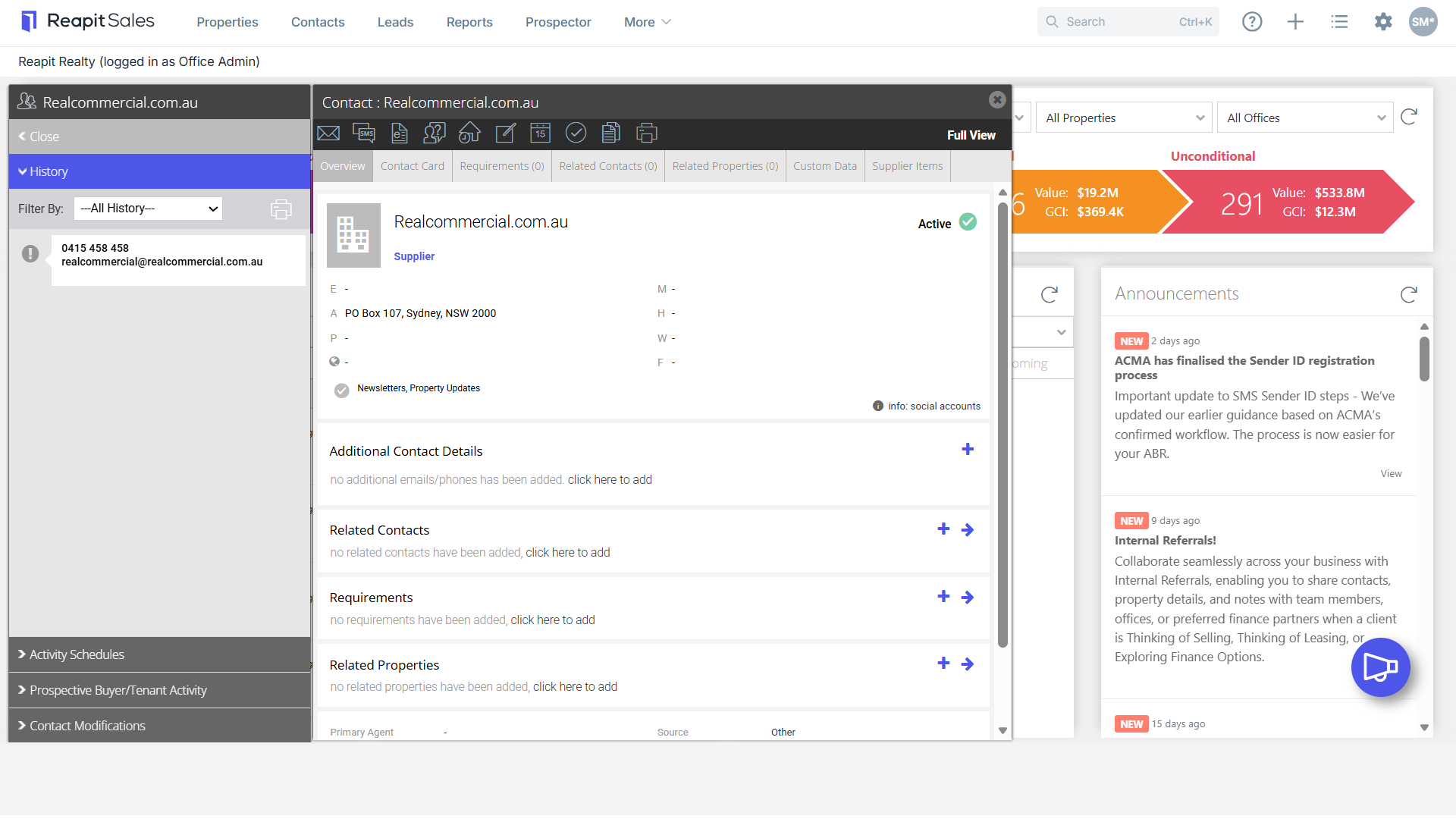
- Click the Supplier Items tab
Note: If you are not able to see this tab then ensure the Contact Class on the Contact Card is set to Supplier.

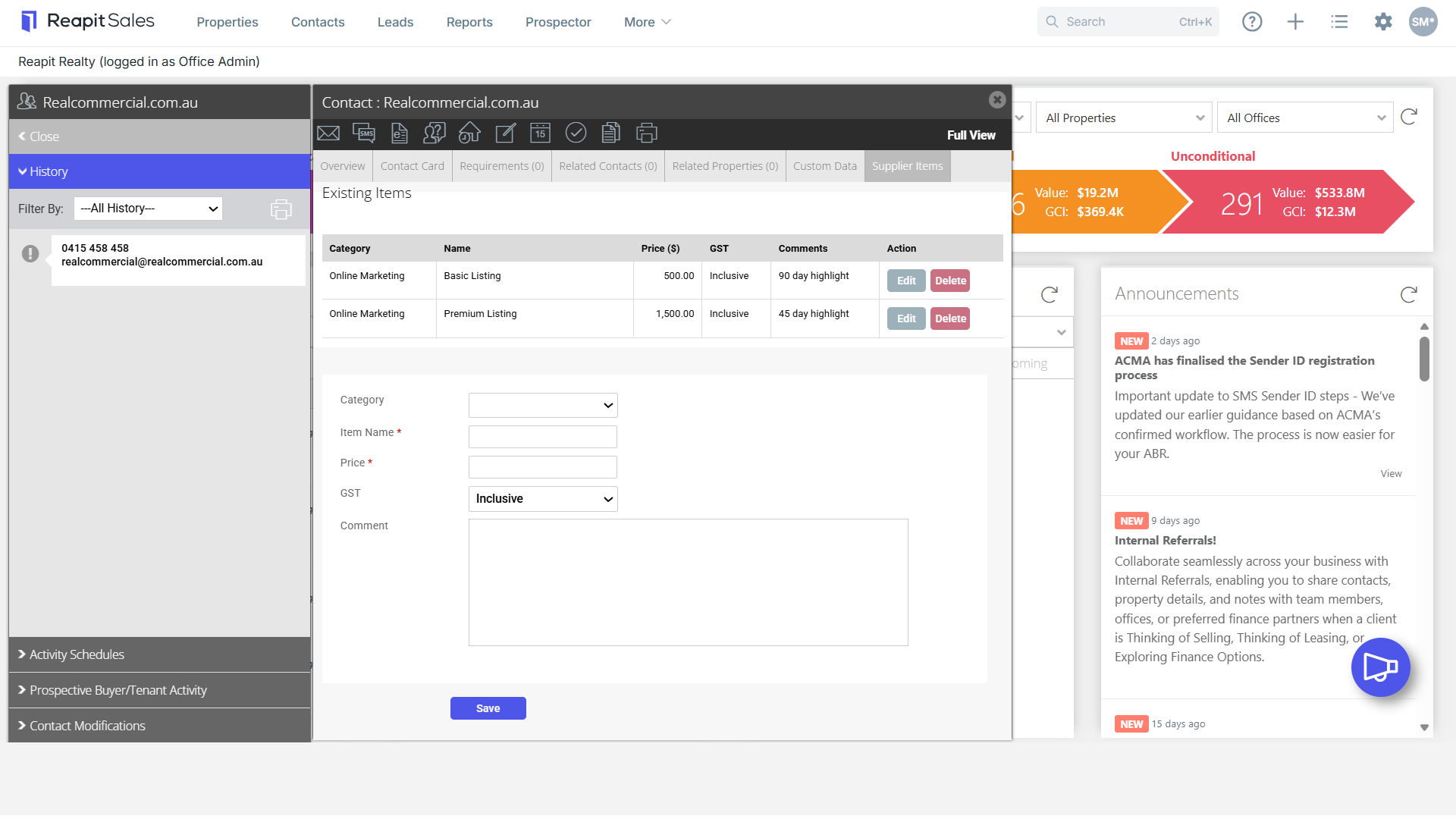
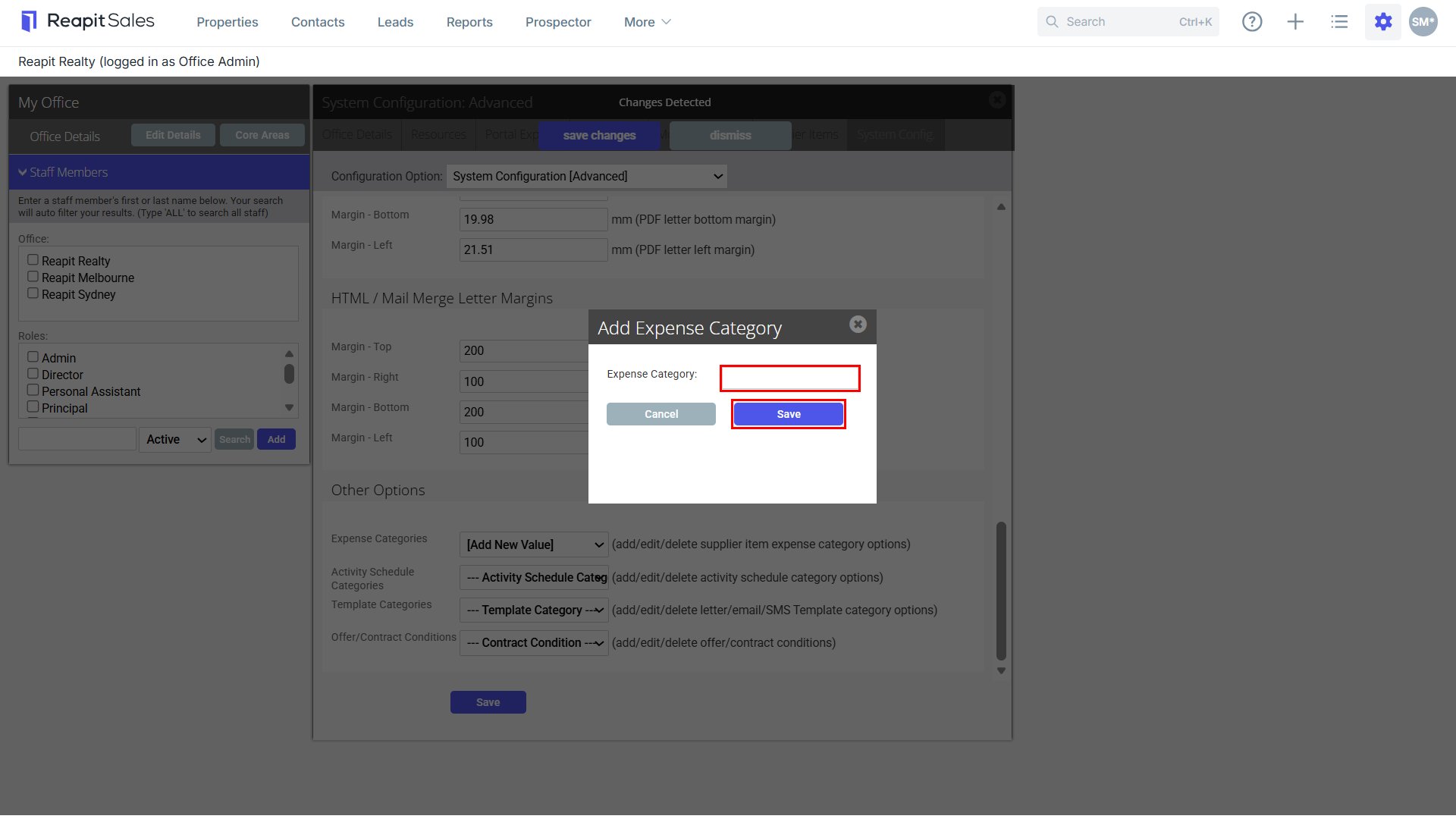
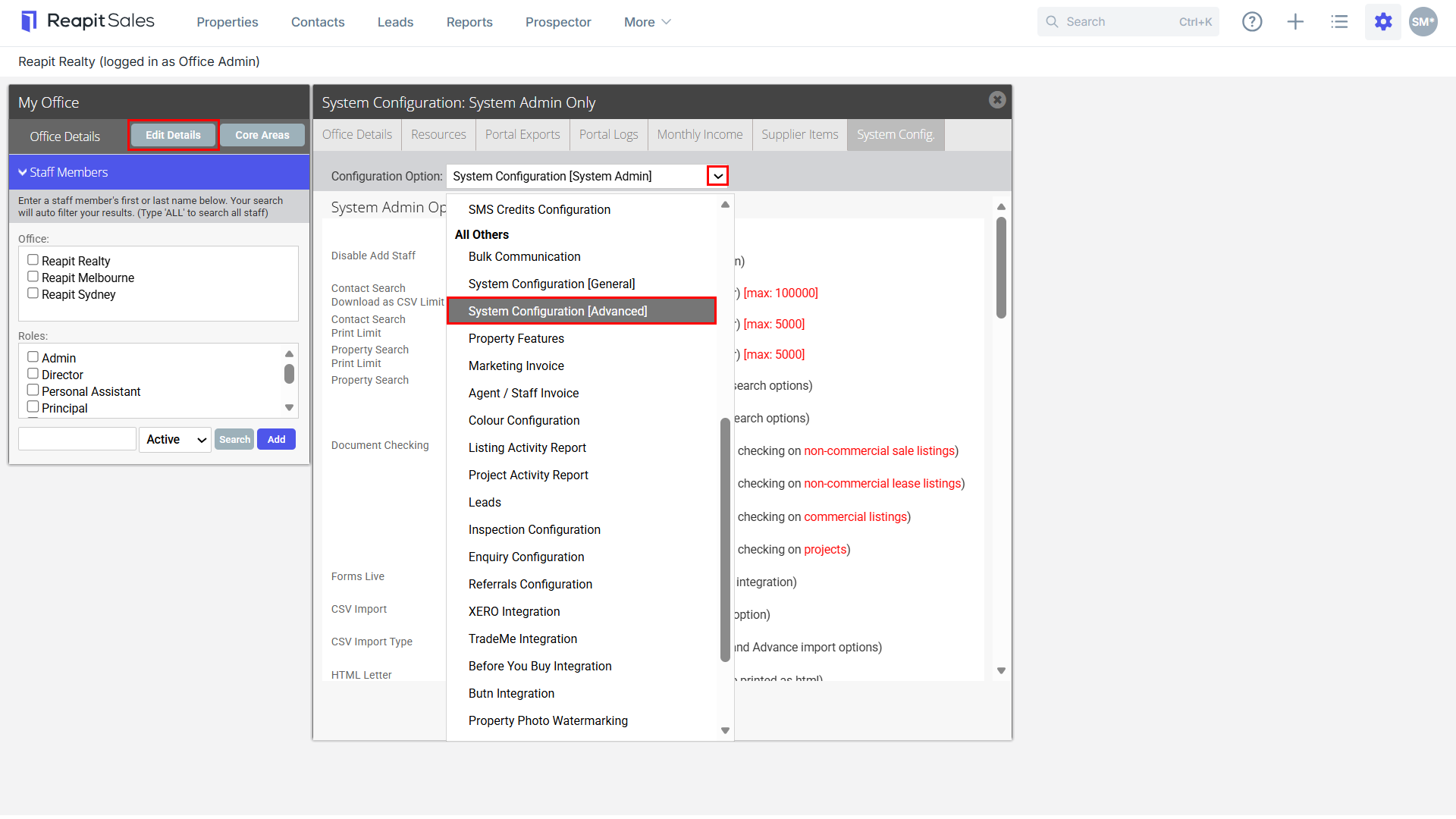
- Select Item Category (if applicable) - New categories can be created by Master Users via My Office > Edit Details > System Config > System Configuration (Advanced) > Expense Categories.
Note: Steps to add an expense category are highlighted below.
- Enter Item Name, Price & Item Comment/Description

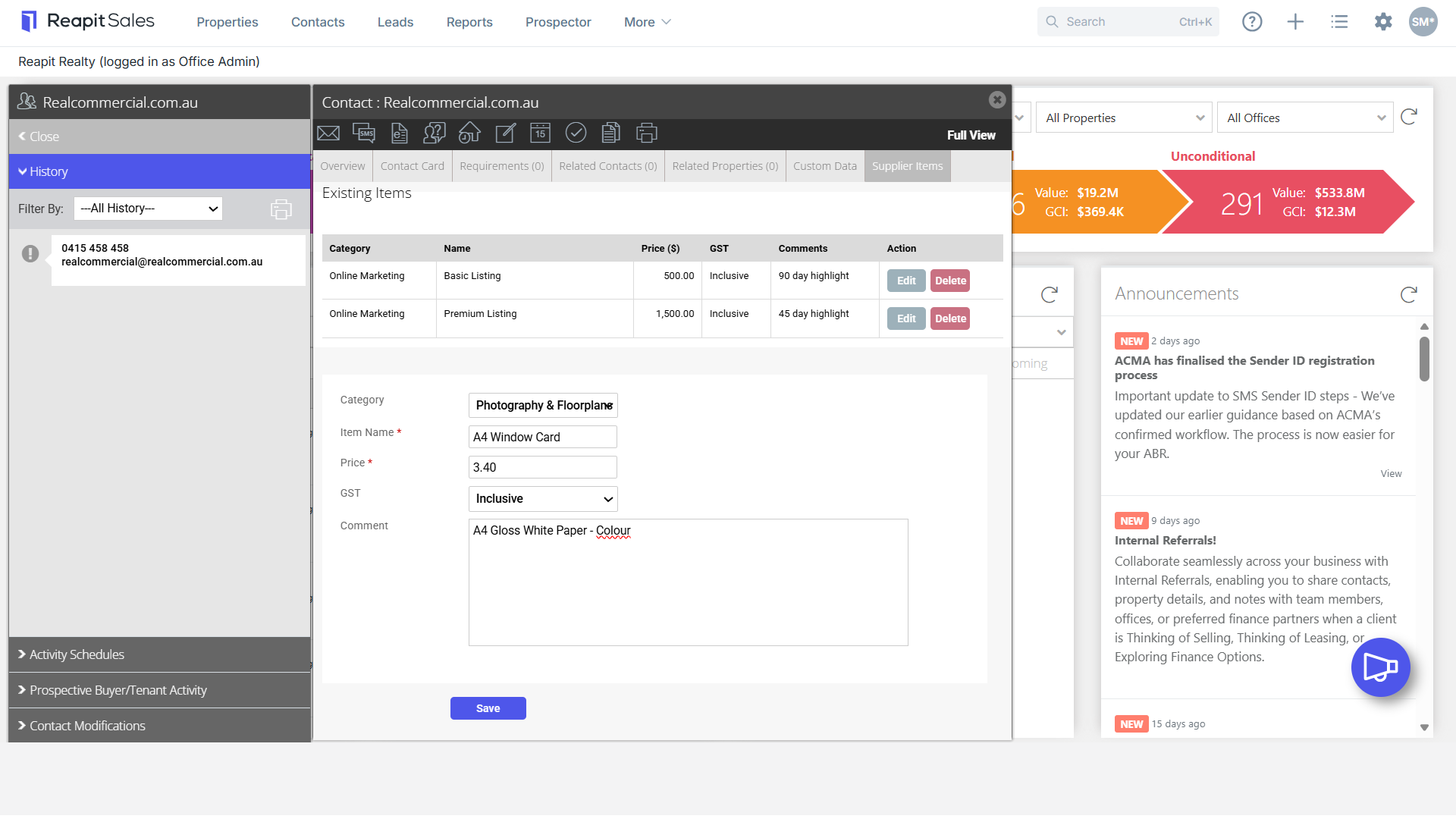
- Click Save

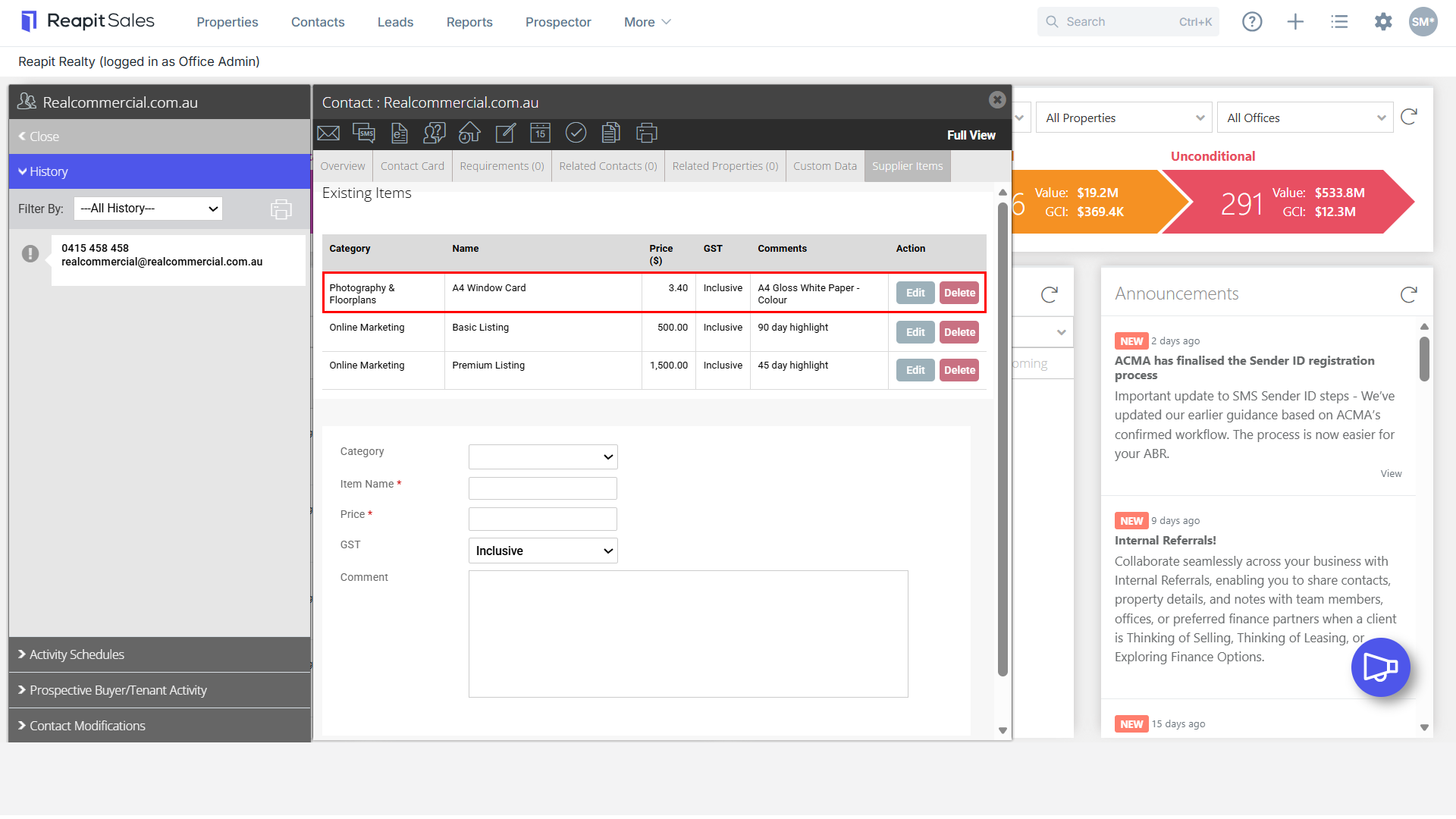
- Follow steps 3 & 4 to add additional Supplier Items. Each Supplier Item will be added to the Existing Items list.
Adding Expense Categories
- Navigate to My Office, click Edit Details > System Configuration (Advanced).
- Scroll down to the 'Other Options' section and click [Add New Value].
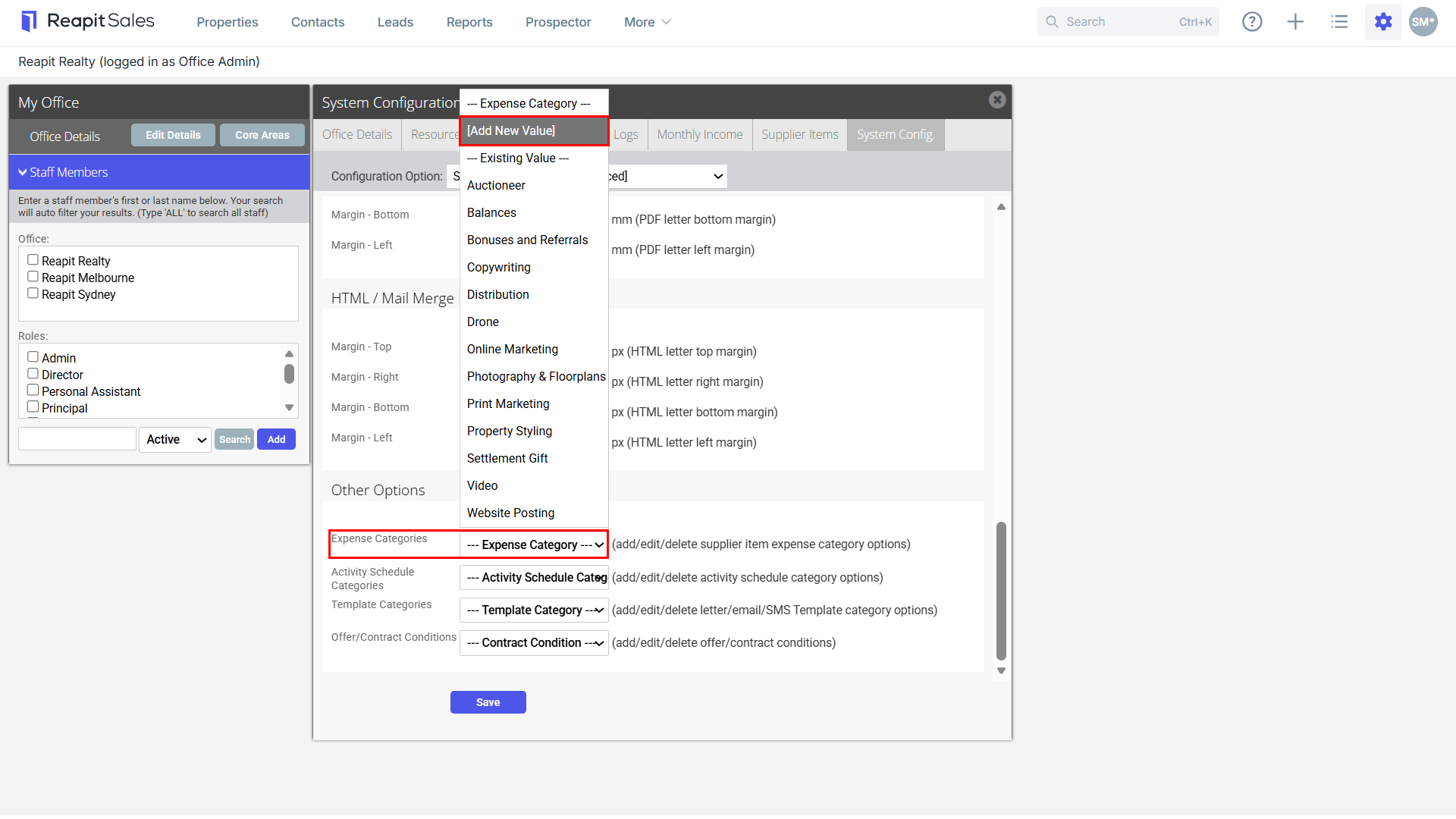
- Enter an Expense Category name and click Save.