'%20d='M0%208a8%208%200%200%201%208-8h24a8%208%200%200%201%208%208v24a8%208%200%200%201-8%208H8a8%208%200%200%201-8-8V8Z'/%3e%3cpath%20fill='%23fff'%20d='M10.41%206v3.779h15.048v19.537h4.132V6H10.41Z'/%3e%3cpath%20fill='%23fff'%20d='M20.967%2034V13.837L10.41%209.78v20.166L20.967%2034Z'/%3e%3cdefs%3e%3clinearGradient%20id='reapit-sales__a'%20x1='20.702'%20x2='20.702'%20y1='.351'%20y2='31.228'%20gradientUnits='userSpaceOnUse'%3e%3cstop%20stop-color='%235573FD'/%3e%3cstop%20offset='.575'%20stop-color='%234E56EA'/%3e%3c/linearGradient%3e%3c/defs%3e%3c/svg%3e)
Match Contacts to a Property in the Reapit Sales App
This article outlines how to match contacts to a property using the Reapit Sales App.
Match Contacts to a Property in the Reapit Sales App
This article outlines how to match contacts to a property using the Reapit Sales App.
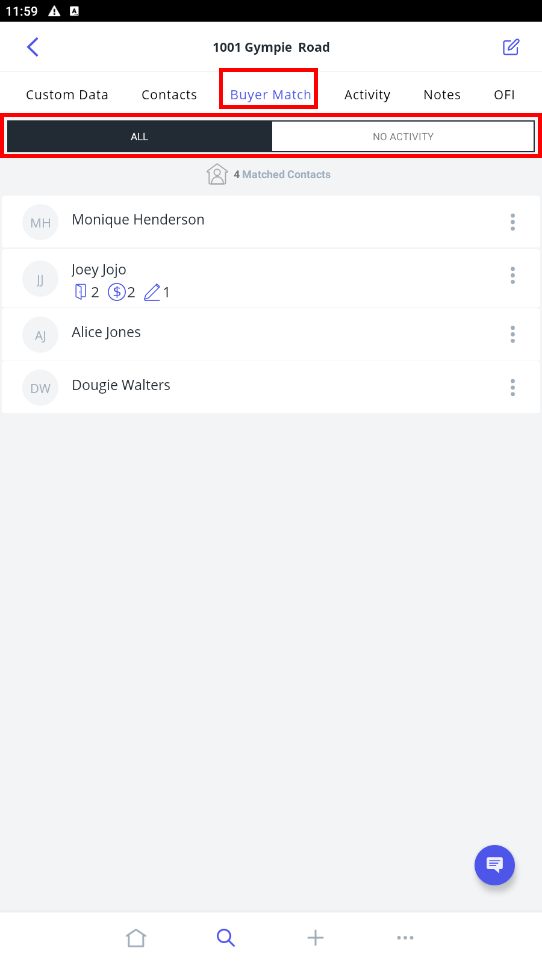
The Buyer/Tenant Match allows you to open all contacts whose requirements match the appraisal or listing. Tab between ALL - contacts with requirements that matched the listing or NO ACTIVITY - contacts with requirements that matched the listing but have not interacted with the listing (e.g. have not enquired, inspected or made an offer on the listing).
- Tap the magnifying glass icon from the main menu and select 'Listings'.
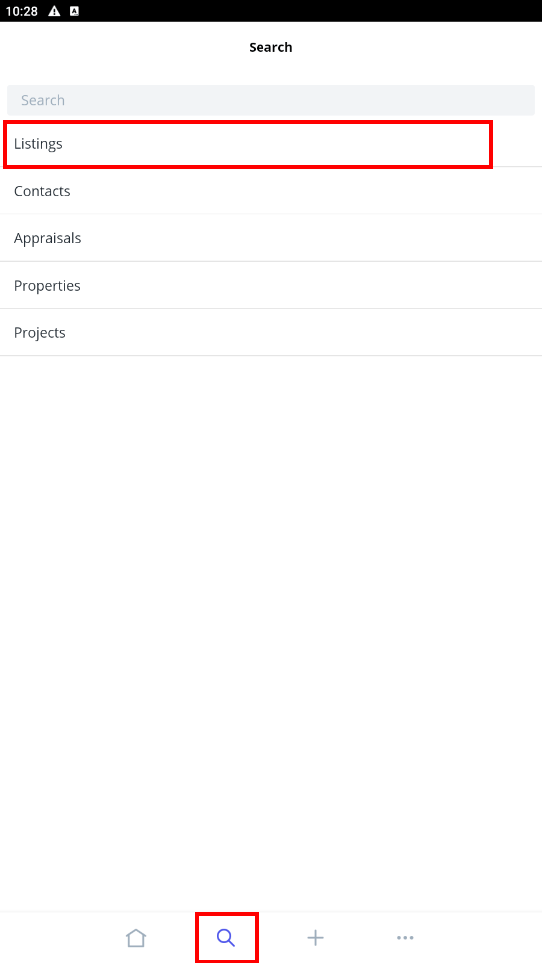
- Locate the listing using one of the following methods;
Search bar Quickly search for a listing using the listing ID or Property Address.
Opens tab Within the Opens tab, you can view any listings with upcoming Open for Inspections that you have been assigned to. To view the details of the listing or to add inspection feedback simply click on the address to open the listing card.
My Listings tab Click the My Listings tab to view all listings that you are assigned to.
All Listings tab Click the All Listings tab to view all listings that you have access to. Please note, these listings will depend on the permissions that are assigned to you in your Staff Card.
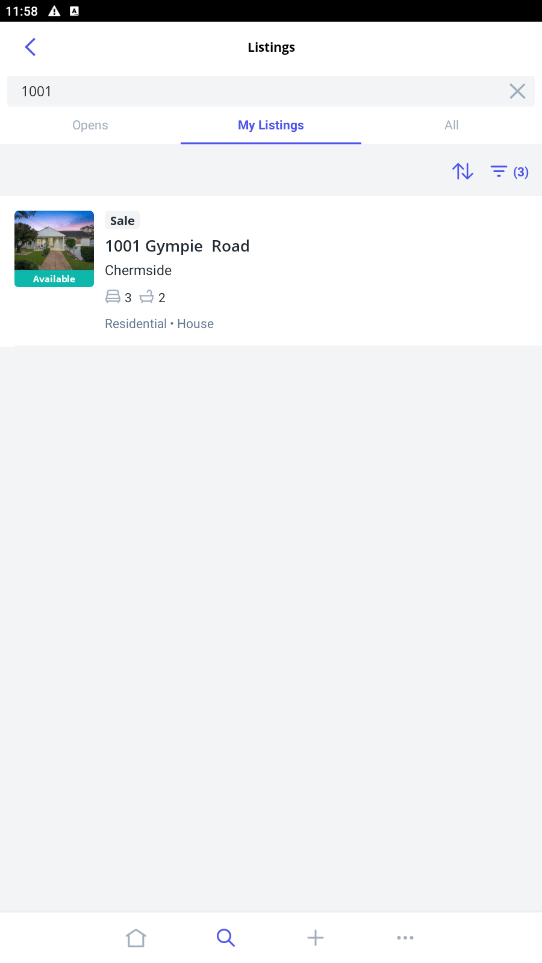
- Once you have found the listing, tap to open
- Tap the Buyer/Tenant Match tab to open a list of contacts in the database whose requirements match the listing. Tab between all matched contacts or those who have had no activity with the listing (e.g. enquiry, inspection, offer).
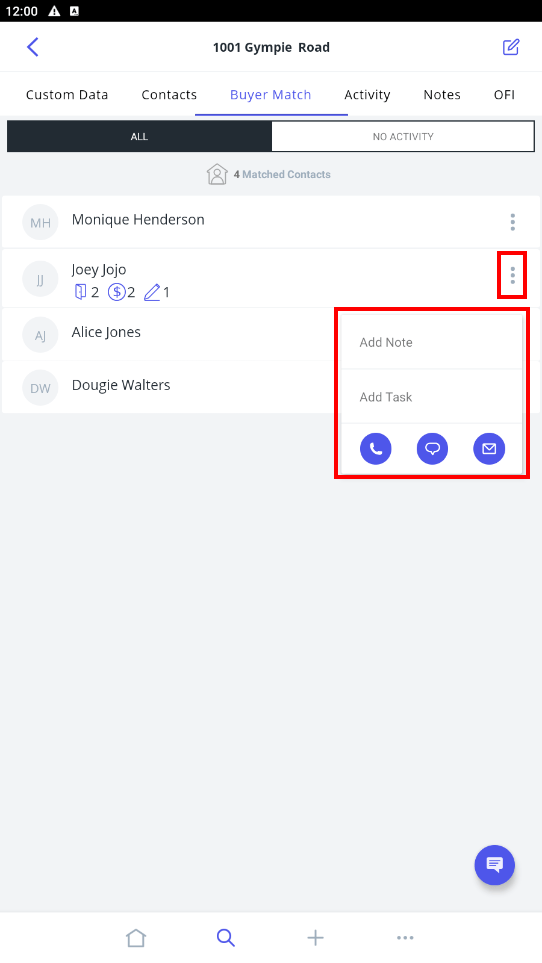
- Follow up or introduce contacts to listings by tapping the quick action icon next to each contact to log Prospective Buyer Notes, Tasks or Calls