'%20d='M0%208a8%208%200%200%201%208-8h24a8%208%200%200%201%208%208v24a8%208%200%200%201-8%208H8a8%208%200%200%201-8-8V8Z'/%3e%3cpath%20fill='%23fff'%20d='M10.41%206v3.779h15.048v19.537h4.132V6H10.41Z'/%3e%3cpath%20fill='%23fff'%20d='M20.967%2034V13.837L10.41%209.78v20.166L20.967%2034Z'/%3e%3cdefs%3e%3clinearGradient%20id='reapit-sales__a'%20x1='20.702'%20x2='20.702'%20y1='.351'%20y2='31.228'%20gradientUnits='userSpaceOnUse'%3e%3cstop%20stop-color='%235573FD'/%3e%3cstop%20offset='.575'%20stop-color='%234E56EA'/%3e%3c/linearGradient%3e%3c/defs%3e%3c/svg%3e)
E-Newsletter
This article will cover portal E-Newsletters in Reapit Sales.
E-Newsletter
This article will cover portal E-Newsletters in Reapit Sales.
Sending an E-Newsletter through a property will automatically place the selected property as a Feature Property within the E-Newsletter.
*Note: This only applies for the General Template.
- Search for your Property and open the property card.
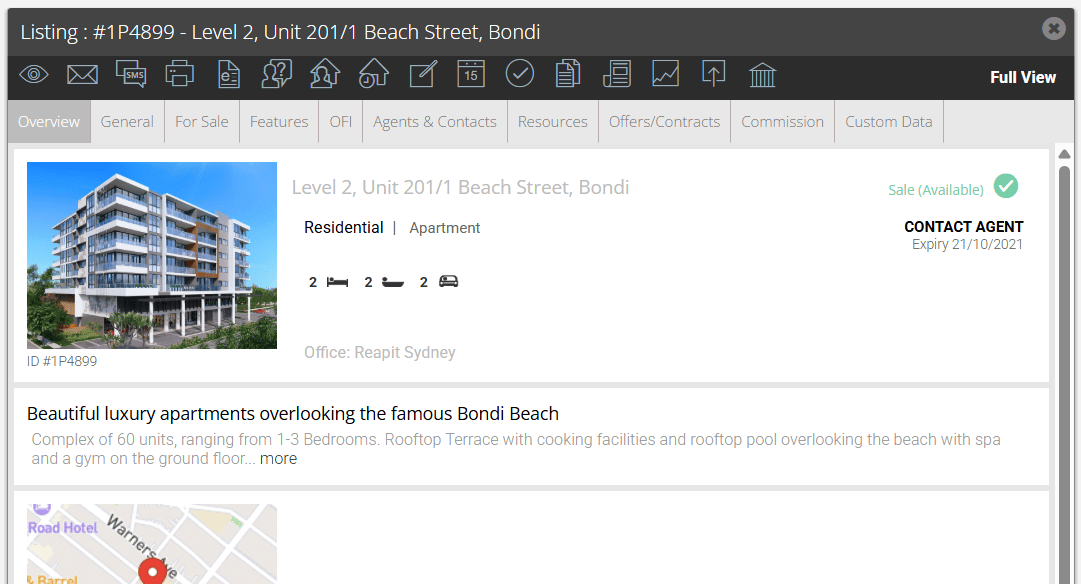
- Click the E-Newsletter Action icon
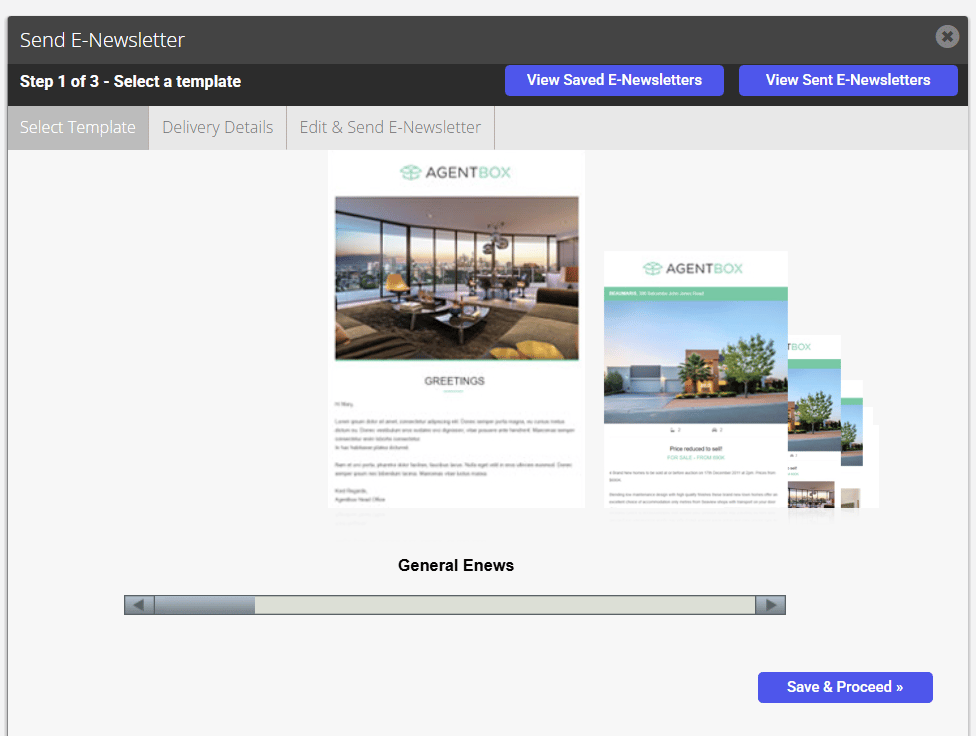
- Select a template

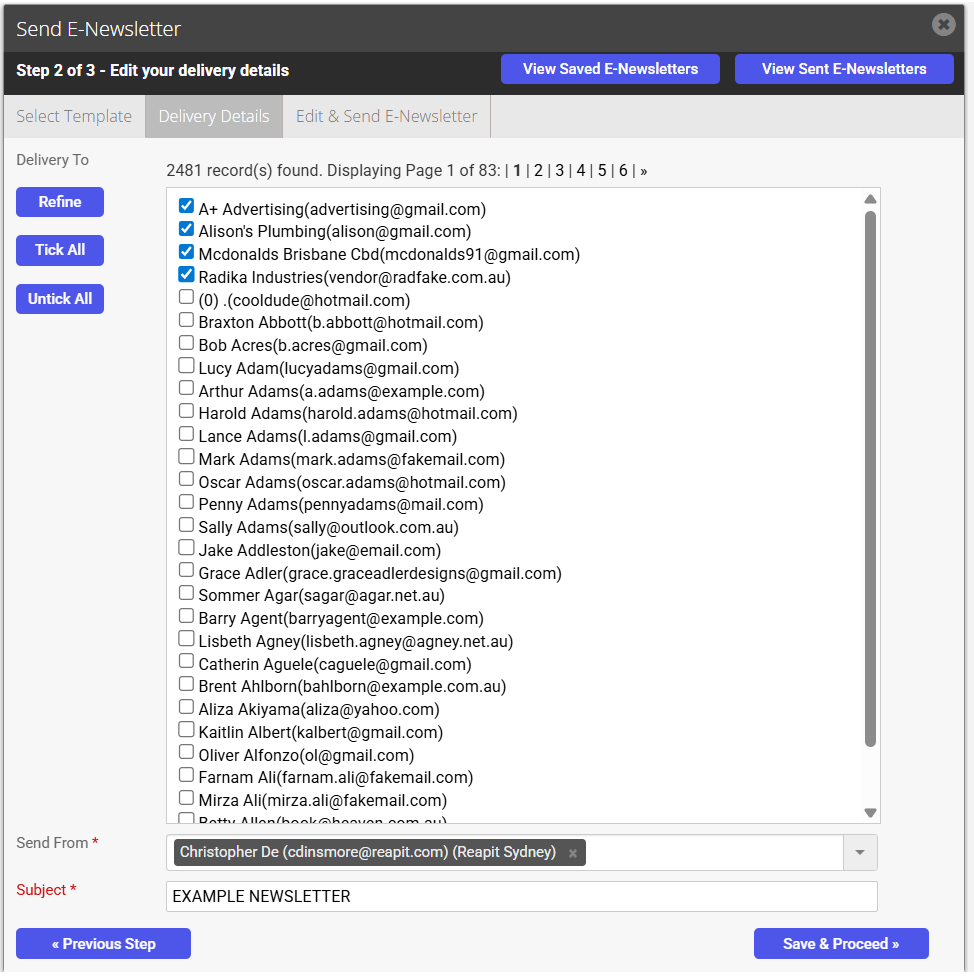
- Refine the recipients list using the tickboxes or by clicking the Refine button on the left to conduct a new advanced contact search
- Enter the E-Newsletter Subject
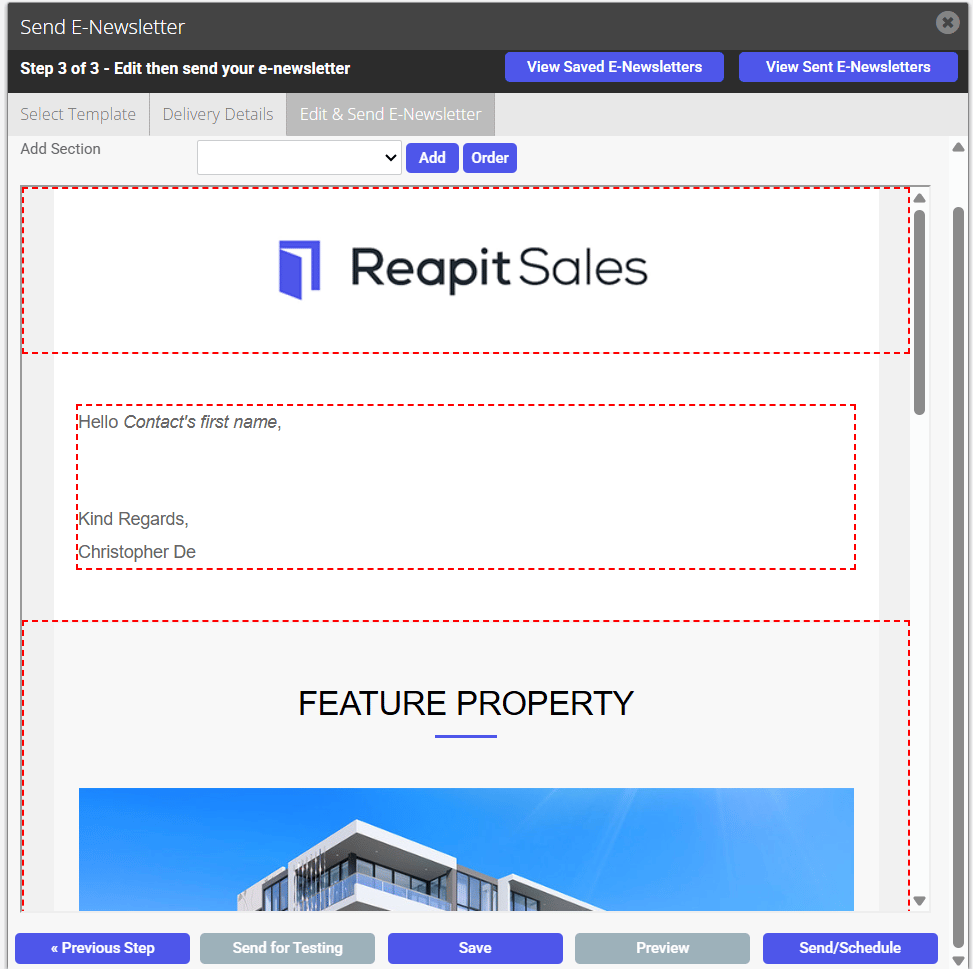
- Add additional content such as an Auction Timetable, Current Listings, Feature Property, News Item, OFI or Sold Properties via the Add Section drop-down
- Once you are satisfied with your E-Newsletter after a final Preview, you may send a test copy to yourself via the Send for Testing button or send to the recipients using the Send Now button.
*Note: Send for Testing button will send a copy to the email address you have used to log in.