'%20d='M0%208a8%208%200%200%201%208-8h24a8%208%200%200%201%208%208v24a8%208%200%200%201-8%208H8a8%208%200%200%201-8-8V8Z'/%3e%3cpath%20fill='%23fff'%20d='M10.41%206v3.779h15.048v19.537h4.132V6H10.41Z'/%3e%3cpath%20fill='%23fff'%20d='M20.967%2034V13.837L10.41%209.78v20.166L20.967%2034Z'/%3e%3cdefs%3e%3clinearGradient%20id='reapit-sales__a'%20x1='20.702'%20x2='20.702'%20y1='.351'%20y2='31.228'%20gradientUnits='userSpaceOnUse'%3e%3cstop%20stop-color='%235573FD'/%3e%3cstop%20offset='.575'%20stop-color='%234E56EA'/%3e%3c/linearGradient%3e%3c/defs%3e%3c/svg%3e)
TradeMe - Manage Listings
This article covers how to manage listing between Reapit Sales and TradMe via the integration.
Overview
TradeMe - Manage Listings
This article covers how to manage listing between Reapit Sales and TradMe via the integration.
*Note: New Zealand Clients Only. This integration requires additional configuration to enable, request Trade Me integration through customer support. **Note: a TradeMe account with the required subscription to list Real Estate Listings is required to enable this integration.
- Search for your Property and open the property card.
- Select the General Tab and select TradeMe
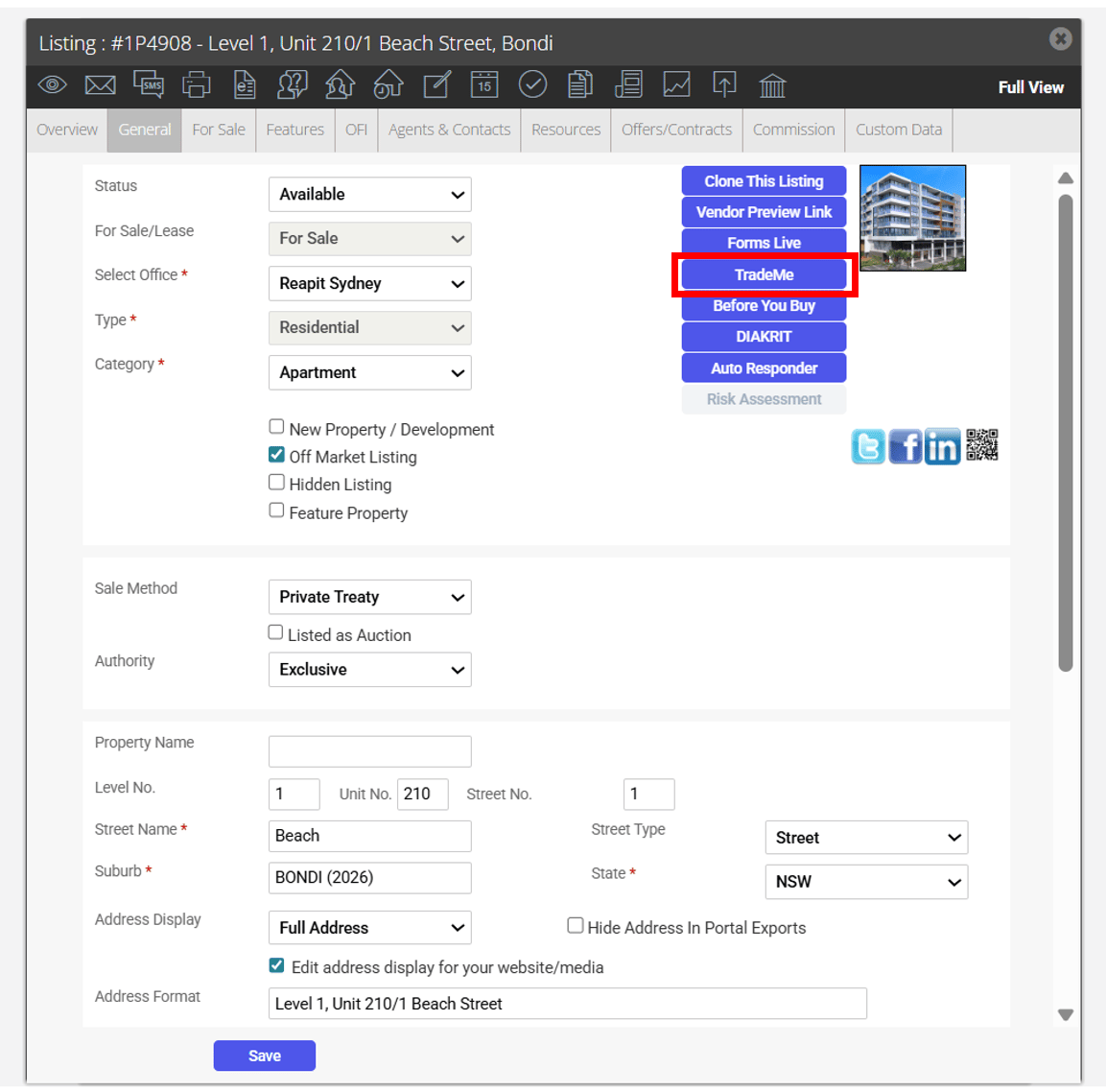
- A pop-up will appear that outlines the required fields for creating a listing on TradeMe.
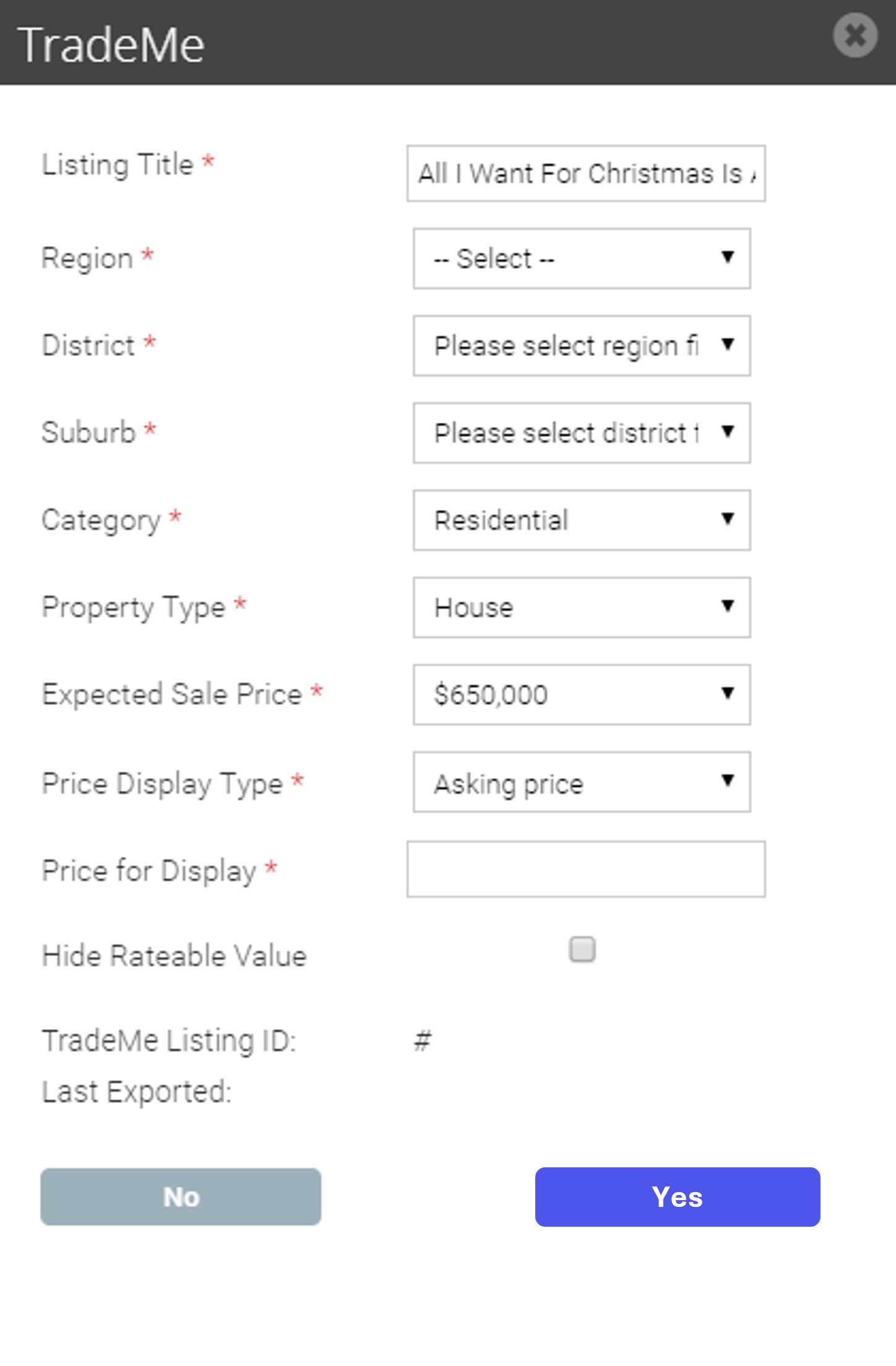
Listing Title: Review your headline. Agentbox supports 150 characters > TradeMe supports 50 characters. Adjust your headline as required.
Region, District, Suburb: Prefilled based on the Agentbox address and the closet TradeMe values. Review and adjust as required.
Category & Property Type: Prefilled based on the Agentbox listing type.
Category | Residential, available Property Types: Apartment, House, Townhouse, Unit Category | Section For Sale, available Property Types: Section Category | Lifestyle, available Property Types: Lifestyle Dwelling, Lifestyle Bare Land
Expected Sale Price: Prefilled based on the Agentbox Search Price and the closet TradeMe values Price Display Type: will display options based on the sale type
Sale Methods & Price Display options
Private Treaty | asking price, enquires over, price by negotiation. Commercial listings include the option to use asking price Inc GST Auction | expected sale price required only
Sale By Set Date | expected sale price required only
Tender | expected sale price required only
- Select Y****es to export the listing
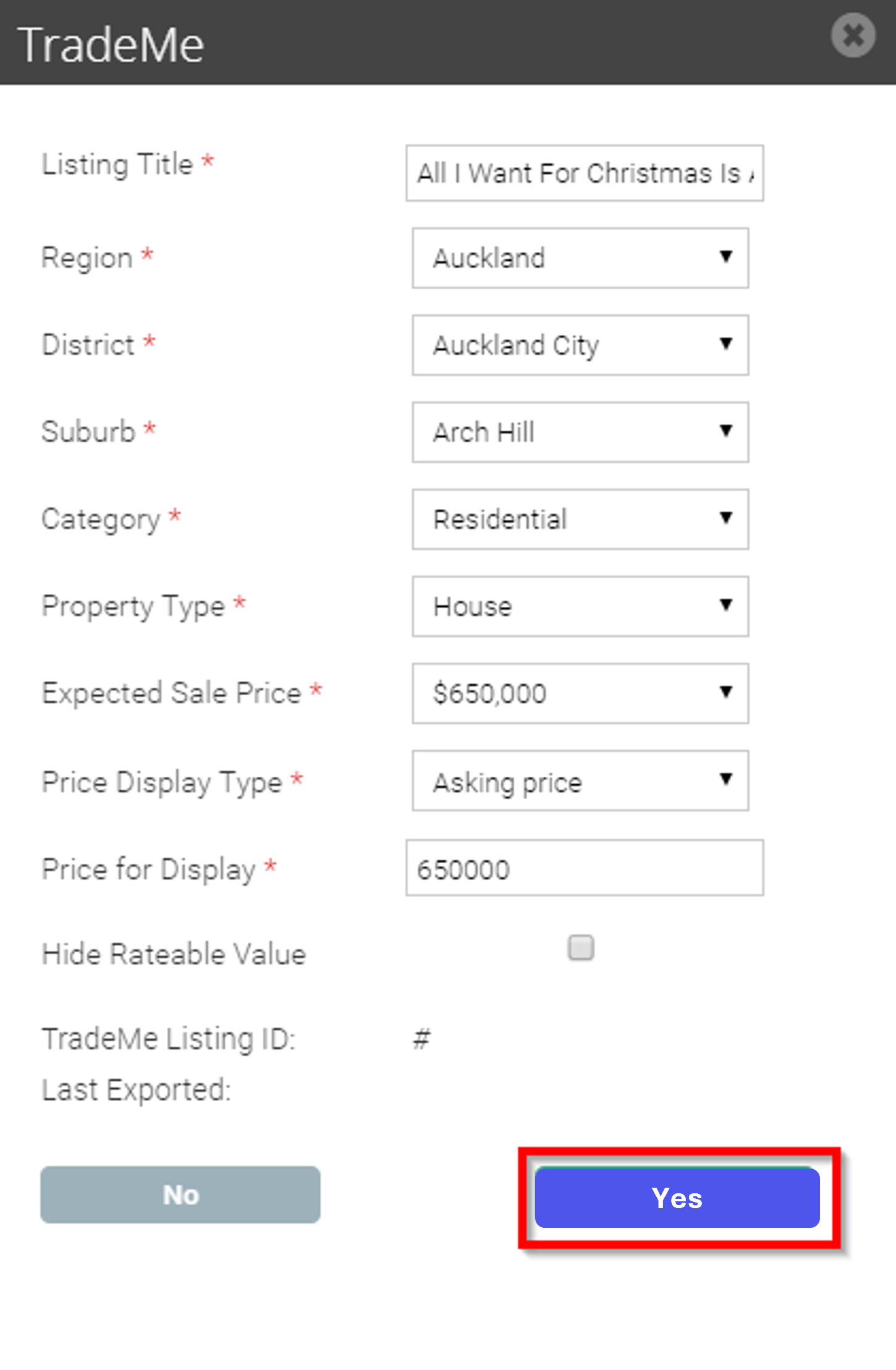
- The TradeMe integration is not like a normal portal feed and does not update the listing once you select save on the listing card. Ensure you click the TradeMe button to send any of the updates you have recently made against the listing.
Additional TradeMe Information:
For Sale Listing:
Property Features: Bed, bath, land size and home size are supported however Agentbox additional features such as air con, fire place etc are not supported in TradeMe.
Residential - parking, smoke alarms and amenities in the area will need to be added within the listing copy
Lifestyle Property - Parking and viewing instructions will need to be added within the listing copy
Sections - Viewing instructions and amenities in the area will need to be added within the listing copy
Commercial - Parking and viewing instructions will need to be added within the listing copy
Rural - Viewing instructions will need to be added within the listing
For Lease Listings:
Residential Leases
Search Price - Search price in Agentbox will display as per week only
Available Date - Available date in Agentbox will display as the TradeMe listing available date
Additional lease information - pets, smokers, furnishings, maximum tenants etc will need to be added within the listing copy
Commercial Leases
Display Price - Price display option of Asking Price (pa) or Price by Negotiation only
Outgoings - If asking price includes outgoings, tick 'Price Includes Outgoings' in the TradeMe export window
Additional lease information - parking & viewing instructions will need to be added within the listing copy
Lease, Sold & Withdrawn Listings
Once a listing status has been updated in Agentbox, the status will need to be updated on TradeMe by selecting the TradeMe icon.
Listing Sold - Enter a sold price
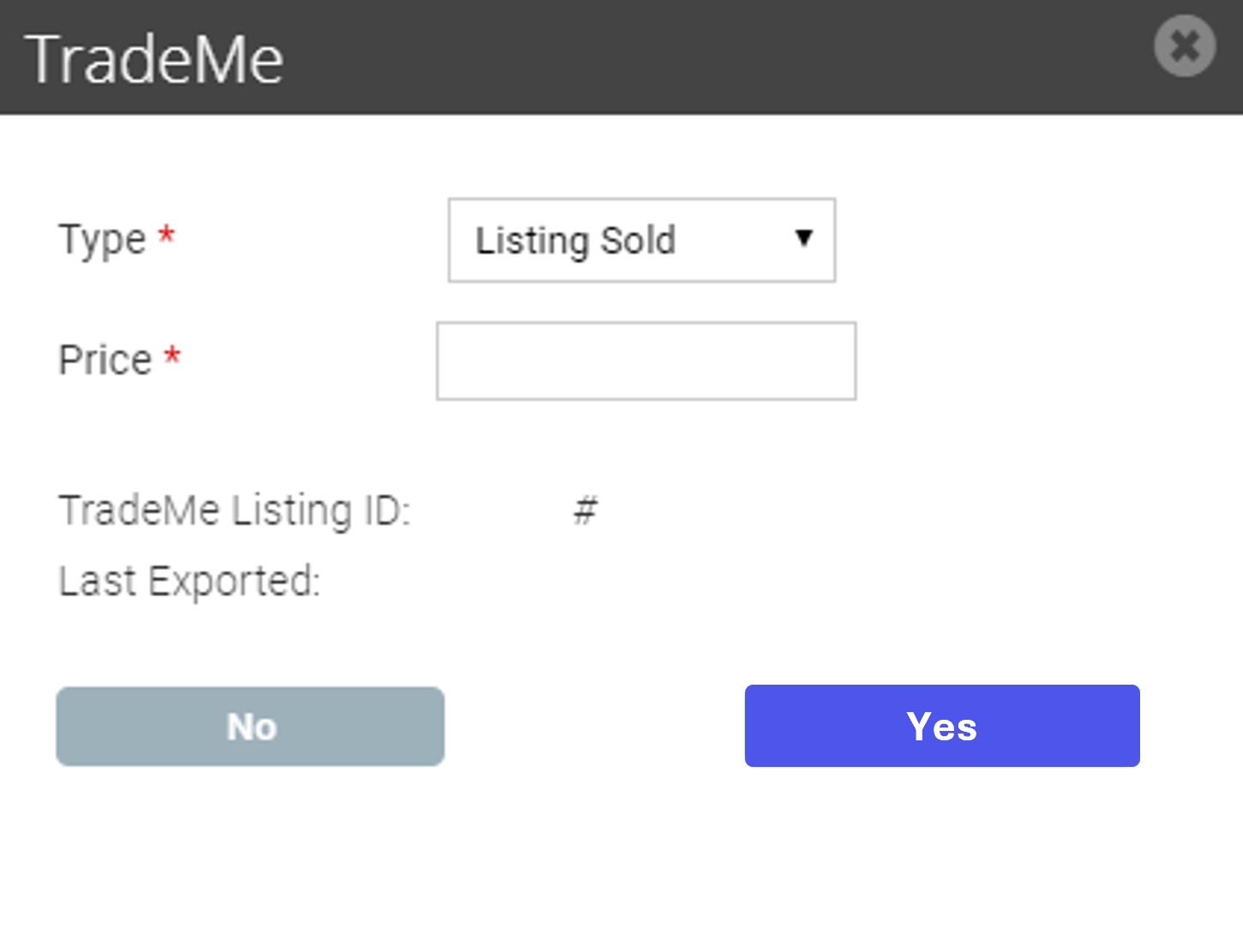
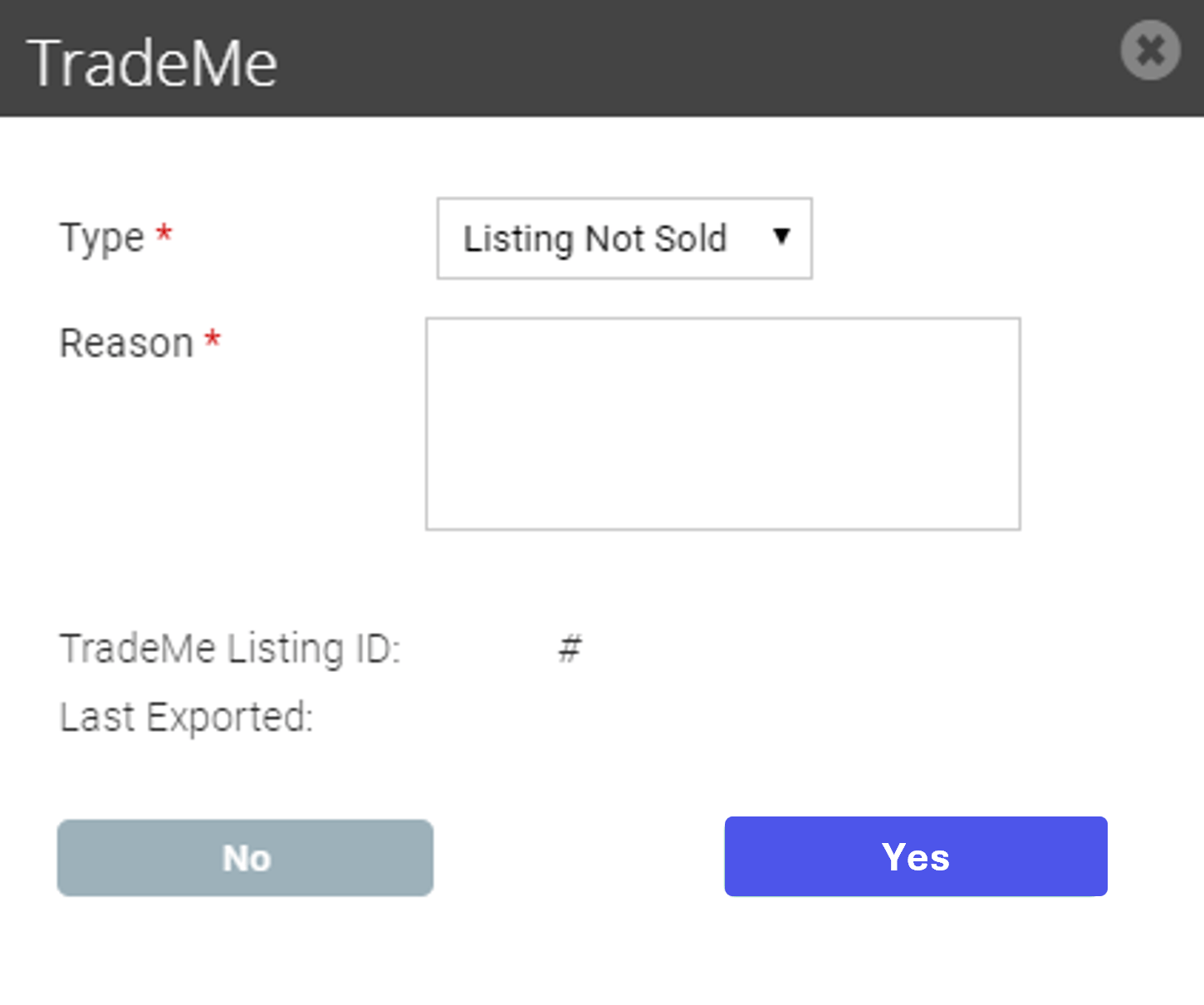
Listing Not Sold - Enter a reason