'%20d='M0%208a8%208%200%200%201%208-8h24a8%208%200%200%201%208%208v24a8%208%200%200%201-8%208H8a8%208%200%200%201-8-8V8Z'/%3e%3cpath%20fill='%23fff'%20d='M10.41%206v3.779h15.048v19.537h4.132V6H10.41Z'/%3e%3cpath%20fill='%23fff'%20d='M20.967%2034V13.837L10.41%209.78v20.166L20.967%2034Z'/%3e%3cdefs%3e%3clinearGradient%20id='reapit-sales__a'%20x1='20.702'%20x2='20.702'%20y1='.351'%20y2='31.228'%20gradientUnits='userSpaceOnUse'%3e%3cstop%20stop-color='%235573FD'/%3e%3cstop%20offset='.575'%20stop-color='%234E56EA'/%3e%3c/linearGradient%3e%3c/defs%3e%3c/svg%3e)
Send Emails/Email Templates in Mobile App
This article runs through how to send emails/email templates in Reapit Sales in mobile devices.
Send Emails/Email Templates in Mobile App
This article runs through how to send emails/email templates in Reapit Sales in mobile devices.
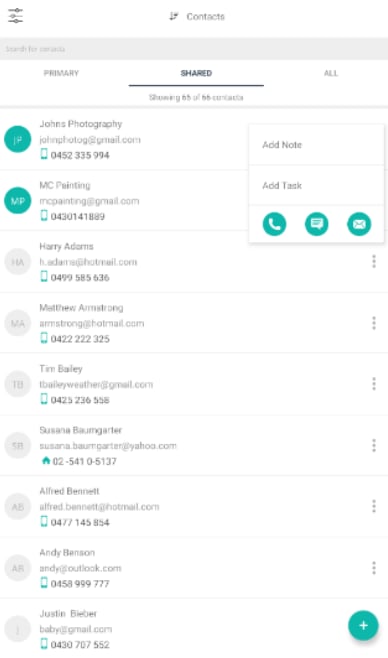
- Tap the Quick Action icons next to the contact and select Email.
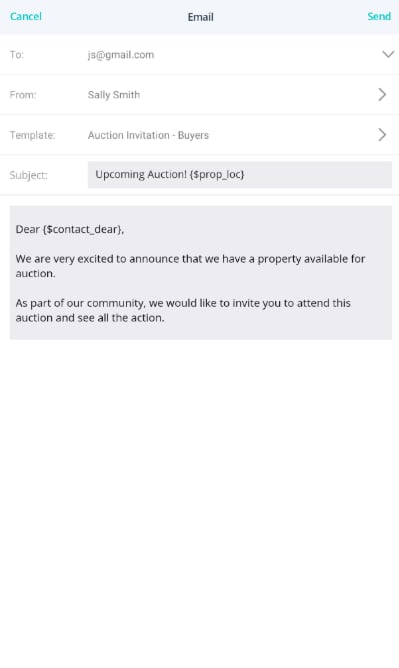
- Tap Template to select your Template or type your subject and email message.
Note: Email Templates will need to be create in the CRM.
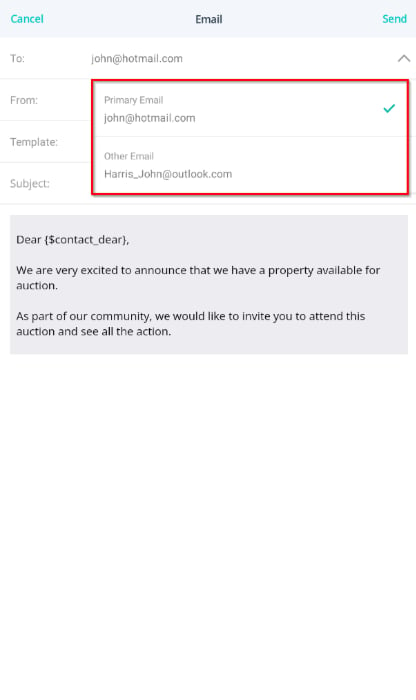
- Tap Send From and select who the Email should be sent from (subject to access permission).
When sending an individual email to a contact record, the primary email address will be selected by default. However, users will have the flexibility to choose an additional email address if applicable. Users will continue to be able to select to ‘send from’ another staff member (if permission permits) and select a template (optional).
- Tap Send.
Emailing Contracts/Documents
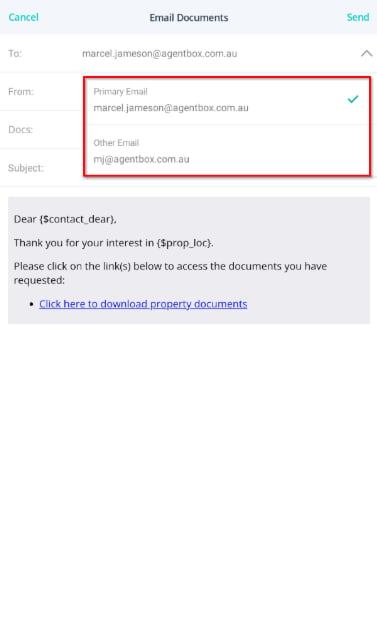
When sending a contract or document to a contact record, the primary email address will be selected by default. However, users will have the flexibility to choose an additional email address if applicable.
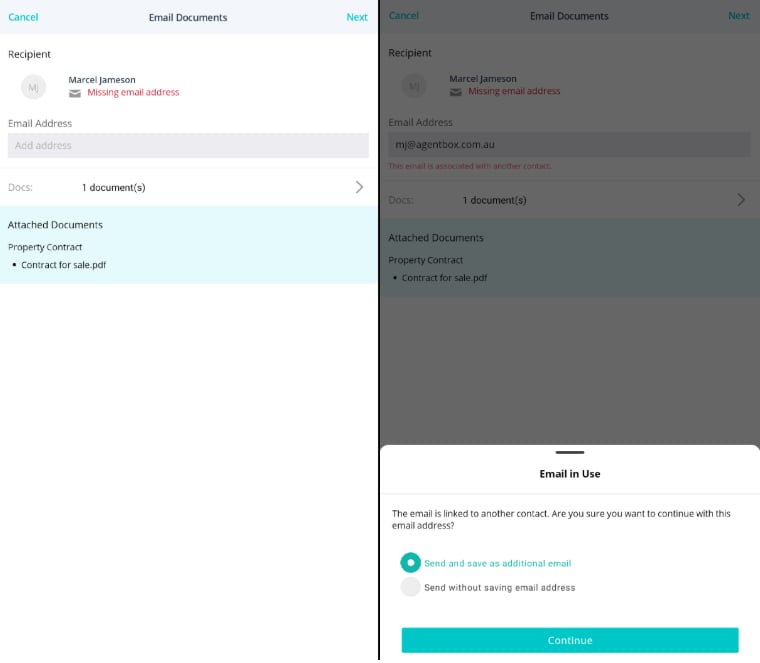
When sending a contract or document to a contact record where no email address exists, if the user provides an email address that matches an existing contact, users will now not only receive a prompt indicating that the email exists but will also have the option to save the provided email as an additional contact email address.
Note: A task will be created to remind the user to check the contact the next day and if required, merge the contacts. We have retained this to encourage users to continue to align with the single contact record philosophy.