'%20d='M0%208a8%208%200%200%201%208-8h24a8%208%200%200%201%208%208v24a8%208%200%200%201-8%208H8a8%208%200%200%201-8-8V8Z'/%3e%3cpath%20fill='%23fff'%20d='M10.41%206v3.779h15.048v19.537h4.132V6H10.41Z'/%3e%3cpath%20fill='%23fff'%20d='M20.967%2034V13.837L10.41%209.78v20.166L20.967%2034Z'/%3e%3cdefs%3e%3clinearGradient%20id='reapit-sales__a'%20x1='20.702'%20x2='20.702'%20y1='.351'%20y2='31.228'%20gradientUnits='userSpaceOnUse'%3e%3cstop%20stop-color='%235573FD'/%3e%3cstop%20offset='.575'%20stop-color='%234E56EA'/%3e%3c/linearGradient%3e%3c/defs%3e%3c/svg%3e)
Create Digital Media
This article will cover creating digital media in Reapit Sales.
Create Digital Media
This article will cover creating digital media in Reapit Sales.
- Search for your Property and open the property card.
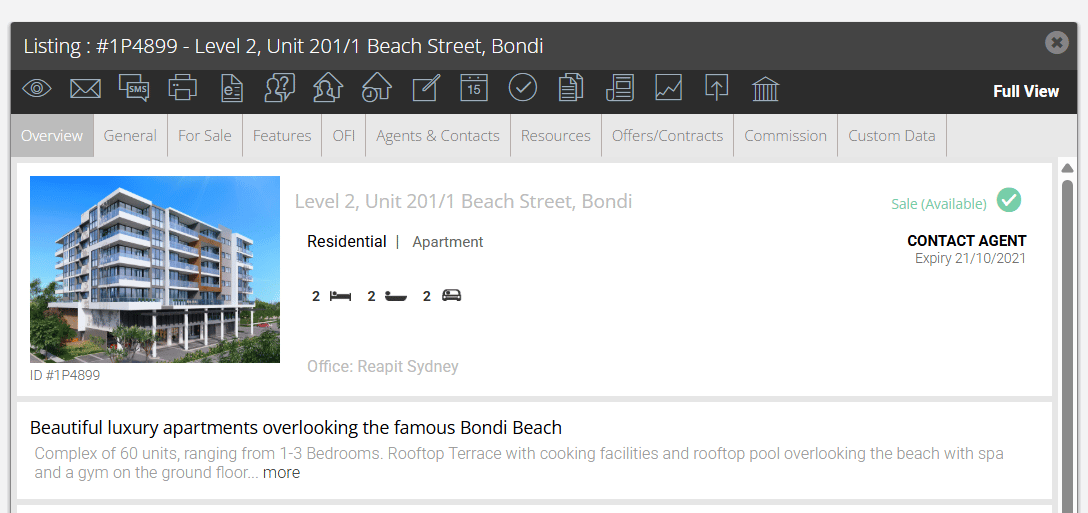
- Click the Create Media Action Icon
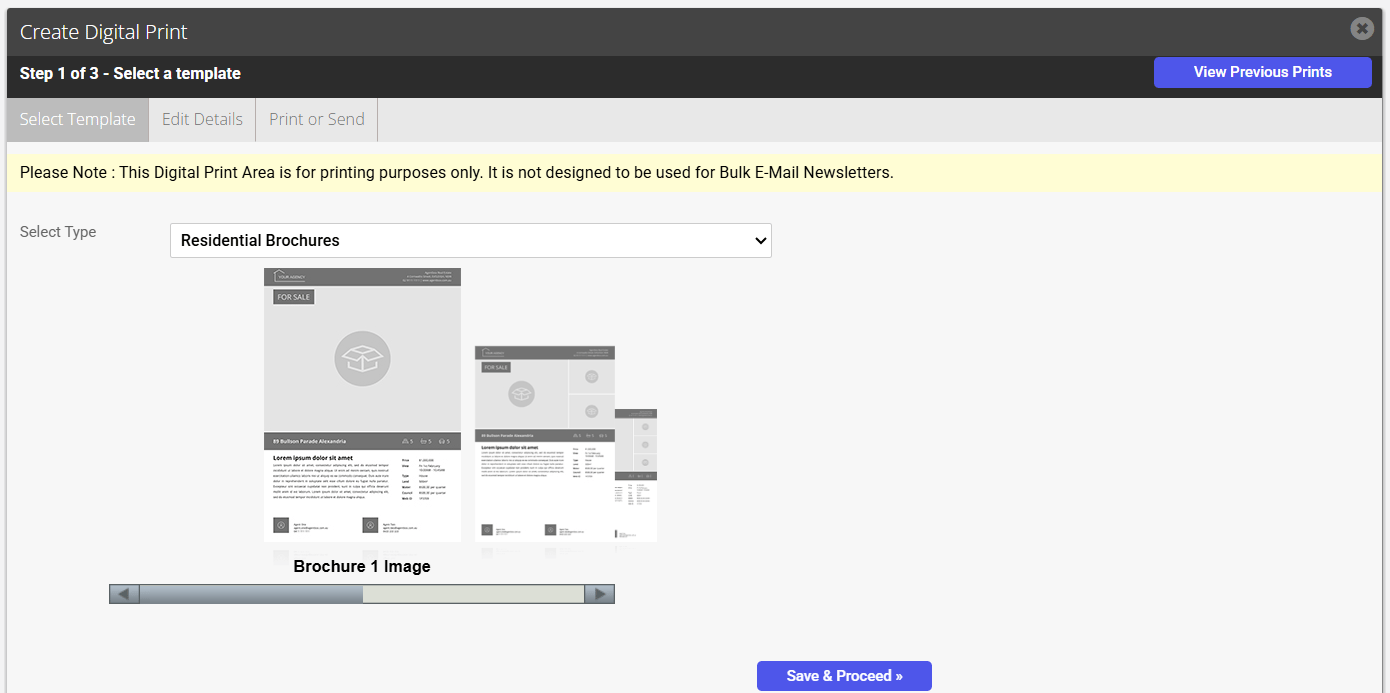
- Click the Select Type drop-down

In this example, we are using a Residential A4 Brochure
- Select Residential Brochures.
*Note: You can display the building and/ or land size on window cards and residential or commercial brochures.
- Click the required Template
- Click Save & Proceed
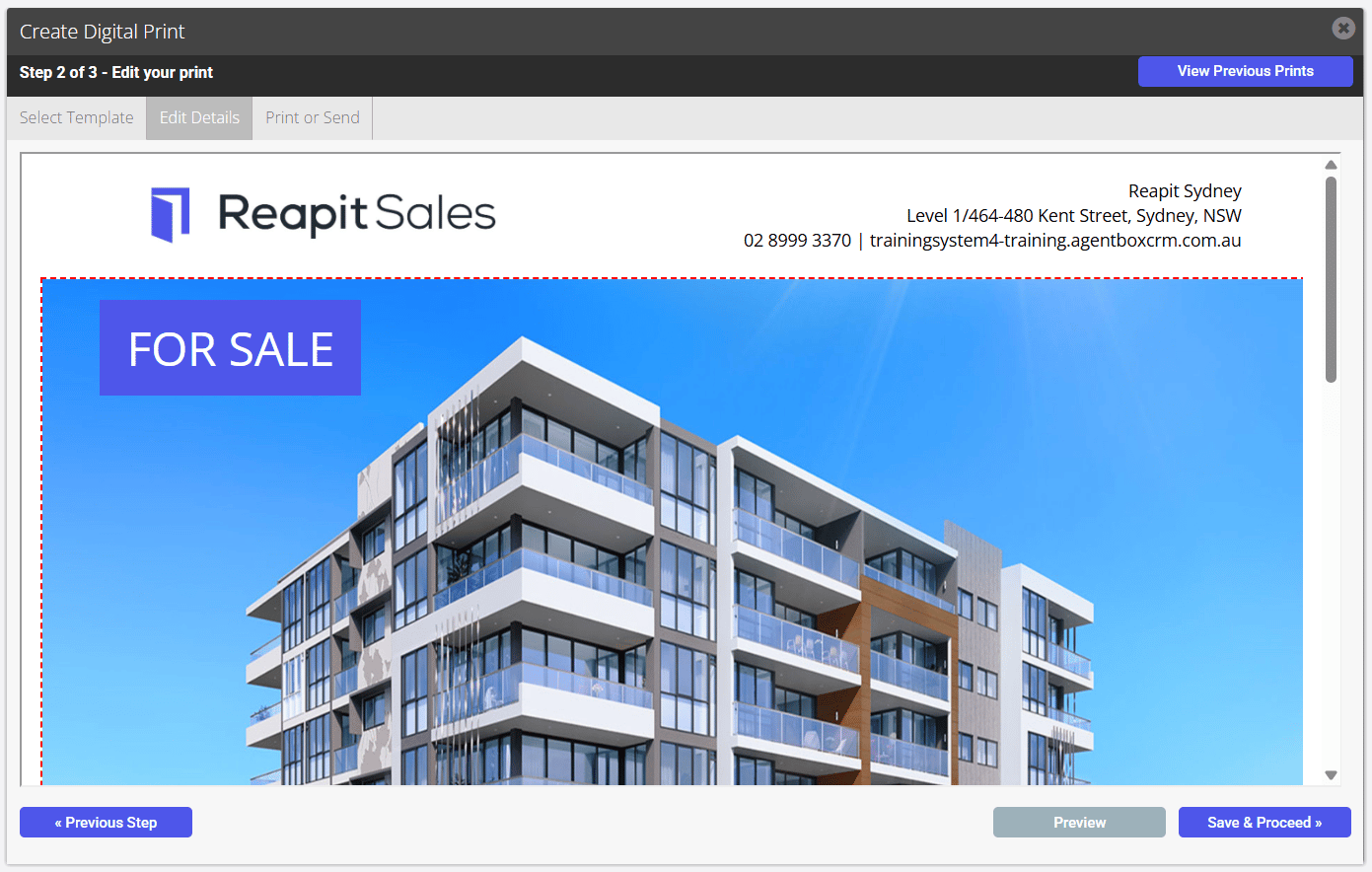
- Click Preview to view a preview of the final brochure
- When you are satisfied with the final brochure, click Save & Proceed
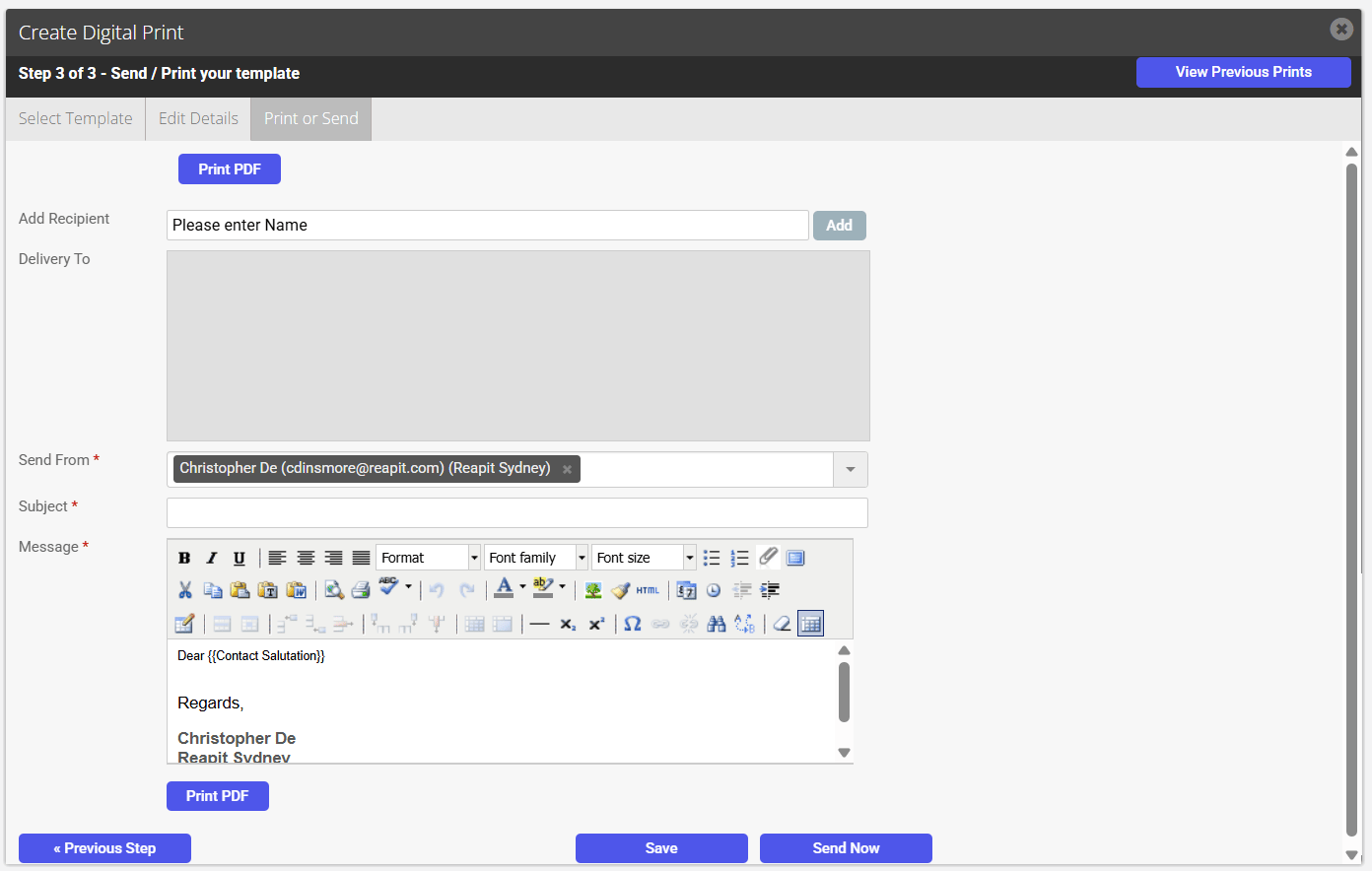
- Either
Click Print PDF to generate a hi-resolution PDF brochure
Click Save
Or to email the Brochure *Note: This will send an email with the Brochure or Window card as an attachment.
Enter Recipient and click on their name
Click Add
Enter a Subject
Enter a Message
Click Send Now
How do I alter the Headline and Description of a Brochure for a Property in Reapit Sales?
- Click the headline or description highlighted by a red dashed border to edit the section
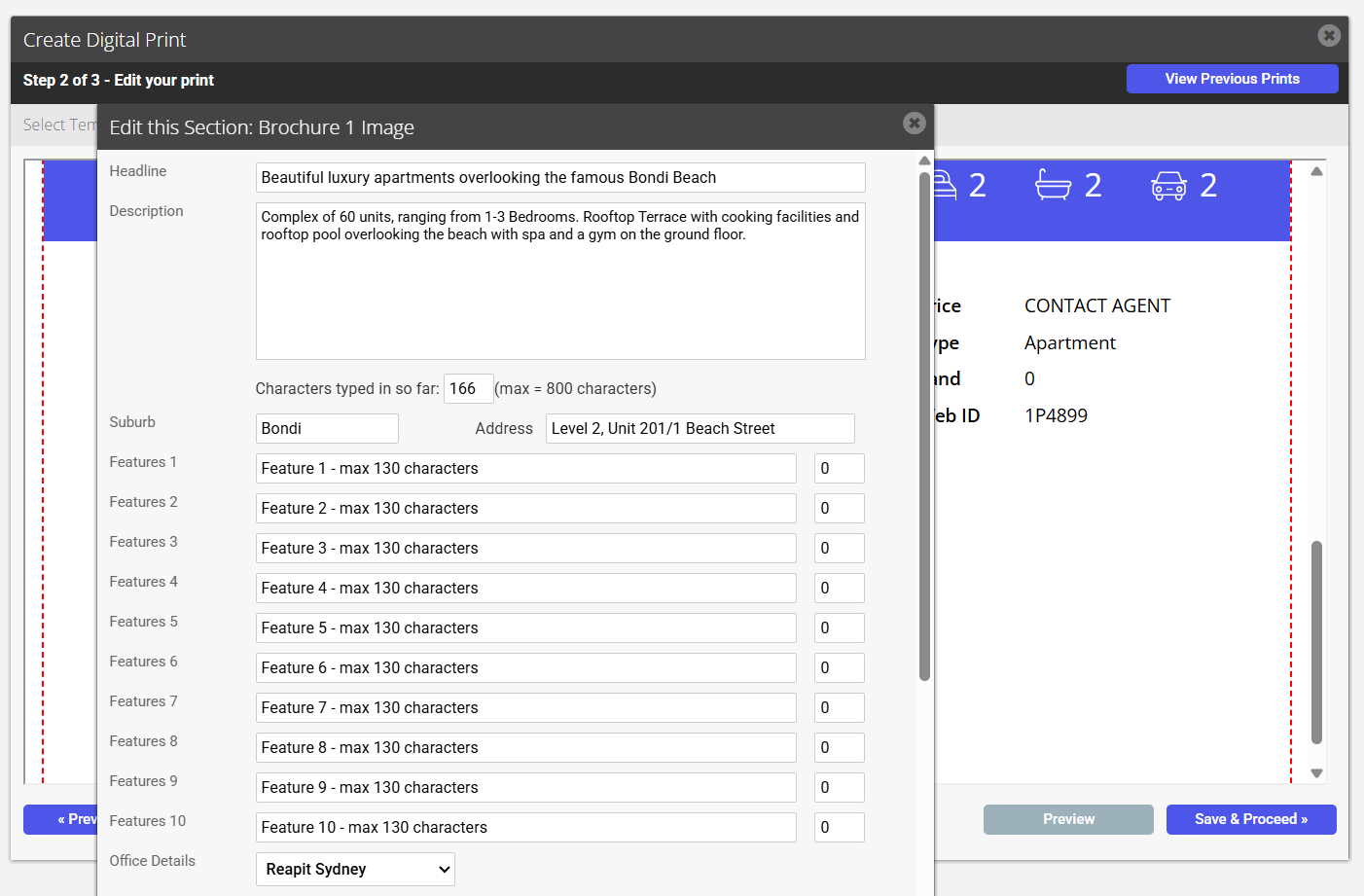
- Edit Heading and Description
- Click Save
How do I alter the Photo in my Brochure for a Property in Agentbox?
- Click the photo in the brochure highlighted by a red dashed border
- Select the Photo you wish to use
- Click Save
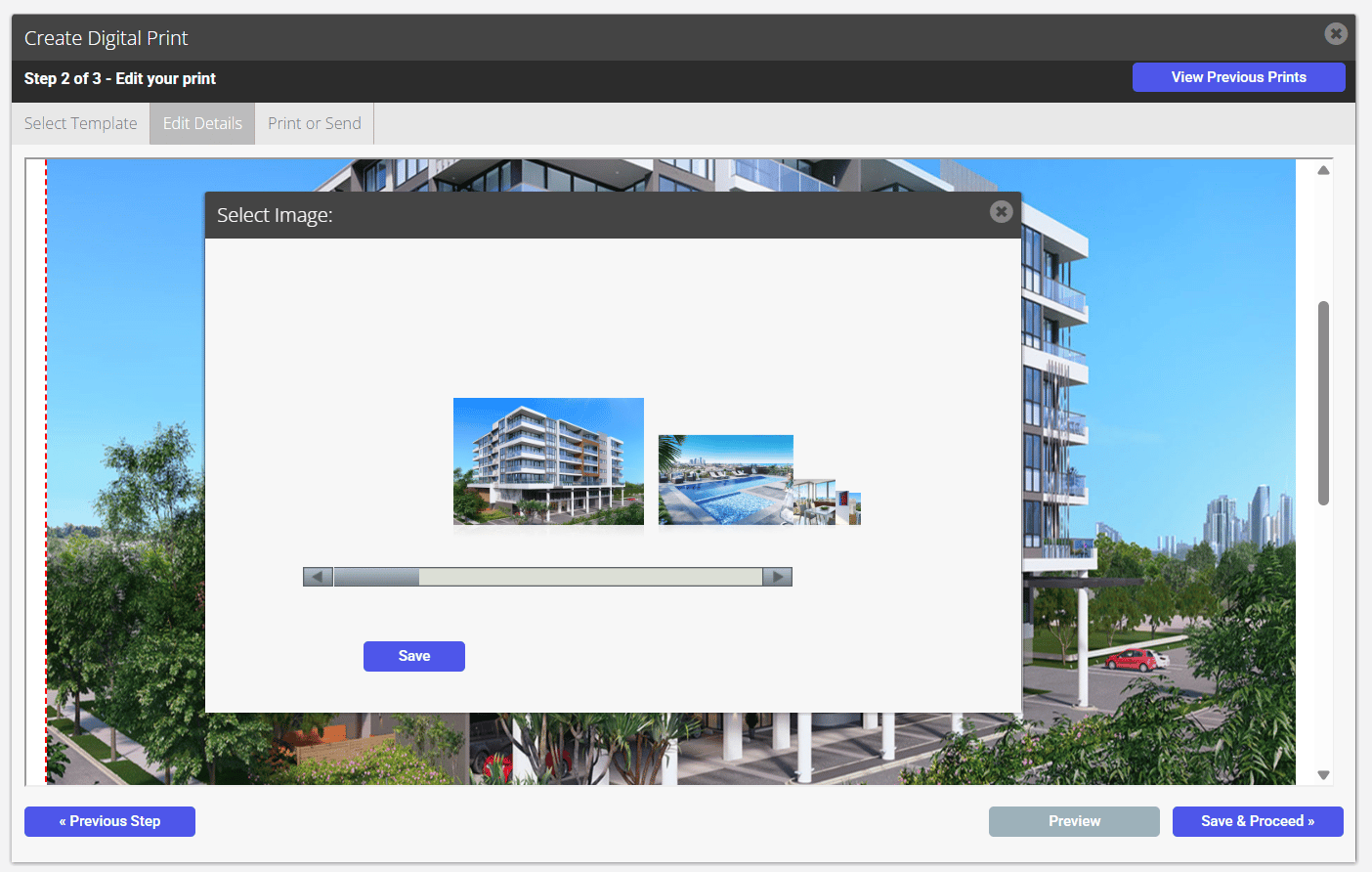
- The new Photo will appear on Brochure
Window Cards
- From the drop-down, select Residential Window Cards.
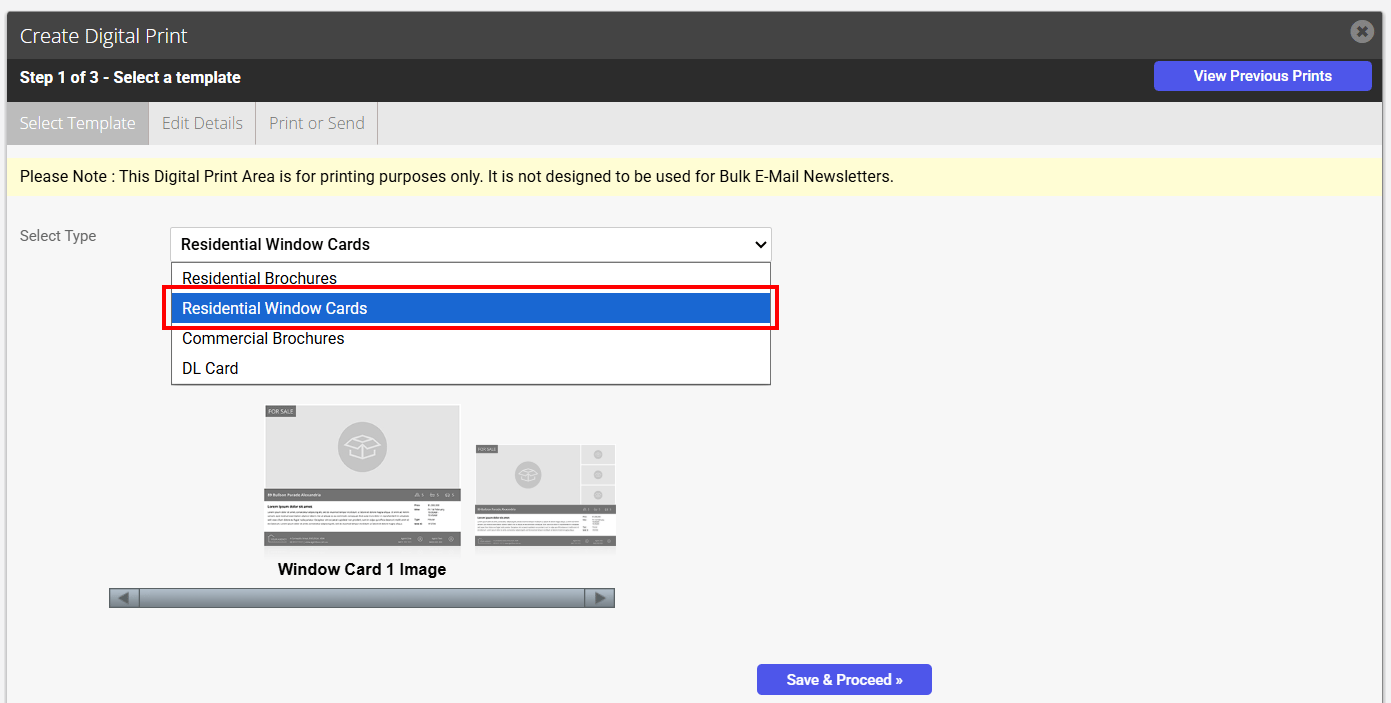
- Select Template and click Save & Proceed.
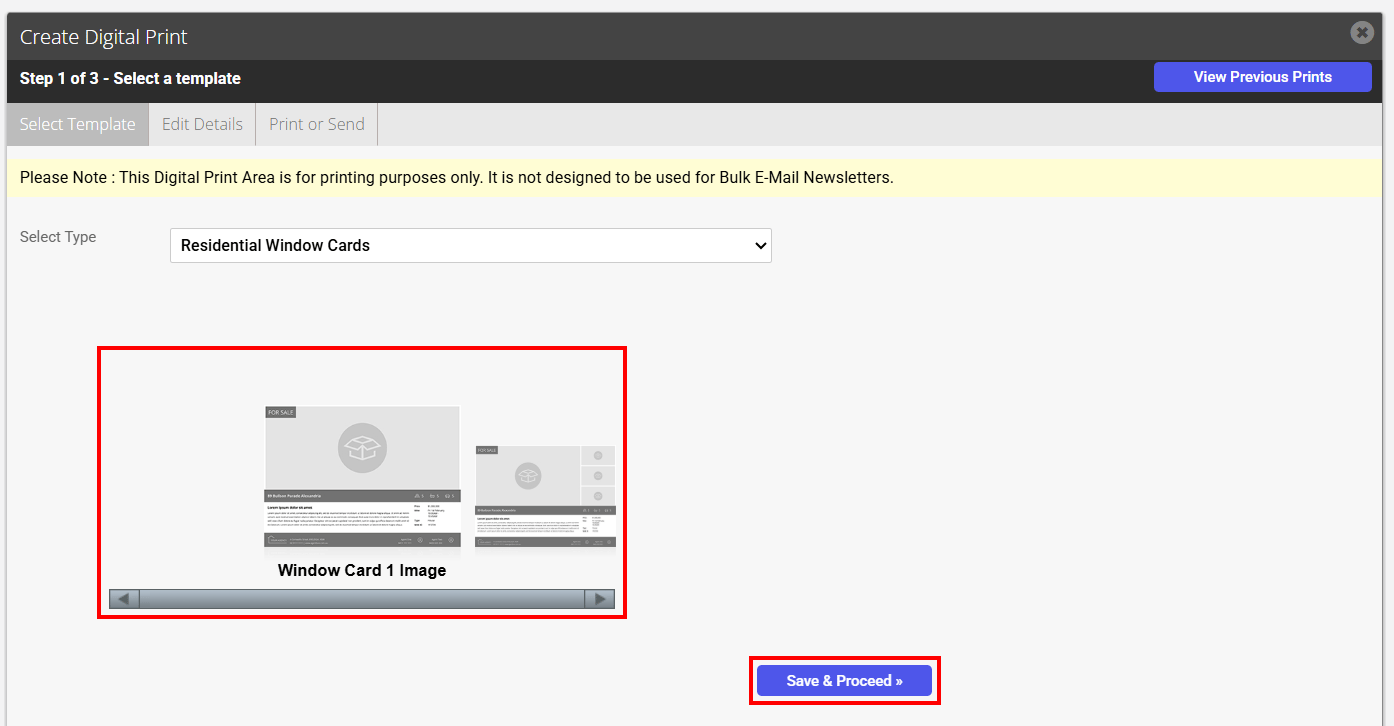
- Edit and amend content within the broken red lines.