'%20d='M0%208a8%208%200%200%201%208-8h24a8%208%200%200%201%208%208v24a8%208%200%200%201-8%208H8a8%208%200%200%201-8-8V8Z'/%3e%3cpath%20fill='%23fff'%20d='M10.41%206v3.779h15.048v19.537h4.132V6H10.41Z'/%3e%3cpath%20fill='%23fff'%20d='M20.967%2034V13.837L10.41%209.78v20.166L20.967%2034Z'/%3e%3cdefs%3e%3clinearGradient%20id='reapit-sales__a'%20x1='20.702'%20x2='20.702'%20y1='.351'%20y2='31.228'%20gradientUnits='userSpaceOnUse'%3e%3cstop%20stop-color='%235573FD'/%3e%3cstop%20offset='.575'%20stop-color='%234E56EA'/%3e%3c/linearGradient%3e%3c/defs%3e%3c/svg%3e)
Add Related Property
This article runs through how to add related property in Reapit Sales.
Add Related Property
This article runs through how to add related property in Reapit Sales.
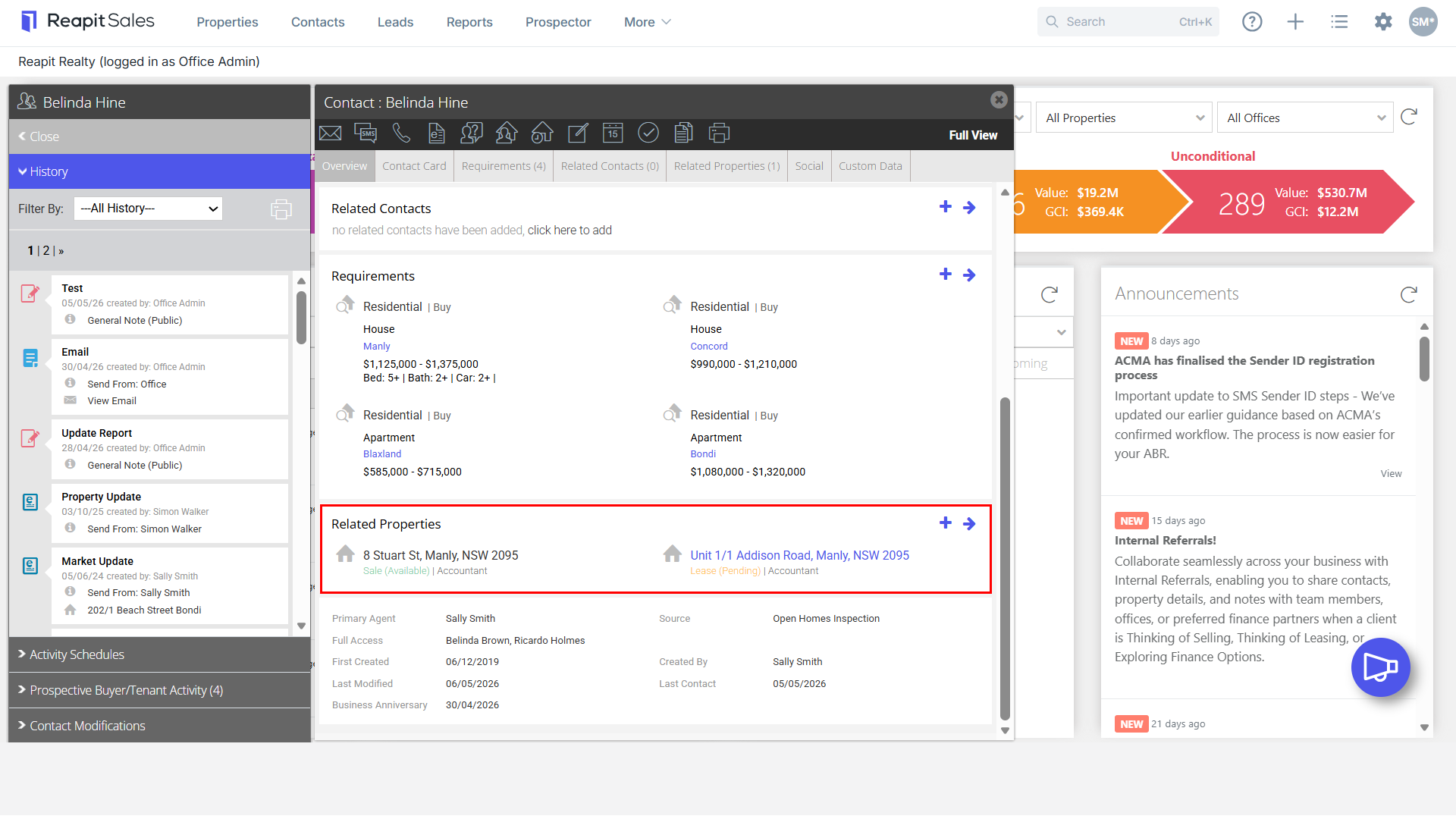
A related property is a property that the contact has a relationship with but may or may not reside in. For example, if Belinda Hine lives at Manly, NSW 2095, then you would put this as her residential address on the Contact Card. If she also owns this property or perhaps owns an investment property at another address, then this will be created as a related property. You do not have to be appraising or listing the property to create the address as a related property. You simply create the address as a prospect record. You can also create it directly as an appraisal which will also automatically create the prospect record or you can choose to attach them to a property that already exists in the database. You can ****Delete/Remove a Related Property via the property record.
Note: Related Properties ARE NOT listings that the contact has shown interest in as a buyer or tenant. To view those listings please refer to Buyer/Tenant Activity.
- Search for your Contact open their Contact Card.
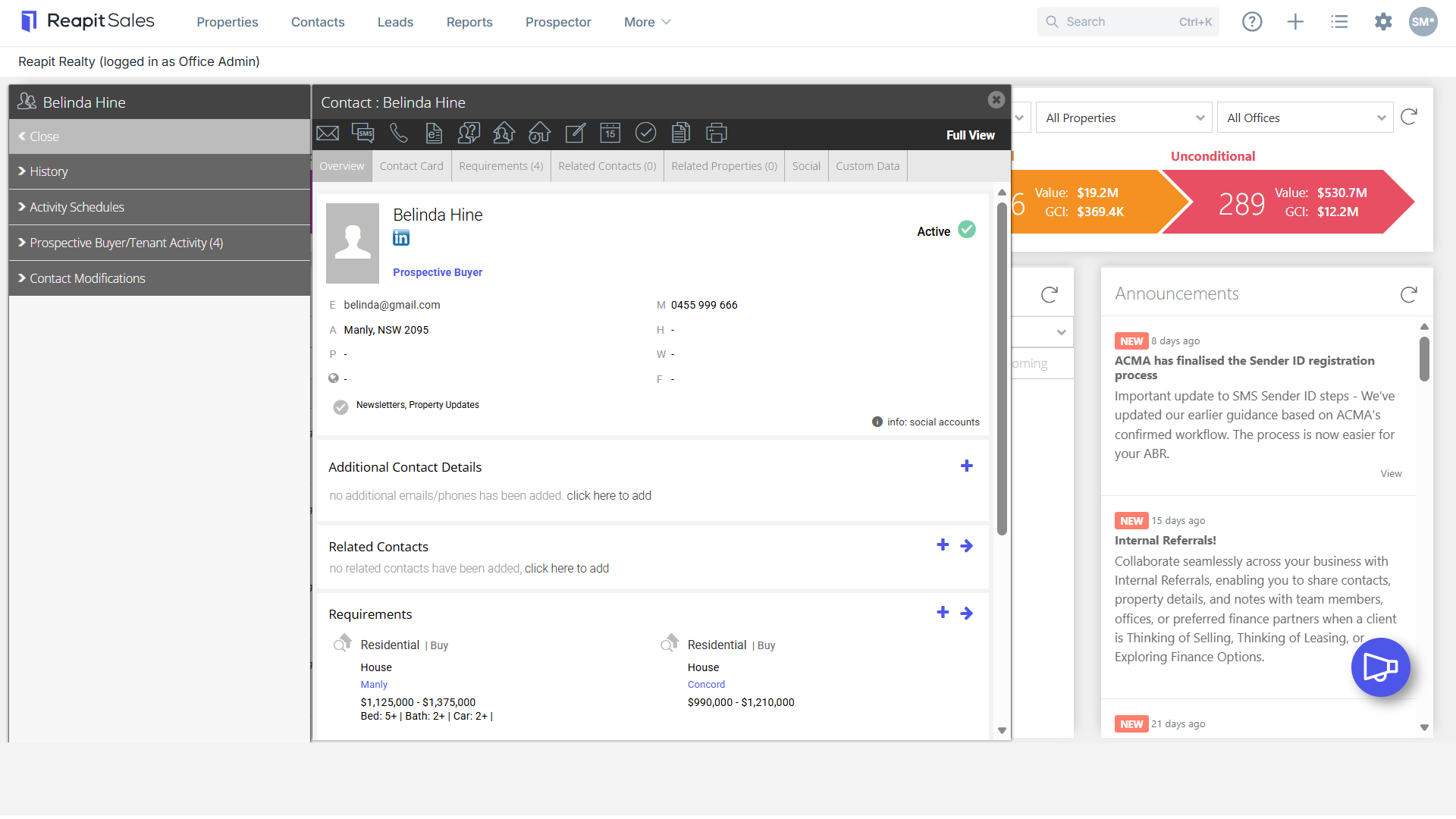
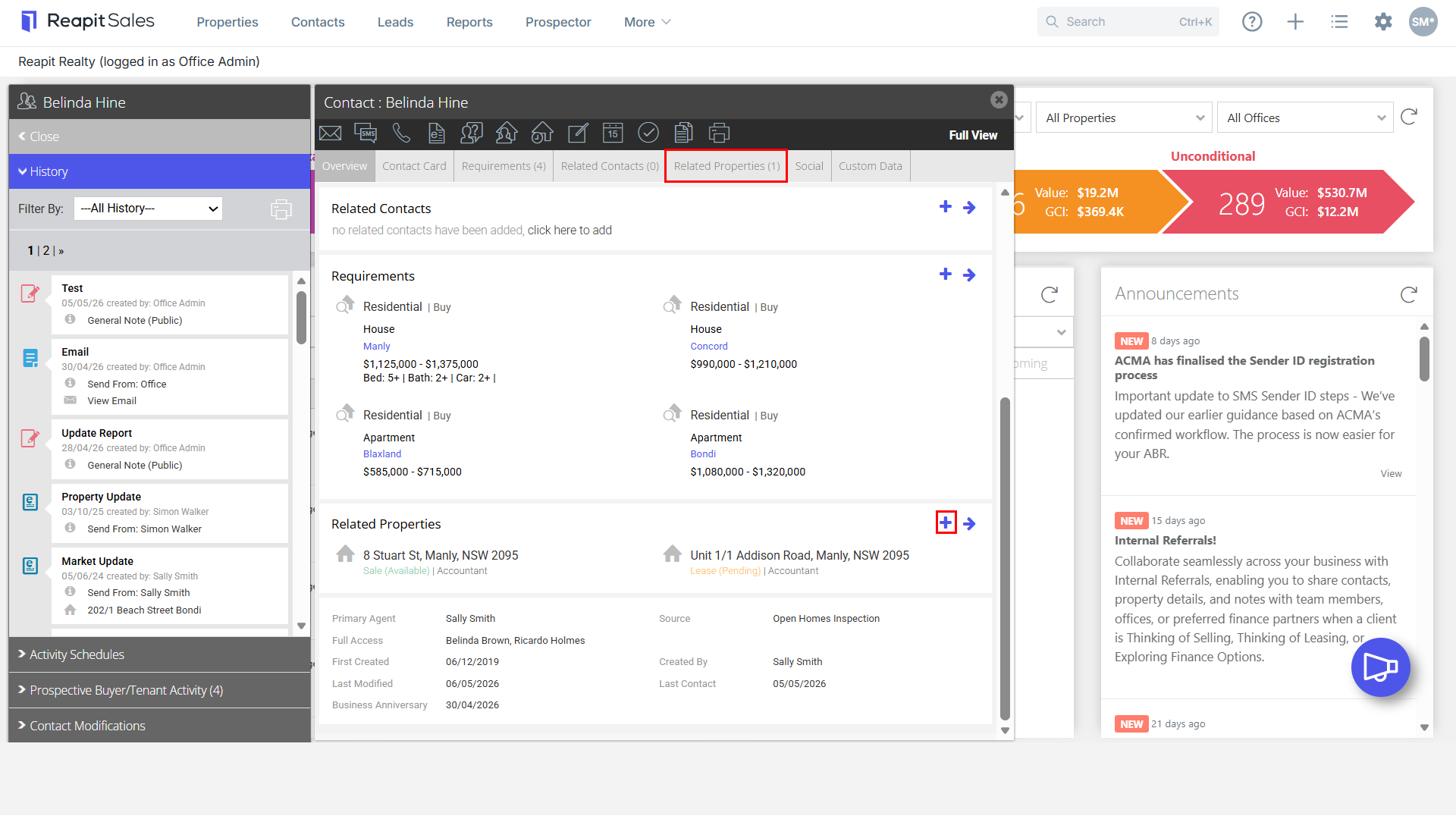
- Click the Quick Add icon
 on the Overview tab or open the Related Properties Tab and select Add Property.
- Select if you would like to Add a Prospect Property, Add an Appraisal or link the contact to an Existing Property in your database.

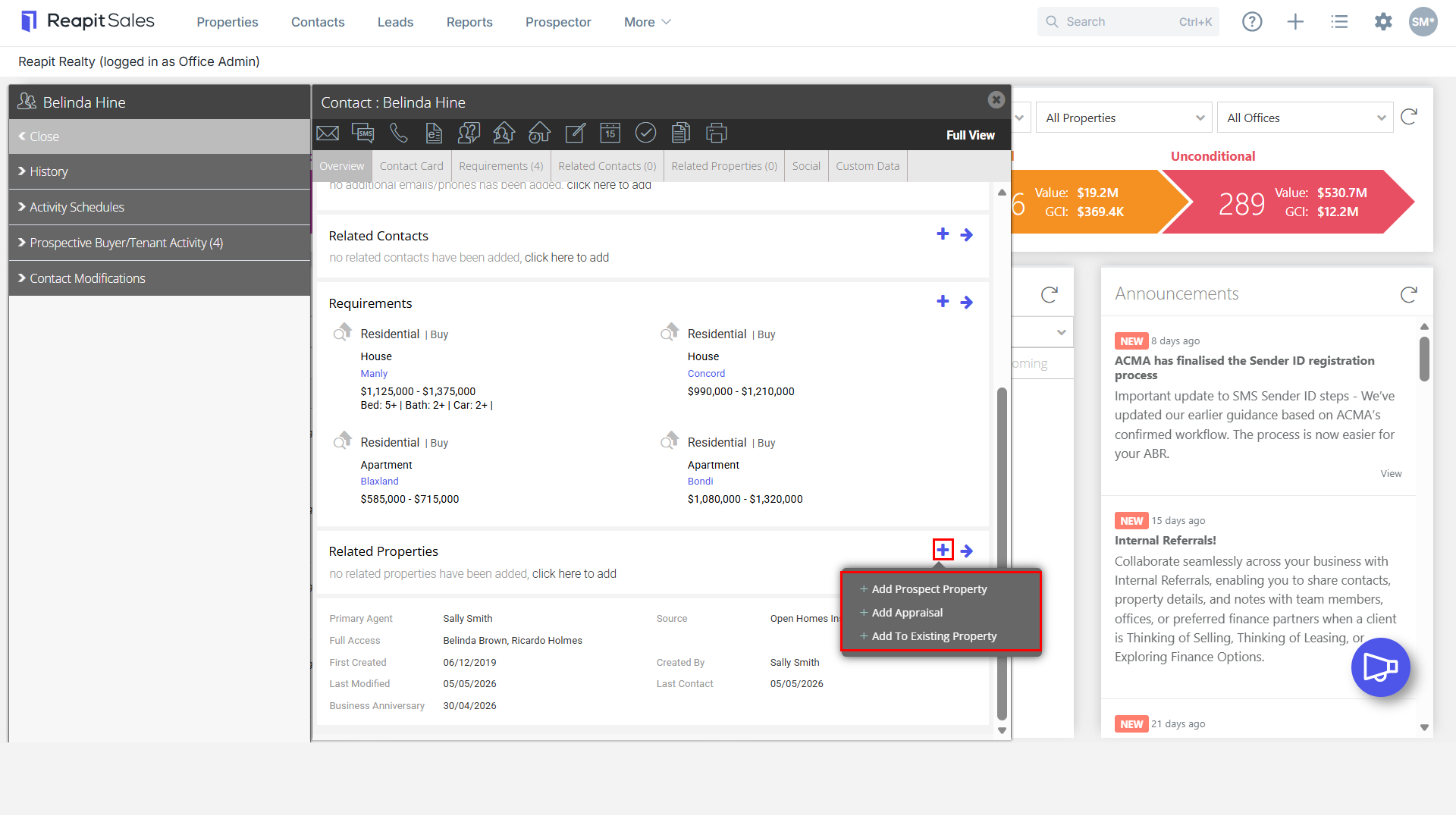
Add Prospect Property
- Select if you would like to create a Prospect Property using the contacts residential address or by entering a new address
- Click Save
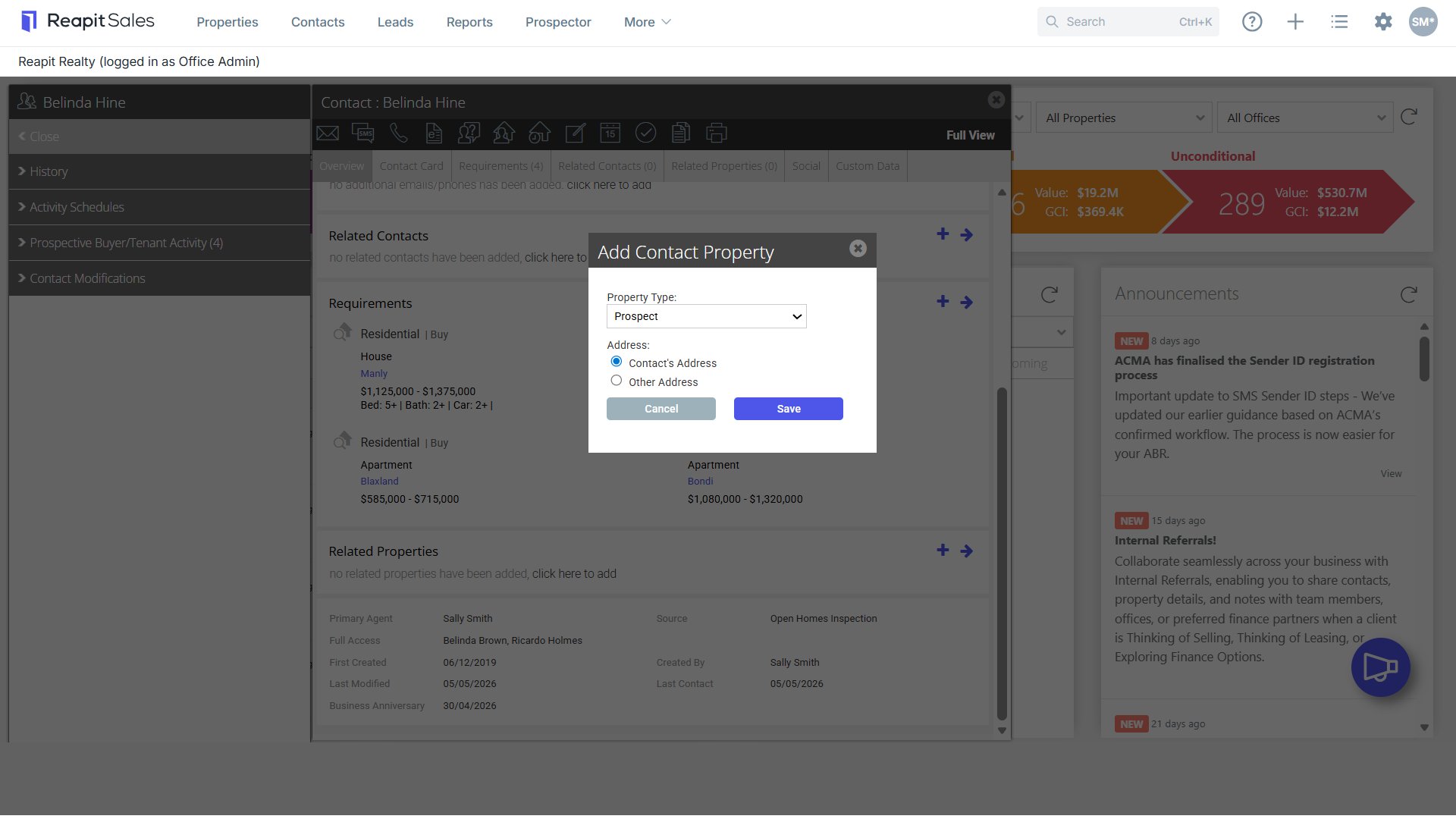

Add Appraisal Property
- Select if you would like to create a new appraisal or create from existing Prospect record
- If New, select if you would like to create the appraisal using the contacts residential address or by entering a new address
- Select if the Appraisal is For Sale or For Lease
- Click Save
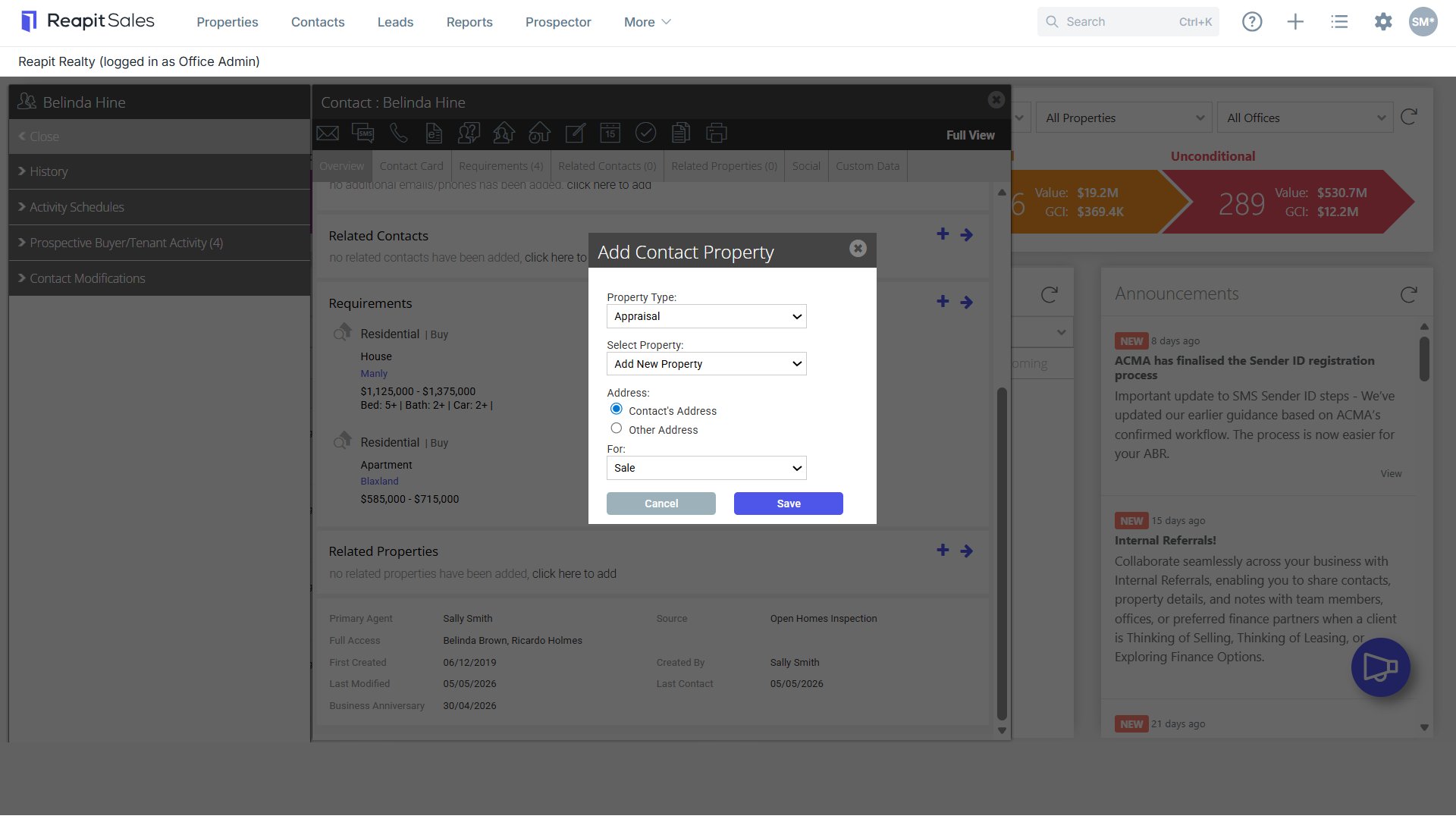
Add to Existing Property
- Select type of existing property
- Enter the property address in the Select Property:* search box then select the property you would like to relate from the results drop-down
- Select how the contact is related to that property in the Role drop-down e.g. Vendor
- Click Save

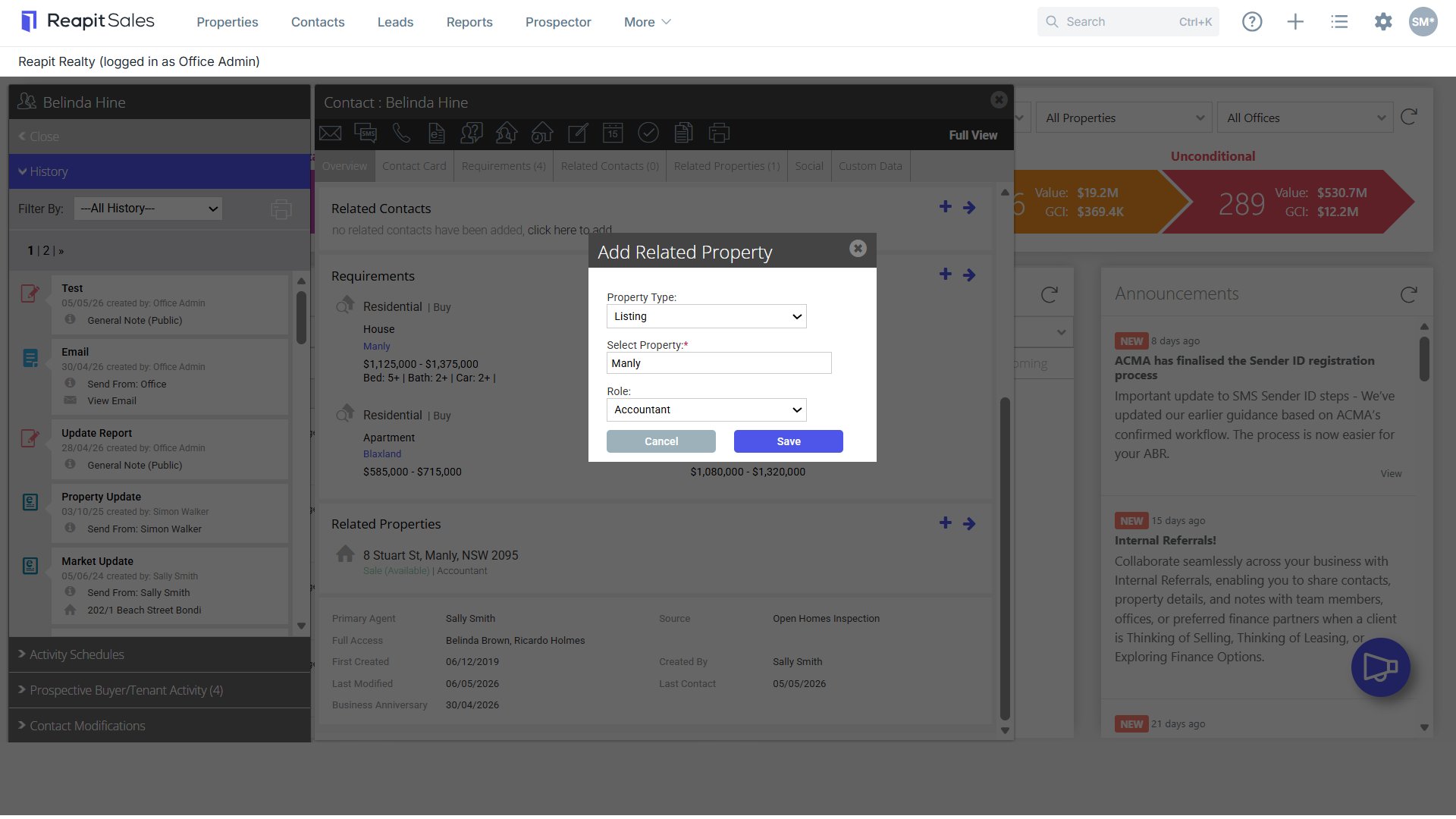
- The property will now appear in the Related Properties tab of the Contact Card, and the Contact will appear on the Agents & Contacts tab of the Property Card.