'%20d='M0%208a8%208%200%200%201%208-8h24a8%208%200%200%201%208%208v24a8%208%200%200%201-8%208H8a8%208%200%200%201-8-8V8Z'/%3e%3cpath%20fill='%23fff'%20d='M10.41%206v3.779h15.048v19.537h4.132V6H10.41Z'/%3e%3cpath%20fill='%23fff'%20d='M20.967%2034V13.837L10.41%209.78v20.166L20.967%2034Z'/%3e%3cdefs%3e%3clinearGradient%20id='reapit-sales__a'%20x1='20.702'%20x2='20.702'%20y1='.351'%20y2='31.228'%20gradientUnits='userSpaceOnUse'%3e%3cstop%20stop-color='%235573FD'/%3e%3cstop%20offset='.575'%20stop-color='%234E56EA'/%3e%3c/linearGradient%3e%3c/defs%3e%3c/svg%3e)
Create an E-Newsletter
This article explains how to create an e-Newsletter in Reapit Sales.
Create an E-Newsletter
This article explains how to create an e-Newsletter in Reapit Sales.
Note: You may send an E-Newsletter to a single contact or to a list of contacts (provided they are subscribed to receive E-Newsletters). To do this you can go through the Property Card, Contact Card, or following an Advanced Contact Search or an Advanced Property Search. To generate an E-Newsletter, follow the steps below.
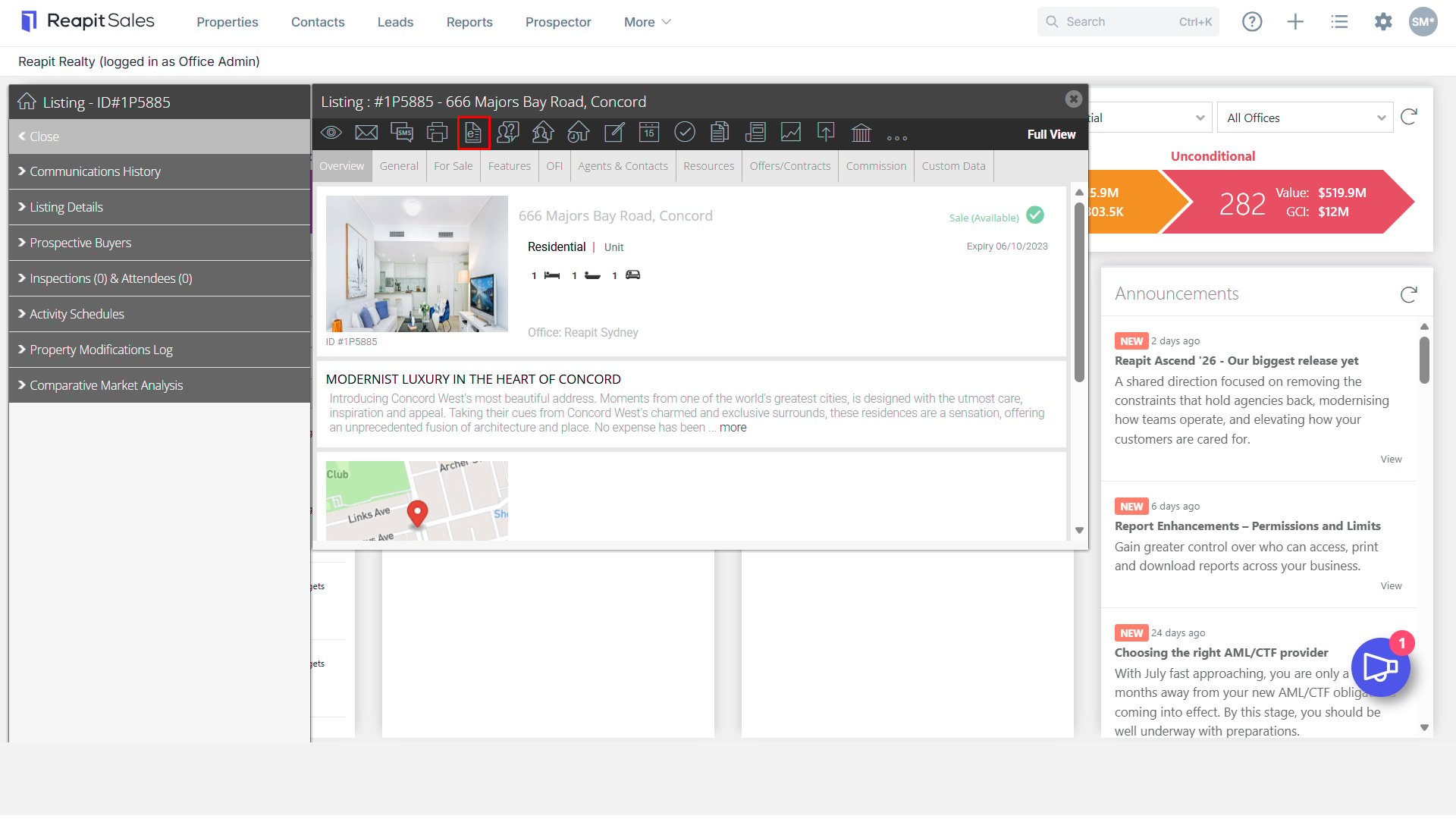
- Click the E-Newsletter Action icon.

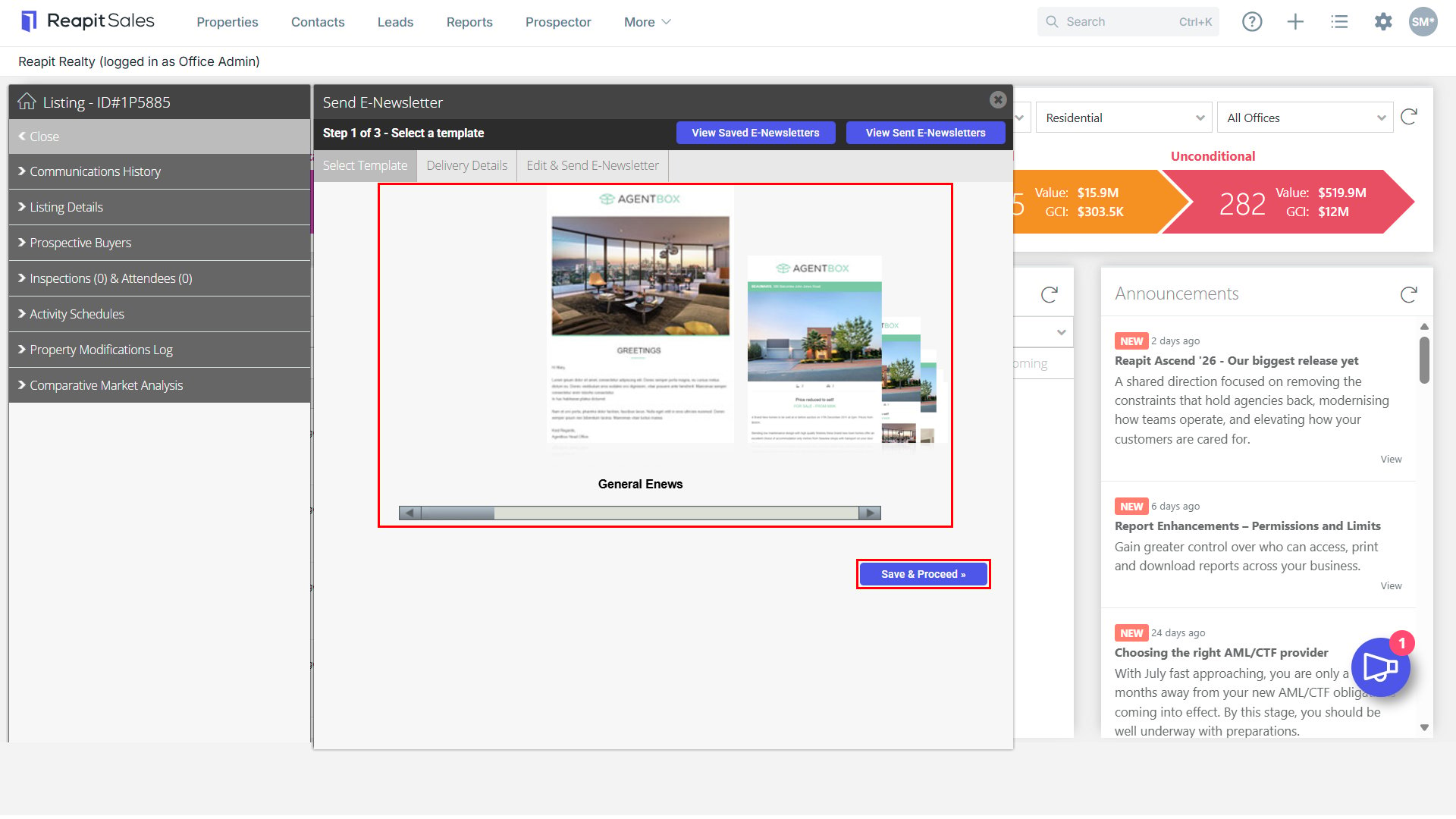
- Select a Template and click Save & Proceed
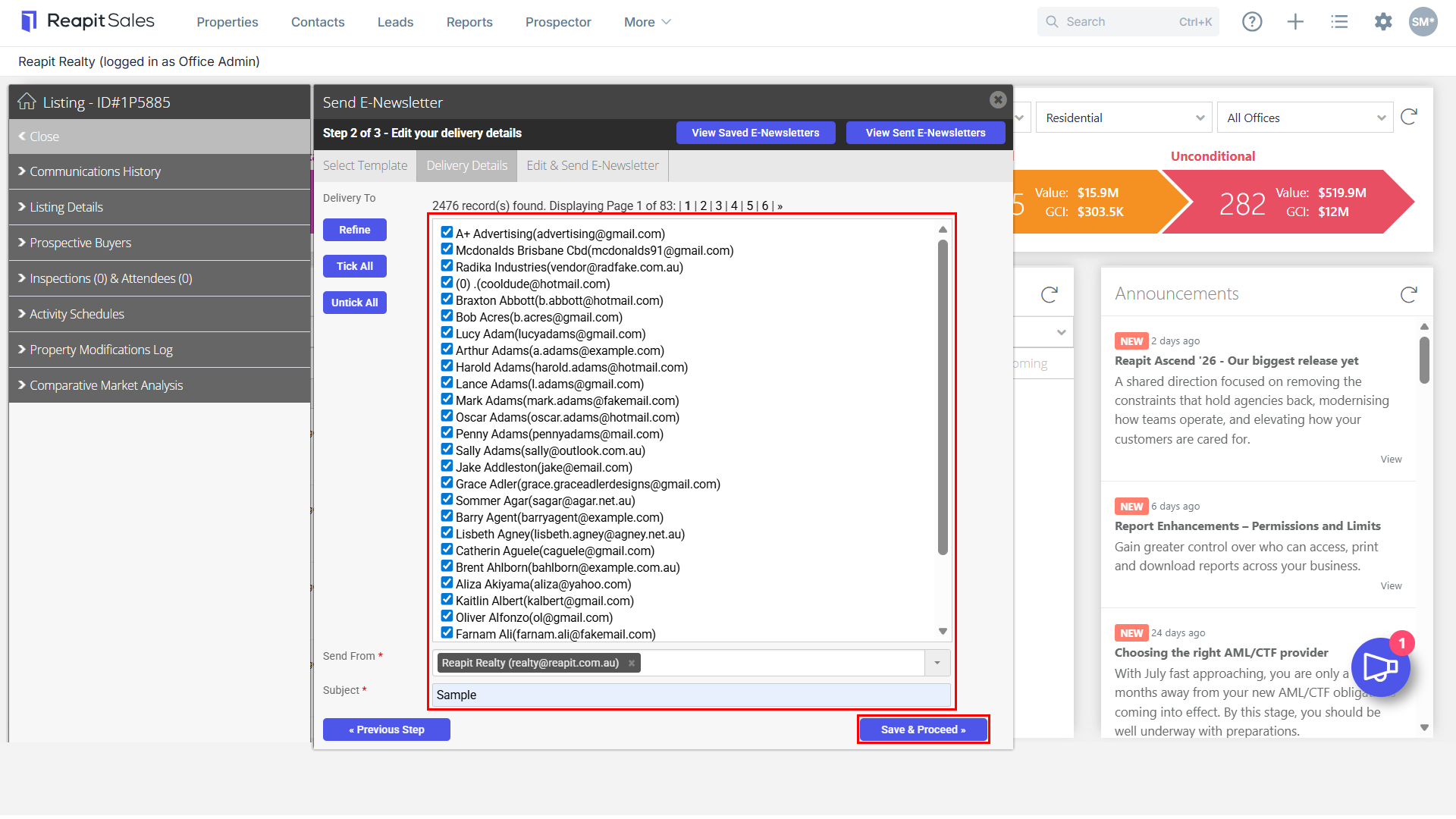
- Refine the recipients' list (not available if sending direct to a single contact via their contact card).
- Select who the E-Newsletter will be sent from (Regular Users can create and send E-Newsletters on behalf of anyone else in their Team, Master users can send on behalf of the office, any agent, or from each recipient's Primary Owner).
- Enter the E-Newsletter Subject.
- Add Sections ****by selecting from the Add Section drop-down menu and clicking Add, to Edit/Remove a section click inside the red dotted lines and an edit box will open
Note: The Add Section feature is available on select templates only e.g. General E-Newsletter templates.
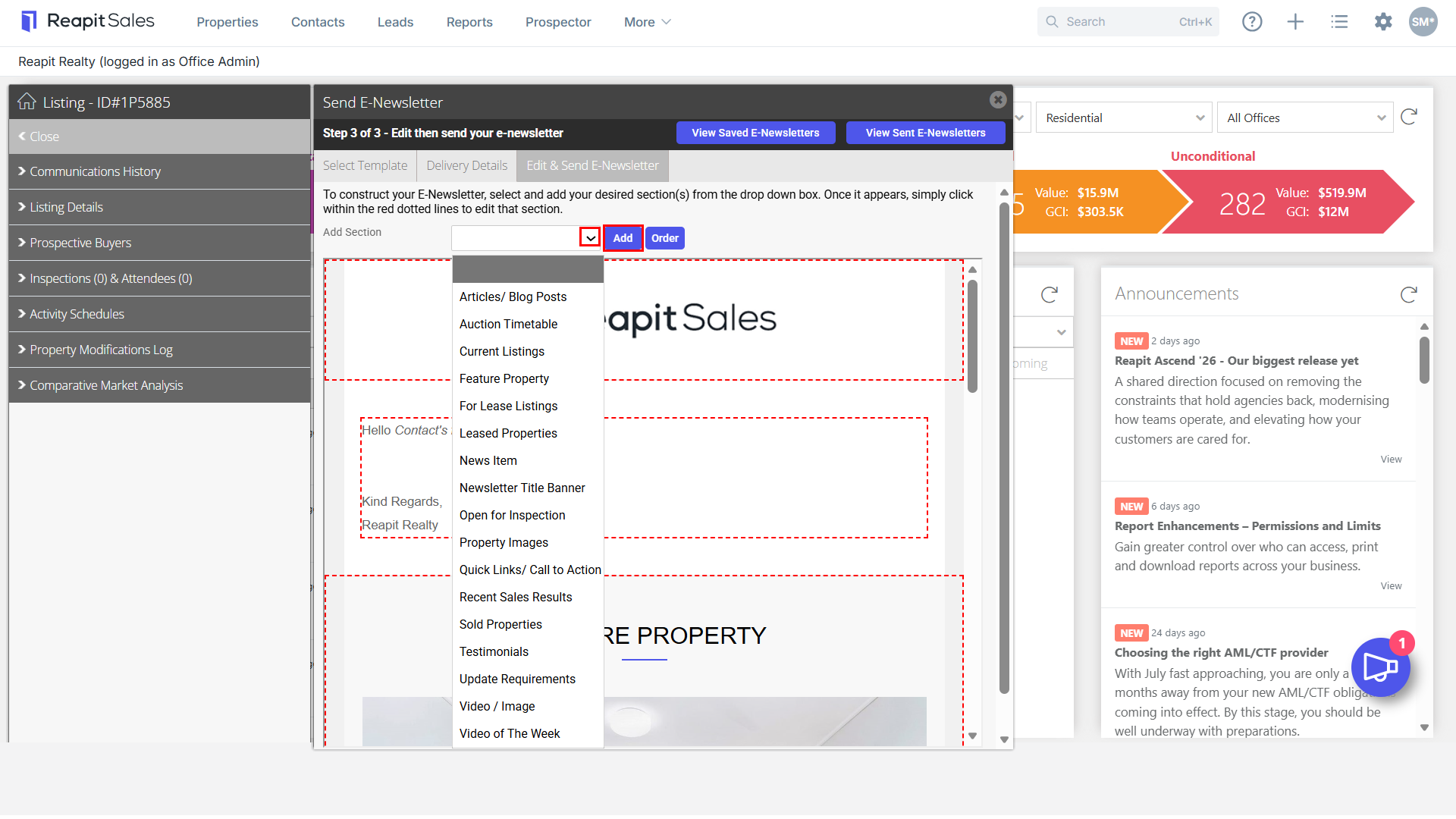
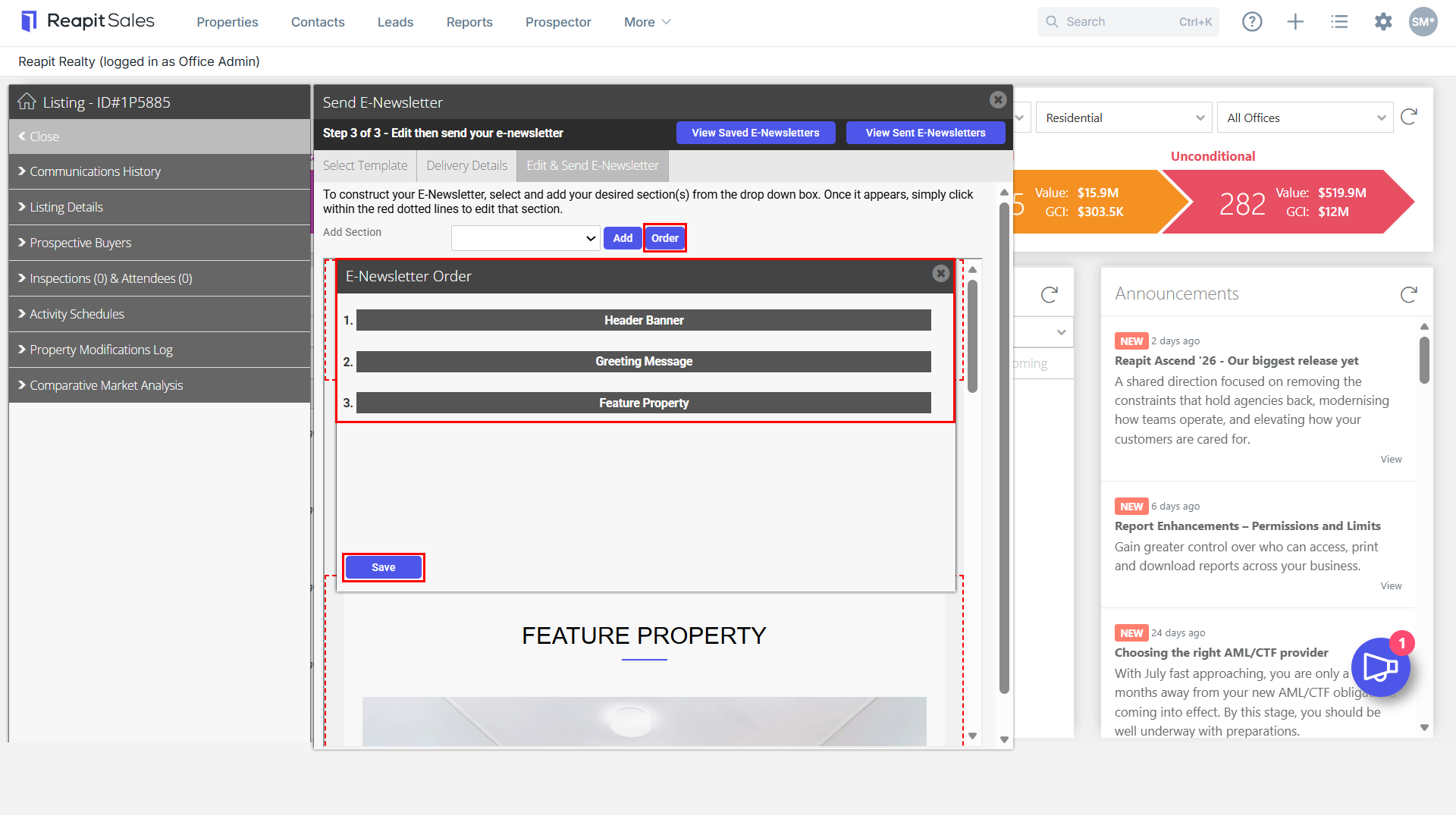
- The sections will be inserted in the order you add them, however, you may reorder the sections by clicking on the Order button.
- Click and drag sections into the required order and click Save.
Note:
- If you create an e-newsletter via a property or advanced property search the saved/sent e-newsletter can only be accessed from other properties or property searches.
- If you create an e-newsletter via contact or advanced contact search the saved/sent e-newsletter can only be accessed from other contacts or contact searches.
- You are able to Send for Testing if you wish to send a copy to yourself to check the format or you can press Preview.
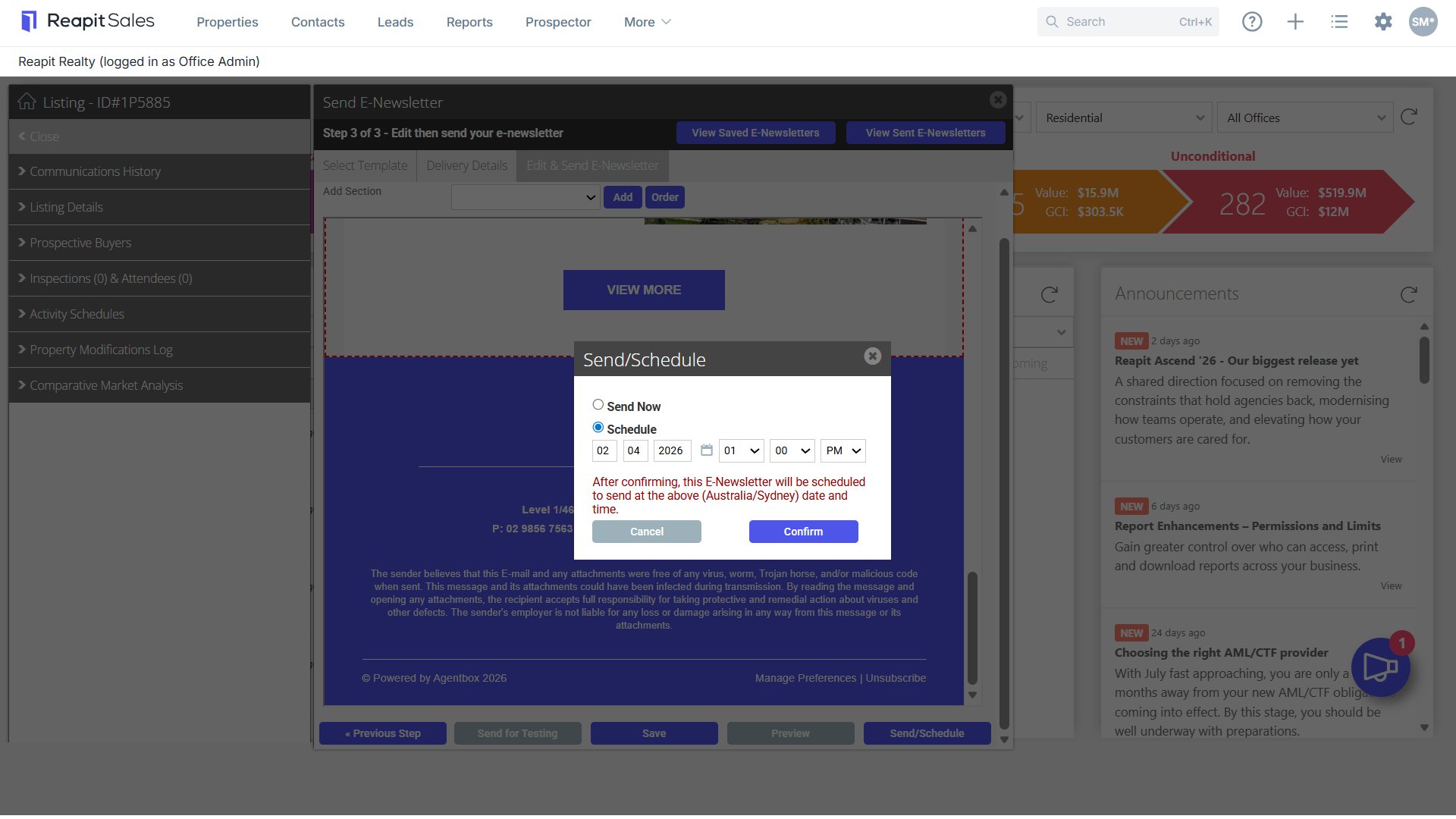
Press Send/Schedule when it is ready to be sent to Prospective buyers/tenants.
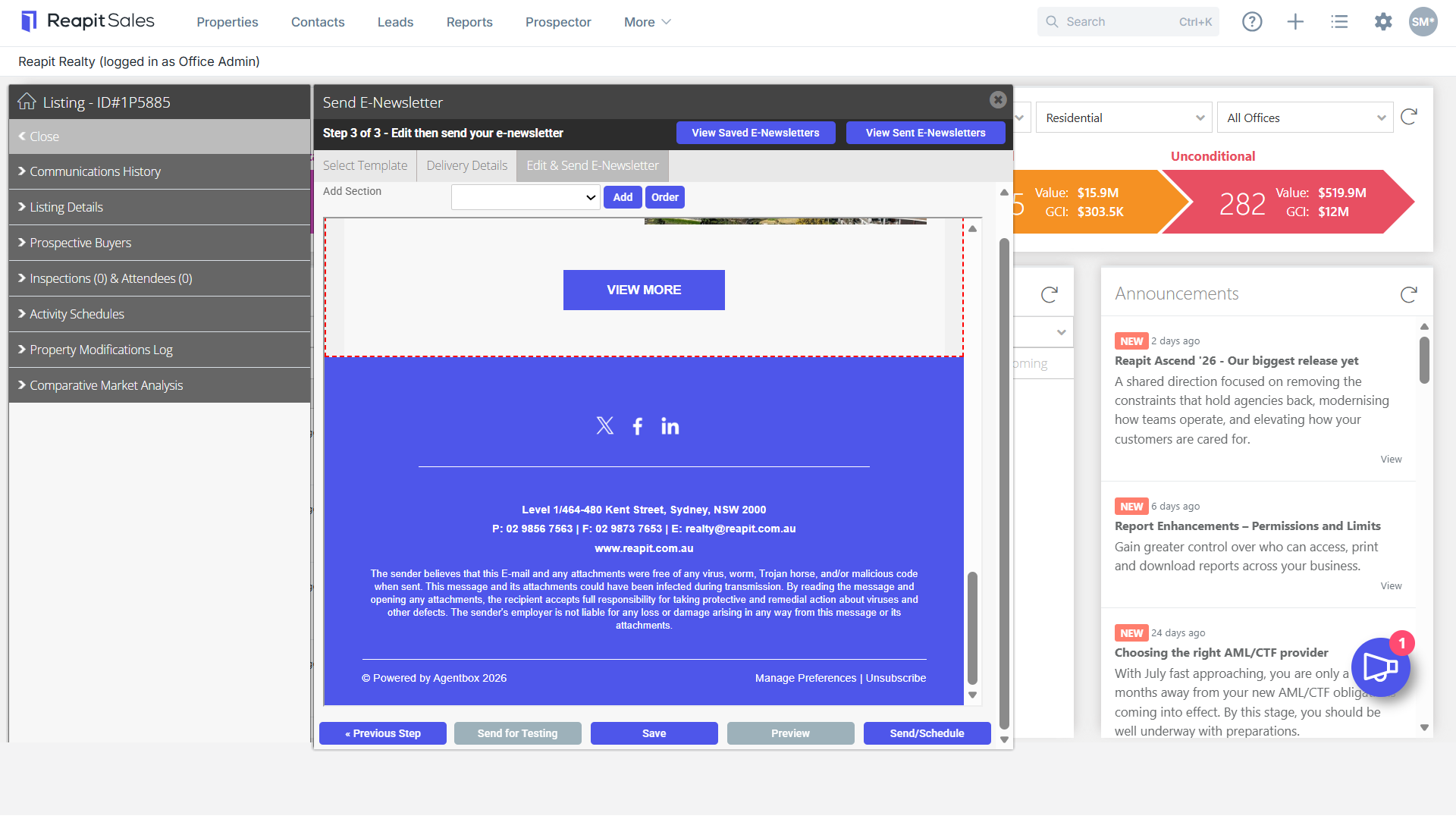
- You can either decide to Send now which will send immediately or, you are able to Schedule a time for the E-Newsletter to be sent.
Once you select Confirm, E-Newsletter will send to selected contacts.